---
title: "Constant"
url: "https://help.maxon.net/ag/en-us/Content/html/Generator_constant.html"
section_path: "Generators > Image > Constant"
description: "The Constant Image Generator fills an area with a single color. By default it fills everything, which makes it the simplest way to create a solid …"
---
# Constant
The *Constant* [Image Generator](https://help.maxon.net/ag/en-us/Content/html/Category_Generators_Image.html.md) fills an area with a single color. By default it fills everything, which makes it the simplest way to create a solid background. Give it a format, and it becomes a rectangle that you can turn into a frame, round at the corners, soften or invert, procedurally and at any resolution.
Use it for:
- Solid backgrounds and color plates
- Rectangles, bars, frames and rounded boxes
- Vignettes and soft-edged rectangular [masks](https://help.maxon.net/ag/en-us/Content/html/Source_and_mask.html.md)
- Rectangular gradients that follow the shape, with the *Distance Field* mode
**Quick Navigation**
- Creating and Connecting a Constant
- Solid Color or Rectangle: the Output Format
- Fill, Frame or Gradient: the Edge Mode
- Keeping Proportions with the Size Scaled Modes
- Rounded Corners
- Soft Edges with Feather
- Creating a Vignette
- Motion Blur
- Controls
---
## Creating and Connecting a Constant
Like any Image Generator, the *Constant* can be connected to any image parameter, for example:
- The [Source](https://help.maxon.net/ag/en-us/Content/html/Source_and_mask.html.md) of a layer, to display the color or the rectangle itself
- The [Mask](https://help.maxon.net/ag/en-us/Content/html/Source_and_mask.html.md) of a layer, to reveal that layer through a rectangle, a rounded box or a soft frame
- The image input of a [Modifier](https://help.maxon.net/ag/en-us/Content/html/Generators_modifiers.html.md), for example to use the rectangle as a matte
The quickest way to create a layer with a *Constant* as its source is described in [Adding Layers](https://help.maxon.net/ag/en-us/Content/html/Adding_Layers.html.md):
- Click the **+** button at the top of the layer stack and choose *Constant* from the list of Generators
- Place the mouse cursor over the *Viewer* and open the *Quick Access Menu*, then pick *Constant*:
- Press **Q** when no layer is selected
- Press **Shift+Q** when a layer is selected (in this case, **Q** opens the menu dedicated to *Modifiers*)
To use it with any other image parameter, such as a *Mask*, click the parameter's slot and choose *Constant* from the list of Generators on the right.
## Solid Color or Rectangle: the Output Format
Unlike the [Circle](https://help.maxon.net/ag/en-us/Content/html/Generator_Circle.html.md), the *Constant* has no size or position parameters of its own: its shape is its *Output Format*.
- **Unbounded** (the default): the color fills the whole, infinite canvas. Use it for solid backgrounds.
- **Composition Format**: a rectangle with the exact size of the composition.
- **Format Preset**: a rectangle with the size of the selected preset, such as *Square 512*, centered in the composition.
- **Custom Format**: a rectangle you define with the *Format* parameter, as its left, bottom, right and top edges, in pixels from the center of the composition.
> **Note:** In *Unbounded* mode, the *Constant* has no edges, so *Edge Mode*, *Roundness*, *Feather* and *Invert* have no visible effect. Choose one of the other formats to use them.
> **Tip:** To move, scale or rotate the rectangle, you can also use the layer's *Transform*, like any other layer. Use the *Format* rectangle when you want the shape itself to change, for example to keep a frame's thickness constant while it grows.
> **Note:** The way you define the *Color* of the rectangle depends on the composition. When its *Color Management* is turned off, there is only one way to define a color. When it is set to *OpenColorIO*, every color parameter gets an extra *Colorspace* option, which tells in which colorspace the color is expressed. See Colorspace.
## Fill, Frame or Gradient: the Edge Mode
The *Edge Mode* menu decides whether the rectangle is filled, drawn as a frame, or turned into a gradient. Figure 1 shows the four main modes; the two *Size Scaled* modes are frames, shown in Figure 2.
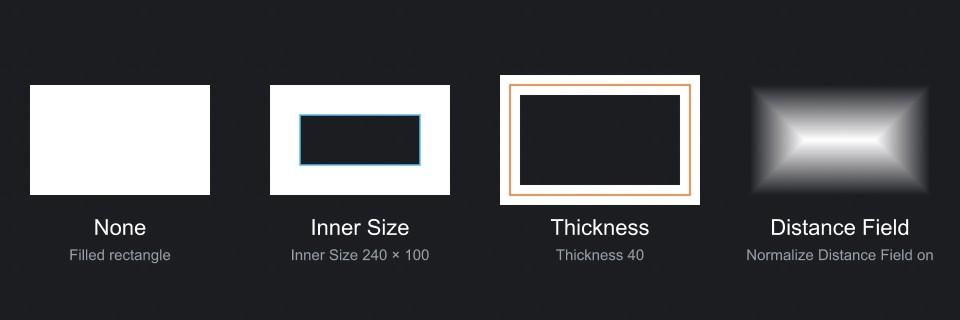
Figure 1The orange line marks the Format rectangle, the blue line marks the hole defined by Inner Size.
Then paste in the *Project* panel. [Learn more](https://help.maxon.net/ag/en-us/Content/html/Interactive_Documentation.html.md)
- **None**: draws a filled rectangle.
- **Inner Size**: cuts a rectangular hole in the middle. *Inner Size* is the width and height of the hole, in pixels: an *Inner Size* of *240 × 100* leaves a 240 by 100 pixel hole at the center.
- **Thickness**: draws a frame of the given *Thickness*, **centered** on the edges of the rectangle: half of the frame is drawn outside the *Format* rectangle and half inside.
- **Distance Field**: fills the rectangle with a gradient based on the distance to its nearest edge, transparent at the edges and full color at the center. See Distance Field below.
- **Size Scaled Thickness**: draws a frame like *Thickness*, but the *Thickness* is a percentage of the rectangle's size, so the frame keeps its proportions when the rectangle is resized. See Keeping Proportions with the Size Scaled Modes.
- **Size Scaled Thickness & Feather**: same as *Size Scaled Thickness*, and the *Feather* sizes are scaled too.
*Thickness* and *Inner Size* have two values, one for the horizontal (X) and one for the vertical (Y) direction. With *Thickness*, X sets the width of the left and right sides of the frame, and Y the height of the top and bottom sides.
> **Note:** By default, *Thickness*, *Inner Size* and the two *Roundness* parameters are in *Single* mode: one value is used for all their dimensions. To set them separately, switch the parameter to *Unified* or *Separated* mode with the menu on the right of the parameter, as described in [Managing Dimensions](https://help.maxon.net/ag/en-us/Content/html/Managing_dimensions.html.md).
### Distance Field
In *Distance Field* mode, the opacity of each pixel depends on its distance to the nearest edge of the rectangle. Along the diagonals, the gradients from two sides meet, which gives a beveled, pyramid-like look. Use it as a soft rectangular matte, or for a quick embossed look.
The *Normalize Distance Field* option decides how the distance is stored in the pixels:
- **On** (the default): the opacity goes from 0 at the edges to 1 at the center of the rectangle, whatever its size, and the *Color* is applied on top. This is the gradient you see in Figure 1.
- **Off**: each pixel stores its actual distance to the nearest edge, in pixels, in all four channels. In a rectangle 300 pixels high, the values go from 0 at the edges up to about 150 at the center.
*Autograph* processes images in 32-bit floating point, so pixel values can go far above 1.0, or below 0.0. With *Normalize Distance Field* off, almost the whole rectangle is above 1.0 and the *Viewer* shows it as solid white, but the actual distances are still there. Use this mode when another effect or an expression needs real distances in pixels.
> **Tip:** The *Viewer* displays values above 1.0 as white, but they are still there. To read them, activate the [Color Picker](https://help.maxon.net/ag/en-us/Content/html/Color_picker.html.md) with the dropper icon at the bottom right of the *Viewer*, then hover over the rectangle: the *Working Space RGBA* values show the actual distance under the cursor (see [Overbright and negative values](https://help.maxon.net/ag/en-us/Content/html/Color_picker.html.md)). To keep these values when rendering, use a floating-point format such as OpenEXR.
## Keeping Proportions with the Size Scaled Modes
In *Thickness* mode, the frame keeps the same width in pixels whatever the size of the rectangle. When the rectangle is animated, a fixed thickness can look too heavy on a small rectangle and too thin on a large one.
The *Size Scaled Thickness* mode expresses the *Thickness* as a percentage of half the size of the rectangle, on each axis: with a *Thickness* of *20*, the left and right sides are 20% of half the width, and the top and bottom sides 20% of half the height.
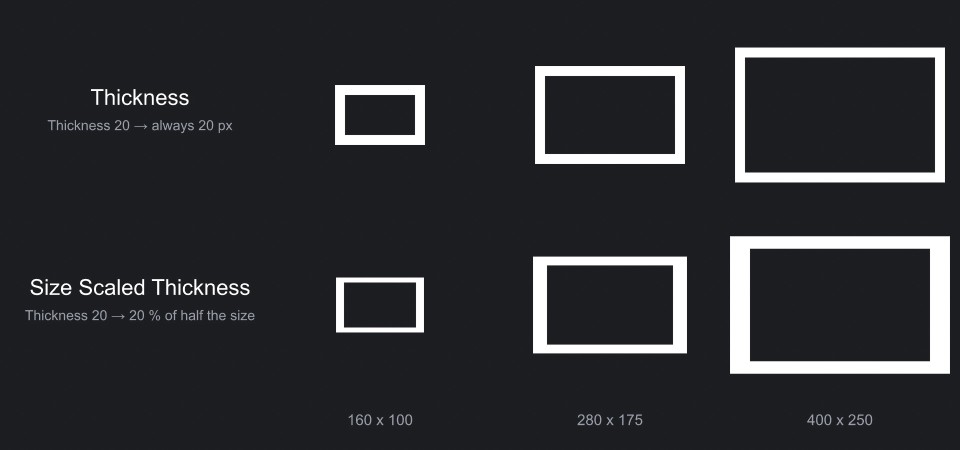
Figure 2The same Thickness value in Thickness mode (top) and Size Scaled Thickness mode (bottom).
Then paste in the *Project* panel. [Learn more](https://help.maxon.net/ag/en-us/Content/html/Interactive_Documentation.html.md)
Because the scaling is done on each axis, the sides of a wide rectangle are thicker than its top and bottom. The *Size Scaled Thickness & Feather* mode also scales the *Feather* sizes, so a soft frame keeps the same look while its size is animated.
## Rounded Corners
*Roundness Outer* rounds the outer corners of the rectangle. The value is in pixels, and the corner radius is half of it: a *Roundness* of *80* gives corners with a 40-pixel radius, whatever the size of the rectangle. A value equal to the height of the rectangle turns its short sides into half circles.
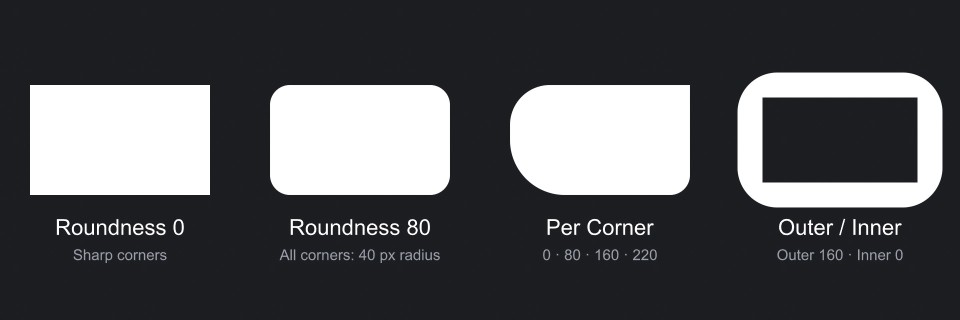
Figure 3Roundness on all corners, on each corner separately, and on the outer and inner edges of a frame.
Then paste in the *Project* panel. [Learn more](https://help.maxon.net/ag/en-us/Content/html/Interactive_Documentation.html.md)
- **Each corner separately**: *Roundness* is a 4D parameter. Switch it to *Unified* or *Separated* mode to set a value per corner. In *Separated* mode, its dimensions are named *x*, *y*, *z* and *w*: *x* is the top-right corner, *y* the bottom-right, *z* the top-left and *w* the bottom-left.
- **Frames**: in the *Inner Size* and *Thickness* modes, *Roundness Inner* rounds the corners of the hole independently from the outer corners.
## Soft Edges with Feather
**Feather Outer Size** softens the outer edge of the rectangle, and **Feather Inner Size** softens the inner edge of a frame. As with the *Circle*, the feather is **centered on the edge**, so the rectangle keeps the same apparent size while you soften it.
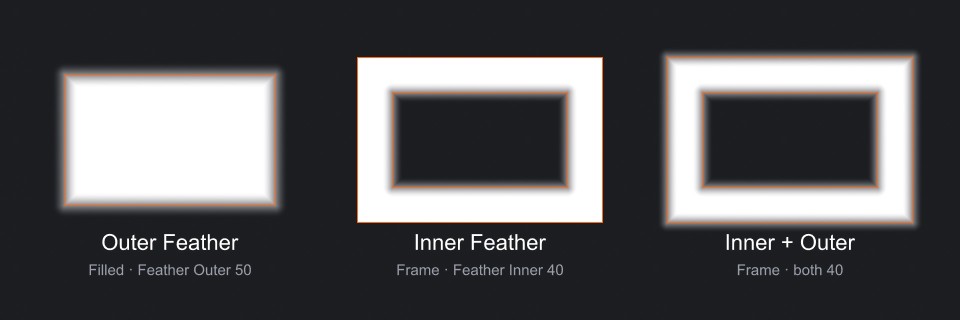
Figure 4The orange lines mark the edges before feathering.
Then paste in the *Project* panel. [Learn more](https://help.maxon.net/ag/en-us/Content/html/Interactive_Documentation.html.md)
> **Note:** A filled rectangle (*Edge Mode* set to *None*) has no inner edge, so *Feather Inner Size* has no effect on it. Also, on sharp corners, the feather shows a diagonal seam where the two sides meet. Add some *Roundness* to smooth it out.
## Creating a Vignette
The vignette trick of the [Circle](https://help.maxon.net/ag/en-us/Content/html/Generator_Circle.html.md) also works with the *Constant*, with a rectangular shape that follows the frame more closely:
1. Add a *Constant* layer on top of your composition.
2. Enable *Invert*, and set the *Color* to black.
3. Set the *Output Format* to *Composition Format*, so the rectangle matches the frame.
4. Increase *Feather Outer Size* to fade the darkening toward the center.
5. Increase *Roundness Outer* to round the corners of the vignette and remove the diagonal seams of the feather. The higher the value, the closer the vignette gets to an oval.
[Video: constant_vignette.mp4](https://help.maxon.net/ag/en-us/Content/Resources/Images/chapters/generators/constant/constant_vignette.mp4)
Invert on, Composition Format, Feather Outer Size 700, black Color. Roundness Outer animates from 0 to 800 and back.
Then paste in the *Project* panel. [Learn more](https://help.maxon.net/ag/en-us/Content/html/Interactive_Documentation.html.md)
> **Tip:** Because the feather is centered on the edges of the frame, only its inner half is visible, and the vignette stays gentle. For a stronger vignette, duplicate the layer.
## Motion Blur
When the rectangle changes quickly, because its *Format* or its other parameters are animated, the *Constant* can render its own motion blur. Increase *Divisions* to enable it: this is the number of samples taken during the shutter interval, and higher values give a smoother blur at the cost of render time. *Shutter Angle* sets the length of the blur, and *Shutter Phase* sets when the shutter opens relative to the current frame. See [Motion Blur](https://help.maxon.net/ag/en-us/Content/html/Motion_blur.html.md) for more details.
---
## Controls
| Parameter / Script Name | Type | Default | Function |
| --- | --- | --- | --- |
| `Enabled / enabled` | Boolean | On | Turns the Generator on or off. When off, the Generator produces an empty image. |
| `Output Format / output_format_mode` | Choice | Unbounded | Defines the area filled by the color. See Solid Color or Rectangle.
- *Unbounded*: Fills the whole, infinite canvas.
- *Format Preset*: A rectangle with the size of the selected preset, centered.
- *Composition Format*: A rectangle with the size of the composition.
- *Custom Format*: The rectangle defined by the *Format* parameter. |
| `Format / format_preset` | Choice | HD (1920x1080) | The format used when *Output Format* is set to *Format Preset*.
- *PC VIDEO (640x480)*
- *NTSC (720x486:0.91)*
- *PAL (720x576:1.09)*
- *NTSC 16:9 (720x486:1.21)*
- *PAL 16:9 (720x576:1.46)*
- *QHD (960x540)*
- *LHD (1280x720)*
- *HD (1920x1080)*
- *VHD (1080x1920)*
- *UHD 4K (3840x2160)*
- *VUHD 4K (2160x3840)*
- *UHD 8K (7680x4320)*
- *Super35 1K FULL AP (1024x778)*
- *Cinemascope 1K (914x778:2.00)*
- *Super35 2K FULL AP (2048x1556)*
- *Cinemascope 2K (1828x1556:2.00)*
- *DCP 2K (2048x1080)*
- *Super35 4K FULL AP (4096x3112)*
- *DCP 4K (4096x2160)*
- *Square 256 (256x256)*
- *Square 512 (512x512)*
- *Square 1K (1024x1024)*
- *Square 2K (2048x2048)* |
| `Format / formatRect` | Float 4D | -500, -500, 500, 500 | The rectangle used when *Output Format* is set to *Custom Format*, as left, bottom, right and top edges in pixels from the center of the composition. |
| `Pixel aspect / par` | Float | 1 | The pixel aspect ratio of the generated image. |
| `Color / color` | Color | 1, 1, 1, 1 | Color and opacity of the fill. |
| `Colorspace / input_colorspace` | Choice | Project Display Space | Only available when the composition's *Color Management* is set to *OpenColorIO*. The colorspace in which the colors of this Generator are expressed.
- *Project Working Space*: The color is assumed to be expressed in the project working space
- *Project Display Space*: The color is assumed to be expressed in the project display space |
| `Edge Mode / edge_mode` | Choice | None | Chooses between a filled rectangle, a frame and a gradient. See Fill, Frame or Gradient.
- *None*: Draw a filled rectangle.
- *Distance Field*: Fill the rectangle with a gradient based on the distance to its edges.
- *Inner Size*: Cut a hole of the given size in the middle of the rectangle.
- *Thickness*: Draw a frame of the given thickness, centered on the edges.
- *Size Scaled Thickness*: Draw a frame whose thickness is a percentage of the rectangle's size.
- *Size Scaled Thickness & Feather*: Same as *Size Scaled Thickness*, and also scale the feather sizes. |
| `Thickness / thickness` | Float 2D | 10, 10 | Frame thickness, centered on the edges: X for the left and right sides, Y for the top and bottom sides. In pixels in *Thickness* mode, and as a percentage of half the rectangle's size in the *Size Scaled* modes. |
| `Inner Size / edge_size` | Float 2D | 10, 10 | Width and height of the hole, in pixels. Only used in *Inner Size* mode. |
| `Feather Outer Size / feather_outer_size` | Float | 0 | Softness of the outer edge. The feather is centered on the edge. |
| `Feather Inner Size / feather_inner_size` | Float | 0 | Softness of the inner edge of a frame. Has no effect when *Edge Mode* is *None*. |
| `Normalize Distance Field / normalize_df` | Boolean | On | In *Distance Field* mode, when on, the opacity goes from 0 at the edges to 1 at the center. When off, each pixel stores its distance to the nearest edge in pixels, with values far above 1.0. |
| `Roundness Outer / roundness_outer` | Float 4D | 0, 0, 0, 0 | Rounds the outer corners, in pixels; the corner radius is half the value. One value per corner: *x* top-right, *y* bottom-right, *z* top-left, *w* bottom-left. |
| `Roundness Inner / roundness_inner` | Float 4D | 0, 0, 0, 0 | Rounds the corners of the hole in the *Inner Size* and *Thickness* modes, with the same units and corner order as *Roundness Outer*. |
| `Invert / invert` | Boolean | Off | Fills the area outside the rectangle instead of the inside. See Creating a Vignette. |
| `Divisions / divisions` | Float | 1 | The number of samples to use for the motion-blur. The higher the number is, the more accurate is the motion-blur when large motion is involved, but the slower it is to render. |
| `Shutter Angle / shutterAngle` | Float | 180 | The shutter angle controls the time period over which light can pass. A wider angle increases motion-blur |
| `Shutter Phase / shutterPhaseType` | Choice | Centered | - *Centered*: The shutter opens half the shutter duration before the current time and closes half the shutter duration after
- *Start*: The shutter opens at the current time and closes after the shutter duration is elapsed
- *End*: The shutter opens at the current time minus the shutter duration and closes at the current time
- *Custom*: The shutter opens at the time determined by a custom phase: the phase is an offset on the shutter angle, assuming the shutter opens at 0 |
| `Custom Phase / customPhase` | Float | -90 | An offset to the shutter angle, assuming the shutter opens at 0: A Shutter angle of 180 with a phase of -90 means that the shutter will be opened half a frame, centered around the current time |