---
title: "Gradient"
url: "https://help.maxon.net/ag/en-us/Content/html/Generator_gradient.html"
section_path: "Generators > Image > Gradient"
description: "The Gradient Image Generator creates smooth transitions between colors, procedurally and at any resolution. Choose between five shapes, set as many colors …"
---
# Gradient
The *Gradient* [Image Generator](https://help.maxon.net/ag/en-us/Content/html/Category_Generators_Image.html.md) creates smooth transitions between colors, procedurally and at any resolution. Choose between five shapes, set as many colors as you need, and decide what happens beyond the end of the gradient: stop, repeat, or bounce back.
Use it for:
- Backgrounds and color washes
- Light spots, glows and spheres
- Stripes, rings and sunbursts, with the *Repeat* and *Mirror* modes
- Soft-edged [masks](https://help.maxon.net/ag/en-us/Content/html/Source_and_mask.html.md), for example to fade a layer out
**Quick Navigation**
- Creating and Connecting a Gradient
- Gradient Types
- Colors and Stops
- Wrap Mode
- Radial and Angle Options
- Bands and Invert
- Animating the Gradient
- Controls
---
## Creating and Connecting a Gradient
Like any Image Generator, the *Gradient* can be connected to any image parameter, for example:
- The [Source](https://help.maxon.net/ag/en-us/Content/html/Source_and_mask.html.md) of a layer, to display the gradient itself
- The [Mask](https://help.maxon.net/ag/en-us/Content/html/Source_and_mask.html.md) of a layer, to fade that layer progressively
- The image input of a [Modifier](https://help.maxon.net/ag/en-us/Content/html/Generators_modifiers.html.md), for example to use the gradient as a map that drives an effect
The quickest way to create a layer with a *Gradient* as its source is described in [Adding Layers](https://help.maxon.net/ag/en-us/Content/html/Adding_Layers.html.md):
- Click the **+** button at the top of the layer stack and choose *Gradient* from the list of Generators
- Place the mouse cursor over the *Viewer* and open the *Quick Access Menu*, then pick *Gradient*:
- Press **Q** when no layer is selected
- Press **Shift+Q** when a layer is selected (in this case, **Q** opens the menu dedicated to *Modifiers*)
To use it with any other image parameter, such as a *Mask*, click the parameter's slot and choose *Gradient* from the list of Generators on the right.
A new *Gradient* goes from black on the left edge of the composition to white on the right edge, and covers the whole canvas, since its *Output Format* is *Unbounded*. Choose another *Output Format* to restrict it to a rectangle.
## Gradient Types
The *Type* menu sets the shape of the gradient, and which parameters define it:
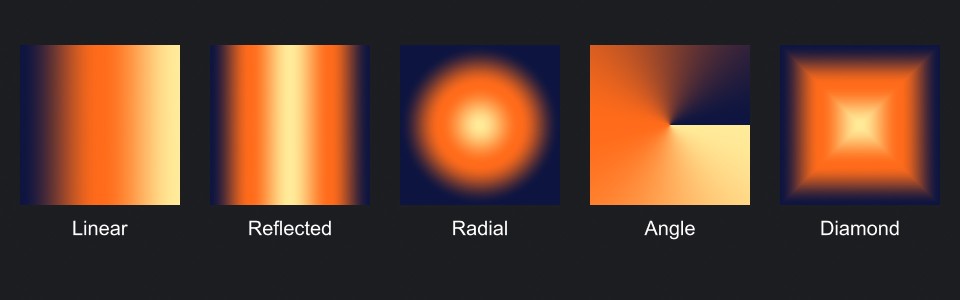
Figure 1The same colors with the five Types.
Then paste in the *Project* panel. [Learn more](https://help.maxon.net/ag/en-us/Content/html/Interactive_Documentation.html.md)
- **Linear**: the colors go from *Position 1* to *Position 2*, in a straight line.
- **Reflected**: the colors go from *Position 1* to the midpoint between the two positions, then back to *Position 2*. The last color is in the middle.
- **Radial**: circles around the *Center*. The first color is on the *Radius*, and the last color at the *Center*.
- **Angle**: the colors turn around the *Center*, counterclockwise, from the direction set by *Angle* to the direction set by *Max Angle*. Both are in degrees, measured counterclockwise from the right: *0* points right and *90* points up.
- **Diamond**: like *Radial*, but with squares instead of circles.
> **Note:** The *Radial* and *Diamond* types go from the outside in: the first color is on the edge and the last color at the center. Swap the colors, or enable *Invert*, to have the first color at the center.
## Colors and Stops
The colors are defined in the *Gradient* parameter, as color stops. Each stop has a color, including its opacity, and a position from 0 (the start of the gradient) to 1 (its end). Add as many stops as you need.
Like keyframes, each stop has an interpolation mode that decides how the color changes **between this stop and the next one**. By default, the transition eases in and out of each stop, which gives soft, smooth gradients. Set the stops to *Linear* for an even, constant transition.
All the interpolation modes available for keyframes can be used, more than 50 in total, including the easing families such as *Quad*, *Sine*, *Expo*, *Back*, *Elastic* and *Bounce*. They are described in [Keyframes](https://help.maxon.net/ag/en-us/Content/html/Keyframes.html.md). Since each stop has its own mode, you can mix them within a single gradient: a *Bounce* mode creates ripples of color, an *Elastic* mode overshoots, and *Constant* holds the color of the stop until the next one, for a hard edge.
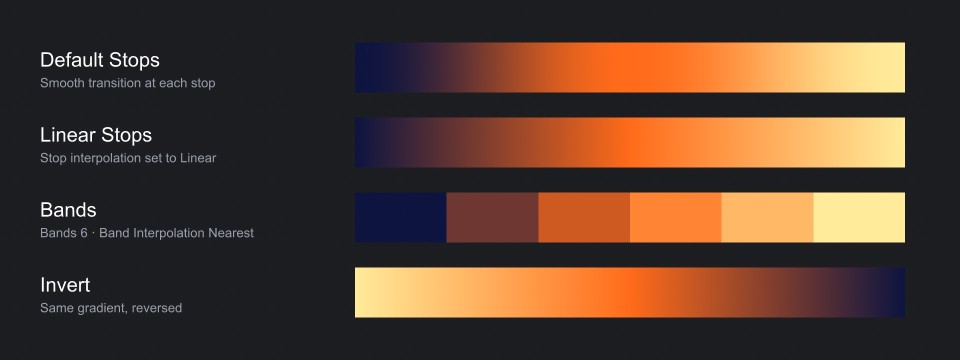
Figure 2Default and Linear stop interpolation, Bands, and Invert.
Then paste in the *Project* panel. [Learn more](https://help.maxon.net/ag/en-us/Content/html/Interactive_Documentation.html.md)
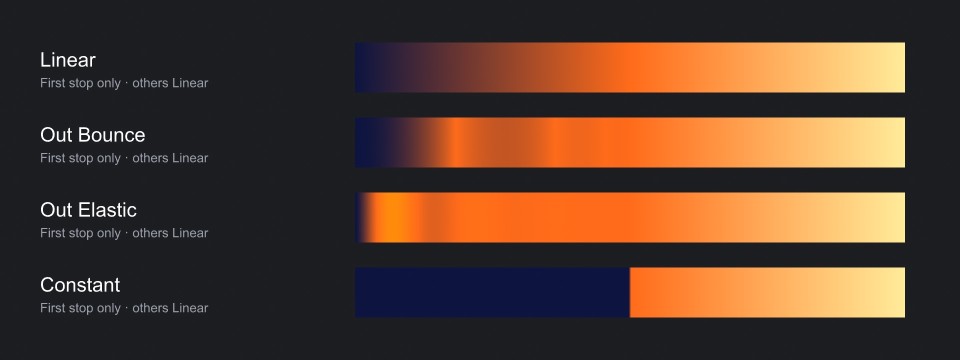
Figure 3Four interpolation modes on the first stop only. The second half of each bar, after the middle stop, stays Linear.
Then paste in the *Project* panel. [Learn more](https://help.maxon.net/ag/en-us/Content/html/Interactive_Documentation.html.md)
> **Note:** The way you define the color of each stop depends on the composition. When its *Color Management* is turned off, there is only one way to define a color. When it is set to *OpenColorIO*, every color parameter gets an extra *Colorspace* option, which tells in which colorspace the color is expressed. See Colorspace.
## Wrap Mode
The *Wrap Mode* decides what happens beyond the end of the gradient, for example outside *Position 1* and *Position 2*:
- **Constant** (the default): the first and last colors extend outward.
- **Repeat**: the gradient starts over, which creates stripes with a hard edge.
- **Mirror**: the gradient goes back and forth, which creates smooth waves.
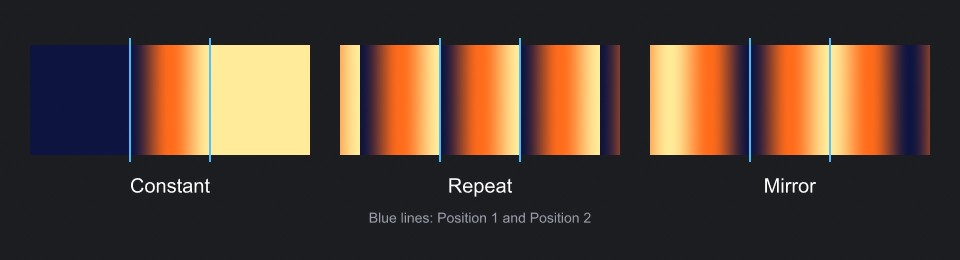
Figure 4The same gradient between Position 1 and Position 2, with the three Wrap Modes.
Then paste in the *Project* panel. [Learn more](https://help.maxon.net/ag/en-us/Content/html/Interactive_Documentation.html.md)
## Radial and Angle Options
- **Focal Point** moves the brightest point of a *Radial* gradient, relative to the *Center*, while its outer edge stays on the *Radius*. Use it for a light that hits a sphere from the side.
- **Radius** has an X and a Y value: set them differently to turn a *Radial* gradient into an ellipse.
- **Repetitions** repeats an *Angle* gradient several times around the circle, to create sunbursts and fans. It needs the *Wrap Mode* to be set to *Repeat* or *Mirror*, and has no effect on the other types.
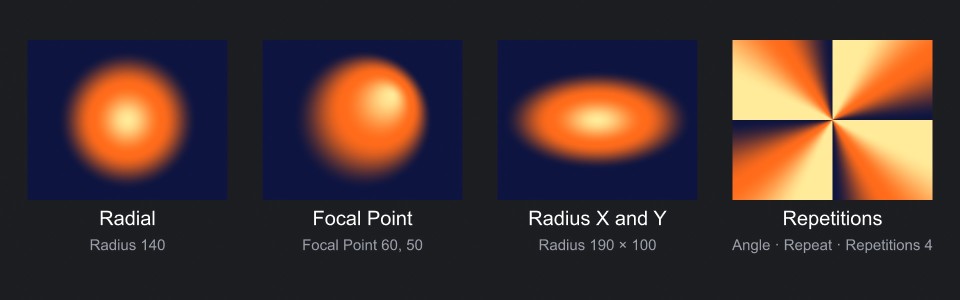
Figure 5Radial with a Focal Point and with different Radius X and Y values, and Angle with four Repetitions.
Then paste in the *Project* panel. [Learn more](https://help.maxon.net/ag/en-us/Content/html/Interactive_Documentation.html.md)
> **Note:** By default, *Radius* is in *Single* mode: one value is used for X and Y. To set them separately, switch the parameter to *Unified* or *Separated* mode with the menu on the right of the parameter, as described in [Managing Dimensions](https://help.maxon.net/ag/en-us/Content/html/Managing_dimensions.html.md).
## Bands and Invert
- **Bands** sets the number of samples used to draw the gradient. With a low value and *Band Interpolation* set to *Nearest*, the gradient turns into flat bands of color, as in the third bar of Figure 2. With *Band Interpolation* set to *Linear*, the transitions stay smooth.
- **Invert** reverses the gradient, as in the last bar of Figure 2.
## Animating the Gradient
*Offset* shifts the gradient along its direction, as a fraction of its length: an *Offset* of *1* moves it by one full gradient. Combined with *Repeat* or *Mirror*, animating it makes the colors flow continuously.
For a seamless loop, animate *Offset* linearly by one full period: from 0 to 1 with *Repeat*, or from 0 to 2 with *Mirror*, since a mirrored gradient goes back and forth.
[Video: gradient_flow.mp4](https://help.maxon.net/ag/en-us/Content/Resources/Images/chapters/generators/gradient/gradient_flow.mp4)
A diagonal Linear gradient with Wrap Mode Mirror. Offset animates linearly from 0 to 2 over three seconds, which loops seamlessly.
Then paste in the *Project* panel. [Learn more](https://help.maxon.net/ag/en-us/Content/html/Interactive_Documentation.html.md)
---
## Controls
| Parameter / Script Name | Type | Default | Function |
| --- | --- | --- | --- |
| `Enabled / enabled` | Boolean | On | Turns the Generator on or off. When off, the Generator produces an empty image. |
| `Output Format / output_format_mode` | Choice | Unbounded | Defines the area filled by the gradient.
- *Unbounded*: The gradient covers the whole, infinite canvas.
- *Format Preset*: The gradient fills the selected preset, centered.
- *Composition Format*: The gradient fills the composition.
- *Custom Format*: The gradient fills the *Format* rectangle. |
| `Format / format_preset` | Choice | HD (1920x1080) | The format used when *Output Format* is set to *Format Preset*.
- *PC VIDEO (640x480)*
- *NTSC (720x486:0.91)*
- *PAL (720x576:1.09)*
- *NTSC 16:9 (720x486:1.21)*
- *PAL 16:9 (720x576:1.46)*
- *QHD (960x540)*
- *LHD (1280x720)*
- *HD (1920x1080)*
- *VHD (1080x1920)*
- *UHD 4K (3840x2160)*
- *VUHD 4K (2160x3840)*
- *UHD 8K (7680x4320)*
- *Super35 1K FULL AP (1024x778)*
- *Cinemascope 1K (914x778:2.00)*
- *Super35 2K FULL AP (2048x1556)*
- *Cinemascope 2K (1828x1556:2.00)*
- *DCP 2K (2048x1080)*
- *Super35 4K FULL AP (4096x3112)*
- *DCP 4K (4096x2160)*
- *Square 256 (256x256)*
- *Square 512 (512x512)*
- *Square 1K (1024x1024)*
- *Square 2K (2048x2048)* |
| `Format / formatRect` | Float 4D | -500, -500, 500, 500 | The rectangle used when *Output Format* is set to *Custom Format*, as left, bottom, right and top edges in pixels from the center of the composition. |
| `Pixel aspect / par` | Float | 1 | The pixel aspect ratio of the generated image. |
| `Type / type` | Choice | Linear | The shape of the gradient. See Gradient Types.
- *Linear*: From *Position 1* to *Position 2*.
- *Reflected*: From *Position 1* to the midpoint, then back to *Position 2*.
- *Radial*: From the *Radius* to the *Center*.
- *Angle*: Around the *Center*, from *Angle* to *Max Angle*.
- *Diamond*: A square from the *Radius* to the *Center*. |
| `Wrap Mode / wrap` | Choice | Constant | What happens beyond the end of the gradient. See Wrap Mode.
- *Constant*: The first and last colors extend outward.
- *Repeat*: The gradient starts over.
- *Mirror*: The gradient goes back and forth. |
| `Position 1 / pos0` | Float 2D | 0, 0 | Start point of the *Linear* and *Reflected* types, in pixels from the center of the composition. Set to the left edge of the composition when the Generator is created. |
| `Position 2 / pos1` | Float 2D | 0, 0 | End point of the *Linear* and *Reflected* types, in pixels from the center of the composition. Set to the right edge of the composition when the Generator is created. |
| `Center / center` | Float 2D | 0, 0 | Center of the *Radial*, *Angle* and *Diamond* types, in pixels from the center of the composition. |
| `Radius / radius` | Float 2D | 100, 100 | Size of the *Radial* and *Diamond* types, in pixels. With different X and Y values, the *Radial* type becomes an ellipse. |
| `Focal Point / focal_point` | Float 2D | 0, 0 | Position of the brightest point of the *Radial* type, relative to the *Center*. The outer edge stays on the *Radius*. |
| `Angle / angle` | Float | 90 | Start direction of the *Angle* type, in degrees, counterclockwise from the right. |
| `Max Angle / max_angle` | Float | 359.999 | End direction of the *Angle* type, in degrees, counterclockwise from the right. |
| `Repetitions / num_repetitions` | Float | 1 | Number of times the gradient repeats around the circle. Only used by the *Angle* type, with *Wrap Mode* set to *Repeat* or *Mirror*. |
| `Offset / offset` | Float | 0 | Shifts the gradient along its direction, as a fraction of its length: 1 moves it by one full gradient. Animate it to make the gradient flow. |
| `Invert / invert` | Boolean | Off | Reverses the gradient. |
| `Bands / lut_size` | Float | 256 | Number of samples in the color table used to draw the gradient. With low values and *Band Interpolation* set to *Nearest*, the gradient becomes flat color bands. |
| `Band Interpolation / band_interpolation` | Choice | Linear | How the color table is read.
- *Linear*: Smooth transitions between the samples.
- *Nearest*: Flat bands of color. |
| `Gradient / gradient` | Gradient | Black to white | The color stops of the gradient. See Colors and Stops. |
| `Colorspace / input_colorspace` | Choice | Project Display Space | Only available when the composition's *Color Management* is set to *OpenColorIO*. The colorspace in which the colors of this Generator are expressed.
- *Project Working Space*: The color is assumed to be expressed in the project working space
- *Project Display Space*: The color is assumed to be expressed in the project display space |