---
title: "Grid"
url: "https://help.maxon.net/ag/en-us/Content/html/Generator_grid.html"
section_path: "Generators > Image > Grid"
description: "The Grid Image Generator draws a pattern of evenly spaced horizontal and vertical lines, procedurally and at any resolution. You can set the cells by size …"
---
# Grid
The *Grid* [Image Generator](https://help.maxon.net/ag/en-us/Content/html/Category_Generators_Image.html.md) draws a pattern of evenly spaced horizontal and vertical lines, procedurally and at any resolution. You can set the cells by size or by count, change the line thickness on each axis, fill the cells with a color, and animate the grid by moving its lines.
Use it for:
- Backgrounds, blueprints and graph paper looks
- Tables and layout guides
- Scrolling or moving patterns
- Grid-shaped [masks](https://help.maxon.net/ag/en-us/Content/html/Source_and_mask.html.md), for example to reveal an image cell by cell
**Quick Navigation**
- Creating and Connecting a Grid
- Grid Area: the Output Format
- Cell Size or Cell Count
- Lines, Cells and Invert
- Moving and Animating the Grid
- Distance Field
- Motion Blur
- Controls
---
## Creating and Connecting a Grid
Like any Image Generator, the *Grid* can be connected to any image parameter, for example:
- The [Source](https://help.maxon.net/ag/en-us/Content/html/Source_and_mask.html.md) of a layer, to display the grid itself
- The [Mask](https://help.maxon.net/ag/en-us/Content/html/Source_and_mask.html.md) of a layer, to show that layer only through the lines, or only through the cells with *Invert*
- The image input of a [Modifier](https://help.maxon.net/ag/en-us/Content/html/Generators_modifiers.html.md), for example to use the grid as a matte
The quickest way to create a layer with a *Grid* as its source is described in [Adding Layers](https://help.maxon.net/ag/en-us/Content/html/Adding_Layers.html.md):
- Click the **+** button at the top of the layer stack and choose *Grid* from the list of Generators
- Place the mouse cursor over the *Viewer* and open the *Quick Access Menu*, then pick *Grid*:
- Press **Q** when no layer is selected
- Press **Shift+Q** when a layer is selected (in this case, **Q** opens the menu dedicated to *Modifiers*)
To use it with any other image parameter, such as a *Mask*, click the parameter's slot and choose *Grid* from the list of Generators on the right.
## Grid Area: the Output Format
The *Output Format* defines the area covered by the grid:
- **Unbounded** (the default): the grid covers the whole, infinite canvas. Use it for backgrounds.
- **Composition Format**: the grid fills the composition.
- **Format Preset**: the grid fills a rectangle with the size of the selected preset, centered in the composition.
- **Custom Format**: the grid fills the rectangle you define with the *Format* parameter, as its left, bottom, right and top edges, in pixels from the center of the composition.
## Cell Size or Cell Count
The *Cell Mode* menu decides how the size of the cells is defined:
- **Cell Size** (the default): the cells have a fixed size in pixels, set by *Cell Size*. The grid does not adapt to its area, so the cells at the edges are usually cut.
- **Cell Count**: the cells are sized so that the output format contains the number of cells set by *Num Cells*. Use it to divide an area into equal parts, such as a table.
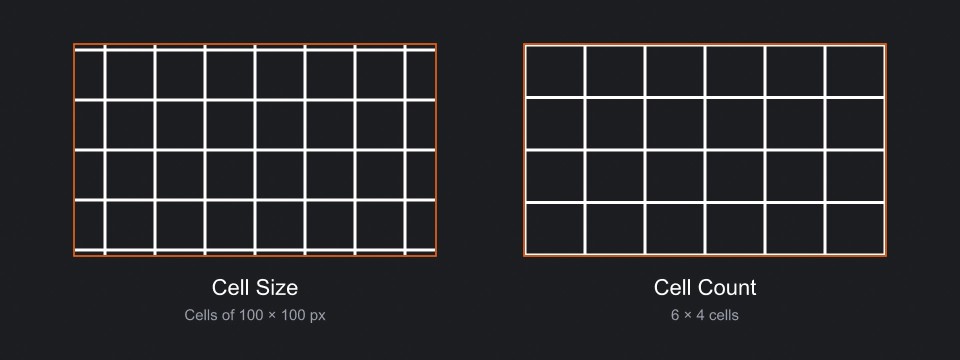
Figure 1The same area, outlined in orange, with Cell Size 100 × 100 (left) and Cell Count 6 × 4 (right).
Then paste in the *Project* panel. [Learn more](https://help.maxon.net/ag/en-us/Content/html/Interactive_Documentation.html.md)
> **Warning:** The lines are always positioned from the center of the composition, plus the *Offset*, whatever the position of the *Format* rectangle. With *Cell Count*, the cells fit the edges exactly only when the rectangle is centered in the composition and the number of cells is even. With an odd number, a line runs through the center and the cells at the edges are cut in half.
>
> To place a grid that fits its rectangle elsewhere in the frame, keep the *Format* rectangle centered and move the layer with its *Transform*.
## Lines, Cells and Invert
- **Thickness** sets the width of the lines, in pixels. It has two values: X for the vertical lines and Y for the horizontal lines.
- **Grid Color** sets the color of the lines, and **Background Color** the color of the cells. The background is transparent by default.
- **Invert** swaps lines and cells: the cells are filled with the *Grid Color*, and the lines become empty.
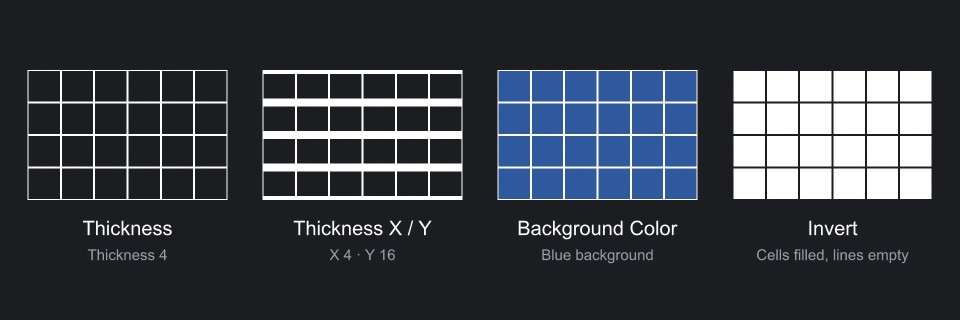
Figure 2Thickness on both axes, different Thickness on X and Y, a Background Color, and Invert.
Then paste in the *Project* panel. [Learn more](https://help.maxon.net/ag/en-us/Content/html/Interactive_Documentation.html.md)
> **Note:** By default, *Cell Size*, *Num Cells* and *Thickness* are in *Single* mode: one value is used for both directions. To set X and Y separately, switch the parameter to *Unified* or *Separated* mode with the menu on the right of the parameter, as described in [Managing Dimensions](https://help.maxon.net/ag/en-us/Content/html/Managing_dimensions.html.md).
> **Note:** The way you define the *Grid Color* and the *Background Color* depends on the composition. When its *Color Management* is turned off, there is only one way to define a color. When it is set to *OpenColorIO*, every color parameter gets an extra *Colorspace* option, which tells in which colorspace the color is expressed. See Colorspace.
## Moving and Animating the Grid
*Offset* moves the lines inside the grid area, in pixels. By default, a vertical and a horizontal line cross at the center of the composition.
Because the grid repeats every cell, moving it by exactly one cell gives the same image as not moving it at all. This makes seamless loops easy: animate *Offset* from 0 to the *Cell Size* over the length of the loop.
[Video: grid_scrolling.mp4](https://help.maxon.net/ag/en-us/Content/Resources/Images/chapters/generators/grid/grid_scrolling.mp4)
Cell Size 120. Offset animates linearly from 0, 0 to 120, 120 over two seconds, which loops seamlessly. The vignette is an inverted [Circle](https://help.maxon.net/ag/en-us/Content/html/Generator_Circle.html.md).
Then paste in the *Project* panel. [Learn more](https://help.maxon.net/ag/en-us/Content/html/Interactive_Documentation.html.md)
> **Tip:** Animating *Offset* moves the lines while the grid area stays in place. To move the whole grid, area included, animate the layer's *Transform* instead.
## Distance Field
When *Mode* is set to *Distance Field*, the *Grid* no longer draws solid lines: each pixel stores a value based on its distance to the nearest line, which produces a gradient inside each cell. Use it as a matte, or to drive other effects.
These values go above 1.0, so the *Viewer* shows most of the grid as solid white. To read them, activate the [Color Picker](https://help.maxon.net/ag/en-us/Content/html/Color_picker.html.md) with the dropper icon at the bottom right of the *Viewer*, then hover over the grid (see [Overbright and negative values](https://help.maxon.net/ag/en-us/Content/html/Color_picker.html.md)). To keep these values when rendering, use a floating-point format such as OpenEXR.
## Motion Blur
When the grid moves quickly, for example because its *Offset* is animated, the *Grid* can render its own motion blur. Increase *Divisions* to enable it: this is the number of samples taken during the shutter interval, and higher values give a smoother blur at the cost of render time. *Shutter Angle* sets the length of the blur, and *Shutter Phase* sets when the shutter opens relative to the current frame. See [Motion Blur](https://help.maxon.net/ag/en-us/Content/html/Motion_blur.html.md) for more details.
---
## Controls
| Parameter / Script Name | Type | Default | Function |
| --- | --- | --- | --- |
| `Enabled / enabled` | Boolean | On | Turns the Generator on or off. When off, the Generator produces an empty image. |
| `Output Format / output_format_mode` | Choice | Unbounded | Defines the area covered by the grid. See Grid Area.
- *Unbounded*: The grid covers the whole, infinite canvas.
- *Format Preset*: The grid fills the selected preset, centered.
- *Composition Format*: The grid fills the composition.
- *Custom Format*: The grid fills the *Format* rectangle. |
| `Format / format_preset` | Choice | HD (1920x1080) | The format used when *Output Format* is set to *Format Preset*.
- *PC VIDEO (640x480)*
- *NTSC (720x486:0.91)*
- *PAL (720x576:1.09)*
- *NTSC 16:9 (720x486:1.21)*
- *PAL 16:9 (720x576:1.46)*
- *QHD (960x540)*
- *LHD (1280x720)*
- *HD (1920x1080)*
- *VHD (1080x1920)*
- *UHD 4K (3840x2160)*
- *VUHD 4K (2160x3840)*
- *UHD 8K (7680x4320)*
- *Super35 1K FULL AP (1024x778)*
- *Cinemascope 1K (914x778:2.00)*
- *Super35 2K FULL AP (2048x1556)*
- *Cinemascope 2K (1828x1556:2.00)*
- *DCP 2K (2048x1080)*
- *Super35 4K FULL AP (4096x3112)*
- *DCP 4K (4096x2160)*
- *Square 256 (256x256)*
- *Square 512 (512x512)*
- *Square 1K (1024x1024)*
- *Square 2K (2048x2048)* |
| `Format / formatRect` | Float 4D | -500, -500, 500, 500 | The rectangle used when *Output Format* is set to *Custom Format*, as left, bottom, right and top edges in pixels from the center of the composition. |
| `Pixel aspect / par` | Float | 1 | The pixel aspect ratio of the generated image. |
| `Grid Color / grid_color` | Color | 1, 1, 1, 1 | Color and opacity of the lines. |
| `Background Color / background_color` | Color | 0, 0, 0, 0 | Color and opacity of the cells. Transparent by default. |
| `Colorspace / input_colorspace` | Choice | Project Display Space | Only available when the composition's *Color Management* is set to *OpenColorIO*. The colorspace in which the colors of this Generator are expressed.
- *Project Working Space*: The color is assumed to be expressed in the project working space
- *Project Display Space*: The color is assumed to be expressed in the project display space |
| `Mode / mode` | Choice | Normal | - *Normal*: Draw lines of the given *Thickness*.
- *Distance Field*: Draw a gradient based on the distance to the nearest line. See Distance Field. |
| `Cell Mode / grid_mode` | Choice | Cell Size | Chooses how the size of the cells is defined. See Cell Size or Cell Count.
- *Cell Count*: A number of cells that fills the output format.
- *Cell Size*: A cell size in pixels. |
| `Cell Size / cell_size` | Float 2D | 50, 50 | Width and height of the cells, in pixels. Only used when *Cell Mode* is *Cell Size*. |
| `Num Cells / num_cells` | Float 2D | 10, 10 | Number of cells horizontally and vertically in the output format. Only used when *Cell Mode* is *Cell Count*. |
| `Thickness / thickness` | Float 2D | 4, 4 | Thickness of the lines, in pixels: X for the vertical lines, Y for the horizontal lines. |
| `Offset / offset` | Float 2D | 0, 0 | Moves the lines, in pixels. By default, a vertical and a horizontal line cross at the center of the composition. Animate it to scroll the grid. |
| `Normalize Distance Field / normalize_df` | Boolean | On | In *Distance Field* mode, divides the distance values by the cell size. |
| `Invert / invert` | Boolean | Off | Swaps lines and cells: the cells are filled with the *Grid Color*, and the lines become empty. |
| `Divisions / divisions` | Float | 1 | The number of samples to use for the motion-blur. The higher the number is, the more accurate is the motion-blur when large motion is involved, but the slower it is to render. |
| `Shutter Angle / shutterAngle` | Float | 180 | The shutter angle controls the time period over which light can pass. A wider angle increases motion-blur |
| `Shutter Phase / shutterPhaseType` | Choice | Centered | - *Centered*: The shutter opens half the shutter duration before the current time and closes half the shutter duration after
- *Start*: The shutter opens at the current time and closes after the shutter duration is elapsed
- *End*: The shutter opens at the current time minus the shutter duration and closes at the current time
- *Custom*: The shutter opens at the time determined by a custom phase: the phase is an offset on the shutter angle, assuming the shutter opens at 0 |
| `Custom Phase / customPhase` | Float | -90 | An offset to the shutter angle, assuming the shutter opens at 0: A Shutter angle of 180 with a phase of -90 means that the shutter will be opened half a frame, centered around the current time |