---
title: "Layer Image"
url: "https://help.maxon.net/ag/en-us/Content/html/Generator_layer_image.html"
section_path: "Generators > Image > Layer Image"
description: "The Layer Image Image Generator outputs the image of another layer of the composition. It does not make a copy: it refers to that layer, so any change …"
---
# Layer Image
The *Layer Image* [Image Generator](https://help.maxon.net/ag/en-us/Content/html/Category_Generators_Image.html.md) outputs the image of another layer of the composition. It does not make a copy: it refers to that layer, so any change made to the original, its animation, its [Modifiers](https://help.maxon.net/ag/en-us/Content/html/Generators_modifiers.html.md) or its content, is instantly reflected wherever the *Layer Image* is used.
Use it for:
- Live duplicates of a layer: reflections, shadows, echoes and trails that always follow the original
- Applying *Modifiers* to everything below it in the layer stack
- Reusing the original image of a layer inside its own *Modifier* stack
- Rendering a 3D part of the composition again, with other settings
**Quick Navigation**
- Creating and Connecting a Layer Image
- Choosing the Layer to Copy
- Choosing What to Copy
- Applying Modifiers to the Layers Below
- Reusing the Original Image of a Layer: This Layer
- Time Offsets and Echoes: Follow Time
- Parts Outside the Frame: Adjust To Source Format
- Referencing 3D Layers
- Controls
---
## Creating and Connecting a Layer Image
Like any Image Generator, the *Layer Image* can be connected to any image parameter, for example:
- The [Source](https://help.maxon.net/ag/en-us/Content/html/Source_and_mask.html.md) of a layer, to display the copy
- The [Mask](https://help.maxon.net/ag/en-us/Content/html/Source_and_mask.html.md) of a layer, to use the shape of another layer as a mask
- The image input of a [Modifier](https://help.maxon.net/ag/en-us/Content/html/Generators_modifiers.html.md), for example to composite another layer, or the layer itself, inside a *Modifier* stack (see This Layer)
The quickest way to create a layer with a *Layer Image* as its source is described in [Adding Layers](https://help.maxon.net/ag/en-us/Content/html/Adding_Layers.html.md):
- Click the **+** button at the top of the layer stack and choose *Layer Image* from the list of Generators
- Place the mouse cursor over the *Viewer* and open the *Quick Access Menu*, then pick *Layer Image*:
- Press **Q** when no layer is selected
- Press **Shift+Q** when a layer is selected (in this case, **Q** opens the menu dedicated to *Modifiers*)
To use it with any other image parameter, such as a *Mask*, click the parameter's slot and choose *Layer Image* from the list of Generators on the right.
By default, a new *Layer Image* copies the layer directly below it, blended with everything underneath (*Layer Source* set to *Layer Below*, *Which* set to *Post Blend*). The copy is drawn exactly where the original is, so it hides it: move the *Layer Image* layer with its *Transform* to see both.
## Choosing the Layer to Copy
The *Layer Source* menu decides which layer the *Layer Image* refers to:
- **Layer Below** (the default): the layer directly below the one that hosts the *Layer Image*. Moving the layers in the stack changes the reference.
- **Layer Above**: the layer directly above.
- **Linked Layer**: a specific layer, wherever it is in the stack. A *Layer* field appears: drag and drop a layer from the *Timeline* onto it.
- **This Layer**: the layer that hosts the *Layer Image* itself. It is meant to be used inside the *Modifier* stack or the *Mask* of that layer, as described in This Layer.
> **Tip:** Use *Linked Layer* when the reference must not change if layers are added or reordered. Use *Layer Below* or *Layer Above* for setups that you duplicate, such as a stack of copies that each refer to their neighbor (see Follow Time).
## Choosing What to Copy
A layer is built in several steps: its *Source* produces an image, its *Transform* places it, its *Modifiers* process it, and finally it is blended over the layers below. The *Which* menu decides at which step the *Layer Image* takes its copy.
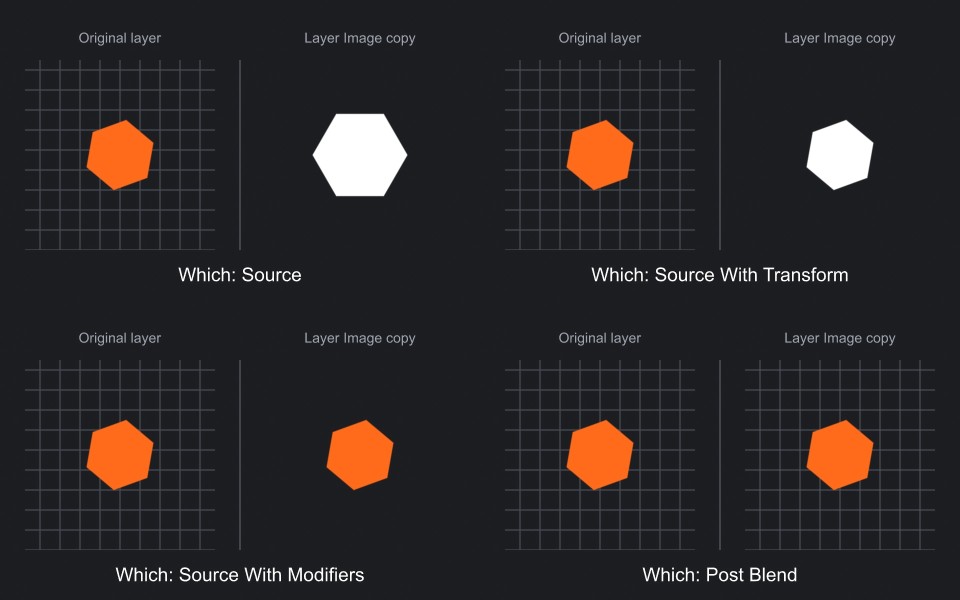
Figure 1The original layer is rotated and scaled by its Transform, and turned orange by a Fill Modifier. The copy is moved to the right.
Then paste in the *Project* panel. [Learn more](https://help.maxon.net/ag/en-us/Content/html/Interactive_Documentation.html.md)
- **Source**: the image of the layer's *Source* only, without its *Transform* and its *Modifiers*.
- **Source With Transform**: the *Source* placed by the layer's *Transform*, without its *Modifiers*.
- **Source With Modifiers**: the *Source* with both its *Transform* and its *Modifiers*, in other words the layer exactly as you see it, but alone.
- **Post Blend** (the default): the layer blended over everything below it in the stack. See Applying Modifiers to the Layers Below.
- **3D Render**: only available when the *Layer Image* refers to 3D layers. See Referencing 3D Layers.
> **Note:** The entries of the *Which* menu depend on where the *Layer Image* is used. For example, in the *Mask* of a layer with *Layer Source* set to *This Layer*, only *Source* and *Source With Transform* are available.
> **Tip:** The *Transform* of the layer that hosts the *Layer Image* applies on top of the copy. With *Source With Transform* or *Source With Modifiers*, the copy starts exactly on top of the original: move the *Layer Image* layer to offset it, for example to build a shadow or a reflection.
## Applying Modifiers to the Layers Below
With *Which* set to *Post Blend* and *Layer Source* set to *Layer Below*, the *Layer Image* contains the whole composition as it looks below it. Any *Modifier* added to the *Layer Image* layer then processes all the layers below at once, and a *Mask* on that layer limits the effect to a part of the frame.
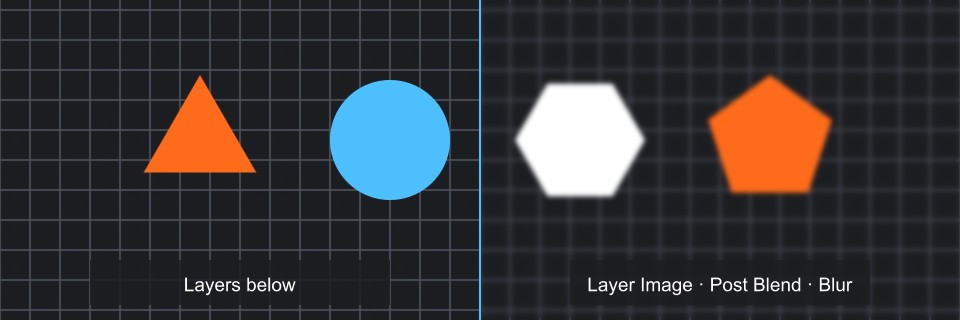
Figure 2A Layer Image in Post Blend mode with a Blur Modifier, masked to the right half of the frame.
Then paste in the *Project* panel. [Learn more](https://help.maxon.net/ag/en-us/Content/html/Interactive_Documentation.html.md)
For this kind of global correction, *Autograph* also offers dedicated [Adjustment Layers](https://help.maxon.net/ag/en-us/Content/html/Adjustment_layer.html.md), which are simpler to set up. Use the *Layer Image* when you need the result of the layers below as an image, for example in the slot of a *Modifier* or in a *Mask*.
> **Note:** A *Layer Image* in *Post Blend* mode is drawn on top of the original layers, using the blend mode of its layer:
>
> - With *Normal*, the original layers still show through wherever the processed copy is transparent, for example at the soft edges of a blurred shape over an empty background.
> - With *Copy*, the copy replaces everything below. Only the processed image remains, but everything outside the layer's *Mask* is replaced too, so it disappears.
>
> When the layers below cover the whole frame and the *Layer Image* layer has no *Mask*, both give the same result.
## Reusing the Original Image of a Layer: This Layer
With *Layer Source* set to *This Layer*, the *Layer Image* brings back the original *Source* (or *Mask*) of the layer that hosts it. Place it in the image slot of a *Modifier*, and you can reinject the untouched original anywhere in the *Modifier* stack of that layer, after other *Modifiers* have changed it.
In the following example, a [Polygon](https://help.maxon.net/ag/en-us/Content/html/Generator_polygon.html.md) is the *Source* of the layer:
1. *Edge Extend*, *Blur* and *Fill* *Modifiers* turn the blue hexagon into a soft green glow.
2. A *Merge* *Modifier* is added at the end of the stack, with its *Source Mode* set to *Foreground*: it composites another image on top of the current state of the stack.
3. A *Layer Image* set to *This Layer* is connected to the *Foreground* slot of the *Merge*. The original blue hexagon is composited back over the glow.
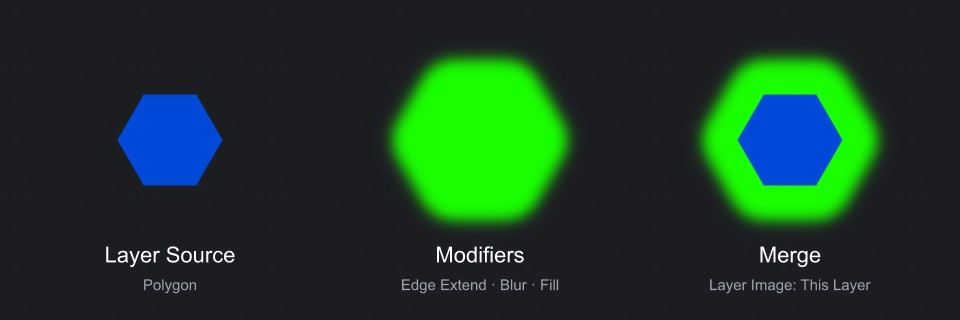
Figure 3The same layer at each step of its Modifier stack.
Then paste in the *Project* panel. [Learn more](https://help.maxon.net/ag/en-us/Content/html/Interactive_Documentation.html.md)
Everything stays dynamic: change the size or the number of sides of the *Polygon*, and both the glow and the reinjected hexagon follow.
[Video: layer_image_this_layer_dynamic.mp4](https://help.maxon.net/ag/en-us/Content/Resources/Images/chapters/generators/layer_image/layer_image_this_layer_dynamic.mp4)
Only the Sides of the Polygon are animated. The glow and the reinjected original update automatically.
Then paste in the *Project* panel. [Learn more](https://help.maxon.net/ag/en-us/Content/html/Interactive_Documentation.html.md)
> **Warning:** *This Layer* cannot be used as the *Source* of the layer that hosts it, because the layer would then refer to itself: nothing is drawn.
## Time Offsets and Echoes: Follow Time
Every layer has its own local time, which can be shifted with its *Time Offset*. The *Follow Time* option decides at which time the copied layer is evaluated:
- **On** (the default): the copied layer is evaluated at its own time, so the copy always matches the original, whatever the *Time Offset* of the *Layer Image* layer.
- **Off**: the copied layer is evaluated at the time of the *Layer Image* layer. Shift that layer in time, and the copy lags behind the original, or gets ahead of it.
Turning *Follow Time* off is the key to echo and trail effects. In the following example, five *Layer Image* layers are stacked below an animated shape. Each one copies the layer just above it (*Layer Source* set to *Layer Above*), with a *Time Offset* of *-0.1* second and a lower opacity, so each copy is one step further behind.
[Video: layer_image_follow_time.mp4](https://help.maxon.net/ag/en-us/Content/Resources/Images/chapters/generators/layer_image/layer_image_follow_time.mp4)
Follow Time off, a Time Offset of -0.1 second on each copy, and a decreasing opacity.
Then paste in the *Project* panel. [Learn more](https://help.maxon.net/ag/en-us/Content/html/Interactive_Documentation.html.md)
> **Tip:** Change the *Time Offset* of the copies to make the trail longer or shorter. To add more steps, add more copies at the bottom of the stack: since each copy refers to the layer above it, a new copy continues the trail.
## Parts Outside the Frame: Adjust To Source Format
In *Autograph*, an image is not limited to the *Format* of the composition: a layer partly moved outside the frame still exists outside of it, even if you do not see that part. The *Adjust To Source Format* option decides whether the *Layer Image* keeps those parts:
- **Off** (the default): the copy includes everything, even the parts of the original that lie outside the frame. When the copy is moved back into the frame, these parts become visible.
- **On**: the original is cropped by the *Format* before being copied. The copy is cut exactly where the original leaves the frame.
[Video: layer_image_adjust_format.mp4](https://help.maxon.net/ag/en-us/Content/Resources/Images/chapters/generators/layer_image/layer_image_adjust_format.mp4)
The orange pentagon leaves the frame on the right. The blue lines mark the edge of the frame as seen by each copy.
Then paste in the *Project* panel. [Learn more](https://help.maxon.net/ag/en-us/Content/html/Interactive_Documentation.html.md)
## Referencing 3D Layers
In *Autograph*, the composition itself is the 3D scene: meshes, lights and cameras are layers of the composition. A 2D layer placed between 3D layers splits the scene in two sub-scenes, one below it and one above it.
When a *Layer Image* refers to 3D layers, for example with *Layer Source* set to *Layer Below*, it refers to the whole sub-scene: all the 3D layers below it, up to the previous 2D layer. The *Which* menu then offers a *3D Render* entry, and new options appear:
- **Use Existing 3D Render**: when on (the default), the color image already rendered for the sub-scene is reused. When off, the *Layer Image* renders the sub-scene again, with its own settings.
- **Renderer**: the render engine used for the new render, *Filament* (the default) or *Storm*.
- **AoV**: the pass to render, *Color* or *Depth*. A *Depth* pass is useful to drive depth-based effects.
- **Output Format** and **Camera**: the size of the new render, and the camera it is rendered from (by default, the top-most active camera).
- **Filament Settings**: the quality options of the *Filament* renderer, such as ambient occlusion, depth of field, fog, anti-aliasing, shadows and reflections. They are listed in the Controls table below.
---
## Controls
| Parameter / Script Name | Type | Default | Function |
| --- | --- | --- | --- |
| `Enabled / enabled` | Boolean | On | Turns the Generator on or off. When off, the Generator produces an empty image. |
| `Layer Source / layerSource` | Choice | Layer Below | Which layer is copied. See Choosing the Layer to Copy.
- *Layer Below*: The layer directly below.
- *Layer Above*: The layer directly above.
- *Linked Layer*: The layer set in the *Layer* field.
- *This Layer*: The layer that hosts the *Layer Image*, for use in its own *Modifier* stack or *Mask*. |
| `Layer / layer` | Link | - | The layer to copy when *Layer Source* is set to *Linked Layer*. Drag and drop a layer from the *Timeline* onto this field. |
| `Follow Time / followTime` | Boolean | On | When on, the copied layer is evaluated at its own time, so the copy matches the original. When off, it is evaluated at the time of the layer that hosts the *Layer Image*, so a *Time Offset* on that layer delays or advances the copy. See Follow Time. |
| `Which / which` | Choice | Post Blend | At which step of the copied layer the image is taken. The available entries depend on the context. See Choosing What to Copy.
- *Source*: The *Source* only, without *Transform* and *Modifiers*.
- *Source With Transform*: The *Source* with the layer's *Transform*.
- *Source With Modifiers*: The *Source* with the layer's *Transform* and *Modifiers*.
- *3D Render*: Only when 3D layers are copied: the render of the sub-scene.
- *Post Blend*: The layer blended over everything below it. |
| `Use Existing 3D Render / useExisting3DRender` | Boolean | On | When checked, the color image already rendered for the referenced 3D sub-scene is reused. When unchecked, the sub-scene is rendered again with the settings below, for example to render a *Depth* pass or another format. |
| `Renderer / render_delegate` | Choice | Filament | The render engine used when *Use Existing 3D Render* is off.
- *Storm*
- *Filament* |
| `AoV / aov` | Choice | Color | The pass rendered when *Use Existing 3D Render* is off.
- *Color*
- *Depth* |
| `Output Format / output_format_mode` | Choice | Composition Format | The size of the new 3D render.
- *Preset*: Uses the *Format* preset.
- *Composition Format*: Uses the format of the composition.
- *Custom*: Uses *Width*, *Height* and *Pixel Aspect Ratio*. |
| `Format / formatPreset` | Choice | HD (1920x1080) | - *PC VIDEO (640x480)*
- *NTSC (720x486:0.91)*
- *PAL (720x576:1.09)*
- *NTSC 16:9 (720x486:1.21)*
- *PAL 16:9 (720x576:1.46)*
- *QHD (960x540)*
- *LHD (1280x720)*
- *HD (1920x1080)*
- *VHD (1080x1920)*
- *UHD 4K (3840x2160)*
- *VUHD 4K (2160x3840)*
- *UHD 8K (7680x4320)*
- *Super35 1K FULL AP (1024x778)*
- *Cinemascope 1K (914x778:2.00)*
- *Super35 2K FULL AP (2048x1556)*
- *Cinemascope 2K (1828x1556:2.00)*
- *DCP 2K (2048x1080)*
- *Super35 4K FULL AP (4096x3112)*
- *DCP 4K (4096x2160)*
- *Square 256 (256x256)*
- *Square 512 (512x512)*
- *Square 1K (1024x1024)*
- *Square 2K (2048x2048)* |
| `Width / width` | Float | 1920 | Width of the new 3D render, in pixels, when *Output Format* is set to *Custom*. |
| `Height / height` | Float | 1080 | Height of the new 3D render, in pixels, when *Output Format* is set to *Custom*. |
| `Pixel Aspect Ratio / customAspect` | Float | 1 | Pixel aspect ratio of the new 3D render, when *Output Format* is set to *Custom*. |
| `Camera / camera` | Choice | Top-Most Active | The camera used for the new 3D render. By default, the top-most active camera of the composition. |
| `Filament Settings / FilamentSettings` | Category | - | Quality options of the *Filament* renderer, used when *Use Existing 3D Render* is off. |
| `Ambient Occlusion / group:Ambient Occlusion` | Category | - | |
| `Ambient Occlusion / filament_ao_type` | Choice | None | The ambient occlusion technique, or *None* to turn ambient occlusion off.
- *None*
- *SAO*
- *GTAO* |
| `Bent Normals / filament_ao_bent_normals` | Boolean | Off | |
| `Min. Horizon Angle / filament_min_horiz_angle` | Float | 0 | Minimum angle to consider |
| `Quality / filament_ao_quality` | Choice | Ultra | - *Low*
- *Medium*
- *High*
- *Ultra* |
| `Radius / filament_ao_radius` | Float | 0.3 | Ambient Occlusion radius in meters, between 0 and ~10. |
| `Intensity / filament_ao_intensity` | Float | 1 | Strength of the Ambient Occlusion effect |
| `Bias / filament_ao_bias` | Float | 0.0005 | Self-occlusion bias in meters. Use to avoid self-occlusion. Between 0 and a few mm |
| `Bilateral threshold / filament_ao_bilateral_threshold` | Float | 0.05 | Depth distance that constitute an edge for filtering |
| `Power / filament_ao_power` | Float | 1 | Controls ambient occlusion's contrast. Must be positive. |
| `Upsampling / filament_ao_upsampling` | Choice | Ultra | - *Low*
- *Medium*
- *High*
- *Ultra* |
| `Low pass filter / filament_ao_low_pass_filter` | Choice | Ultra | - *Low*
- *Medium*
- *High*
- *Ultra* |
| `SSCT / filament_ssct_enabled` | Boolean | Off | Enable or disable screen space cone tracing for ambient shadows of dominant lights |
| `Light Cone Radius / filament_ssct_light_cone_radius` | Float | 1 | |
| `SSCT Shadow Distance / filament_ssct_shadow_distance` | Float | 0.3 | How far shadows can be cast |
| `SSCT Contact Distance / filament_ssct_contact_distance` | Float | 1 | Max distance for contact |
| `SSCT Intensity / filament_ssct_intensity` | Float | 0.8 | |
| `SSCT Light Direction / filament_ssct_light_direction` | Float 3D | 0, -1, 0 | |
| `SSCT Depth Bias / filament_ssct_depth_bias` | Float | 0.01 | Depth bias in world units (mitigate self-shadowing |
| `SSCT Depth Slope Bias / filament_ssct_depth_slope_bias` | Float | 0.01 | Depth slope bias (mitigate self-shadowing |
| `SSCT Sample Count / filament_ssct_sample_count` | Float | 4 | Tracing sample count |
| `SSCT Ray Count / filament_ssct_ray_count` | Float | 1 | Tracing ray count |
| `Depth of field / group:Depth of field` | Category | - | |
| `Enabled / filament_dof_enabled` | Boolean | Off | Enable or disable depth of field effect |
| `COC Scale / filament_dof_coc_scale` | Float | 1 | Circle of confusion scale factor (amount of blur) |
| `COC Aspect Ratio / filament_dof_coc_aspect` | Float | 1 | width/height aspect ratio of the circle of confusion (simulate anamorphic lenses) |
| `Filter / filament_dof_filter` | Choice | Median | filter to use for filling gaps in the kernel
- *None*
- *Median* |
| `Max aperture diameter / filament_dof_max_aperture_diameter` | Float | 0.01 | Maximum aperture diameter in meters (zero to disable rotation) |
| `Max background COC / filament_dof_max_background_coc` | Float | 0 | maximum circle-of-confusion in pixels for the background |
| `Max foreground COC / filament_dof_max_foreground_coc` | Float | 0 | maximum circle-of-confusion in pixels for the foreground |
| `Native resolution / filament_dof_native_resolution` | Boolean | On | perform DoF processing at native resolution |
| `Background Ring Count / filament_dof_background_ring_count` | Float | 0 | number of kernel rings for background tiles |
| `Foreground Ring Count / filament_dof_foreground_ring_count` | Float | 0 | number of kernel rings for foreground tiles |
| `Fast-Gather Ring Count / filament_dof_fast_gather_ring_count` | Float | 0 | number of kernel rings for fast tiles |
| `Fog / group:Fog` | Category | - | |
| `Enabled / filament_fog_enabled` | Boolean | Off | enable or disable fog |
| `Color / filament_fog_color` | Color | 0.5, 0.5, 0.5, 1 | fog's color |
| `Density / filament_fog_density` | Float | 0.1 | fog's density at altitude given by 'height' |
| `Distance / filament_fog_distance` | Float | 0 | distance in world units from the camera where the fog starts ( >= 0.0 ) |
| `Height / filament_fog_height` | Float | 0 | fog's floor in world units |
| `Height falloff / filament_fog_height_falloff` | Float | 1 | how fast fog dissipates with altitude |
| `Maximum opacity / filament_fog_maximum_opacity` | Float | 1 | fog's maximum opacity between 0 and 1 |
| `Fog Color from IBL / filament_fog_color_from_ibl` | Boolean | Off | Fog color will be modulated by the IBL color in the view direction. |
| `In-scattering size / filament_fog_in_scattering_size` | Float | -1 | size of in-scattering (>0 to activate). Good values are >> 1 (e.g. ~10 - 100). |
| `In-scattering Start / filament_fog_in_scattering_start` | Float | 0 | distance in world units from the camera where in-scattering starts |
| `FXAA / filament_fxaa` | Boolean | Off | |
| `Multisample anti-aliasing / group:Multisample anti-aliasing` | Category | - | |
| `Enabled / filament_msaa_enabled` | Boolean | On | |
| `Sample count / filament_msaa_sample_count` | Float | 16 | |
| `Custom resolve / filament_msaa_custom_resolve` | Boolean | Off | |
| `Shadow Type / filament_shadow_type` | Choice | PCF | The shadow filtering technique.
- *PCF*: Percentage-Closer Filtered
- *DPCF*
- *PCSS* |
| `Soft shadows / group:Soft shadows` | Category | - | |
| `Penumbra ratio scale / filament_soft_shadows_penumbra_ratio_scale` | Float | 1 | Globally scales the computed penumbra ratio of all DPCF and PCSS shadows. |
| `Penumbra scale / filament_soft_shadows_penumbra_scale` | Float | 1 | Globally scales the penumbra of all DPCF and PCSS shadows |
| `Screen-Space Reflections / group:Screen-Space Reflections` | Category | - | |
| `Enabled / filament_ssr_enabled` | Boolean | Off | Enable Screen-Space Reflections |
| `Thickness / filament_ssr_thickness` | Float | 0.1 | Ray thickness (world units) |
| `Bias / filament_ssr_bias` | Float | 0.01 | Bias, in world units, to prevent self-intersections |
| `Max Distance / filament_ssr_max_distance` | Float | 3 | Maximum distance, in world units, to raycast |
| `Stride / filament_ssr_stride` | Float | 2 | stride, in texels, for samples along the ray |
| `Temporal Anti-Aliasing / group:Temporal Anti-Aliasing` | Category | - | |
| `Enabled / filament_taa_enabled` | Boolean | Off | Enable TAA |
| `Filter Width / filament_taa_filter_width` | Float | 1 | Reconstruction filter width typically between 0 (sharper, aliased) and 1 (smoother) |
| `Feedback / filament_taa_feedback` | Float | 0.12 | History feedback, between 0 (maximum temporal AA) and 1 (no temporal AA). |
| `Variance shadow maps / group:Variance shadow maps` | Category | - | |
| `Anisotropy / filament_vsm_anisotropy` | Float | 0 | Number of anisotropic samples to use when sampling a VSM shadow map |
| `Light bleed reduction / filament_vsm_light_bleed_reduction` | Float | 0.15 | VSM light bleeding reduction amount, between 0 and 1 |
| `Minimum variance scale / filament_vsm_min_variance_scale` | Float | 0.5 | VSM minimum variance scale, must be positive |
| `Mipmapping / filament_vsm_mipmapping` | Boolean | Off | Whether to generate mipmaps for all VSM shadow maps |
| `Adjust To Source Format / adjustToFormat` | Boolean | Off | When checked, the copied image is cropped by the *Format* before being copied. When unchecked, the parts of the copied layer that lie outside the frame are kept. See Adjust To Source Format. |