---
title: "Noise"
url: "https://help.maxon.net/ag/en-us/Content/html/Generator_noise.html"
section_path: "Generators > Image > Noise"
description: "The Noise Image Generator creates procedural textures: clouds, cells, marble-like patterns and grain. Nine noise algorithms are available, with controls …"
---
# Noise
The *Noise* [Image Generator](https://help.maxon.net/ag/en-us/Content/html/Category_Generators_Image.html.md) creates procedural textures: clouds, cells, marble-like patterns and grain. Nine noise algorithms are available, with controls to add detail, distort the result, adjust its contrast and make it evolve over time, including in seamless loops.
Use it for:
- Clouds, smoke, fire and organic textures
- Cell patterns, stones and abstract backgrounds
- Film grain and dithering
- Maps that drive other effects, and organic [masks](https://help.maxon.net/ag/en-us/Content/html/Source_and_mask.html.md)
**Quick Navigation**
- Creating and Connecting a Noise
- Noise Types
- Size, Color and Pattern
- Transform
- Detail: Octaves and Fractal Mode
- Deform
- Grade
- Output Alpha
- Evolution
- Controls
---
## Creating and Connecting a Noise
Like any Image Generator, the *Noise* can be connected to any image parameter, for example:
- The [Source](https://help.maxon.net/ag/en-us/Content/html/Source_and_mask.html.md) of a layer, to display the noise itself
- The [Mask](https://help.maxon.net/ag/en-us/Content/html/Source_and_mask.html.md) of a layer, to reveal that layer through an organic pattern
- The image input of a [Modifier](https://help.maxon.net/ag/en-us/Content/html/Generators_modifiers.html.md), for example to use the noise as a map that drives a distortion
The quickest way to create a layer with a *Noise* as its source is described in [Adding Layers](https://help.maxon.net/ag/en-us/Content/html/Adding_Layers.html.md):
- Click the **+** button at the top of the layer stack and choose *Noise* from the list of Generators
- Place the mouse cursor over the *Viewer* and open the *Quick Access Menu*, then pick *Noise*:
- Press **Q** when no layer is selected
- Press **Shift+Q** when a layer is selected (in this case, **Q** opens the menu dedicated to *Modifiers*)
To use it with any other image parameter, such as a *Mask*, click the parameter's slot and choose *Noise* from the list of Generators on the right.
A new *Noise* covers the whole canvas, since its *Output Format* is *Unbounded*. Choose another *Output Format* to restrict it to a rectangle.
> **Note:** By default, the noise is drawn only in the alpha channel: the red, green and blue channels contain the solid *Color*, made partly transparent by the noise. See Output Alpha to get the noise in the color channels instead.
## Noise Types
The *Noise Type* menu selects the algorithm:
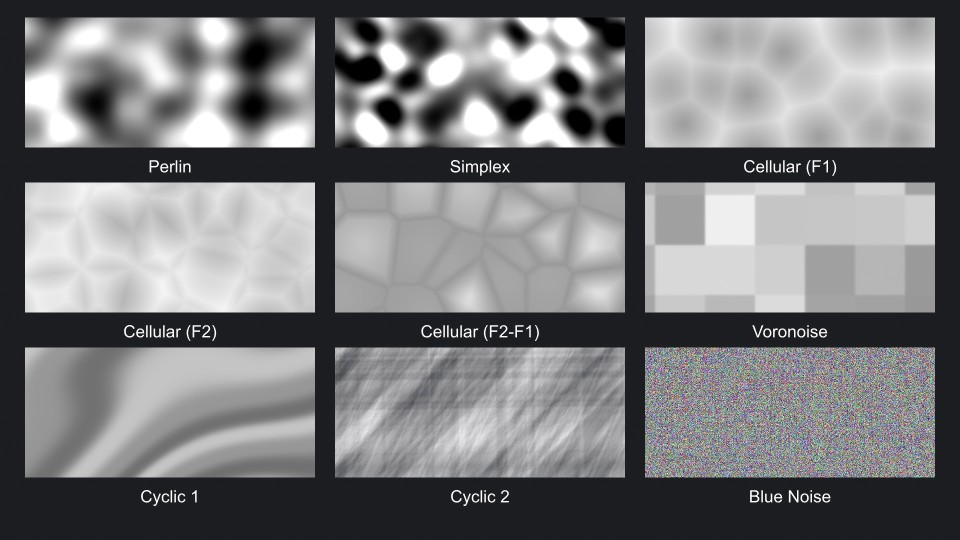
Figure 1The nine Noise Types, with one octave and Contrast 0.3.
Then paste in the *Project* panel. [Learn more](https://help.maxon.net/ag/en-us/Content/html/Interactive_Documentation.html.md)
- **Perlin** and **Simplex**: smooth, cloud-like gradients. *Simplex* gives higher contrast.
- **Cellular (F1)**, **Cellular (F2)** and **Cellular (F2-F1)**: cell patterns, based on the distance to random points. *F2-F1* outlines the borders between cells. *Jitter* sets how randomly the points are placed.
- **Voronoise**: cells of flat colors, whose shape and softness are set by *Voronoise U* and *Voronoise V*.
- **Cyclic 1** and **Cyclic 2**: flowing, marble-like patterns, based on the *Cyclic Noise* algorithm created by nimitz.
- **Blue Noise**: a fine, evenly distributed colored grain, for film grain or dithering. Only *Seed* affects it.
> **Note:** Some parameters only apply to some types, and are grayed out in the *Properties* panel for the others. For example, *Jitter* only applies to the *Cellular* types, *Voronoise U* and *V* to *Voronoise*, *RGB Noise* to *Perlin*, and *Seed* to *Perlin* and *Blue Noise*. See Type-Specific Parameters.
### Type-Specific Parameters
**Voronoise**
- **Voronoise U** changes the shape of the cells, from *-1* to *1*. At *0*, the cells are squares; towards *-1* or *1*, they become irregular polygons.
- **Voronoise V** blurs the cells. Small values are enough to soften their edges; at *1*, the cells disappear in a smooth noise.
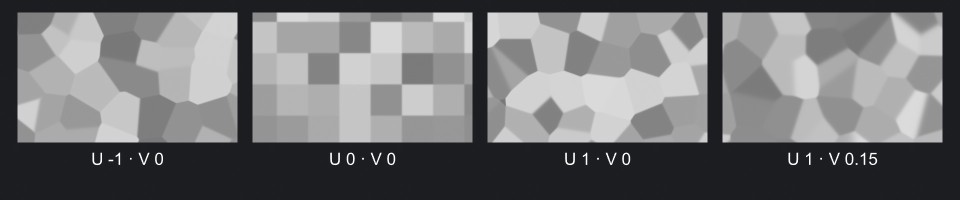
Figure 2Voronoise U -1, 0 and 1, then V 0.15, with one Octave.
Then paste in the *Project* panel. [Learn more](https://help.maxon.net/ag/en-us/Content/html/Interactive_Documentation.html.md)
**Cyclic 1 and Cyclic 2**
The *Cyclic* types sum several layers of sine waves while distorting their coordinates at each octave (domain warping), which gives flowing, folded patterns:
- **Cyclic Initial Amplitude** sets the strength of the first octave. Low values give a soft, almost flat pattern; high values a very busy one.
- **Cyclic Initial Fuzzing** sets how strongly the coordinates are distorted. At *0*, the pattern shows smooth, contour-like bands; high values twist it into streaks.
- **Cyclic Fuzzying Step** sets the frequency of this distortion, which increases at each octave. Low values give broad, smooth folds; high values give fine, streaky details.
**Blue Noise**
Only *Seed* changes the *Blue Noise*. Animate it to get a grain that changes at every frame, as with film grain.
## Size, Color and Pattern
- **Frequency** sets the size of the features: higher values give more, smaller features.
- **Color** tints the noise.
- **RGB Noise** generates an independent noise in each color channel. *Autograph* does this by giving each channel a different seed, which you can also do manually, as explained in Seed below.
### Seed
*Seed* gives a different random pattern with the same settings: change it when you need several noises that look alike but are not identical.
*Seed* is a 4D parameter, with one seed per channel: red, green, blue and alpha. By default it is in *Single* mode, so one value is used for all four channels and the noise is gray. Switch it to *Unified* or *Separated* mode with the menu on the right of the parameter, as described in [Managing Dimensions](https://help.maxon.net/ag/en-us/Content/html/Managing_dimensions.html.md), to set a different seed for each channel. Each channel then gets its own random pattern, which gives a colored noise, and the alpha channel can get its own pattern too.
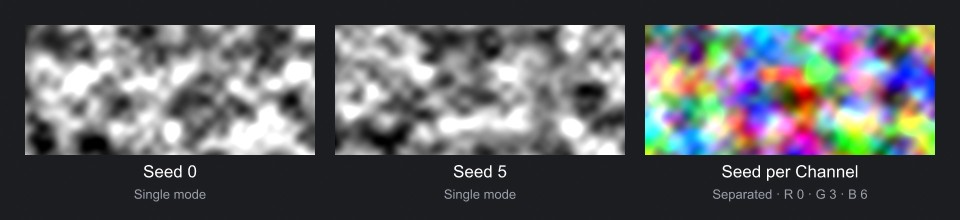
Figure 3Seed 0 and Seed 5 in Single mode, and one seed per channel in Separated mode (Output Alpha set to Opaque).
Then paste in the *Project* panel. [Learn more](https://help.maxon.net/ag/en-us/Content/html/Interactive_Documentation.html.md)
## Transform
The *Transform* group defines the transformation of the whole noise: *Offset*, *Scale*, *Rotation* and *Skew* move, scale, rotate and skew the noise pattern inside the generated image, while the image itself stays in place.
- **Transform Amount** is a weight applied to the whole *Transform* group: at *1*, the transformation is fully applied; at *0.5*, half of it is applied, so an *Offset* of 200 only moves the noise by 100; at *0*, the transformation has no effect. Animate it to blend the transformation in or out without touching the other values.
- **Perspective Offset** reduces the *Offset* for each octave. When the *Offset* is animated, the large shapes move faster than the fine details, as if the octaves were layers at different depths: this creates a parallax effect, for example for clouds or fog.
The strength of the parallax depends on the settings of the Octaves group, which define how each octave differs from the previous one. In the video below, the four rows use the same *Offset* animation:
[Video: noise_parallax.mp4](https://help.maxon.net/ag/en-us/Content/Resources/Images/chapters/generators/noise/noise_parallax.mp4)
Offset animated from 0 to 800 in four seconds. Perspective Offset off, then on with Octave Scale 0.56 (default), 0.8 and 0.35.
Then paste in the *Project* panel. [Learn more](https://help.maxon.net/ag/en-us/Content/html/Interactive_Documentation.html.md)
## Detail: Octaves and Fractal Mode
A noise with a single octave is smooth and blurry. Each additional octave adds a smaller, fainter copy of the noise on top, which adds fine detail. The number of octaves is set by *Octaves*, and the way each one is built by the Octaves group.
The *Fractal Mode* menu decides how the octaves are combined:
- **FBM** (fractional Brownian motion, the default): the octaves are simply added, which gives natural, cloud-like textures.
- **Turbulent**: creates thin, bright veins, for turbulent textures.
- **Ridged**: creates sharp ridges, for mountain or rock textures. *Ridge Offset* shapes the ridges.
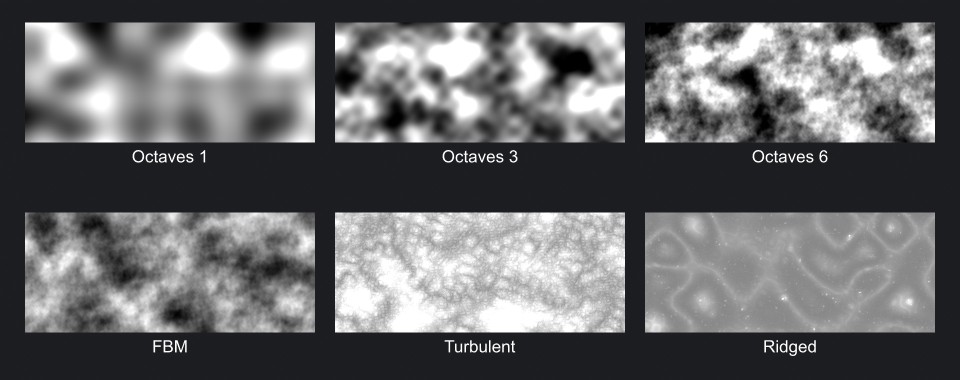
Figure 4Top: 1, 3 and 6 Octaves. Bottom: the three Fractal Modes with 6 Octaves.
Then paste in the *Project* panel. [Learn more](https://help.maxon.net/ag/en-us/Content/html/Interactive_Documentation.html.md)
### The Octaves Group
The parameters of the *Octaves* group define each octave from the previous one:
- **Octave Scale**, **Octave Rotation** and **Octave Offset** are the transformation applied to each octave, compared to the previous one. With the default *Octave Scale* of *0.56*, each octave is a bit more than half the size of the previous one, and with the default *Octave Rotation* of *25* degrees, it is rotated by 25 degrees more.
- **Attenuation** sets how much each octave is attenuated compared to the previous one. High values make the fine octaves faint, for a soft noise where large shapes dominate. Low values keep the fine octaves strong, for a rough, grainy noise.
- **Center Transform** makes all the octaves share the same center for their transformations. See Center Transform below.
- **Octave Evolution Offset** sets how much the Evolution differs from one octave to the next. It works like Perspective Offset, but for the evolution: when *Evolution* is animated, the octaves evolve at different speeds, so for example small, fast waves move on top of larger, slower ones.
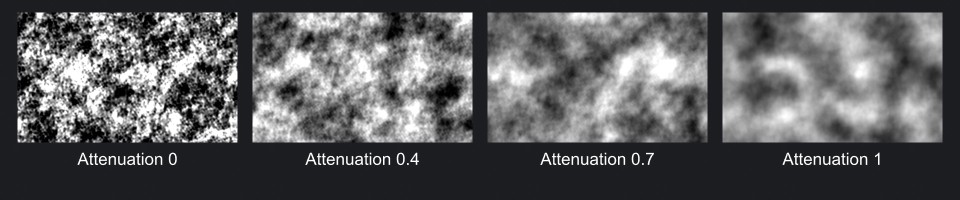
Figure 5Attenuation 0, 0.4, 0.7 (default) and 1, with 6 Octaves.
Then paste in the *Project* panel. [Learn more](https://help.maxon.net/ag/en-us/Content/html/Interactive_Documentation.html.md)
#### Center Transform
By default, each octave is scaled and rotated around its own center, so the octaves do not line up anywhere in the image. When *Center Transform* is on, all the octaves are transformed around the same center: the center of the noise.
At this point, the details of all the octaves meet, which creates a visible "pinch point". When *Octave Rotation* increases, each octave is rotated a bit more than the previous one around this shared center, and the pinch point turns into a spiral. Use it for vortex or whirlpool effects, and keep it off when the noise must look the same everywhere.
[Video: noise_center_transform.mp4](https://help.maxon.net/ag/en-us/Content/Resources/Images/chapters/generators/noise/noise_center_transform.mp4)
The same noise, with 4 Octaves, with Center Transform off (left) and on (right). Octave Rotation is animated from 0 to 150 over three seconds.
Then paste in the *Project* panel. [Learn more](https://help.maxon.net/ag/en-us/Content/html/Interactive_Documentation.html.md)
> **Note:** The shared center is the center of the noise, at the origin of the composition, plus the *Offset* of the *Transform* group. To place the pinch point elsewhere in the frame, keep the *Format* centered and move the layer with its own *Transform*, as in the example above.
## Deform
The *Deform* group distorts the noise with itself:
- **Warp steps** and **Warp amount** displace the noise by another noise (domain warping). Small amounts are enough: start around 0.1.
- **Curl** applies a swirling distortion, which gives smoke-like shapes. *Curl Amount* sets its strength. *Curl Step* sets the distance between the samples used to compute the direction of the swirls: small values give fine, grainy swirls; large values make the distortion follow only the large shapes.
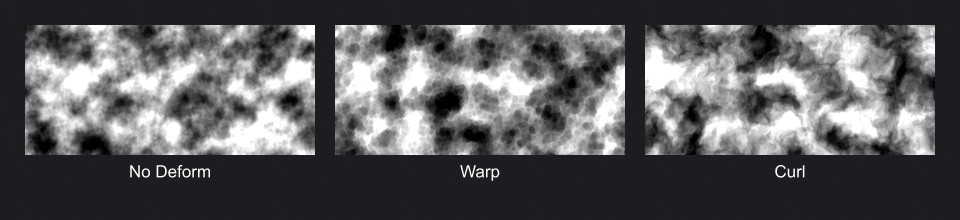
Figure 6No deformation, Warp steps 1 and Warp amount 0.15, and Curl.
Then paste in the *Project* panel. [Learn more](https://help.maxon.net/ag/en-us/Content/html/Interactive_Documentation.html.md)
## Grade
The *Grade* group adjusts the values of the noise:
- **Contrast** spreads the values. The default, *0.11*, gives a soft noise; around *0.5*, the values reach full black and white. At *0*, the noise becomes a flat gray.
- **Level** and **Gamma** adjust the brightness.
- **Invert** inverts the noise.
- **Clamp** (on by default) keeps the values between 0 and 1. When it is off, high contrast values go above 1. *Autograph* works in 32-bit floating point, so these values are kept: check them with the [Color Picker](https://help.maxon.net/ag/en-us/Content/html/Color_picker.html.md) of the *Viewer*.
> **Tip:** Each *Noise Type* and *Fractal Mode* gives a different range of values. When you change them, adjust *Contrast* and *Level* again.
## Output Alpha
- **Noise** (the default): the noise is drawn only in the alpha channel. The red, green and blue channels contain the solid *Color*, which the noise makes more or less transparent. Use it to add the noise on top of other layers.
- **Opaque**: the noise is drawn in the red, green and blue channels, over black, and the alpha is fully opaque. Use it when the noise is a texture or a map.
> **Tip:** To see what each channel contains, use the channel menu at the top left of the *Viewer* and choose one of the *Straight* modes. With *Output Alpha* set to *Noise*, the straight red, green and blue channels show a solid color, and the noise only appears in the alpha channel.
## Evolution
Animating *Evolution* makes the noise change in place, without moving, like boiling clouds or smoke. Its value is in degrees.
To create a seamless loop:
1. Enable *Loop Evolution*.
2. Animate *Evolution* linearly from *0* to *360* over the length of the loop. The noise then returns exactly to its first image.
With *Loops* set to *2*, the noise loops twice in 360 degrees, so every 180 degrees. *Cycle Evolution Speed* sets how much the noise changes during one loop.
[Video: noise_evolution_loop.mp4](https://help.maxon.net/ag/en-us/Content/Resources/Images/chapters/generators/noise/noise_evolution_loop.mp4)
Perlin, Fractal Mode Turbulent, 5 Octaves, green Color. Loop Evolution on, Evolution animated from 0 to 360 over three seconds.
Then paste in the *Project* panel. [Learn more](https://help.maxon.net/ag/en-us/Content/html/Interactive_Documentation.html.md)
> **Note:** The way you define the *Color* of the noise depends on the composition. When its *Color Management* is turned off, there is only one way to define a color. When it is set to *OpenColorIO*, every color parameter gets an extra *Colorspace* option, which tells in which colorspace the color is expressed. See Colorspace.
---
## Controls
| Parameter / Script Name | Type | Default | Function |
| --- | --- | --- | --- |
| `Enabled / enabled` | Boolean | On | Turns the Generator on or off. When off, the Generator produces an empty image. |
| `Output Format / output_format_mode` | Choice | Unbounded | Defines the area filled by the noise.
- *Unbounded*: The noise covers the whole, infinite canvas.
- *Format Preset*: The noise fills the selected preset, centered.
- *Composition Format*: The noise fills the composition.
- *Custom Format*: The noise fills the *Format* rectangle. |
| `Format / format_preset` | Choice | HD (1920x1080) | The format used when *Output Format* is set to *Format Preset*.
- *PC VIDEO (640x480)*
- *NTSC (720x486:0.91)*
- *PAL (720x576:1.09)*
- *NTSC 16:9 (720x486:1.21)*
- *PAL 16:9 (720x576:1.46)*
- *QHD (960x540)*
- *LHD (1280x720)*
- *HD (1920x1080)*
- *VHD (1080x1920)*
- *UHD 4K (3840x2160)*
- *VUHD 4K (2160x3840)*
- *UHD 8K (7680x4320)*
- *Super35 1K FULL AP (1024x778)*
- *Cinemascope 1K (914x778:2.00)*
- *Super35 2K FULL AP (2048x1556)*
- *Cinemascope 2K (1828x1556:2.00)*
- *DCP 2K (2048x1080)*
- *Super35 4K FULL AP (4096x3112)*
- *DCP 4K (4096x2160)*
- *Square 256 (256x256)*
- *Square 512 (512x512)*
- *Square 1K (1024x1024)*
- *Square 2K (2048x2048)* |
| `Format / formatRect` | Float 4D | -500, -500, 500, 500 | The rectangle used when *Output Format* is set to *Custom Format*, as left, bottom, right and top edges in pixels from the center of the composition. |
| `Pixel Aspect / par` | Float | 1 | The pixel aspect ratio of the generated image. |
| `Color / color_a` | Color | 1, 1, 1, 1 | Color of the noise. The noise values are multiplied by this color. |
| `Colorspace / input_colorspace` | Choice | Project Display Space | Only available when the composition's *Color Management* is set to *OpenColorIO*. The colorspace in which the *Color* is expressed.
- *Project Working Space*: The color is assumed to be expressed in the project working space
- *Project Display Space*: The color is assumed to be expressed in the project display space |
| `Noise Type / noise_type` | Choice | Perlin | The noise algorithm. See Noise Types.
- *Perlin*
- *Simplex*
- *Cellular (F1)*
- *Cellular (F2)*
- *Cellular (F2-F1)*
- *Voronoise*
- *Cyclic 1*
- *Cyclic 2*
- *Blue Noise* |
| `Output Alpha / output_alpha_mode` | Choice | Noise | How the alpha channel is generated. See Output Alpha.
- *Noise*: The noise is drawn in the alpha channel only; the color channels contain the solid *Color*.
- *Opaque*: The alpha is fully opaque. |
| `RGB Noise / force_color` | Boolean | Off | Generates an independent noise in each color channel. Not available for every Noise Type. |
| `Fractal Mode / fractal_mode` | Choice | FBM | How the octaves are combined. See Detail: Octaves and Fractal Mode.
- *FBM*
- *Turbulent*
- *Ridged* |
| `Ridge Offset / fbm_ridge_offset` | Float | 0.7 | Shapes the ridges. Only used when *Fractal Mode* is *Ridged*. |
| `Seed / seed` | Float 4D | 0, 0, 0, 0 | Changes the random pattern; the only parameter that affects *Blue Noise*. See Seed. One seed per channel (red, green, blue, alpha), in *Single* mode by default. Not available for every Noise Type. |
| `Frequency / frequency` | Float | 10 | Size of the features: higher values give more, smaller features. |
| `Offset / offset` | Float 2D | 0, 0 | Moves the noise pattern. |
| `Perspective Offset / perspective_transform` | Boolean | Off | When checked, the offset is decreased for each octave to create a perspective effect: animating the *Offset* then gives a parallax effect. See Transform. |
| `Scale / scale` | Float 2D | 1, 1 | Scales the noise pattern. |
| `Rotation / rotate` | Float | 0 | Rotates the noise pattern, in degrees. |
| `Skew / skew` | Float 2D | 0, 0 | Skews the noise pattern. |
| `Transform Amount / transform_amount` | Float | 1 | Weight of the *Transform* group: 1 applies it fully, 0.5 half of it, 0 not at all. See Transform. |
| `Evolution / slice` | Float | 0 | Evolves the noise over time, in degrees. Animate it to make the noise move in place. See Evolution. |
| `Loop Evolution / cycle_slice` | Boolean | Off | When on, the evolution loops: the noise returns to the same image every 360 / *Loops* degrees. |
| `Loops / cycle_slice_revolutions` | Float | 1 | Number of loops in 360 degrees of *Evolution*. Only used when *Loop Evolution* is on. |
| `Cycle Evolution Speed / cycle_slice_radius` | Float | 100 | How much the noise changes during one loop. Only used when *Loop Evolution* is on. |
| `Octave Evolution Offset / slice_octave_offset` | Float | 1 | Offset on the evolution between each octave: when *Evolution* is animated, the octaves evolve at different speeds. See The Octaves Group. |
| `Octaves / octaves` | Float | 6 | Number of layers of detail added to the noise. See Detail: Octaves and Fractal Mode. |
| `Octave Offset / octave_translation` | Float 2D | 0, 0 | Offset applied from one octave to the next. |
| `Octave Scale / octave_scale` | Float 2D | 0.56, 0.56 | Scale applied from one octave to the next. |
| `Octave Rotation / octave_rotation` | Float | 25 | Rotation applied from one octave to the next, in degrees. |
| `Center Transform / center_octave_transform` | Boolean | Off | When on, all the octaves are transformed around the same center, which creates a pinch point, and a spiral with *Octave Rotation*. See Center Transform. |
| `Attenuation / attenuation` | Float | 0.7 | How much each octave is attenuated compared to the previous one: high values give a soft noise, low values a grainy one. See The Octaves Group. |
| `Voronoise U / voronoise_u` | Float | 0 | Only used by the *Voronoise* type. Shape of the cells, from -1 to 1; 0 gives squares. See Type-Specific Parameters. |
| `Voronoise V / voronoise_v` | Float | 0 | Only used by the *Voronoise* type. Blurs the cells. |
| `Jitter / jitter` | Float | 1 | Only used by the *Cellular* types. Randomness of the cell positions. |
| `Cyclic Initial Amplitude / cyclic_amplitude_init` | Float | 0.52 | Only used by the *Cyclic* types. Strength of the first octave. |
| `Cyclic Initial Fuzzing / cyclic_warp_init` | Float | 0.5 | Only used by the *Cyclic* types. Strength of the distortion of the coordinates. |
| `Cyclic Fuzzying Step / cyclic_warp_step` | Float | 1.2 | Only used by the *Cyclic* types. Frequency of the distortion, increased at each octave. |
| `Warp steps / warp_steps` | Float | 0 | Number of fractal domain warping steps. See Deform. |
| `Warp amount / warp_amount` | Float | 0 | Amount of fractal domain warping. |
| `Curl / curl` | Boolean | Off | Distorts the noise with a curl effect, which gives swirling, smoke-like shapes. See Deform. |
| `Curl Step / curl_step` | Float | 100 | Distance between the samples used to compute the *Curl* distortion: small values give fine swirls, large values follow the large shapes. |
| `Curl Amount / curl_amount` | Float | 1 | Strength of the *Curl* distortion. |
| `Contrast / contrast` | Float | 0.11 | Contrast of the noise. See Grade. |
| `Level / level` | Float | 1 | Brightness of the noise. |
| `Gamma / gamma` | Float | 1.2 | Gamma correction of the noise. |
| `Invert / invert` | Boolean | Off | Inverts the noise. |
| `Clamp / clamp` | Boolean | On | Keeps the noise values between 0 and 1. When off, high *Contrast* values give values above 1. |