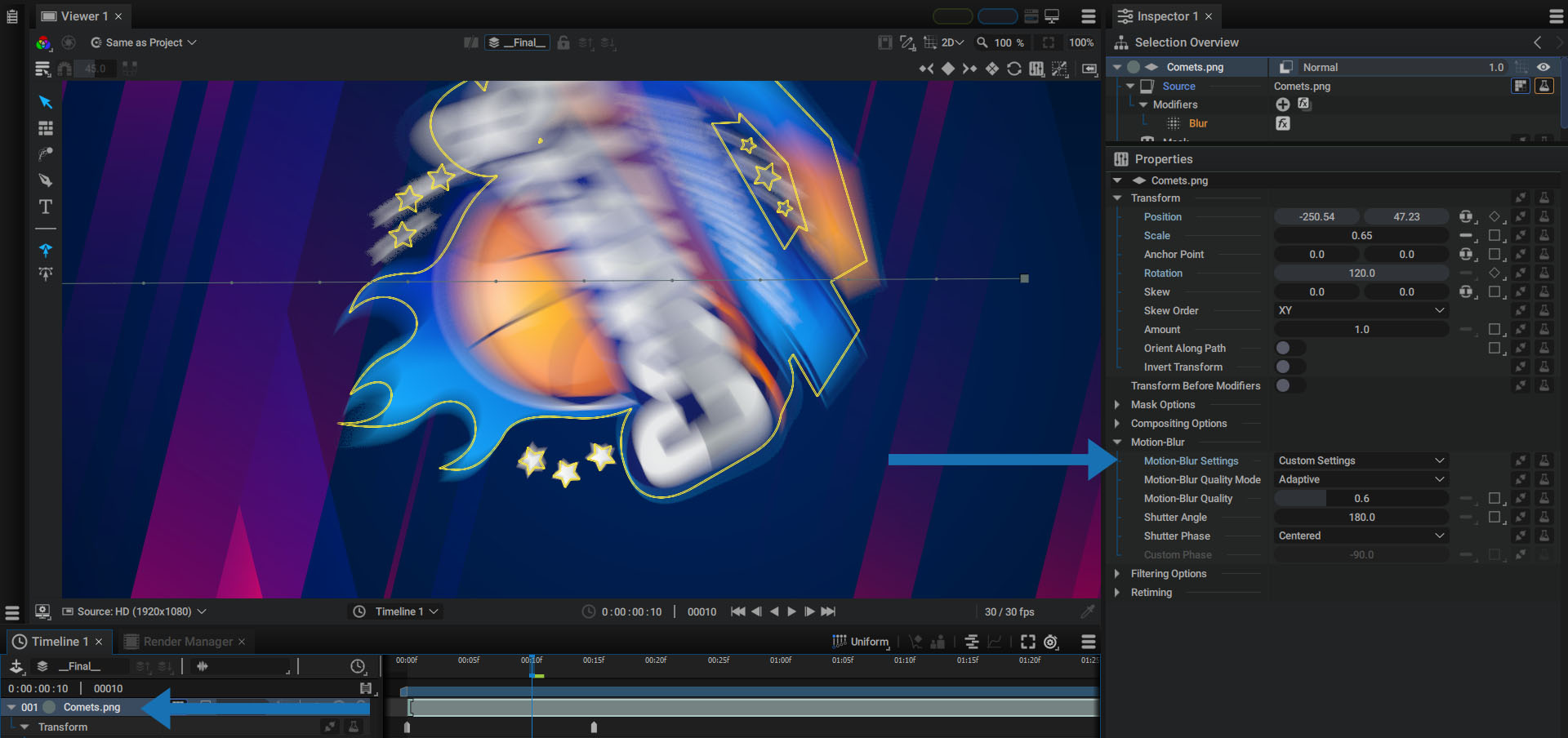
Motion Blur
The way our eyes work plays a big role in how our brains interpret a series of images as movement. The persistence of our retina’s vision retains the image formed by the rays of light that touch it. When an object moves quickly, the retina accumulates thousands of intermediate positions, sending an image containing a blur of motion to our brains.
Whether you are playing a sequence of images, a video file, or a composition, an animation on a screen is ultimately just a succession of still images. In order for our brain to interpret it as movement and not as a series of independent images, we must keep in mind two important parameters:
- Frame Rate: at less than a dozen images per second, the brain struggles to correlate images with each other to perceive movement. The higher the frame rate, the smoother the animation will look.
- Motion Blur: in order to help our brains better understand an object’s movement, Autograph can simulate a motion blur similar to the one created by our retinas. This blur makes an animation more visually fluid, without increasing the frame rate.
Layer motion blur in Autograph is calculated in order to obtain a realistic result, no matter the transformation/distortion type, or the color variations of the content. Rather than accumulating additional intermediate frames, Autograph disperses the pixels over time along the layer’s trajectory.
To enable Motion Blur for a specific layer, just right-click on it and check Motion-Blur > Use Composition Settings
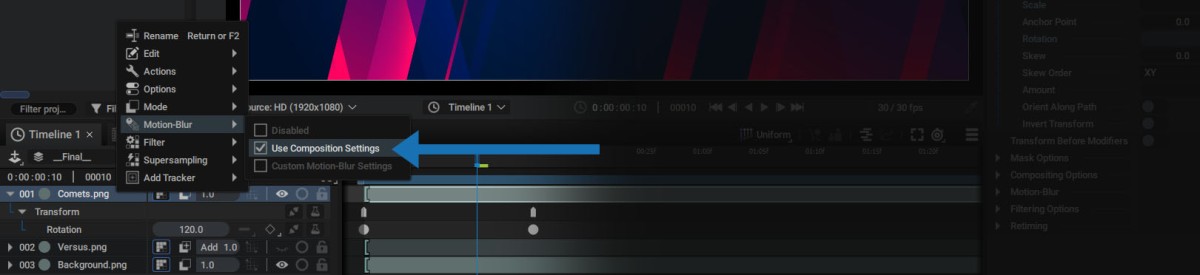
You can select several layers before right-clicking on one of them to activate this option for several layers at the same time.
By enabling the Use Composition Settings option, the Motion Blur parameters will be global to the entire composition and not local to a layer.

To modify these parameters, select the composition in the Project Panel or press ctrl/cmd + k to display the parameters of the current composition.
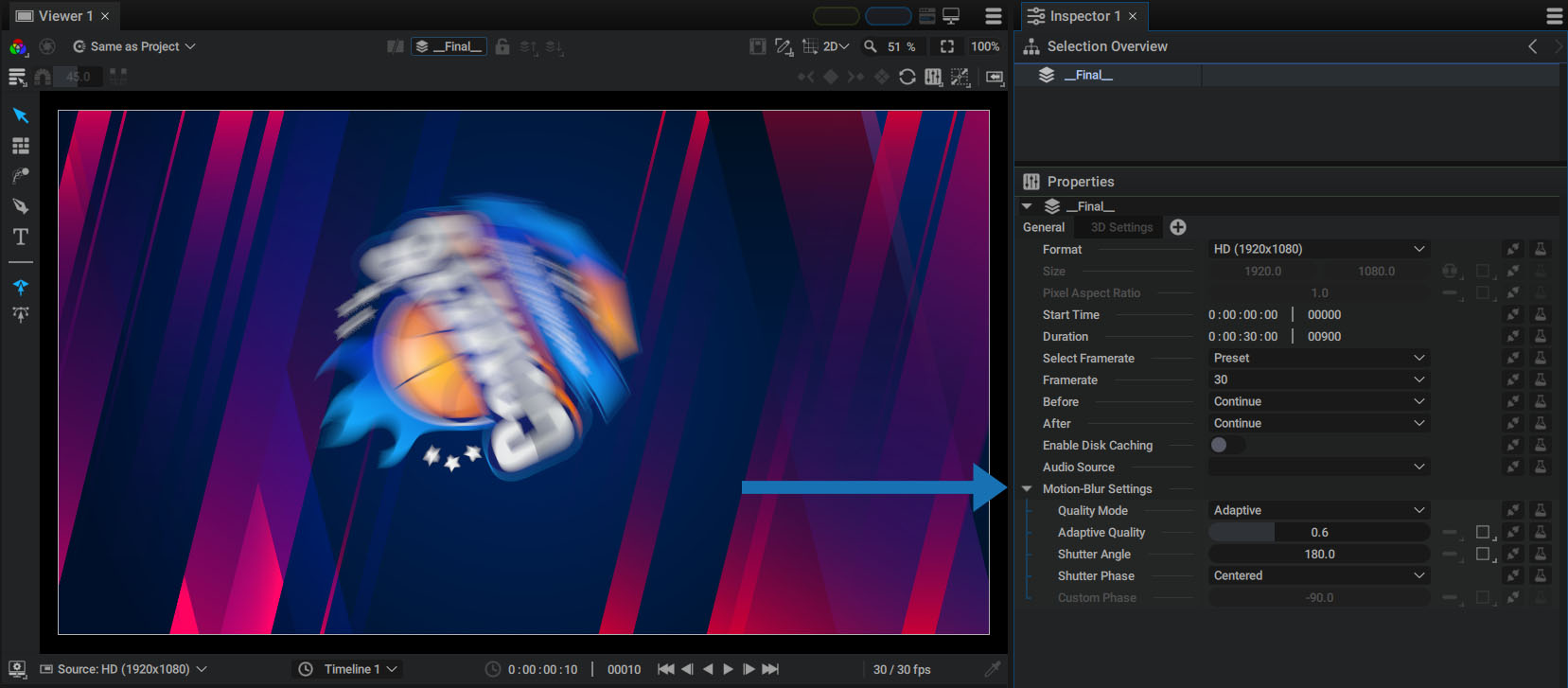
Motion Blur Quality
Layer Motion Blur in Autograph is calculated in order to obtain a realistic result, no matter the transformation/distortion type or the color variations of the content. Rather than accumulating additional intermediate frames like in After Effects, Autograph scatters pixels over time along the layer’s trajectory.
The Quality Mode parameter defines the scattering method:
Adaptive:
This mode automatically computes the number of pixels to be accumulated during scattering as a function of layer speed.
The temporal accumulation of these pixels will be more or less depending on the Adaptive Quality parameter:
- Setting this value to 0 turns off the Motion Blur
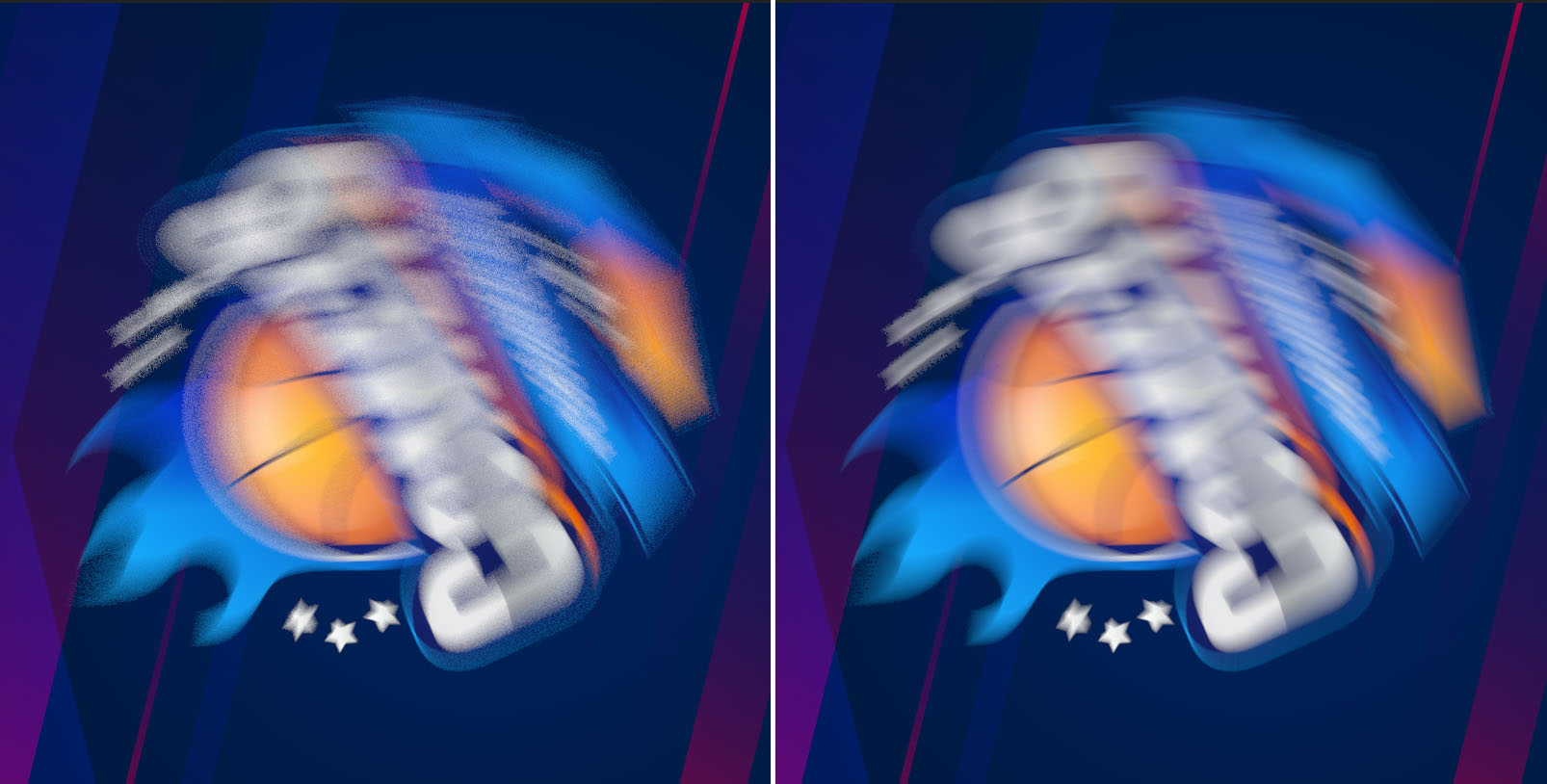
- Using a low value will spread few pixels, resulting in a grainy blur (see below left for 0.01 value)
- Using a high value will spread more pixels, increasing the quality and producing a more uniform blur (see below right for 1.0 value)
Samples Count:
This mode manually defines the number of samples that will be scattered over a period of time defined by the Shutter Angle and Shutter Phase parameters.

Shutter Angle
Shutter Angle defines the length of the blur along the path:
- A low value will produce a short blur
- A high value will produce a long blur

This value is expressed in degrees, similar to the value used by film cameras.
In order to understand what these values mean, you can consult the two following Wikipedia articles on the subjects of Shutter Angle and Shutter Speed.
Shutter Phase
By default, pixel scattering is done symmetrically (in Centered mode) before and after the time defined by the playhead.
Three other modes allow you to choose how the pixels will be scattered around the current time:
- Start: scatters pixels from current time
- End: scatters pixels up to the current time
- Custom: shifts scattering relative to current time between -180 and +180 degrees
Customized Motion Blur by Layer
Right-click on a layer and select Motion-Blur > Custom Motion-Blur Settings to disregard the parameters used for the entire composition and define a local Motion Blur for that layer only.
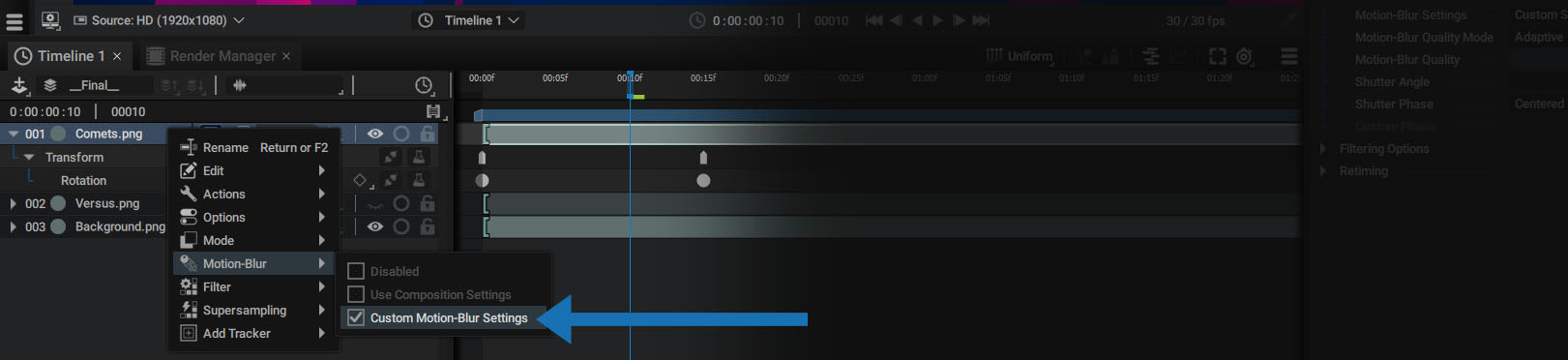
The layer's Motion Blur section then offers the same parameters as the composition.