
Range Selector
Text Animators apply modifications to text characters. By default, all letters are affected by these modifications.
Selectors reduce the number of letters affected so they revert to their original state. When adding an Animator, a Range Selector is automatically added labelled Range 1.
Selecting it in the Selection Overview provides access to its parameters:
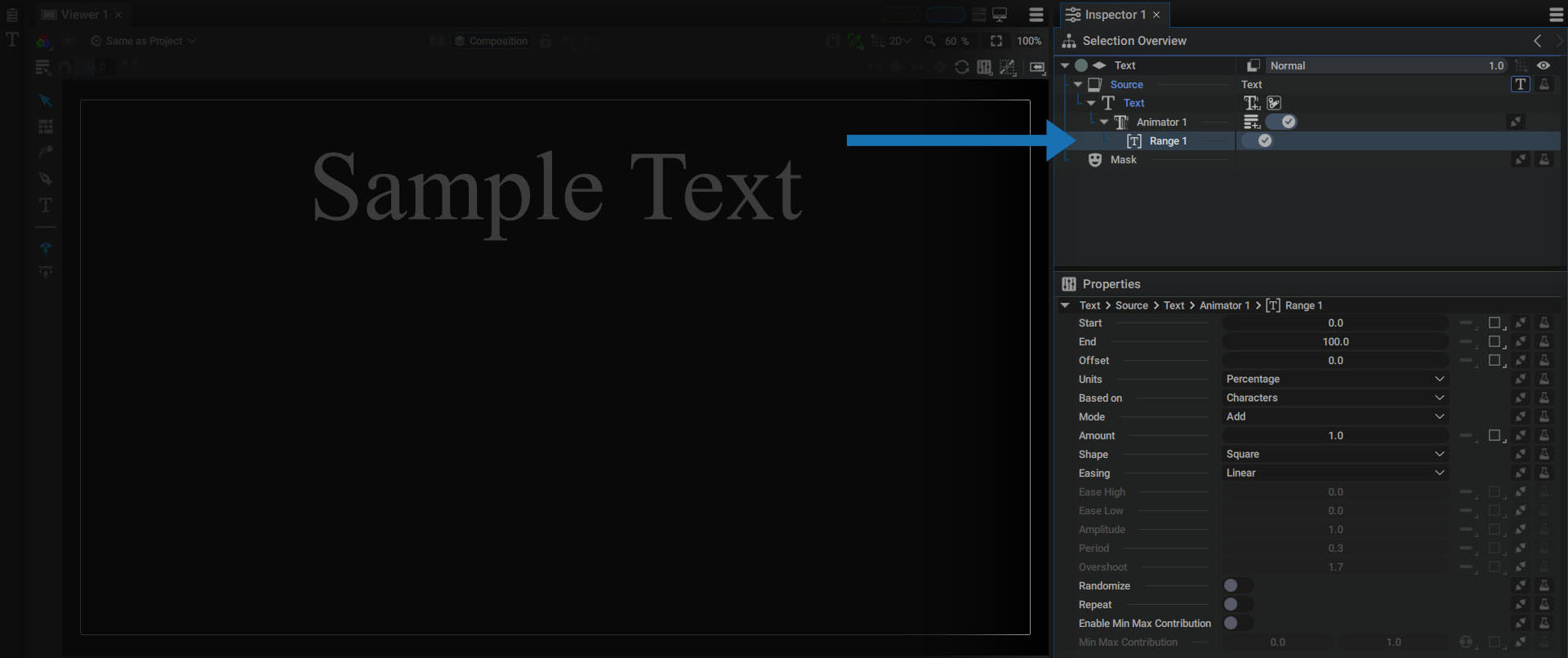
Both the Animator and Selector can be renamed by right-clicking and selecting Rename.
Range Selector Main Parameters
Let's focus on the first four parameters:
- Start
- End
- Offset
- Units
We'll use the example from the Text Animator page with a position offset.
By default, Units is set to Percentage, which means we'll define a text range with 0% representing the beginning of the text, and 100% for the end.
The advantage of this is that you can define the middle of the text using 50%, no matter the character count, and create an Animator that works the same, regardless of the text length.
Animating the Range Selector
By reducing the End value, we'll progressively shrink the selection affected by Animator 1. For a value of 50, the first half of the text from 0% to 50% will be affected.
If the text has an odd number of characters, letter selection won't be binary, but it can be partial. The character in the middle of the word will undergo the Animator by half, moving halfway between the initial and final states.
Animate the Start or End parameters to move characters one by one:
The Offset value is permanently added to the Start and End. Set these two values to 30% and 70% respectively, then animate the Offset to slide the character selection.
Changing the Units Parameter to Index Mode
It's also possible to work according to character indexes. To do this, simply switch Units to Index mode.
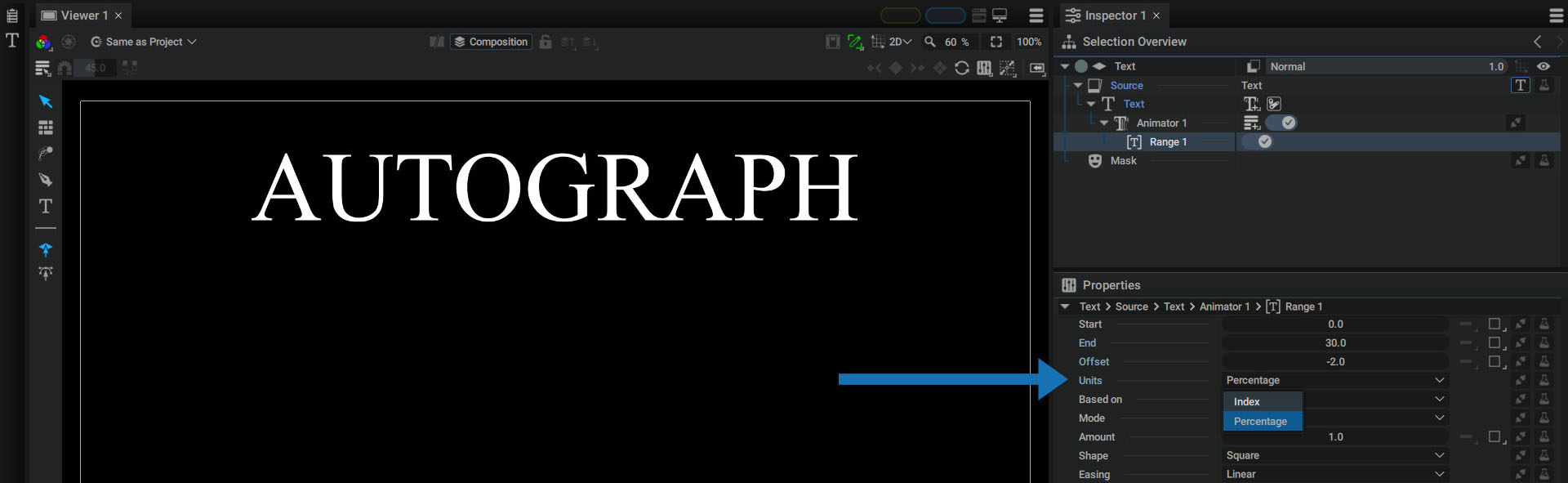
Start and End values now define the character number, bearing in mind that 0 represents the pixel just before the first character.
In the case of a word like AUTOGRAPH, with 9 characters, setting Start to 0 and End to 8 will exclude the last letter from the range.
But here again, the selection isn't necessarily binary, which allows the End to be set to 7.5
Animation Based on Character, Word, or Line
If a text is made up of several words, the space between them will be considered as any other character. Visually, this can create a pause during character animation.
To avoid this, the Based On parameter contains a Characters Excluding Spaces option, which eliminates this pause time.
This menu also contains two other options:
- Words: animates the letters of each word as a single block
- Lines: animates each line independently
Mode and Amount Parameters
An Animator can contain several Selectors, but first, remember:
- An Animator defines a list of modifications applied to certain text parameters.
- A Range defines an area of the text that will be affected by these modifications.
To apply these changes to the beginning and end of the text, without affecting the characters in the middle, we need to create a second Range Selector.
If we click on the same button for adding parameters to an animator, “Range Selector” will appear at the bottom of the list.
A new Range 2 will appear in the Selection Overview:
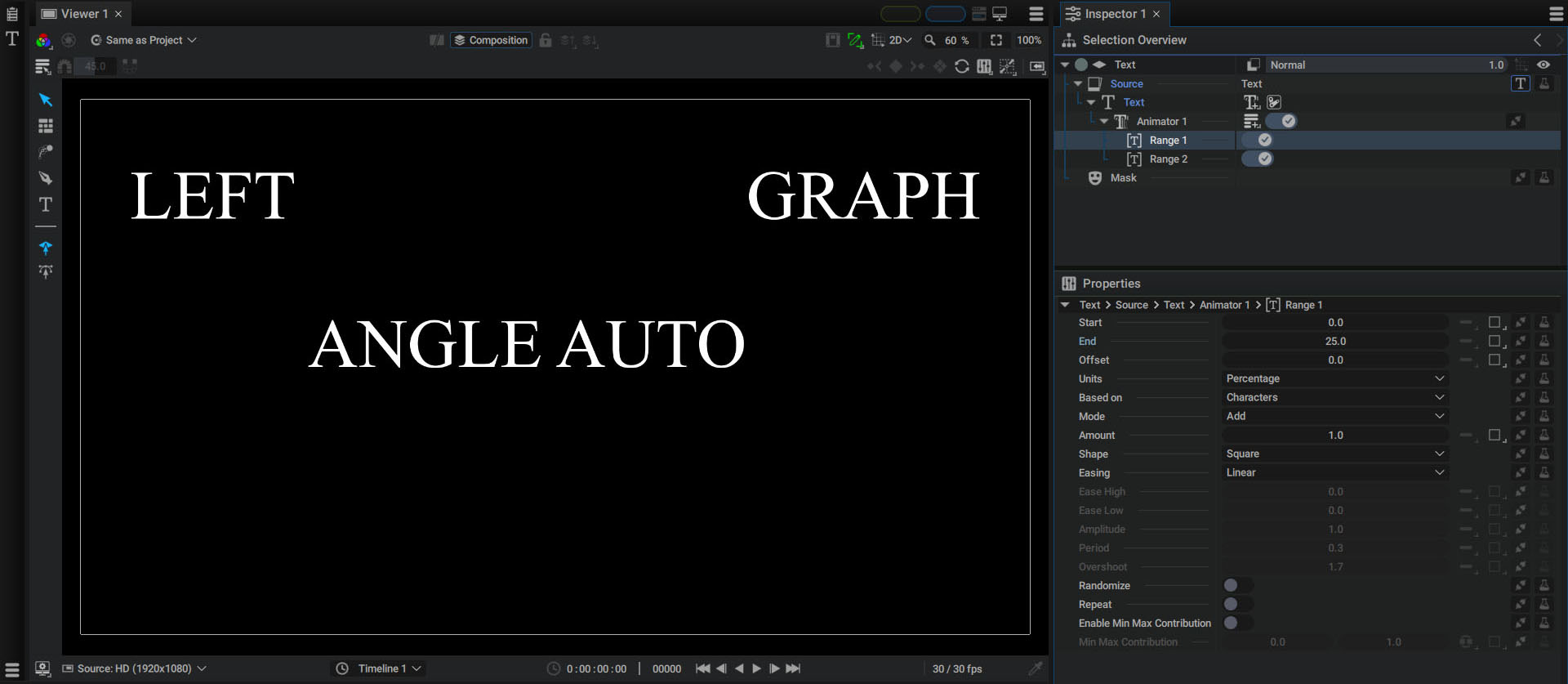
In the example above, the two Ranges have the following parameters:
- Range 1: Start = 0%, End = 25%
- Range 2: Start = 75%, End = 100%
Ranges assign a weight to each character, which determines the degree they should be affected by an Animator.
Sometimes, depending on Start and End values, Ranges can overlap and combine:
- Range 1: Start = 0%, End = 75%
- Range 2: Start = 25%, End = 100%
It's important to keep in mind the Ranges Selector order. The list is read from top to bottom, defining the operation order.
Mode indicates how character weights assigned by the current Range Selector will be combined with previous ones.
- Add: adds current weights to previous ones.
- Subtract: subtracts current weights to previous ones.
- Intersect: multipies current weights to previous ones.
- Min: compares current and previous weights and keep the lowest values.
- Max: compares current and previous weights and keep the highest values.
- Difference: computes the difference between current and previous weights, so the result will be always be positive.
Amount:
The Amount parameter is used to globally multiply the weights produced by a Range Selector. At 1.0 by default, it will have no influence. But setting it to 2.0 will double character weights, while a value of -0.5 will halve them and change their sign.
Shape
Range Selector parameters Start, End and Offset assign a weight to each charater:
- If a character is outside the range, its weight is 0.0
- If a character is fully in this range, its weight is 1.0
In between, when Start or End are located between two characters, the weights evolve between 0.0 and 1.0, creating a smooth transition between the initial and final states.
To better understand the Shape parameter, we'll use words Left Angle Autograph as an example.
- Add an Animator affecting Position with values 0.0 / 300.0
- Set the parameter Units to Index, Start at 6 and End at 14.
Using integer values in Index mode for Start and End means there are only two possible character weight values, 0.0 or 1.0.
Square Mode:
The default Square mode of the Shape parameter is easily recognizable here. Outside the Start / End bounds, character weight is 0.0 while inside it's 1.0.
In Square mode, a character can only be animated once the previous character has reached the final state defined by the Animator.
This weight progression is Linear by default, but the Easing parameter described below offers more variations.
Ramp Up Mode:
Switching to Ramp Up mode causes weights to gradually increase from 0.0 to 1.0 between Start and End. 0.0 is held before the start limit and 1.0 is kept after the end limit.
Ramp Down Mode:
The opposite of Ramp Up, with weights gradually decreasing from 1.0 to 0.0.
Triangle Mode:
Creates a triangular shape between Start and End, with a weight of 0.0 on these two bounds and a weight of 1.0 in their middle.
Round Mode:
Similar to Triangle, but creating a rounded shape between Start and End
Smooth Mode:
Similar to Round with the exception that weights evolve smoothly at the bounds.
Easing
To better understand how the Easing parameter works, we'll start with the following example:
- Enter a text containing only the "." character
- Add an Animator on Position 0.0/500.0
- In the Range Selector:
- Set *Units to Percentage.
- Set Start to 0.0 and End to 100.0
- Switch Shape to Ramp Up.
- Move your Text layer down a bit to center it vertically.
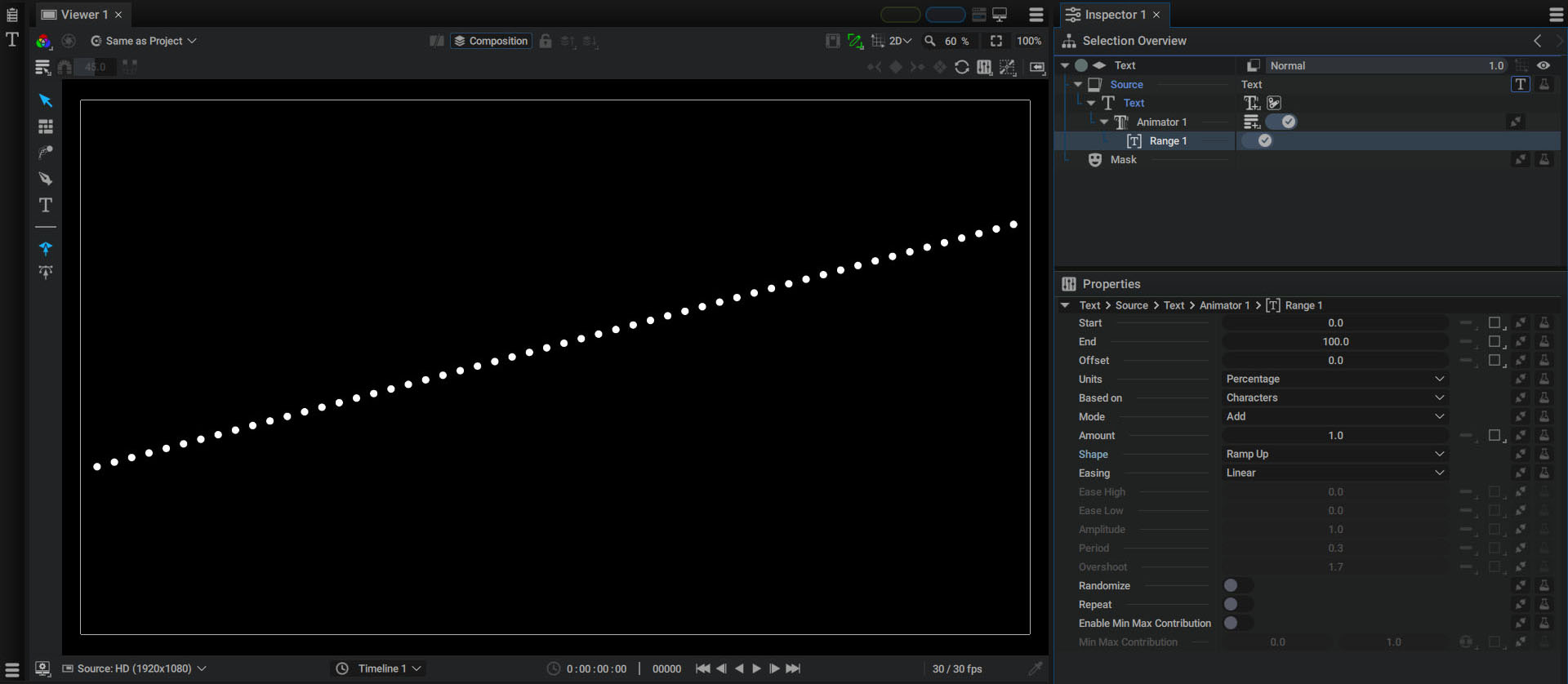
Character weights evolve from Start (0.0) to End (1.0) in a straight line, as the default Easing mode is Linear.
Clicking on the parameter list and moving the mouse over it allows you to draw the different easing curves to understand how the weights evolve between the Start and End.
To move this curve along the character string and see how a particular easing mode controls animation, simply change the Offset parameter.
Now that we've gone over these animation methods, switch out the periods with a sentence.
Additional Parameters
The Elastic, Bounce, Back and Custom easing modes offer additional parameters:
- Ease High: only for Custom mode; controls dampening when reaching the End boundary.
- Ease Low: only for Custom mode, controls dampening from Start boundary.
- Amplitude: controls progressive energy loss during oscillation or bounce in Elastic and Bounce modes.
- Period: controls oscillation number in Elastic mode
- Overshoot: controls the rate at which the final state is exceeded in Back mode.
Randomize
The weights assigned to each character follow their order in the string. Checking the Randomize option will randomly assign these weights to create a less linear, more chaotic animation.
A new Seed parameter will appear which lets you change the way weights are distributed.
Repeat
A Range Selector defines character weights within a single range defined by Start and End parameters.
The Repeat option allows this range to be duplicated infinitely along the string. The Interval parameter specifies the number of characters separating two Start bounds.
The Interval parameter unit is the same the one defined in the Units parameter.
- In Index mode: a value of 40.0 will add a new range every 40 characters.
- In Percentage mode: a value of 100.0 will result in a perfect cycle.
The Triangle, Round, and Smooth modes of the Shape parameter allow these multiple ranges to be connected perfectly, with the weights at the Start and End bounds always set to 0.0.
Max Contribution
When several Range Selectors are added to an Animator, the weights produced by each of them are combined according to their Mode parameters. The result of these operations may produce negative values or values greater than 1.0.
Enable Min Max Contribution lets you define minimum and maximum weights, as output from the current Range Selector.
If several Range Selectors are used, enabling this option on the last one on the list will clamp weights, while allowing previous Range Selectors to preserve negative values, for example.