
Object

Here you can define if the elements to be distributed originate from an object selection or a series of objects that you define under Object Palette.
In addition you can define a frequency for each object in the Object Palette. This defines the frequency with which the respective object will be placed.
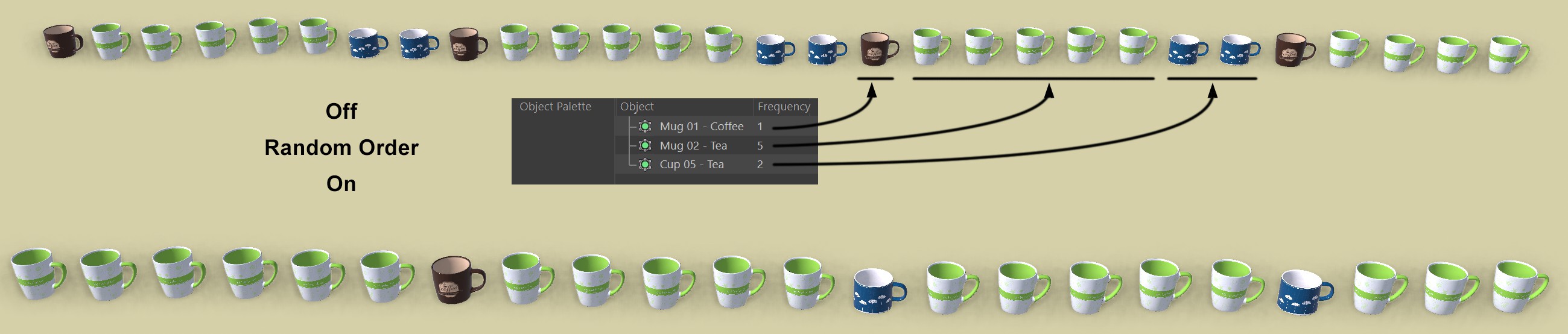 The frequency of each object directly defines the number of placed instances (top: Random Order off). If Random Order is enabled, a random distribution will occur, which can lead to deviations in the number of frequencies if few instances are used.
If, for example, you have an object A with a frequency of 1 and an object B with a frequency of 3, object A will be created once and object B three times if 4 instances are used.
If you scatter multiple objects, you can define here if the order of the objects to be places should be purely random or if they should be scattered one after the other. For example, if you scatter three objects, A, B and C, the order if this opiton is disabled will be A, B, c, A, B, C, etc. and if it's enabled, C, A, A, B, A, etc., for example.
Wherever you have a random distribution you will need a seed value, which varies the randomness (details see Seed).
The following settings serve to add diversity to the scattering by offsetting, rotating or scaling the instances randomly within certain limits.
You can select between the following:
-
Stroke: By default, instances are arranged vertically (+Y lies perpendicular to the surface) and with their X axis in the direction of the tool's movement tangent.
-
Object: Instances will be placed without taking painting direction or object orientation into consideration. This mode is, for example, designed for use on trees, which always grow upwardly.
In both cases, the Rotation Range setting can be used to add randomness to the orientation
The reference point of an instance is the point with which the instance is placed on an ojbect surface. There are two available options:
-
Bounding Box: Here, the reference point lies at the center of the bottom side of the Bounding Box.
-
Axis: Here, the reference point lies at the object axis origin. This mode is, for example, useful if you have a tree with roots that you want to place. Place the axis where the root bale ends in the upward direction and it will disappear below the object surface when placed.
Here you can define a range in which the instances should be randomly placed in the Y position.
Here you can define a rotational range in all three axis directions within which the instances sould rotate randomly. A value of 30° will produce a random variation around the respective axes of between +30° and -30°.
Here you can define a scaling range within which the instances should be uniformly and randomly scaled along all 3 axes. If, for example, you want to vary between the current and double the size, enter 100% and 200% for both values.