---
title: "Transform Bitmap"
url: "https://help.maxon.net/c4d/en-us/Content/html/11700.html"
section_path: "BodyPaint 3D > Tools Menu > Paint Tools > Transform Bitmap"
command_id: "170138"
description: "Using this tool, you can transform the active texture by scaling, rotating, or shearing it and so on."
---
# Transform Bitmap
Using this tool, you can transform the active texture by scaling, rotating, or shearing it and so on.
The starting point for this tool can be:
- a selection or
- depending on which layer is active, when you click on the tool the transformation frame is fitted automatically to the content of the layer (including linked layers).
When this tool is activated, a frame will appear around your selection (or layer content). This frame consists of four corners and four sides, each of which can be grabbed and moved with the mouse - the results of which will vary, depending on the option selected.
We recommend the **Auto** option. Depending on which part of the frame your cursor nears, it will display information regarding the type of transformation that is possible. You can click inside of the frame, on its corners or sides, or even outside of the frame to move, rotate or scale (grabbing corner points will scale the frame proportionally) its contents.
The other modes can be used if you are zoomed very closely into the texture and the frame is no longer visible. In this case you can use the **Rotate** option to rotate the frame, which would not be possible in **Auto** mode.
Note that only the frame is transformed in real-time — transform the frame as you intend the active layer to be transformed, then click on the Apply button (or double-click inside the frame) to transform the active layer.
Keep in mind that Transform Bitmap affects the active layer only. If you attempt to activate another layer (by clicking it) while the frame is active, a warning dialog will open. Click Yes to apply the transformation or Cancel to abort it.
| | | |
| --- | --- | --- |
| 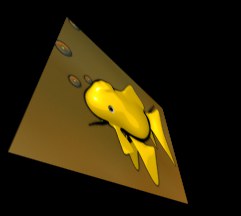
Move | 
Scale | 
Rotate |
| | |
| --- | --- |
| 
Perspective | 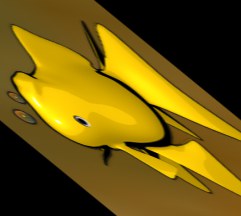
Shear |
# Flip Horizontal, Flip Vertical
The **Flip Horizontal**, **Flip Vertical**, **Rotate +90°** and **Rotate -90°** buttons do exactly what their respective names say.