Principled Hair
Overview
The Redshift Principled Hair shader is a physically-based shader for hair and fur. You can quickly get up to speed with natural hair results by adjusting the melanin and melanin redness values. adding in some randomization by increasing the amount of variation for various color and roughness parameters.
Trace Depths
The look of hair is heavily affected by the reflection trace depth render setting. When hair is lighter in color a multi-scattering reflection effect becomes more pronounced, this means that light hair (lower melanin values) will generally require higher trace depth values than dark hair (higher melanin values). Hair that is driven by an albedo color behaves in the same way but hair that is diffuse is much less sensitive to reflection trace depth changes.
Reflection trace depth values that are too low may look nothing like their intended color. In the example videos below, note how significantly the look of the hair can change when trace depth values are low. However, since high trace depths can have a significant negative impact on render times it is important to find a good balance for your intended look as there are diminishing visual returns beyond a certain point.
| Trace Depth: 1-32 Hair Color: Melanin 0.2 |
Melanin 0.65 |
Albedo Color: Light Pink |
There are two ways to control the reflection trace depth of hair.
-
Use the "Reflection Trace Depth" parameter in Redshift's main Render Settings.
-
This will control the reflection trace depth across the entire scene, this may be inefficient if your scene does not require high reflection trace depths outside of hair rendering.
-
-
Use the "Trace Depth" override setting in the Advanced section of the Principled Hair shader.
-
This will only override the local reflection trace depth of this hair material, frequently this is more efficient since you can set higher or lower trace depths for hair rendering rather than affecting the entire scene.
-
Render requirements
The 'Hair Render' effect found in the Render Settings panel must be present and enabled for hair rendering in Redshift. Normally, this effect is added automatically with the creation of C4D hair but it may be necessary to manually add to your Render Settings in certain situations.
To do this, go to your Render Settings panel and create the "Hair Render" effect as pictured below.
| Manually adding the Hair Render effect |
The Hair Render effect is only used as a global option that enables or disables hair rendering, the individual parameters in the Render, Objects, and Multi-Pass tabs have no effect on Redshift rendering.
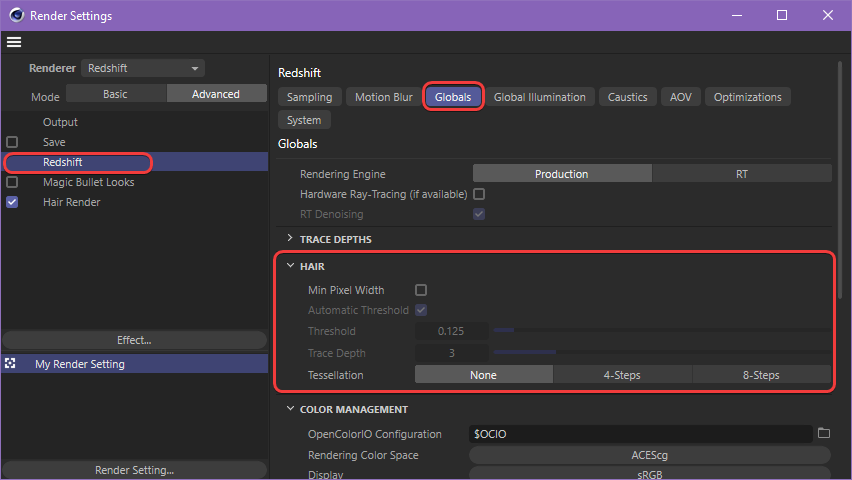
Instead, use the "Hair" parameters in Redshift's "Globals" render settings tab as pictured below. For more information please see the the Globals Advanded page.
|
| Redshift Hair render settings |
Examples
Usage with C4D Hair
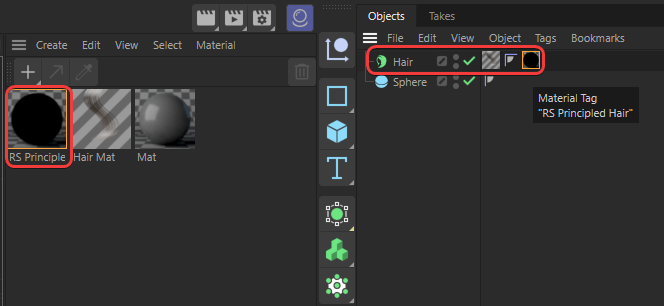
Create a Principled Hair shader and apply it to your C4D hair object without replacing the default C4D hair material, this will still be used to control hair attributes like frizz, clump, and curl. For more information regarding these attributes please see the C4D Hair Material page.
|
| Applying a Principled Hair material to a C4D Hair object |
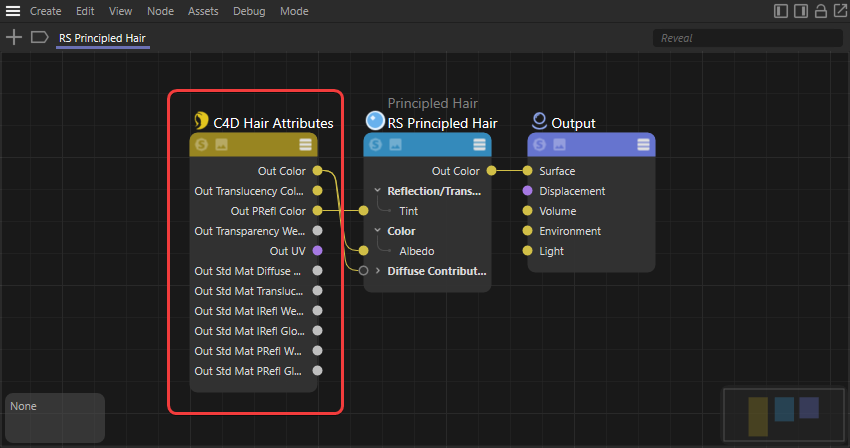
By default Principled Hair will render using its realistic melanin color controls but the node graph is already set up to easily inherit colors from a C4D hair material by using a "C4D Hair Attributes" node as seen below.
|
| C4D Hair Attributes driving the colors of a Principled Hair material |
The C4D Hair Attributes node is set up to work as follows:
-
The C4D Hair's main color (Out Color) is used to drive the Principled Hair's albedo and diffuse colors.
-
The Principled Hair's "Albedo Mix" or "Diffuse Amount" parameters must be increased before these colors become visible. In most cases, set the Albedo Mix to 1 for realistic hair colors and leave Diffuse Amount at 0.
-
-
The C4D Hair's specular color (Out PRefl Color) is used to drive the Principled Hair's tint color.
-
By default a C4D Hair's specular color is white, the same as a Principled Hair's default tint color, so no change will take effect unless the specular color is changed.
-
The C4D Hair Attributes node can be disconnected if you intend to use the Principled Hair controls exclusively, however the C4D hair material will still be used to drive all non-color attributes like frizz and curl.
Hair color from root to tip
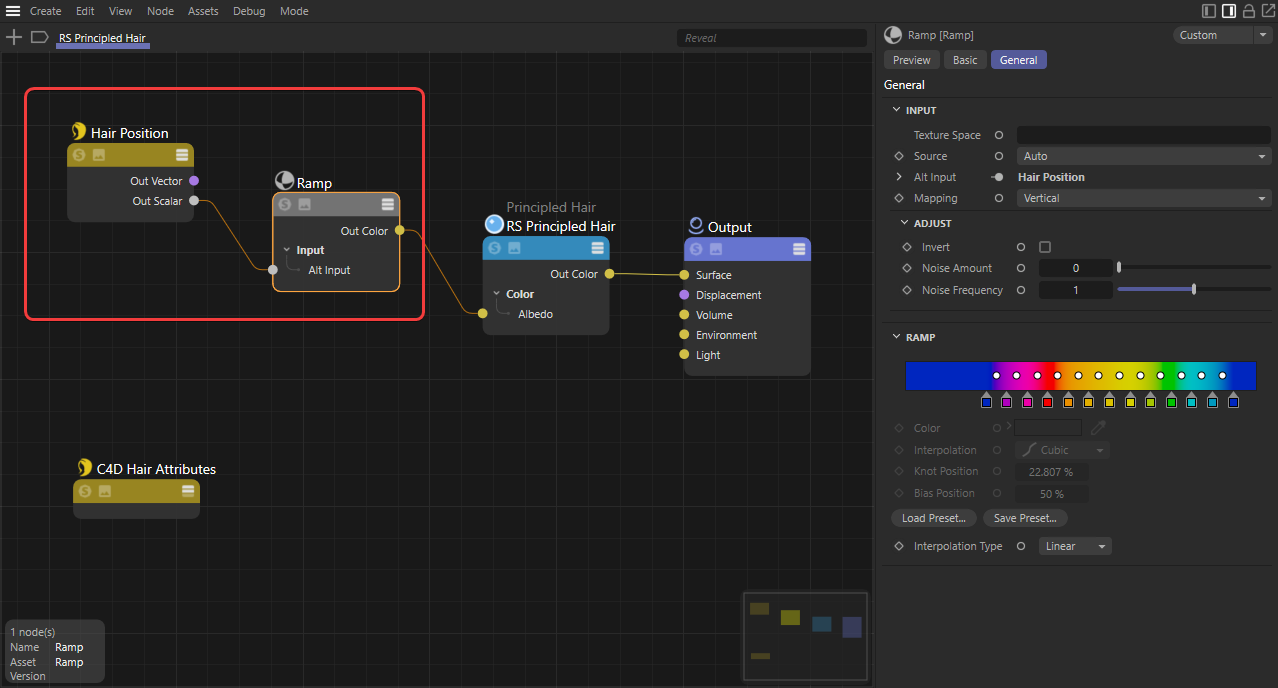
Use a Hair Position node's "Out Scalar" to drive a gradient ramp that feeds into the Albedo Color of a Principled Hair shader. Tweak the ramp until the colors are aligned to your liking, colors on the left side start at the root and transition to the tip on the right side.
|
| Color ramp driven by a Hair Position node |
|
| Hair colored by a ramp |
Hair color from a texture
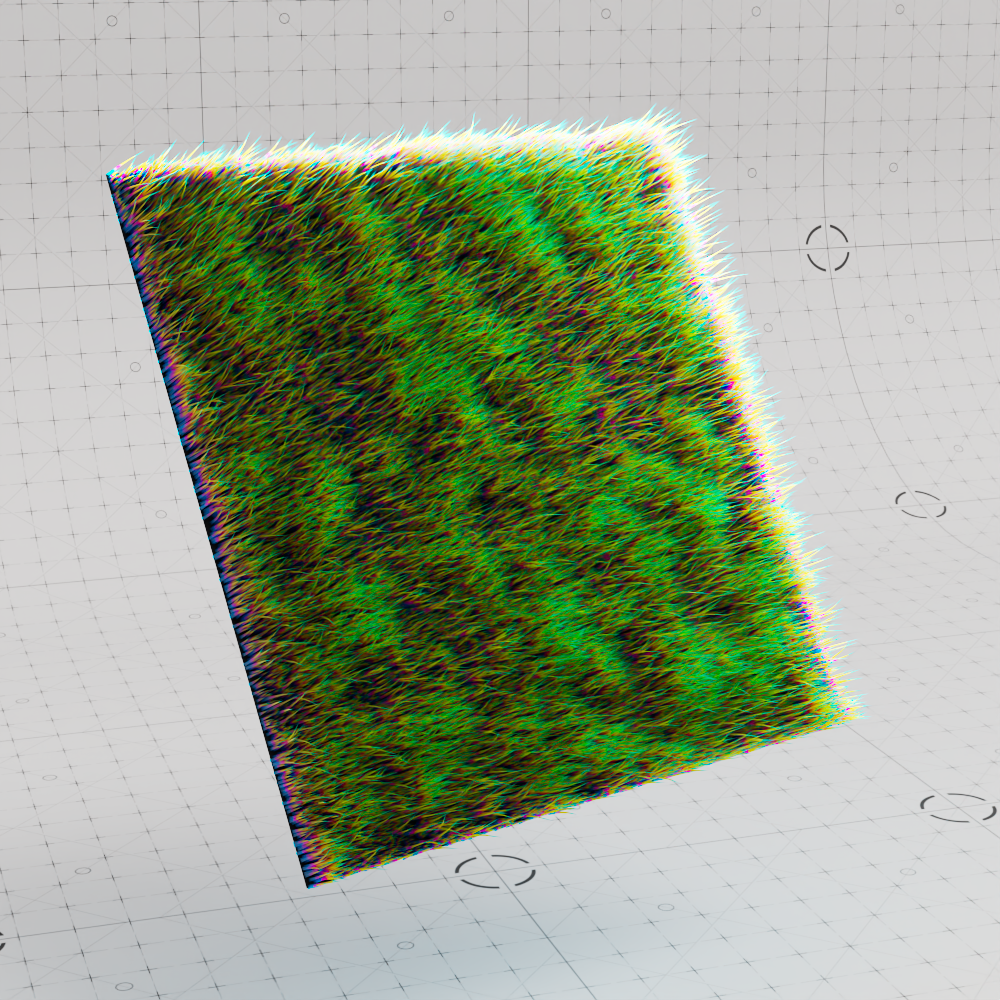
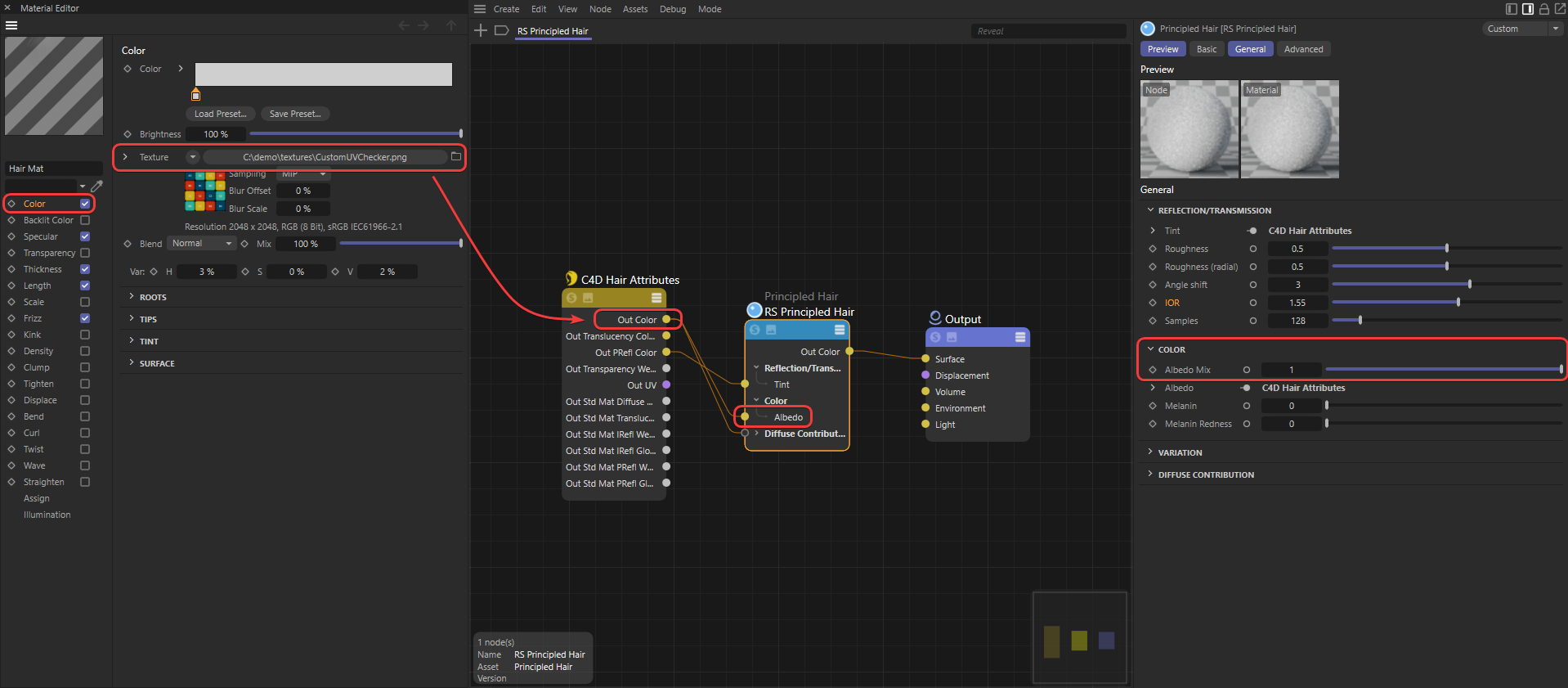
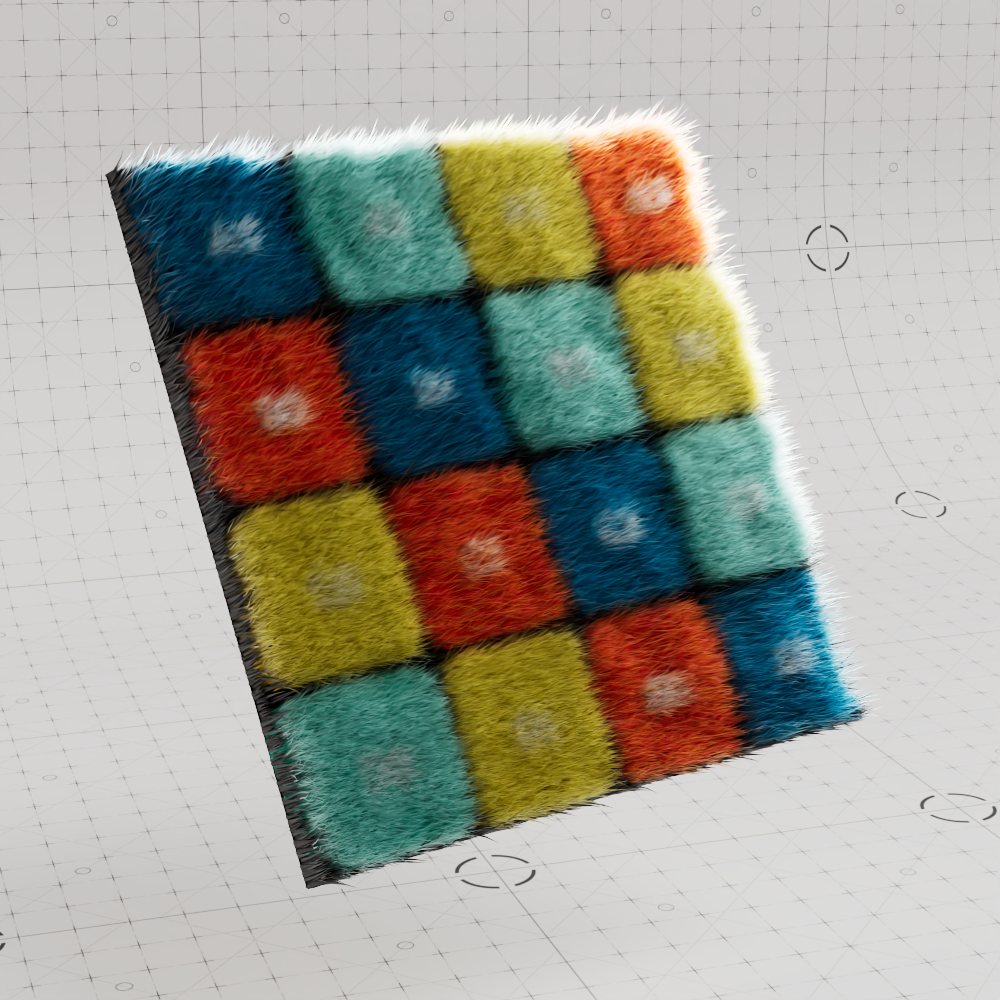
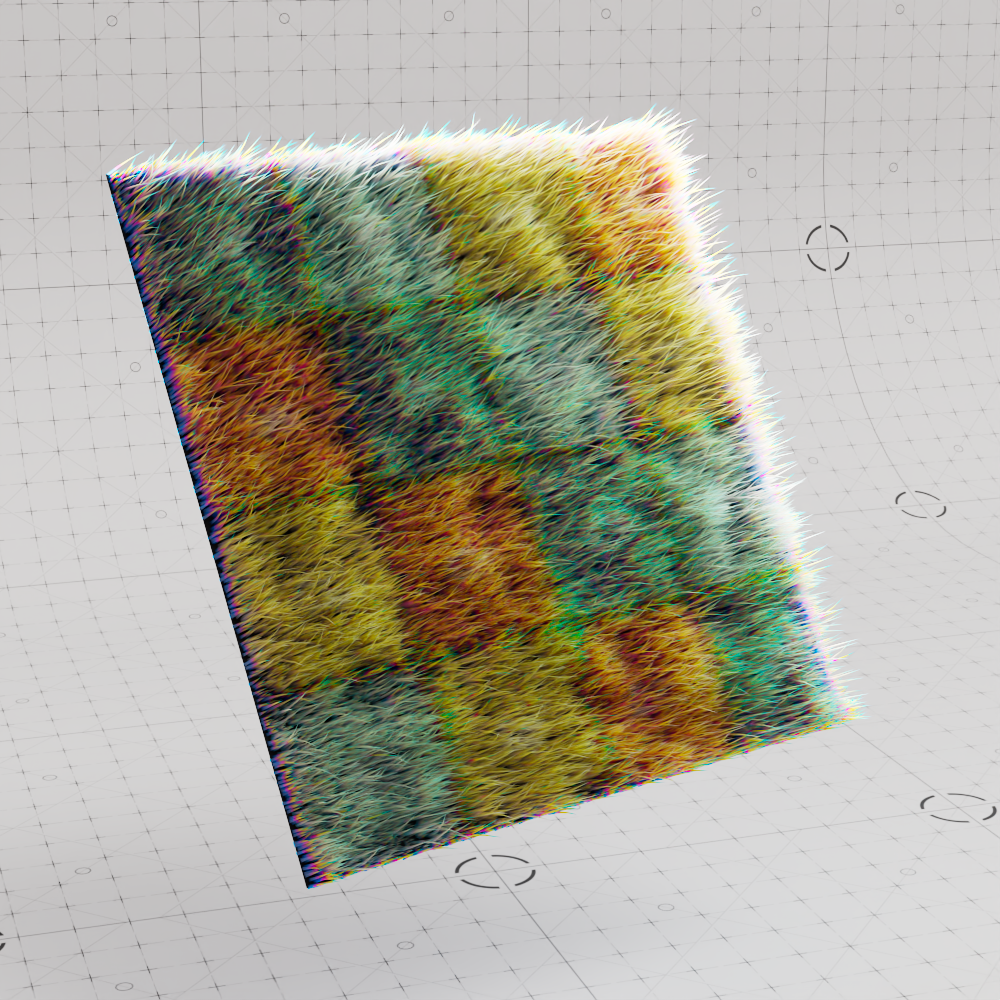
Connect a texture to the main color input of a C4D Hair material, this will drive the C4D Hair Attribute node which controls the Principled Hair's Albedo color. Remember to increase the Albedo Mix so that the texture color can be seen.
|
| Controlling hair color with a texture |
|
| Hair driven by texture |
Mixing colors
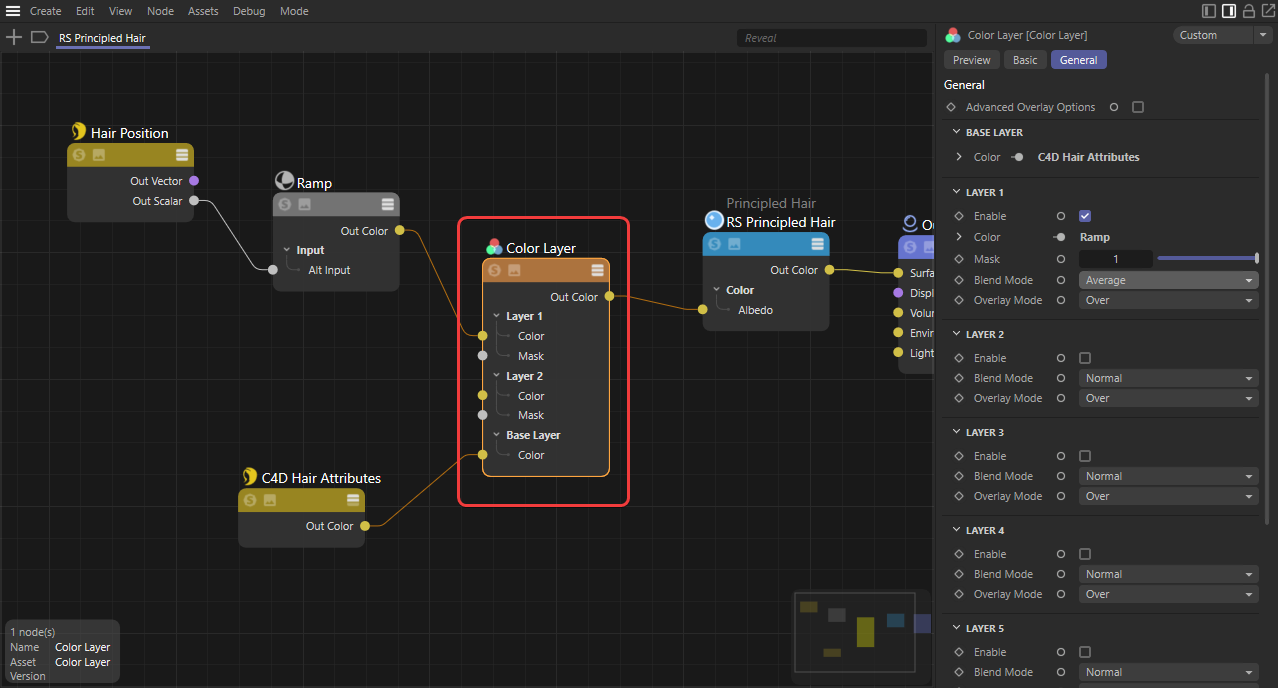
Hair color can be mixed and tweaked using shading nodes like the color correct and color layer. However, you may prefer to accomplish all the color mixing in the C4D hair material and just pass the result to the Principled Hair with the C4D Hair Attributes node.
|
| Mixing a ramp with a texture to drive hair color |
|
| Texture and color ramp averaged together |