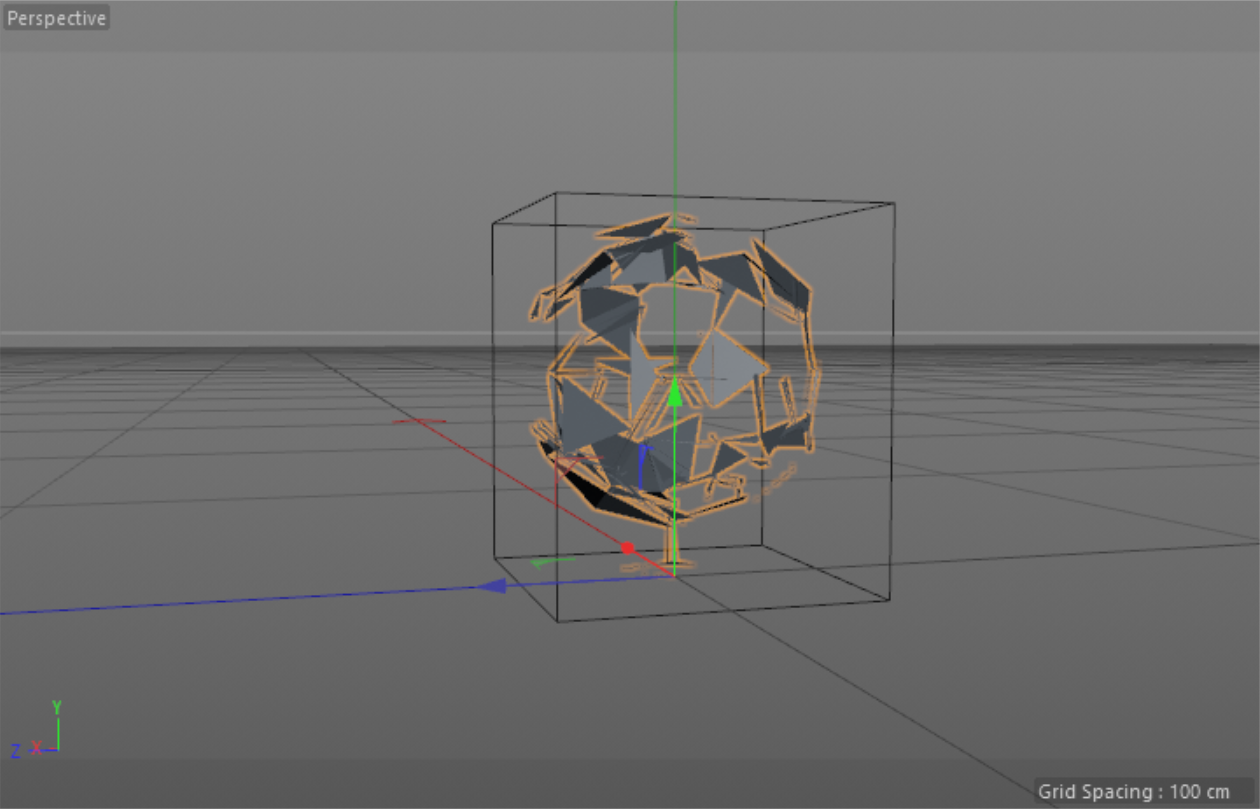
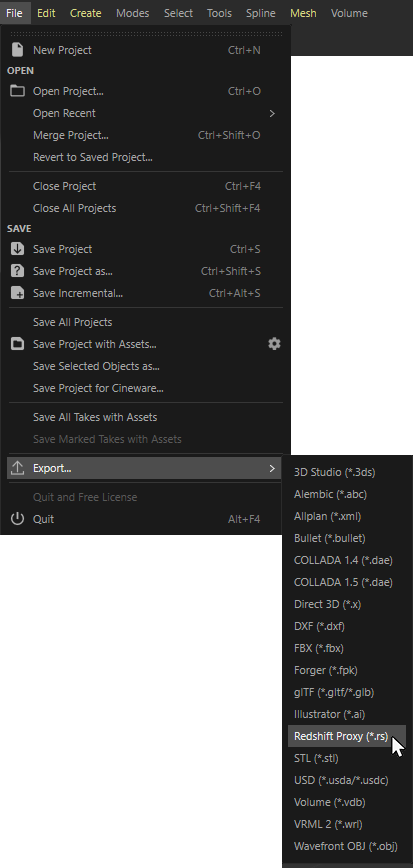
To export the entire scene, or a portion thereof, as a Redshift Proxy File, from the File menu choose File > Export > Redshift Proxy (*.rs) as pictured below:
Exporting a Redshift Proxy
This page may include unlocalized contents
Intro to Proxies
Table Of Contents
Redshift Proxies allow you to place previously exported Redshift Proxy Files (.rs) files in your scenes without actually loading the geometry until it is actually needed at render time. You can think of a Redshift Proxy as an actual Redshift scene all on its own, they can even contain other Redshift Proxies.
Using Redshift Proxies in your scene is a 2 step process. First you export a Redshift Proxy File, then you import and place a Redshift Proxy in your scene and associate it with the exported file.
Using proxies has several advantages over in-scene objects, namely:
The main disadvantages of using proxies:
Redshift Proxies provide the option to use either the materials embedded in the Redshift Proxy File, or to replace those materials with materials from the scene where the proxy is placed.
Redshift Proxy Files are DCC-independent, so for example you can export a Redshift Proxy File from Maya and import it as a proxy in Houdini, or vice-versa.
There are currently some important limitations in sharing Redshift Proxy Files between DCCs:
To avoid this issue, we recommend always using one of the From Scene material modes when sharing Redshift Proxy Files between DCCs until we resolve this limitation.
When working with Redshift Proxies, it is helpful to keep the following things in mind:
The data exported with your Redshift Proxy is determined by your Render Settings at the time of export, by default Redshift will try to discard as much unnecessary data as possible to achieve the most efficient file size.
When exporting a set of objects as a Redshift Proxy File, only the vertex attributes used by the currently assigned shaders are included in the exported data. This is an important optimization to prevent file bloat. When a proxy file will be used as-is, without overriding materials, this is not an issue. However, when using proxy material overrides, this can cause unexpected behavior if the overriding material requires vertex data that was stripped at export time because it was unused. So if you need certain attributes for your proxies at any point down the line, make sure that a shader attached to your proxy object is making use of those attributes. For example, if you have a sphere with a spherical texture projection and an untextured simple material assigned, the texture projection will be stripped at proxy file export time because it is not used by the currently assigned material. If this proxy is then placed in another scene and the material is overridden by a material that does use UVs, it will render incorrectly due to the missing UVs.
In order for Redshift Proxies to render with Motion Blur you must make sure that motion blur is enabled in your Render Settings at the time of export.
Motion blur can be disabled on proxies after export but individual motion blur settings like frame duration cannot be changed after the fact, you must re-export your proxy if you wish to change its motion blur settings.
If you are planning on instancing your Redshift Proxies please keep in mind that you can only use fixed tessellation.
Adaptive tessellation cannot be used when instancing in Redshift.
To export the entire scene, or a portion thereof, as a Redshift Proxy File, from the File menu choose File > Export > Redshift Proxy (*.rs) as pictured below:
Exporting a Redshift Proxy
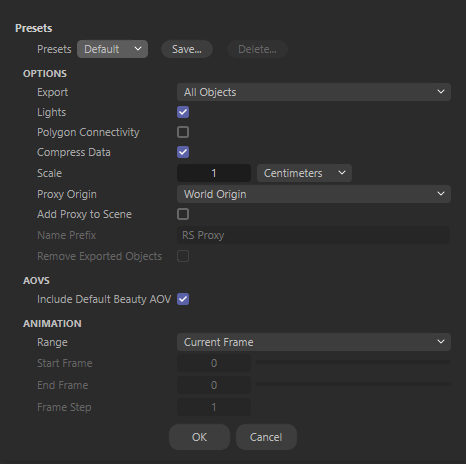
Redshift Proxy Export options
Export
This controls which objects are exported.
Lights
When enabled, Redshift will include lights in the proxy export. When disabled lights will not be exported with the proxy.
Polygon Connectivity
Enabling this option is only necessary if you need to apply tessellation & displacement to the proxy after you’ve placed it in a scene and the original mesh does not have tessellation or displacement applied. Enabling this option increases the size of the proxy file, so it should only be used if necessary.
Polygon Connectivity Data will be exported automatically for any objects that already make use of tessellation & displacement.
Compress Data
This option enables file compression to reduce file size for exported Redshift Proxies. In some cases, the compression can reduce the file size by 50% or more.
Scale
You can use this value to scale the objects up or down for export. With a value of 1 the scale will remain unchanged. In addition to the number value you can also choose a target unit for the export. Working in Centimeter units in Cinema 4D and exporting in Millimeter units will import this object 10 time bigger as a proxy.
In general compression will lead to slower export and load times.
However, if a bottleneck in your pipeline is slow data transfer performance like a slow storage drive or network then enabling file compression could lead to a performance improvement due to the smaller file sizes. If you have a fast network and fast storage drive like an SSD then performance might be slower due to the processing time needed to decompress the proxy files. These are the sorts of things to consider when determining whether to enable or disable compression.
Proxy Origin
This controls the root transform of all objects included in the proxy.
Add Proxy to Scene
When enabled the exported proxy will be immediately added to the scene.
Name Prefix
This option lets you specify a prefix that is added to the names of the Redshift materials contained in your Redshift Proxy export. This is helpful for replacing Redshift materials in your proxies covered here.
Remove Exported Objects
When enabled this option will automatically delete the objects currently being exported as a Redshift Proxy.
AOVs
Include Default Beauty AOV
When enabled this setting will attempt to match the settings currently set in your primary render settings Save section and pass that along to the exported proxy.

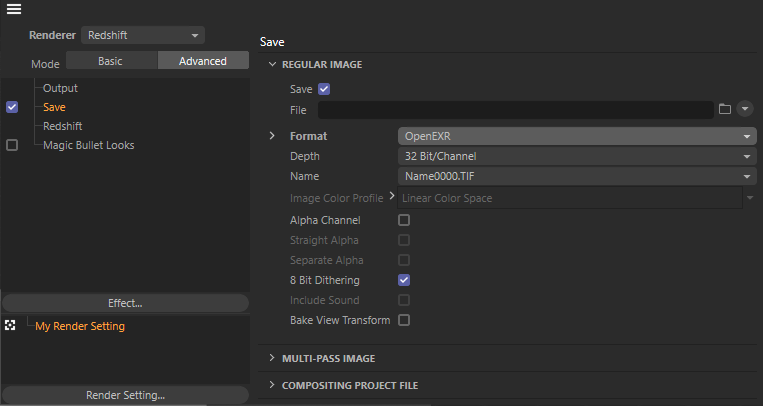
This is only useful if you plan on rendering a proxy via Redshift CmdLine rendering where your file save settings would otherwise not be setup.
Animation
When enabled specifies whether to export a sequence of Redshift Proxy Files for the frame sequence specified by Start frame, End frame and Frame step. When disabled Redshift will export a single Redshift Proxy File for the current frame.
When exporting a sequence of Redshift Proxy Files, the frame number (padded to 4 decimal digits) will be inserted between the file name and extension. For example, if you export frames 1 through 10 using the file name redshiftArchive.rs, the files will be exported as redshiftArchive.0001.rs through redshiftArchive.0010.rs.
Range
This option specifies whether to export a Redshift Proxy for the current frame or a sequence of Redshift Proxies.
To place a Redshift Proxy in your Cinema 4D scene you must create a Redshift Proxy object.
You can do this easily by going to the main toolbar menu Create > Redshift Proxy as pictured below:
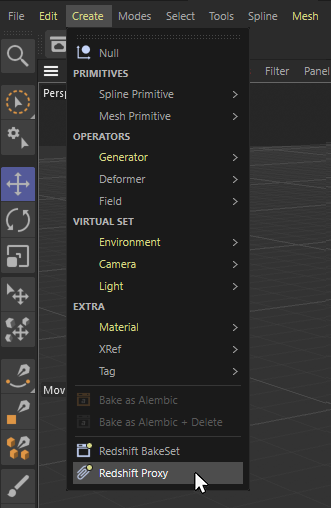
Creating a Redshift Proxy object
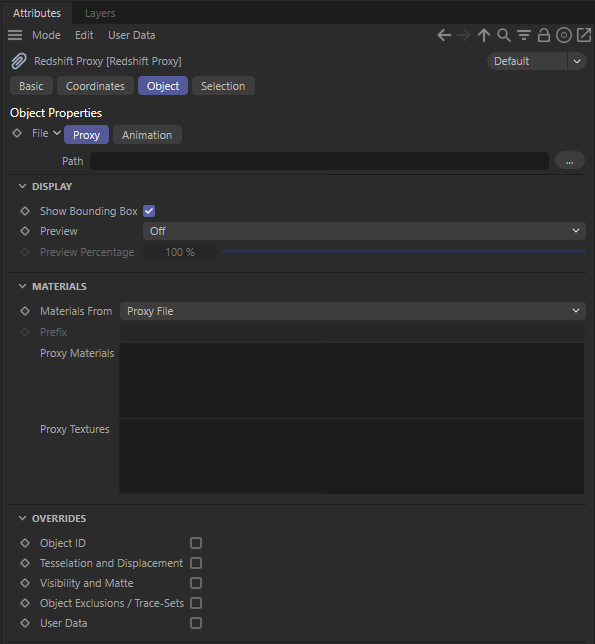
Redshift Proxy Object
File Path
This field specifies the Redshift Proxy File that will be rendered in place of the proxy object. You can navigate to and select the proxy file by using the folder icon to the right of this field.
Show Bounding Box
Toggles the display of the bounding box around the proxy object.
Preview
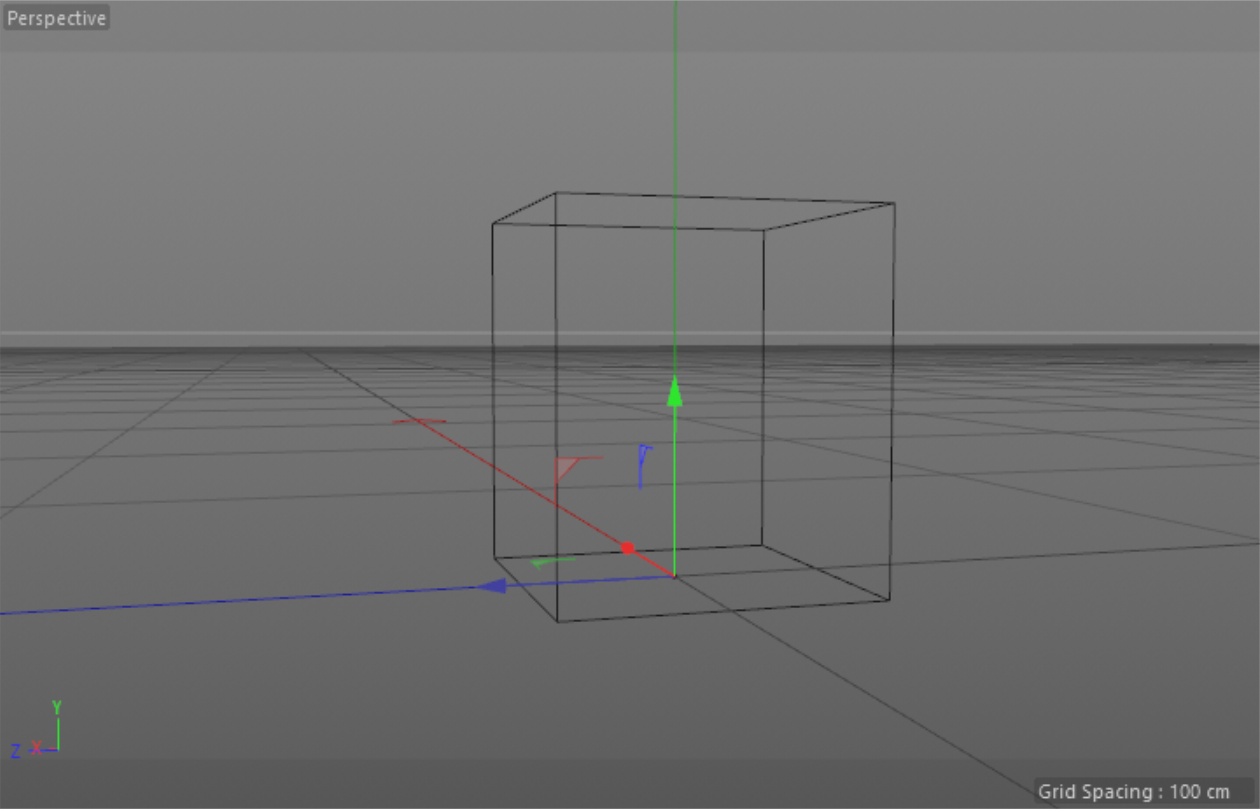
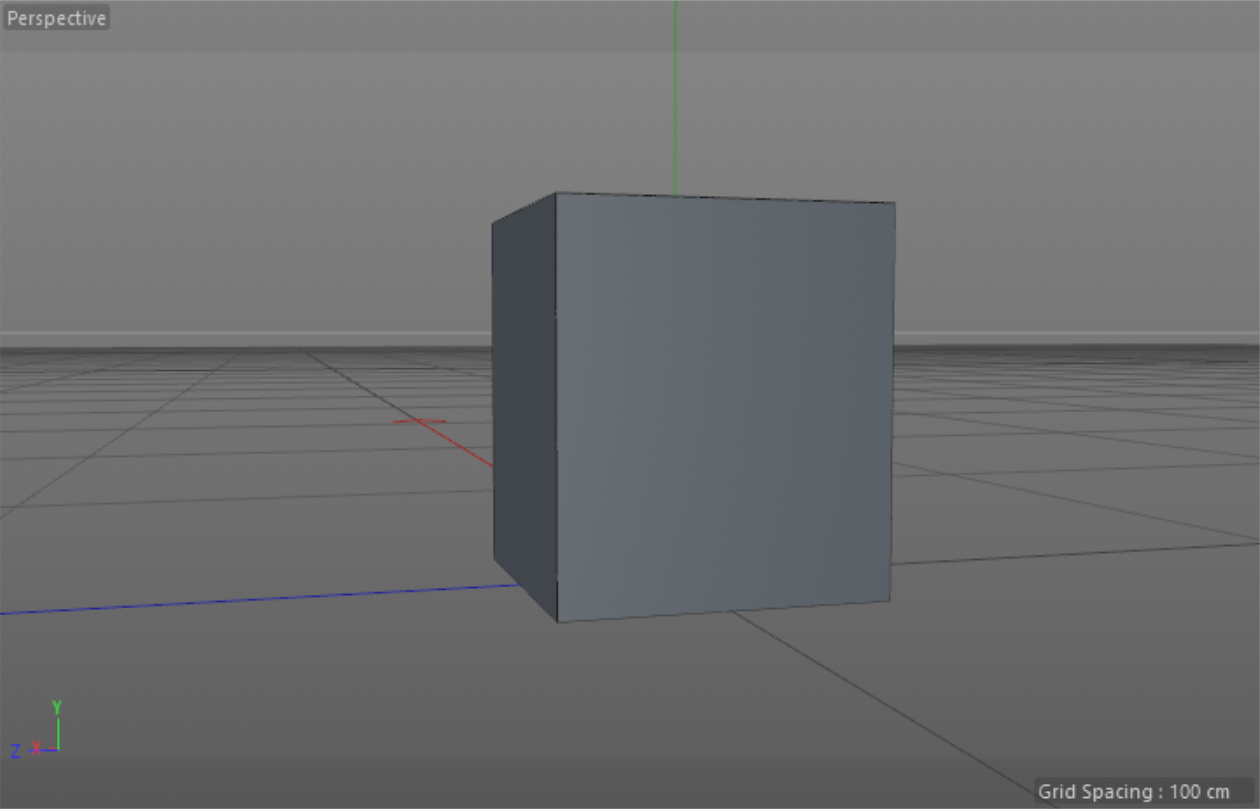
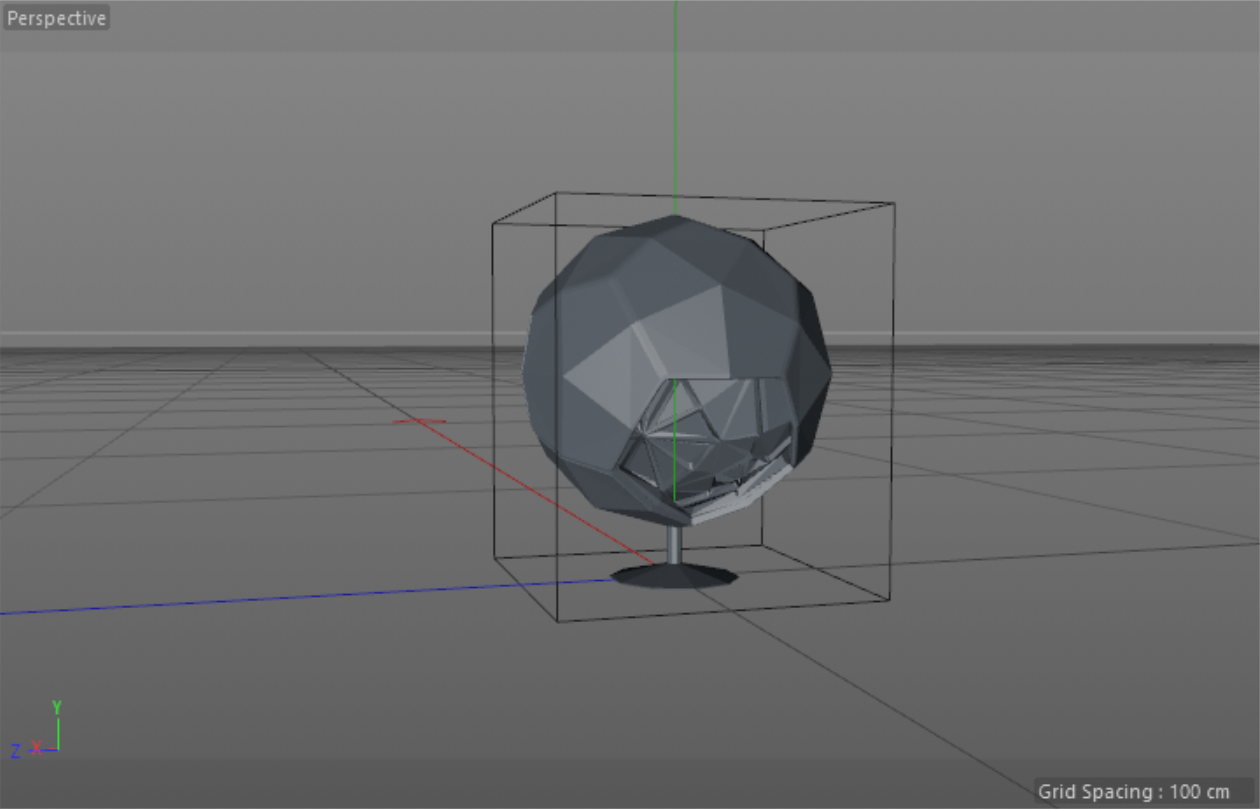
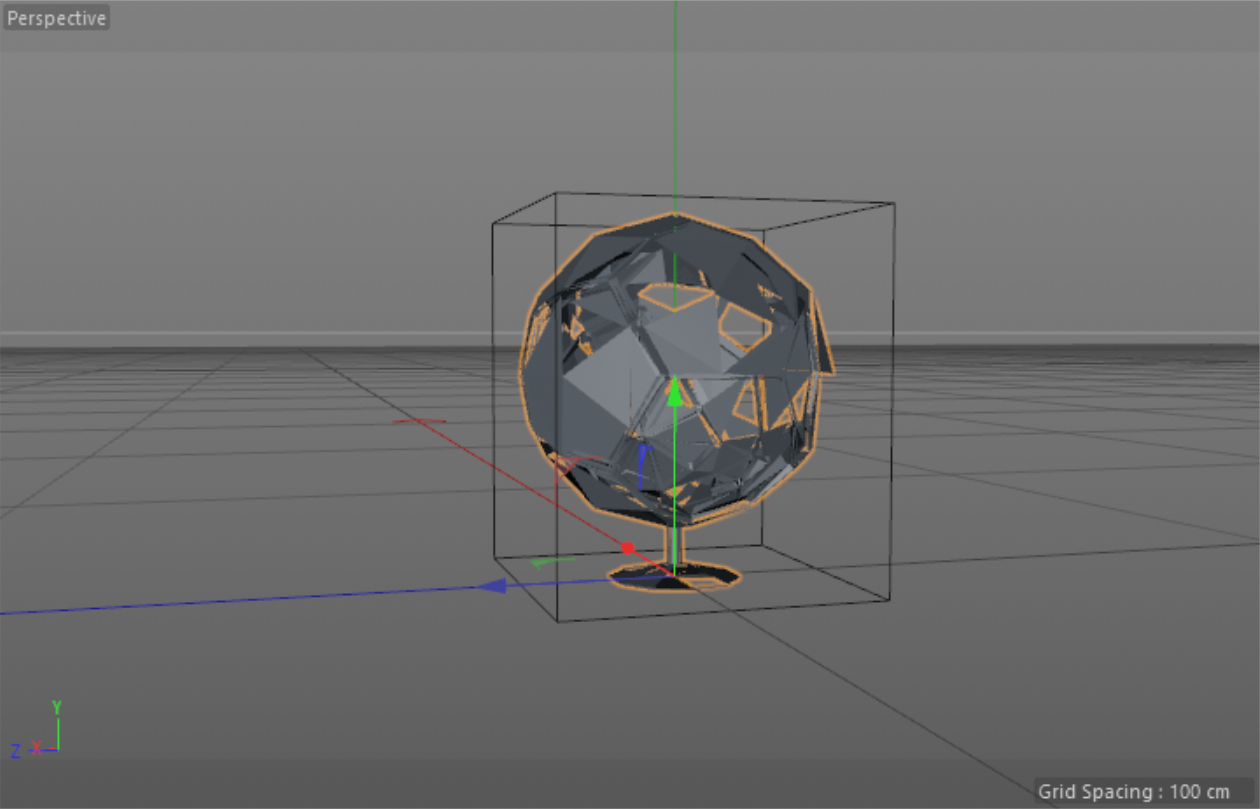
These options determine how the proxy will be displayed in the viewport.
|
|
|
|
| Off | Bounding Box | Preview Mesh |
Preview Percentage
This option controls the percentage of the geometry data to display in the viewport when Display Mode is set to Preview Mesh.
When Display Mode is set to Preview Mesh, the full resolution geometry contained in the Redshift Proxy File is used by default. For proxy files containing a lot of geometry, this can negatively impact the viewport rendering performance. For very geometrically dense proxies, we recommend leaving Display Mode to Bounding Box, using a Linked Mesh, or setting Display Percentage to a low value when using Preview Mesh.
|
|
|
|
|
Display Percentage: 100 Display Mode: Mesh |
50 | 10 |
Materials From
These options control how materials are handled for this proxy and allows from materials within the proxy file to be overridden with materials defined in the current scene.
Prefix
This field specifies the prefix to look for when using the "Scene (Match by name and prefix)" material replacement mode.
Proxy Materials
Proxy Textures
These fields will list all materials and textures used within the linked proxy file.
These checkboxes control whether the corresponding attributes of the objects inside the proxy file should be overridden by the same attributes of the proxy placeholder object. For example, if you want to assign an Object ID of 5 to the contents of a proxy file, you would set the Object ID of the placeholder object to 5 and enable the Object ID override.
In Redshift 2026 and later, scene units are tracked for proxies at export and import. By default, Redshift automatically manages unit conversion when importing a proxy from a scene built at a different scale. For example, if a model was built and exported from C4D in centimeters but imported and rendered with a scene working in meters in Houdini, the proxy object is automatically scaled and rendered appropriately.
For added flexibility, the proxy object's unit can be overridden per-proxy allowing you to change the unit and scale so it's handled exactly how you want it. This scale can also be overridden for proxies created before Redshift 2026.
Parameters that used fixed units are not scaled with a unit scale change.
Given that Redshift proxies can contain anything in a Redshift scene, this means that they can externally reference image files (such as EXR, PNG, etc), volume grids (like OpenVDB) and even other proxy files!
These external file references are stored in Redshift proxies both as absolute paths and as relative paths. Let's look at that with an example.
Let's say that a proxy file
proxy.rs is exported in folder
C:\MyProxies and it contains a shader that references texture
mytexture.png which is under
C:\MyProxies\Textures
The folder structre would look like this
|
- [MyProxies]
|
--- proxy.rs
|
--- [Textures]
|
---- mytexture.png
Within the proxy.rs file, the reference to mytexture.png will be saved both as:
C:\MyProxies\Textures\mytexture.png.\Textures\mytexture.pngRedshift contains file paths both as absolute and relative in order to facilitate the "transporting" of proxy files and their external references.
To explain with an example: let's say that the above proxy and texture (and their folder structure) were to be copy/pasted on folder
C:\MyOtherProxies and the original
C:\MyProxies folder was deleted.
The absolute path would no longer work because there's no
C:\MyProxies\Textures\mytexture.png file anymore! (we deleted the folder!)
But the relative path would still work! Because, relative to
C:\MyOtherProxies\proxy.rs there would still be a
.\Textures\mytexture.png path.
Now let's consider a proxy file that references a texture folder on a completely different drive! For example:
[C:]
 |
 - [MyProxies]
 |
 --- proxy.rs


[D:]
 |
 - [Textures]
 |
 ---- mytexture.png
Unfortunately, in such a case it's no longer possible to construct a relative path because path
C:\MyProxies\proxy.rs and path D:\Textures\mytexture.png have no common "root"
So, using this folder layout, if the textures were to be moved to a new drive (say, E:\), then the proxy would no longer be able to find them.
In such cases, we recommend using Redshift's path override environment variables
If your texture folder used to be D:\Textures and now it's E:\Textures, you can use the REDSHIFT_PATHOVERRIDE_FILE or REDSHIFT_PATHOVERRIDE_STRING to tell Redshift to turn E:\Textures.
The online documentation page explains how to do that with an example.
If you don't know what external references a proxy might contain, you can use redshiftCmdLine's -printdependencies switch (followed by the proxy's filename) to list these.