
Pose Libraries
Pose Library is a tool used to enhance animation workflows. It is primarily aimed at animating characters, but can be used to help animate any object. Its purpose is to store PSR values and any kind of animatable parameter an object can have, to be recalled easily at a later time.
In the case of a character model, for example, it is used to record poses which can then be called upon when time comes to animate your character.
The user can create multiple libraries for different characters, which can contain multiple pose groups for each type of poses (i.e: body poses, hand poses, and so on…), and each group can contain a set of poses. These libraries can be stored locally, or shared between projects or with other users from a shared folder.
The Pose Library tool introduces two different managers: the Pose Library Browser and the Thumbnail View. The Pose Library Browser is used to create libraries, poses and thumbnails, as well as name each pose or library created. The Thumbnail View is mainly used while animating, and lays out each pose with its thumbnail, organized by tabbed pose groups as well as a strength slider for each pose, to allow for precise blending of poses.
A Database contains Libraries, Pose Groups and Poses. It can be used to store multiple libraries and poses for multiple characters. Use custom databases if you need to share your poses with other users, or across multiple machines.
A Library is usually created for a specific character. It is meant to regroup and organize your Pose Groups and Poses for said character.
A Pose Group is meant to regroup similar types of poses together. For example, you could create a group to store all your hand poses, or all the poses needed to make your character dance, walk, sit, or whatever type of animating you are going to do.
A Pose is your actual character recorded pose, to be recalled at a later time. It is where you store the PSR and parameter values of specific objects.
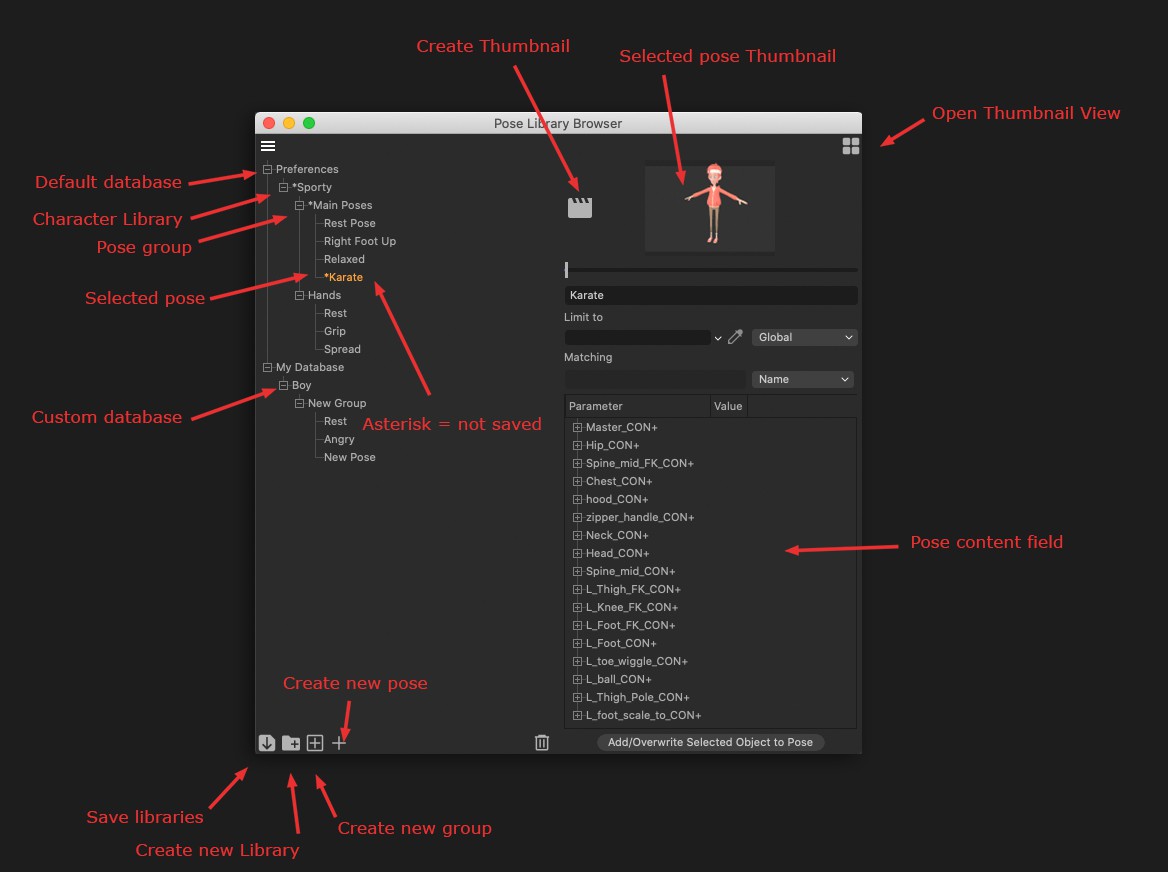 The Pose Library Browser and the Thumbnail View are the two managers used to create and apply poses.
Getting Started
Creating a new pose is simple, here is how to proceed:
-
Open the Pose Library Browser
-
Select the "Preferences” database (this is the default database, which will store the poses locally, in your Preferences folder) and use the Create New Library command
-
Add a new group by using the Create New Group command. From this point on, you can start adding new poses to this group
-
Pose your character, then select all objects needed to record this new pose and use the Create New Pose command. In the case of a rigged character, this could mean recording all controllers, or only necessary controllers to achieve the body pose but leaving out hand controllers to be able to record and pose them independently from the body
-
Save your library using the Save Pose Libraries command
-
Open the Thumbnail View by using the Open Thumbnail View command, to access your recorded poses
- Use the Blend sliders to mix between poses (hit Enter to confirm the pose), or double-click a thumbnail to apply its recorded pose at 100% strength
The state of an unsaved database is only kept for the current Cinema 4D session, meaning you can work with unsaved databases (libraries, group and poses) between multiple scenes and also when closing/reopening the browser, but you will lose all unsaved data once Cinema 4D is closed.
So be careful and save often!