

Sky

Scale the light intensity up or down. The default value of 1 uses a physically accurate sun intensity.
| Intensity Multiplier: 0 - 2 |
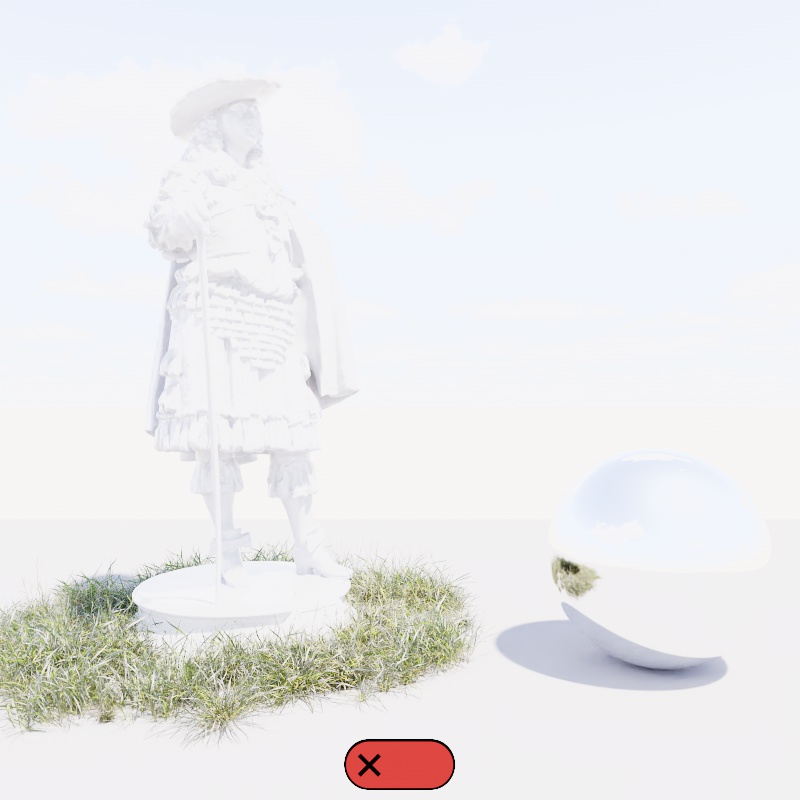
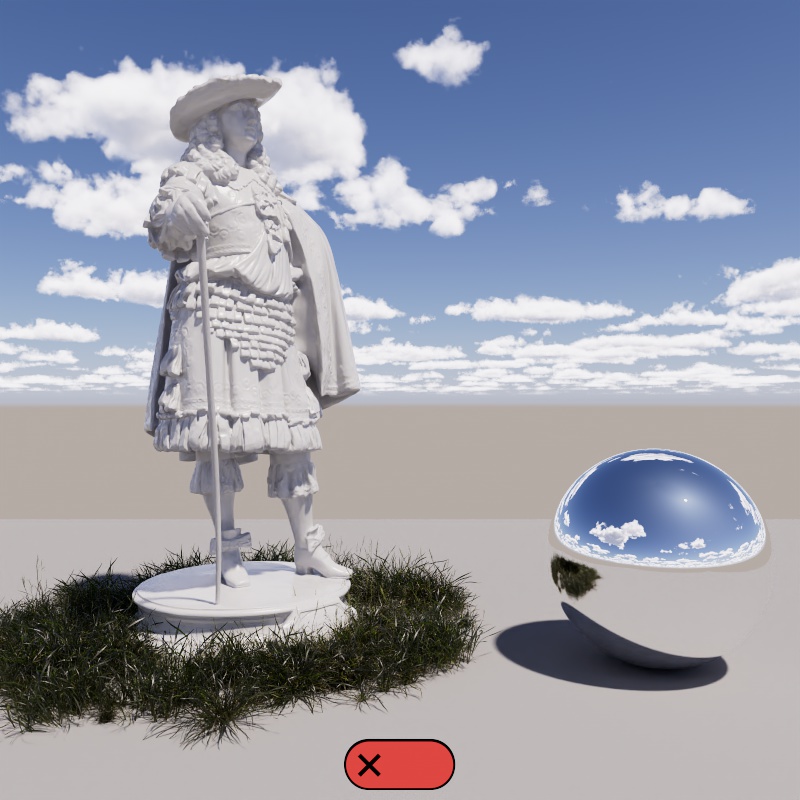
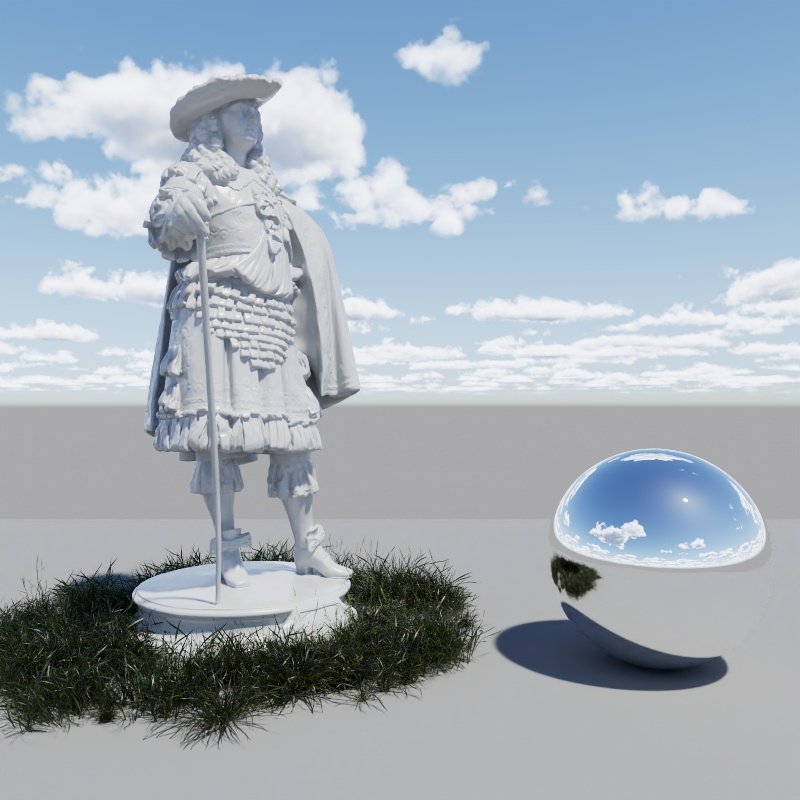
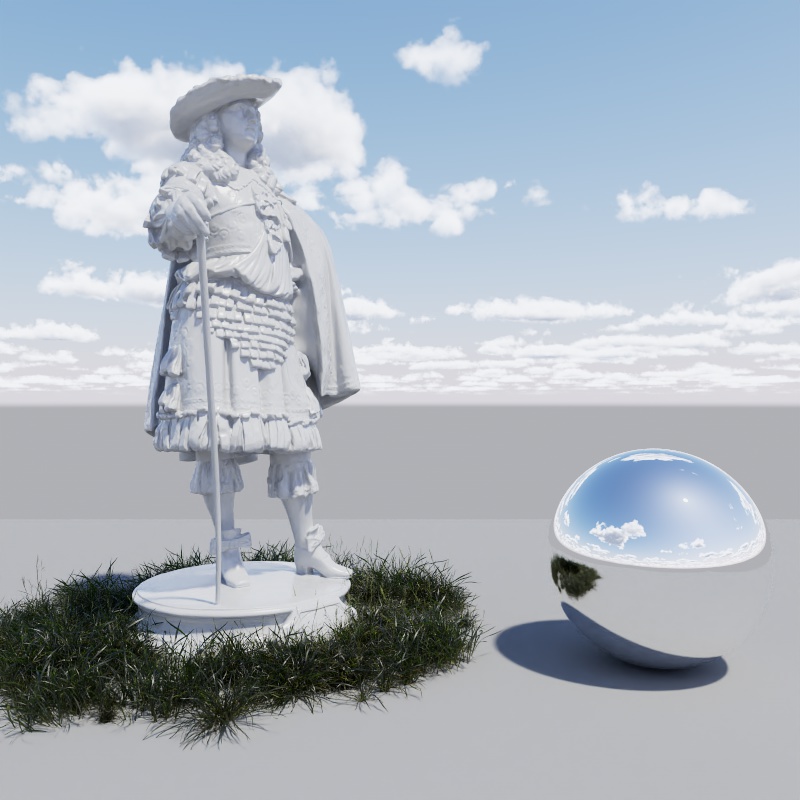
When disabled, by default, the Sun & Sky uses a physically accurate light intensity to illuminate your scene. This will result in a blown out render unless you compensate for this by reducing the exposure on the camera or reducing the Intensity Multiplier.
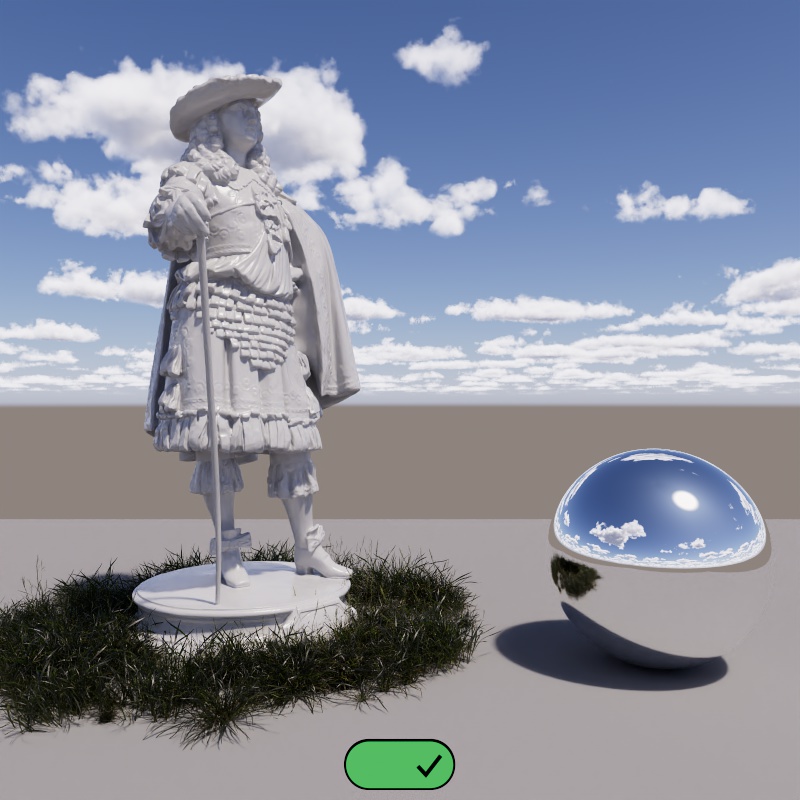
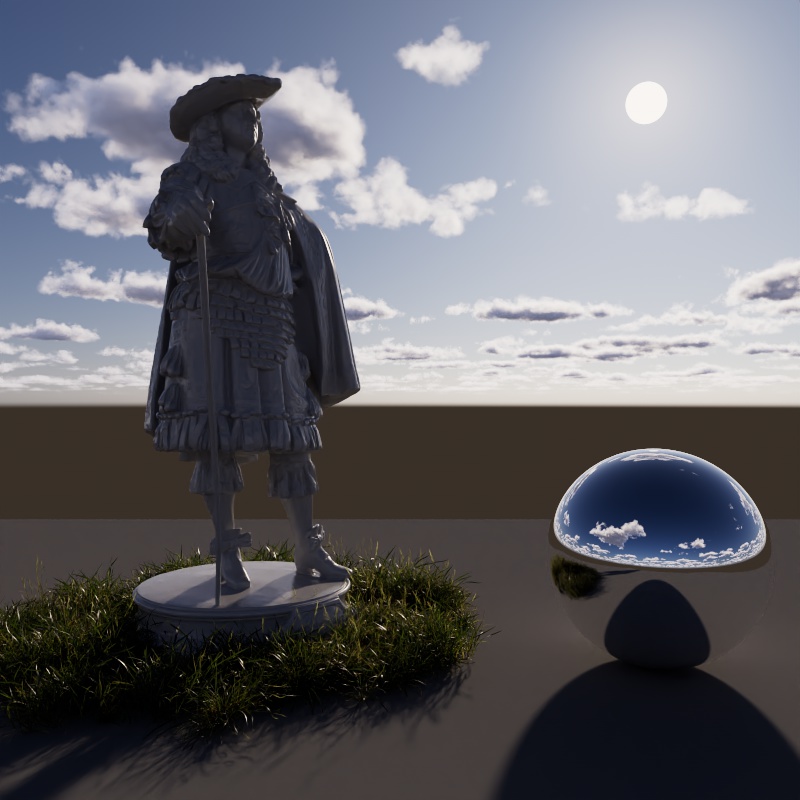
However, if physical accuracy is not important the Sun & Sky can quickly be brought down to a visually acceptable light intensity without the need to adjust any camera settings simply by enabling "Use Non-Physical Intensity."
In the examples below the first two images have Non Physical Intensity disabled. The first image represents a brand new scene with no camera exposure adjustments, resulting in a blown out scene, in the second image the camera's Exposure parameter has been reduced by 4 stops (exposure of -4) to compensate, resulting in an appropriately sunny look. In the last image, the camera uses the same default settings as the first image but Non-Physical Intensity is enabled — this brings the sun intensity into a range that is visually appealing without the need for further adjustment.
|
|
|
| Use Non-Physical Intensity: Disabled (default) Camera Exposure: 0 (default) |
Disabled (default) - 4 |
Enabled 0 (default) |
Using a non-physical intensity reduces the natural impact sunlight has on a scene, like reducing the intensity of global illumination bounce lighting, overall contrast, and any shading elements based on physical units like subsurface scattering.
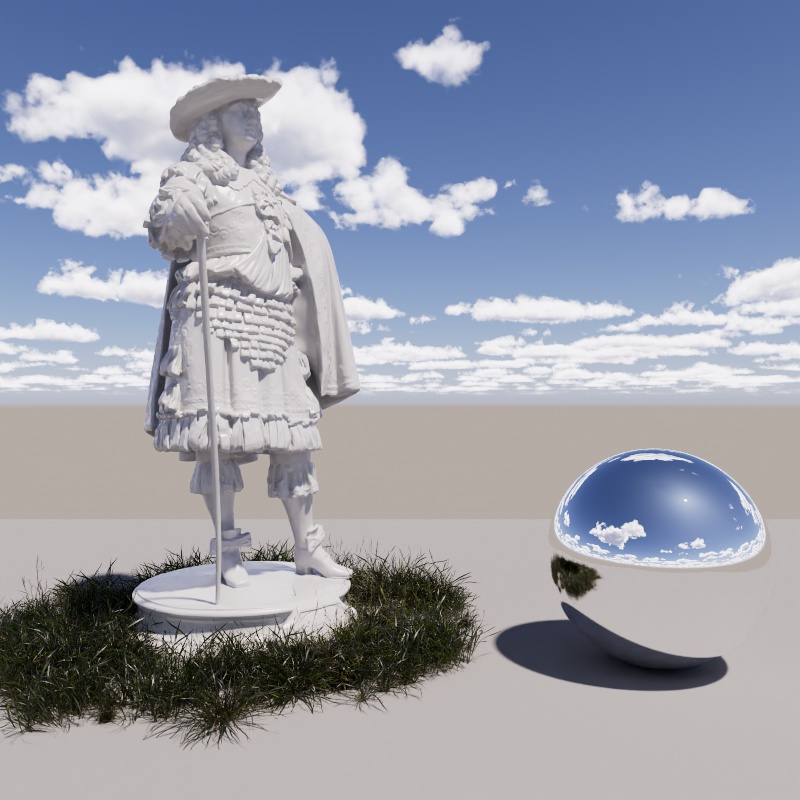
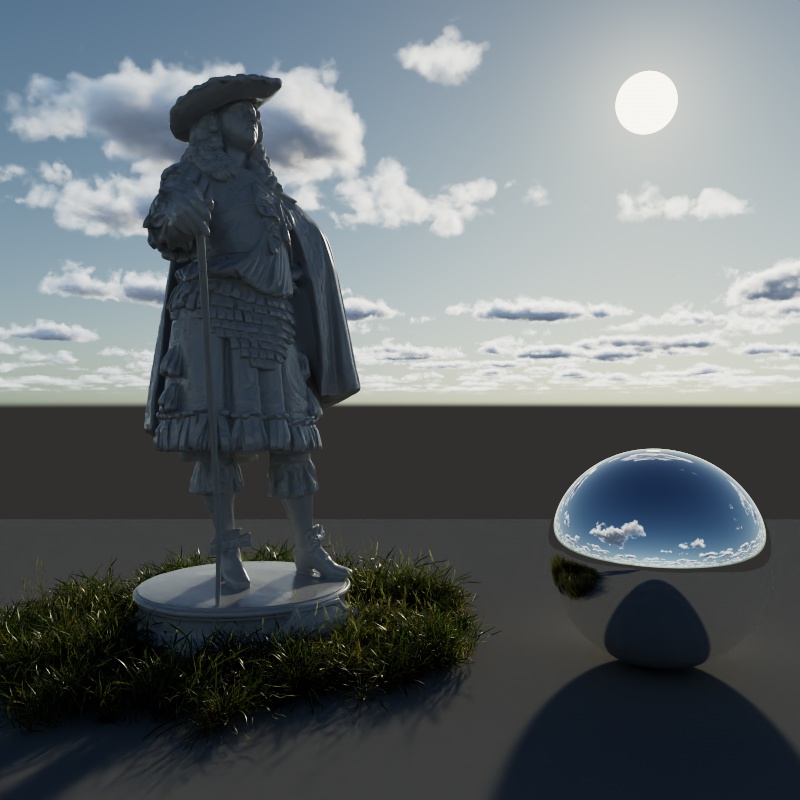
This option lets you pick between three different sky models. In general PRG Clear Sky is the most modern and produces more realistic and appealing skies, especially at sunrise and sunset.
- PRG Clear Sky (newest)
- Hosek-Wilkie
- Preetham et Al (oldest)
| Video: Time of day Sky Comparison From top to bottom: PRG Clear Sky, Hosek-Wilkie, Preetham et Al |
|
|
|
|
|
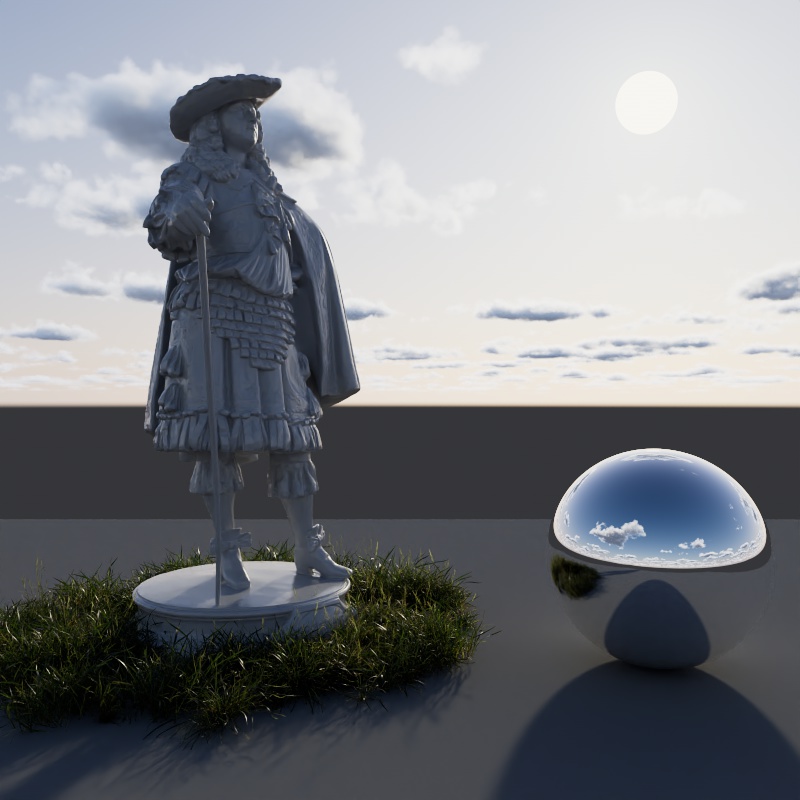
|
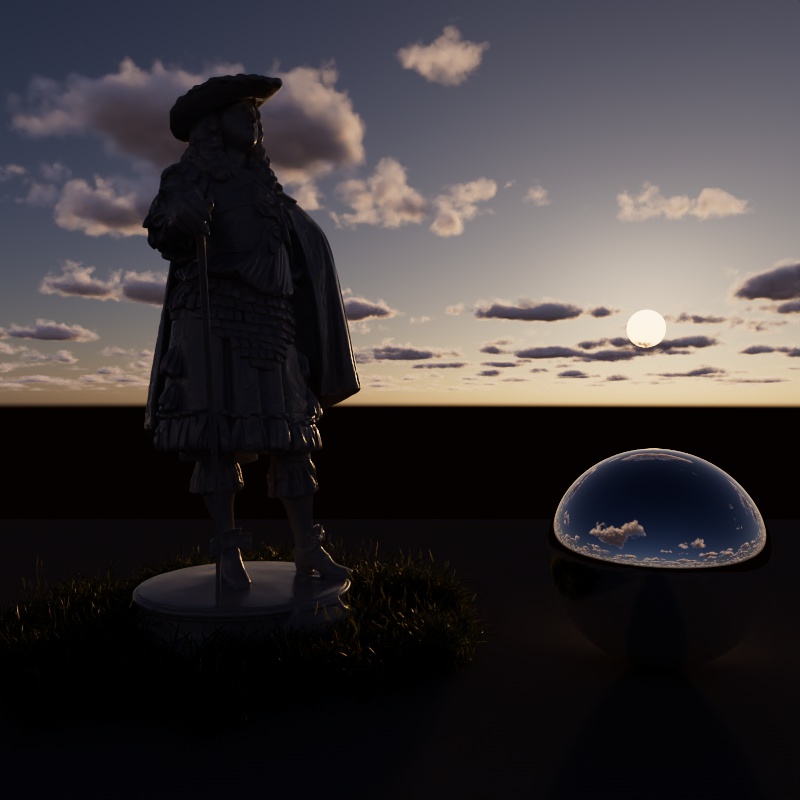
|
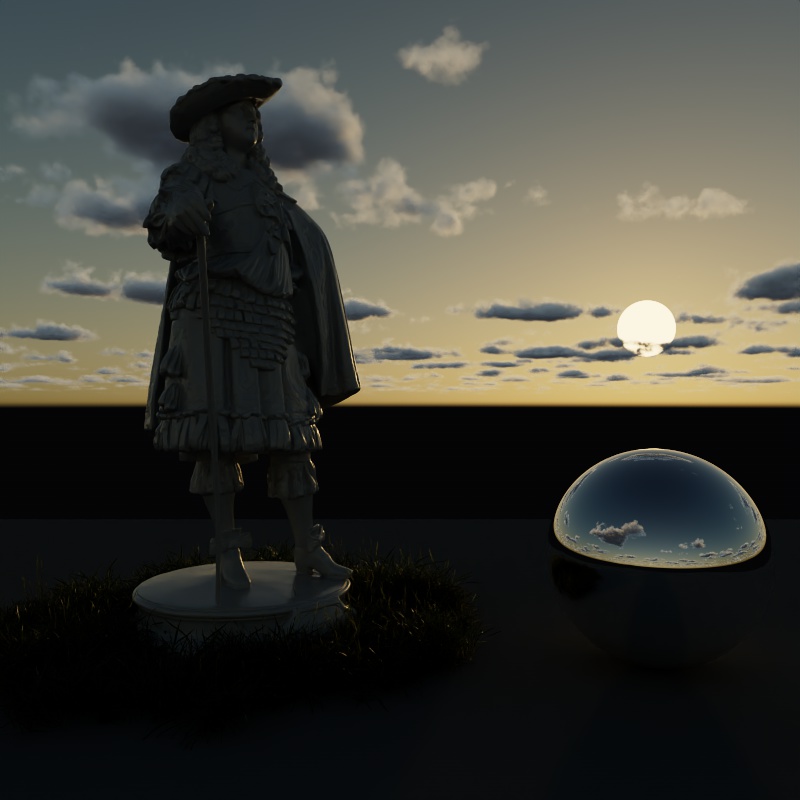
|
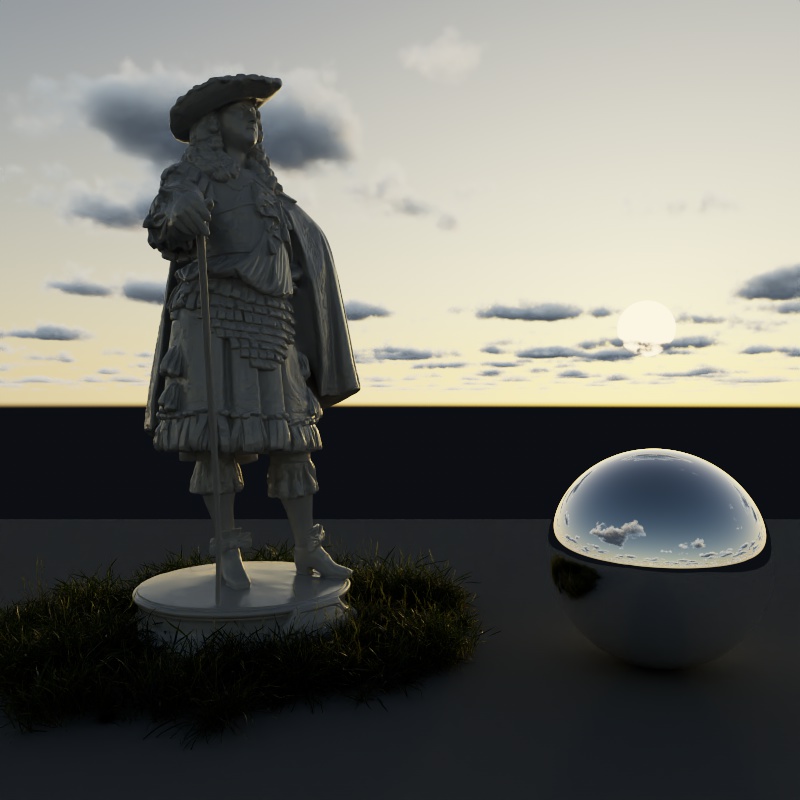
|
| Model: PRG Clear Sky | Hosek-Wilkie | Preethem et Al |
Controls how the Sun, Sky, and Night Sky behave when the sun and moon are scaled. At default sizes you will not notice a difference, but if you adjust the scale of the moon or the sun the behavior changes between the following modes:
-
None: No normalization, when the sun/moon increase in size the lighting gets brighter and the visual intensity in the sky stays the same.
-
Lighting: (Legacy) Only the scene lighting is normalized, when the sun/moon increase in size the lighting does not change - only making the shadows softer/sharper. The visible sun/moon disk in the sky stays the same brightness no matter the scale, but reflections of the sun/moon may not match how they look in the sky.
-
Disk+Lighting: (Default) The lighting and the sun/moon disk are both normalized. This means the sun/moon actually get visibly dimmer when their scale is increased. With the sun this can be hard to see because it's so bright to begin with, but this becomes more apparent with the moon or when the sun uses a low intensities. In this mode, reflections match the visible intensity in the sky.
| Normalization Mode: Disk + Lighting | Lighting | None |
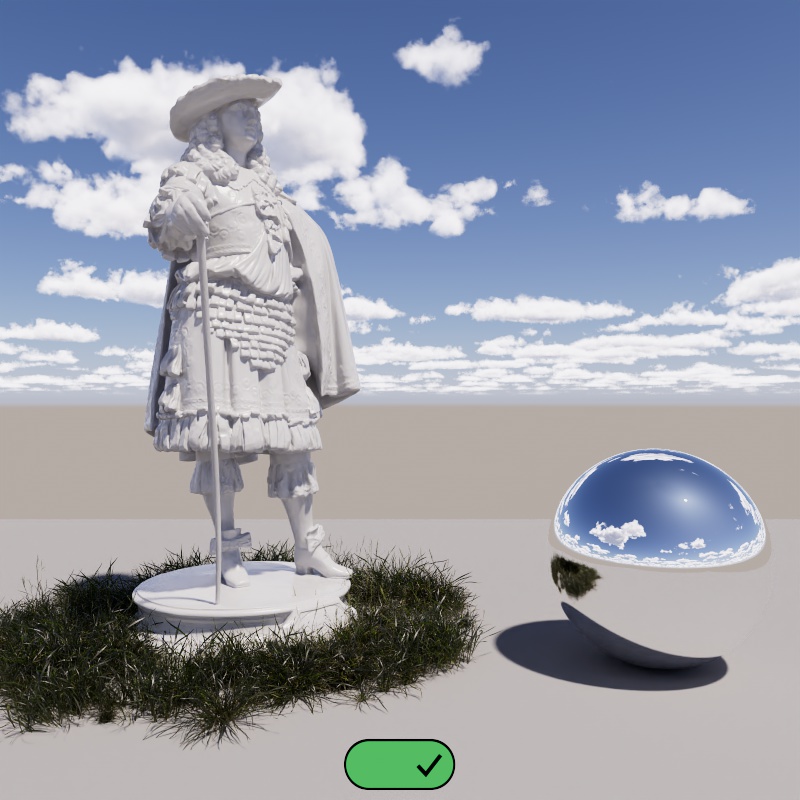
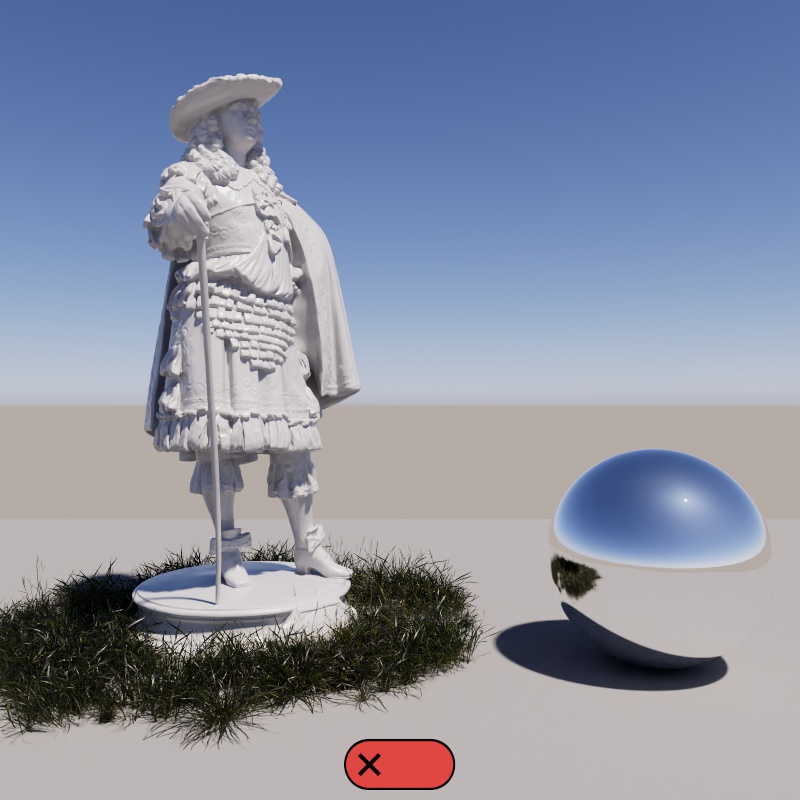
Use this button to add a Redshift Clouds object to your scene.
|
|
| With Clouds | Without Clouds |
A Cloud object offers settings to shape and display flat or volumetric clouds in the sky. Currently only one Cloud object is supported in combination with a Redshift Sky.
Describes the haziness of the air to simulate dust and pollution. A value of 2 represents a very clear, blue sky, while higher values make the sky a dirty, orange color.
| Turbidity: 0 - 10 |
Only works with Hosek-Wilkie and Preetham et Al sky models. Example uses Hosek-Wilkie.
Describes the amount of ozone in the atmosphere, with values ranging from 0.0 to 1.0. The default is 0.35 which is commonly used for the Earth's atmosphere. Smaller values increase the amount of orange in the sun disk and glow, while larger values will make it more blue. This is most clearly seen when the sun is at a low angle like sunset.
| Ozone: 0 - 1 |
Adjusts the position of the horizon, useful if you want to represent a view from the top of a mountain. Positive values raise the horizon while negative values lower it.
| Horizon Height: -3 to +3 |
Blurs the ground with the sky as they meet at the horizon. The default is 0.1. A value of 0.0 means no blur, making the horizon appear as a hard line.
PRG Clear Sky's horizon blur results in a sort of mirage-like effect.
| Horizon Blur: 0 - 2 |
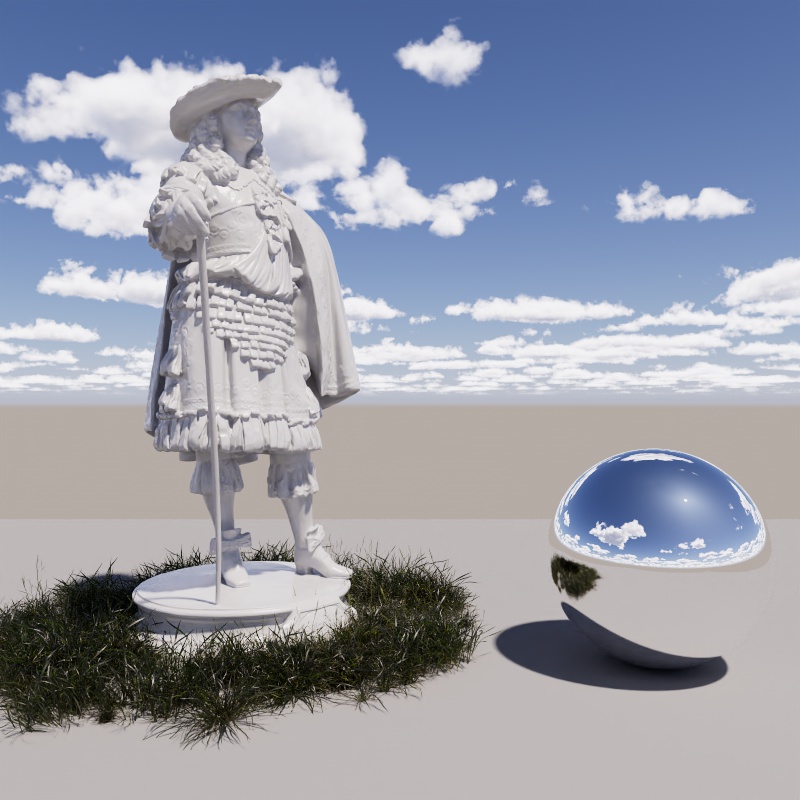
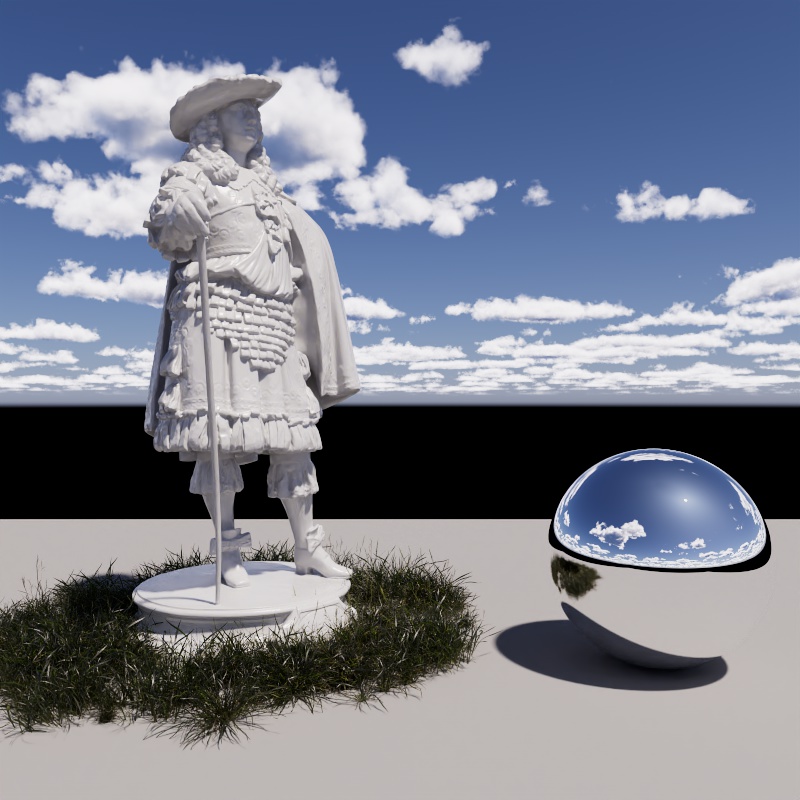
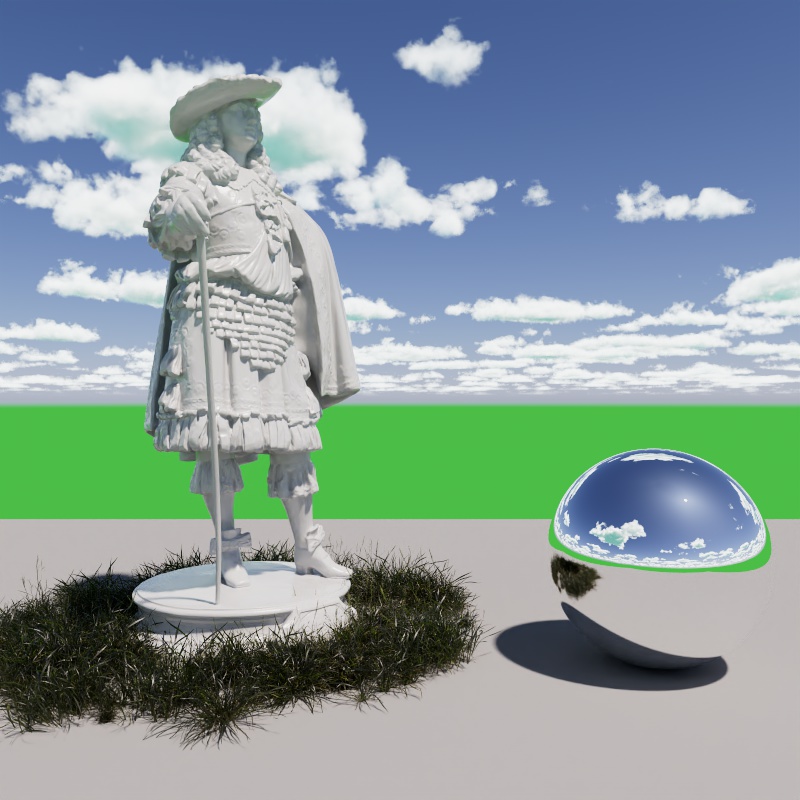
Controls the color of the ground. It is meant to be used as an albedo and does not physically exist in the scene, but it is affected by the atmospheric effects of the sun and contributes to Global Illumination. It illuminates the underside of clouds and other objects when not blocked by an object like a ground plane.
|
|
|
| Ground Color: Grey (default) | Black | Green |
Shifts the sky color and lighting toward warm or cool tones. For physically correct results this should be left at the default value 0. Negative values make the sky very cool while positive values make it warm.
| Red-Blue Shift: -1 to +1 |
Adjusts the sun and sky's color saturation. The default value of 1 means full color, while 0 means no color.
| Saturation: 0 - 1 |
Saturation Affects Color Adjustments
When enabled, Saturation adjustments are applied after the following parameters:
- Red-Blue Shift
- Sun Tint.
When disabled, Saturation adjustments only affects the sky shader before other color adjustments. So any Sun Tint and Red-Blue Shift remain in effect even when Saturation is set to 0.
In the examples below, notice how when Saturation Affects Color Adjustment is disabled the pink tint still affects the scene even when saturation is at 0 — this is because the desaturation occurs before the Sun Tint.
| Saturation Affects Color Adjustments: Enabled (default) | Disabled |