|
|
|
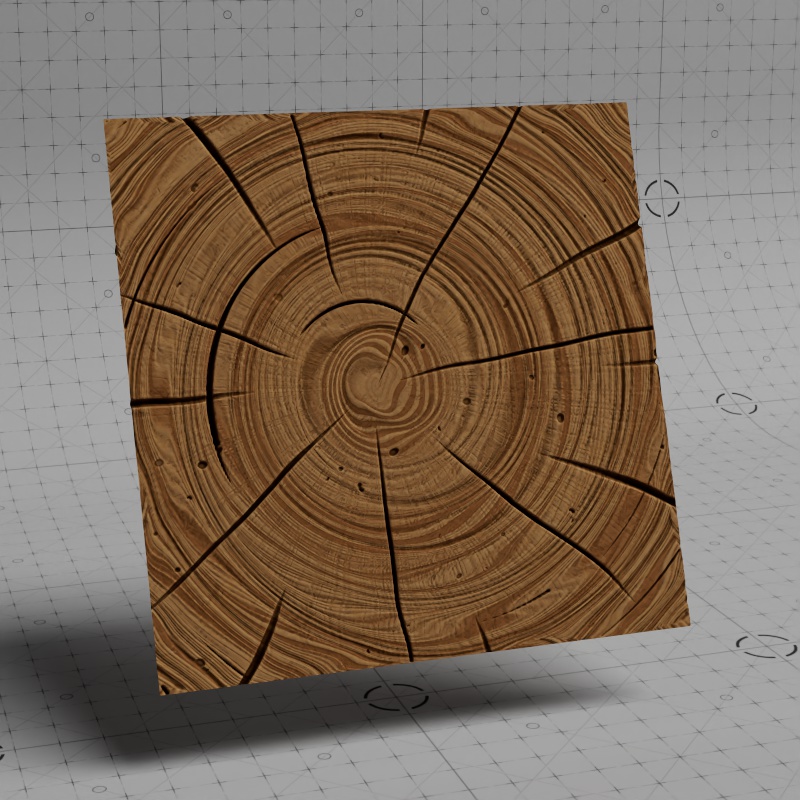
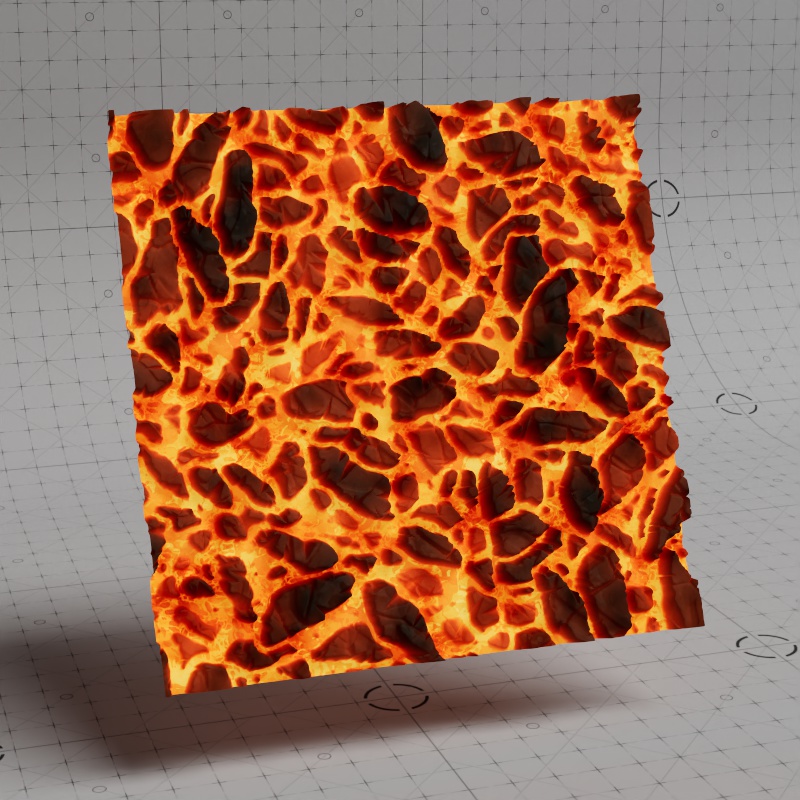
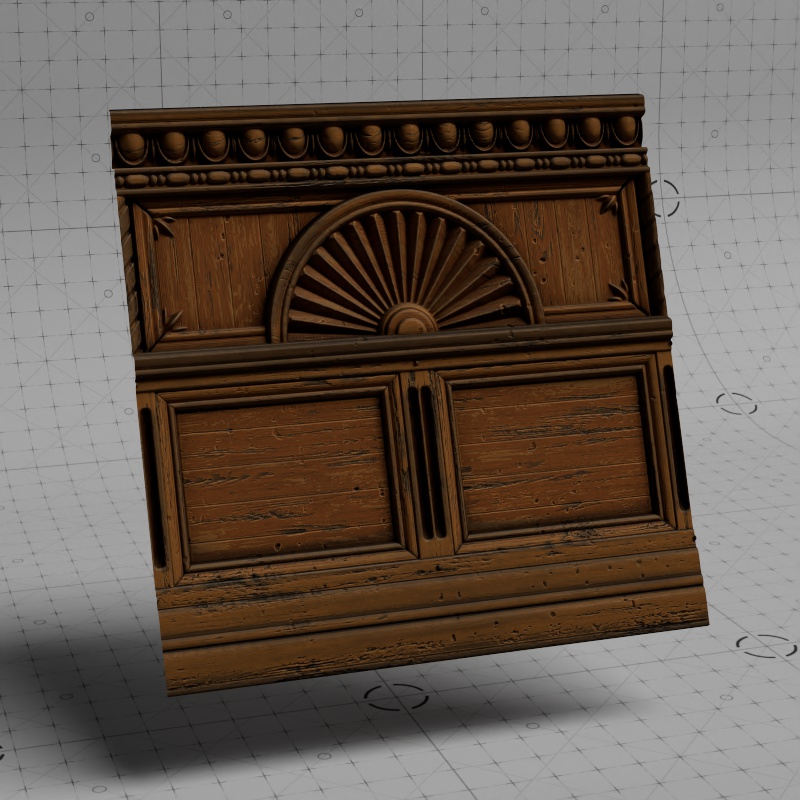
| Free Adobe Substance 3D SBSAR files from substance3d.adobe.com | ||
This page may include unlocalized contents
Table Of Contents
|
|
|
|
| Free Adobe Substance 3D SBSAR files from substance3d.adobe.com | ||
The Substance 3D Material node can be used to quickly load Adobe Substance Designer SBSAR files directly into a Redshift shading graph, allowing you to easily render out high quality Substance textures and tweak their parameters. It is a single node that can be thought of as a bundle of procedurally generated images that can be routed anywhere in a Redshift shader.
A Substance 3D Material can be loaded and automatically set up using two methods. With each method a Redshift Standard material is created and connected to a Substance node loaded with a SBSAR file. The Substance node outputs are automatically connected to the Standard material along with any necessary bump map and displacement nodes.
The first method is accomplished through the Create > Utilities > Substance menu of the Material Manager as seen in the video below. Just pick your SBSAR file and you're ready to go.
Please note, the Normal Map format from an SBSAR is assumed to be DirectX, this is technically the incorrect format as Redshift expects OpenGL, however during automatic Substance 3D Material creation the "Flip Normal Y" parameter of the Bump map node is enabled which results in correct normal map rendering without any additional tweaks.
Alternatively, you can drag and drop multiple SBSAR files from the file explorer directly into the material manager.
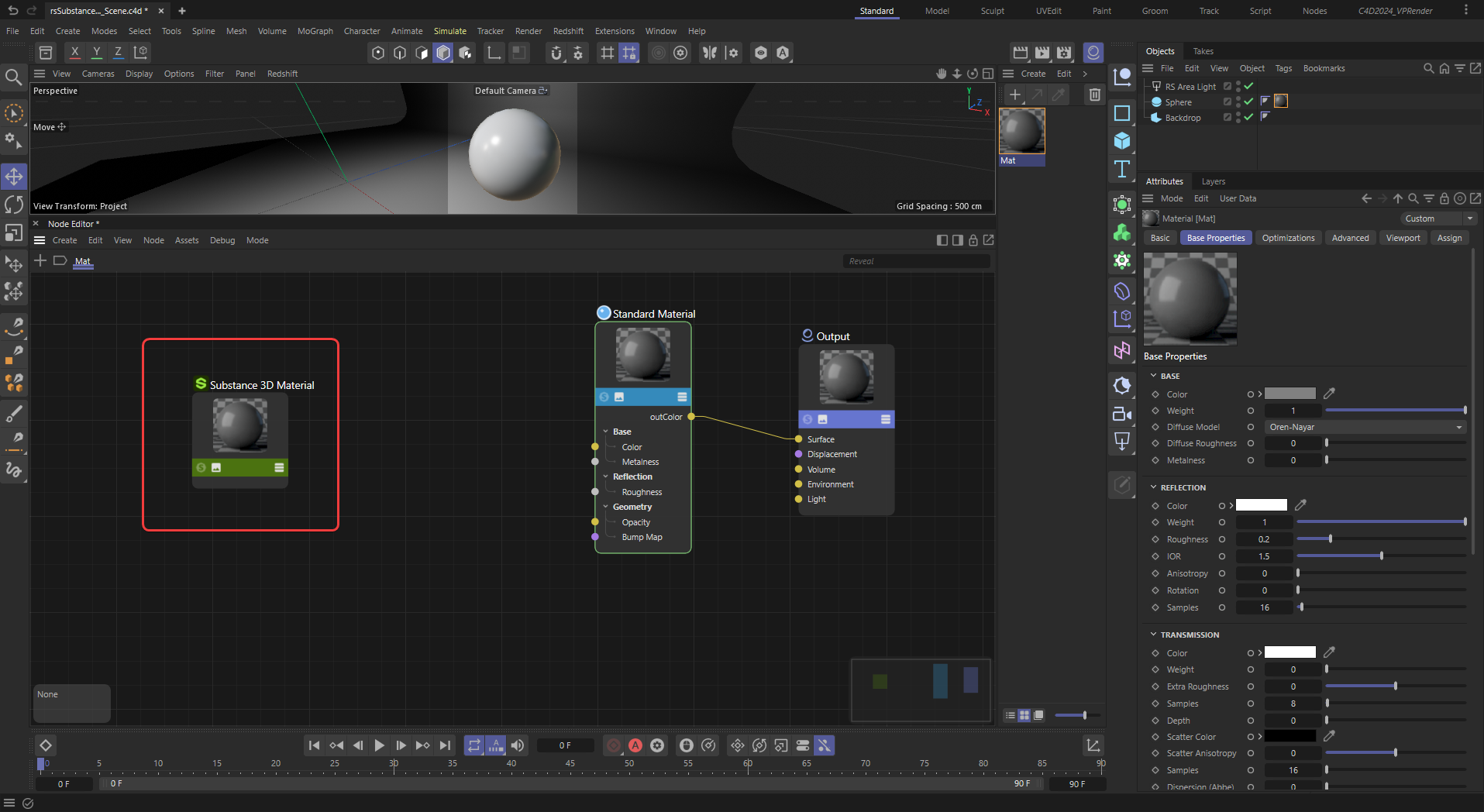
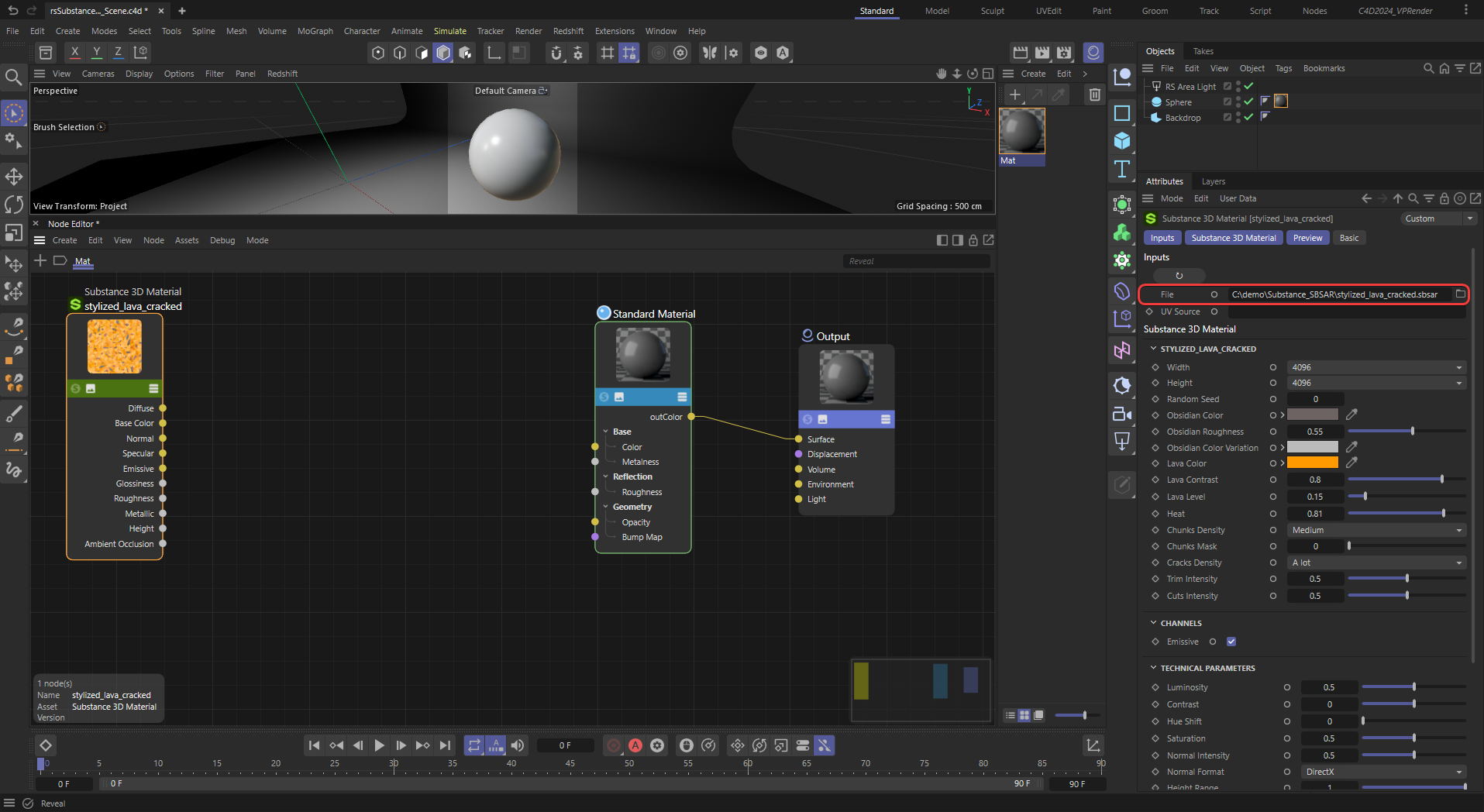
Create a new Standard Material and start by adding a Substance 3D Material node to the shading graph.
|
Load a SBSAR file.
|
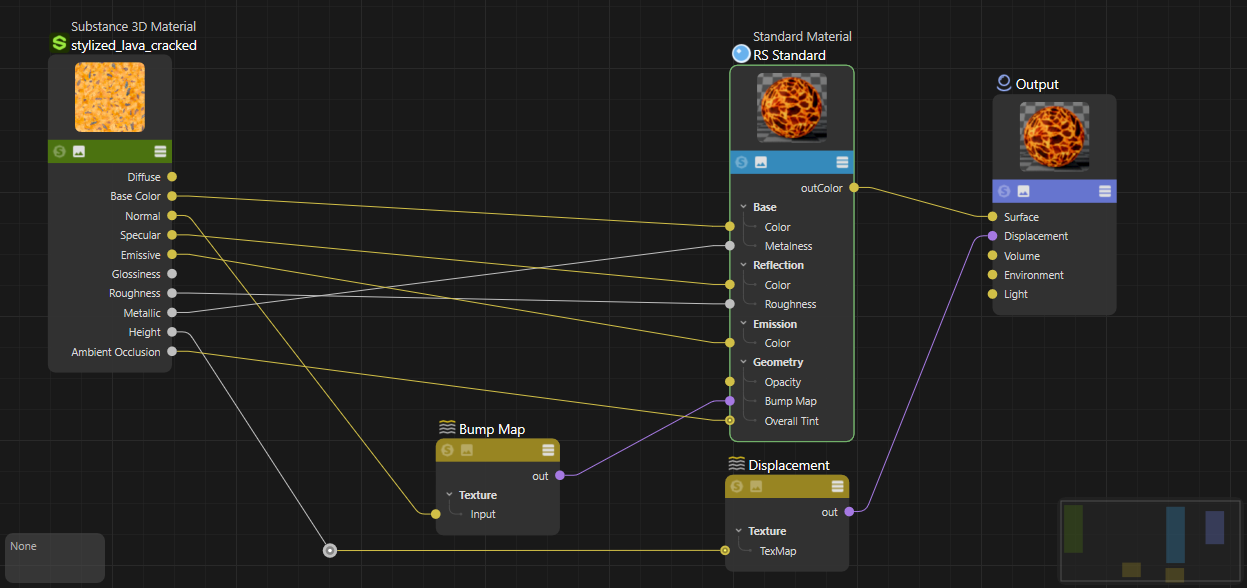
Then link the Substance node's outputs to the relevant inputs on the Standard material.
When setting up a Substance 3D Material node manually you have to create any additional nodes like bump map or displacement nodes yourself.
|
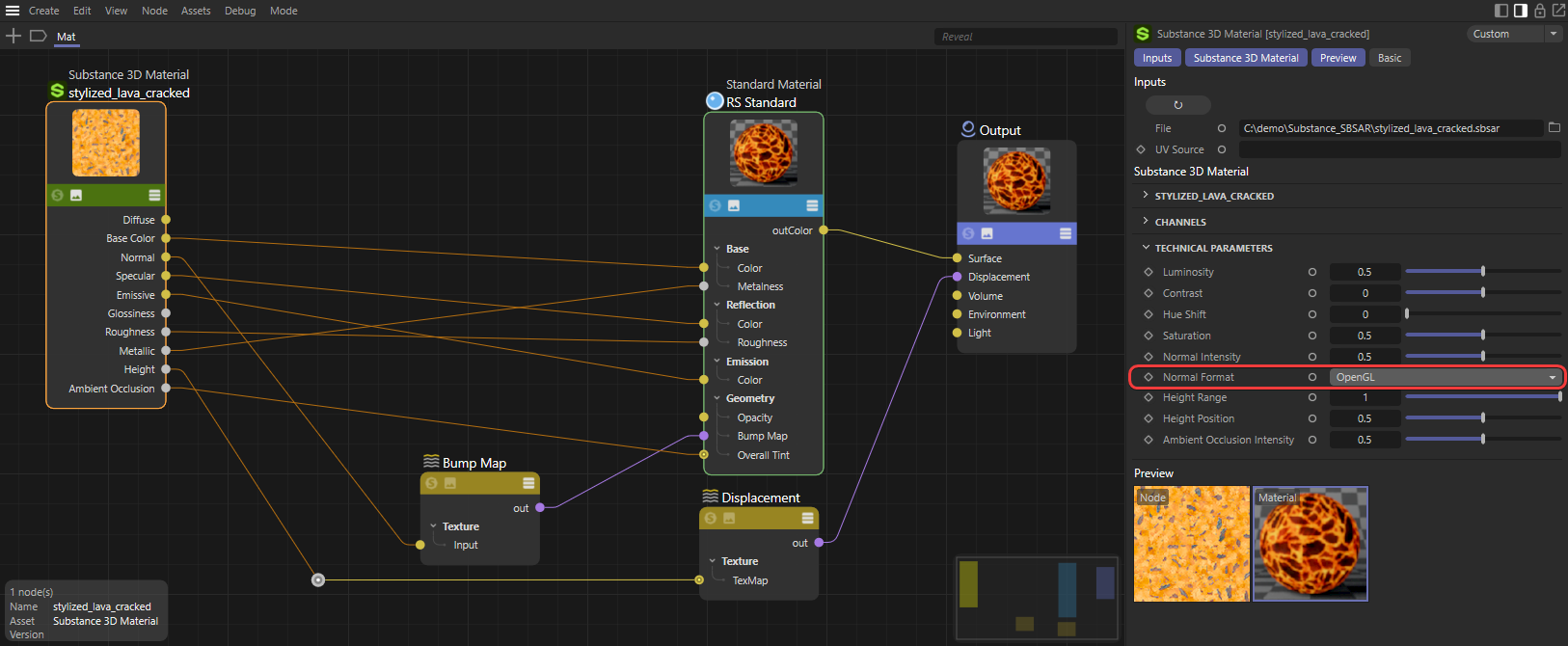
Please note, during manual Substance 3D Material creation the Normal Map Format should be set to OpenGL if presented as an option.
|
|
Tweaking Substance parameters requires the textures to be recreated and reprocessed which will result in a delayed scene refresh.
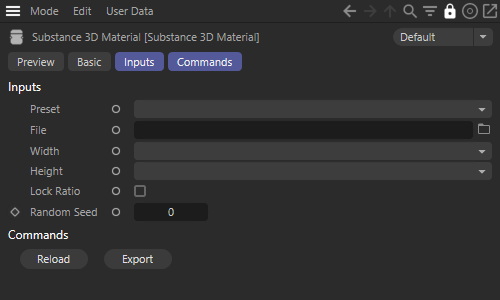
If available, presets for different configurations of the loaded Substance file appear here.
Define the SBSAR file to be used here. Once loaded, all of the parameters become available in the Substance parameters section.
Sets the horizontal resolution of the Substance texture.
Sets the vertical resolution of the Substance texture.
When enabled, by default, the width and height are locked to the same resolution. When disabled, the width and height can be set independently.
Changes the seed used to determine the randomization of the texture.
Refreshes the loaded SBSAR file. Use this to force a refresh after the external file has changed.
Bakes and exports all the texture maps as TIF files to a location on your hard drive. For example, diffuse, emissive, roughness, height, and bump textures. These can be imported elsewhere to recreate the Substance material without needing the SBSAR file.
The vast majority of a Substance node's parameters are dynamically populated after an SBSAR file is loaded.
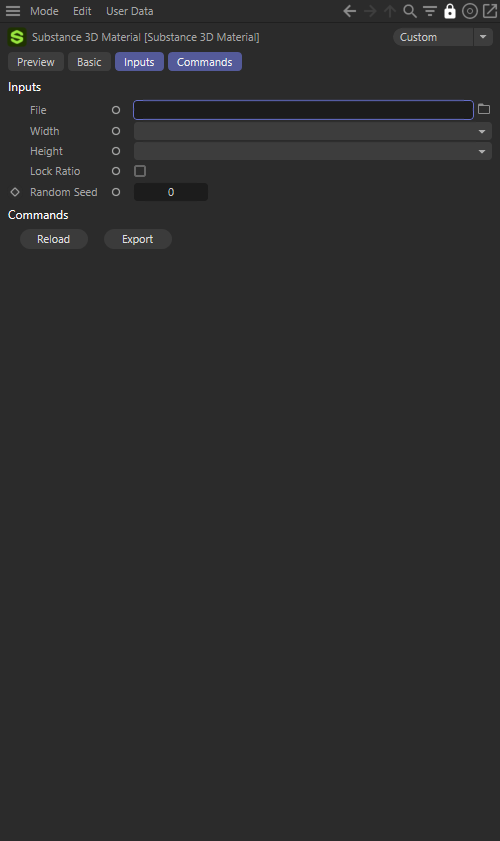
|
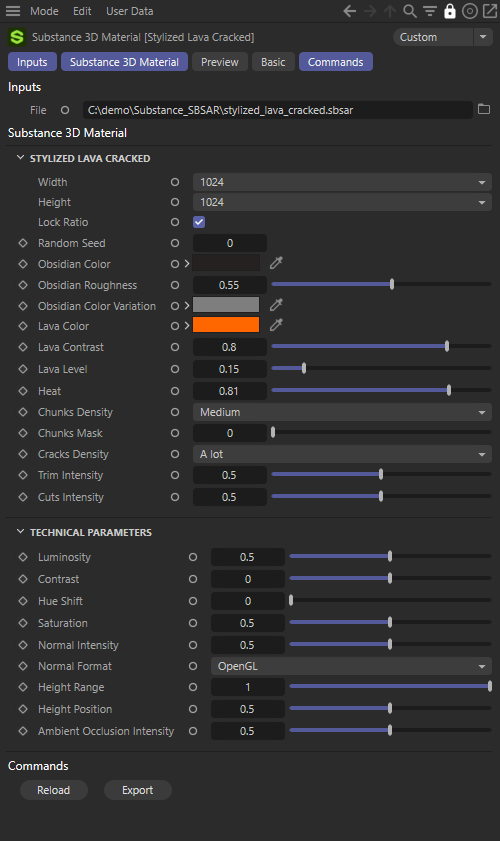
|
| Empty Substance node | Substance node with SBSAR loaded |
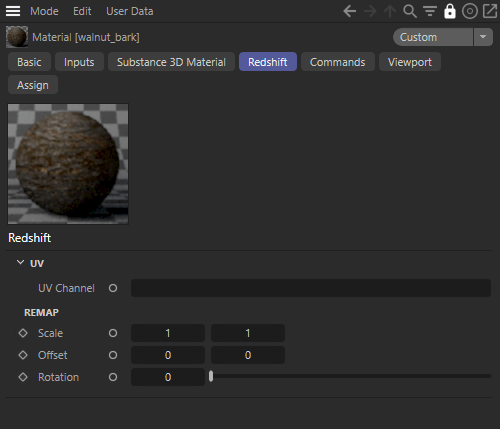
A SBSAR must be loaded to see the following settings.
|
Specify a UV map here.
Controls the size of the substance texture.
Moves the substance texture along the X and Y axes.
Rotates the substance texture.