glTF Export Settings
glTF Export SettingsglTF Export Settings
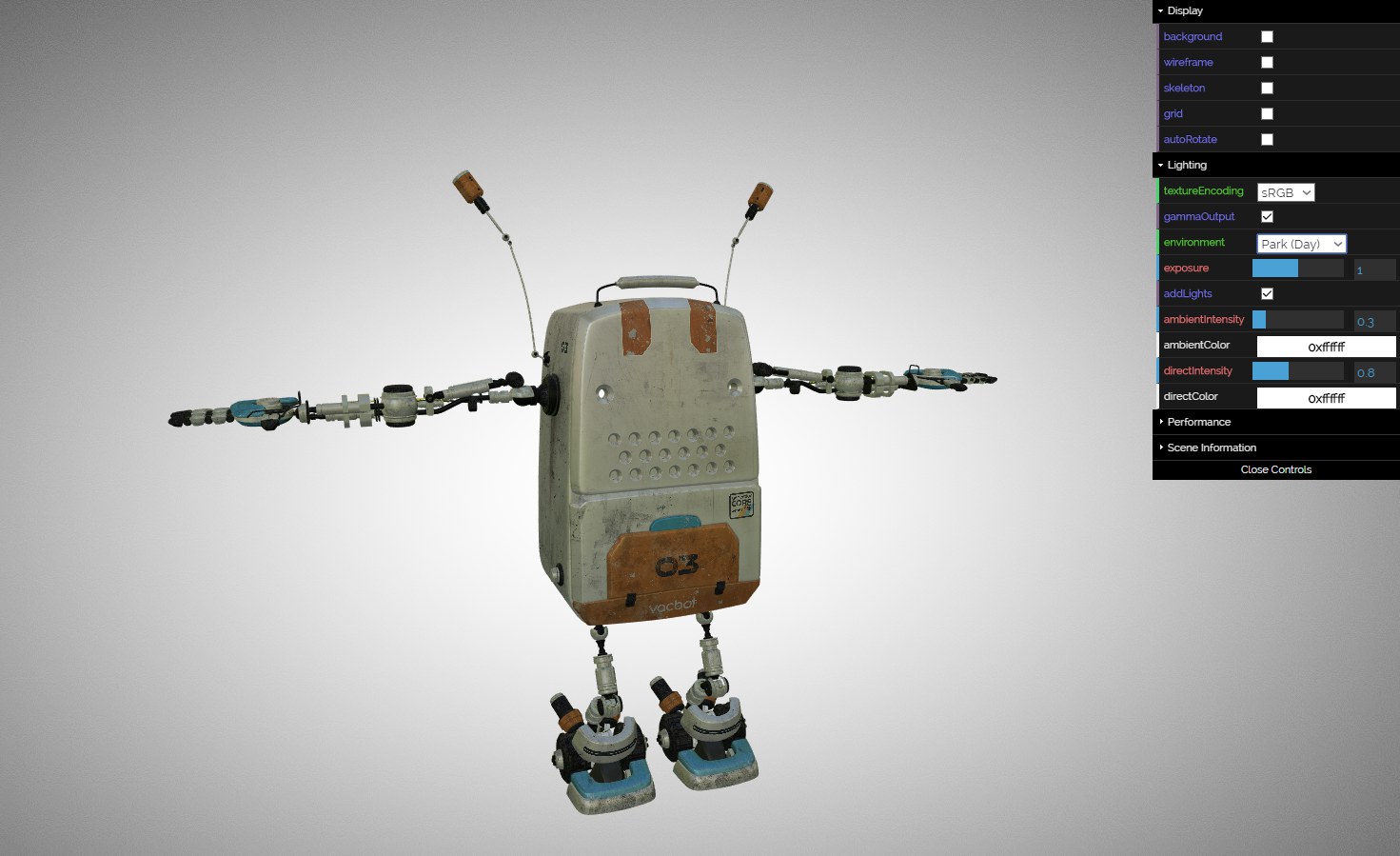 Our robot from the Content Browser in a glTF
viewer.
Our robot from the Content Browser in a glTF
viewer.
glTF (gl Transmission Format) is a free file format for 3D scenes and models. It was developed by the Khronos Group (www.khronos.org), a consortium of graphics companies - who also developed Collada. glTF is optimized for the efficient transmission and loading of 3D content that is used for real-time applications online (e.g., for use on Facebook and other social media).
In addition, many 3D engines such as Unity and Unreal can import this format. The Cinema 4D glTF exporter exports the Cinema 4D scene in the formats *.glft and glb, which are designed for use on all platforms with glTF support. You can test them by loading them in any one of the freely available glTF viewers online (e.g., https://gltf-viewer.donmccurdy.com).
In addition to geometry, cameras, textures (these are coded in the file) and animations can be exported.
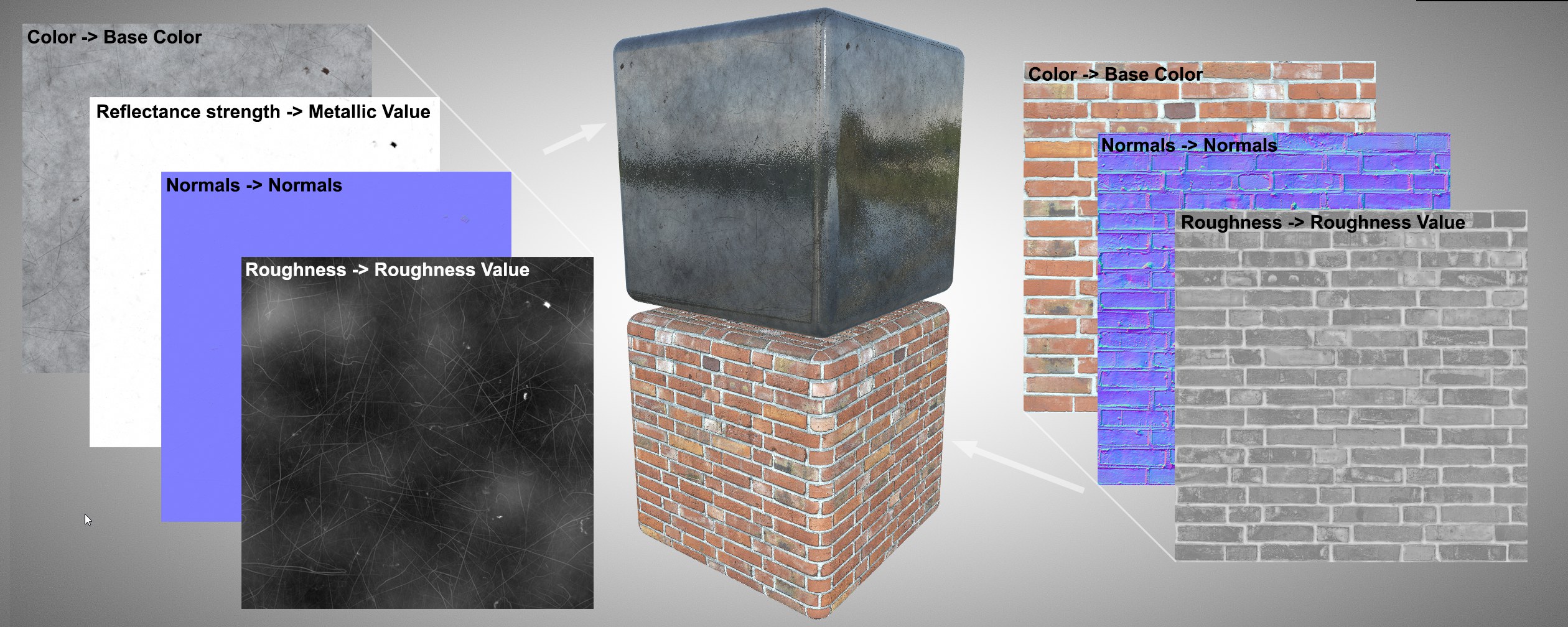 These Cinema 4D material settings are
transmitted to the glTF settings that are defined. Don’t be surprised if the materials look different in the
Cinema 4D Editor.
These Cinema 4D material settings are
transmitted to the glTF settings that are defined. Don’t be surprised if the materials look different in the
Cinema 4D Editor.
glTF materials adhere to a physically correct approach (’metallic roughness’) that is similar to a Physical
material ( New PBR
Material
New PBR
Material
In short, this means that glTF generally requires 3 settings that are extracted from a Cinema 4D material as follows (always incl. any defined textures and the respective Strength settings):
- Base Color: Color in the Color channel or Color in the Reflectance channel (if both are defined, the former will prevail).
- Metallic Value: Reflection Strength in the Reflectance channel. Here there is a difference between Cinema 4D and glTF: in Cinema 4D, this value defines the amount of light that is reflected by a surface. If set to 0%, a black surface would result. In glTF, this value defines the degree to which the reflectance behavior will reflect that of metal (white) or non-metal (black), i.e., this texture is mostly black/white. If the material is not metal, the Reflection Strength can also be set to 0%, which means that there will be a strong deviation between what you see in Cinema 4D and what glTF output.
- Roughness Value: Width in the Reflectance channel.
If you load a texture into the Color or Reflectance channel, Multiply will be exported as the Mix Mode, whereby only the corresponding Brightness and Mix Strength will be evaluated. You should define these settings accordingly so you have a realistic preview in Cinema 4D of the colors that will be exported.
In addition, the following textures will be transmitted from Cinema 4D to glTF (and if useful, incl. the respective Strength setting that is defined):
- Normal textures from the Reflectance channel or Normal channel (both Tangent type). If both are defined, the Reflectance channel will prevail.
- Occlusion textures from the Diffuse channel (here a baked Ambient Occlusion texture, for example, can be used).
- Alpha textures from the Alpha channel.
- Emissive textures and Emissive Factor/Color from the Luminance channel. For the latter, the Brightness setting will be read.
The Transparency material channel uses the Brightness setting to simulate transparencies in glTF (the color comes from the Color channel or the Reflectance channel). This is simulated internally using the Alpha channel - refractions are therefore not supported. However, this only works with simple objects - ones that themselves don’t overlap in the angle of view - since display issues can otherwise be encountered.
Under https://medium.com/gametextures/metallic-magic-2dce9001fe15 you will find several interesting details about the Metallic Roughness workflow. We also need to mention that metal that is covered with a color or other material is not metal with regard to rendering.
- Due to slightly different material concepts, Cinema 4D and glTF will produce different looks. Note the items described under Materials (in particular the Reflectance channel). You will most often have to make adjustments to the material!
- When exporting textures, the Texture Mode in the Preferences menu will be used with regard to texture interpolation.
- If you get an error message in the glTF viewer resulting from glTF scenes exported from Cinema 4D, this will most likely be unproblematic because the scene will probably be displayed correctly.
- Instances are currently not supported and will be exported as normal geometry.
- Node materials are currently not supported.
- In glTF, textures must have the same aspect ratio for Reflectance Strength and Roughness Strength because they will be coded in a single bitmap on export. The same applies for textures for Color and Alpha.
- When selecting a file name, scene name.gltftemp" will first be assumed. This name will be given the correct extension when it’s actually saved (and overwrite warnings prevented).
- The Texture Mode will be recognized and exported.
- Various materials on different polygon selections of the same object are supported. Internally, the selections will be subdivided into separate objects.
- When exporting, avoid assigning different materials to polygon objects to which joint animations are attached. The joint setup will not work correctly.
- The exported animation length orients itself to the Minimum Time and the Maximum Time setting in the Project Settings menu.