---
title: "Cineware for Unreal"
url: "https://help.maxon.net/cw/en-us/Content/html/CINEWARE_UNREAL.html"
section_path: "Cineware for Unreal"
description: "The current Cineware for Unreal version 2026.x works optimally with Cinema 4D 2026.x and Unreal Engine versions 5.5, 5.6 and 5.7.In general, at least …"
---
# Cineware for Unreal
The current *Cineware for Unreal* version 2026.x works optimally with Cinema 4D 2026.x and Unreal Engine versions 5.5, 5.6 and 5.7.\
In general, at least Unreal Engine 5.5 and at least C4D 2025.2 are required to use the *Interchange* functionalities. With earlier versions, it is otherwise only possible to use the *Datasmith* import. The differences between these various data import options are summarized below.\
Here you will find the minimum requirements for the different versions of *Cinema 4D* and the *Unreal Engine*:
- **Unreal Engine 5.4** (only support for *Datasmith* exchange with Cineware for Unreal) - Requires **Cinema 4D 2025.x.x**
- **Unreal Engine 5.5** (full support for *Datasmith* and *Interchange* exchange with Cineware for Unreal) - **Requires Cinema 4D 2025.x.x**
- **Unreal Engine 5.6** (full support for *Datasmith* and *Interchange* exchange with Cineware for Unreal) - **Requires Cinema 4D 2025.x.x or 2026.x.x**
- **Unreal Engine 5.7** (full support for *Datasmith* and *Interchange* exchange with Cineware for Unreal) - **Requires Cinema 4D 2026.x.x**
If you have not yet installed the Unreal Engine, you can find it on this website([https://www.unrealengine.com/en-US/download](https://www.unrealengine.com/en-US/download)).\
Select the appropriate license on this website, create an Epic Games user account and download the *Epic Game Launcher*. Then start this *Epic Game Launcher*, enter your user account details and select the **Unreal Engine** in the left-hand navigation menu.
In the **Library** tab, you will find all versions of the Unreal Engine that may already be installed. If there are no versions there yet, or if you want to install a newer version, click on the **+** symbol in this section. You can then start the Unreal Engine directly using one of the buttons highlighted in yellow (see also the following illustration).
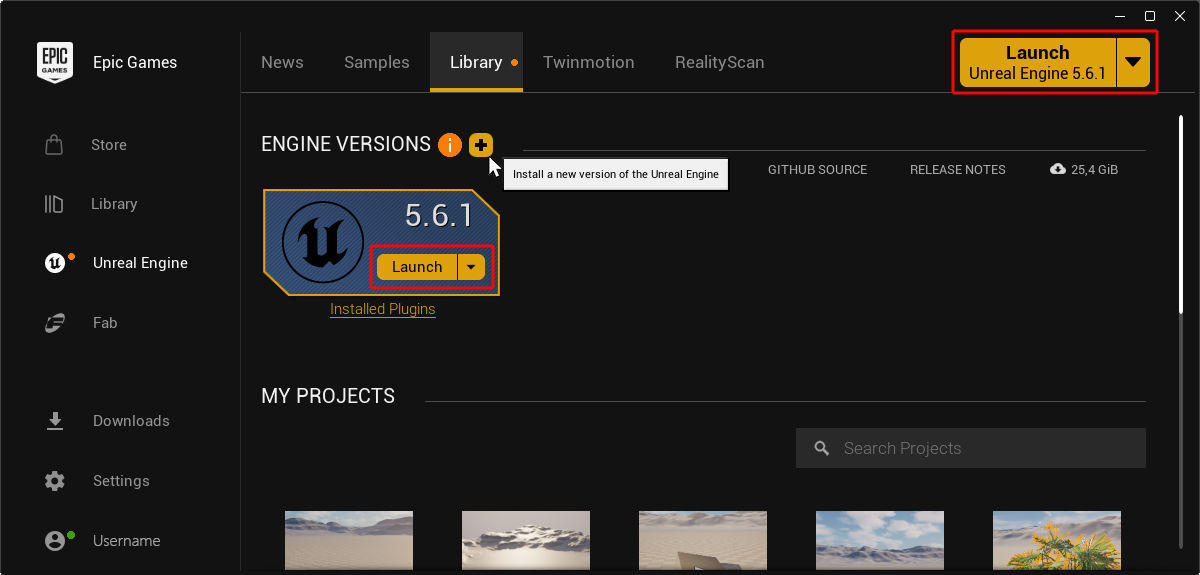
Installation and selection of the desired Unreal Engine within the Epic Game Launcher.
Cineware is supported on both Windows and macOS. Please note that the installation of [Xcode from the Mac App Store](https://apps.apple.com/us/app/xcode/id497799835?mt=12/) is also required under macOS so that the Unreal Engine can compile.\
Please note that all plug-in components expect a Cinema 4D installation on the default path:
- *Windows*: C:\\Program Files\\Maxon Cinema 4D 2026
- *macOS*: /Applications/Maxon Cinema 4D 2026
## What can it do?
- Cineware makes it possible to import the objects of native Cinema 4D scenes directly as *level actors* within the Unreal Engine. Animations will also be taken into account, which can be imported directly as *Geometry Caches* if desired.
- When using *Interchange*, full support for the import of Cinema 4D Pose Morphs for the use of object deformations through saved point positions.
- When using the optional *Interchange* functionality, weighted character rigs and animations can also be adopted.
- Data can be exchanged directly with the Unreal Editor via a *Direct Link* connection to Cinema 4D.
- Simulation caches, e.g. from Rigid Bodies, are automatically recognized in the Unreal Editor
- Classic Cinema 4D materials and Redshift materials can be imported directly. The desired texture resolution can be defined when importing into Unreal.
- UV coordinates and lightmaps can be generated automatically for imported Cinema 4D objects if required.
- Individually selected parameters can be transferred directly from Cinema 4D via Datasmith import and then allow these values to be changed in the Unreal Editor without having to switch between applications.
- Special Cineware Nodes can be used directly in Unreal Editor *Blueprints*, e.g., to automatically convert Cinema 4D coordinates into Unreal Editor coordinates.
The following topics will be covered:
- [Installing Cineware components for the Unreal Editor](https://help.maxon.net/cw/en-us/Content/html/CINEWARE_UNREAL_INSTALLATION.html.md)
- [Import of Cinema 4D assets into the Unreal Editor](https://help.maxon.net/cw/en-us/Content/html/CINEWARE_UNREAL_IMPORT.html.md)
- [The Direct Link functionality](https://help.maxon.net/cw/en-us/Content/html/CINEWARE_UNREAL_DIRECT_LINK.html.md)
- [Using Cinema 4D parameters in the Unreal Editor](https://help.maxon.net/cw/en-us/Content/html/CINEWARE_UNREAL_C4D_PARAMETER_IMPORT.html.md)
In general, the import of Cinema 4D assets integrated via *Datasmith* and the *Interchange* functionality provided by the Unreal Editor itself offer similar features. The differences are mainly in the support of the older (legacy) lights, cameras and materials of Cinema 4D compared to the current materials and objects optimized for the Redshift renderer. In addition, currently only the exchange via the *Interchange* functions offers full support for animated characters.\
As both *Datasmith* and *Interchange* import components can be installed simultaneously for the Unreal Engine via the Cineware installer, you can decide which of these functions you want to use from project to project. For example, it is also conceivable to exchange only the assets via *Datasmith* and the animated characters separately via *Interchange*.\
The following table shows the differences in the support of the various Cinema 4D scene components:
| Cinema 4D element / action | Support with Datasmith | Support with Interchange |
| --- | --- | --- |
| Cameras | Redshift & Legacy - Cameras | Redshift cameras only, but without parameter support |
| Spotlights | Redshift & Legacy - Light sources | Redshift light sources only |
| Spotlights | Redshift & Legacy - Light sources | Redshift light sources only |
| Area lights | Redshift & Legacy - Light sources | Redshift light sources only |
| Infinite lights | Redshift & Legacy - Light sources | Redshift light sources only |
| Dome lights | Not supported | Redshift light sources only |
| IES lights | Redshift & Legacy - Light sources | Redshift light sources only |
| Materials | Redshift & Legacy - Materials | Redshift materials only |
| Several materials per object | Redshift & Legacy - Materials | Redshift materials only |
| Animations | Position/size/rotation and
Geometry Caches | Position/size/rotation and
Geometry Caches |
| Character animation | Not supported | Supported |
| Pose Morph Targets | Not supported | Supported incl. animations |
| Drag & Drop or import into the
Unreal Content Browser | Not supported | Supported |
| Import multiple files | Supported | Supported |
| Make object parameters available in the Unreal Engine via the
Cinema 4D Take system | Supported | Not supported |
| Network connection | Available via own
Direct Link plugin in Cinema 4D | Not supported |