Program Installation, Updating & Uninstall
Installation
With Maxon App installed, users can install as many Maxon programs (or suites, depending on the given item) as storage space allows. Let’s step through installing a title so you can know what to expect.
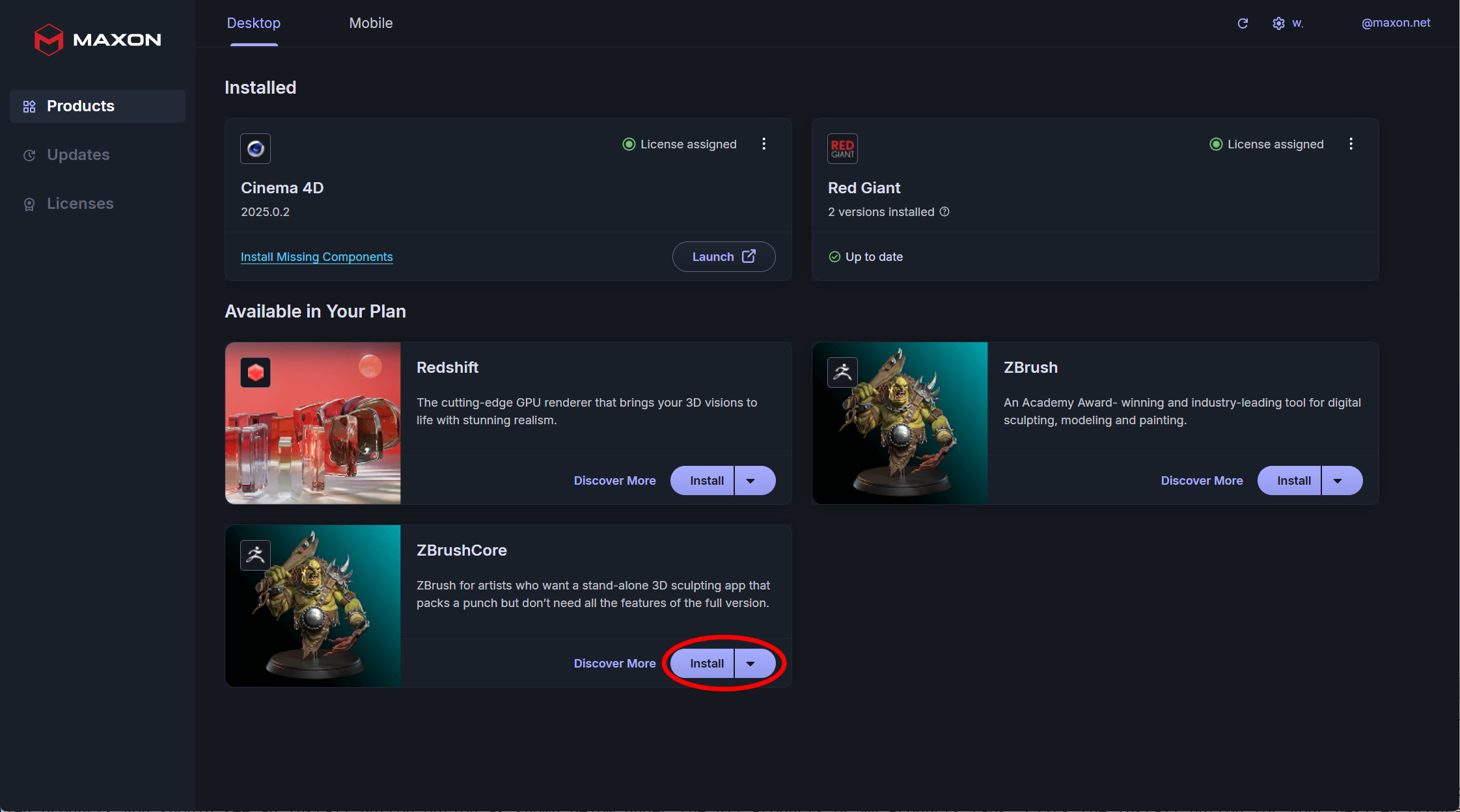
For all uninstalled products you should see an Install button option as shown below under the All Products or My Products tabs. Click the Install button for your desired program.
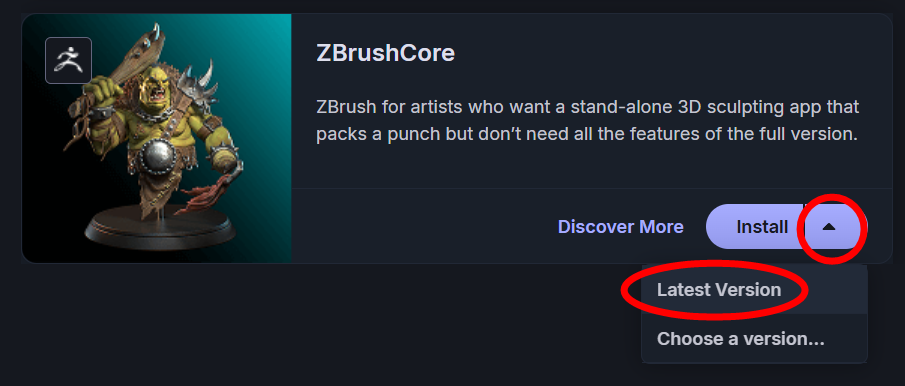
Depending on the program, you may see a pop-up menu for Latest Version or Other Versions. In the vast majority of cases, you will pick Latest Version.
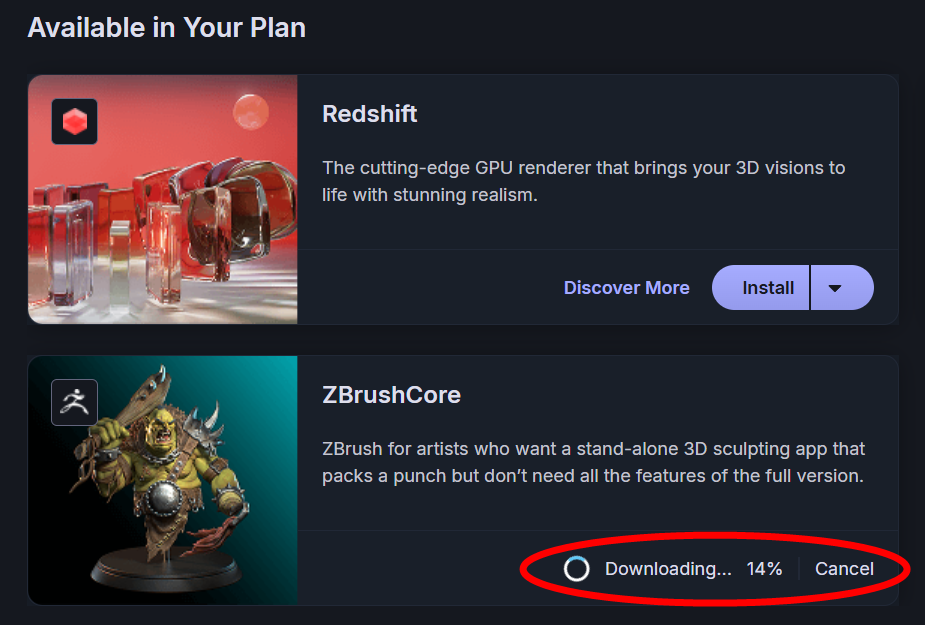
Your selected program will now show a progress indicator bar as it works through downloading. You may click Cancel Download if you realize you’ve made a poor life choice. If and when you change your mind again, you can return to the programs list and click Install once more.
Once the title finishes downloading, the program installer will open and prompt you to begin installation. (See the Updating section below for an example with ZBrush.) With a title like Red Giant, the process (below) is quite minimal.
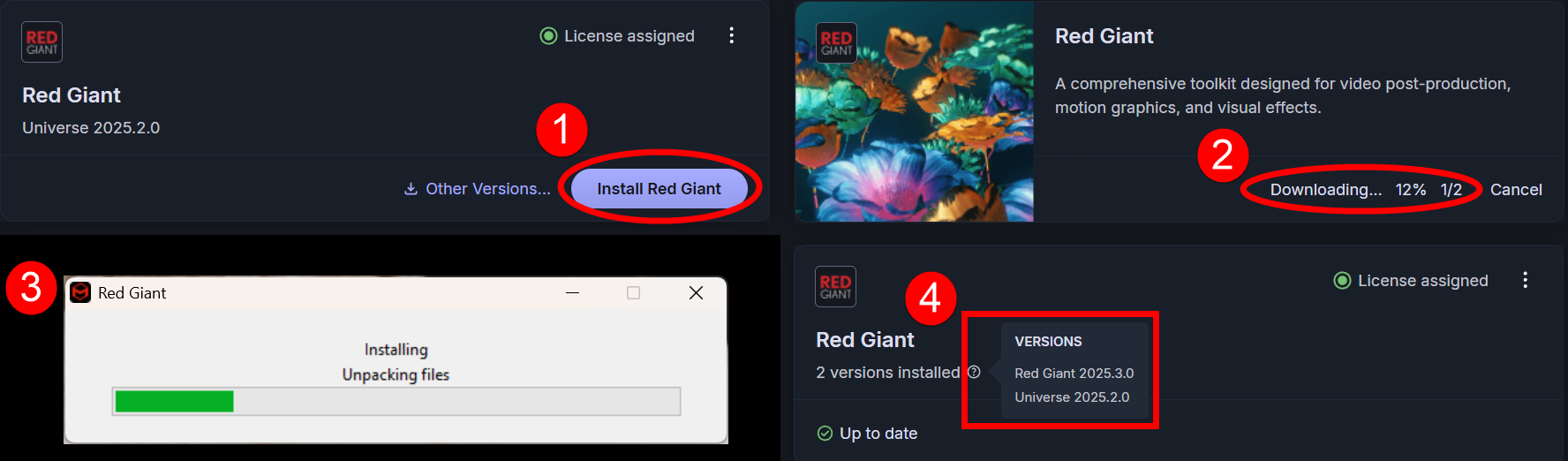
As you can see, Maxon has reduced the relatively lengthy installation of multiple Red Giant products spanning hundreds of tools to just this:
-
Click Install and select the Latest Version option.
-
Watch the circle indicator spin and spin while the percentage-downloaded indicator progresses. The "1/2" notation indicates that Red Giant, the first of this item's two packages, is in process.
-
The package (Red Giant in this case) installs. You don't have to click anything here.
-
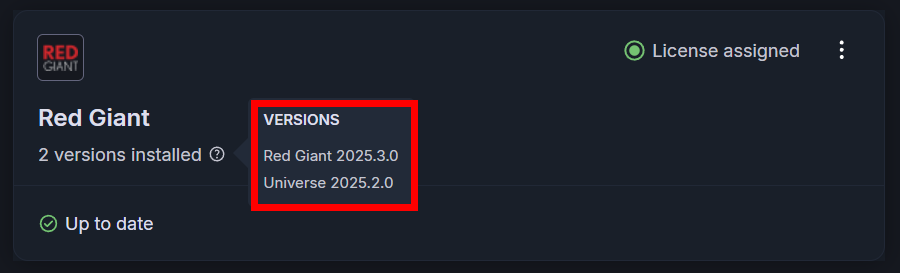
When Unified Red Giant installation completes, you can see the Red Giant and Universe versions in the shown mouse-over notification.
The last two steps automatically repeat for the second package (Universe). (If you end up with only Red Giant or Universe (but not both) installed, perhaps due to licensing or interrupted installation reasons, the Maxon App will notify you regarding the missing component.)
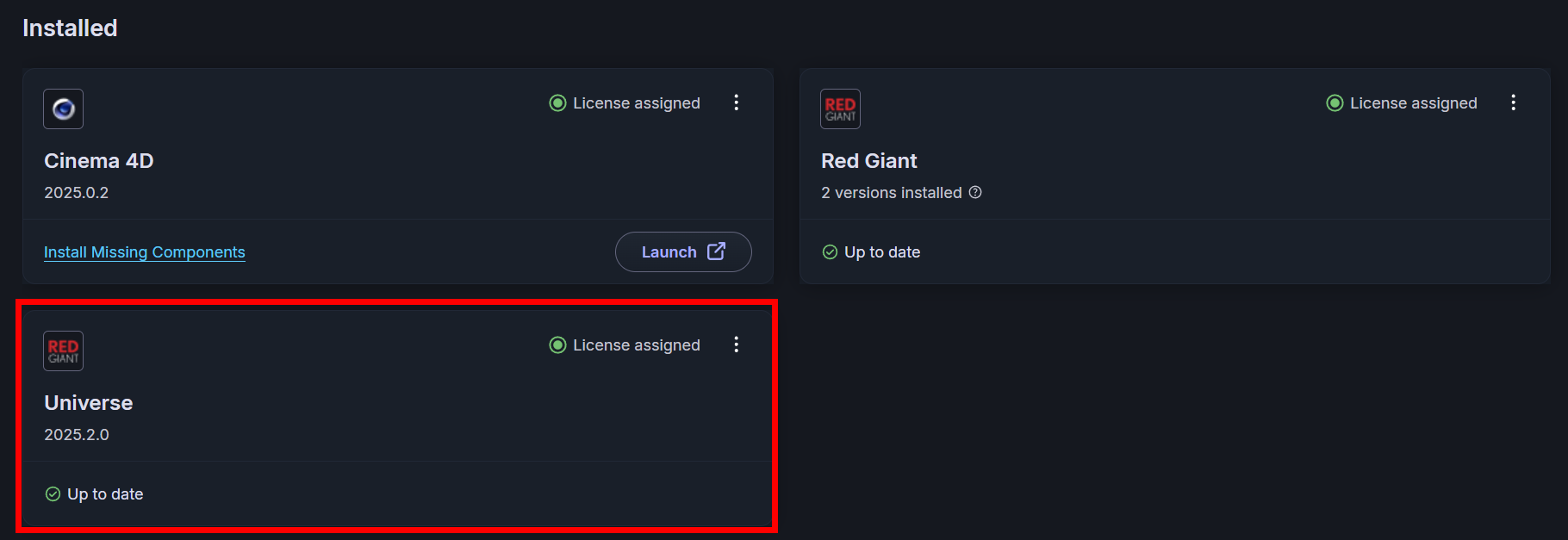
Back in the day, the individual products contained under the Red Giant umbrella (i.e., Trapcode, Maxon Studio, Magic Bullet, etc.) each had their own entries in the Maxon App. Now, Unified Red Giant brings all of this under a single entry. You can see below how the Maxon App distinguishes between Red Giant and Universe to better accommodate those with dedicated Universe licenses. Otherwise, though, both suites are managed within the same Red Giant Maxon App entry.
In the event that you have a Universe standalone license, Maxon App will show it as a separate suite under Red Giant.
Now, remember when Maxon App offered the option of installing the Latest Version or Other Version? Depending on the program, selecting the latter will yield a version options screen like this:
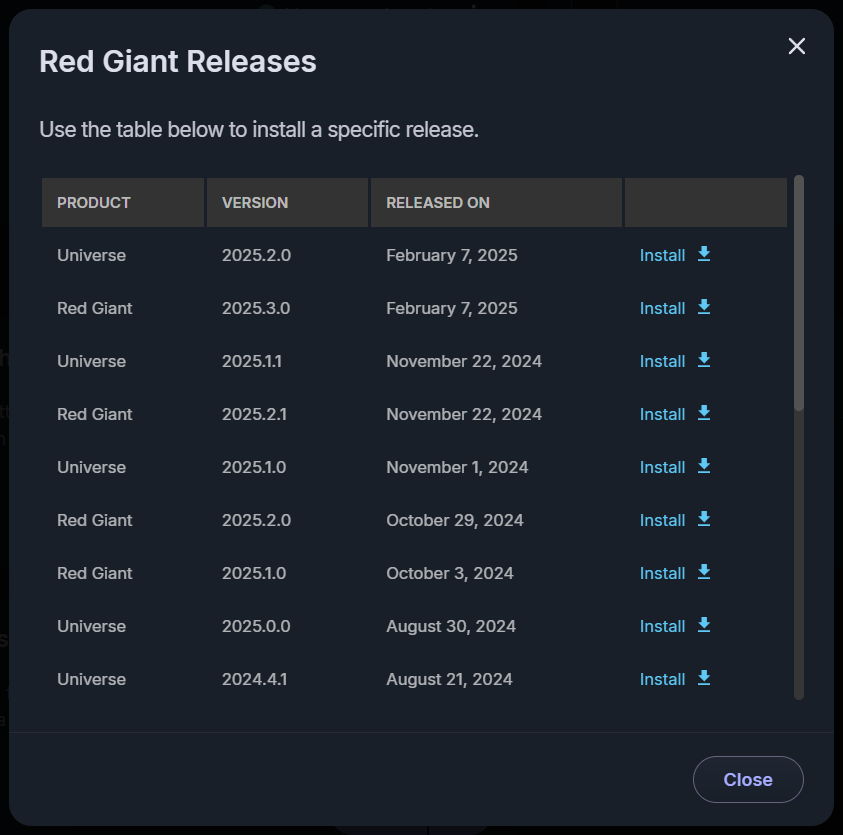
There are a few reasons you might opt for a prior version rather than the latest. While highly unlikely for a mature program, it is possible to have a new program installation be incompatible with other software installed on the system, but a prior version works without issue. More often, people working on a job won’t want any workflow changes while in mid-project. New versions might entail feature changes, either in function or location. Rather than deal with interrupting workflow to learn these changes, installing a prior, known version can delay that potential learning time until after project completion.
Updating
Conceptually, and in several steps, updating a Maxon program will look and act just like an installation. However, because there are a few differences, let’s quickly run through the process, starting with when you click the Update button. Once you click the update link, the download progress indicator appears, as shown here.

Once downloading completes, it’s time to begin the program installation.
This is where things vary depending on the program you are installing. For example, ZBrush begins by asking if it's OK to make changes to your system, then confirm your installation language. After that, you step through selecting optional/recommended components, the installation folder, unpacking and installing files, and how to finish the installation.
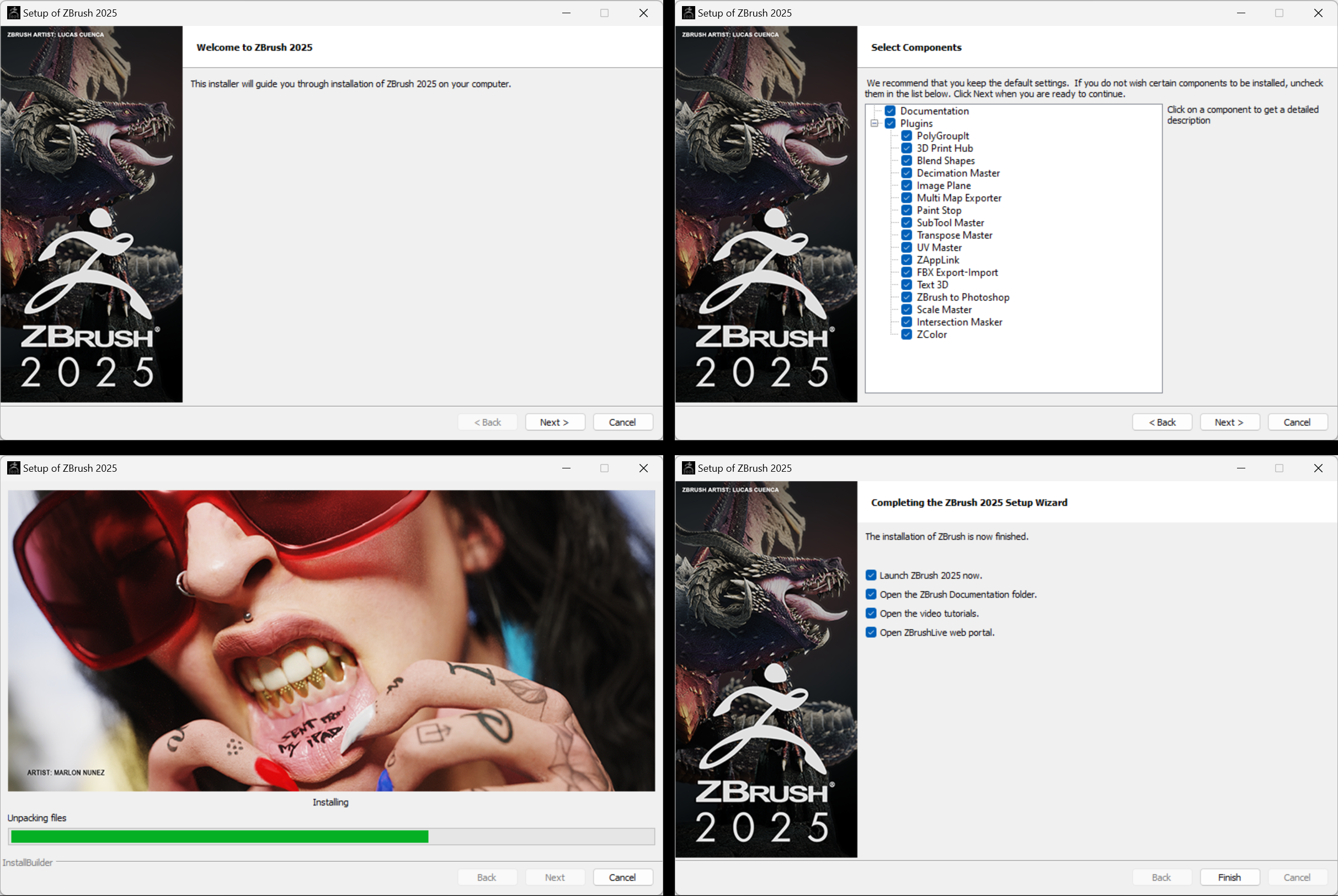
Each set of installers will have clear instructions of their own. Just follow the instructions as they appear.
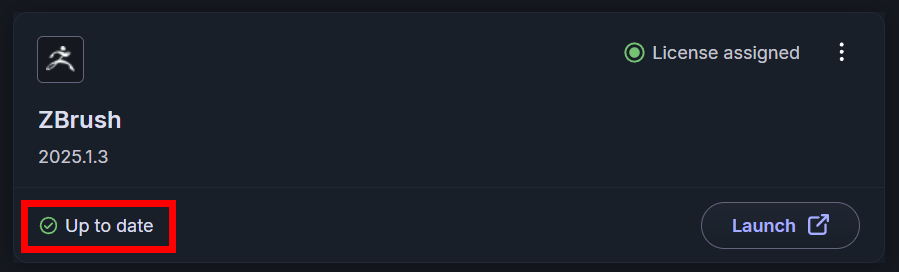
When you return to the Maxon App, your program should show an "Up to Date" status.
Uninstall
For various reasons, you may wish to uninstall one or more Maxon programs.
For macOS, due to the structure of the OS, you will need to remove Cinema 4D or Redshift by placing the installation folders in the trash can. In the case of ZBrush, there is an uninstaller specific to this tool found in the related Applications folder.
On Windows, this process is just a matter of clicking the ellipsis (three dots) icon for that program or suite name, then selecting Uninstall from the resulting pop-up menu.
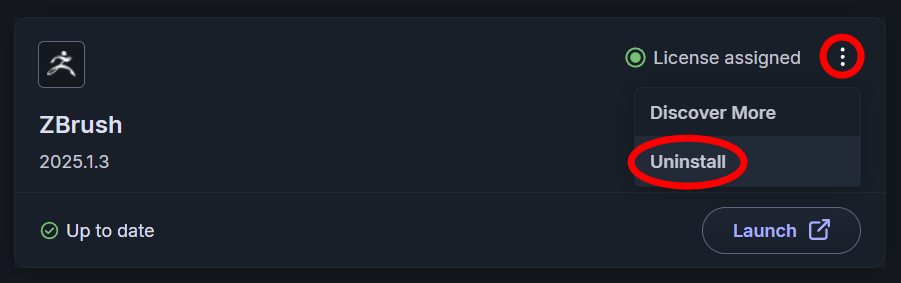
You may be prompted to allow Maxon App to make changes to your system. Click Yes to agree to this. The uninstall routine will complete automatically. If an error message results from uninstalling, another Uninstall attempt, possibly preceded by a system reboot, will usually resolve the issue.
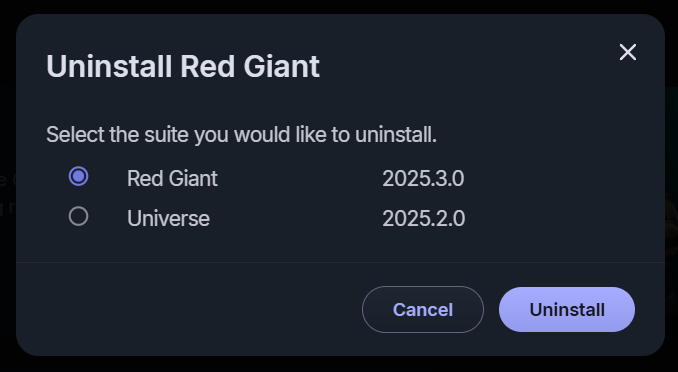
With Unified Red Giant, you'll likely encounter a pop-up allowing you to uninstall either Red Giant or Universe. Running through this uninstall process twice enables you to remove both suites.