
Store To AOV
Introduction
You can create Custom AOVs for your project and send colors, float values, or integer values from a material to an AOV.
You can find more information about Custom AOVs here.
Store Color / Integer / Scalar To AOV
The concept of these nodes is the same, they offer inputs for colors, integer values, or float values and make them available to Custom AOVs.
The following images give a demonstration of a typical use.
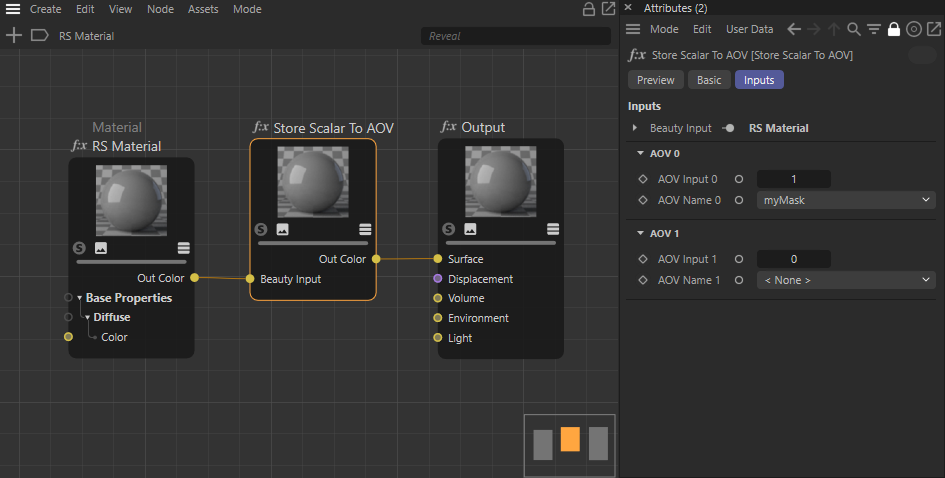
By placing the Store Scalar To AOV node inbetwee the Material node and the Output node, we can add float values to the rendered material, that can be shown in a Custom AOV.
Use the AOV Input value to set the value that should be shown in the Custom AOV.
Use The AOV Name to choose an available Custom AOV to display your value. If there is no Custom AOV setup already, you can also choose Add new Custom AOV and enter a name for it here.
In this example a new Custom AOV with the name "myMask" was created. Different values can be sent to several custom AOVs. New entries are added automatically when an AOV Name is selected or created.
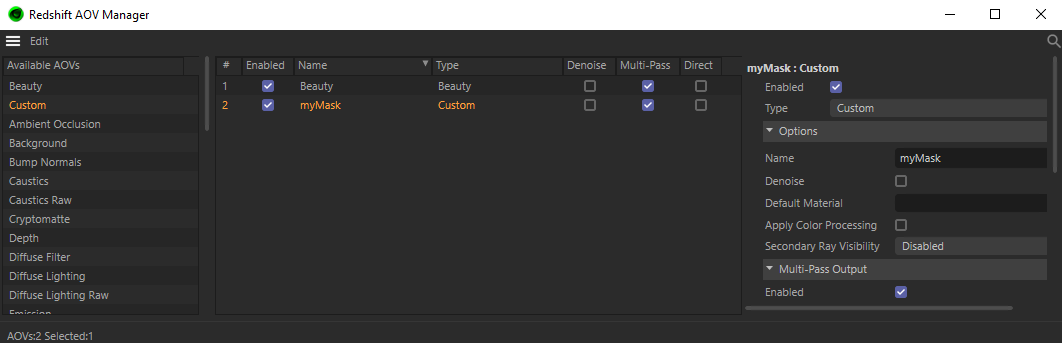
The new Custom AOV is added to the Redshift AOV Manager. You can have multiple Custom AOVs with your rendering.
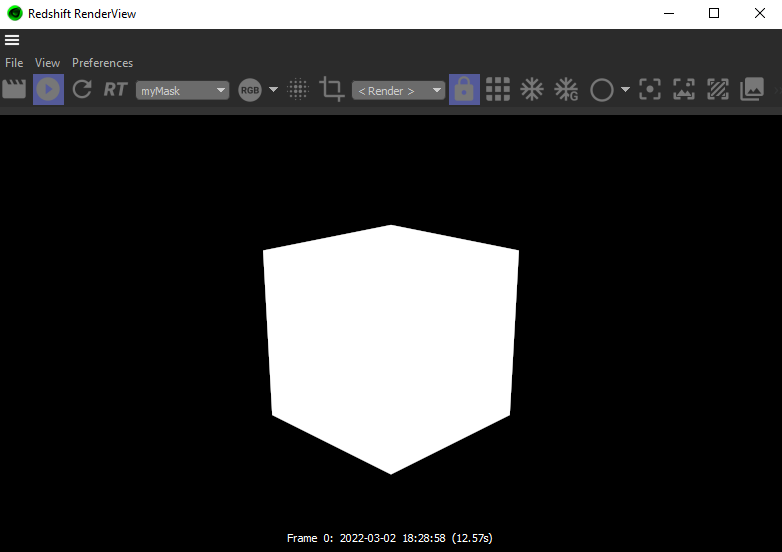
In the Redshift RenderView we can have a look at the rendered AOVs. In our example the Custom AOV is filled with the value 1 which equals the color white. This way you can use the custom AOV similar to a Cinema 4D Object ID Multi Pass.