
Render Settings - Live - Basic
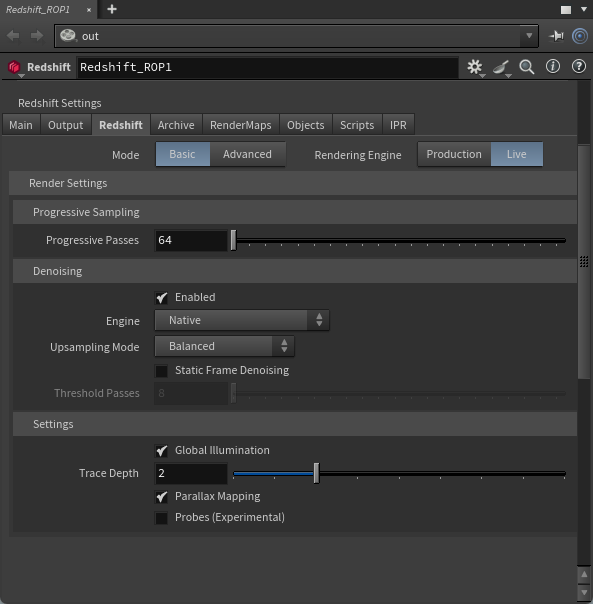
|
Introduction
The render settings that are available to you changed based on the selected render settings mode (Basic or Advanced) and the selected rendering engine (Production or Live). Basic mode consists of a small selection of frequently used render settings while Advanced mode exposes all of the available render settings for the selected render engine. If you're just getting started with Redshift, or prefer to keep things simple, the Basic mode is a great way to adjust your render quality.
Some example images are rendered with Redshift Production but the visual impact remains the same in Live.
Rendering Mode
Changing this parameter will change the render settings that are available.
Controls which engine is used for rendering from the following options.
-
Production: Redshift's primary engine for final frame rendering.
-
Live: Redshift's fastest interactive engine, offering near real time updates.
Progressive Passes
Only applies to Production Progressive and Live rendering mode.
Controls the maximum number of passes that can be reached. More passes results in higher quality and the less visual noise.
Since Progressive mode can be used in either Interactive Rendering or Final Rendering the behavior of this setting differs depending on the rendering mode and the situation.
- Progressive Passes with Production Interactive and Live Rendering - When Interactive Rendering the Progressive render will
only reach the maximum number of Progressive Passes if given the necessary amount of time between scene edits and changes.
- For example: If a scene edit takes place before the maximum number of Progressive Passes is reached then a new updated Progressive render will be started and again begin to build back up to the maximum number of Progressive Passes.
- Progressive Passes with Production Final Rendering - In Final Rendering the Progressive render will
always reach the maximum number of Progressive passes before moving on to the next frame, no more and no fewer.
- For example: If your maximum number of Progressive Passes is set to 64 then each frame will be rendered for as long as it takes to reach the 64th pass. Once the 64th pass is reached, Redshift will move onto the next frame and then start the process over for each frame until the entire batch is finished.
Denoising
Enables or disables denoising / upsampling.
- Denoising allows you to render images at a reduced baseline quality (lower sample counts) for increases in render speed.
- Upsampling renders the frame at a lower internal resolution before upscaling it to the final frame resolution.
Engine
Controls the denoising/upsampling engine. Upsampling allows for faster rendering and interactivity at the expense of image quality.
-
Native
- Uses machine learning to upsample renders from a lower resolution to the final target resolution, this allows for faster rendering and interactivity without losing as much detail as traditional upscaling.
- On Windows - DLSS is used with NVidia hardware
- On Mac - MetalFX is used on Apple hardware
-
OIDN
- Uses OIDN denoising
- Compatible with all hardware
Upsampling Mode
Only available with Native Engine
Controls the starting resolution before upsampling to the final target resolution. A lower starting resolution (ultra performance or performance mode) results in faster interactivity and lower quality while a higher starting resolution (balanced or quality mode) results in slower interactivity and higher quality.
- Quality - 44% of target resolution.
- Balanced - 33% of target resolution.
- Performance - 25% of target resolution.
- Ultra Performance - 11% of target resolution.
Quality
Only available with OIDN Engine
Balances speed with quality for OIDN denoising across the following options:
- High - Prioritizes quality over speed, best used for final rendering. Minor differences may appear when comparing results across different hardware architecture.
- Balanced - Balances speed with quality, providing higher quality than Fast and less memory usage than High. Some differences may appear when comparing results across different hardware architecture.
- Fast - Prioritizes speed over quality. Some differences may appear when comparing results across different hardware architecture.
Static Frame Denoising
When enabled, OIDN denoising will be used after a certain number of passes to improve quality. This allows for faster interactivity without sacrificing image quality when a frame is able to reach higher progressive passes.
Threshold # Passes
Controls the number of passes that need to be reached before OIDN Static Frame Denoising is used.
Enabled
Enables or disables all global illumination.
In the example below, notice the very dark shadow behind the lantern due to the lack of indirect lighting when global illumination is disabled.
|
|
|
| Global Illumination: Disabled Render Time (Min:Sec) : 2:59 |
Enabled 3:17 |


Trace Depth
The Global Illumination Depth parameter sets a cap on how many times an indirect lighting ray can bounce. Increase this parameter for interior scenes where many indirect bounces are required for realistic lighting.
Global Light Intensity
Scales the light intensity of all lights (except the Sun & Sky) in the scene up or down.
Parallax Mapping
When enabled, depth is simulated for materials using displacement mapping without the need to generate additional polygons or subdivisions. The effect is similar to classic bump or normal mapping, but can appear even more realistic by simulating cast shadows.
This enables convincing effects like deep grooves between tiles or blades of grass on a lawn to be rendered in real time on otherwise flat geometry. Parallax Mapping heavily depends on the viewing angle, since no geometry is actually displaced the silhouette of an object remains unchanged but inner surface detail can benefit greatly.
Probes (Experimental)
When enabled, this option uses an experimental estimate of where the lighting relevant to the scene comes from. In some cases, this allows for more precise lighting with fewer passes. If in doubt, simply try it out and see whether you prefer the result with or without this option.