Setting Up AOVs
To setup the AOVs output in Redshift for Katata, the plugin has the RedshiftOutputChannelDefine node, that can be used with the Katana RenderOutputDefine node to configure each AOV. The plugin supports all RS AOVs types available. The standard Katana workflow to enable/disable AOVs can be used with Redshift, and the output channels are available in the Live and Preview render modes, linked to the Katana monitor.
TheRedshiftOutputChannelDefine is used to define an AOV type and its custom settings.All the Redshift available AOV types can be selected and configured using this node. The beauty AOV is the default one, so to render this AOV a RedshiftOutputChannelDefine node is not needed.
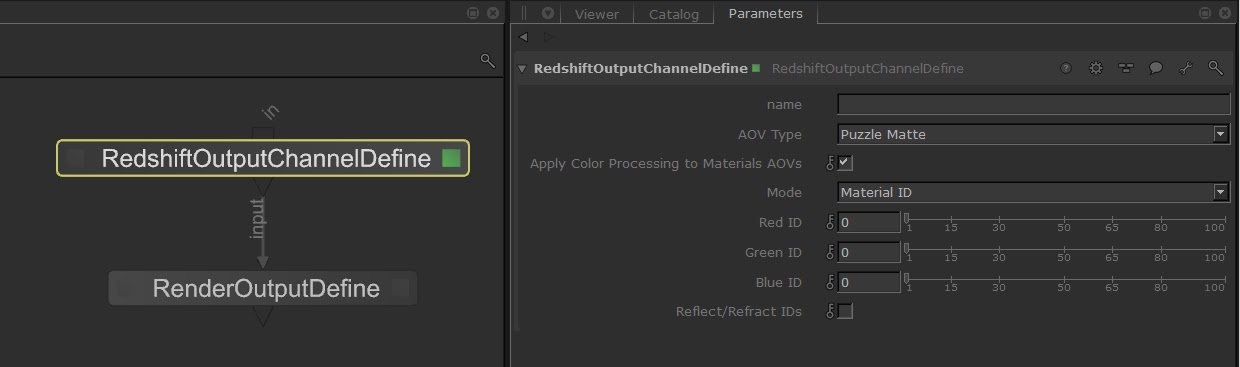
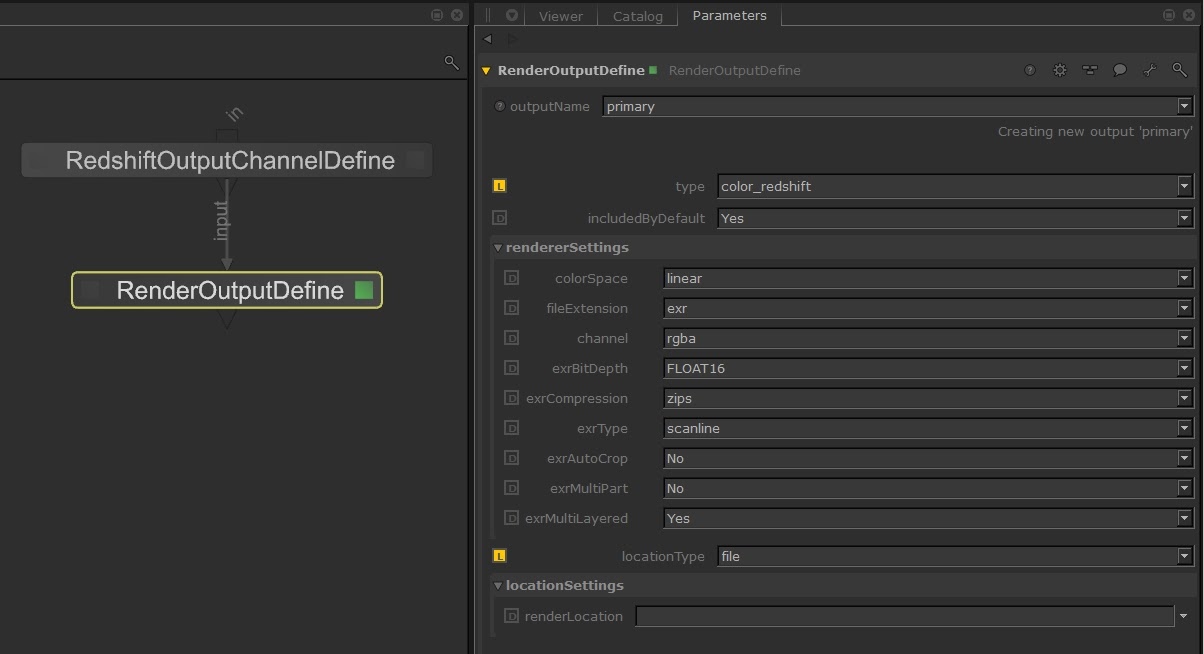
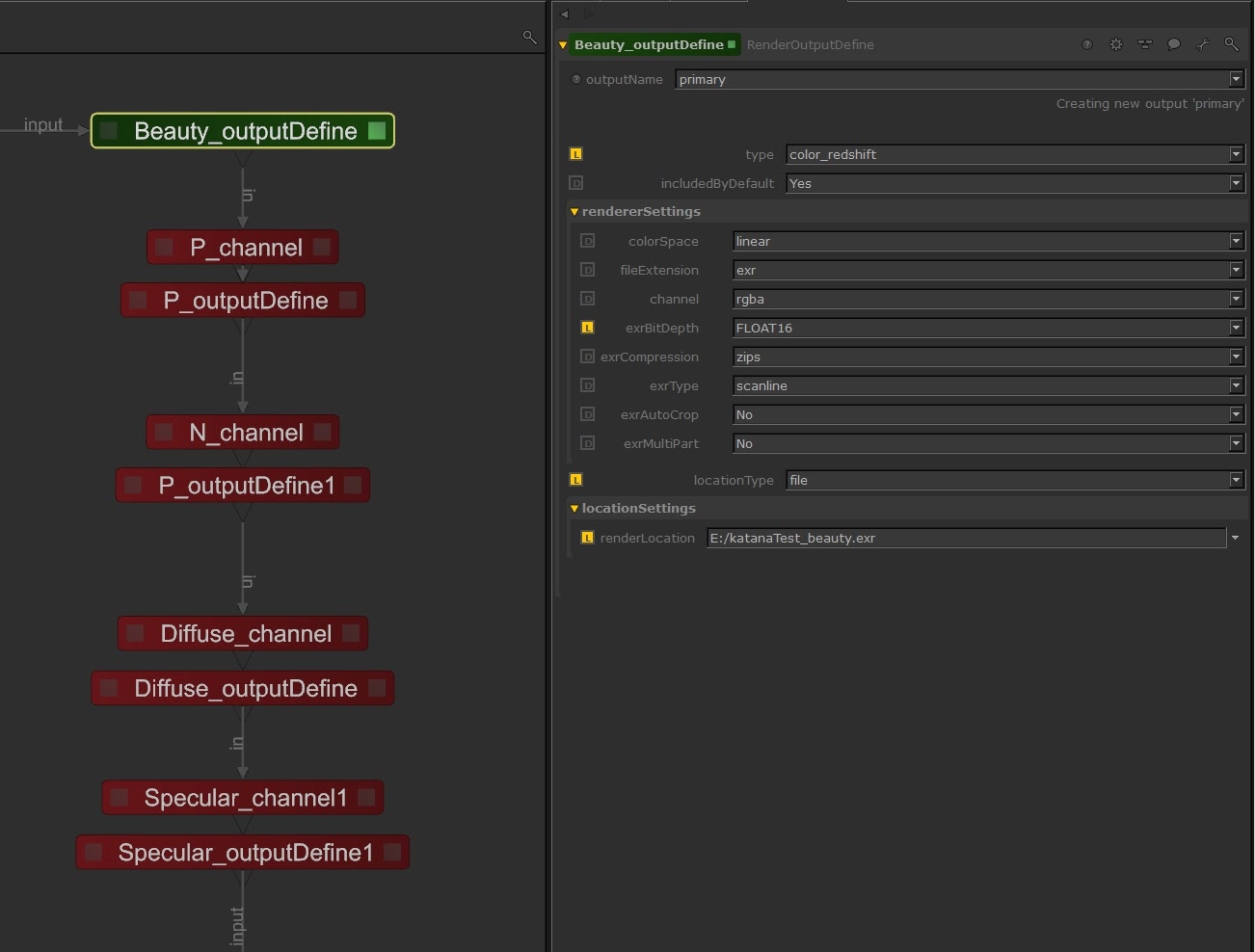
To setup the output file options, each RedshiftOutputChannelDefine node must be used linked to a RenderOutputDefine node. This node has a custom “color_redshift” render output type, that must be used with all the Redshift AOVs, and has been designed to support all the Redshift output file settings.
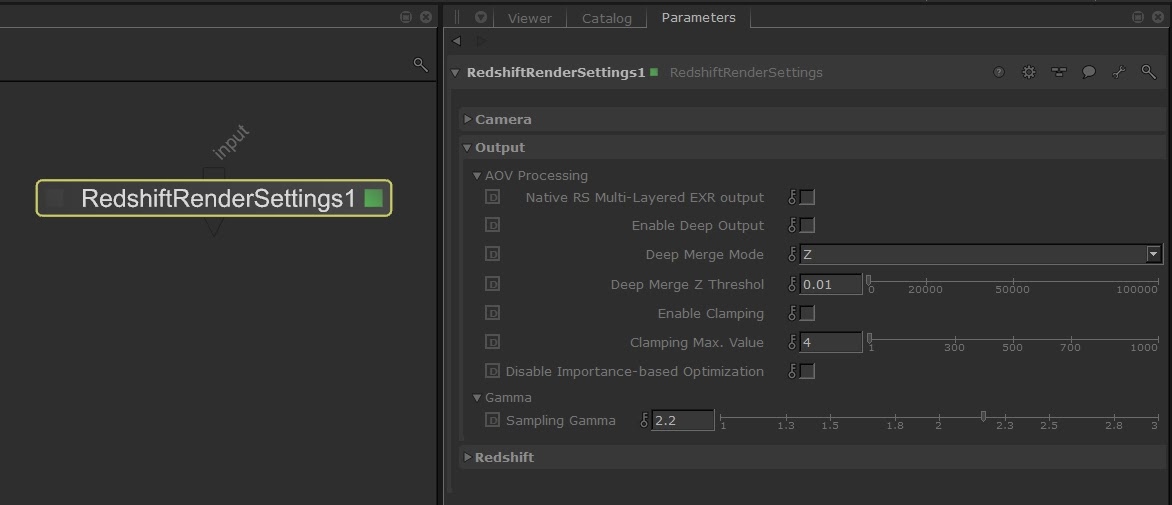
The multi-layered EXR output and the deep rendering features are configured in the Redshift for Katana plugin using a set of options available in the RedshiftRenderSettings node.
This is an example about how to setup the Redshift AOVs output for the beauty, P, N, diffuse and specular channels. The beauty channel is defined using only one RenderOutputDefine node, while all the other passes are defined using pairs of RedshiftOutputChannelDefine and RenderOutputDefine nodes.
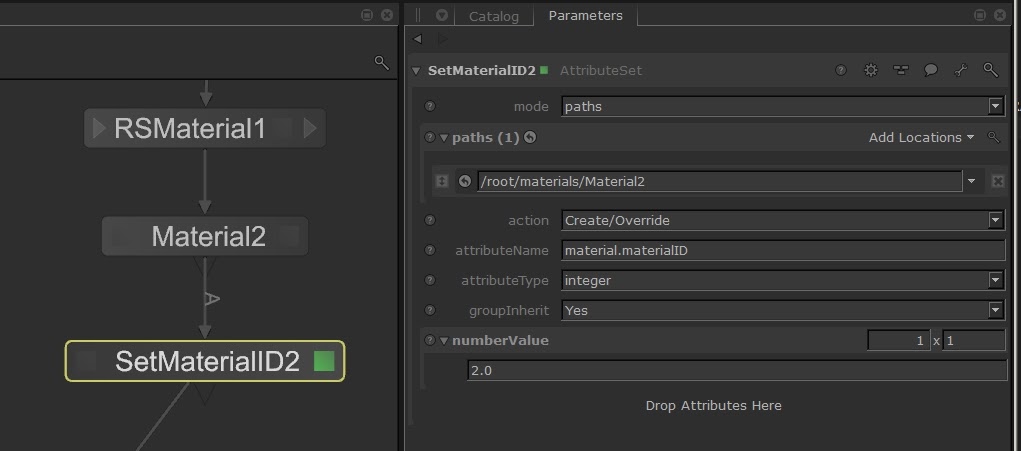
To set the material ID parameter for each scene material, the plugin can extract an integer user attribute “ material.materialID ” associated to the material nodes.