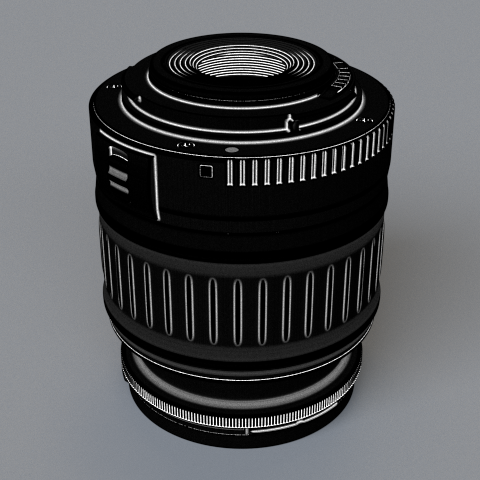
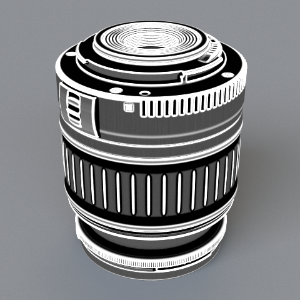
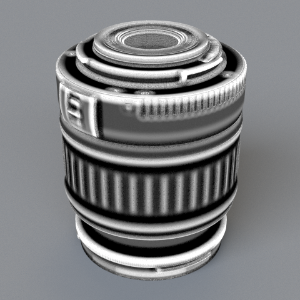
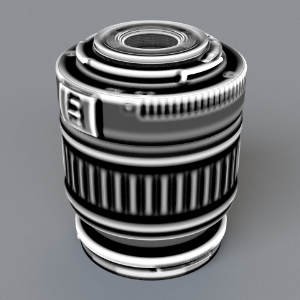
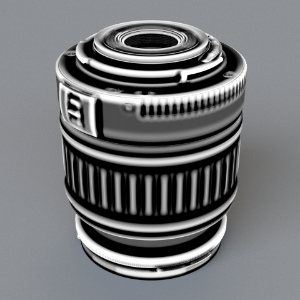
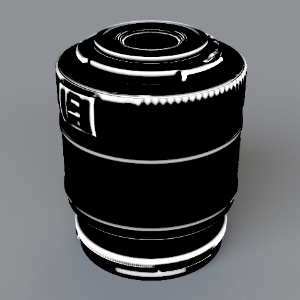
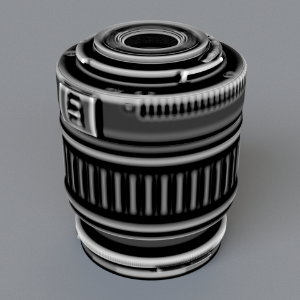
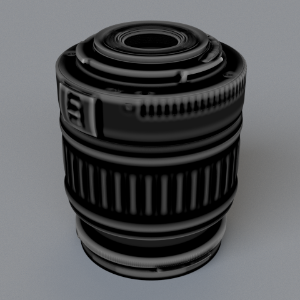
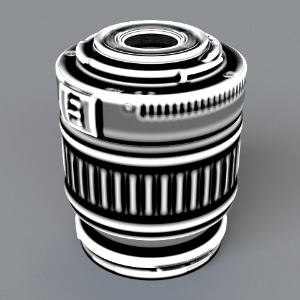
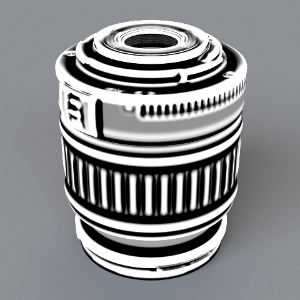
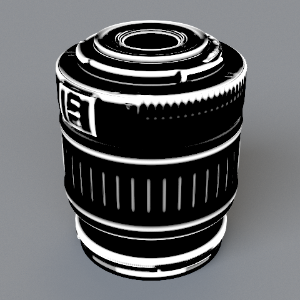
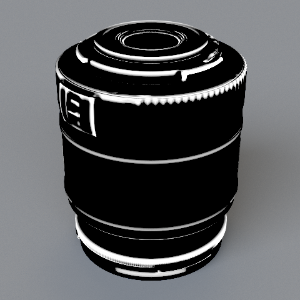
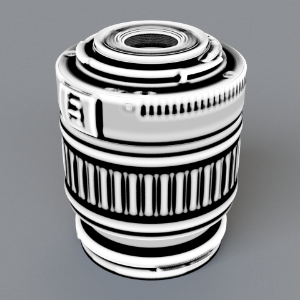
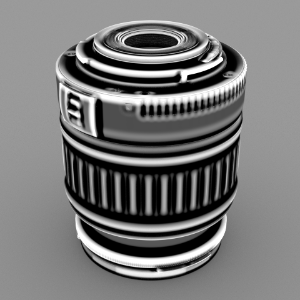
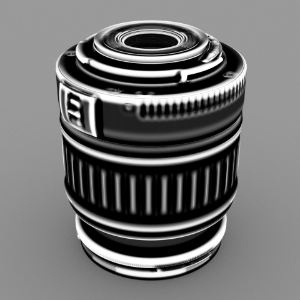
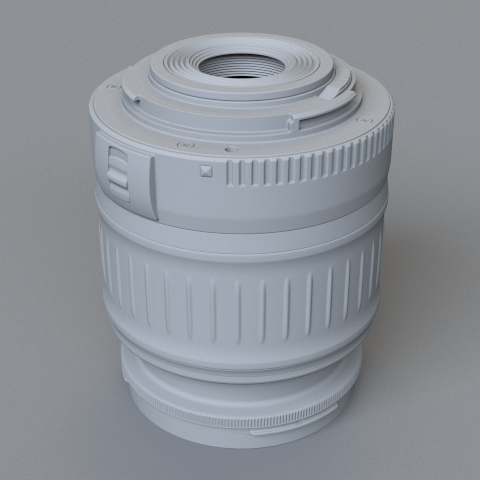
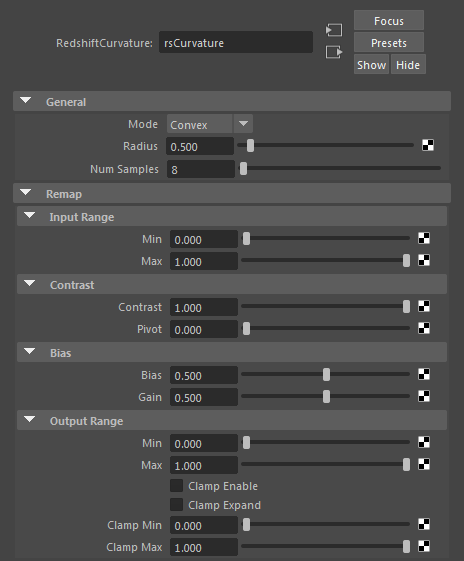
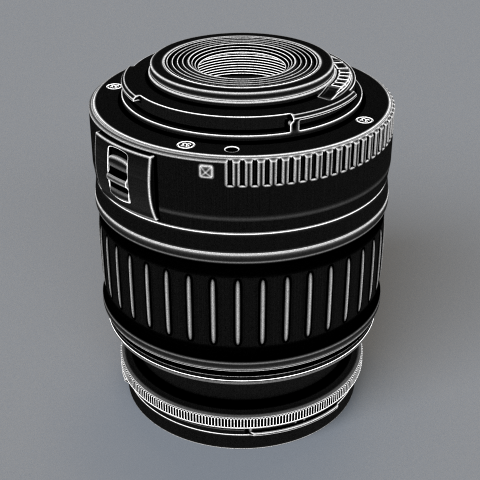
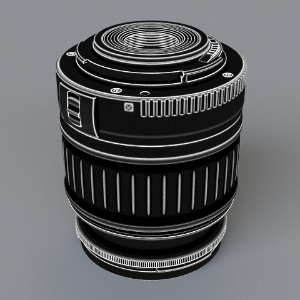
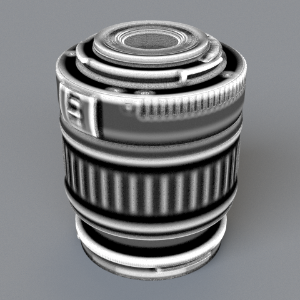
--- title: "Curvature" url: "https://help.maxon.net/r3d/maya/en-us/Content/html/Curvature.html" section_path: "Shaders > Texture Shaders > Curvature" description: "This shader shades an object based on surface curvature. It features two modes: Convex and Concave." --- # Curvature You are here: # Curvature ## Introduction This shader shades an object based on surface curvature. It features two modes: Convex and Concave. | | | | --- | --- | | ![Image: Lambert Renderc2aa.png](https://help.maxon.net/r3d/maya/en-us/Content/Resources/Images/Lambert%20Renderc2aa.png) | ![Image: Convex Curvature Render1722.png](https://help.maxon.net/r3d/maya/en-us/Content/Resources/Images/Convex%20Curvature%20Render1722.png) | | *Basic render of object* | *Curvature shader assigned to object* | ![Image: Parameters35e6.png](https://help.maxon.net/r3d/maya/en-us/Content/Resources/Images/Parameters35e6.png) ## General #### Mode Switch between Convex and Concave mode. | | | | --- | --- | | ![Image: Convex Curvature Render1722.png](https://help.maxon.net/r3d/maya/en-us/Content/Resources/Images/Convex%20Curvature%20Render1722.png) | ![Image: Concave Curvature Renderd0ab.png](https://help.maxon.net/r3d/maya/en-us/Content/Resources/Images/Concave%20Curvature%20Renderd0ab.png) | | *Convex mode* | *Concave mode* | #### Radius > **Note:** Scene Units Controls the range in which the shader calculates surface curvature in scene units. Low values give sharp results, while large values result in a softer look. The values demonstrated in the following images were used to give the shader useful output for this particular object. The values you use for your objects will vary depending on their sizes. | | | | | --- | --- | --- | | ![Image: Convex Curvature Render1722.png](https://help.maxon.net/r3d/maya/en-us/Content/Resources/Images/Thumbnails/Convex%20Curvature%20Render1722.png) | ![Image: Convex 0.05a71b.png](https://help.maxon.net/r3d/maya/en-us/Content/Resources/Images/Thumbnails/Convex%200.05a71b.png) | ![Image: Convex 0.25a1a0.png](https://help.maxon.net/r3d/maya/en-us/Content/Resources/Images/Thumbnails/Convex%200.25a1a0.png) | | *0.005* | *0.05* | *0.25* | #### Num Samples Controls the number of samples used for the shader. Higher values result in less noisy output, but will increase render times. | | | | | --- | --- | --- | | ![Image: 8 samples45d3.png](https://help.maxon.net/r3d/maya/en-us/Content/Resources/Images/Thumbnails/8%20samples45d3.png) | ![Image: 32 samplese248.png](https://help.maxon.net/r3d/maya/en-us/Content/Resources/Images/Thumbnails/32%20samplese248.png) | ![Image: 128 samplesf501.png](https://help.maxon.net/r3d/maya/en-us/Content/Resources/Images/Thumbnails/128%20samplesf501.png) | | *8* | *32* | *128* | ## Remap ### Input Range Sets the black and white level for the shader. | | | | | --- | --- | --- | | ![Image: Input Range Min -0.5 Max 16578.png](https://help.maxon.net/r3d/maya/en-us/Content/Resources/Images/Thumbnails/Input%20Range%20Min%20-0.5%20Max%2016578.png) | ![Image: 128 samplesf501.png](https://help.maxon.net/r3d/maya/en-us/Content/Resources/Images/Thumbnails/128%20samplesf501.png) | ![Image: Input Range Min 0.5 Max 16790.png](https://help.maxon.net/r3d/maya/en-us/Content/Resources/Images/Thumbnails/Input%20Range%20Min%200.5%20Max%2016790.png) | | *Min: -0.5*
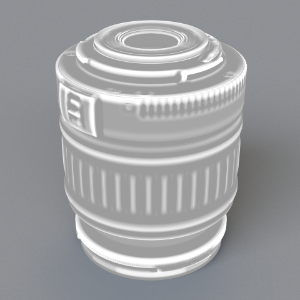
*Max: 1.0* | *Min: 0.0*
*Max: 1.0* | *Min: 0.5*
*Max: 1.0* | | | | | | --- | --- | --- | | ![Image: Input Range Min 0 Max 0.5c032.png](https://help.maxon.net/r3d/maya/en-us/Content/Resources/Images/Thumbnails/Input%20Range%20Min%200%20Max%200.5c032.png) | ![Image: Input Range Min 0 Max 2e601.png](https://help.maxon.net/r3d/maya/en-us/Content/Resources/Images/Thumbnails/Input%20Range%20Min%200%20Max%202e601.png) | ![Image: Input Range Min 0 Max 87bc0.png](https://help.maxon.net/r3d/maya/en-us/Content/Resources/Images/Thumbnails/Input%20Range%20Min%200%20Max%2087bc0.png) | | *Min: 0.0*
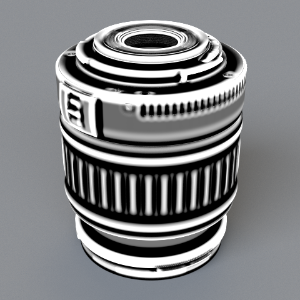
*Max: 0.5* | *Min: 0.0*
*Max: 2.0* | *Min: 0.0*
*Max: 8.0* | ### Contrast Scales input values. Pivot determines the point at which the scaling occurs. | | | | | --- | --- | --- | | ![Image: Contrast 0.5c3a1.png](https://help.maxon.net/r3d/maya/en-us/Content/Resources/Images/Thumbnails/Contrast%200.5c3a1.png) | ![Image: Contrast 2.09ffd.png](https://help.maxon.net/r3d/maya/en-us/Content/Resources/Images/Thumbnails/Contrast%202.09ffd.png) | ![Image: Contrast 4.0e747.png](https://help.maxon.net/r3d/maya/en-us/Content/Resources/Images/Thumbnails/Contrast%204.0e747.png) | | *Contrast: 0.5*
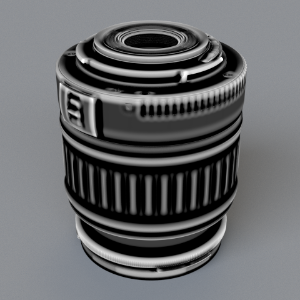
*Pivot: 0.0* | *Contrast: 2.0*
*Pivot: 0.0* | *Contrast: 4.0*
*Pivot: 0.0* | | | | | | --- | --- | --- | | ![Image: Pivot -0.5b5d9.png](https://help.maxon.net/r3d/maya/en-us/Content/Resources/Images/Thumbnails/Pivot%20-0.5b5d9.png) | ![Image: Pivot 0.5b43d.png](https://help.maxon.net/r3d/maya/en-us/Content/Resources/Images/Thumbnails/Pivot%200.5b43d.png) | ![Image: Pivot 16a29.png](https://help.maxon.net/r3d/maya/en-us/Content/Resources/Images/Thumbnails/Pivot%2016a29.png) | | *Contrast: 2.0*
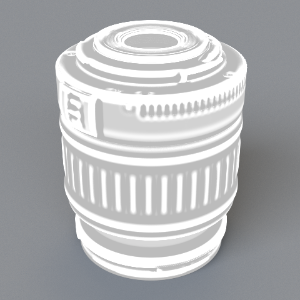
Pivot: -0.5 | *Contrast: 2.0*
*Pivot: 0.5* | *Contrast: 2.0*
*Pivot: 1.0* | ### Bias Shifts the values in a manner similar to a gamma correction. | | | | | --- | --- | --- | | ![Image: Bias 0.15cfb9.png](https://help.maxon.net/r3d/maya/en-us/Content/Resources/Images/Thumbnails/Bias%200.15cfb9.png) | ![Image: 128 samplesf501.png](https://help.maxon.net/r3d/maya/en-us/Content/Resources/Images/Thumbnails/128%20samplesf501.png) | ![Image: Bias 0.858215.png](https://help.maxon.net/r3d/maya/en-us/Content/Resources/Images/Thumbnails/Bias%200.858215.png) | | *Bias: 0.15*
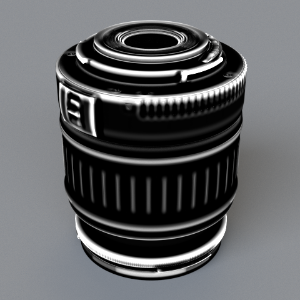
*Gain: 0.5* | *Bias: 0.5*
*Gain: 0.5* | *Bias: 0.85*
*Gain: 0.5* | | | | | | --- | --- | --- | | ![Image: image2017-6-12_13-42-464f6c.png](https://help.maxon.net/r3d/maya/en-us/Content/Resources/Images/Thumbnails/image2017-6-12_13-42-464f6c.png) | ![Image: image2017-6-12_13-42-12a636.png](https://help.maxon.net/r3d/maya/en-us/Content/Resources/Images/Thumbnails/image2017-6-12_13-42-12a636.png) | ![Image: image2017-6-12_13-41-38b9cb.png](https://help.maxon.net/r3d/maya/en-us/Content/Resources/Images/Thumbnails/image2017-6-12_13-41-38b9cb.png) | | *Bias: 0.5*
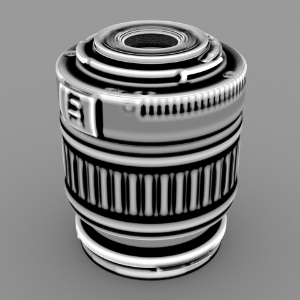
*Gain: 0.25* | *Bias: 0.5*
*Gain: 0.5* | *Bias: 0.5*
*Gain: 0.75* | ### Output Range Various settings related to shader output are located here. Scale the values overall with  *Min*and *Max*. The curvature shader can output values greater than one. You can clamp the values between *Clamp Min* and *Clamp Max* with the *Clamp Enable* option. The *Clamp Expand* option will stretch the values back to 0-1 after clamping.