---
title: "XGen Rendering"
url: "https://help.maxon.net/r3d/maya/en-us/Content/html/XGen%2BRendering.html"
section_path: "Mesh Topics > XGen > XGen Rendering"
description: "In the XGen Splines Quickstart section, we described some very basic steps to generate XGen strands on some control geometry. This section expands on that …"
---
# XGen Rendering
You are here:
# XGen Rendering
In the [XGen Splines Quickstart](https://help.maxon.net/r3d/maya/en-us/Content/html/XGen%2BSplines%2BQuickstart.html.md) section, we described some very basic steps to generate XGen strands on some control geometry. This section expands on that example and covers the basics of assigning materials to XGen splines and using XGen attributes to drive shading parameters.
## Assigning a material to XGen splines
As mentioned in the previous section, XGen splines are represented in the DAG by patch nodes parented under a description node. When rendering XGen splines, Redshift will use the material assigned to the corresponding XGen patch. If no material is directly assigned to the patch, Redshift will use the material assigned to the patch's parent XGen description.\
Coming back to our example, let's assign a new material to our splines. In this simple example, we'll use a Lambert material. First, select the XGen description DAG node (*RsQuickStartDescription*) and from the Rendering menu set, choose *Lighting/Shading > Assign New Material…* then click *Lambert* in the *Assign New Material* window. To confirm the material was assigned, change the lambert's color to yellow and notice the splines render as yellow in the viewport.\
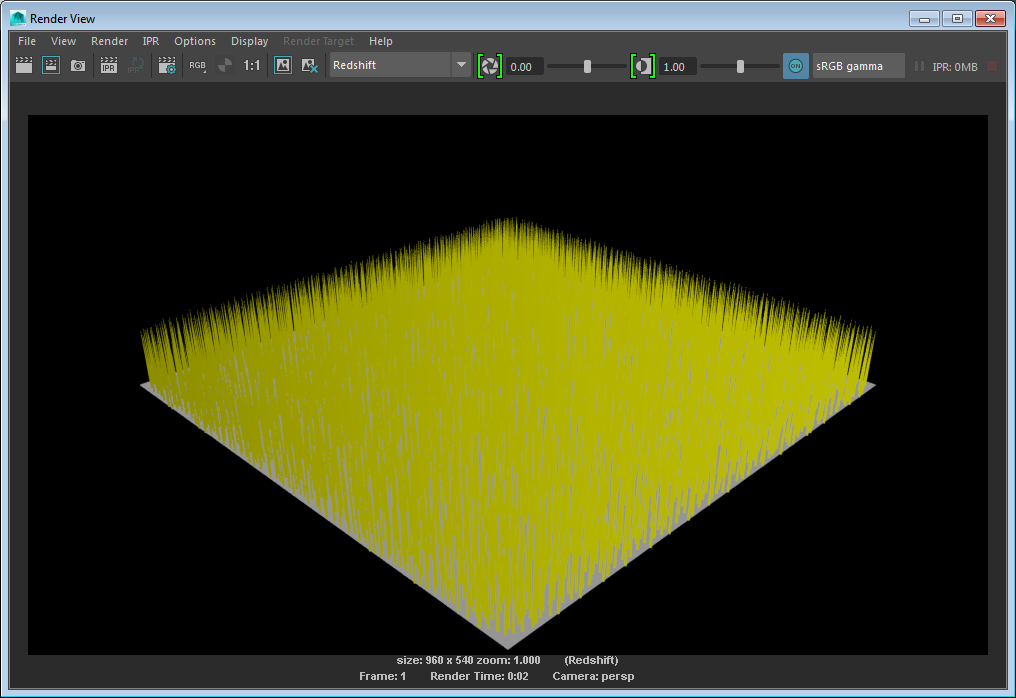
Before we continue, let's make this example a touch less basic looking by increasing the density of the splines, making them longer and giving them some taper. To do this, open the XGen Window and on the Primitives tab, set the *Density* to 10, the *Length* to 3.0 and the *Taper* to 1.0. Now render the scene with Redshift and admire your artistry.
## Exporting Patches for Motion Blur
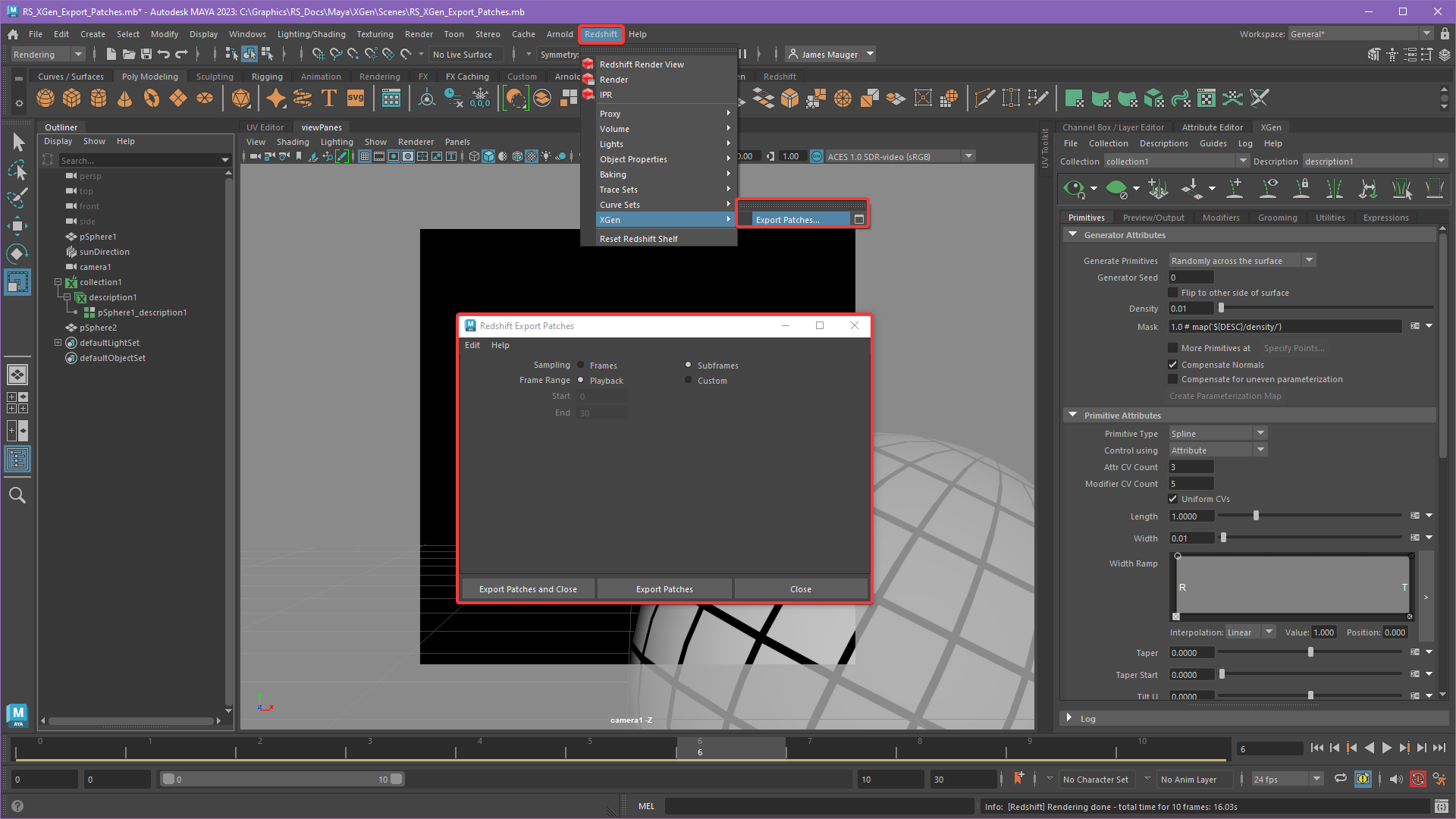
XGen patches must be exported to an alembic file so that Redshift can calculate deformation motion blur properly. Maya's built in 'Export Patches for Batch Render" function *only* exports XGen patches for frames, however, *subframe* data is necessary for accurate motion blur. Instead the *Redshift Export Patches* tool, pictured below, should be used to export XGen patches which supports both subframes and frames, this tool creates an alembic file and a json file in the scene directory for this purpose.
| |
| --- |
|  |
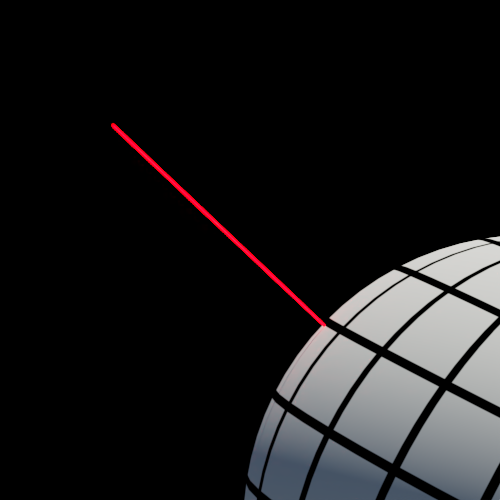
The difference between subframe and frame sampled XGen patches can be seen below, all example images were rendered at the same frame number. The first image illustrates the reference location of a single strand of XGen hair without motion blur and the remaining two images show a composite example of the reference image comparing subframe and frame export. As you can see, the subframe export more closely matches the position of the non-motion blurred reference image. By comparison, in the frames export the motion blurred strand is lower than it should be and the reference strand is slightly off center when it should be in the very middle of the motion blurred strand like it is in the subframe example. The discrepancy between subframe and frame export can become even more apparent with more demanding scenes.
| | | |
| --- | --- | --- |
|  |  |  |
| Reference XGen Strand without motion blur | Frames export with motion blur
(inaccurate) | Subframes export with motion blur
(accurate) |
## Managing Viewport Performance
As a procedural generator, XGen can easily generate a very large number of primitives which, unfortunately, can often slow viewport performance down to a crawl. Fortunately, XGen provides a simple mechanism to control the number of primitives displayed in the viewport, without affecting the number of primitives generated at render time.\
In the *XGen Window*, in the *Preview/Output* tab, under *Preview Settings*, the *Percent* parameter controls the percentage of generated primitives that will appear in the viewport. The default value of 100 means that all generated primitives will be displayed. For XGen descriptions that generate large amounts of primitives, it is good practice to reduce this value to between 5 and 10.
## Defining Custom Shader Parameters
One of the powerful features of XGen is the ability to create custom shader parameters. Like almost everything in XGen, these attributes can be driven by maps or expressions. XGen custom shader parameters can in turn be used to drive shader node parameters when rendered with Redshift using the *Redshift Attribute Lookup* node.\
To demonstrate, we start by creating a custom shader parameter on our XGen description. In the *XGen Window*, switch to the *Preview/Output* tab. Under *Custom Shader Parameters*, type *hairColor*, set the dropdown to *color* and click the + button.

This adds a custom shader parameter named *hairColor* of type *color* to the description.
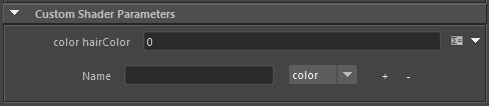
Next we will assign an XGen expression to the *hairColor* parameter. Click the *Expression Editor* button to the right of the parameter's input field, and type the text as shown in the image below.
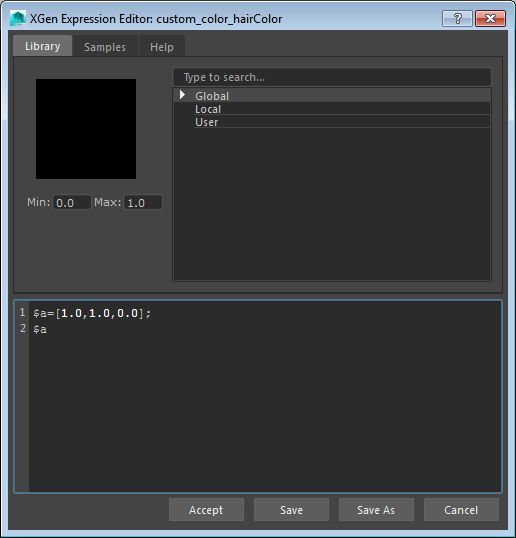
The expression shown above assigns a 3-element vector with values x=1.0, y=1.0, z=1.0 to the variable $a, then outputs $a. Click Accept to close the *Expression Editor*.\
Back in the *XGen Window*, notice that the UI for the *hairColor* parameter has changed to 3 input boxes allowing us to specify 3 values.
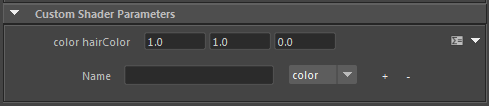
This is a good start, but since our parameter represents a color, it would be better to have a color picker. In XGen, this is accomplished by using a UI hint comment as shown below.
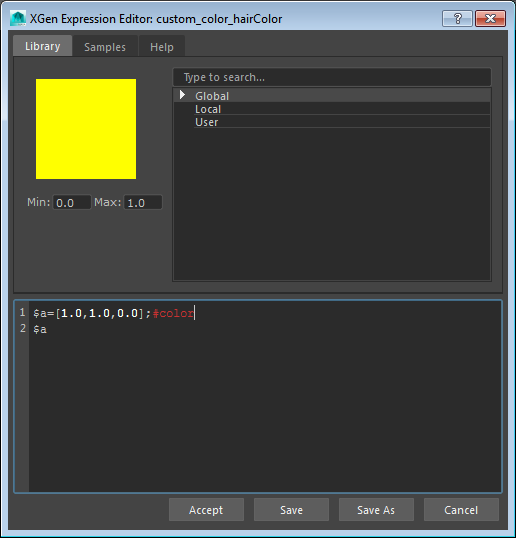
Notice that the UI in the XGen Window now displays a color picker.
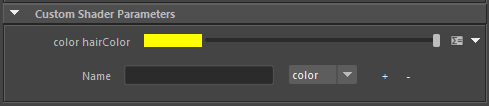
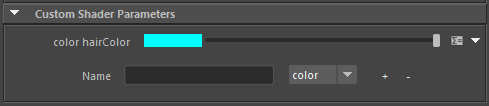
Click the color swatch to bring up the color picker and change the color to cyan.
## Using Custom Shader Parameters
Now that we've defined our hairColor custom parameter, let's make use of it in our shading network.\
In the *Attribute Editor* for our Lambert material click the map button for the Lambert's *Color* attribute. In the *Create Render Node* window, click the Redshift category and type 'attr' in the search box near the top.
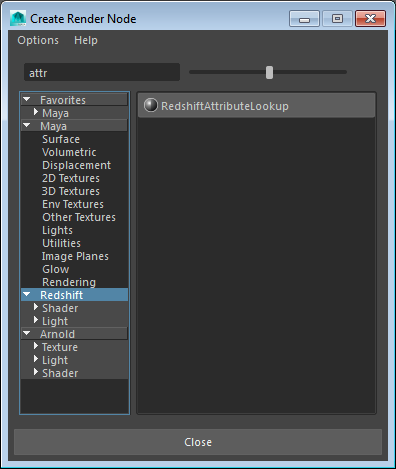
Click *RedshiftAttributeLookup* to create and connect the new node.\
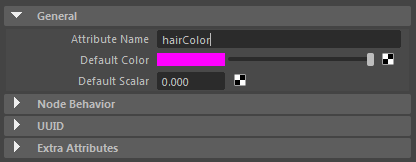
The *Attribute Editor* now shows our newly created *RedshiftAttributeLookup* node. Enter 'hairColor' for the *Attribute Name*.
For reference, the shader graph is shown below.
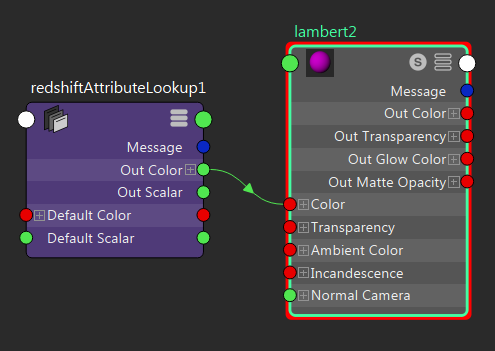
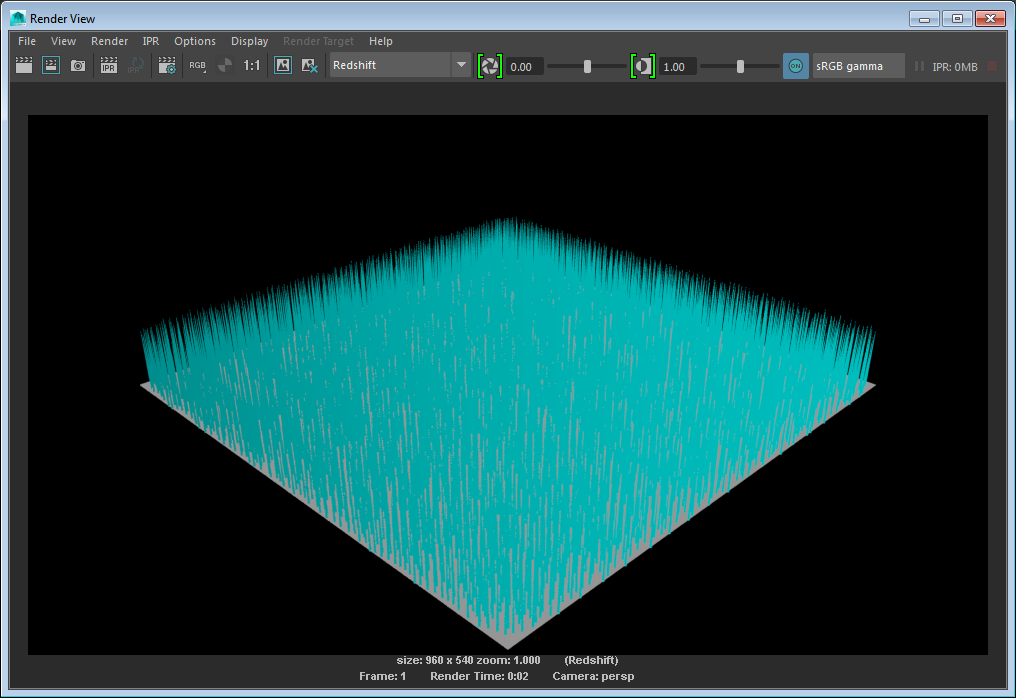
Now render the scene. The splines are now colored cyan because the Redshift Attribute Lookup node tells the shader to read the *hairColor* custom parameter from the XGen splines.
### Viewport representation
You may have noticed that the splines now show as magenta in the viewport. This is a side effect of the fact that our material uses a Redshift Attribute Lookup node. In the viewport, the material doesn't know how to look up XGen attributes, so the Redshift Attribute Lookup node's default color is used instead.\
In the *Preview/Output* tab of the *XGen Window*, under *Preview Settings*, there is a parameter named *Primitive Color*. By default this parameter is set to black, which has the special meaning of *use assigned material color*.\
Like our custom shader parameter, this *Primitive Color* parameter can be driven by an XGen expression. In fact you can see it already uses an expression just like the one we assigned to our *hairColor* custom shader parameter.\
What if we wanted the *Primitive Color* to track the value of *hairColor*? In XGen you can do this by defining a named XGen expression and using that expression to set both *Primitive Color* and *hairColor*.\
Switch to the *Expressions* tab in the *XGen Window* and create a new expression named *hairColorEx* and set the expression like we did for the *hairColor* custom shader parameter.
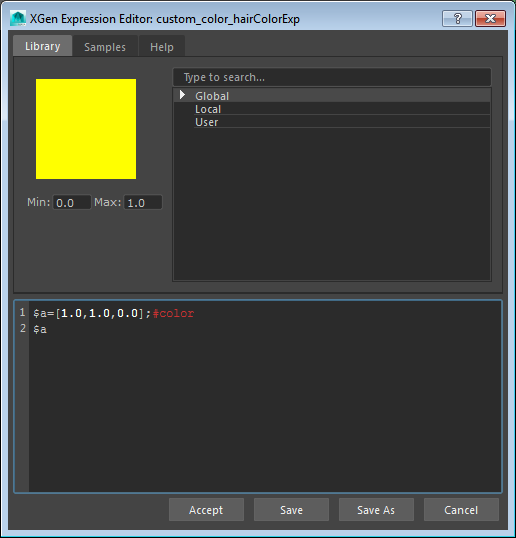
Now set *hairColor* and *Primitive Color* in the Preview/Output tab to 'hairColorExp()'.
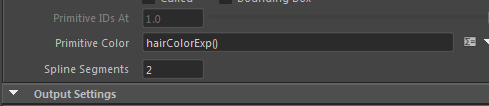
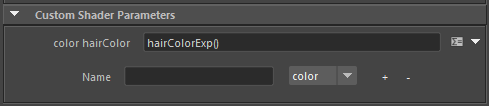
Now pick a color using the *hairColorExp* color picker and notice the splines in the viewport change to the selected color. Render a frame and notice that the color you picked is also used to drive the Lambert material's color.