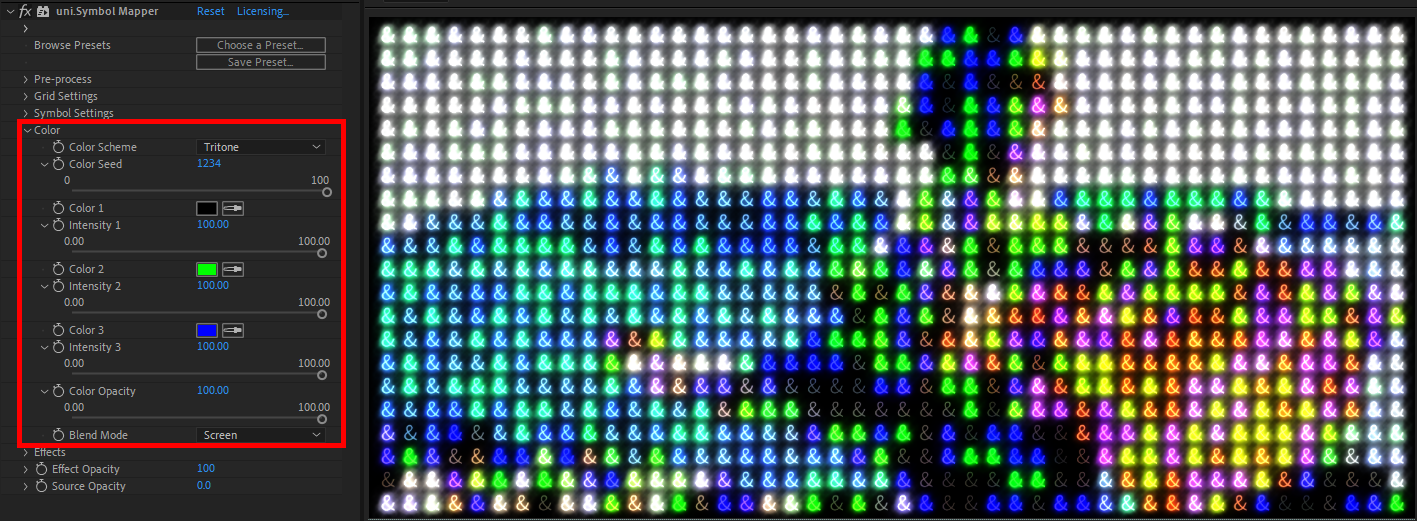
Color Group controls do exactly what you’d think: govern which colors appear in your Symbol Mapper grid.
Color controls map color from the underlying source footage to new colors that exist in the Symbol Mapper effect layered over that source. The Monotone, Duotone, and Tritone options in the Color Scheme pull-down govern the number of colors being applied. Black is the default for Color 1 because Blend Mode (see below) is set to Screen by default, which renders black as transparent. As soon as you start playing with the Color 1 picker, you’ll see results without touching any another parameters. The Intensity of each color acts as a multiplier on top of Color Opacity (see below). Intensity allows you to reach HDR values, which can be handy for emphasizing certain colors. When Duotone or Tritone are selected, the Color Seed parameter becomes active, allowing you to adjust how the various colors are assigned.
The Color Opacity control regulates the opacity of the applied colors over the top of the source color and how much selected colors show through in the effect. Color Opacity at 100 puts the selected color overlays at full strength; a value of 0 removes any effect of the selected colors, revealing the source color of the underlying image.

The Color group offers a Blend Mode pull-down with nine options: Normal, Add, Lighten, Darken, Multiply, Screen, In Front, Behind, and Soft Light. These modes determine how the selected colors blend over the source. The above triptych shows some of these possibilities. Screen mode (the default) is shown at left, followed by Normal and Add modes.