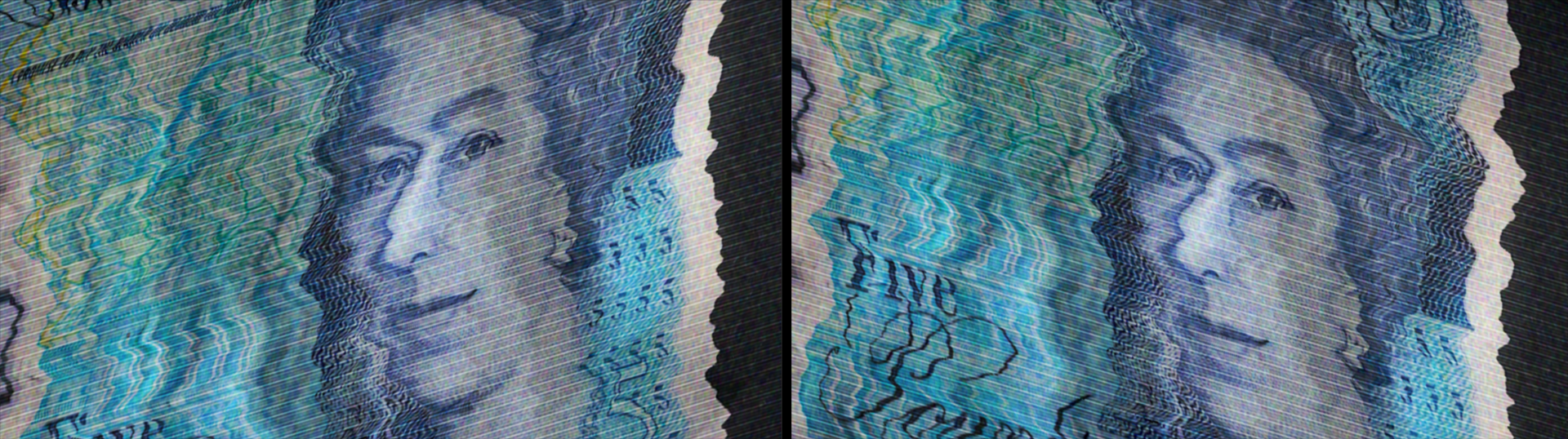
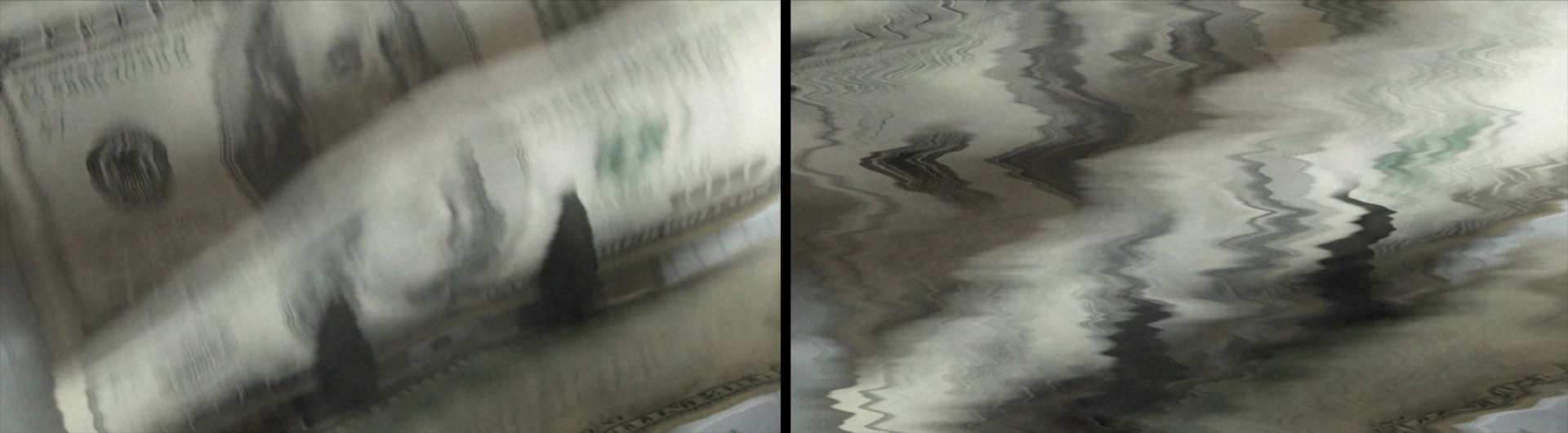
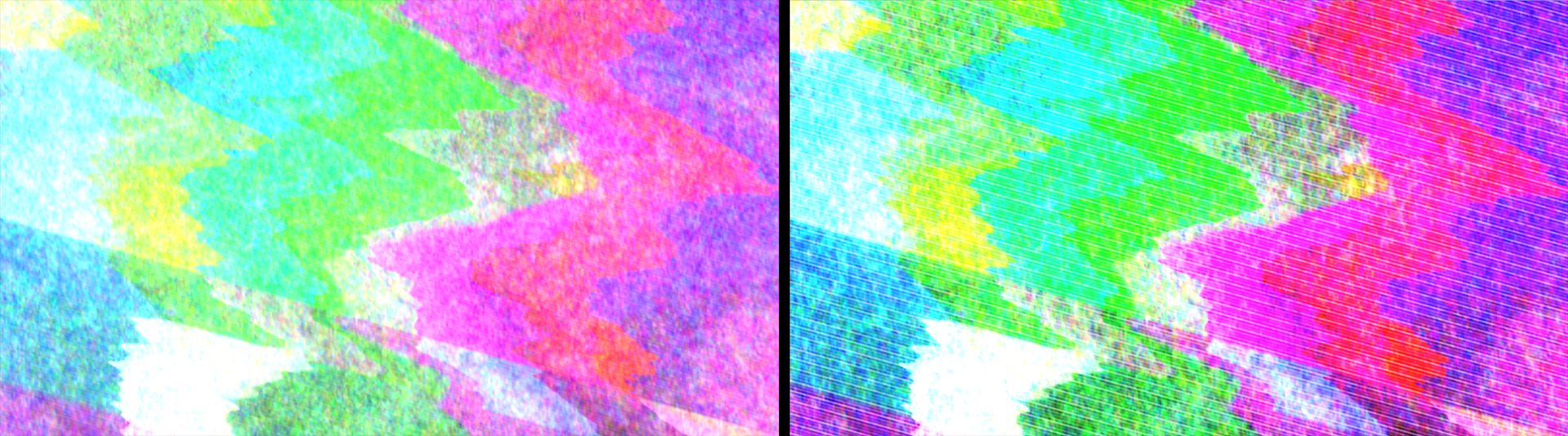
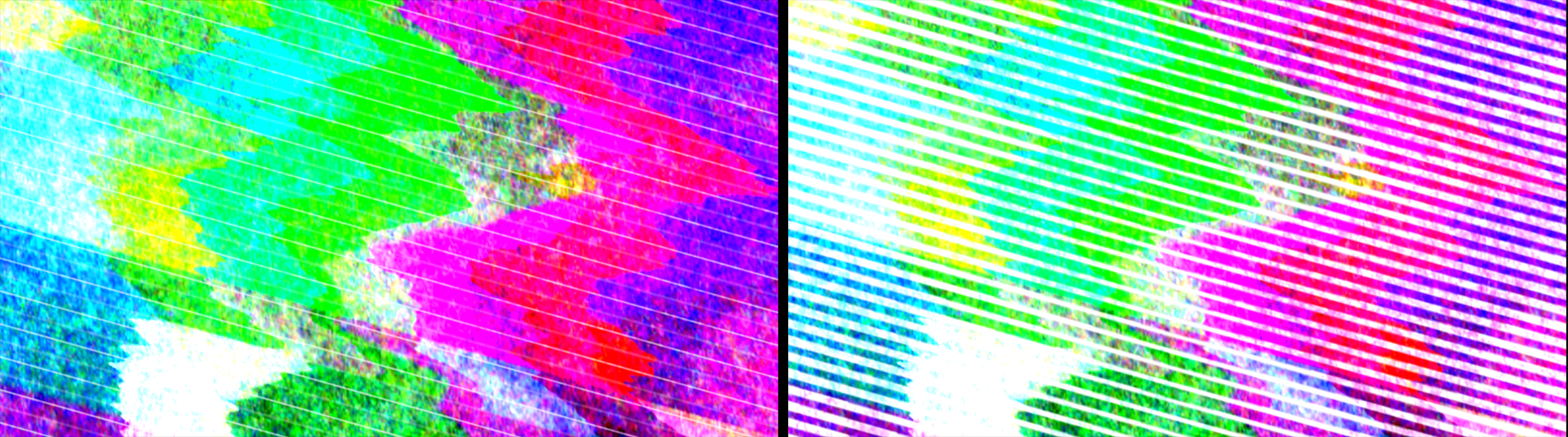
These handy Channel Blur presets can accelerate your color- and blur-focused transition down to one click. Find the presets via the blue Open Dashboard... button or the Choose a Preset... button below it.
As with all other Universe tools, you can modify or create a Channel Blur look and then save it under its own name by pressing the Save Preset... button.
Presets
Pick from over a dozen Channel Surf presets to quickly emulate a range of videotape-era cut glitches. Find these presets via the blue Open Dashboard... button or the Choose a Preset... button below it.
As with all other Universe tools, you can modify or create a Channel Surf look and then save it under its own name by pressing the Save Preset... button.
Getting Started in a Timeline
Drag the transition over your edit in the timeline, placing it at the end or beginning. Alternatively, you can place it between two successive clips.
Modify the
Duration
of the transition either by entering a length in the field or dragging directly in the timeline.
You can choose the
Alignment
(Center at Cut, Start at Cut, End at Cut, or Custom Start) either by positioning the transition in the timeline or by choosing from the Alignment drop-down in some host applications.
Getting Started in a Compositor
Apply the transition to the layer from which you want to transition.
Choose the footage layer you would like to transition to in the
Transition B
drop-down menu.
(Note for Motion users:
Drag the footage layer up to the Transition B box.)
Animate your transition using the
Mix
slider from 0% to 100 percent. Set a keyframe for 0% where the transition should start, then set another at 100% for the end.
Modify the Transition
Source
lets you pick whether the first part of the transition is the
Video
to which the transition is applied (default),
Color Bars,
or just
Black
video.
Video Transition
affects whether the transition behaves as a flat Cut, a Dissolve
from one shot to the next (default), or if it will
Slide Down
or
Slide Up
off the frame.
You can see an example of Slide Down in the "hero" clip atop this page. Compare that to this same implementation of the Analog Roll preset with Video Transition changed to Dissolve:
Noise
determines the fuzziness of the shot using a typical fractal noise pattern.
Shown below are values of 0 (left), 50 (center), and 100 (right).
Skew
controls the distortion's angle during the transition.
Shown below are values of -1 (left) and 1 (right).
Brightness Flicker
scales how much the source's brightness gets boosted.
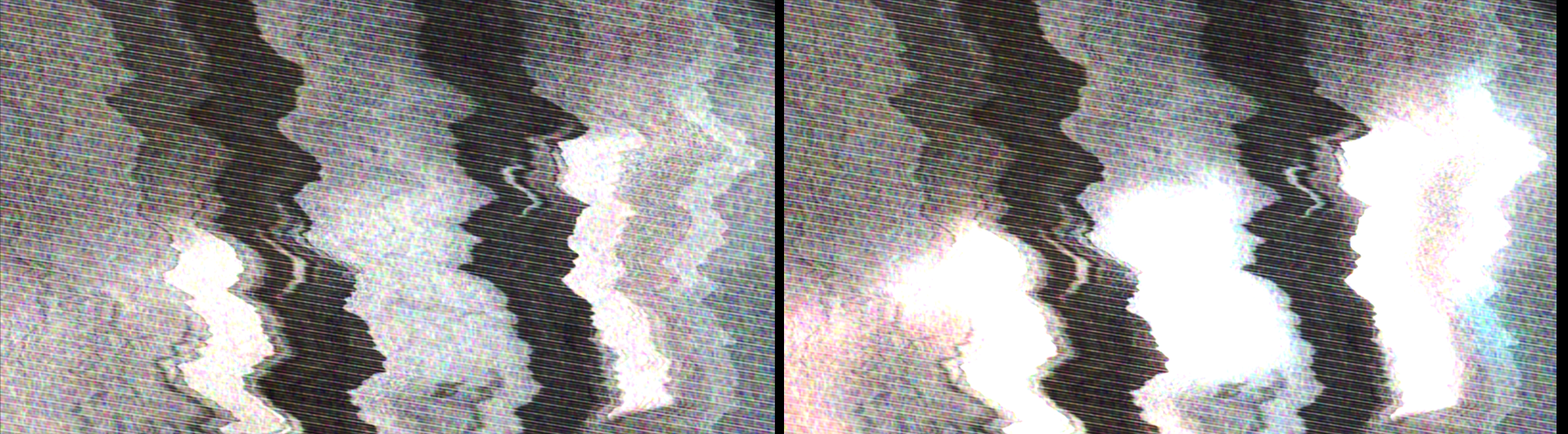
Glow
customizes how much or how little the brightness-boosted parts of the shot glow during the transition.
Below, we compare values of 5 (left) and 75 (right).
Tint
controls what color to tint the footage during the transition.
Note that a Tint Amount (see below) value of 0 results in no Tint adjustment, regardless of what color you select.
Tint Amount
adjusts how much the
Tint
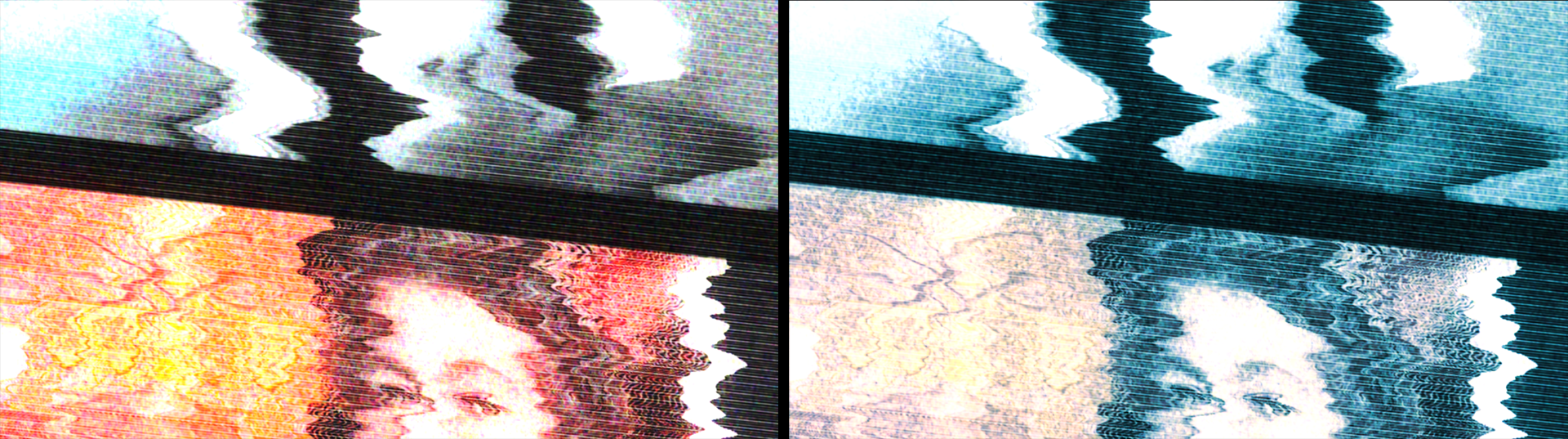
color selected above affects the footage.
Shown below are values of 0 (left) and 70 (right) applied with a medium blue Tint.
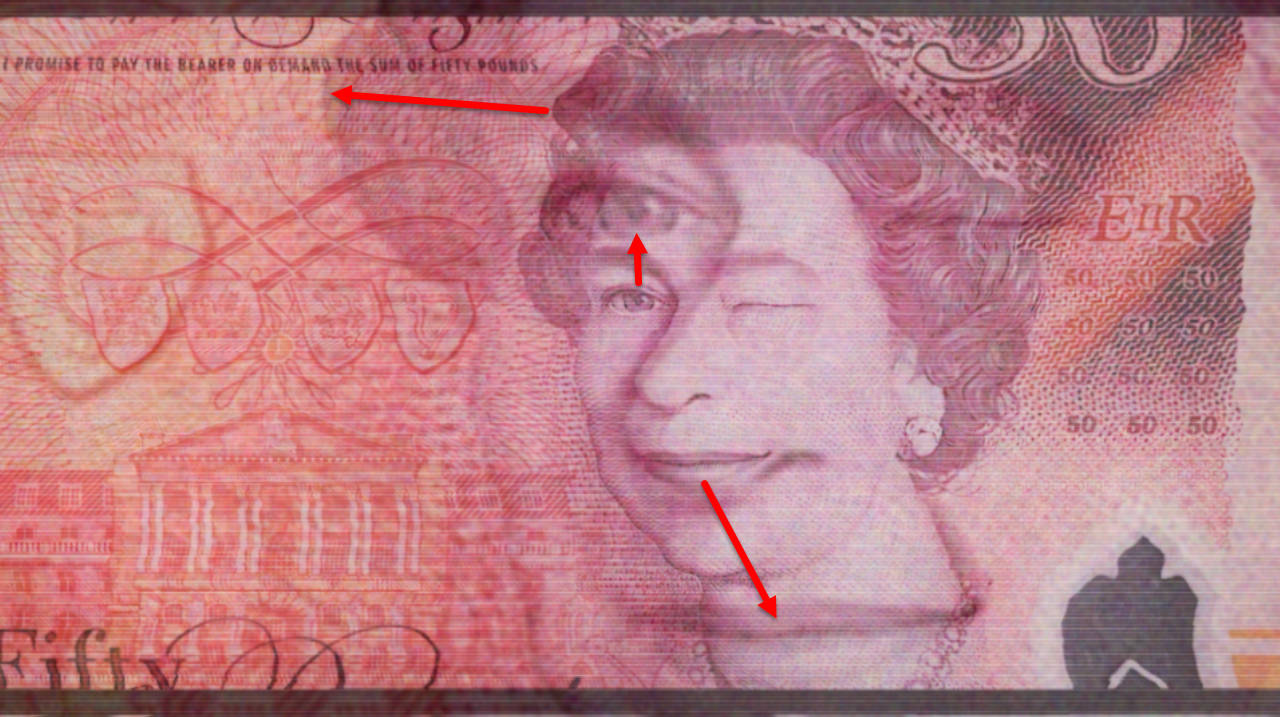
Secondary Image Overlay
applies a distorted copy of the source image over the undistorted original during the transition. In the image below, we've used arrows to show how facial features in the original source translate into larger versions in the overlay. Note that this capture occurs early in the transition, before a noticeable amount of distortion occurs.
Overlay Scale
affects the size of the distorted overlay image.
Higher values create larger image sizes.
Overlay Mix
controls how much the overlaid image blends into the footage.
You can think of this as an opacity control for the overlay.
Turbulence
twirls down controls that customize how the image distorts during the channel switch.
Speed
affects how fast the distortion changes.
Displacement
determines how heavily the image is distorted.
Below, we show values of 50 (left) and 500 (right).
Scanlines
are the rows of raster scanning patterns common in legacy CRT displays. This subgroup contains controls for these scrolling horizontal lines that cover the footage.
Opacity
controls how much scanlines blend into the footage.
Below, we start with the Color Bars Noise preset and show values of 10 (left) and 100 (right).
Count
determines how many scaliness cover the footage.
Thickness
customizes the scanline width.
To illustrate, we reduce Count from 200 to 40, then show Thickness at 2 (left) and 8 (right).
Color
sets the color of the scanlines.
Ease In Distortion
toggles whether the distortion occurs at the beginning of the transition or eases in gradually.
Hold A/B Frames
toggles whether the first frame of the transition is the original
A
source and the last frame of the transition is the original
B
source. This is primarily meant for After Effects, where the transition (by default) affects every single frame to which it's applied unless this toggle is enabled. Enabling this checkbox gives slightly more control over how the effect begins and ends.
(Note:
If you are not using After Effects, this toggle will likely have no visible effect.)