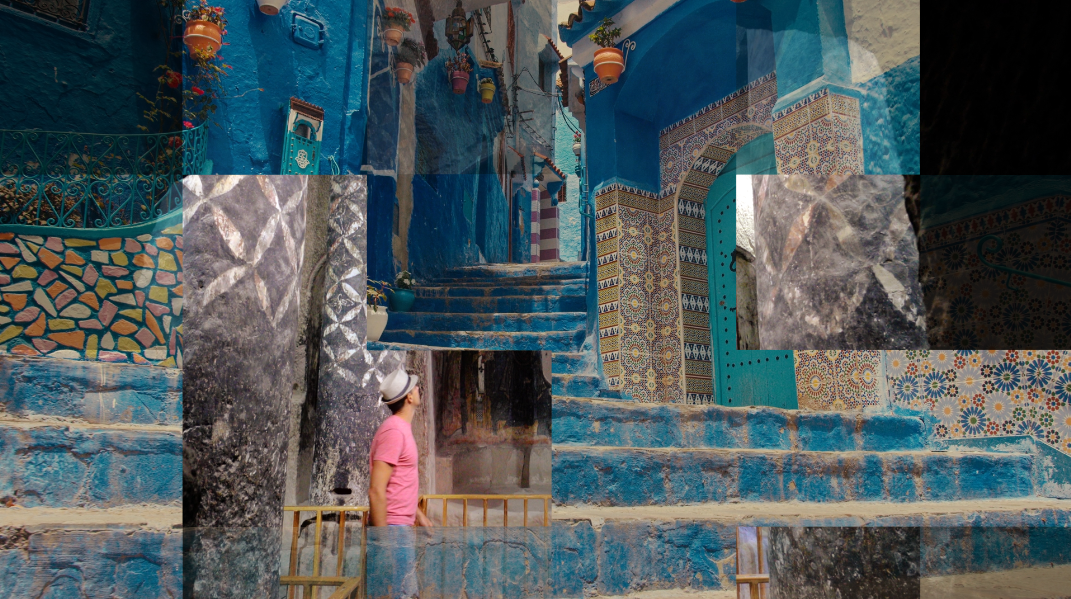
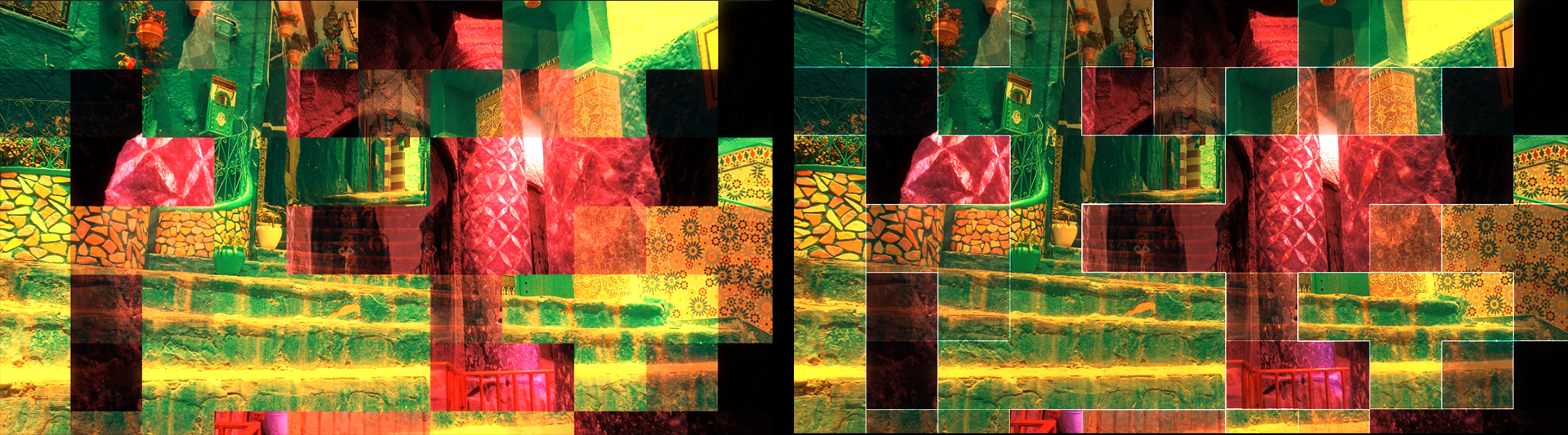
An effect that transitions your footage using a colorful, customizable mosaic.
Presets
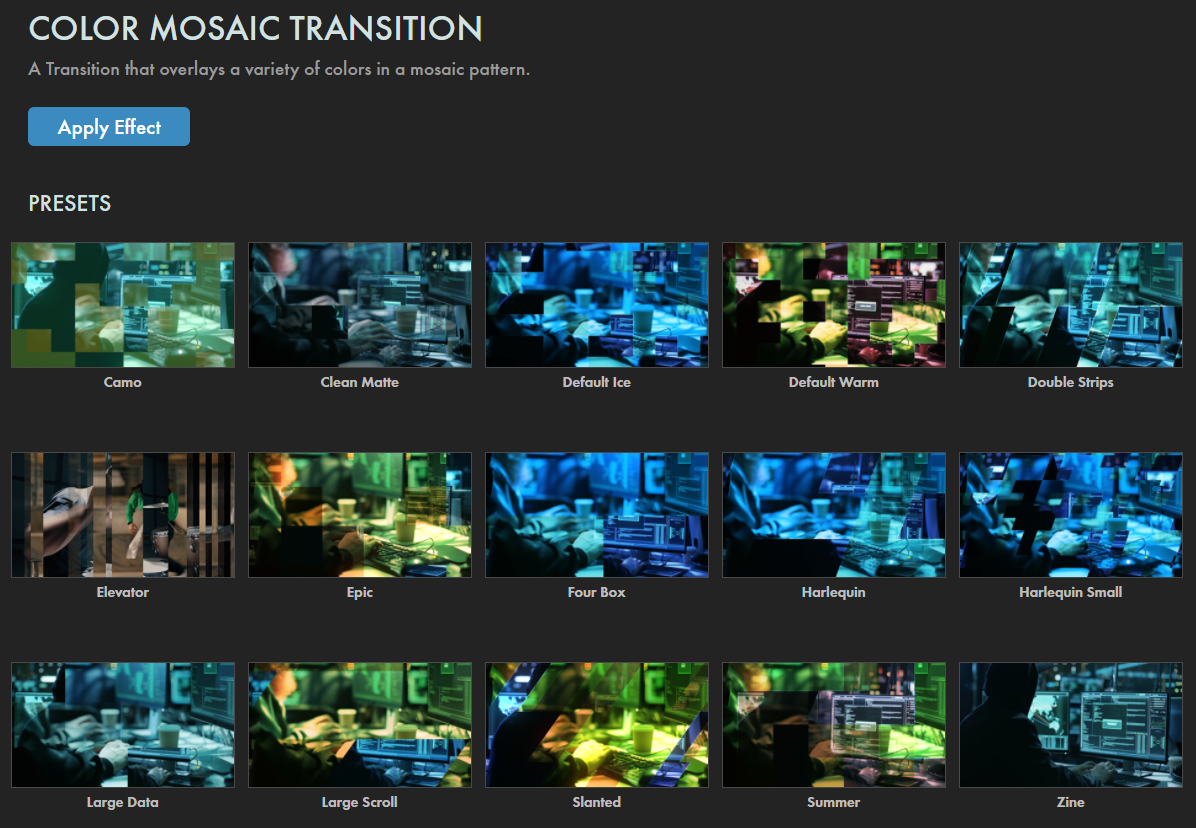
Color Mosaic Transition presets give you one-click access to fully configured wipes. Simply keyframe the Mix duration (see below) and tune to taste! Find these presets via the blue Open Dashboard... button or the Choose a Preset... button below it.
As with all other Universe tools, you can modify or create a Color Mosaic look and then save it under its own name by pressing the Save Preset... button.
Getting Started in a Timeline
Dragging the transition over your edit in the timeline, drop it at the end or beginning of a clip. Alternatively, you can place it between two clips.
Modify the
Duration
either by entering a length in the field or dragging directly in the timeline.
You can choose the
Alignment
(Center at Cut, Start at Cut, End at Cut, or Custom Start) either by positioning the transition in the timeline or by choosing from the Alignment drop-down in some host applications.
Getting Started in a Compositor
An important note about working with text or shape layers in After Effects:
As a general rule, most effects don't play nicely with text or shape layers, especially 3D layers. Because these layers are procedurally generated and have no dimensions, you'll always do best to pre-compose these layers before applying effects and making them 3D.
Apply the transition to the layer from which you want to transition.
Choose the footage layer you would like to transition to in the
Transition B
drop-down menu. (Note for Motion users: Drag the footage layer up to the Transition B box.)
Animate your transition using the
Mix
slider from 0% to 100 percent. Set a keyframe for 0% where the transition should start, then set another at 100% for the end.
Modify the Transition
Color Map contains a drop-down list of color presets which, when selected, auto-populate the Highlights, Midtones, and Shadows parameters, which change mosaic's brightest, midrange, and darkest colors, respectively.
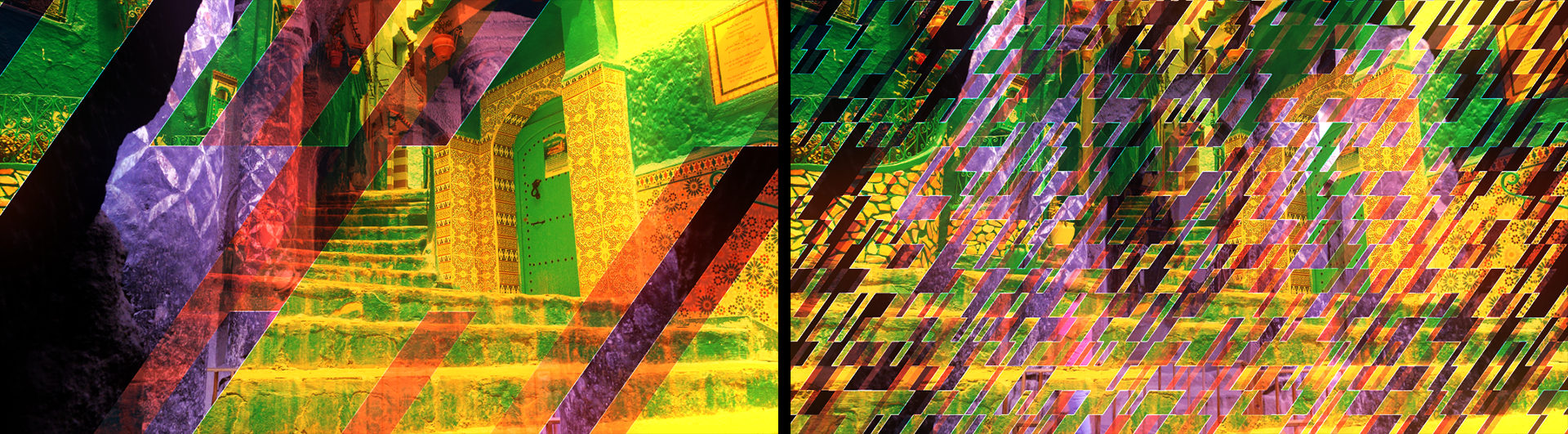
Shown below are the Chlorophyll (left), Sultry (center), and Happy (right) color schemes.
Color Mix
controls how much the mosaic blends with the source footage.
Compare the above Sultry example, which uses the default value of 100, with this example of Color Mix: 10.
Evolution Speed
adjusts how fast the mosaic changes during the transition.
Below, watch the difference between values of 25 (top) and 250 (bottom) using the Harlequin Small preset.
Horizontal/Vertical Scroll
controls the scrolling behavior of the mosaic along the horizontal or vertical axis.
To illustrate, this is still the Harlequin Small preset but with Horizontal Scroll: 30.
Scale
zooms in or out of the mosaic pattern.
Compare the Slanted preset's default of 75 (left, below) with a value of 45 (right).
Aspect
controls the ratio of the squares used within the mosaic, which can result in thinner, more vertical shapes at lower values or very broad shapes at higher values.
Skew
allows the squares within the mosaic to skew either left (negative numbers) or right (positive numbers).
The above Slanted preset examples use positive Skew values. The Glow examples below use a Skew value of -0.30.
Glow Mix
controls how much the image's glow overlays onto the source footage. The glow helps soften harsh edges created by some of the Blend Mode options (see below).
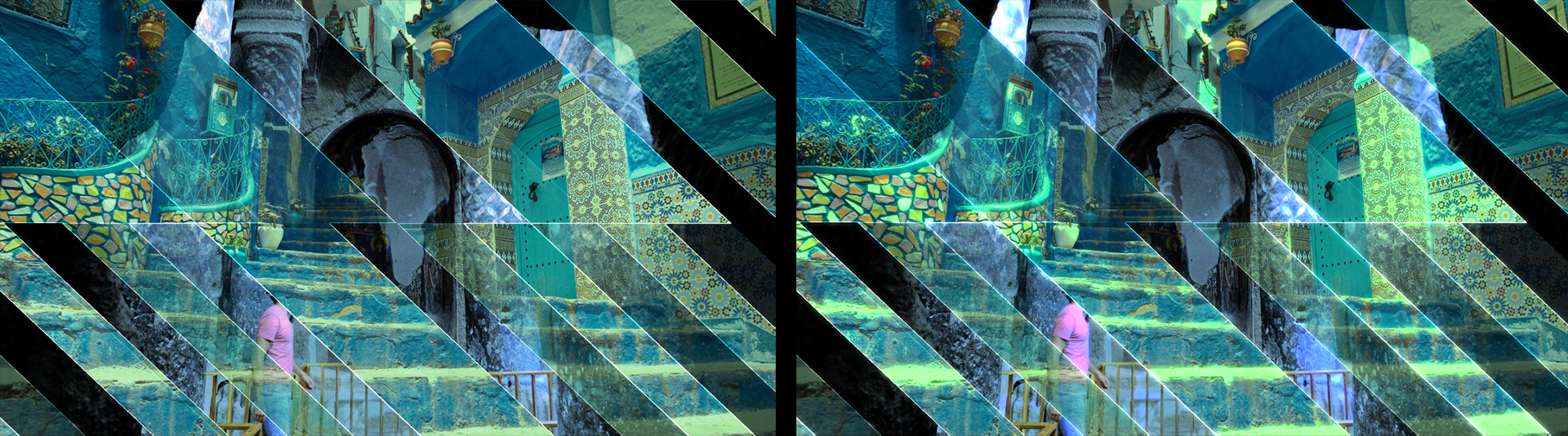
To illustrate using the Slanted preset, which defaults to Blend Mode: Hard Light, the below comparison shows a Glow Mix of 10 (left) and 95 (right) with a minimal Glow Radius of 1.50.
Glow Radius
adjusts how far the glow effect extends from its highlights.
Perhaps counter-intuitively, higher values can give the impression of diminishing glow because the glow is becoming more diffuse.
Edge Mix
changes how much the mosaic's edges blend in with the source.
In the following comparison of 0 (left) and 100 (right) values, note how the white shape edges go from being invisible to very visible. Also note that these edges are influenced by the Glow Radius/Mix parameters.
Blend Mode
contains a drop-down list of standard blending modes available to customize how colors appear when overlaid atop your footage.
Seed
adjusts the number used in the equation used to generate the mosaic pattern. Changing this number results in a different generated mosaic pattern, which can help avoid the appearance of using the same mosaic over and over again.