Create a transition that wipes color bands across the screen to reveal a second layer.
Presets
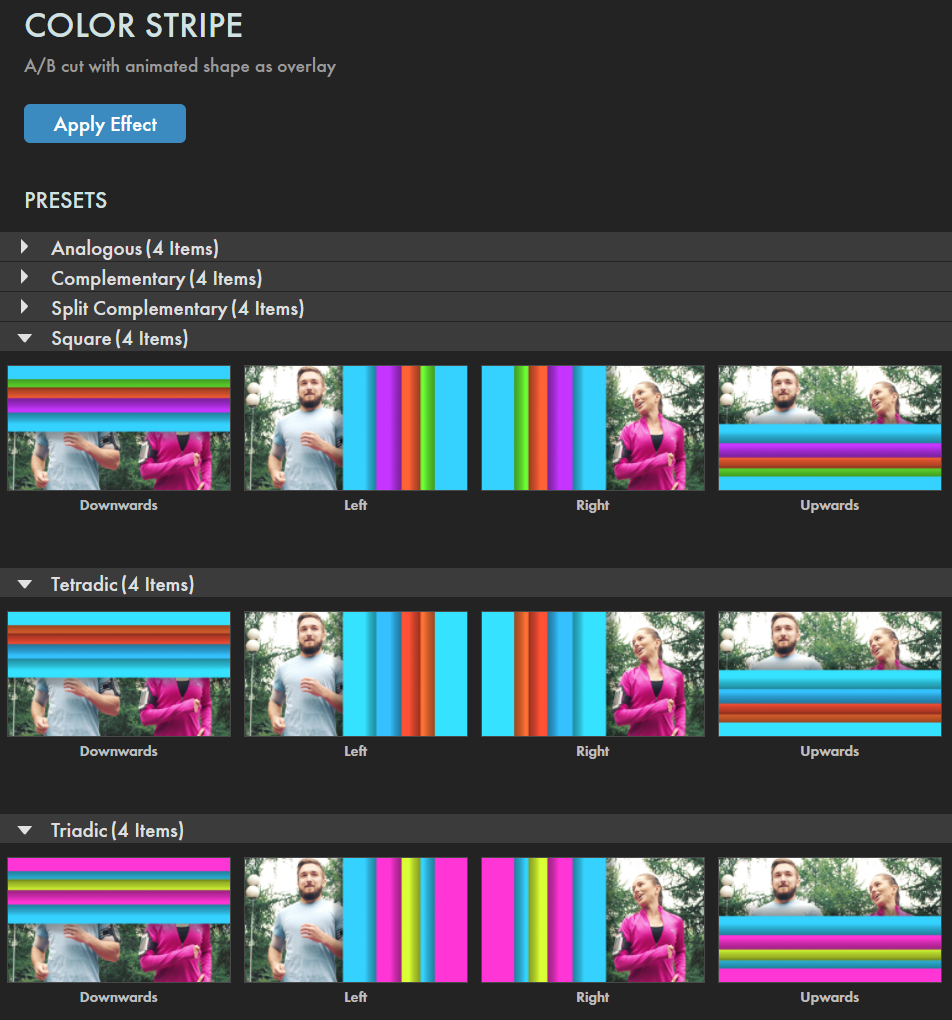
A range of Color Stripe preset types give you one-click access to fully configured wipes. Simply keyframe the Mix duration (see below) and tune to taste! Find these presets via the blue Open Dashboard... button or the Choose a Preset... button below it.
As with all other Universe tools, you can modify or create a Color Stripe look and then save it under its own name by pressing the Save Preset... button.
Getting Started in a Timeline
Drag the transition over your edit in the timeline, placing it at the end or beginning. Alternatively, you can place it between two successive clips.
Modify the
Duration
of the transition either by entering a length in the field or dragging directly in the timeline.
You can choose the
Alignment
(Center at Cut, Start at Cut, End at Cut, or Custom Start) either by positioning the transition in the timeline or by choosing from the Alignment drop-down in some host applications.
Getting Started in a Compositor
Apply the transition to the layer from which you want to transition.
Choose the footage layer you would like to transition to in the
Transition B
drop-down menu.
(Note for Motion users:
Drag the footage layer up to the Transition B box.)
Animate your transition using the
Mix
slider from 0% to 100 percent. Set a keyframe for 0% where the transition should start, then set another at 100% for the end.
Modify the Transition
The
Direction
drop-down menu can be used to change the animation's movement direction: Left to Right, Right to Left, Down, or Up.
Click the
Reverse
checkbox to reverse the animation's direction.
Time Offset
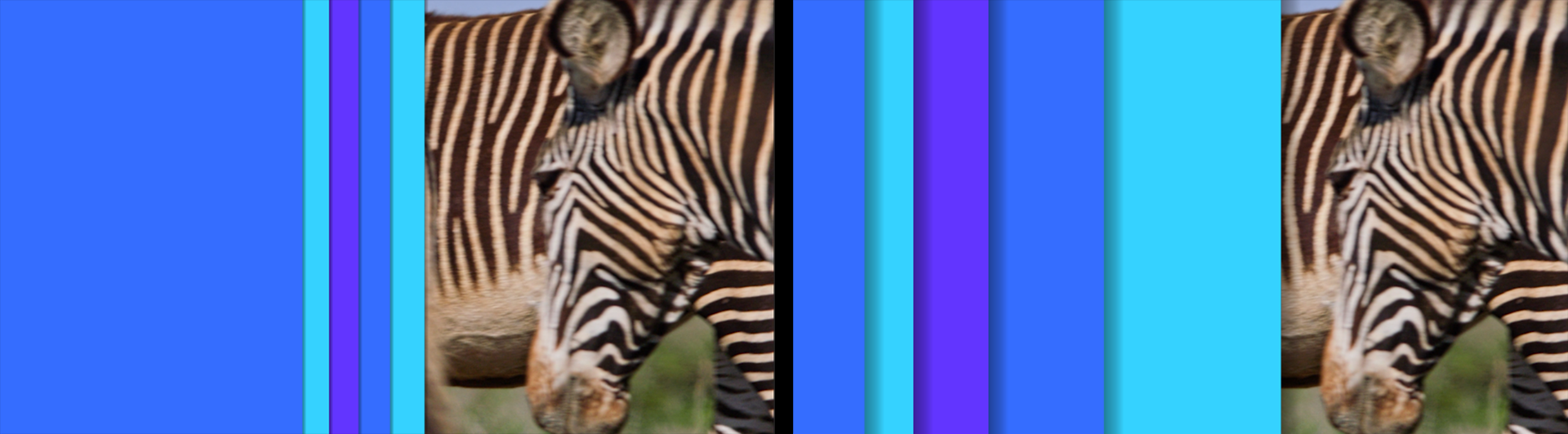
affects the spatial offset between layers during the transition. The higher the number, the more you will see of each layer.
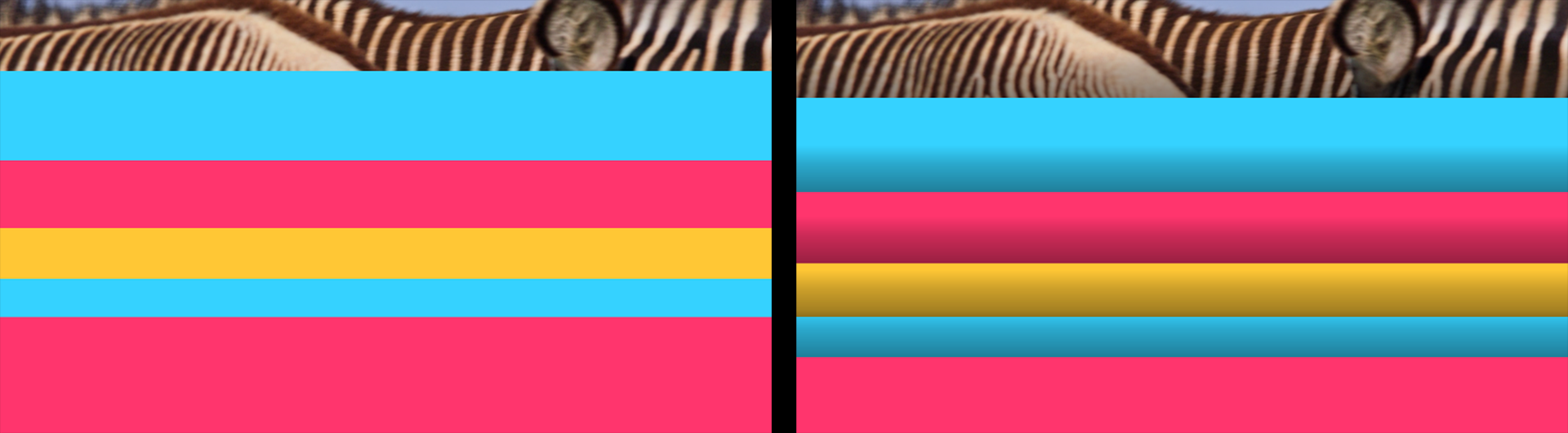
For example, starting from the Analogous Right preset, see the difference in the values of 3 (left, below) and the maximum of 15 (right).
Number of Layers
allows you to set the number of animation layers from 1 to 7.
Color
The
Color Scheme
gives options for how different layers will color in relation to the main color you select in the
Color
picker. Your options include Analogous, Triadic, Complimentary, Split Complimentary, Tetradic, Square, Custom, and Custom Offset.
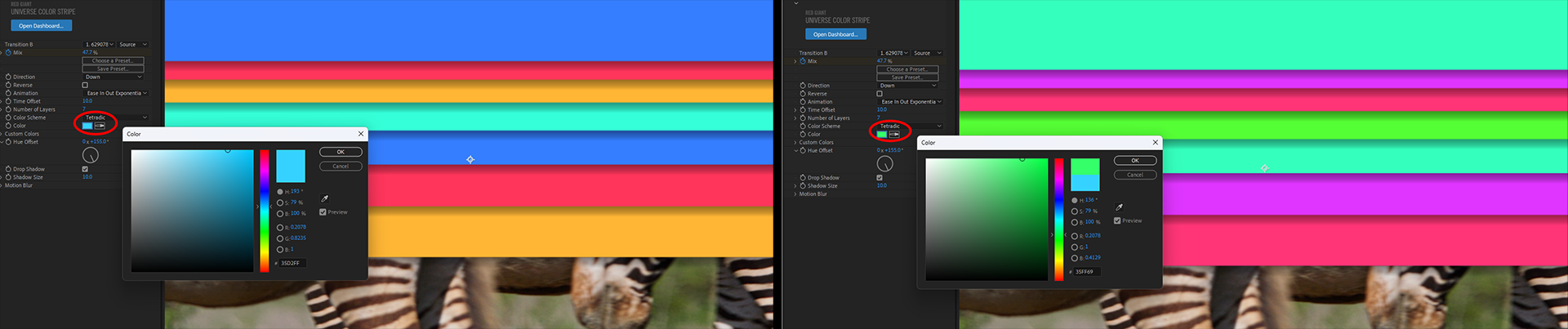
In the following example, we use the Triadic option and change from the default light blue Color to a light green. Observe the effect on the other colors.
Custom Colors:
Selecting Custom as your Color Scheme lets you set Colors 2/3 using the color pickers for each. Click the checkbox next to
Use Color 2
or
Use Color 3
to enable them.
Hue Offset:
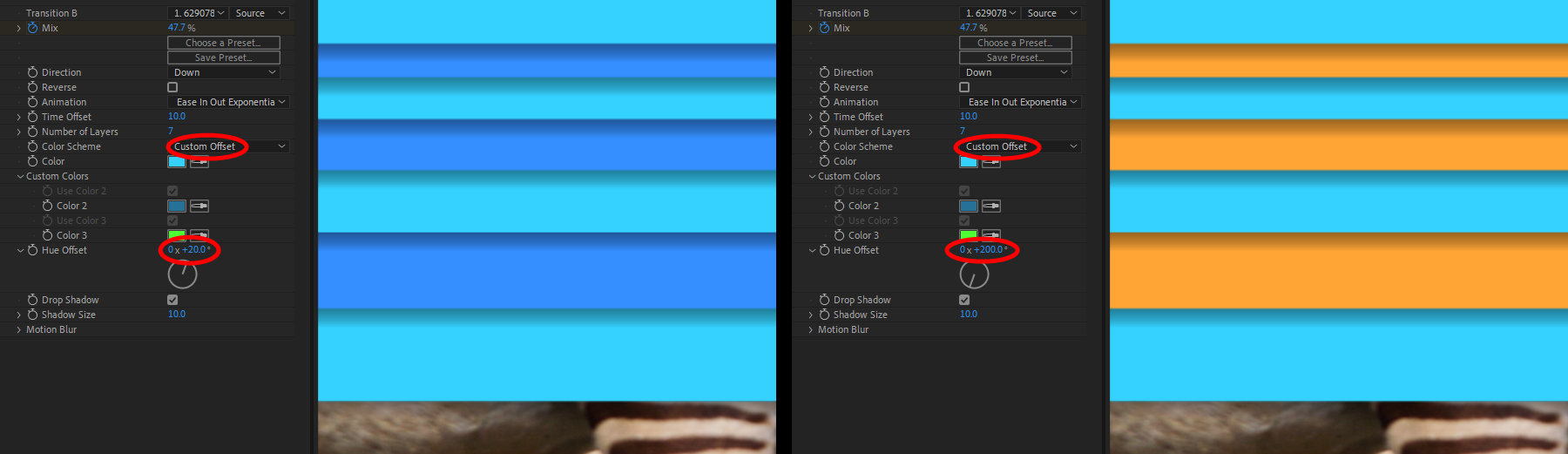
When you choose Custom Offset as your Color Scheme, you can adjust an offset from your main Color to change the hue of every other layer. (Below, we compare the values of 20 (left) and 200 (right).) Hue Offset also affects stripe layers in the Analogous, Split Complimentary, and Tetradic schemes.
Check the
Drop Shadow
checkbox to enable shadows within stripes.
Shadow Size
determines the amount of drop shadow visible on stripes.
You'll observe that increasing Shadow Size will actually reduce the width of your stripes in a given frame, as shown in the comparison of 0 (left) and 30 (right) below. Note that a 0 value is effectively the same as unchecking the Drop Shadow box, although you can't keyframe the shadow amount if Drop Shadow is unchecked.
Motion Blur
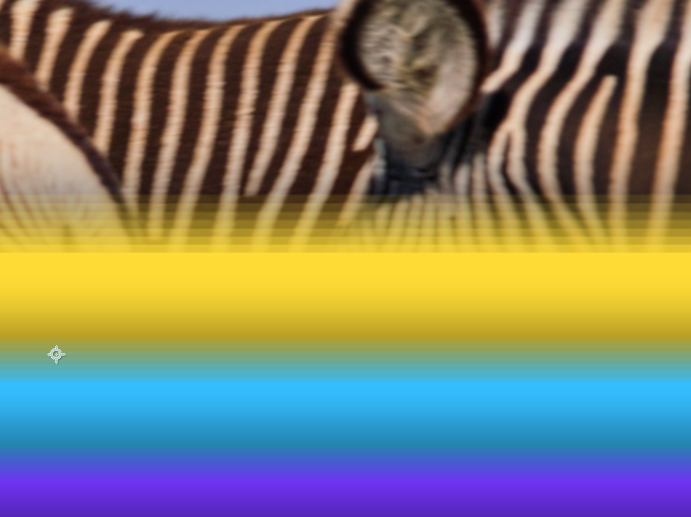
Add realistic motion blur by choosing Low, Medium, or High from the drop-down menu. The higher the Motion Blur setting, the more blur you will see between stripes. Keep in mind that, depending on the colors and scene, some banding artifacts may be visible, as in the Medium setting shown here.
The
Motion Blur Shutter
angle defaults to 180 degrees. Raising it spreads the motion blur iterations, with a high number of blur levels.
Lower values help minimize the banding shown above.
Motion Blur Phase
describes whether the blur centers around the current frame (default: 180) or weights toward backward or forward frames.
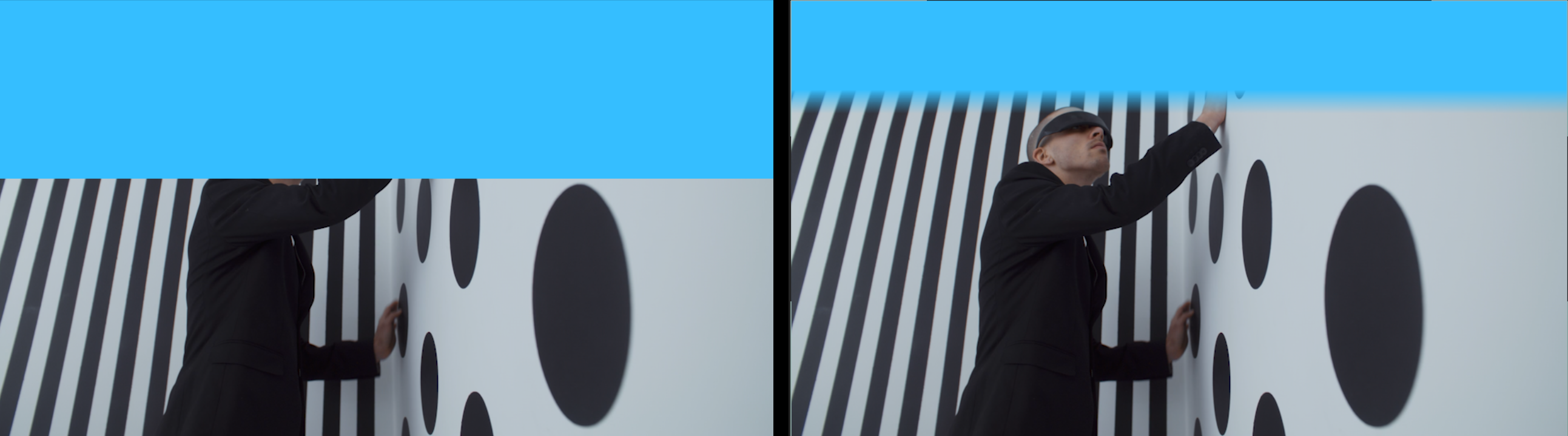
Below, compare the impact of values 0 (left) and 360 (right) both on edge blurring and stripe width.