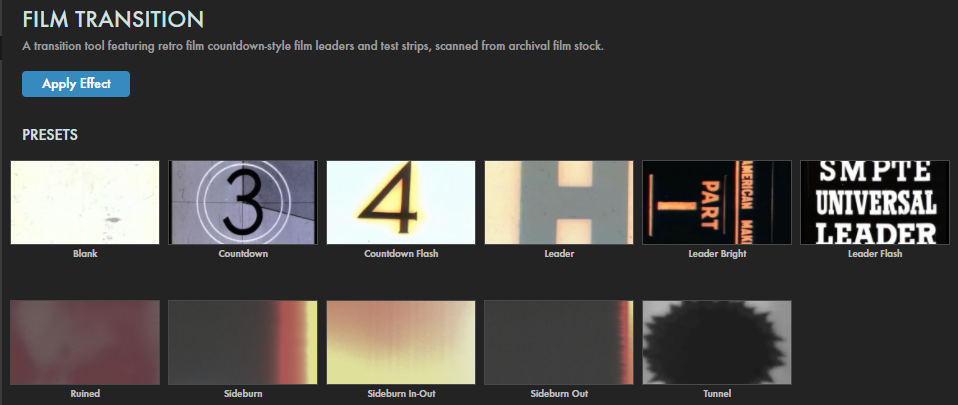
A transition tool featuring retro film countdown-style film leaders and test strips, scanned from archival film stock.
Presets
Almost a dozen presets stand ready to help you effortlessly select an old-fashioned film transition effect. Simply keyframe the Mix duration (see below) and tune to taste! Find these presets via the blue Open Dashboard... button or the Choose a Preset... button below it.
As with all other Universe tools, you can modify or create an Film Transition look and then save it under its own name by pressing the Save Preset... button.
Getting Started in a Timeline
Drag the transition over your edit in the timeline, placing it at the end or beginning. Alternatively, you can place it between two successive clips.
Modify the
Duration
of the transition either by entering a length in the field or dragging directly in the timeline.
You can choose the
Alignment
(Center at Cut, Start at Cut, End at Cut, or Custom Start) either by positioning the transition in the timeline or by choosing from the Alignment drop-down in some host applications.
Getting Started in a Compositor
Apply the transition to the layer from which you want to transition.
Choose the footage layer you would like to transition to in the
Transition B
drop-down menu.
(Note for Motion users:
Drag the footage layer up to the Transition B box.)
Animate your transition using the
Mix
slider from 0% to 100 percent. Set a keyframe for 0% where the transition should start, then set another at 100% for the end.
Modify the Transition
The
Film Clip
drop-down allows you to select from 11 presets of archival film transfers to set the tone and look of your transition.
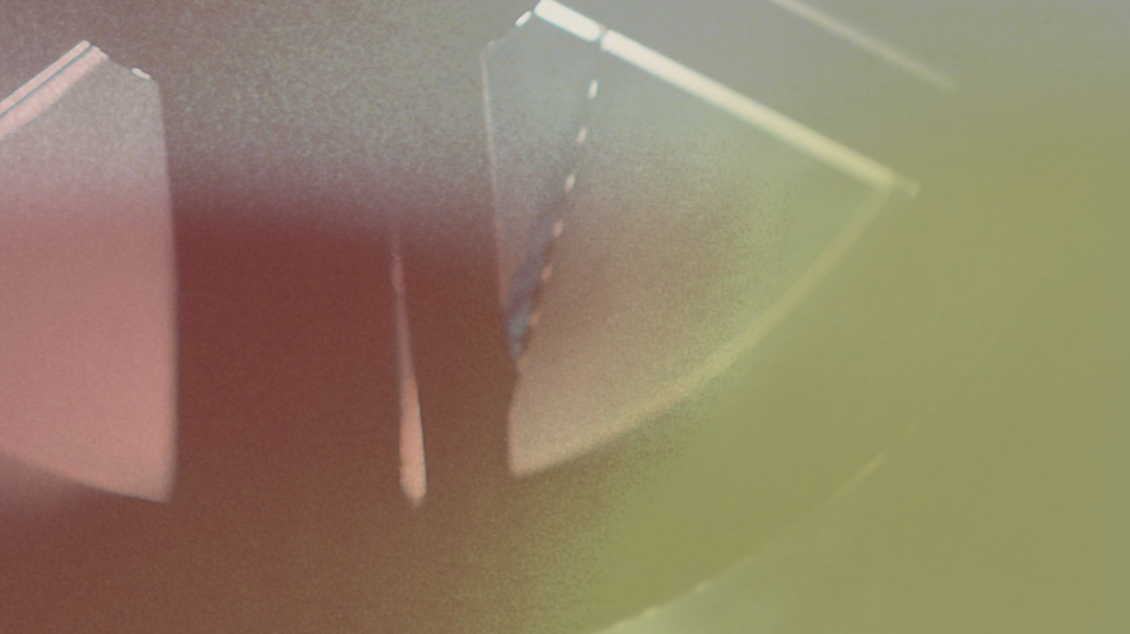
Shown below are frames from the Countdown, Leader Bright, and Sideburn options. These menu options mirror the Film Transition presets.
Chose from the
Blend Mode
drop-down to select the blending mode used to composite the film transition over the original image.
Set the Opacity
control to a number lower than 100.00 to make the film texture overlay more transparent.
Here, you see how a value of 65 allows the underlying clip to show through the Sideburn preset.
From the default setting of 0, bring the
Brightness
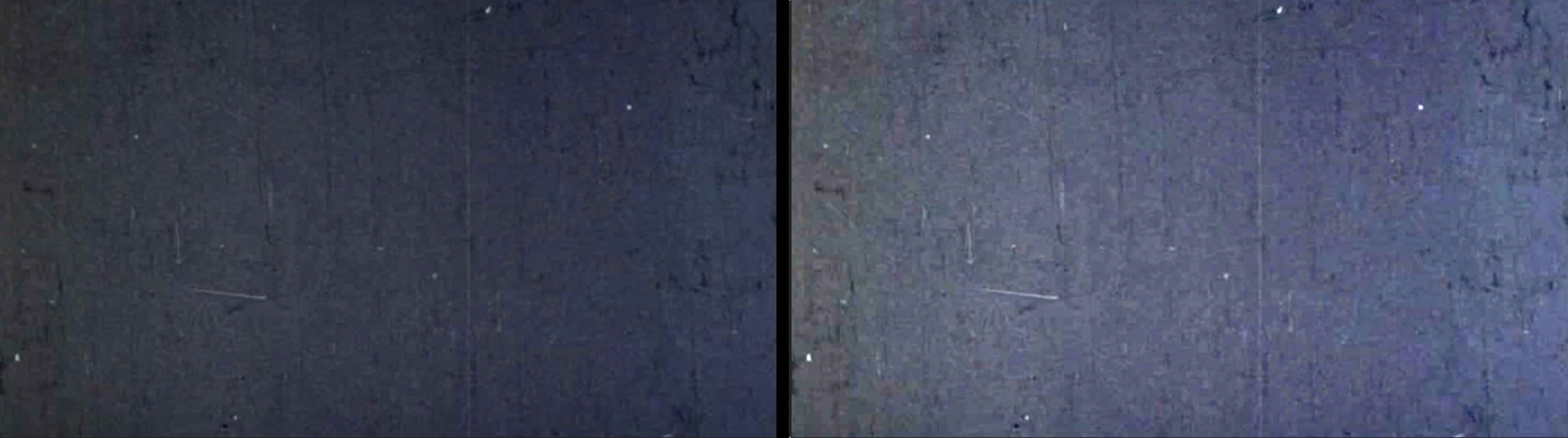
slider toward 2.0 to lighten the overall look of the selected film clip as it transitions. As a possible use, you might find the Leader Flash to be too dark for your transition at Brightness: 0 (left). Bumping Brightness to 0.8 (right) can let those film artifacts pop more.
Use the
Saturation
slider to increase color intensity within the frame during the transition.
The
Aspect Ratio
drop-down sets the aspect ratio of your frame.
The
16:9
setting will generally match up with your original HD video aspect ratio and will give you the full image within the frame.
The
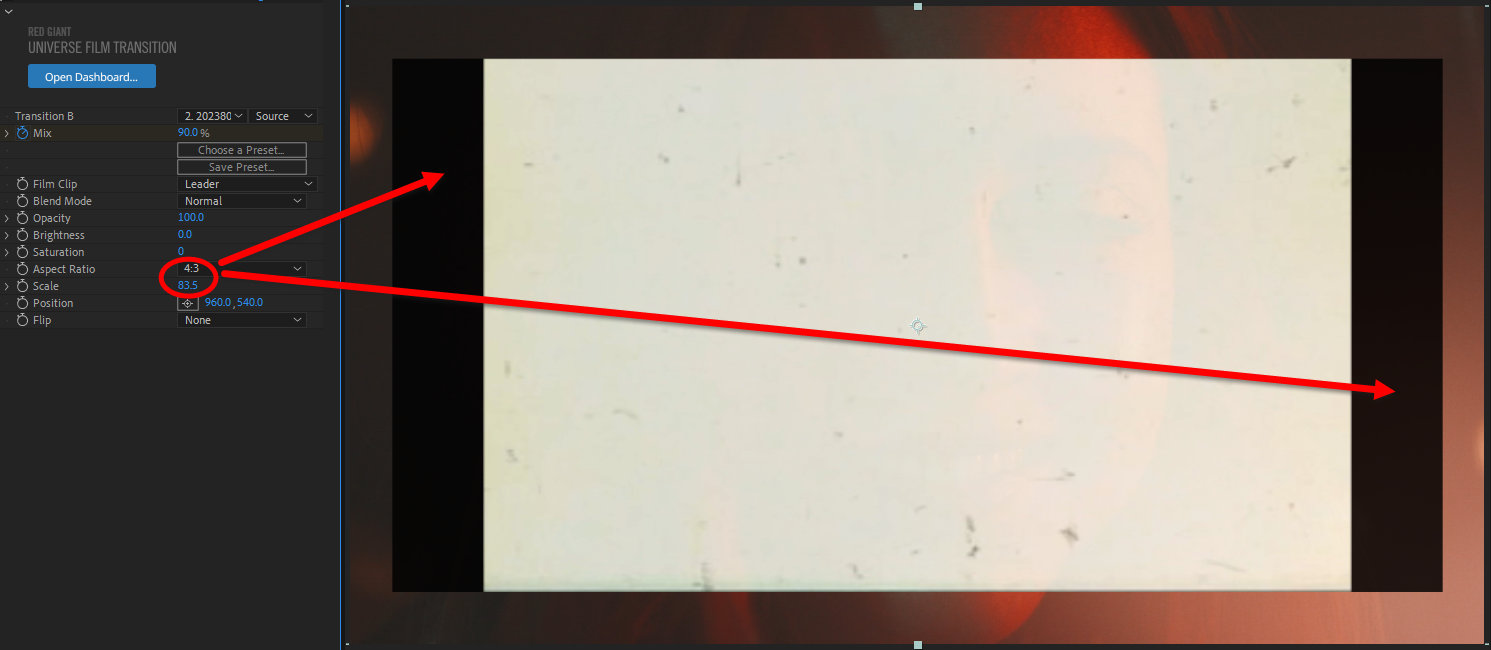
4:3
option crops the image into the look of older television and “academy” footage. You will lose the sides of your image, so be aware of compositional changes when making this choice.
Below, we point out the black bars that can result from applying a 4:3 transition aspect ratio on HD footage. Some film types may also reveal timestamp info at reduced scale.
Scale
can make the film clip up to 75% smaller. It can also enlarge the clip up to 125.0 to fill more of the screen, if needed.
Position
allows you to move the Film Clip overlay in the image's x or y space.
Flip
allows you to change the position of the lens flare transition within the frame. Chose from Horizontal (center, below), Vertical, or Both (right) to place the transition where you need it.
(The left image has None selected.)