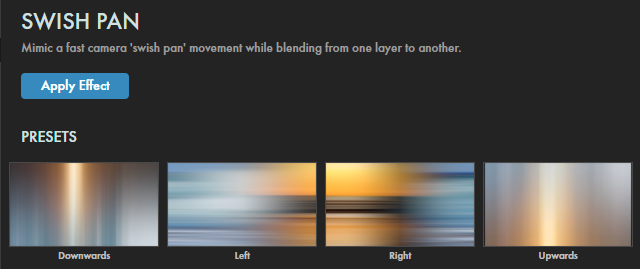
A transition that mimics the fast camera “swish pan” movement while blending from one layer to another. Choose from directional options (right, left, up, or down) and control the exposure of each layer during the pan.
Presets
Four Swish Pan presets make implementing your vertiginous transitions one-click simple. Just keyframe the Mix duration (see below) and tune to taste! Find these presets via the blue Open Dashboard... button or the Choose a Preset... button below it.
As with all other Universe tools, you can modify or create a Swish Pan look and then save it under its own name by pressing the Save Preset... button.
Getting Started in a Timeline
Drag the transition over your edit in the timeline, placing it at the end or beginning. Alternatively, you can place it between two successive clips.
Modify the
Duration
of the transition either by entering a length in the field or dragging directly in the timeline.
You can choose the
Alignment
(Center at Cut, Start at Cut, End at Cut, or Custom Start) either by positioning the transition in the timeline or by choosing from the Alignment drop-down in some host applications.
Getting Started in a Compositor
Apply the transition to the layer from which you want to transition.
Choose the footage layer you would like to transition to in the
Transition B
drop-down menu.
(Note for Motion users:
Drag the footage layer up to the Transition B box.)
Animate your transition using the
Mix
slider from 0% to 100 percent. Set a keyframe for 0% where the transition should start, then set another at 100% for the end.
Modify the Transition
The
Background
color picker lets you choose the background color if you prefer to have the transition between one footage layer and a background.
Background Opacity
fades the background color down to transparent when lowered to 0.
The
Direction
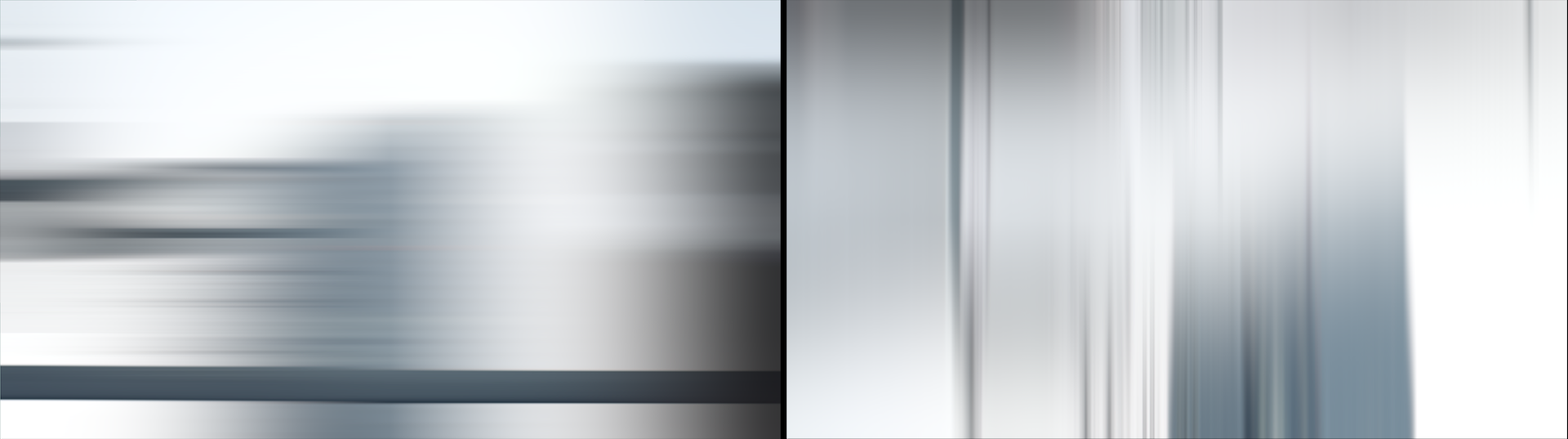
drop-down menu can change which direction the transition is panning from into frame: Right (shown below, left), Left, Down (below, right), or Up.
These options correspond to Swish Pan's four presets.
Maximum Blur
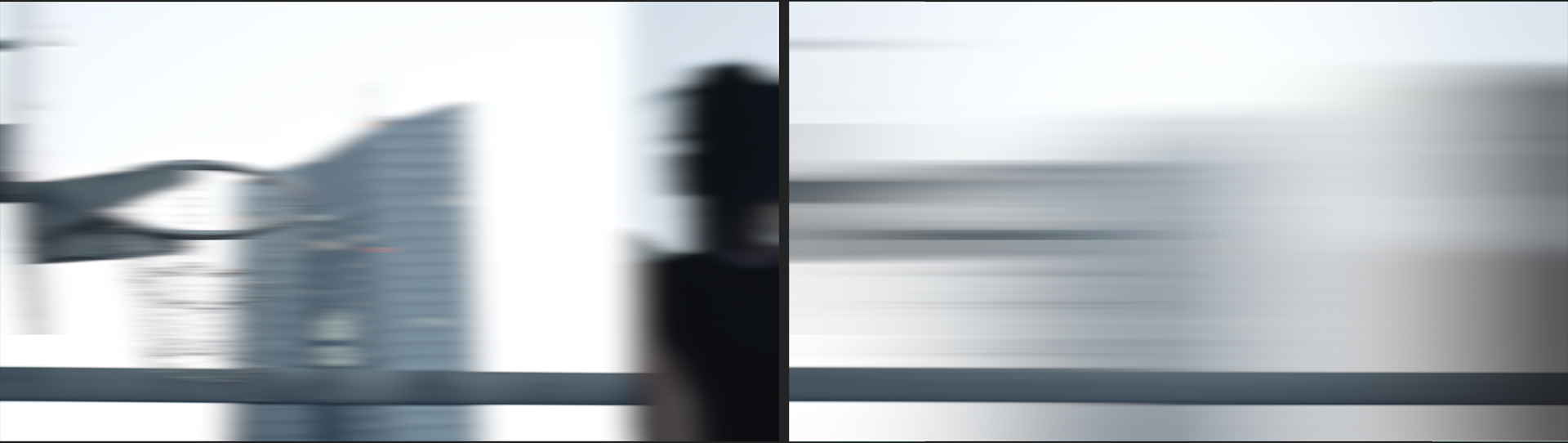
allows you to set the blur for the layers during the transition. Below, we compare values of 10 (left) and 70 (right).
Exposure Boost
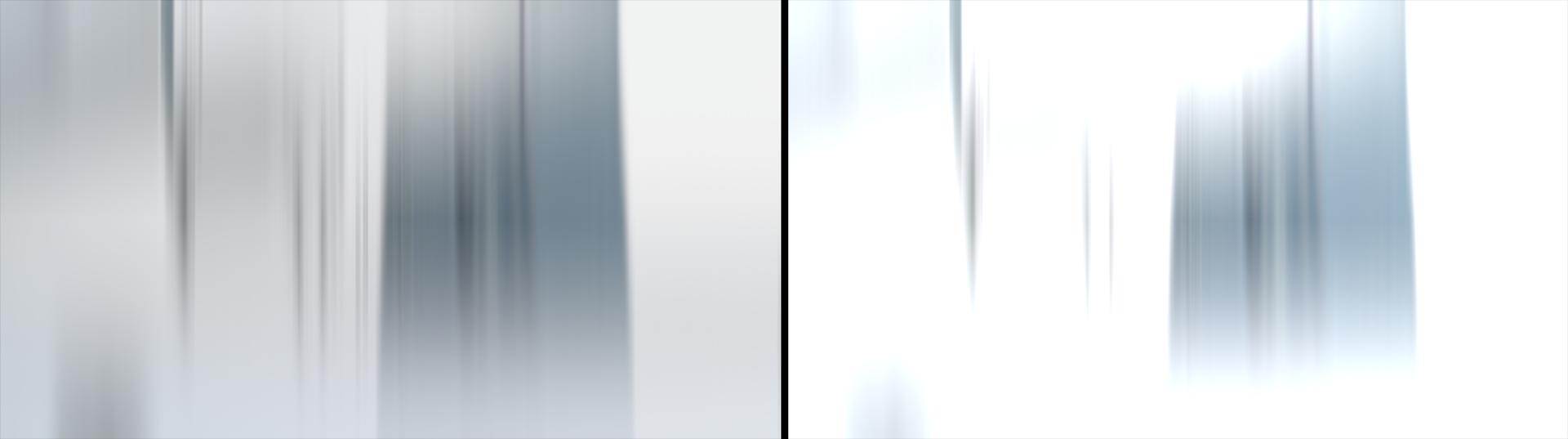
can help lighten the layers if needed, or you can lower the brightness by adjusting this control below the default of 1.0. The following comparison shows values of 0 (left) and 5 (right).