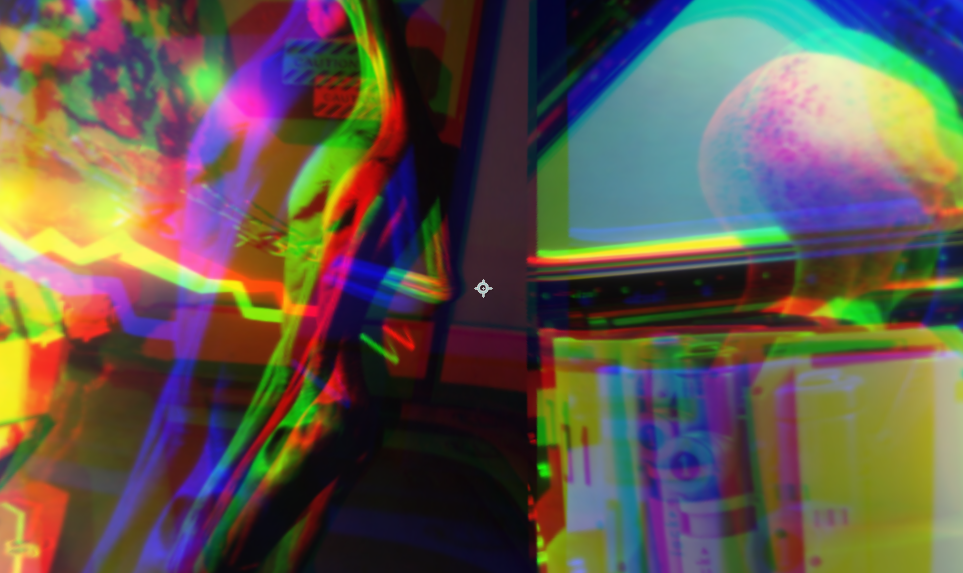
Transition seamlessly by warping two images from one image to the next in a fresh and fluid way.
Presets
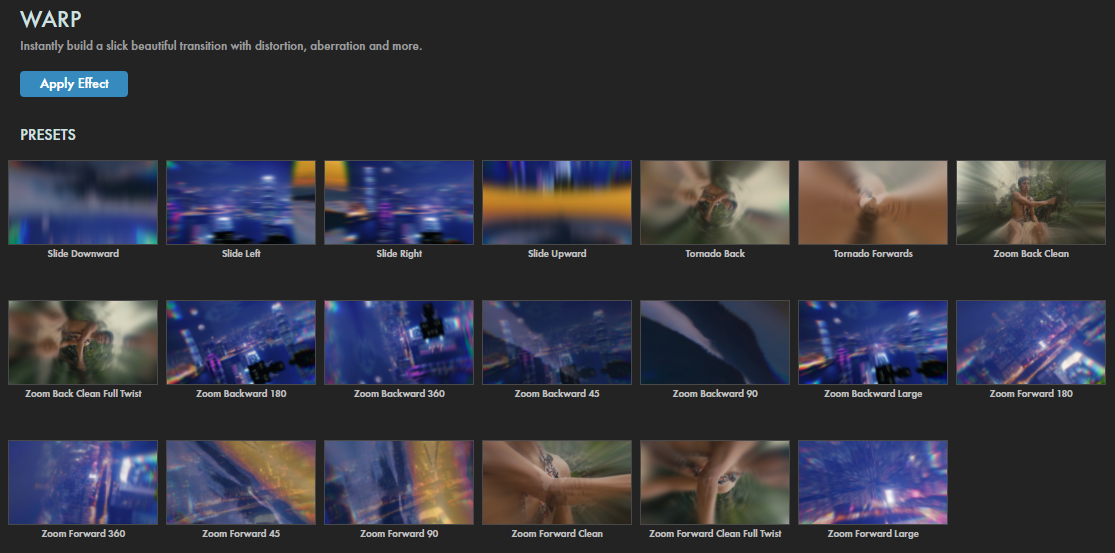
Ready to beam up some easy but impressive presets for slides, swirls, and other creative transitions? Engage! Simply keyframe the Mix duration (see below) and tune to taste. Find these presets via the blue Open Dashboard... button or the Choose a Preset... button below it.
As with all other Universe tools, you can modify or create a Warp Transition look and then save it under its own name by pressing the Save Preset... button.
Getting Started in a Timeline
Drag the transition over your edit in the timeline, placing it at the end or beginning. Alternatively, you can place it between two successive clips.
Modify the
Duration
of the transition either by entering a length in the field or dragging directly in the timeline.
You can choose the
Alignment
(Center at Cut, Start at Cut, End at Cut, or Custom Start) either by positioning the transition in the timeline or by choosing from the Alignment drop-down in some host applications.
Getting Started in a Compositor
Apply the transition to the layer from which you want to transition.
Choose the footage layer you would like to transition to in the
Transition B
drop-down menu.
(Note for Motion users:
Drag the footage layer up to the Transition B box.)
Animate your transition using the
Mix
slider from 0% to 100 percent. Set a keyframe for 0% where the transition should start, then set another at 100% for the end.
Modify the Transition
Transition Type
determines whether the transition will
Zoom Forward, Zoom Backward, or Slide from one part to the next.
Compare this clip using Slide to the Zoom Forward type (based on the Zoom Forward 180 preset) used above.
Slide Direction
sets the direction of the
Slide
when its
Transition Type
is used.
The following triptych shows three frames from around the middle of the above clip's transition as it slides to the right. The stills give a better sense of the distortion and light blooming happening amidst all that glowing motion.
Lens Distortion
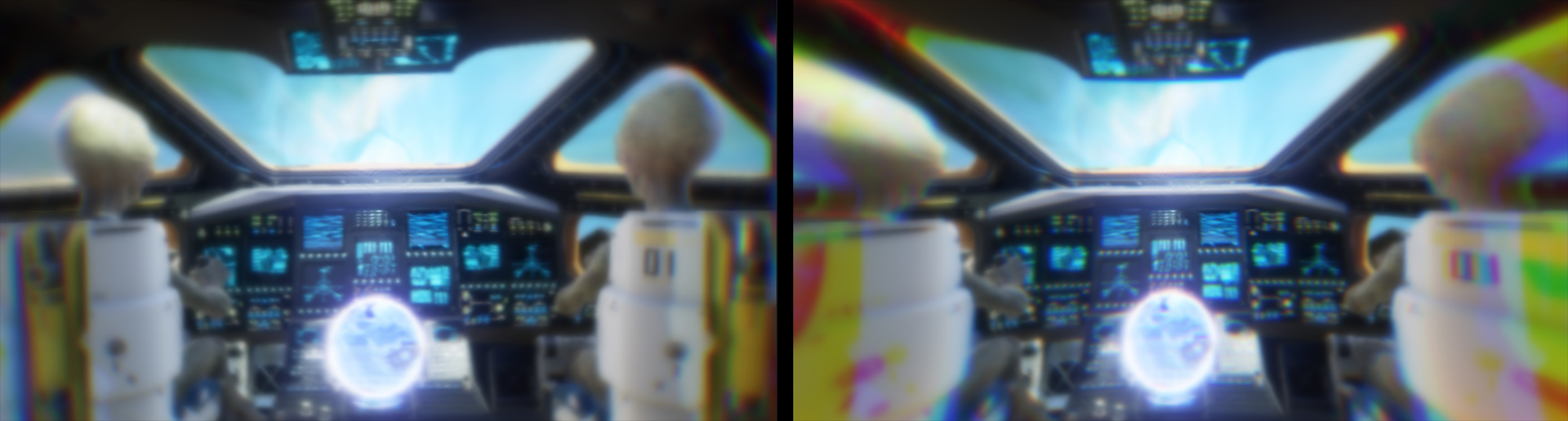
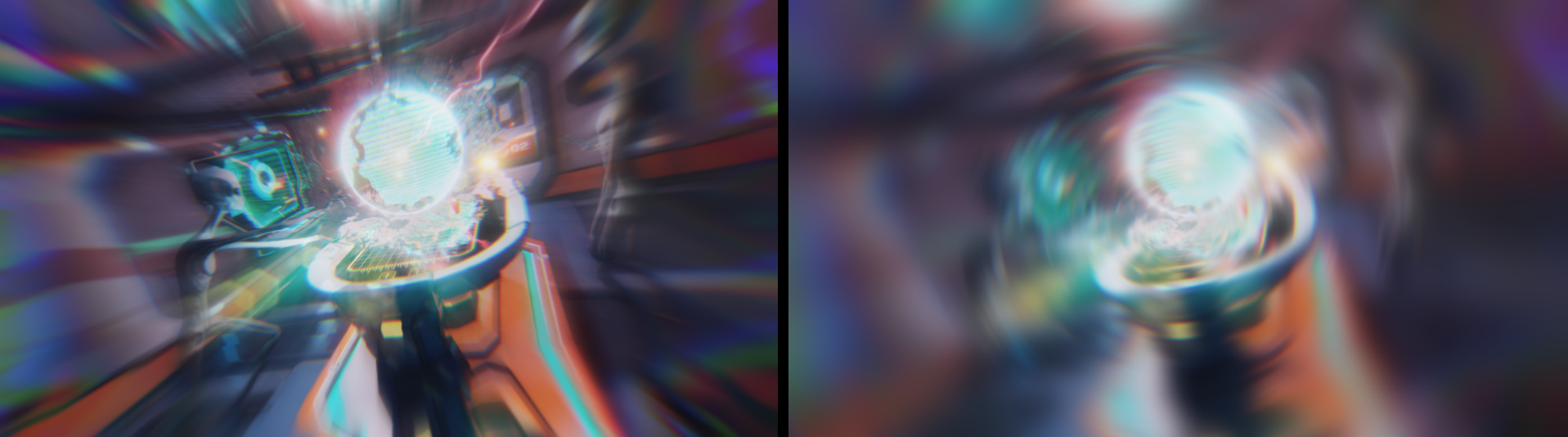
adjusts the amount of distortion applied while mixing imagery. This comparison shows the values of 10 (left) and 100 (right). Use the
Channel Settings
(see below) to adjust the various color distortions that occur within this effect.
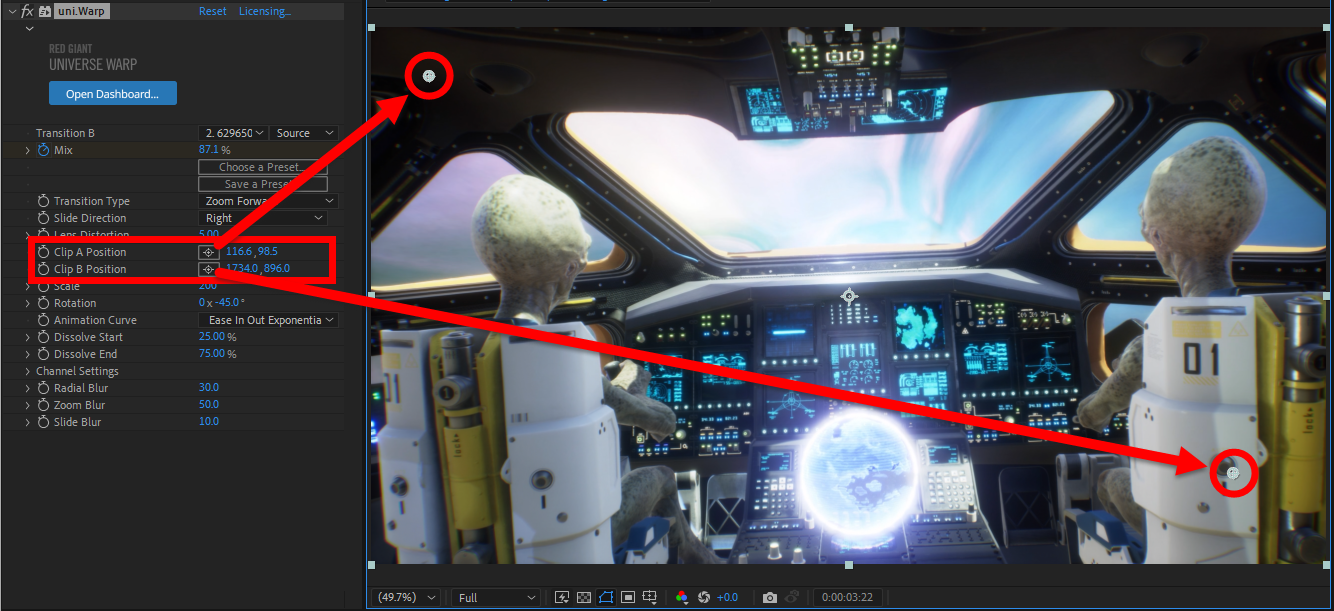
Clip A/B Position
sets the location to which the zoom applies when
Zoom Forward
or
Zoom Backward
are selected as the
Transition Type.
Scale
controls the size to which the clips offset during the transition.
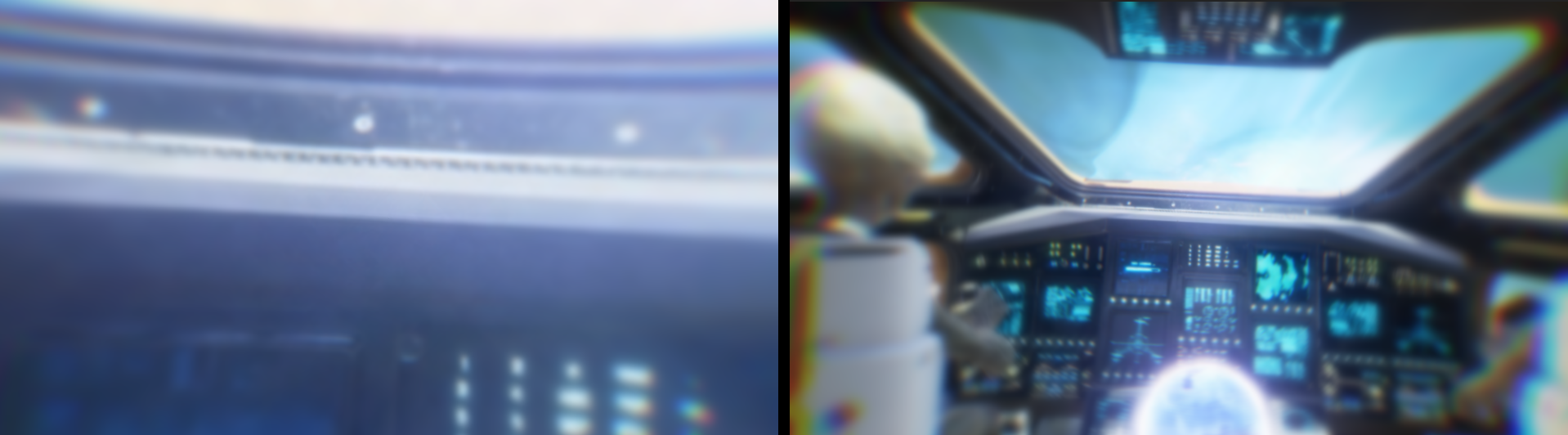
Note that the impact of this control may change depending on your selected Transition Type. For example, with Zoom Backward selected, this is the 2000 (maximum, left) and 100 (minimum, right) difference on our B clip just after the midpoint of our transition.
Rotation
sets the angle to which the clips rotate from level during the transition.
Animation Curve
contains a list of speed presets that determine how the transition executes. For more information on what these presets mean, visit the
Animation Tweens
page.
Dissolve Start/End
set at what percentage of the Mix completion the transitioning between clips occurs.
Channel Settings
Red/Green/Blue Distortion
changes the position of the distorted color channel in the footage.
Below, we have values of Red: 100, Green: 0, and Blue: -15. Notice how the distortion effect grows more prominent the farther you get from the center. This is why, on the left alien, -15 moves the blue channel more to the left than 100 moves the blue channel to the right.
Radial Blur
softens the lens distortion effect toward the layer's focal point.
Below, we show values of 0 (left) and 70 (right).
Zoom Blur
adjust the blur effect that moves through z space when working with a
Zoom Forward
or
Zoom Backward
transition type.
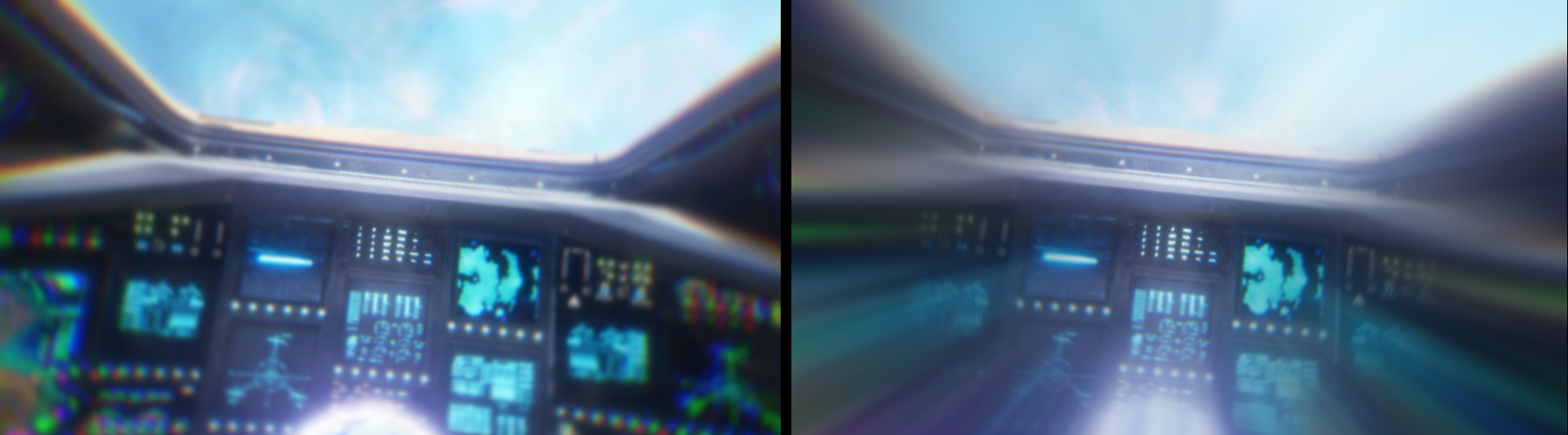
This blurring can greatly enhance (or restrain) your zoom effect, as shown in this comparison of 10 (left) and 700 (right).
Slide Blur
, much like Zoom Blur,
adjusts lateral blurring when working with the
Slide
transition type.