
Retopology
The Retopo Brush
The Retopo brush provides a comprehensive toolset for creating clean, animation-ready topology over your high-resolution sculpts. Unlike automated tools like ZRemesher, the Retopo brush gives you complete artistic control to place vertices, edges, and polygons exactly where you need them. This level of control is particularly important for creating proper edge loops around areas that deform during animation, such as eyes, mouths, and joints — areas where automated tools may not produce the specific topology flow your project demands.
Understanding Retopology
Topology refers to the pattern of polygons that make up a mesh. While high-resolution sculpts are ideal for creating detailed forms, they're often too dense for efficient animation and deformation. A sculpted head might contain 100,000 polygons or more, but for animation, you typically need a much cleaner mesh with 10,000-20,000 polygons arranged in specific patterns.
What retopology does: Retopology is the process of creating a new, lower-polygon mesh over your more detailed model. This low-poly mesh "wraps" around the underlying form's shape, thus providing cleaner edge flow optimized for animation rigs and deformation.
Why manual retopology matters: While ZRemesher excels at automatic retopology, there are times when you need precise control. Animation-ready characters require specific edge loop patterns around facial features and joints that automated tools may not produce consistently. For example, you need edge loops that encircle the eye socket and mouth to allow for proper facial expressions. The Retopo brush lets you define these critical topology patterns yourself, ensuring your mesh deforms exactly as intended when rigged and animated.
Getting Started
Accessing the Retopo brush
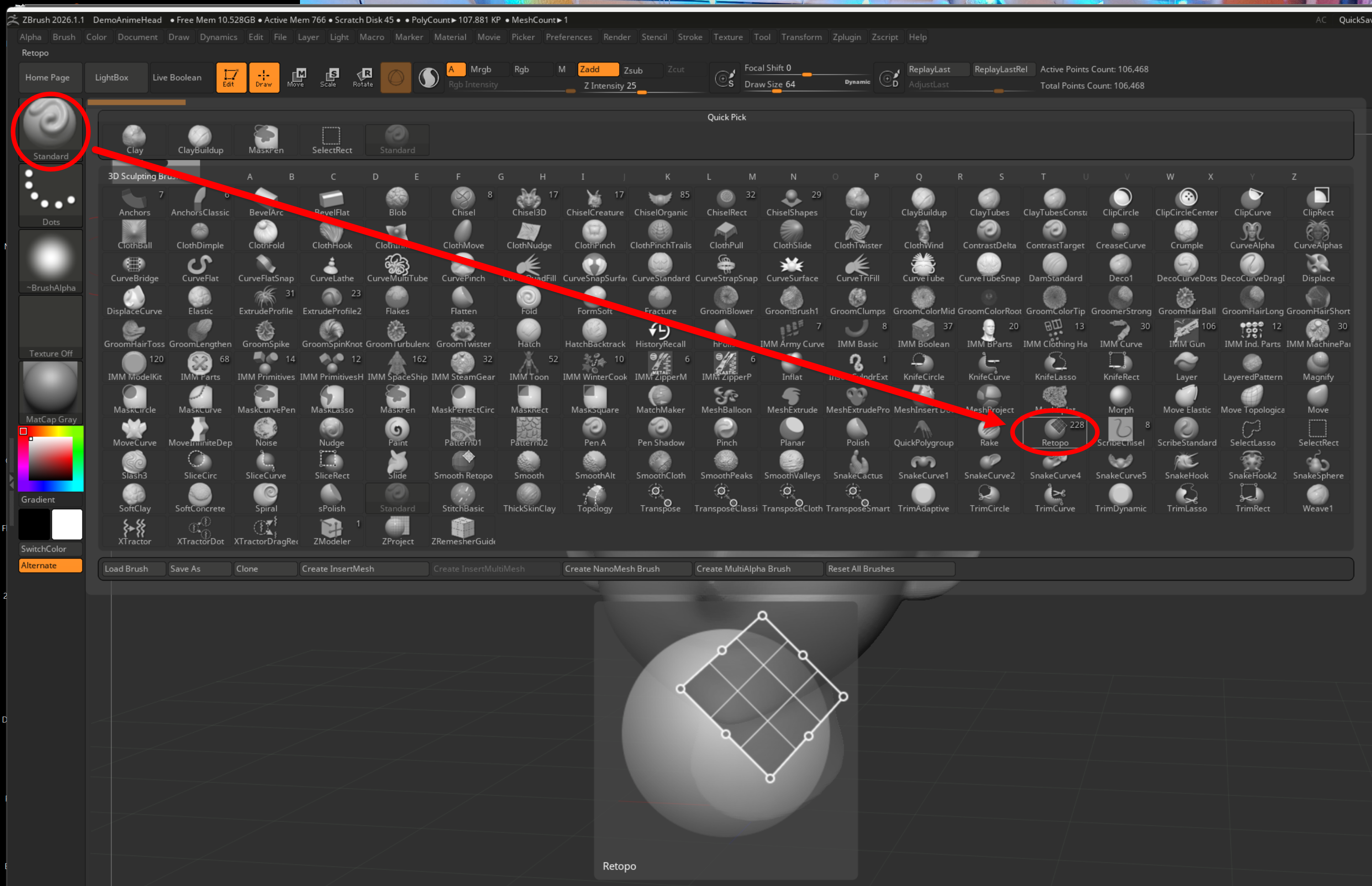
Find the Retopo brush in the Brush palette. When you select it and click on your model's surface for the first time, ZBrush prompts you to create a new subtool for your retopology mesh. This automatically separates your reference model from the new topology you're creating.
Important!
The Retopo brush works on your existing model as a reference surface. When you first place a vertex, ZBrush displays a dialog asking if you want to create a new subtool. Select Yes to create a separate retopology mesh. This new subtool inserts into your SubTool list (not appended to the end), placing it directly above your reference mesh for easy access.
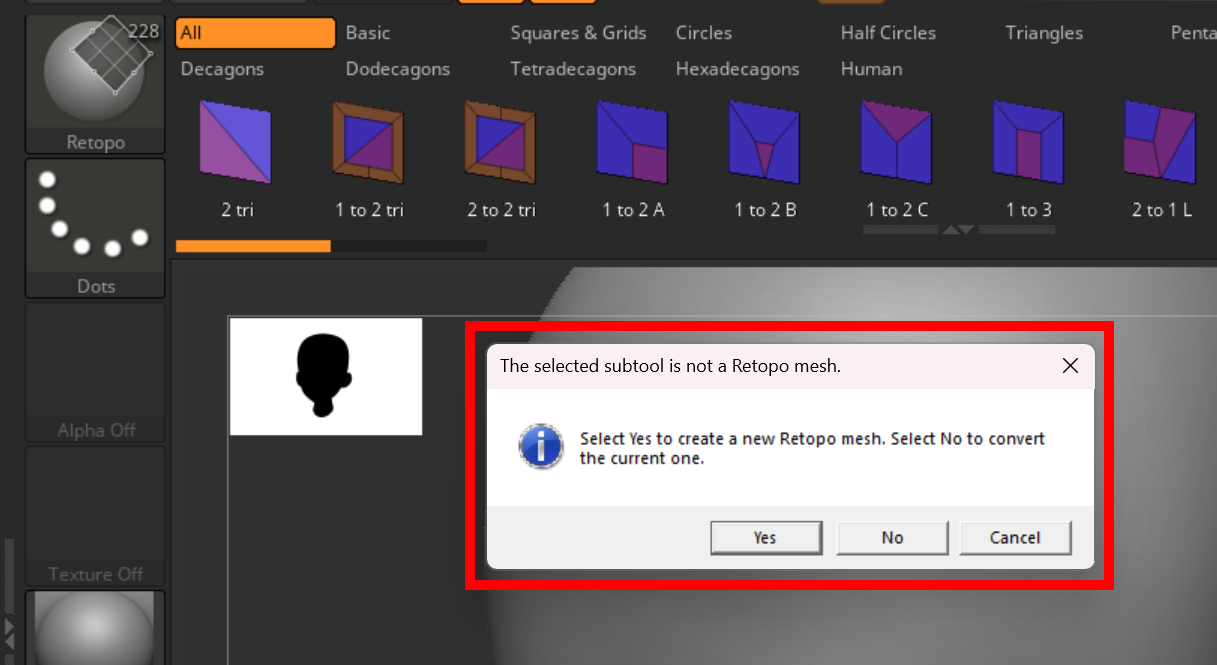
Clicking No allows you to edit the currently selected subtool. It's best to create a copy of this mesh as another subtool so the brush can have the copied mesh to edit the topology.
Automatic interface adjustments
When the Retopo brush is active, ZBrush automatically adjusts several settings to optimize your workflow:
- Polyframe automatically activates so you can see your topology structure clearly with visible edges and vertex points
- Transparency is enabled by default, allowing you to see through your retopology mesh to the reference model underneath. This transparency makes it easier to position vertices accurately on the reference surface.
The Retopo brush consolidates retopology functions into a single, streamlined brush interface. However, legacy methods for retopology remain available since some users prefer specific aspects of the older workflows for certain tasks. Each approach has its strengths, and you're free to use whichever method best suits your needs for any given project.