
Licenses in Maxon App
As you've seen elsewhere in this user guide, Maxon App supports a range of Maxon software licenses and tools for managing those licenses. Historically, license management has been done through the user portal at Maxon.net. (For example, you can find a full breakdown of the web-based Teams Dashboard here.) Today, this functionality and more can also be conveniently handled within the Maxon App via the Licenses tab.
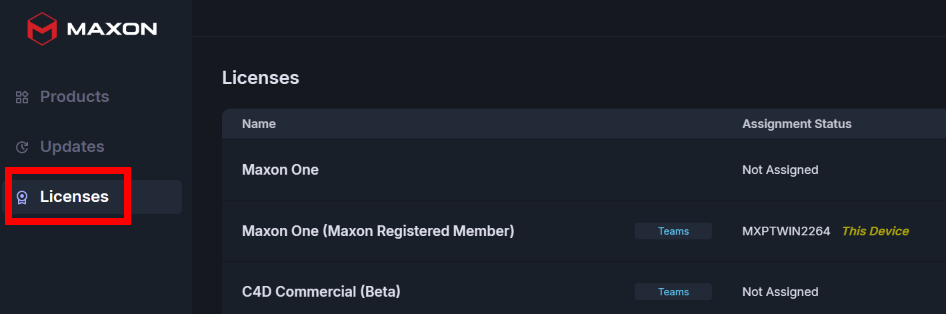
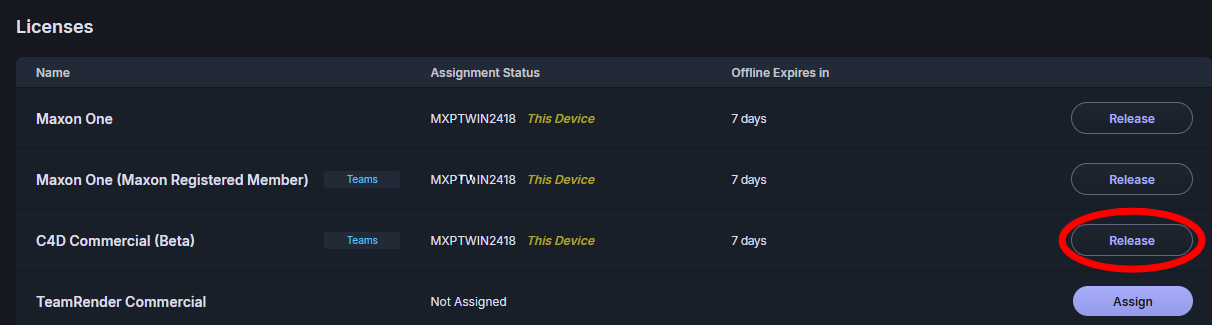
Within the Licenses pane, you see four basic columns: license name, assignment status, offline expiration, and release/assignment status. As you can see below (in the red box), licenses tied to teams will be noted as such alongside the license name in the first column.
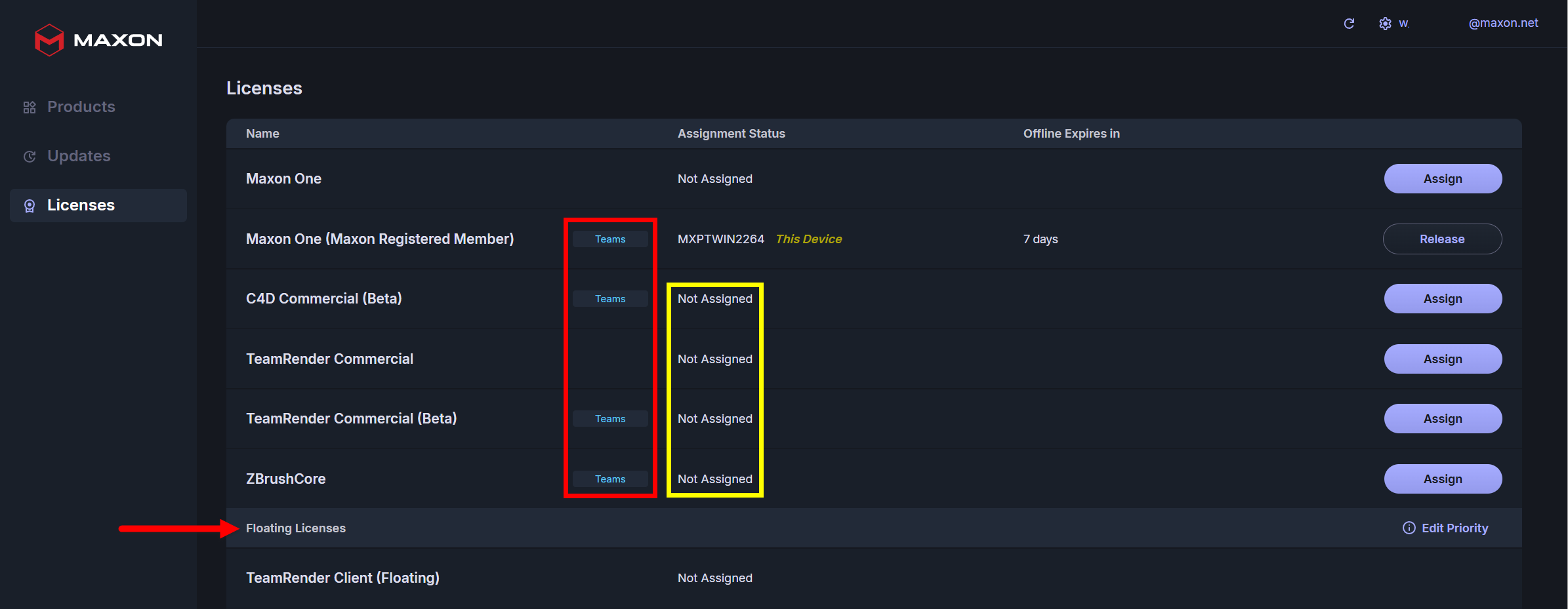
You'll note in the second column of the above image (yellow box) that a user can have unassigned licenses. Moreover, when applicable, observe how the Floating Licenses bar across the Licenses pane conveniently separates floating (those not connected to a specific user) from non-floating licenses.
Assign, Release & Transfer
If you have an assigned license (except for trial licenses) that you'd like to release for assigning to a different client, it's literally as easy as 1) click the license's Release button, 2) confirm the release, and 3) check the confirmation message.
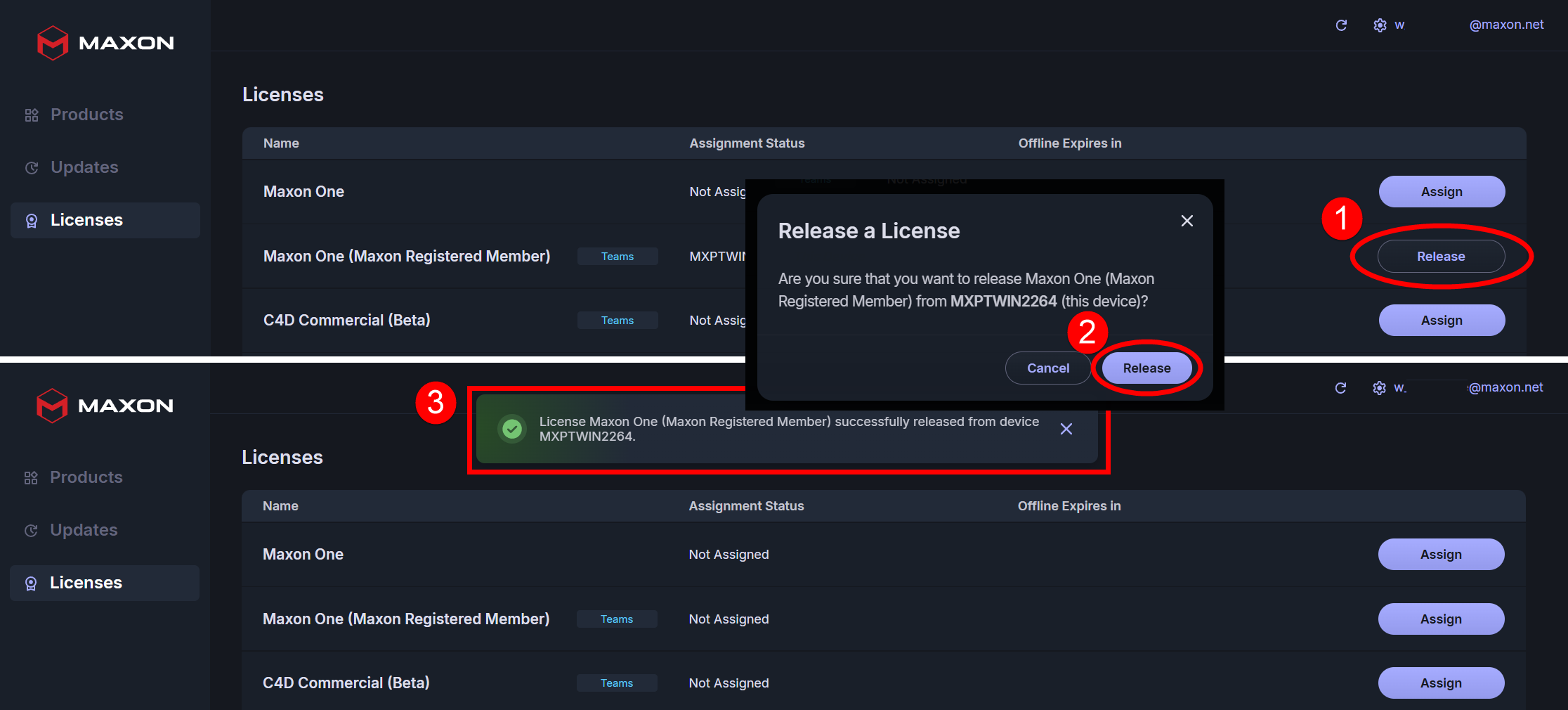
That's it. The current device no longer has that license assigned to it and will display with an Unassigned status.
Assigning a product is even easier. Just click the Assign button and boom — that license is now assigned to that device.

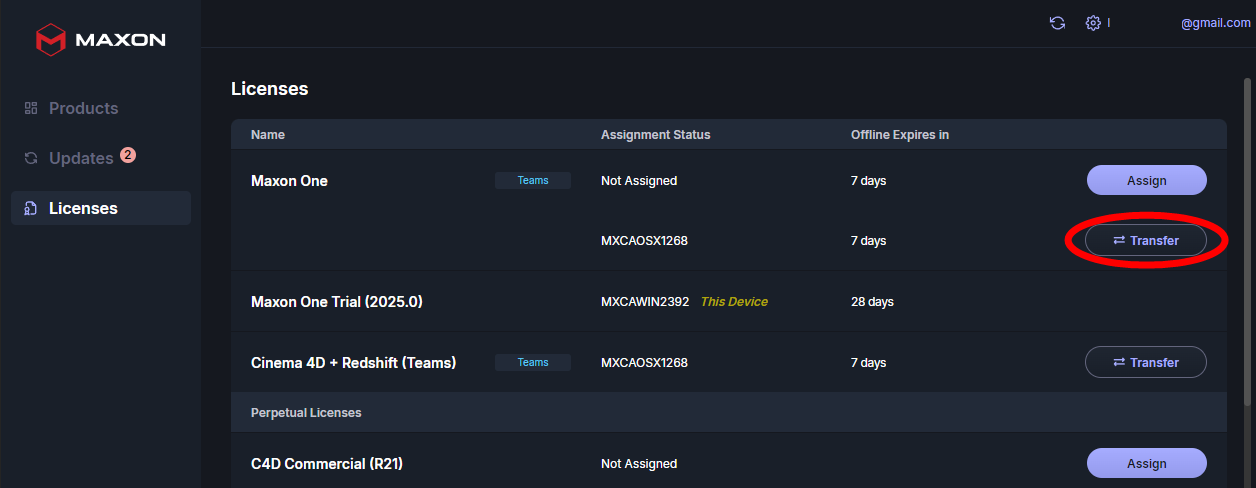
Not least of all, you can transfer licenses between devices. Say you have a desktop and a laptop, and you use Redshift on both. Maxon licensing only allows one instance of a license assigned to a given user or team to run at any given time. However, you can quickly reassign, or transfer, a license from one device to another as needed. If your Redshift license, for example, currently ties to your desktop but you need to run it on your laptop, simply press the Transfer button in the laptop's Maxon App and confirm the switch. Maxon handles all the tracking work on the back end.
Floating Licenses
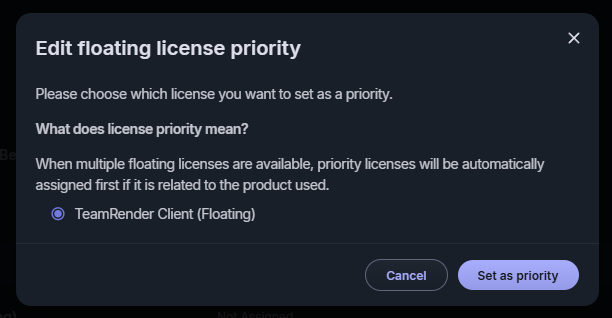
With floating licenses, meaning licenses connected to an organization rather than a specific user, there are no options for Assign and Release. This is because devices with floating licenses perform those functions automatically upon opening their relevant Maxon products. Similarly Maxon App may automatically select one of the floating licenses to have "Priority." Should you want to change this status, click the Edit Priority link. In the resulting pop-up, you will be offered one or more floating licenses; select Set as priority for your chosen license. You should now see that license with a check mark and "Priority" status on its line in the My Licenses tab.
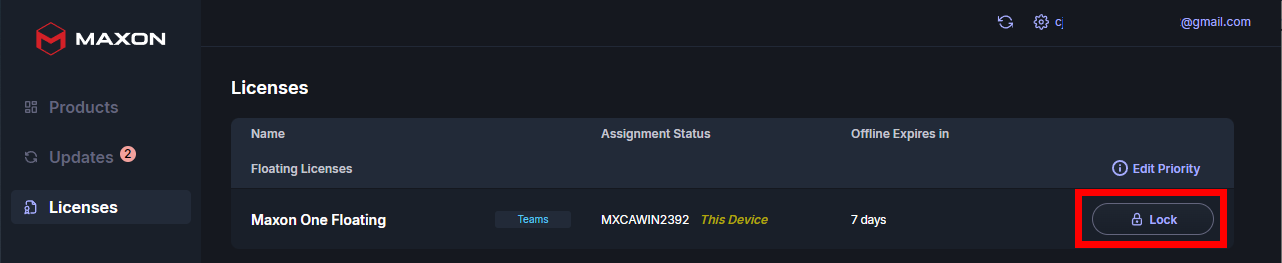
In place of Assign and Release, floating licenses offer Lock and Unlock action options. Locking a floating license keeps that license instance tethered to a particular user in the team pool, regardless of whether that user is logged in. To illustrate, this would help prevent a team member from losing access to a specific license, that had been blithely snagged by other team members, under mission-critical deadline conditions.
Offline Expiration
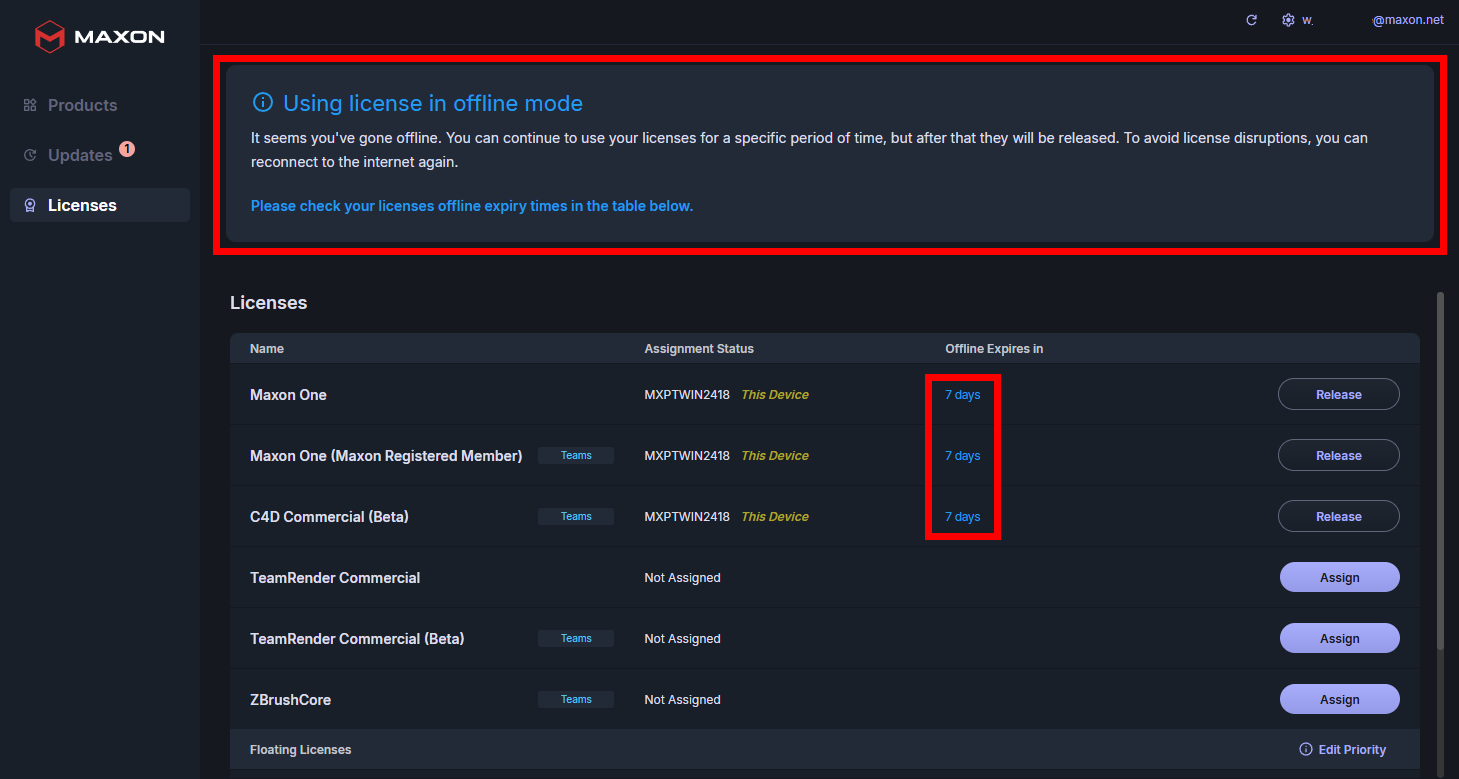
Maxon understands that users often need to take their work on the road. And sometimes, connectivity fails while life (and work) goes on. For such occasions, Maxon allows users to keep their licenses active for up to one week while offline. (The illustration below, based on a beta version, shows 14 days. The true default period for Maxon App is seven days, although admins can change this amount if needed.)
When you lose network connectivity, a banner appears alerting you that you're using your license(s) in offline mode. Within the Licenses table, you'll also see the amount of time each license has left to run in the offline state. If you're editing VFX in the solitude of the mid-Atlantic and only have a day left, maybe start paddling.
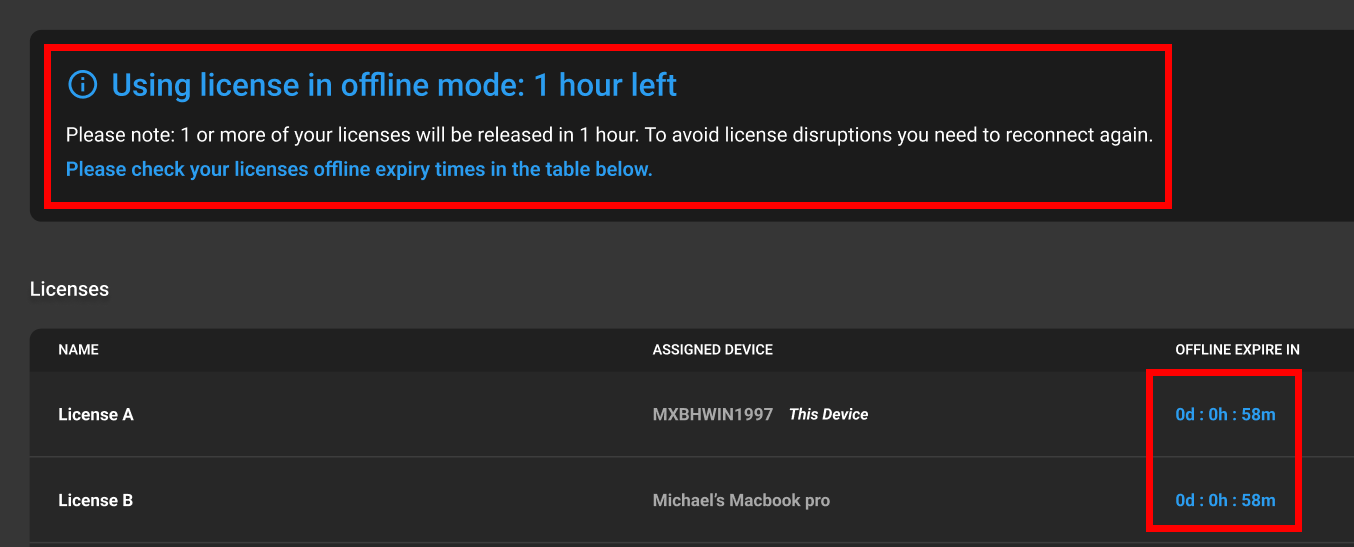
When you pass under one day left, that top warning banner will begin counting down in hours. Meanwhile, the table shows more specific time remaining in a days:hours:minutes format. A remaining time of under one hour also gets its own warning message.
As soon as you reconnect and allow Maxon App to synchronize its licensing, that 14-day timer will reset.
Multiple Non-floating License Instances
When you have a license attached to only one seat, you'll see the following type of notation in your Licenses table: one line, one device for the license, and an action option such as Transfer or Release.
But if you have a license that can apply to several seats, things change a bit. To illustrate, below you see that Michael's MacBook Pro can use a license if the license transfers from its current device to the MacBook.
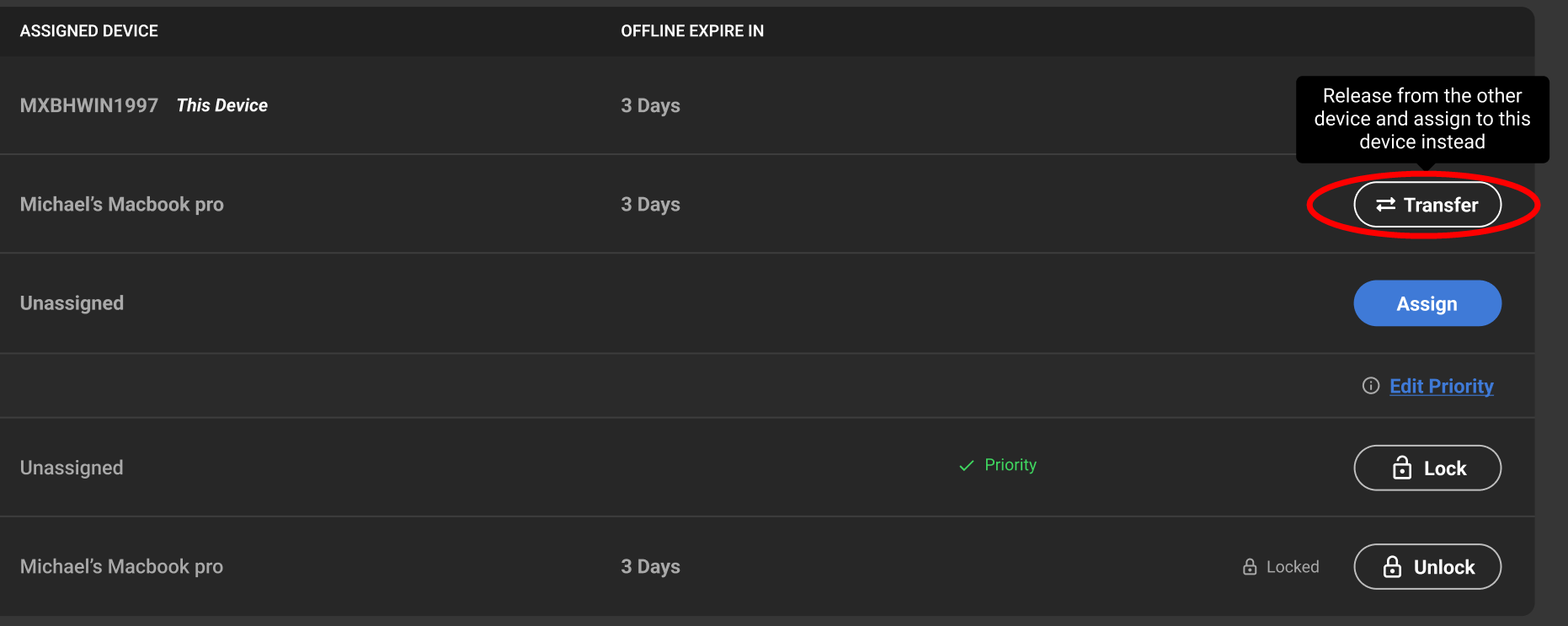
However, that license can also cover additional devices. (The exact number is monitored on Maxon App's back end. Rest assured, if you reach the limit, Maxon App will let you know.) If you want to apply the license to an additional device, click the Assign button and select the device from the pop-up list of available options.