
Program Tabs in Maxon App
On the left side of Maxon App, you’ll find a list of three Maxon product-related tabs: Products, Updates, and My Licenses.
Products
All Maxon products are visible with the Products tab selected, regardless of license status. These usually divide into two groups: Installed and Available in Your Plan. (The possible third section is Subscribe Now, discussed below.)
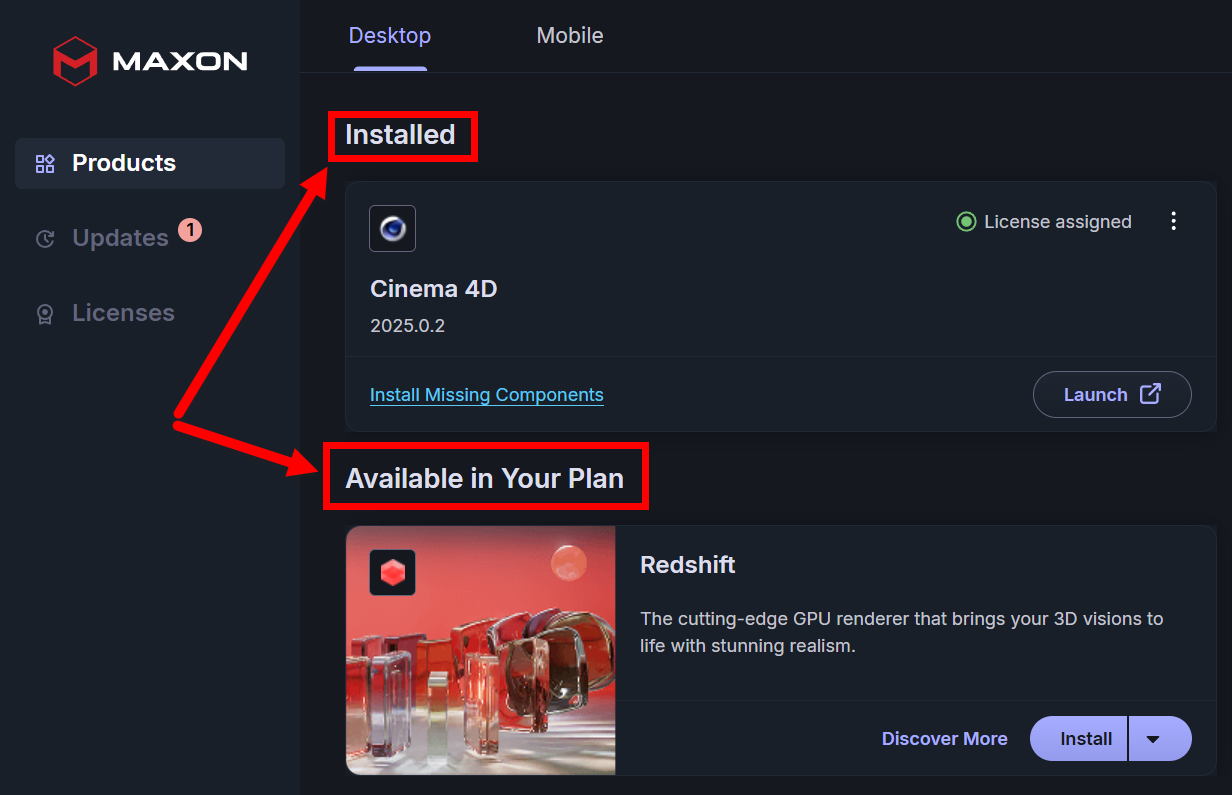
Furthermore, notice the Desktop and Mobile sub-tabs along the program's top. As you'd guess, these display the desktop and mobile apps, respectively, from your license that you can choose to install.
Mobile titles (shown below) are not installable via Maxon App. Rather, they offer a doorway to learn more about the applications while also showing their licensing status. Clicking the Discover More link for each mobile app takes you to their respective product pages.

Notice how each installed program has a color-coded license status noted to its right (shown below).
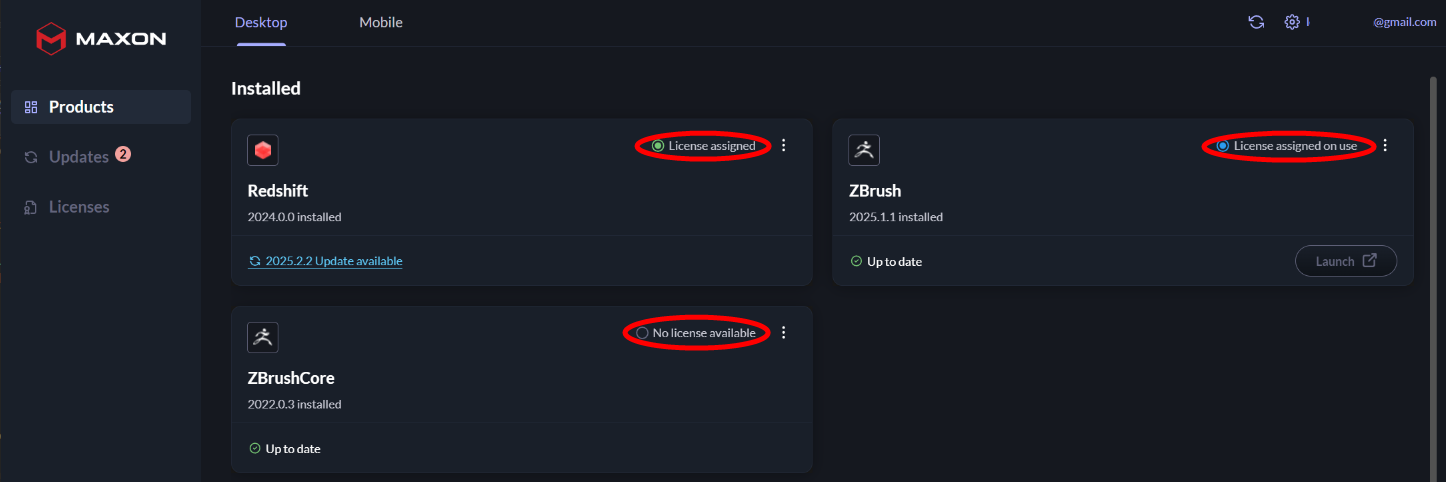
Here's a handy decoder for the various license statuses you might encounter in the Programs tab:
-
Assigned license: Green circle with License assigned
-
Floating license: Blue circle with License assigned on use
-
No license: Hollow gray circle with No license available
-
Unassigned license: Hollow amber circle with License not assigned. If you see the Assign License link beside License not assigned, you're one click away (more or less) from assigning that license and having the app ready to run.
To release, lock, or unlock these licenses, click over to our My Licenses page for more info.
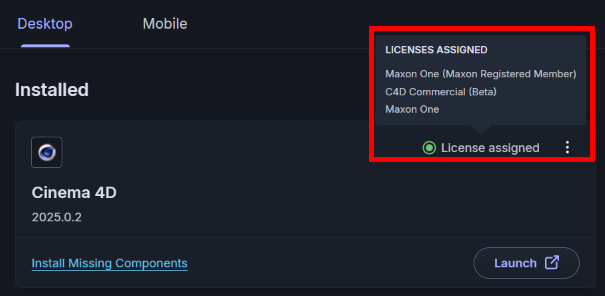
When you hover over the license status, a tooltip appears displaying which licenses apply to the product in its current state. If you don't see a tooltip appear, that means you're either in RLM ;mode (discussed below) or you have no licenses available.
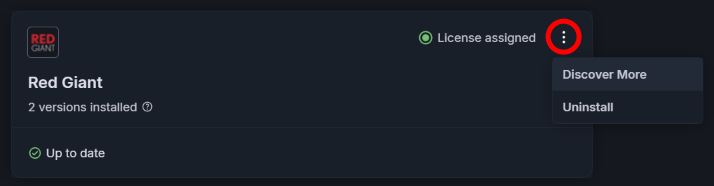
To the right of each license status, find a "three dots" icon (shown above). The Discover More link takes you to that app's product page for more information. Uninstall removes the app from your system.
Multiple Versions
Cinema 4D, Redshift, and ZBrush both support parallel installations, meaning the ability to maintain different versions of the same program in different storage locations. You can see when multiple versions are installed from the x versions installed message located under the program name (shown below).
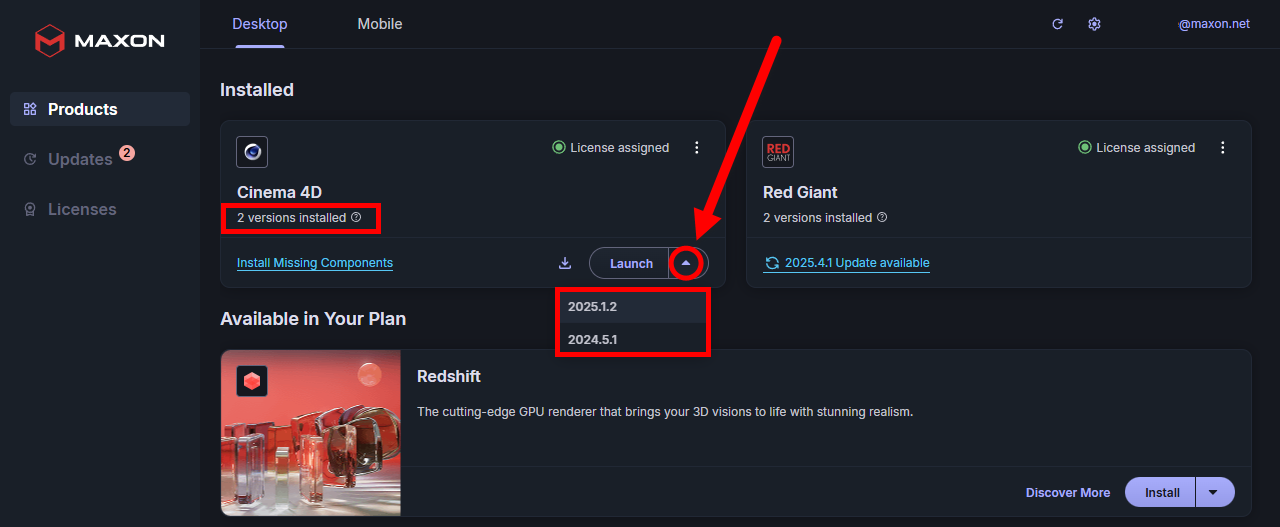
To select a specific version for execution, click the arrow icon next to the program's Launch button. This reveals a menu showing the program versions available. Click on the version you wish to launch.
Note that If you opt to download and install a new version that is in the same major version class (e.g., 2025.2.x) as the existing version, you'll receive a warning to install it into a different location, as shown in the following sequence.
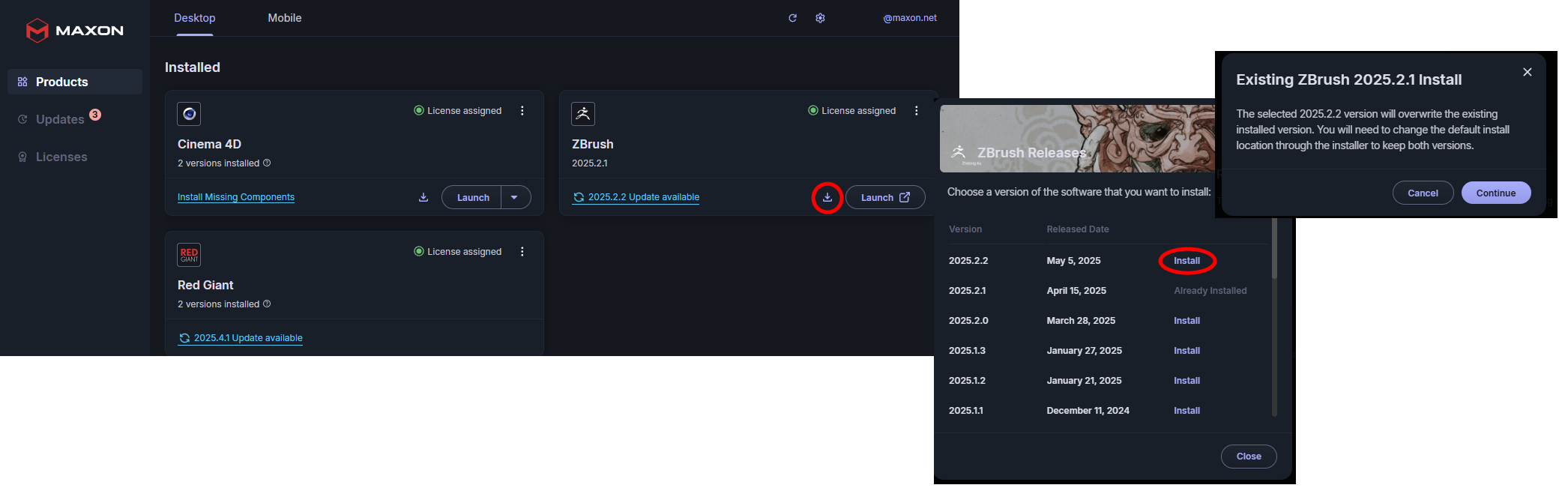
A similar version selection process plays out when uninstalling.
Subscribe Now
In the event that you don't have a license for a given product, that product may appear in a third Products tab section called Subscribe Now (shown below).
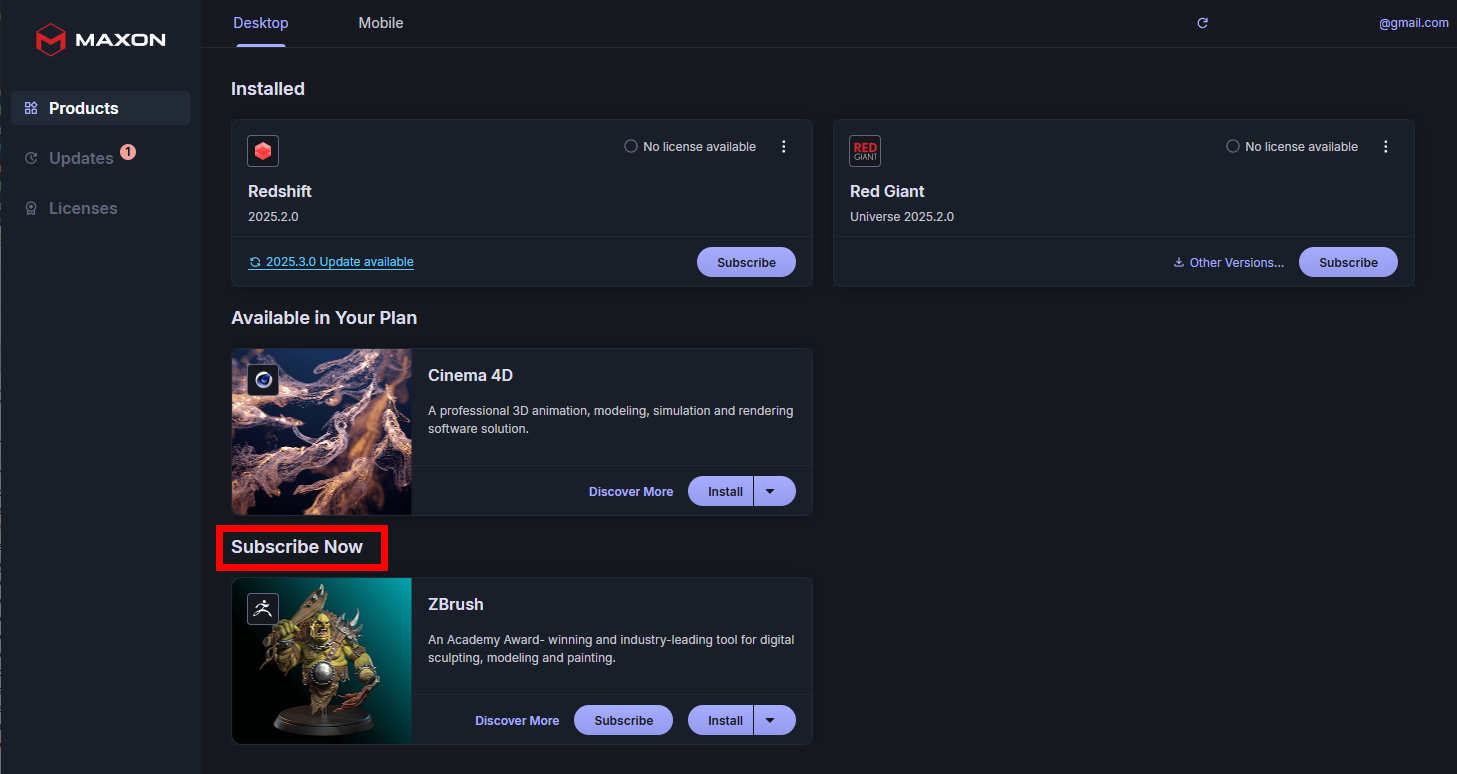
In this user configuration, the account only has a C4D license, although C4D is not installed. Redshift and Red Giant are installed, but the user has no license for them yet, which is why both appear with Subscribe buttons. ZBrush lacks a license and hasn't been installed yet, so the Subscribe and Install buttons both appear on that product card.
Maxon App's Dynamic UI
Maxon wants your Maxon App experience to be as intuitive and aesthetically pleasing as possible. Part of that is knowing that user system environments change constantly. You might drag Maxon App from a 13-inch ultralight notebook onto an ultrawide, curved desktop monitor. How Maxon App displays elements at those resolutions can and should adapt to the changing resolution seamlessly. For example, the comparison below shows the same Maxon App layout, except the left image is at its least widest (1280 pixels) and the right is a bit wider (1438 pixels). Notice how the Available in Your Plan cards reformat to better fit the added UI width.
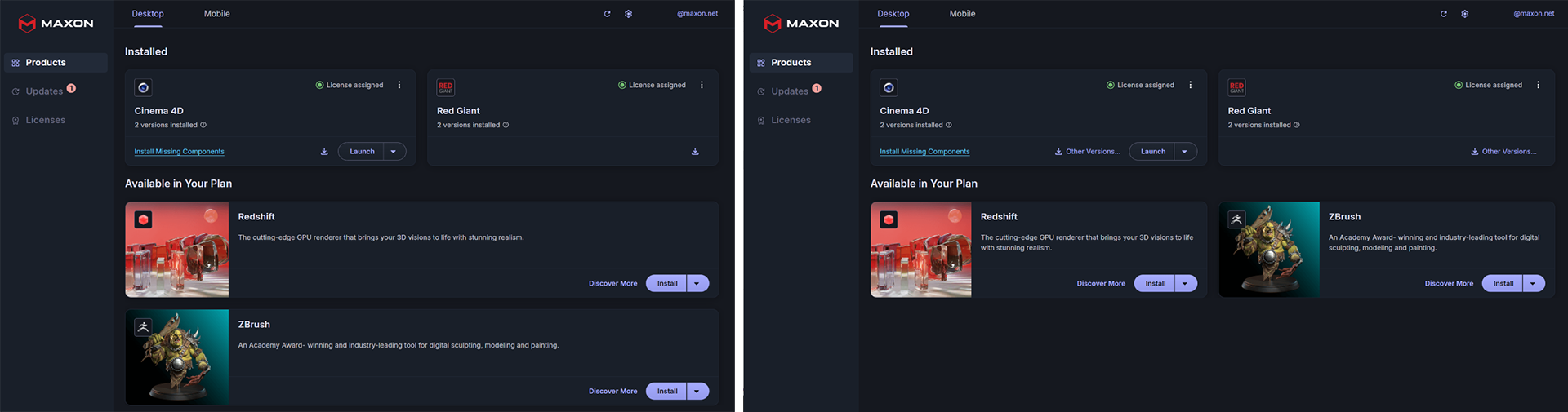
At ultrawide resolutions, Maxon App will even place three cards to a row, with a maximum width of 620 pixels per card.

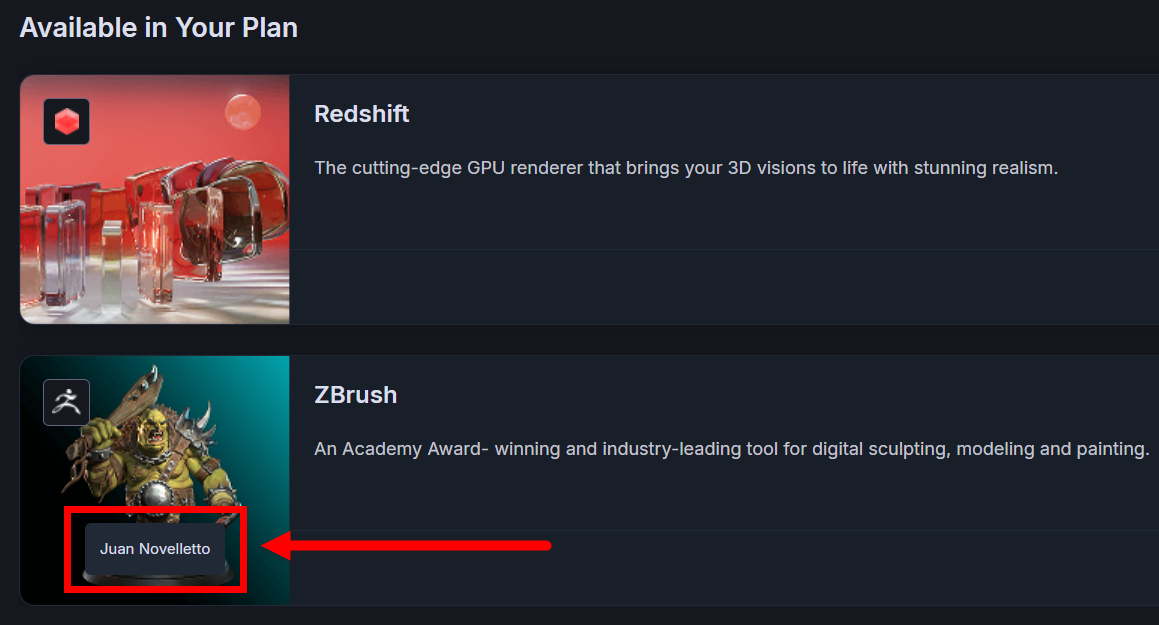
Fun Fact: With many Maxon App cards, you can mouseover the thumbnail graphic to see the image artist's name. Give a follow if you like what you see!
Updates
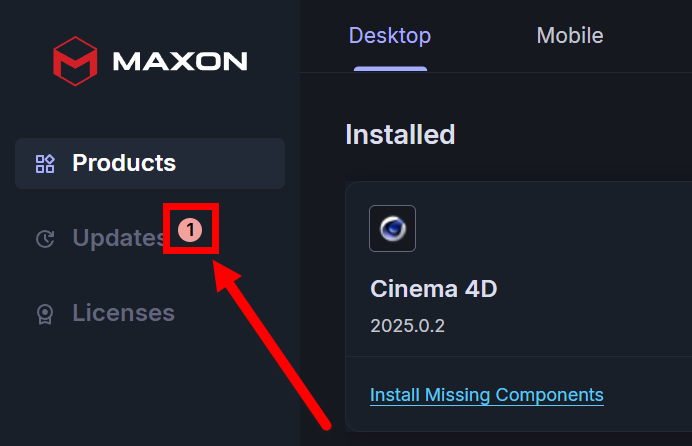
When the user has updates available, the Updates tab will have a circle next to it with the number of available updates shown in the circle. Click the Updates tab to review your available updates.
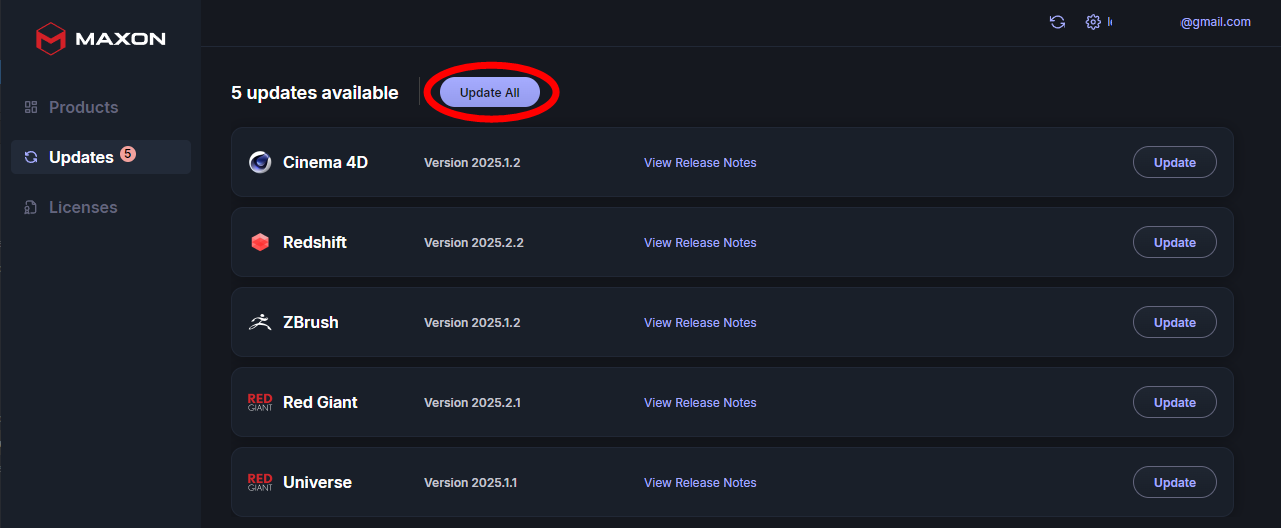
When you have more than one upgradable title, the easiest approach is to click the Update All button, which will help step you through each potential update.
To keep things clean, Maxon installers tend to keep the nuts and bolts of installation hidden in the background. Don't be surprised if some updates seem to take a while. It's actually similar to your regular installation time, only now all those confirmation screens you previously "enjoyed" have been automated.
In cases when you don't have the latest version installed, clicking the Update button arrow may expose a menu of available options, either the most recent version or the latest version within possible major versions (see below).
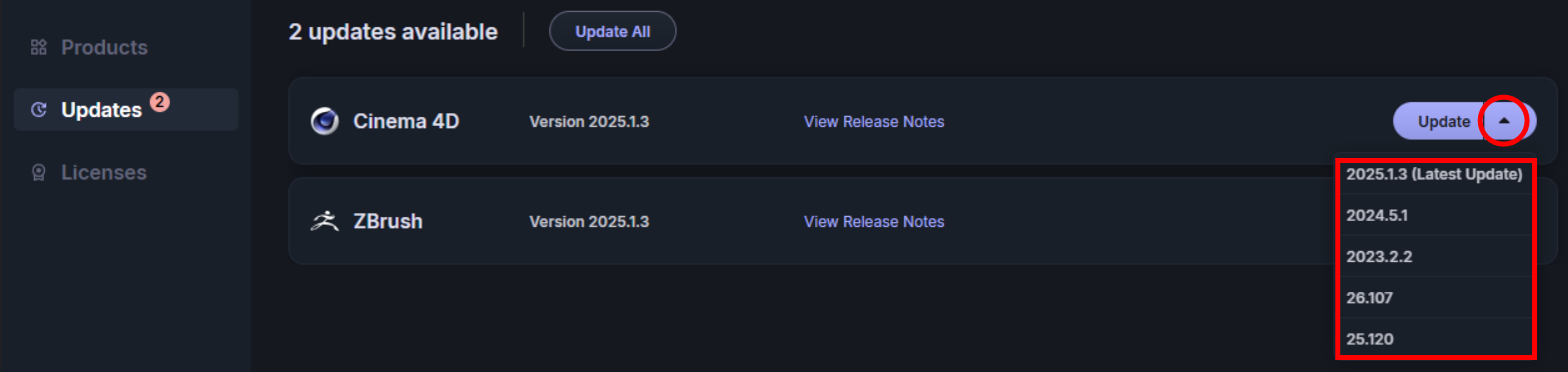
You'll notice that pending updates sport a View Release Notes link in the product grid. Feel free to read these and make sure you're satisfied with the updates' changes.
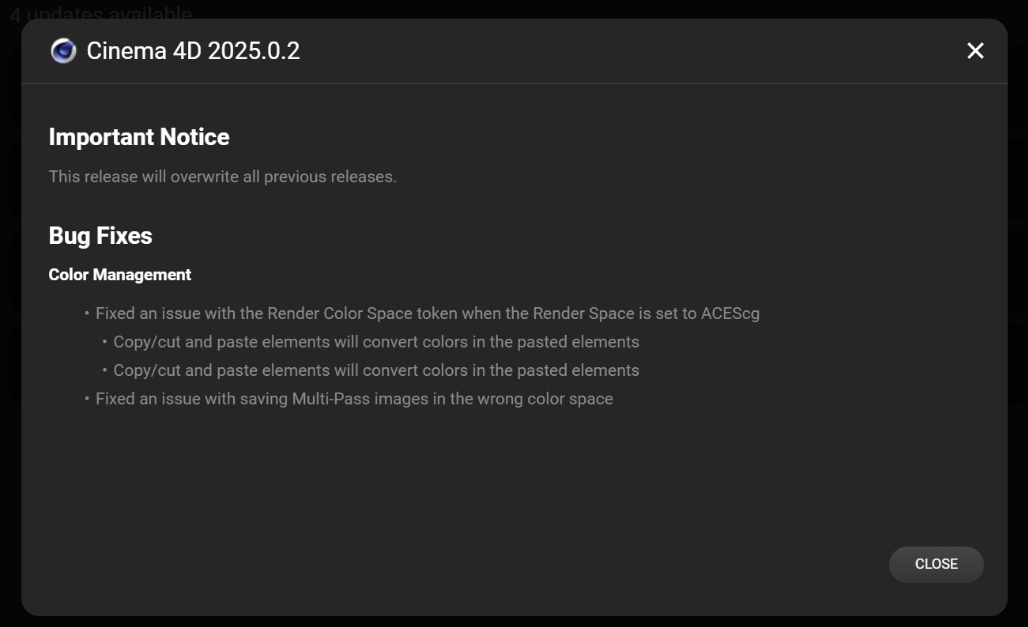
It's possible to initiate a product update while another install for that product is already in progress. (For example, you might be midway through an update when Maxon App discovers that an even newer upgrade version has become available.) A pop-up window will notify you that your request will be queued and may overwrite the install in progress. You can choose whether or not to continue.
If you have no pending updates, the Updates tab cheerily sends you on your way.
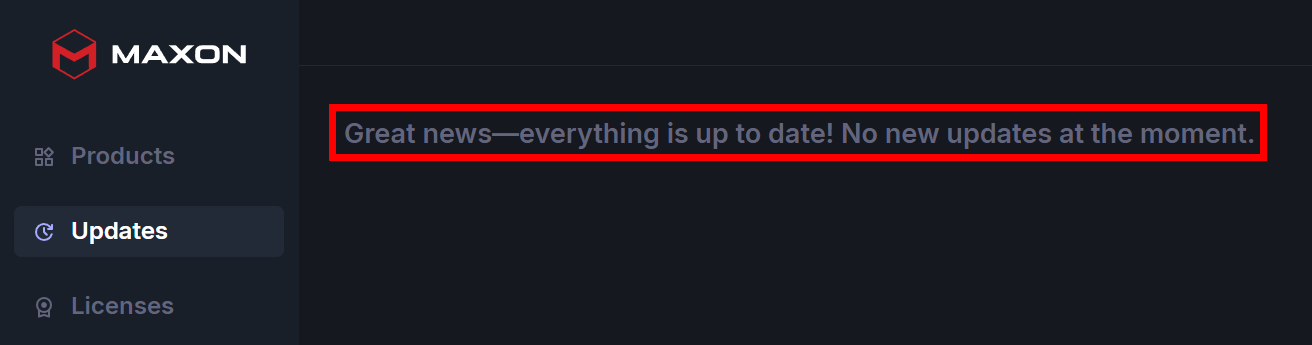
RLM mode is typically for enterprise customers prone to having offline users. Under RLM, the Updates tab and any available updates remain visible, but users will not see the Update or Update All buttons.
Licenses
The licensing management functionality contained within the Licenses tab is more detailed than Maxon App's other tabs. Thus, we dedicate an entire separate page to the tab here.
Perpetual Licenses
Legacy users may still have a range of perpetual licenses that need to be tracked alongside current subscription licenses. Maxon App displays perpetual licenses in their own dedicated section. Note that perpetual licenses have the same Release and Transfer actions detailed in the Licenses Tab page.
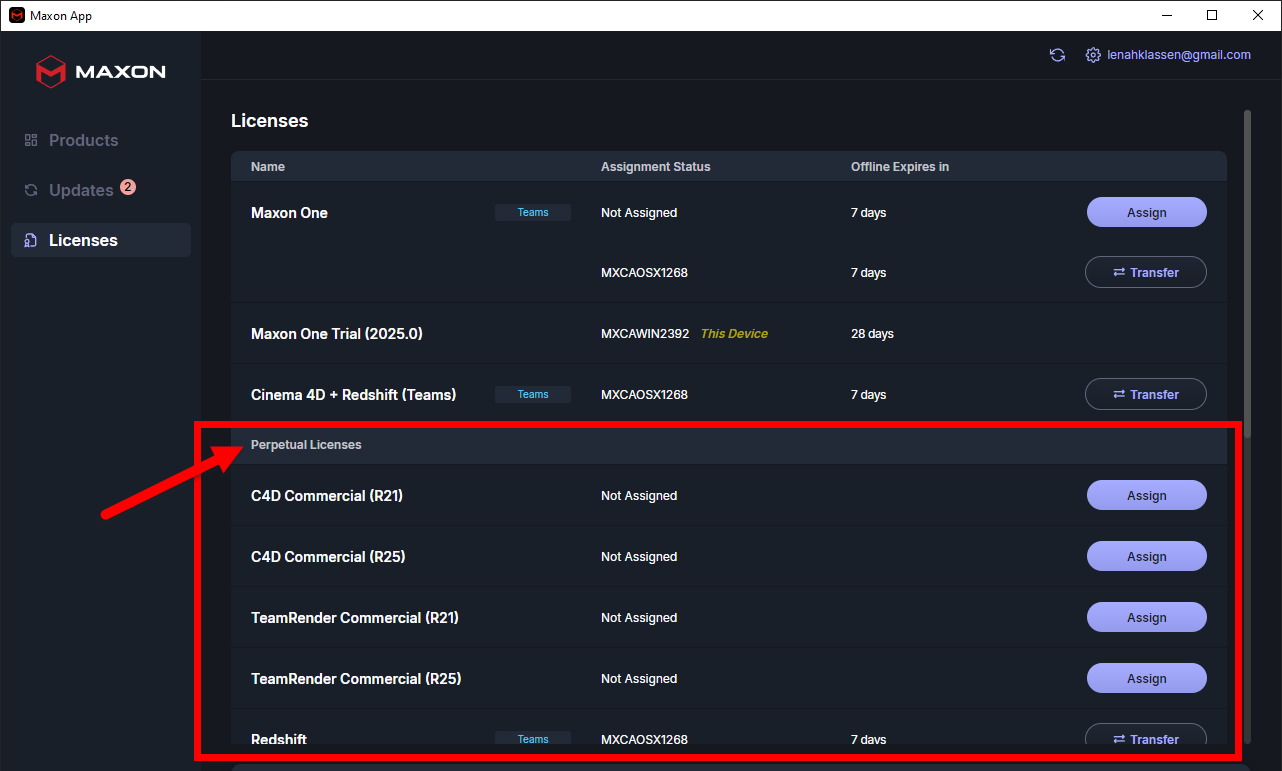
Some users may want to track perpetual licenses and installations for backward compatibility, as for projects based on older render engines. And some users may want to assign their perpetual and subscription licenses to different systems. Maxon App supports this flexibility to help users maximize their product experience.