
Configuring the Trial Mode in Maxon App
For those who want to try before they buy, Maxon offers a full-function Trial Mode for all applications available through the Maxon App.
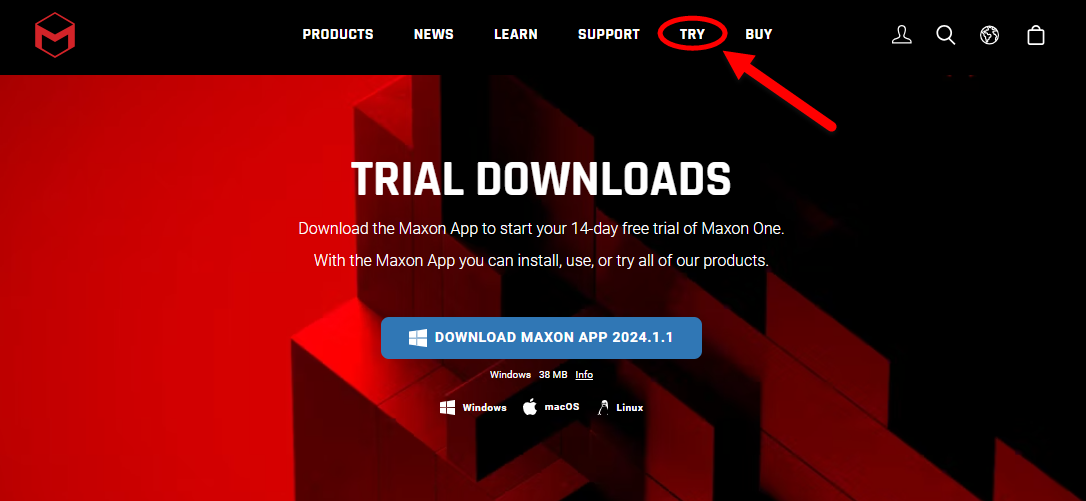
New users who initiate downloading the Maxon App will be prompted to create a Maxon account with their name, email address, and some optional information. It's no big deal, just the usual two-minute sign-up and verification process.
Once you have the Maxon App installation file downloaded, run through the installation procedure as detailed on this guide's Download & Installation page. You will be prompted to agree to a 14-day trial of the Maxon One license.
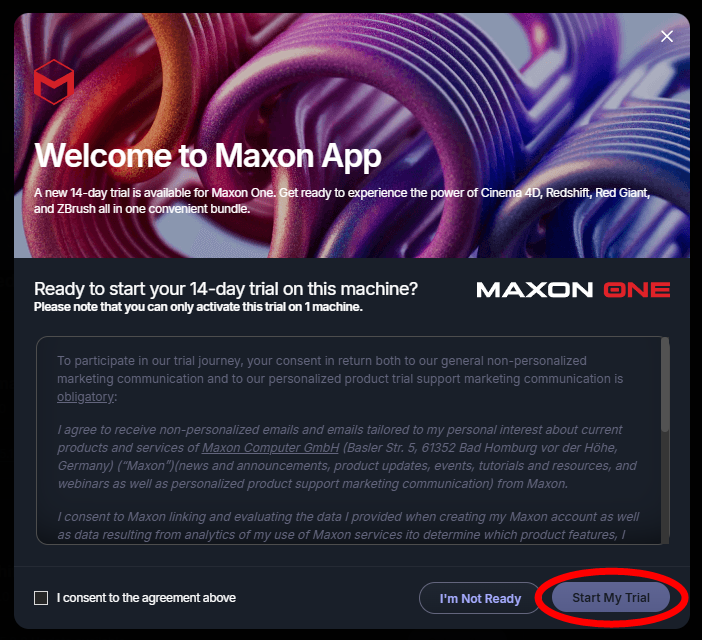
Again, there's no obligation to purchase. Alternatively, you might complete the trial period and opt for a different license. This is but a humble user guide, not a marketing pitch, so please find more info on licensing options here.
Once your sign-up process concludes with you obtaining a trial license, you'll see a "Trial Started!" message and a button prompting you to start creating. That's code for launching the Maxon One app (shown below).
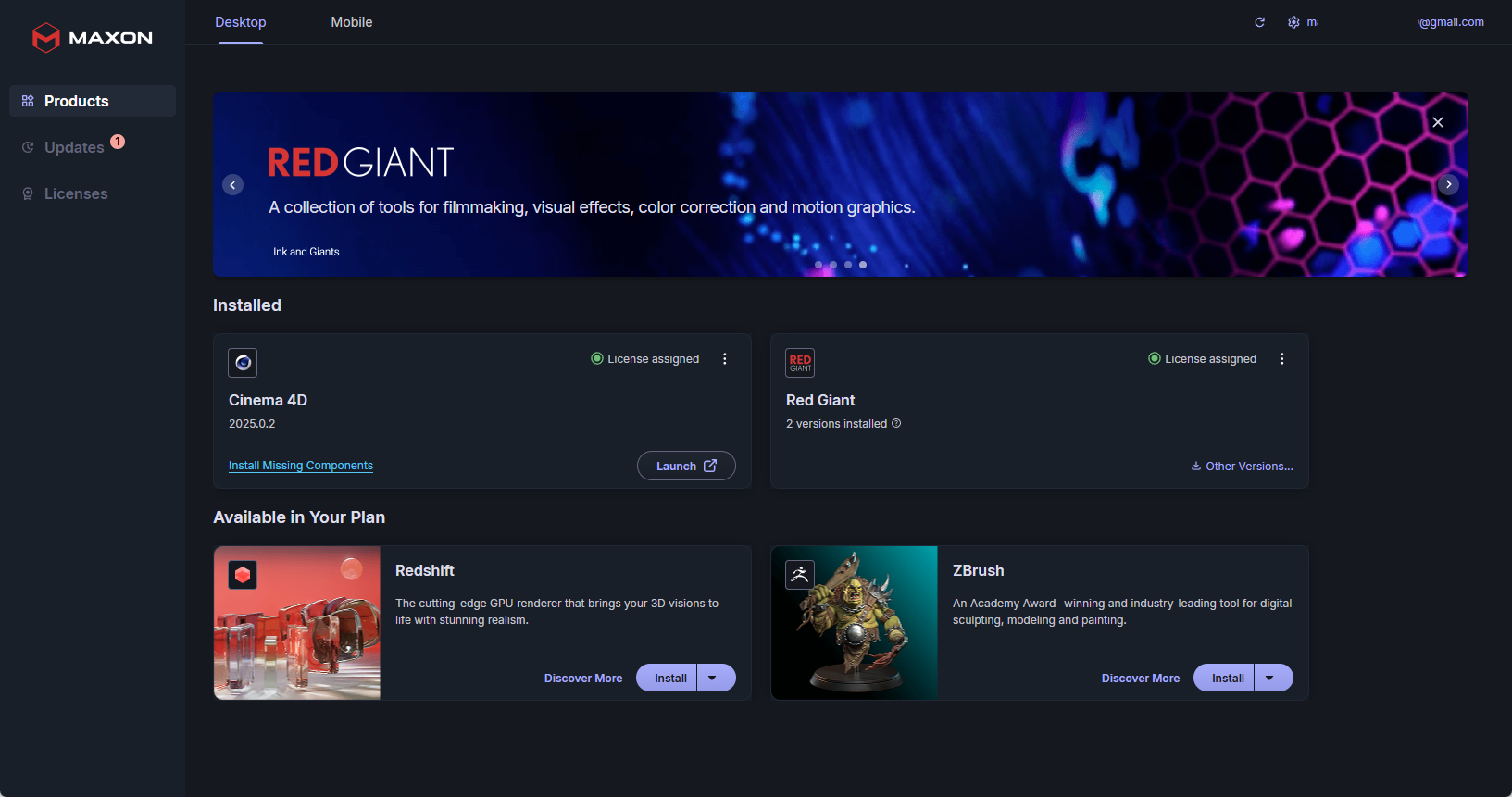
Now, let's cover a few stray trial account points. When you install Maxon App, the software conducts a Maxon One license eligibility check. If applicable, it will find other trial instances that are either active or expired. You can open the Settings (gear) menu and click the Check button to see if you qualify for a new trial. If the check fails and you have an older trial in progress, simply log into Maxon App with the credentials for that trial.
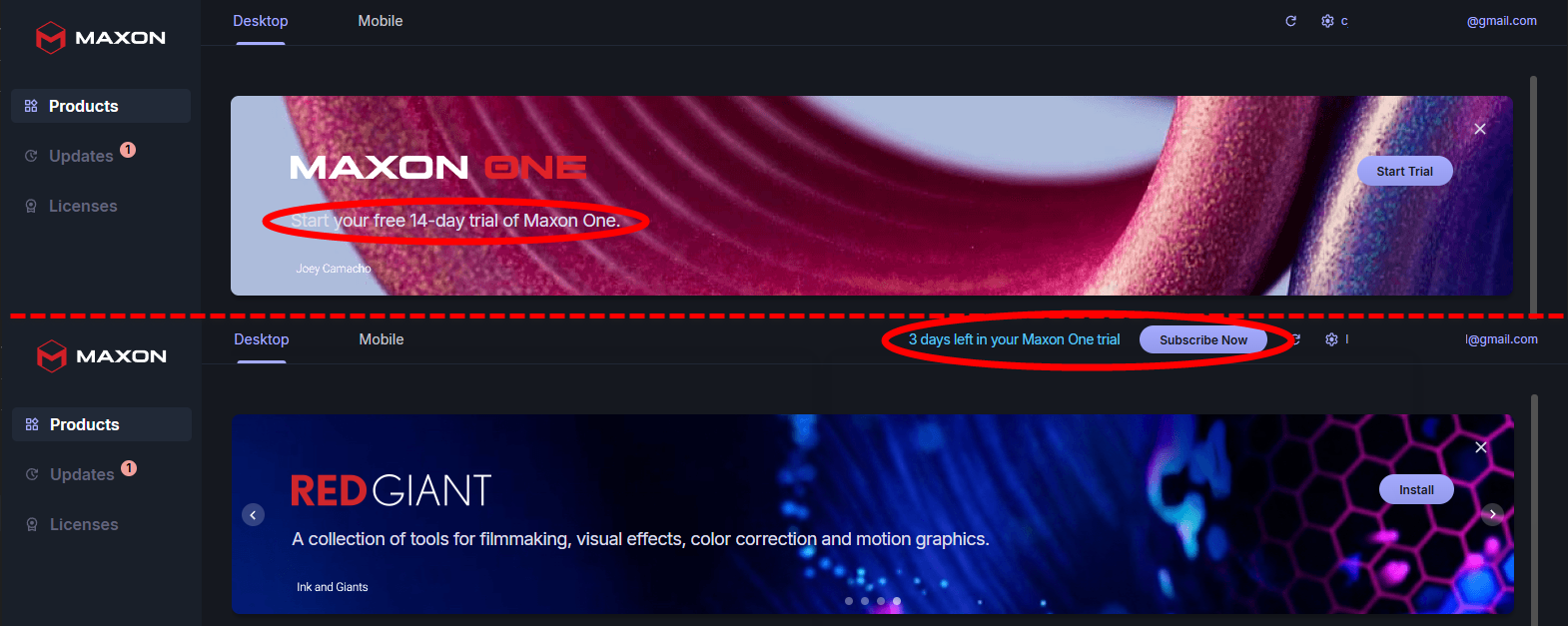
There are two ways to check on the progress of your current trial. The first and most obvious is to check Maxon App's top banner. As shown below, the banner originally encourages you to start your free trial (top) if you haven't yet done so. Once you start the trial, a message above the banner displays the number of days left in your trial period alongside a Subscribe Now button (bottom). If you reach the end of your trial period without a subscription, the banner informs you that your free trial has expired.
The second way to check your trial progress is to peek at the value in the Licenses panel's third column, under Offline Expires In. Ostensibly, this refers to how long a given license can operate without pinging the central license database due to being offline, but it also conveys the time left for Maxon One trials.
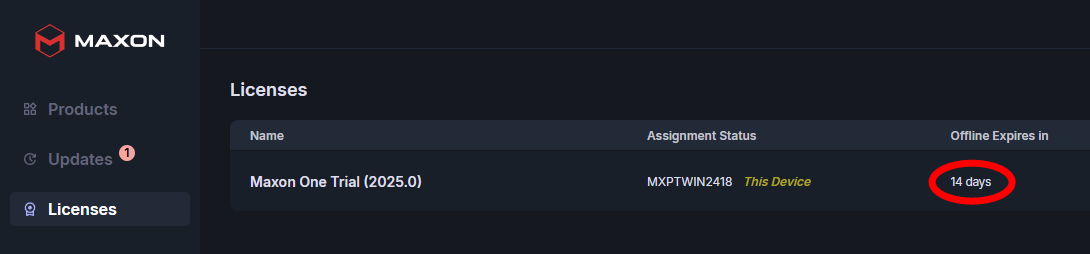
If your Maxon One experience is as positive as we expect and you don't want to run your counter down to zero, check out Maxon's Plans & Pricing page.
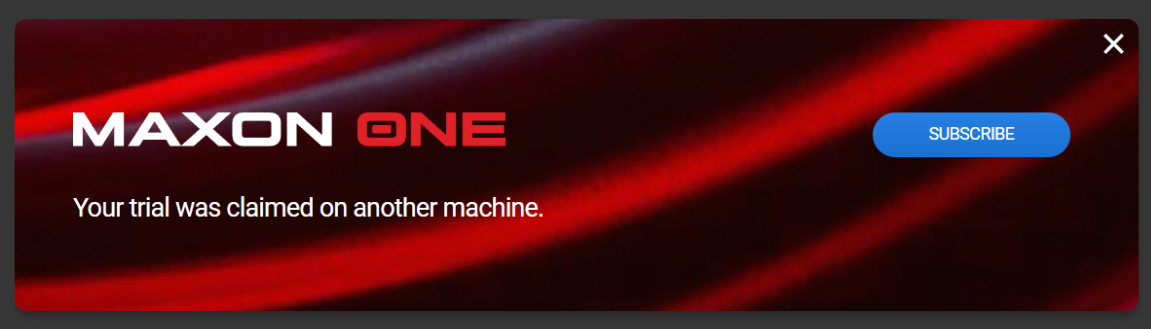
Note that Maxon trial licenses and installations are limited to one user/system. Thus, if you use a new account to attempt installations on more than one system, you may eventually run into this:
By the same token, trial licenses cannot be released once claimed (assigned). For more on assigning and releasing licenses, see this guide's Licenses Tab page.
If you have a situation such as "I installed Maxon App on System A, but then my dog chewed through the CPU and aliens abducted my hard drive, so now I need to install on System B",that's fine. It happens more often than you'd think. Simply log into your account at mymaxon.net and release the license from your old system. You're then free to open Maxon App on the new system and grab the now-available license for use there.
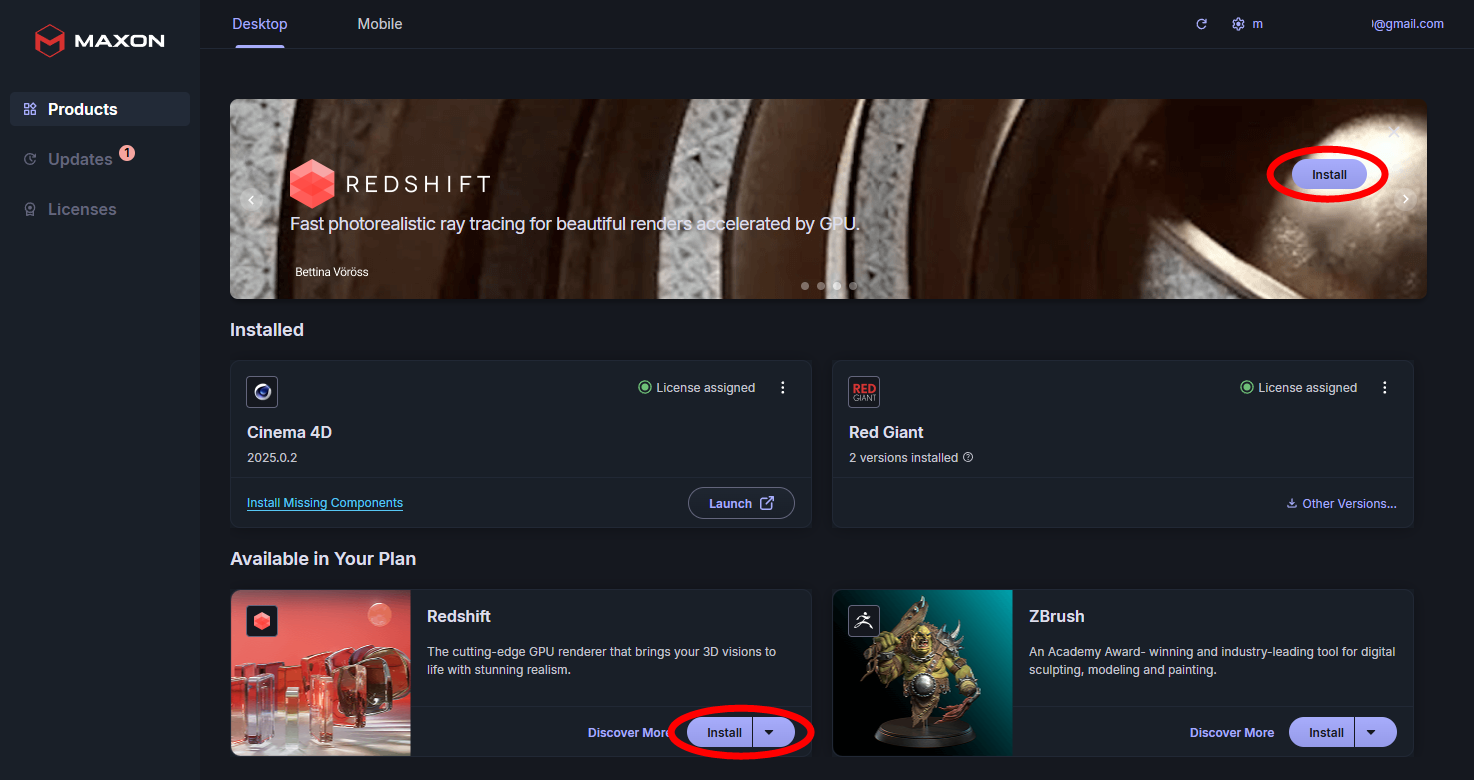
You may notice the Maxon App's top banner cycling through colorful mentions of the Cinema 4D, ZBrush, Redshift, and Red Giant tools. This repeats the Install button in the application card (when applicable) and is to help remind you to load those apps and give them some attention during your trial.
Note that users can only start a single Maxon One trial. Once that trial is active, they can't initiate any more trials regardless of trial version. Those who want to extend their trial or start a newer trial version should contact Maxon customer support.