
User Content and Folder Structure
As detailed in our LightBox page, ZBrush offers an easy, intuitive way to navigate through assets ranging from alphas to QuickSaves. The LightBox is your graphical front-end UI, but under the hood lies a folder structure you may want to use when handling custom assets (your own content) or migrating between ZBrush installations.
ZBrush Folder Restructuring
ZBrush lets you fully customize your sculpting experience in many ways, including:
- Personalizing the entire UI
- Creating custom hotkeys for faster workflows
- Designing your own brushes, alphas, and textures
- Creating your own palette
- Building your own plug-ins
- Creating custom materials and much more
ZBrush adapts to your unique creative workflow. To incorporate your own custom assets, simply place them in the designated folder associated with your user account on the system. The following documentation covers how you can customize your ZBrush experience.
Folder Structure Changes
Version 2026.0.1 and Previous: ZBrush folder structure allowed custom elements in several folders.
Since version 2026.1.0: The folder structure changed to a standard single-folder approach, similar to other creative software.
Similar to the legacy system, the Maxon ZBrush (version)/ZData/ZStartup folder in the ZBrush root install directory contains plugin assets and many other assets. With this change, ZBrush can no longer write to its install root folder from within ZBrush. All custom assets must now be placed in your user folder.
The new system streamlines the folder structure. When you go to Preferences > Asset Directory > Open Directory, ZBrush opens a file navigator starting at your system's user account folder:
- Windows:
C:\Users\[UserName]\AppData\Roaming\Maxon\ZBrush_[HashValue]\ - macOS:
/Users/[UserName]/Library/ApplicationSupport/Maxon/ZBrush_[HashValue]/
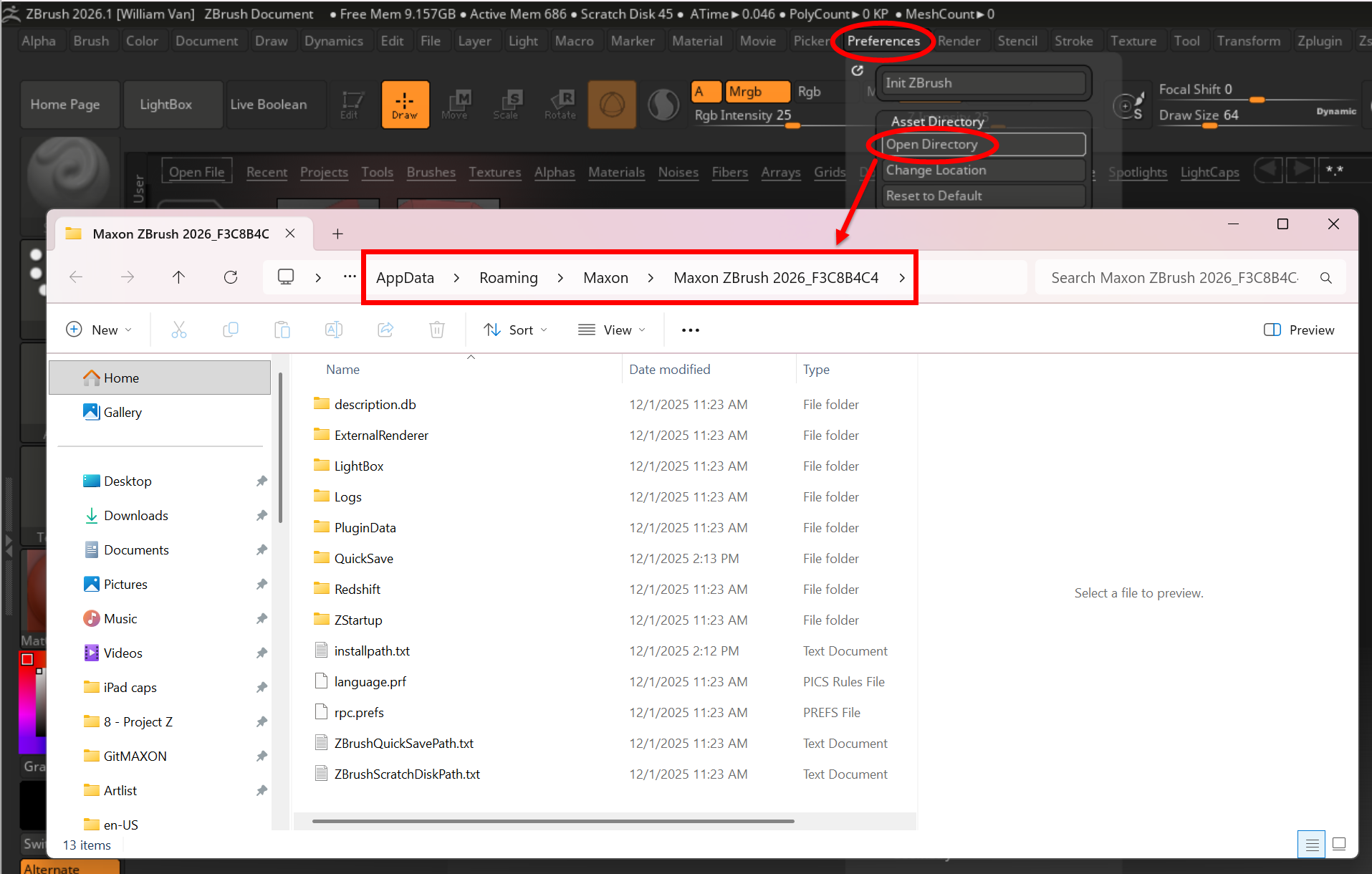
Note: Some users report that on macOS, the path may be /Users/[UserName]/Library/Preferences/Maxon/ZBrush_[HashValue]/ instead. Please verify on your system.
Within the Preferences > Asset Directory, you’ll find two more buttons: Change Location and Reset to Default. For the former, you may decide you want to change the default location of the ZBrush's required subfolder. The default folder structure will generate in this new location every time ZBrush restarts.
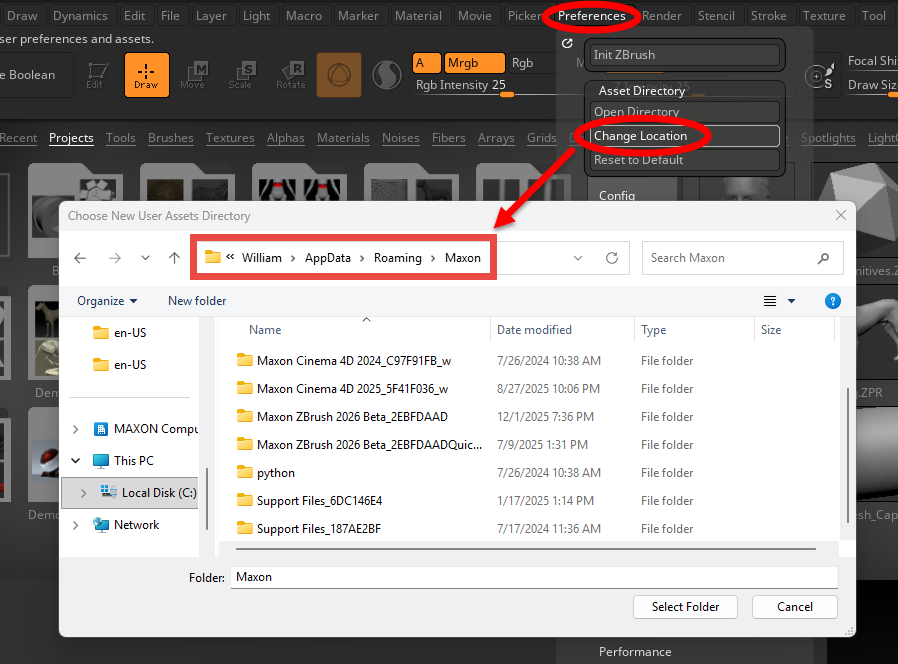
What happens if you get too buck wild on changing folder locations and just want everything restored to default settings? Easy. Click on Preferences > Asset Directory > Reset to Default. Press Yes to revert the folder location to original settings, then restart ZBrush to confirm the change.
Creating an Environment Variable
You can also change your ZBrush assets user folder with an environment variable (ZBRUSH_USER_ASSETS_DIR).
For example, when using a server at a school or studio, you may want all users' custom items to be automatically sent to their respective user profiles on the server. In this case, you might use the environment variable: (Drive):/ZBrush/
Maxon recommends Z:/ZBrush/ when changing an environment variable to a server.
Important Information for Users (ZBrush 2026.0.1 and previous)
As noted above, ZBrush 2026.1.0 introduced a new folder structure for ZBrush. For those users that have been using ZBrush from version 2026.0.1 and previous, it is important to read below to understand the new ZBrush folder structure.
Maxon Startup Asset Changes
- Assets placed in Windows: C:\Users[UserName}\AppData\Roaming\Maxon\ZBrush_[HashValue]/ZStartUp or macOS:/Users/[UserName]/Library/ApplicationSupport/Maxon/ZBrush_[HashValue]/ZStartUp subfolders will be loaded alongside Maxon assets during ZBrush startup. I.e. your own materials will show up in the materials picker, your brushes will be in the brush picker and any custom plug-in needs to be placed.
- Some default Savepaths have been adjusted to default the "Save As" file picker dialog to the new [user assets]/LightBox/[AssetType] folders if you have the preference option to default to ZBrush paths set. Not all eligible asset types have made that transition yet.
- ZBrush 2026.1.0 and newer will no longer allow writing files to the ZBrush Application/Program Files root folder from within ZBrush. All custom items will now need to be placed in the one user folder located:
- Windows: C:\Users[UserName}\AppData\Roaming\Maxon/ZBrush_[HashValue]/
- macOS:/Users/[UserName]/Library/ApplicationSupport/Maxon/ZBrush_[HashValue]/
- The ZBrushData (version number) usually found in the following locations, will no longer be created and necessary.
- Windows: HardDrive\Users\Public\Public Documents
- macOS: HardDrive\Users\Shared
Everything from these folders has been moved to new locations, with the majority being moved to the new user directory location.
| Custom User Assets | Default Location for ZBrush 2026.0.1 and previous | Default Location for ZBrush 2026.1.0 and newer |
|---|---|---|
| Custom Plug-Ins | macOS: Applications/ZBrush (Version)/ZStartUp/Zplugs64 Windows: Program Files/ZBrush (Version)/ZStartUp/Zplugs64 |
Users\[UserName]\AppData\Roaming\Maxon\ZBrush_[HashValue]/ZStartUp/ZPlugs64 |
| Custom Brushes | macOS: Applications/ZBrush (Version)/ZStartUp/BrushPresets Windows: Program Files/ZBrush (Version)/ZStartUp/Brush Presets |
Users\[UserName]\AppData\Roaming\Maxon\ZBrush_[HashValue]/ZStartUp/BrushPresets |
| Custom Textures | macOS: Applications/ZBrush (Version)/ZStartUp/Textures Windows: Program Files/ZBrush (Version)/ZStartUp/Textures |
Users\[UserName]\AppData\Roaming\Maxon\ZBrush_[HashValue]/ZStartUp/Textures |
| Custom Alphas | macOS: Applications/ZBrush (Version)/ZStartUp/Alphas Windows: Program Files/ZBrush (Version)/ZStartUp/Alphas |
Users\[UserName]\AppData\Roaming\Maxon\ZBrush_[HashValue]/ZStartUp/Alphas |
| Custom Config UI | macOS: Users/Shared/ZBrushData(Version)/ Windows: Users/Public/Public Documents/ |
Users\[UserName]\AppData\Roaming\Maxon\ZBrush_[HashValue]/ZStartUp/ |
| Custom Hotkeys | macOS: Applications/ZBrush (Version)/ZStartUp/Hotkeys Windows: Program Files/ZBrush (Version)/ZStartUp/Hotkeys |
Users\[UserName]\AppData\Roaming\Maxon\ZBrush_[HashValue]/ZStartUp/Hotkeys |
| Custom Gizmo3D | macOS: Applications/ZBrush (Version)/ZStartUp/Gizmo3D Windows: Program Files/ZBrush (Version)/ZStartUp/Gizmo3D |
Users\[UserName]\AppData\Roaming\Maxon\ZBrush_[HashValue]/ZStartUp/Gizmo3D |
| Custom Macros | macOS: Applications/ZBrush (Version)/ZStartUp/Macros BR Windows: Program Files/ZBrush (Version)/ZStartUp/Macros | Users\[UserName]\AppData\Roaming\Maxon\ZBrush_[HashValue]/ZStartUp/Macros |
| Custom CamViews | macOS: Applications/ZBrush (Version)/ZStartUp/CamViews Windows: Program Files/ZBrush (Version)/ZStartUp/CamViews |
Users\[UserName]\AppData\Roaming\Maxon\ZBrush_[HashValue]/ZStartUp/CamView |
| Custom Materials | macOS: Applications/ZBrush (Version)/ZStartUp/Materials Windows: Program Files/ZBrush (Version)/ZStartUp/Materials |
Users\[UserName]\AppData\Roaming\Maxon\ZBrush_[HashValue]/ZStartUp/Materials |
| Custom UserInterfaceColors | macOS: Applications/ZBrush (Version)/ZStartUp/UserInterfaceColors Windows: Program Files/ZBrush (Version)/ZStartUp/UserInterfaceColors |
Users\[UserName]\AppData\Roaming\Maxon\ZBrush_[HashValue]/ZStartUp/UserInterfaceColors |
| Custom UserInterfaceLayouts | macOS: Applications/ZBrush (Version)/ZStartUp/UserInterfaceLayouts Windows: Program Files/ZBrush (Version)/ZStartUp/UserInterfaceLayouts |
Users\[UserName]\AppData\Roaming\Maxon\ZBrush_[HashValue]/ZStartUp/UserInterfaceLayouts |
| Custom ZModeler Presets | macOS: Users/Shared/ZBrushData(Version)/ZStartUp/ZModelerPresets Windows: Users/Public/Public Documents/ZModelerPresets |
Users\[UserName]\AppData\Roaming\Maxon\ZBrush_[HashValue]/ZStartUp/ZModelerPresets |
| Quicksaves | macOS: Users/Shared/ZBrushData(Version)/QuickSaves Windows: Users/Public/Public Documents/QuickSaves |
Users\[UserName]\AppData\Roaming\Maxon\ZBrush_[HashValue]/Quicksaves |
| ZBrushQuickSavePath.txt | macOS: Users/Shared/ZBrushData(Version)/ Windows: Users/Public/Public Documents/ |
Users\[UserName]\AppData\Roaming\Maxon\ZBrush_[HashValue]/ZBrushQuickSavePath.txt |
| ZBrushScratchDiskPath.txt | macOS: Users/Shared/ZBrushData(Version)/ Windows: Users/Public/Public Documents/ |
Users\[UserName]\AppData\Roaming\Maxon\ZBrush_[HashValue]/ZBrushScratchDiskPath.txt |
Maxon moved the contents of ZBrush's legacy root install folder (/ZStartup) to equivalent a new root install folder structure (/ZData).
-
User-provided content in the ZStartup folder moved to [user assets]/ZStartup
-
LightBox contents provided by Maxon in folders in the installation directory (ZMaterials, ZBrushes, ZAlphas and etc...) moved to a new parent folder called "LightBox" in the installation directory, which now contains all Maxon-shipped assets for LightBox.
-
Original LightBox folders have been renamed to have a more cohesive naming scheme.
-
Maxon added the same LightBox/[Asset Type] folders to the [user assets] folder.
Maxon moved the following folders from the public data folder (C:\Users\Public\Documents\ZBrushData[Version]) to the [user assets] folder:
-
Activity -> Logs\Activity
-
ExternalRenderer ->ExternalRenderer
-
QuickSave -> QuickSave
-
ZPluginData -> ZPluginData
-
ZBrushQuickSavePath.txt -> ZBrushQuickSavePath.txt
-
ZBrushScratchDiskPath.txt -> ZBrushScratchDiskPath.txt
-
ZStartup\ConfigFiles* -> ZStartup\ConfigFiles*
-
ZStartup\CustomLang* -> ZStartup\CustomLang*
-
ZStartup\HotKeys* -> ZStartup\HotKeys*
-
ZStartup\CustomUserInterface[Version].cfg -> ZStartup\CustomUserInterface[Version].cfg
Temporary data that ZBrush writes to disk is now located under:C:\Users[UserName]\AppData\Local\Temp\ZBrushData[Version]
Maxon moved these files from the public data folder to the temp folder:
-
VMem* -> VMem*
-
Temp/* -> /*
-
Removed the RecoveredFiles folder from public data folder
In macOS: Go in finder to: /private/var/ and search for "ZBrushData2026"
For Those That Create ZBrush Plugins
There could be some updates needed for your custom plugins. The following is important for those that have created plugins for previous versions of ZBrush.
-
The "Installed Plugin Data" path. This is the directory named [plugin name]Data/ in the same directory as the [plugin name].zsc folder. It shall contain any auxiliary data that a plugin ships with.
To illustrate, for a plugin called PaintStop located at [install dir]/ZData/ZPlugs64/, the plugin path would be [install dir]/ZData/ZPlugs64/PaintStop.zsc and the corresponding data path would be [install dir]/ZData/ZPlugs64/PaintStopData/. This folder can be referred to in ZScript plugin code by simply referring to the relative path of the data folder: [plugin name]Data/ and using FileNameResolvePath to resolve it to the actual path. This will work for both the [install dir]/ZData/ZPlugs64/and [user assets]/ZStartup/ZPlugs64 plugin installation locations but not anywhere else.
This directory is supposed to contain all assets that were shipped with the plugin and should be read-only for the plugin. -
The "Plugin Output Path." This path is located here: [user assets]/PluginData/[plugin name]/. This path is used by all plugins for any file output accessible to the user. It can be reached in ZScript code by using a new path prefix token and appending the plugin name: ZPLUGINDATA_[plugin name]/, e.g. ZPLUGINDATA_PaintStop/.
By having a separate folder for files that ship with the plugin and for files that are written by the plugins, we assure that the user always knows what the original contents of the plugin were and they can always simply delete the output directory and thereby restore the original state of the plugin. It also prevents any plugins from encountering errors when they are installed into the installation directory of ZBrush, since the entire installation directory shall be read-only. -
The "Temporary Plugin Data" directory. If any plugin needs to write temporary data that needs not be accessible by the user for normal workflows, the plugin should write its data to the [temp data]/PluginData/[plugin name]/ folder. This folder can be reached by ZScript code using the path prefix token ZTEMP_, e.g. ZTEMP_/PluginData/PaintStop/.
The absolute path of this directory is determined by where the current OS puts temporary files and can be a randomly generated path that is not supposed to be interacted with by the user.
Using this folder prevents the user from being confronted with lots of files in their user plugin data folder that they don't know what to do with or how important they are.