
LightBox
The LightBox is a browser that displays the folders and folder contents of ZBrush assets located on your local system.
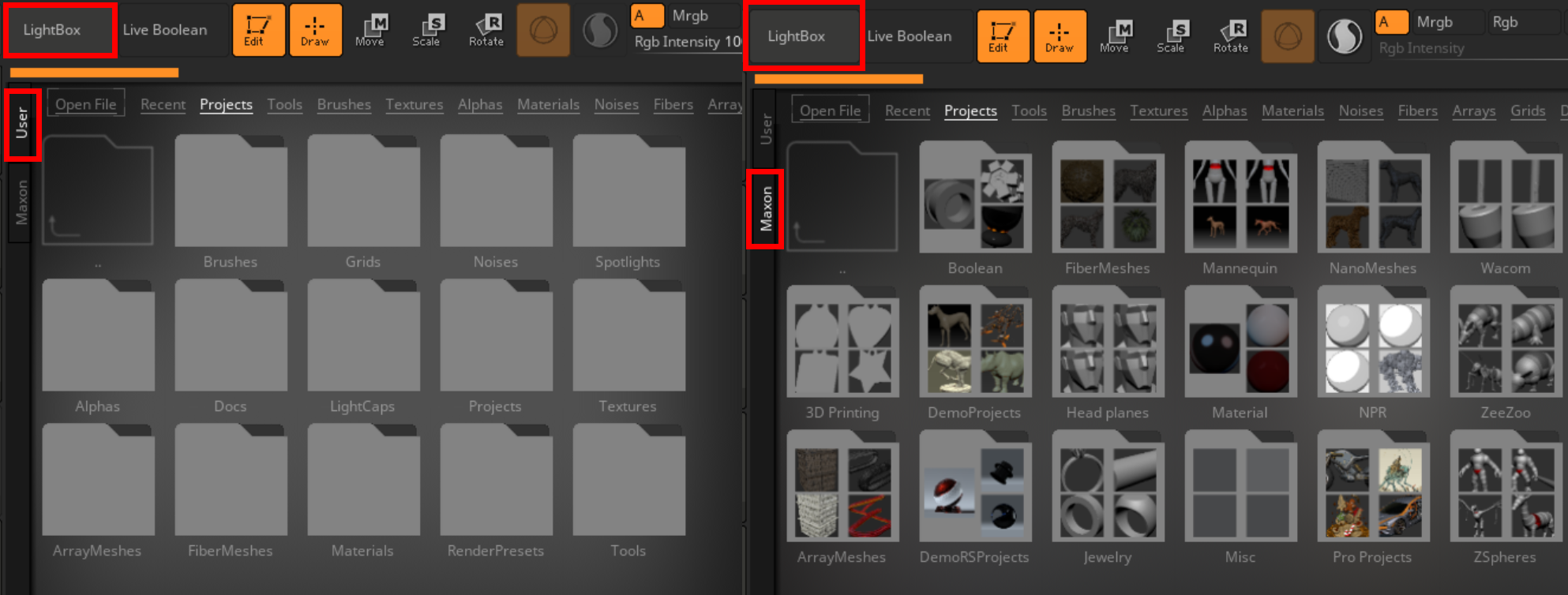
At the highest level, some ZBrush folders are for assets that ship with the software (found under the Maxon tab, see image below), and some are for your own stuff (User tab). You're free to tweak the latter to your own taste. For example, ZBrush ships with an assortment of alphas that appear under the LightBox's Maxon tab, but you'll also find an Alphas subfolder within the LightBox folder. If you create your own alpha, you would save it to this Alphas subfolder. The next time you open Lightbox, the asset will appear under the LightBox's User tab, which you can then sort via the Alphas category link (along the LightBox's top edge) if needed.
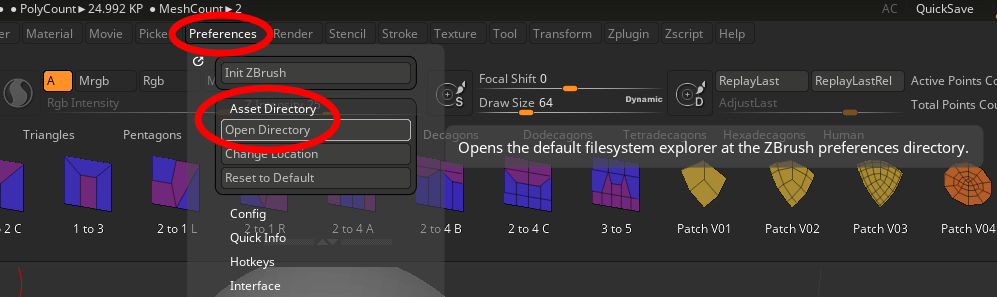
The LightBox displays the contents of asset folders located within ZBrush and is accessible via Preferences > Asset Directory > Open Directory.
The LightBox contains all of the relevant ZBrush assets that Maxon ships with the software and, combined with the tab structure that runs along the LightBox's top edge, provides an easy interface for users of all skill levels to quickly start on new projects. The tabs represent asset categories, such as Projects, Tools, Brushes, Materials, Alphas, Textures, LightCaps, and QuickSave, as shown below.

Note:
With legacy ZBrush versions (before 2026.1), users commonly stored their custom files (brushes, UI layouts, etc.) at various locations within the root ZBrush folder. This is no longer necessary and is, in fact, replaced by the current approach described on our User Content page.
Using the LightBox
You can save your custom content at any time using the standard ZBrush Save or Export options for each item (such as Brush > Save As or Texture > Export). Place your saved files into the appropriate subfolders within the ZBrush user LightBox folder. (Again, see Preferences > Asset Directory > Open Directory.) Once your files are in the correct locations, you can easily browse and access them through LightBox.
To open an element from the LightBox, simply double-click on it. If it’s a ZProject or ZTool, it automatically loads into ZBrush. If it’s a material, it loads and is pre-selected, brushes will load and pre-selectd. Note that this will not permanently load the assets into ZBrush. If ZBrush is closed and relaunched, the assets loaded from Lightbox in the previous session will not be automatically loaded.
Double-clicking on textures or alphas loads them into Spotlight. RGB images will automatically load into the Texture palette, and grey scale images will be loaded into the Alpha palette.
The shortcut to show or hide the LightBox is the "," (comma) key.
LightBox Navigation
The LightBox offers several ways to navigate and display its content:
- At the top, click any category name to display and browse its content. Many of these categories correspond to subfolders within ZBrush's LightBox folder.
- To the right of the categories, click the left or right arrow to browse forward or back, respectively, through the previously selected categories.
- Double-click on the top-left folder with the up arrow to go up in the folder hierarchy.
- Double-click on other folder icons to enter in those subfolders.
- Click and drag in the content, including on a preview icon, to laterally scrub through LightBox content.
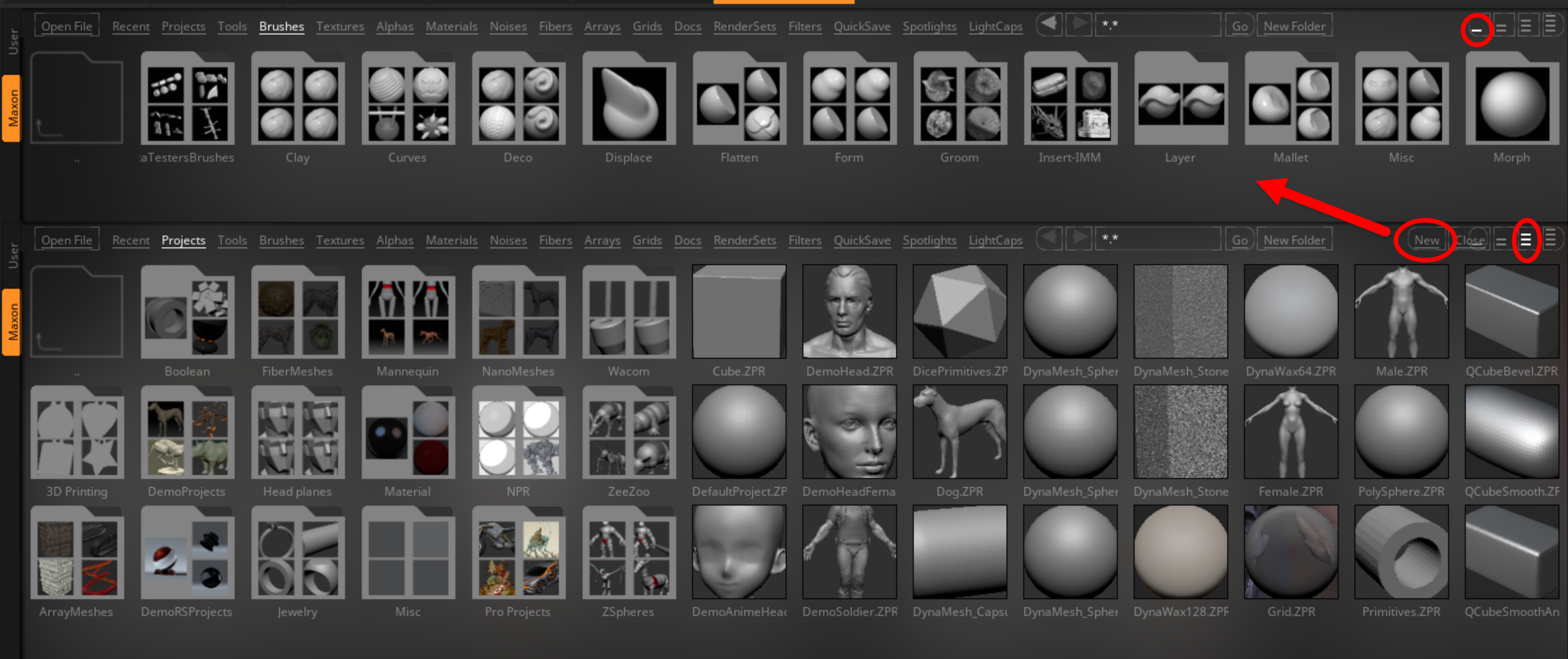
- In the LightBox's top-right corner, choose to display one, two, three, or four lines of icons (see below).
- Use the New button to spawn another preview area within the LightBox (as shown below). Click the Close button to close the most recently spawned preview area.
LightBox Preferences
LightBox settings are located in the Preferences > LightBox sub-palette.

-
Deselect the Open At Launch option to make the LightBox close when launching ZBrush. To make this condition permanent for every launch, store the UI config file in the Preferences > Config sub-palette.
-
MultiProcessing slider: More threads allocated means faster thumbnail displaying.
-
LightBox Placement: With this button pressed, LightBox launches at the bottom of the interface. When unpressed, LightBox launches at the interface's top.
-
Startup Rows Count slider: Sets the number of rows LightBox has upon launch.
-
Glow Brightness slider: Controls the brightness behind each LightBox thumbnail.
-
Glow Opacity slider: Controls the glow behind thumbnails.
-
Text Brightness slider: Controls the brightness of LighgtBox text.
-
Text Opacity slider: Controls the opacity of LightBox text.
-
Remember Recent Files button: When enabled, LightBox remembers the most recent ZProjects and ZTools loaded in ZBrush. These can be found in LightBox's Recent tab.
-
Remember Recent Folder button: When enabled, LightBox remembers the most recent folders used in ZBrush.
-
Max Recent Files slider: Sets the number of files to be remembered in the Recent tab.
-
Delete Recent Files List button: Deletes all remembered files in the Recent tab.
-
Auto Create Shortcuts button: When enabled, automatically creates a folder shortcut in LightBox to a folder that any asset was loaded from.