
Maxon Plus in Maxon App
Maxon Plus is a subscription for Maxon's cloud-based services, such as Maxon Review, Model Generator, Clay Builder, and Texture Generator. It's separate from Cinema 4D, Maxon One, and other Maxon subscriptions. The Maxon Plus tab in Maxon App is where you check your credits and storage and choose whether AI features are available to you.
You use the AI services in your web browser and inside the Maxon apps that support them, such as Model Generator in Cinema 4D and Clay Builder in ZBrush for iPad. To open the web services, click Open Maxon Plus… on the Credits page, which takes you to plus.maxon.net. For details on each service, along with credit costs and plans, see the Maxon Plus documentation.
Opening the Maxon Plus Tab
Maxon Plus sits at the bottom of the left sidebar. If you have a Maxon Plus subscription, click the arrow beside Maxon Plus to show Credits and Storage.
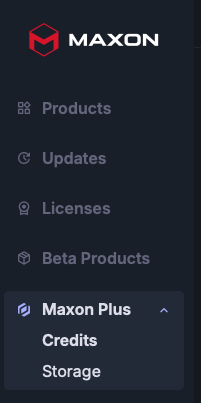
If you don't have a subscription, clicking Maxon Plus opens a page that introduces the service. The page's buttons open the Maxon Plus subscription page in your browser.
Credits
Maxon Plus services, such as Model Generator, charge credits for each job. Your Maxon account has one credit balance, and every app you sign in to draws from that balance. The Credits page is your centralized place to see how many credits you have left and where the rest went.
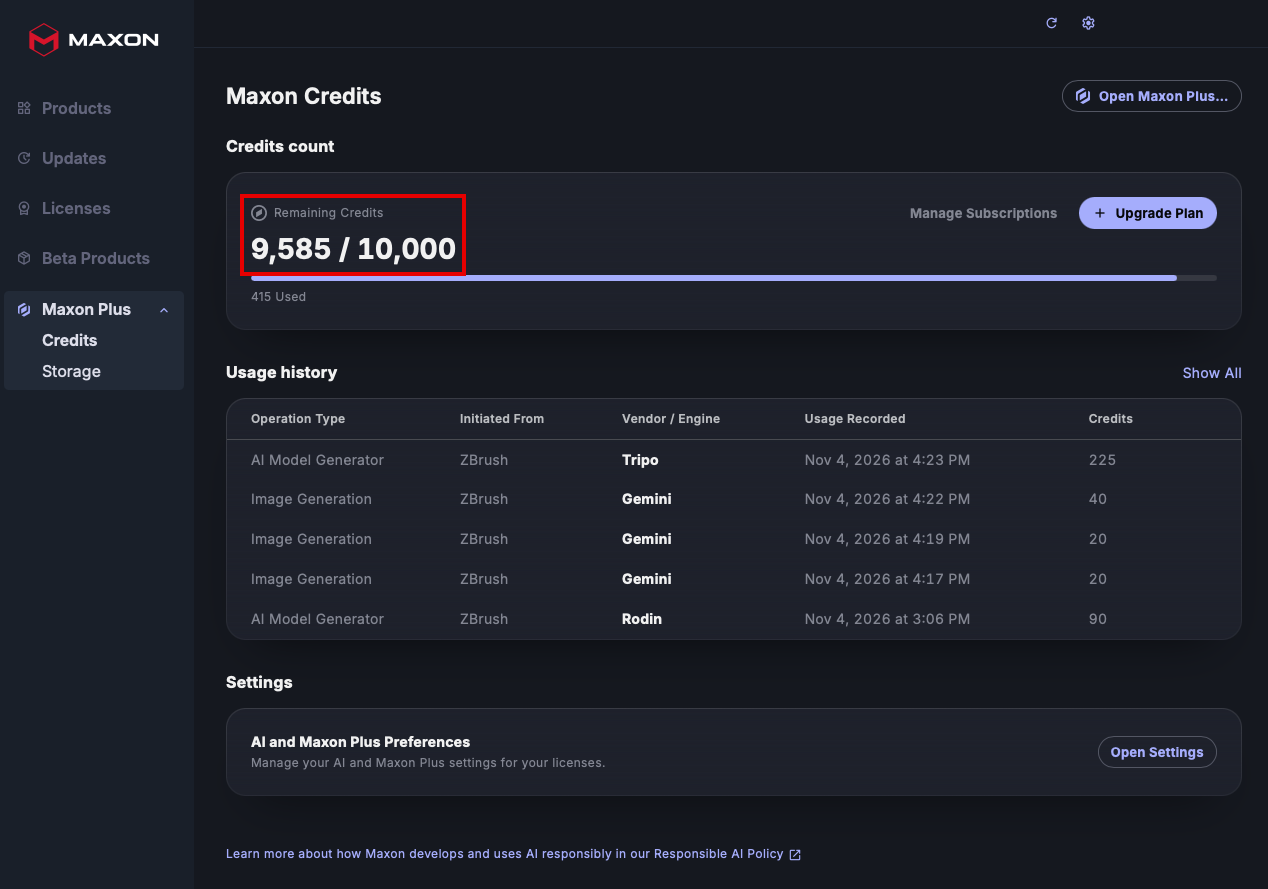
Remaining Credits shows your balance against your plan's total and how many credits you've used. Below it, Usage history lists one row per charge:
-
Operation Type indicates the job category.
-
Initiated From names the app in which the job ran.
-
Vendor / Engine names the underlying AI service that did the work.
-
Usage Recorded and Credits give the time of the charge and its cost.
One job can appear as more than one row because some services charge at different stages. In Clay Builder, for example, generating the preview image and generating the 3D model are separate charges. Click Show All to see every charge from the last 30 days.
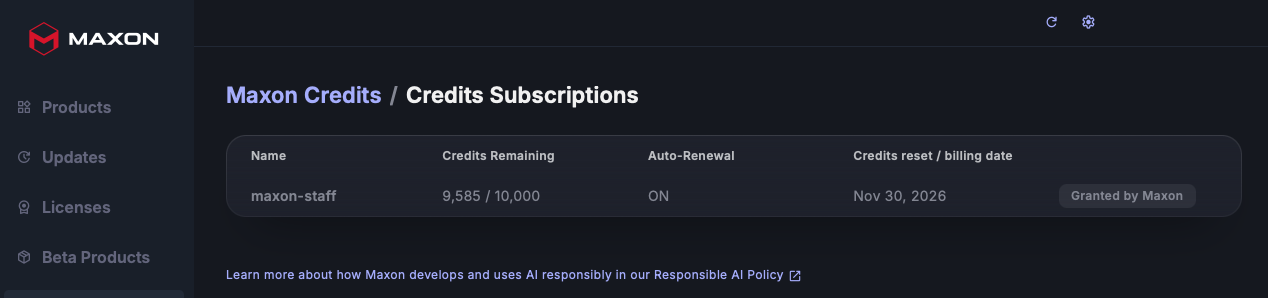
To change your plan, click Upgrade Plan, which opens the Maxon website. To see your credit subscriptions, click Manage Subscriptions. The Credits Subscriptions page lists each subscription with its remaining credits, auto-renewal status, and the date its credits reset and billing occurs. Each subscription has its own share of credits, but they all draw from one balance. Jobs use the credits that expire first.
AI and Maxon Plus Settings
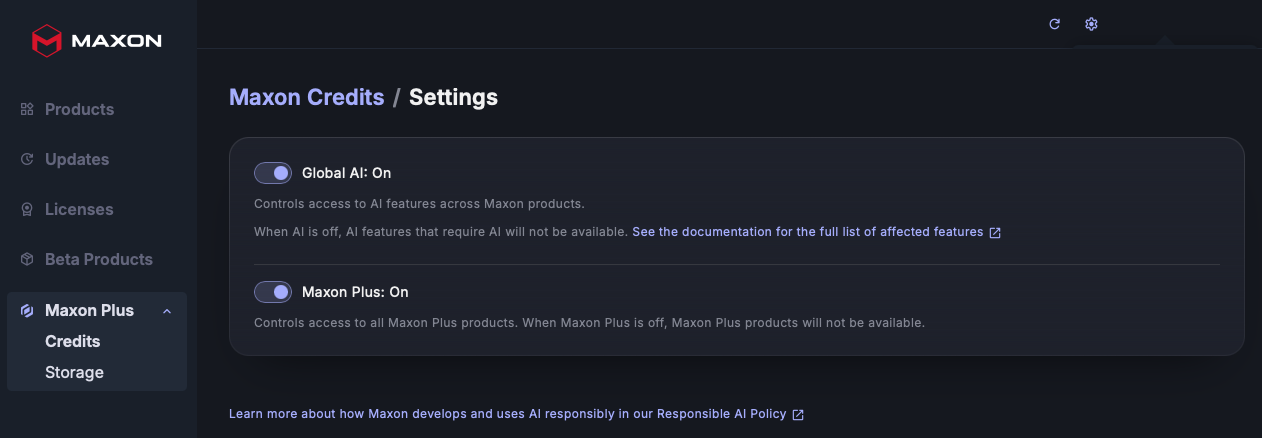
Some artists and studios don't want AI or cloud features available in their Maxon software. Two switches let you turn those features off. To reach them, click Open Settings under AI and Maxon Plus Preferences on the Credits page. Global AI also covers AI features outside Maxon Plus, such as Depth Generator in Red Giant. You don't need a Maxon Plus subscription to change these switches. The customer portal's Maxon Plus area also has them, with or without a subscription.
-
Global AI turns AI features on or off across Maxon products, including the MCP servers in Cinema 4D and Autograph. The link under the switch opens Features the Switches Turn Off, below.
-
Maxon Plus turns access to all Maxon Plus products on or off.
Both settings apply to your whole Maxon account. The customer portal has the same two switches, and a change in either place shows up in the other. You can change the settings only while you're online. Offline, Maxon App shows the last known state and updates once you reconnect.
If you're part of a team, your administrator sets both switches. You see them as read-only, with a note that your administrator set them. If you belong to more than one team, the most restrictive setting applies.
Features the Switches Turn Off
The two switches work independently. Turning off one leaves the other as it is. The table shows which features each switch turns off. Where only the AI functions of a tool turn off, the rest of the tool keeps working. Account, subscription, and storage settings stay available either way, and models and textures you already generated stay usable.
| Feature | Where | Off with Global AI | Off with Maxon Plus |
|---|---|---|---|
| Model Generator | Cinema 4D, browser | Yes | Yes |
| Clay Builder | ZBrush for iPad, browser | Yes | Yes |
| Texture Generator | Cinema 4D, browser | Yes | Yes |
| Maxon Review | All applications, browser | No | Yes |
| Imagesense | Cinema 4D, Redshift for Architects | Yes | No |
| Depth Generator | Red Giant | AI functions only | No |
| Scene Light | Red Giant | AI functions only | No |
| MCP server | Cinema 4D, Autograph | Yes | No |
| Agentic licenses | Cinema 4D, Autograph | Yes | No |
| Render upscaling and denoising (for example, MetalFX, DLSS, OIDN) | All applications | No | No |
Render upscaling and denoising stay on with either switch off.
Storage
Maxon Plus keeps your reviews in an online library, and that library has a storage limit. The Storage page shows how much of the limit you're using, so you can clear space before you run out. The Maxon Plus website has the same page.
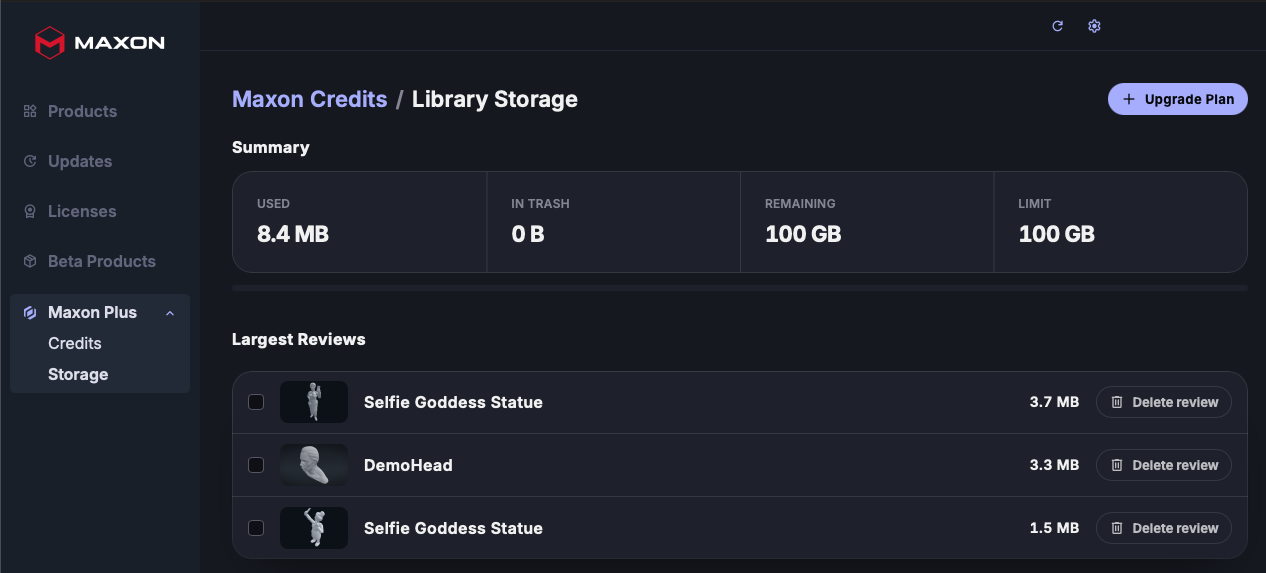
The Summary row shows four figures: Used, In Trash, Remaining, and Limit. In Trash is the space taken up by reviews you've deleted. Largest Reviews lists your reviews by size, biggest first, so the reviews worth deleting sit at the top. For more about Maxon Review, see our Maxon Review help.
To remove a review, click Delete review beside the review. Deleting a review moves it to the Trash in Maxon Plus, and any links you've shared for the review stop working. You can restore the review from the Trash for 30 days. See Trash in the Maxon Plus documentation.