
The Library Browser
The Library Browser is located on the left side and can be shown or hidden as needed using the Library button. The Library Browser provides direct access to a huge online database of materials and objects, which can be easily searched and directly integrated into your own projects. The Library area can also be used to store your own presets or, for example, your favorite elements or color corrections and lens effects to be used by your camera.
Quick Navigation
The Library Controls
After opening the Library Browser using the Library button (see colored highlight in Figure 1), the following controls and areas are displayed:
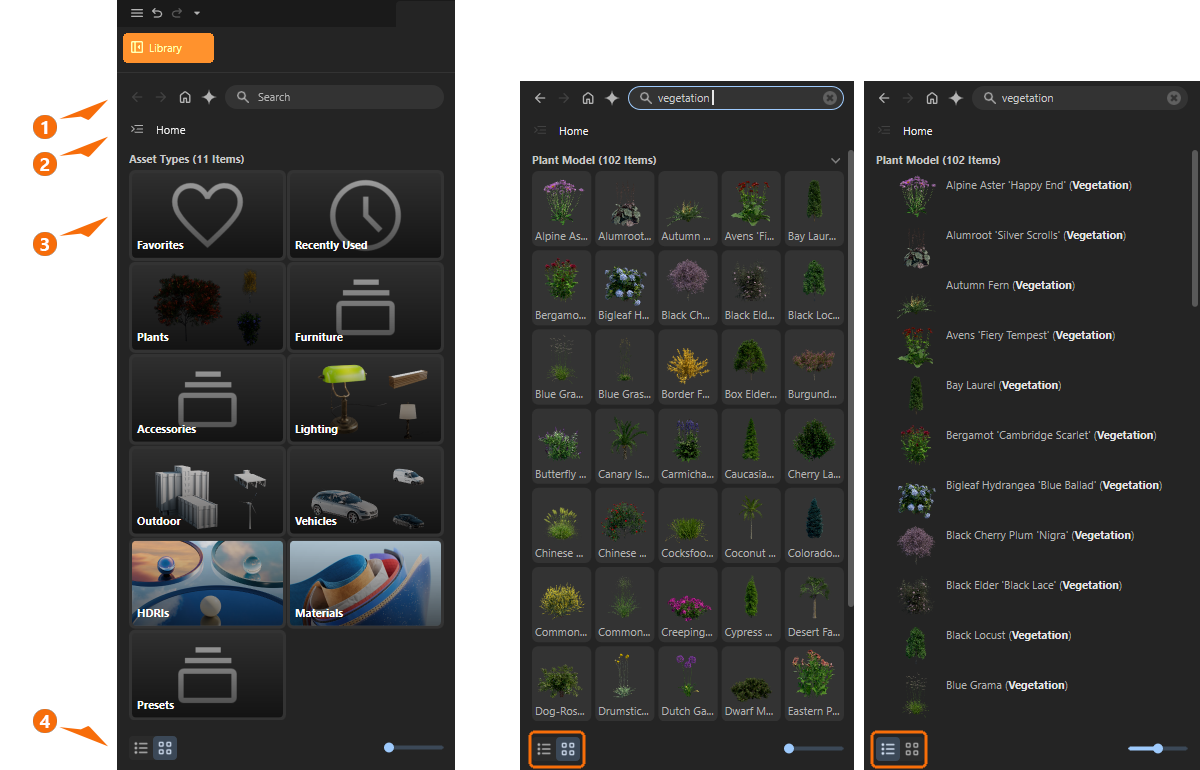
Asset Search
1This line contains various symbols and an input field for Search terms, e.g., to automatically search all assets for cars or specific plants.
The first two Arrows correspond to the typical forward and back functions found in web browsers. These can be used, for example, to display previously viewed search results again.
The House icon takes you back to the main directory of the Library Browser, where image tiles provide direct access to various categories, such as materials, HDRI files, or models.
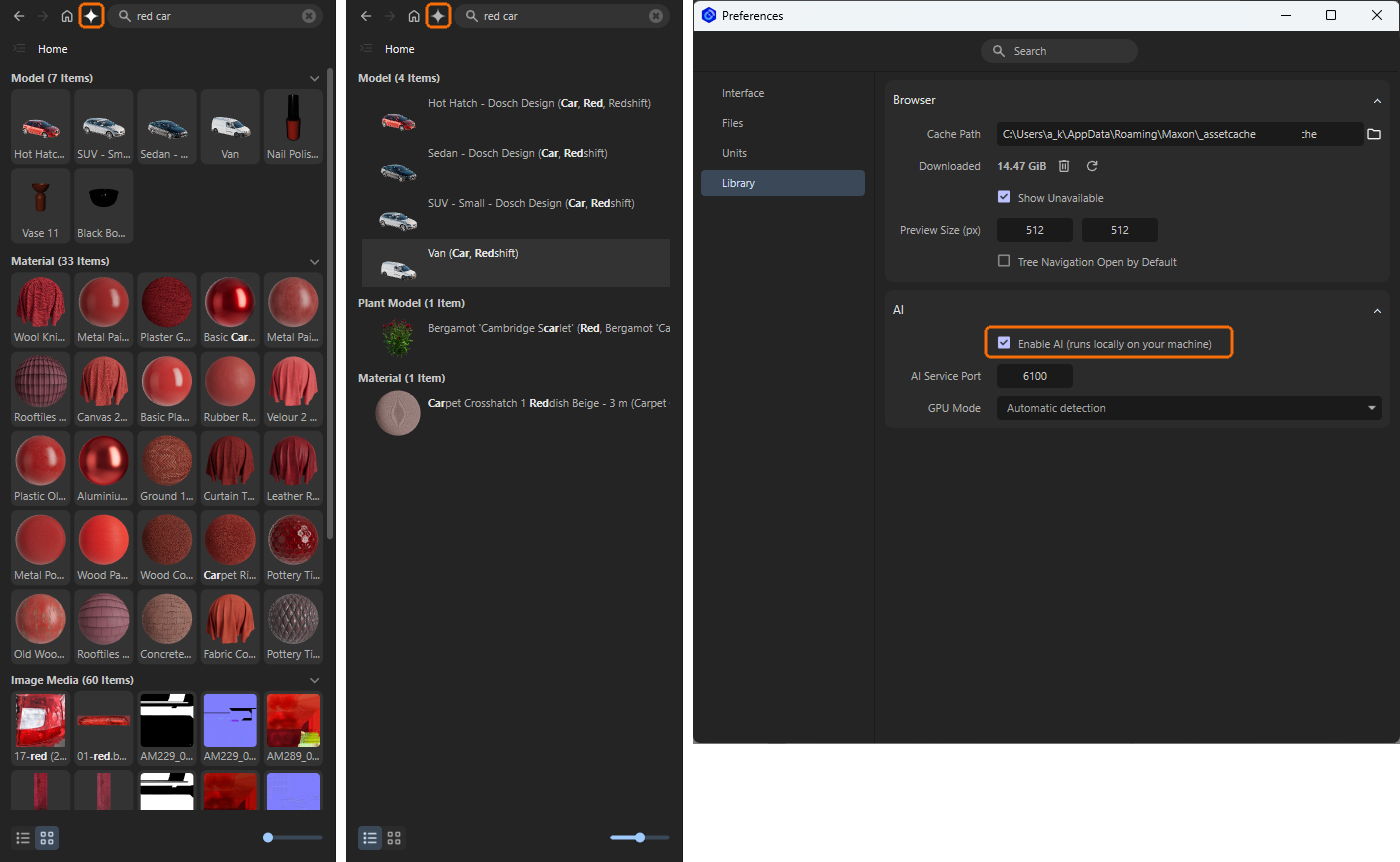
Finally, if AI Search has been activated in the Preferences (see right side of Figure 2), the Star icon activates or deactivates a special AI mode for searching, which makes it even easier to filter and find the materials or objects you need.
For example, the search term “red car” will find all models, materials, and textures related to these terms. The search results are automatically sorted by relevance. A red car is available in the library and is therefore displayed directly as the first hit, followed by other car models, which may also have other colors. In the material category, all entries that are colored red are displayed. Finally, all textures in the library that have at least some red components are also displayed (see left side of the following Figure 2).
No tagging of the elements is necessary. The AI finds the matching assets by evaluating the preview images in combination with the names and keywords from the files. Without AI, the search results are sparser (see example in the middle of Figure 2). Only items that contain the search term (or individual words from it) directly in the name or within the assigned keywords are listed.
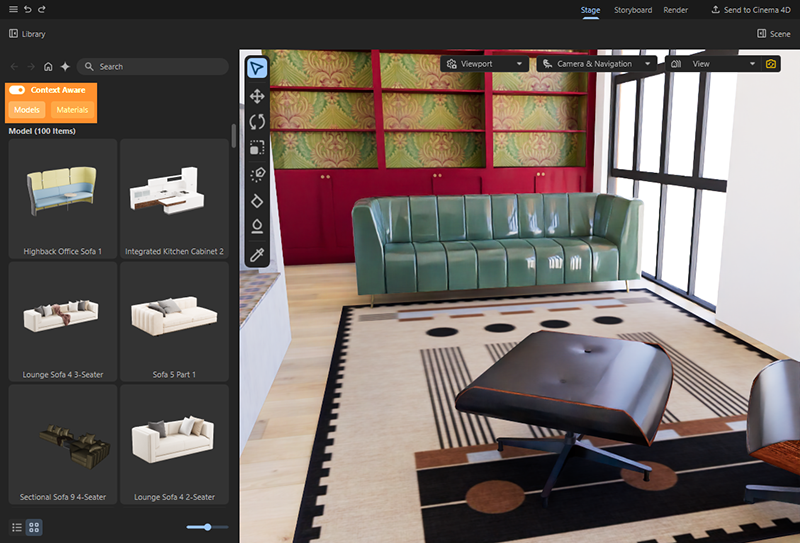
Context Aware Asset Filter
2Maxon Redshift comes with hundreds of assets for high-quality materials and objects. This option allows you to automatically filter the assets so that only those relevant to the current viewport content are displayed. Additional buttons let you switch between Models and Materials (see Figure 3). If, on the other hand, you want to select assets yourself, you should turn this option off to see all assets again, regardless of the current view of the scene.
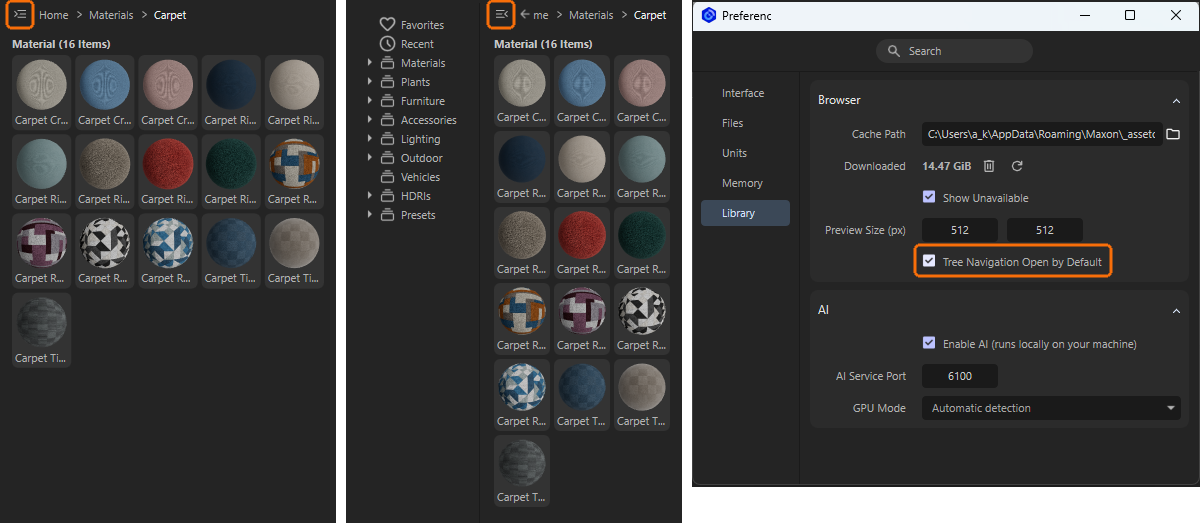
Breadcrumbs and Tree View
3This line contains an icon for switching between the category tree view and the simple category view of the assets (see Figure 4). In addition, a classic breadcrumb link is displayed next to it, which shows the current hierarchy whose assets are displayed. The individual components of the breadcrumb can be clicked to navigate to the respective parent directories.
Asset Listing
4This main section of the Library Browser displays the assets that have been selected either via the search function or by clicking directly on the desired category in the Tree View. As shown in Figure 5, there are two different display modes available, which you can switch between using the two icons in the lower left corner of the browser.
5On the one hand, the focus can be on displaying the preview images, under which the asset name may only be partially visible, or you can choose the classic list view, where the asset name is displayed to the right of each preview image.
In either case, the size of the asset displays can be controlled using the slider at the bottom right.
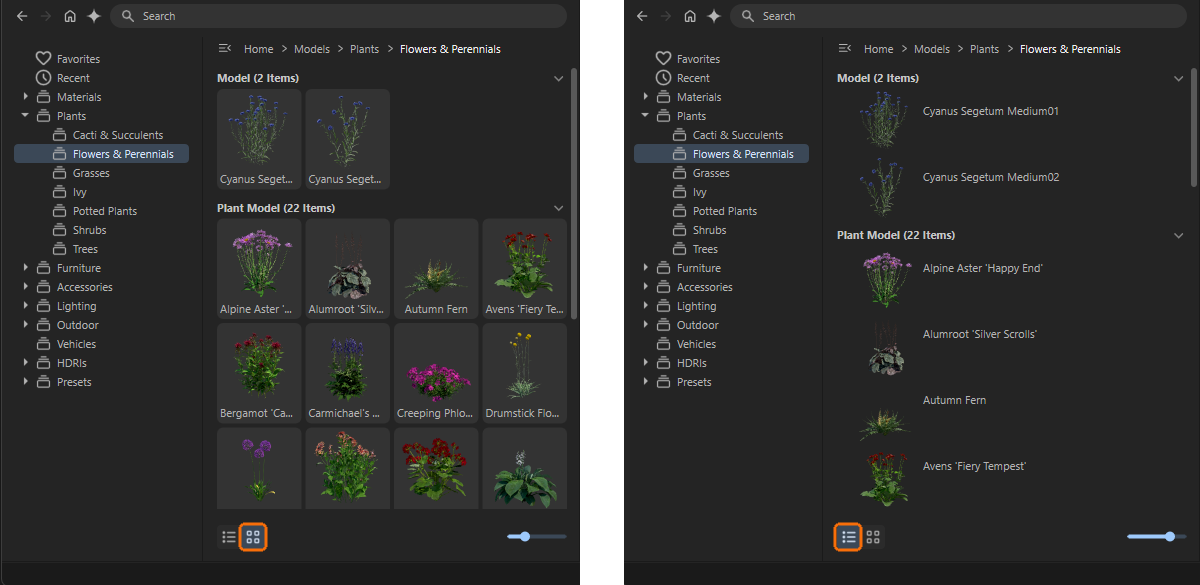
The display size of the assets can be adjusted individually using the slider at the bottom right, but it also depends on the size of the Library Browser itself. Drag the right vertical edge of the Library Browser to adjust its size individually.
Organizing Assets
When the mouse pointer is moved over one of the asset preview images, various icons appear in the corners of the preview (see also Figure 6).
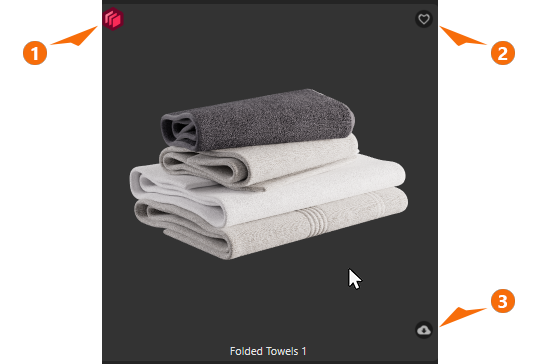
1The red Maxon Redshift icon appears whenever the asset contains native Maxon Redshift materials and is optimized for rendering with Maxon Redshift.
2The heart symbol indicates whether the asset has already been marked as a favorite. If only an outline of the heart is visible, the asset is not a favorite; if, on the other hand, the heart is filled in with a light color, the asset has been selected as a favorite. To change the favorite status, simply click on the heart. Favorites are automatically listed in the Favorites category of the library, which can be viewed in the Tree View, for example. This allows you to group frequently used assets directly in the Favorites folder.
3All Maxon assets are initially stored exclusively in an online cloud database and therefore do not take up any space on your storage medium. In this case, the small cloud with the arrow indicates that this asset must be downloaded from the cloud before it can be used. This happens automatically when an asset is used for the first time, e.g., when an asset is added to your project by double-clicking on its preview image or by selecting it with the Add Tool. Once the download is complete, the corresponding cloud icon disappears.
You can also simply left-click on the cloud icon to load the corresponding asset into the presets folder without adding it directly to the scene.
Adding Assets to the Project
Once you have found the desired asset, simply double-click on its preview image to add it to your project. If the asset is still in the cloud (see previous section), it will first be loaded automatically and then added to the scene as an instance. If you need several copies of the same asset, simply click once on the desired asset in the Library and then activate the Add Tool. Each click in the view will then create a new copy of the asset and simultaneously place and align it relative to other objects as desired.
For even larger numbers and, if necessary, even the use of several assets at once, the Scatter Tools (Scatter Brush and Surface Scatter) can also be used, each of which offers a dialog with an object list into which assets from the Library can be dragged. The Scatter Tools then generate a random mixture of the assigned assets and can distribute them in clusters by manually clicking on a surface or by filling an entire surface in the scene. Ideal for quickly filling an area with grass or gravel.