

Emission
These settings are mainly used to define when and in which volume the liquid particles are generated and how they are to be arranged in the volume.
Here you assign the object in whose volume the liquid particles are to be created. It should be a closed volume, such as a sphere or a cube. If an object is already selected when the Liquid Fill Emitter is called up, this is automatically used as the geometry. Otherwise, simply drag and drop the relevant object from the Object Manager into this field.
The volume of the assigned geometry is filled with a regular grid of liquid particles instead of using random positions for the particles. This prevents the particles from overlapping as soon as they are generated, which would lead to an unstable start of the fluid simulation. The following options are available:
- Grid: The liquid particles are arranged three-dimensionally in regular rows and columns. The distances between the particles can be specified either depending on the Default Radius setting of the Simulation Scene or the Scene Settings or also individually via the subsequent Distance value in the Emission settings of the emitter.
- Sphere Packing: In this mode too, either the Default Radius for the liquid particles from the settings of the active simulation configuration or an individual Distance configured via the Emission settings of this emitter can be used. The arrangement of the particles is identical to the familiar Honeycomb arrangement, which is also available on the MoGraph Cloner Object. Compared to the Grid Pattern, the volume to be filled is filled even more effectively here. This means that even more particles fit into the same volume.
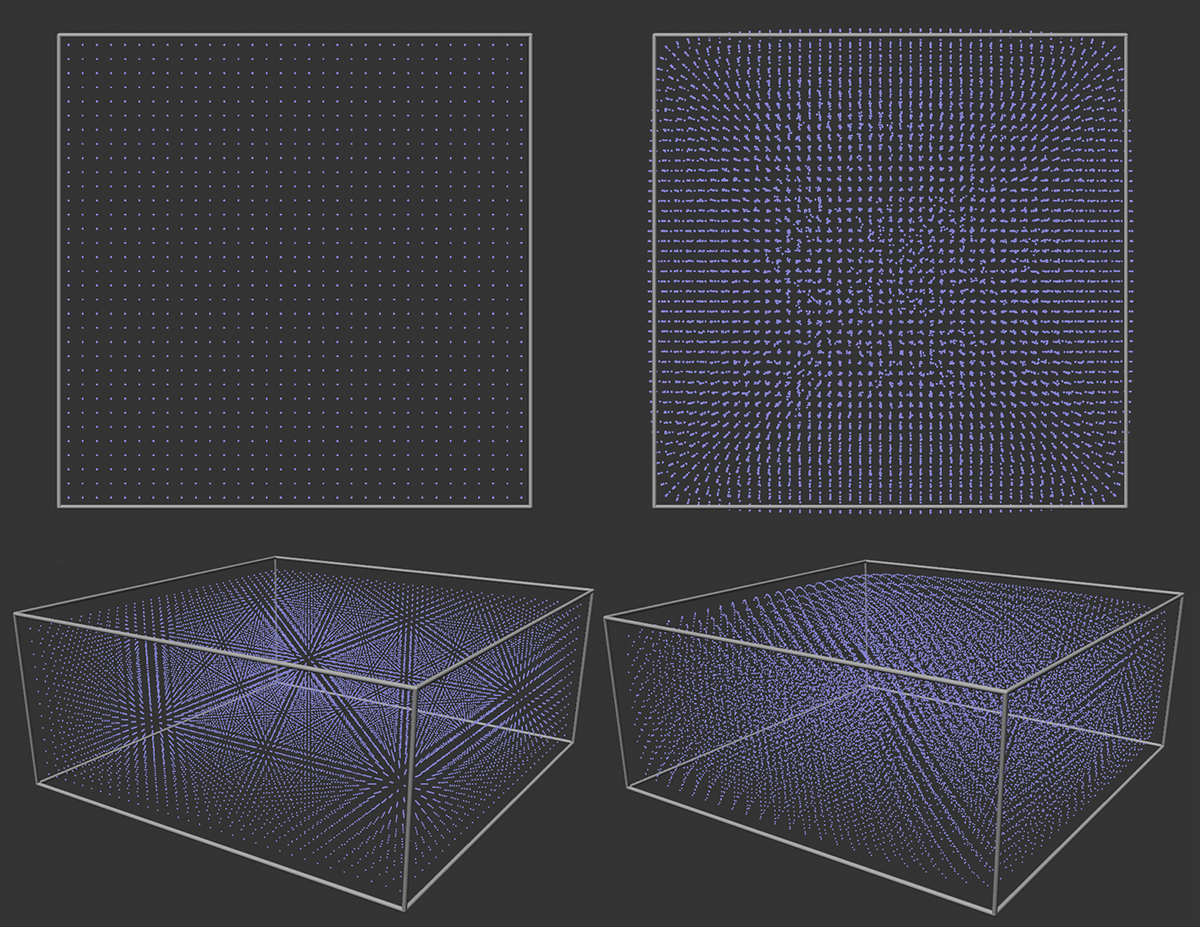 Here, a simple box is filled with liquid particles. The Grid option was used on the left and the Sphere Packing option on the right.
As can be seen in the illustration above and the video below, the available volume of the assigned geometry is utilized even more optimally with Sphere Packing. Even more particles fit into the same volume without overlapping. The level of detail and the amount of simulated liquid can therefore be even greater with this arrangement compared to the simple Grid.
This setting determines which spacing should be used within the selected pattern.
- Simulation Scene: The distances in the selected pattern are automatically adjusted to the Default Radius of the Simulation Scene or the Scene Settings. If this default radius is actually used for the liquid particles (the Liquify Modifier also allows the alternative use of an individual Radius value configured on the emitter for the liquid particles, for example), this always results in the smallest possible distance between the generated particles.
- Override: An individual Distance can be used to specify the spacing of the particles in the selected pattern.
In the Override Resolution setting, an individual distance between the liquid particles in the selected Pattern can be selected. Make sure that the liquid particles react with repulsion to overlapping. Therefore, always select distances that are at least twice the particle adius used.
The following illustration shows how this distance is applied depending on the selected Pattern. For the Grid Pattern, Distance corresponds to the distance between the particles in both the horizontal and vertical directions (indicated by the red edges on the left in the figure). For the Sphere Packing Pattern, however, the Distance is applied diagonally, i.e. between the particles of different depths and heights in the grid (shown on the right in the figure by the red lines).
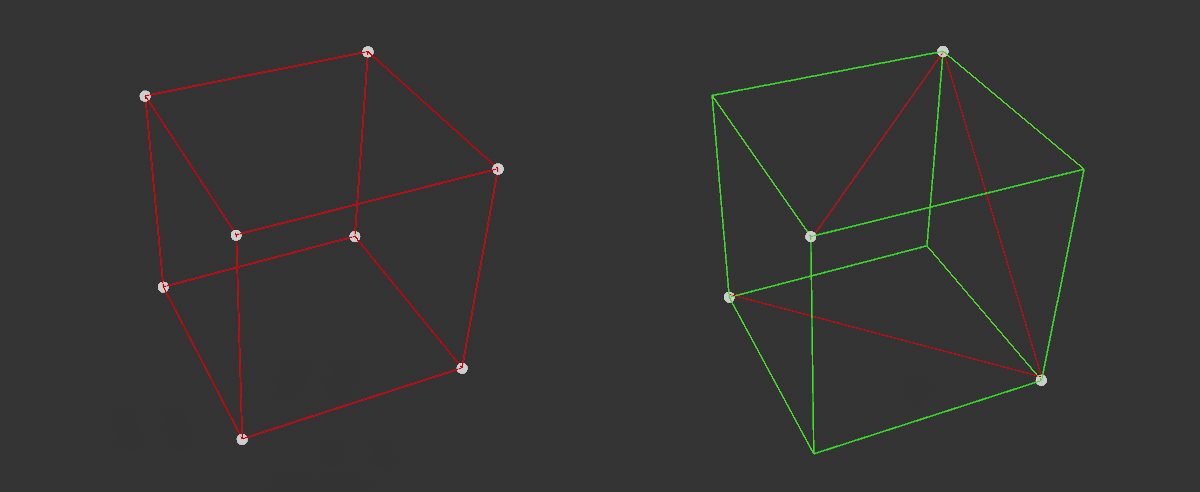 The red lines here indicate how the spacing is used for the selected Pattern between the particles. The Grid Pattern can be seen on the left and the Sphere Packing Pattern on the right.
This and the following two settings are helpful if only a part of the assigned Geometry is to be filled with a liquid. For these cases, select the axis direction along which the filling should take place here. You define whether this is to be the local axis directions of the geometry or the directions of the world axes via Fill Direction Space.
With the default setting Fill Direction +Y in conjunction with Global Fill Direction Space, the Geometry is always filled from bottom to top, regardless of how the Geometry object was rotated in space. The liquid level therefore always remains parallel to the horizon of the scene (world XZ plane).
By reducing the Fill Percentage, only part of the Geometry can be filled with the liquid. This can be helpful if, for example, you want to optimize the volume or the number of particles in the liquid, or if the assigned Geometry is simply larger than the volume of liquid required.
Here you specify the axis system to be used for evaluating the Fill Direction:
- Local: The axis directions of the assigned Geometry object are evaluated
- Global: The world axis directions are evaluated here. The rotation of the Geometry axis system therefore no longer plays a role.
 Here, a cube was assigned as the Geometry and 60% of it was filled with particles along the positive Y-axis. Since the Global axis system was specified as the reference, the liquid level remains parallel to the horizon of the scene even after the cube has been rotated.
Percentage values below 100% mean that only a correspondingly reduced part of the Geometry volume can be filled with liquid particles. The two previous settings define the reference system and the axis direction in which the Geometry is to be filled.
This option switches the emitter function on or off. Only when switched on can particles be generated at the emitter for the specified Start Frame.
If the Enabled option is switched on, you can enter an frame number for the animation where the liquid particles are to be generated. The Liquid Fill Emitter only ever generates particles once for the specified animation frame. If a volume is to emit liquid particles several times within a simulation, several Liquid Fill Emitters with different Start Frame specifications must be used.
Liquid particles are managed in the same Particle Groups that are also used for standard particles. When a Liquid Fill Emitter is called up, a new Particle Group is automatically created in which these particles are managed. The link to this group is automatically entered here, but can also be changed individually, e.g. by dragging and dropping another existing Particle Group. The eyedropper symbol is also available behind the Group field. If you click on this, you can then click on a Particle Group in the Object Manager that you want to link as a group. In addition, a new particle group can be created at any time by clicking on the Create Group button and automatically linked here.
In the context menu, which opens by clicking on the small triangle symbol to the right of the Group field, you will find further commands for deleting the link to a Particle Group, as well as for displaying or selecting the linked Particle Group.
This can be used to create a new Particle Group and automatically link it to this emitter in the Group field. The newly emitted liquid particles are then automatically managed by this group.

In this section you will find options to influence the areas of the assigned geometry in which the newly created particles are to be created. Comparable options can also be found on the other emitters for standard particles.
- Uniform: The particles are created within the entire geometry volume according to the selected Pattern.
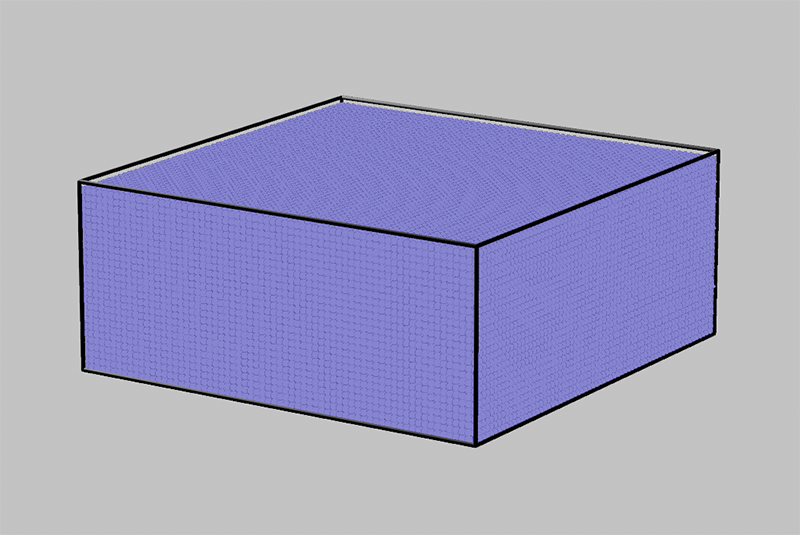 The assigned volume is filled completely and evenly according to the selected pattern.
 - Noise: The Noise settings known from other places are offered to describe the pattern and size of a spatial structure. Particles then only occur within the assigned volume where values above 0 occur in this Noise structure. The full particle density - as it is also calculated in Uniform mode - can then only be observed where the Noise structure reaches its maximum values. At the intermediate Noise levels, i.e. values between 0 and 1, correspondingly fewer new particles are created in these areas. The basic structure of the particle placement otherwise remains identical to the emission in Uniform mode.
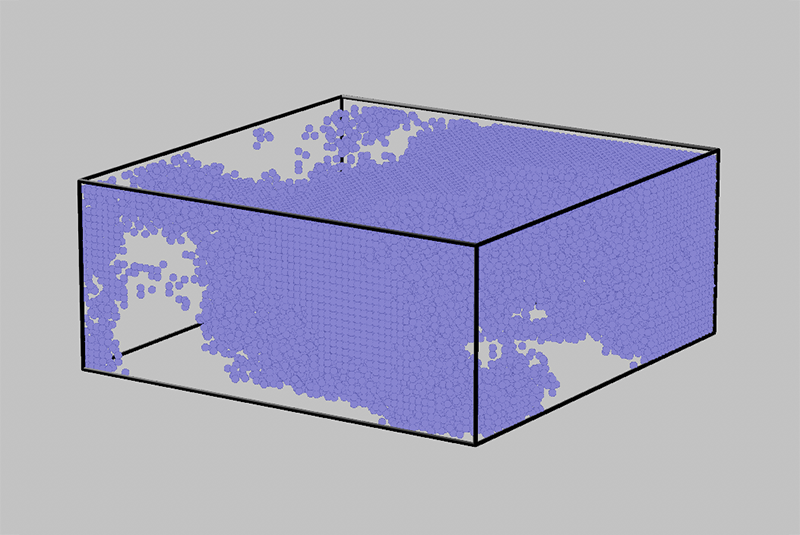 Here, the emission in a cube was limited by a noise structure with increased contrast.
 - Field: The values of Field Objects can be used to control the emission density. Similar to the use of a Noise structure, the new particles are initially positioned evenly on the emitter. In the second step, the falloff values of the assigned Field objects are evaluated. If the particle density is below the field value at the corresponding position, the new particles are automatically deleted there. The basic structure of the particle placement otherwise remains identical to the emission in Uniform mode.
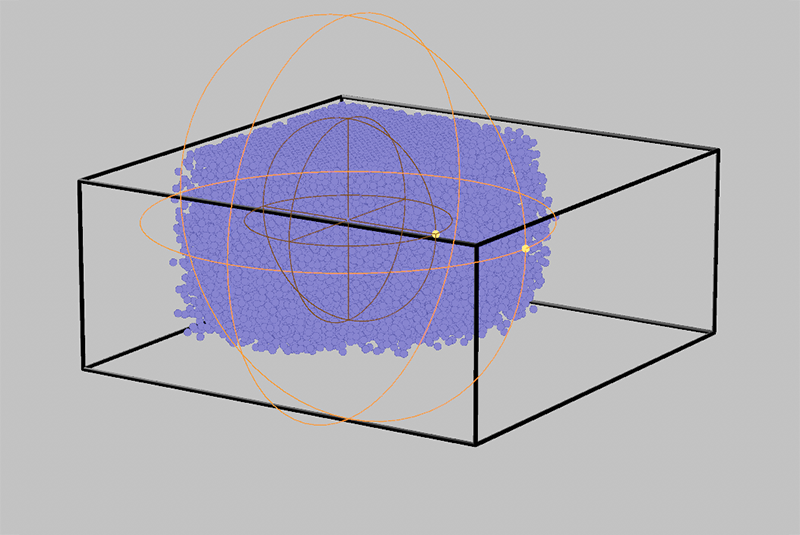 Here, the emission in a box was limited by an assigned sphere field.
These settings are only visible if you activate Noise for Distribution.
The calculation of the Noise pattern is based on this value. A change in the Seed value will also leads to a recalculation of the selected noise structure.
Here you can choose the right one from the various patterns. These are three-dimensional structures that can be configured in the axis system of the emitter or the world and with individual scaling along all axis directions. It is also possible to evolve these patterns automatically:
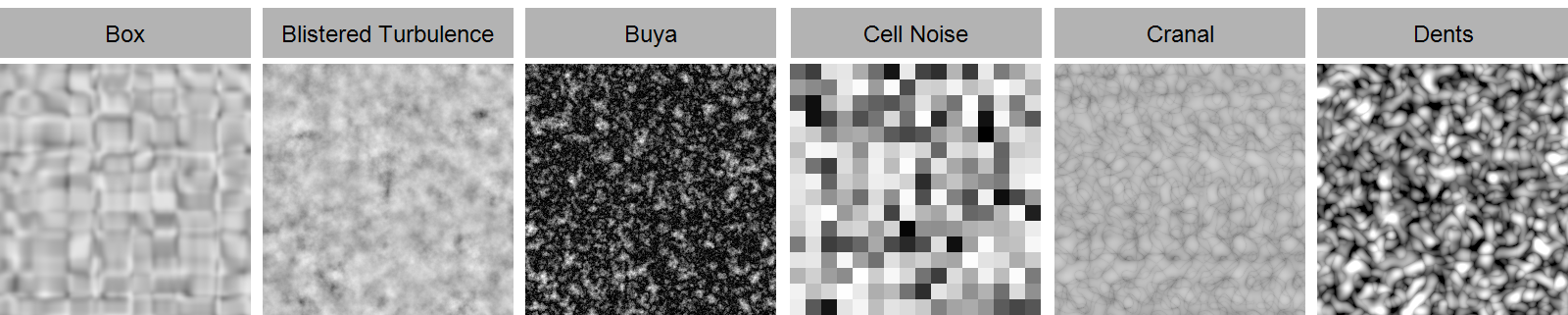
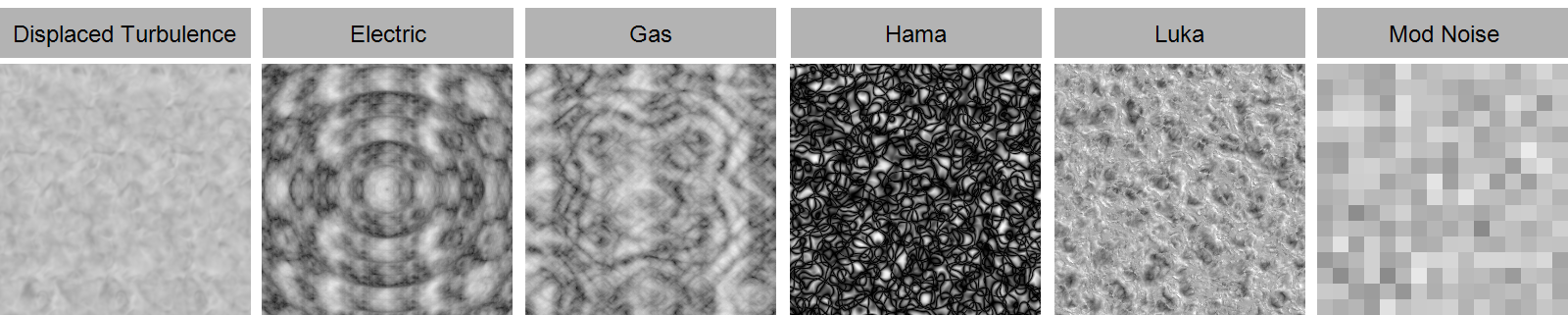
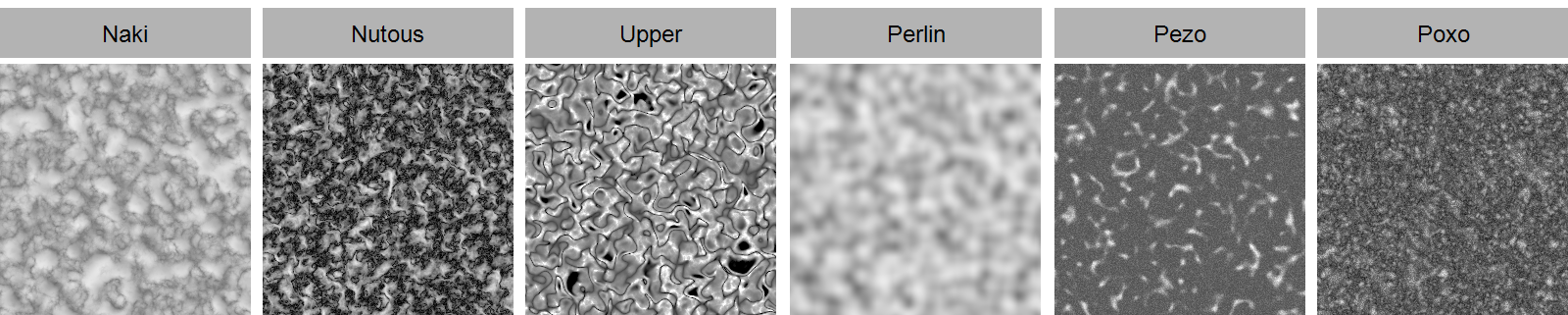
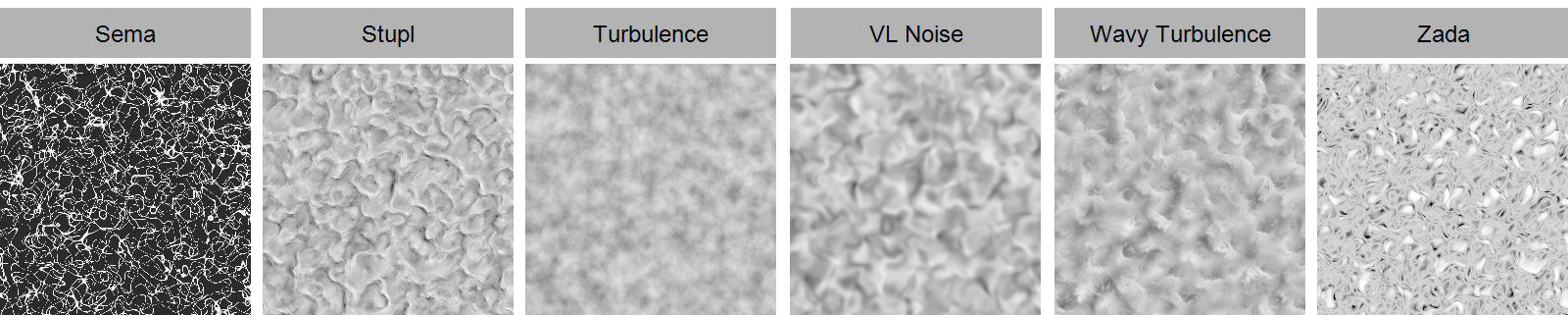
Here you can select whether the noise structure should move with the local system of the emitter or whether it should be a stationary noise whose origin lies in the global world axis system.
This defines the amount of detail in the Noise structure. Larger values create correspondingly more variations in the pattern. Small values lead to a loss of contrast and details, as well as to a softening of the structure. This setting is not available for the Noise Types Box, Cell, Mod Noise, Perlin and VL Noise.
You can use these values to scale the Noise structure individually along the three spatial directions. Proportional scaling is also possible via the Scale value.
This allows the Noise to be scaled proportionally. Individual scaling for each of the three axis directions is also possible via Relative Scale.
The Noise structures can also be changed over time. Use this value to specify the speed of these changes. By default, 0 is used here, which results in a static structure. As the Liquid Fill Emitter only generates particles for one simulation frame by default, the animation of the Noise structure does not play a major role. However, it can be used to evaluate a variation of the Noise structure in different animation frames in the case of an emission triggered by keyframes.
Almost all Noise Types (exception: Electric and Gaseous) offer this parameter, which causes the noise to loop after the defined time in seconds (Animation Speed must be greater than 0). The Noise state is then repeated after the entered seconds. A value of 0 turns this effect off.
When activated, a determined noise value is used simultaneously for the red, green and blue color components. This results in pure gray or brightness values. If the option is switched off, individual Noise brightnesses are calculated for each of the three color components. The brightness of this color is then used for the final evaluation of the Noise value.
These two parameters are used to move the Noise through the 3D space. Movement is a direction vector that you use to define the direction in which the Noise should move. Use the Speed value to regulate the movement speed of the Noise structure. Please note that the speed is also dependent on Noise Space, as the coordinate systems defined there can differ greatly from one another.
As the Liquid fill Emitter only generates particles for one simulation frame by default, the animation of the Noise structure does not play a major role. However, it can be used to evaluate a variation of the Noise structure in different animation frames in the case of an emission triggered by keyframes.
This can be used to limit the brightness values that the Noise should provide. By default, Low Clip is 0% and High Clip is 100%. This means that all brightnesses can be output uncropped between 0% and 100% by the Noise. Increasing the Low Clip means that all brightnesses that are lower than defined for Low Clip are already output as black. Similarly, reducing High Clip results in gray values above the brightness of High Clip being output as white
In fact, this mechanism can be used not only to sharpen a Noise structure and to strengthen the contrast, but also to invert the brightness values. To do this, simply reverse the original arrangement of the clipping values. With Low Clip 100% and High Clip 0%, you get an inverted Noise.
This is used to adjust the general brightness value of the Noise. Values above 0% increase the brightness, values below 0% reduce it.
This allows us to reduce or increase the contrast of the Noise Brightnesses. Contrast describes the range of brightness values. With a low contrast, the differences between the Noise Brightnesses supplied are therefore smaller. Greater Contrast leads to greater differences in brightness between the noise brightnesses calculated. This often results in the brightness transitions being more abrupt and less smooth compared to using a lower Contrast. In terms of emission, a greater contrast results in sharper boundaries between the areas on the emitter where particles are created and those that remain completely empty.
This area only appears when Distribution Fields is activated and enables the use of Field objects to assign an individual density within the particle distribution. Fields offer a wide range of shapes and also allow shaders and audio files to be evaluated, for example. In addition, several fields can be combined to use even more complex density control criteria.
Similar to the use of noise structures, fields usually also generate values between 0.0 and 1.0. The larger the sampled field value, the more particles of the original, uniform density distribution are retained. Conversely, in areas with low field values, correspondingly fewer particles are produced at the emitter. This means that the originally configured number of new particles to be generated is lower after the fields have been evaluated.
The operation of this area and the available objects and options correspond to the identical operating elements that you can also find on the Deformers, for example. Follow these links to find out everything you need to know about Fields and how to use them:
If required, you can read all about the various Field objects here.
How to use the Fields area is documented here.
The accuracy of Field sampling can be adjusted via the Field Sampling Variance in the Particle Simulation Settings.