

Basic Properties
Sometimes, when working with numerous icons that look the same, you want to have a better overview of it all. This is what this function does. Objects and tags can be assigned their own icons or existing icons can be re-assigned or colored:
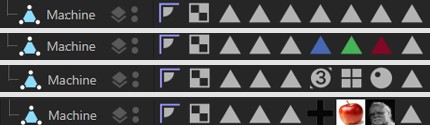 Examples for tags that were colored, replaced by existing ones and custom tags.
Note the Show Custom Icons command in the Object Manager’s View menu, which lets you switch to the Cinema 4D icons.
There are a few objects and tags (e.g., Material tags) that can’t be colored because they are controlled by Cinema 4D directly.
Here, you can either
-
load a bitmap - whereby an alpha channel will be evaluated, if present. Internally, this bitmap will be scaled and distorted accordingly if it has a different size than 64*64 pixels (which is used internally by Cinema 4D).
or - enter an existing command ID for corresponding icons. These IDs can be found in the Command Manager.
This function can be used to color an existing or a custom icon. You can select from the following options:
- None: No coloring will take place
- Display Color: Each object can be assigned a Display Color in the Basic tab. This will be used here. Since the Display Color can also assume a layer color objects can also be colored according to the layer to which they are assigned. Please note that some objects have their own option here, such as the legacy light objects, which can adopt their set light color also for their icon color by using the Light Color option. Redshift lights always take on the color of their light with Display Color activated.
- Custom: Lets you select a custom color.
Tags have no Display Color and can therefore only be colored using a custom color. To do so, activate the Icon Color option.
Load/Save Presets
These commands can be used to save icons as a preset or to load an icon.
General details regarding the Preset System in Cinema 4D can be found there.
When tags are created, they are automatically given a name according to their function. For example, a Vertex Map tag is appropriately called a "Vertex Map".
However, you can also give all objects and elements (e.g. shaders) any name you like. The object or element appears under this name, e.g. in the XPresso Editor or in the Timeline or link fields.
So far, so good. However, there are tags that can be assigned as often as required (e.g. Selection tags, Vertex Color tags, etc.). If they all had identical names, this could lead to problems. Imagine 2 Polygon Selection tags with the same name and you want to restrict a material to one of the selections: this becomes difficult with identical names, as only the Selection tag furthest to the left is used.
This is why Cinema 4D numbers them consecutively where it makes sense. For example, 3 Polygon Selection tags on the same object:
- Polygon Selection
- Polygon Selection.1
- Polygon Selection.2
This automatic numbering occurs when creating tags using the menu/command, when duplicating with the ctrl key and with some tag-creating tools such as the Paint Tool, MoGraph Selection, Bind Tool, etc.
If you use Fields that define the Vertex Map and you're using multiple Vertex Maps, you should make sure that they are assigned different names so they can be displayed correctly in the Viewport when selected.
If the element (object, tag, track, etc.) has been assigned to a layer, you will find the layer name and color here. Layers can be dragged here directly from the Layer Bowser or from other similar fields. You can also use the menu behind the small triangle button on the right to assign layers or remove the element from the current layer. Show in Manager opens the Layer Manager.
Click on the small triangle to the left of Layer to show the layer properties. This gives you access to all properties that are otherwise only accessible via the Layer Manager.
Transfer
There are basically 2 ways in which the tag can save or generate values:
-
You enter values manually using the appropriate tools (e.g. Paint Tool or Brush Selection - then Store Selection). To do this, Transfer must be set to Off.
-
Values can be generated by fields or other point-based tags of the same type. To do this, Transfer must be set to Fields or Property.
The three options in detail:
- Off: In this mode, you can apply the values interactively using tools (see Point 1 above). This only works if the tag-carrying object is not parametric. This is in contrast to the following two modes, in which this is quite successful.
-
Fields: Fields can be used, among other things, to feed the following tags with values, colors, vectors (hereinafter simply referred to as "values"):
- Point, Edge and Polygon Selection tags
- Vertex maps and colors (for the latter, only the alpha channel is evaluated)
- MoGraph Selection and Weighting tags
- Normal tags
 From left to right: An identical Random Field in a Vertex Color tag, a Polygon Selection tag and a Normal tag.
Select this option if you want the tag values to be controlled by Fields. An additional Fields tab is then displayed. Any existing values are usually saved there in a Freeze layer so that they are not lost.
It should also be mentioned that all the tags mentioned above can be converted into each other using the Variable tag Field Layer.
-
Property Transfer: This option can be used to transfer the point values of similar tags of different objects. This works with the following tags:
- Point, Edge and Polygon Selection tags
- Vertex maps and colors (for the latter, only the alpha channel is evaluated)
- Normal and UVW tags
This is done in the same way as the already known Property Transfer (formerly "VAMP") functionality - with the same settings - except that here it is done "on-the-fly".
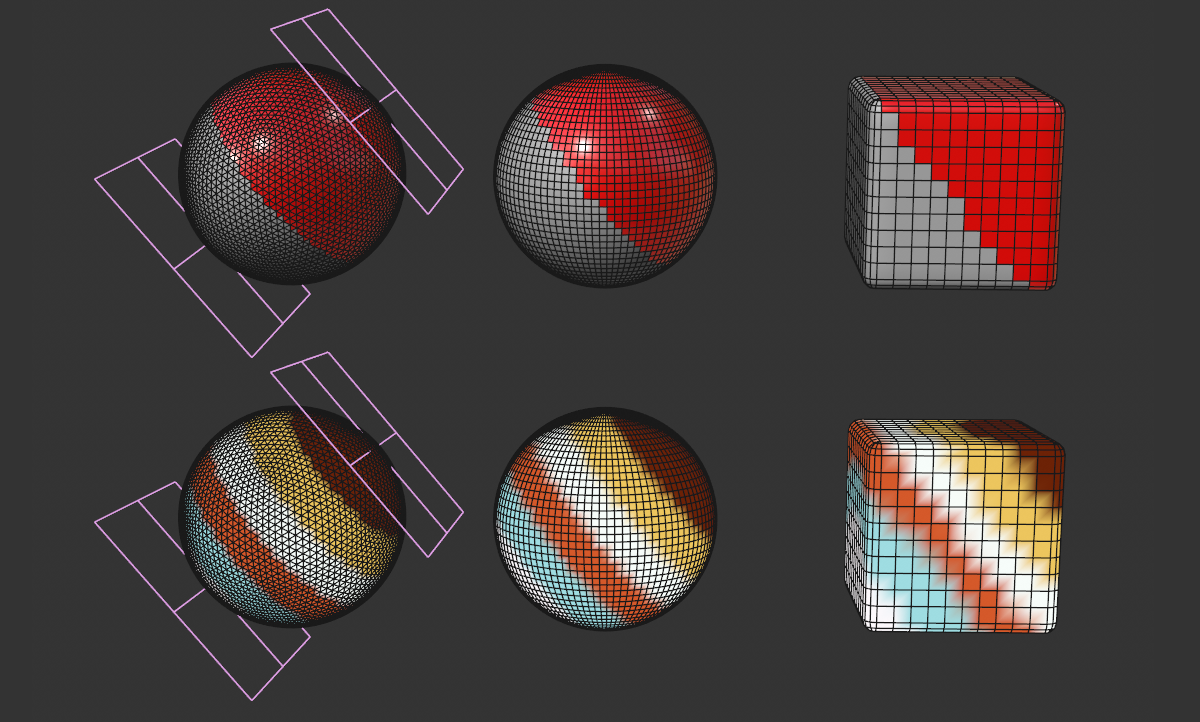 Property Transfer from the left-hand sphere to other objects. Above Polygon Selection tag (with material restricted to it), below Vertex Color tag.
If this option is selected, an additional tab "Property transfer" is displayed, which shows the settings known from the value transfer (formerly "VAMP").
Here you can invert all Vertex Map values - those painted on as well as those generated by Fields. For example, the values 0% and 70% will be inverted to 100% and 30%, respectively.
Cinema 4D normally displays the settings of assigned tags (e.g., the Phong tag) when an object is selected in the Attribute Manager as if it were an object's own setting - however, tag tabs are marked with a small icon to the left.
Disable this option if you don't want the tag settings to be shown for the object.