
Maxon Redshift Library Assets
Maxon Redshift offers various tools for using assets from the Library Browser in the scene. The display of these assets differs between Vectorworks and Maxon Redshift for Architects. However, Vectorworks also offers the option of editing the rotations and positions of Maxon Redshift library assets retrospectively without having to open the Maxon Redshift viewport.
This page summarizes how assets are handled in Maxon Redshift and Vectorworks.
Quick Navigation
Maxon Redshift Assets in Vectorworks
When users place library assets in the Maxon Redshift viewer, they appear in Vectorworks as Proxy Objects that users can manipulate directly inside Vectorworks (see Figure 1).
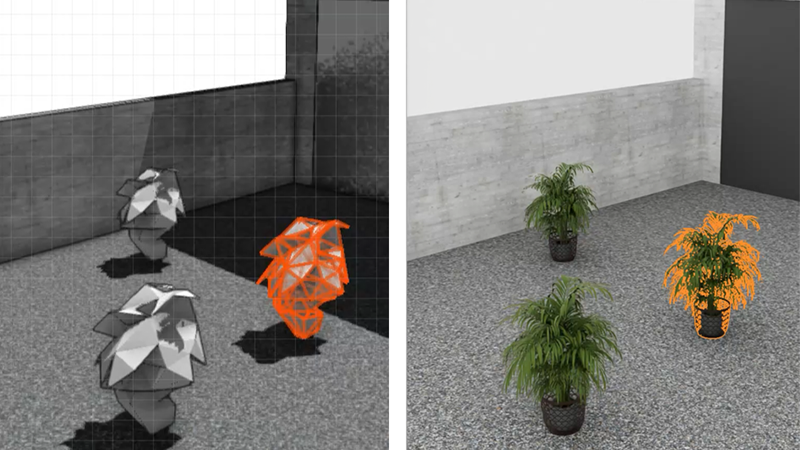
This includes:
- Single objects (e.g., furniture, vegetation) placed manually via drag & drop from the Library or via the Add Tool
- Scattered objects (multiple instances placed by Surface Scatter or the Scatter Brush)
Reasons for having Proxy Objects are:
- if the user operates on a Vectorworks file with Maxon Redshift for Vectorworks closed, the proxies indicate positions of assets and help avoiding collisions
- if the user wants to move a group, containing Vectorworks and Maxon Redshift objects, the only way for them to do this is to move a group in Vectorworks. Vectorworks original objects are read-only in the Maxon Redshift viewer and cannot be moved there. Imagine a table from Vectorworks and four chairs added from Maxon Redshift Library. The user can move the chairs in the Maxon Redshift viewer, but not the table. In Vectorworks, they can move the proxies of the chairs and the table simultaneously, which will take effect in the Maxon Redshift viewer as well.
Geometry coming from Vectorwork is read-only in Maxon Redshift and cannot be edited there by the user. The reason for this is that some objects in Vectorworks are “smart“ and have functionality, when manipulated. We cannot mirror this functionality in the Maxon Redshift viewer. Moving these smart objects will result in discrepancy between Vectorworks and Maxon Redshift.
Example: moving a door on a wall in Vectorworks will result in recalculating the hole for this door in a corresponding wall.
All the manipulations on Vectorworks objects have to be done in Vectorworks.
Single Assets in Vectorworks
For single assets placed from the Library in Maxon Redshift for Architects, Vectorworks shows a low-poly proxy:
-
Each asset uses an automatically generated proxy shape that uses far fewer polygons but still roughly reflects the shape of the corresponding asset.
-
If no proxy object is available for the corresponding asset, Vectorworks will display a simple bounding box for it instead, which can still be used to estimate the position and size of the corresponding asset.
-
Users can move, scale, rotate and delete such asset proxy objects in Vectorworks. Changes to the proxy objects are automatically synced with the Maxon Redshift viewer.
Scattered Assets in Vectorworks
Scattered assets from Maxon Redshift appear in Vectorworks as low-poly instances. Their polygon-density can be controlled over a parameter of the Scatter Object Proxy in Vectorworks.
The following properties apply to scattered assets in Vectorworks:
-
Selecting any instance selects all instances of that scatter.
-
Moving or rotating the underlying surface updates the scatter accordingly.
-
Scaling the underlying surface does not adjust the scatter.
-
If a surface is hidden, scatter proxies disappear but the scatter object still exists (without surface assigned).
If the surface is shown again, scatter proxies reappear.
Organizing Maxon Redshift Assets in Vectorworks
Assets added appear in dedicated layers:
-
Synced asset objects appear in a user-chosen Vectorworks layer.
-
Synced lights appear in a user-chosen layer with a Synced lights folder in the Maxon Redshift viewer.
-
Maxon Redshift assets added in the viewer appear under Redshift objects layer in Vectorworks (if the “Use active layer“ option is switched off, otherwise on the active layer).
-
Scatter objects appear in the Redshift scattered objects layer in Vectorworks (if the Use active layer option is switched off, otherwise on the active layer).
User actions that apply both ways:
-
Moving proxies to another layer updates their hierarchical location in the viewer.
-
Deleting proxies deletes the objects in both Vectorworks and the viewer.
-
Deleting layers containing proxies removes those objects in both applications.
-
Certain system folders (camera, environment, sky) remain hidden from the user.
Visibility Controls
The visibility of Vectorworks objects is only controlled in Vectorworks, while the visibility of assets created in Maxon Redshift can also be controlled in the Object List of the Maxon Redshift viewer, but is not depictured in Vectorworks.
If the user toggles layer visibility in Vectorworks, the corresponding visibility setting on the Null (for the Vectorworks layer) is toggled as well. Exception: there is a discrepancy in the visual state between Vectorworks and the Maxon Redshift viewer, if the user toggled active layer/class invisible. In this case the visibility setting is transferred to the Maxon Redshift viewer, but Vectorworks prevents the active layer to go invisible. This results in visible objects in Vectorworks for that layer, while the visibility setting is off AND they are invisible in the Maxon Redshift viewer.