

Data Mapper
This Mix value can be used to control how strongly the Output Property selected on the modifier should be influenced on the particles. At a value of 0%, the particles retain their property; at a value of 100%, the property is completely replaced by the value selected on the modifier. Intermediate values lead to a corresponding fading of the property values.
Here you can select what should be used to control a particle property:
- Property: A current property of the particle can be output, evaluated and used to control another property.
- Fields: Use Field objects to define values that then become a particle property.
- Noise: Use the known noise structures to define values that are to be used as particle properties. The Noise settings are used to generate values between 0 and 1, which - if necessary modified by the spline curve- then lead to the output of new property values.
Information on how the output values are obtained can be found in the discussion of the Minimum Input and Maximum Input parameters.
After selecting Source Property, select the particle property that you want to read out. The following properties are available:
- Age: The age of the particles measured in frames. This is always between 0 and the maximum lifetime of the read particle.
- Alignment: The alignment is read out relative to an axis direction of the Condition object as a single angle. Use the separate Extract menu to define this axis direction.
- Angular Velocity: Various components of the rotation speed can be output via the Extract setting.
- Color: The red, green, blue and alpha components of the particle colors can be output individually.
- Distance Traversed: This is the distance a particle has traveled since it was created.
- Lifetime: This queries the maximum Lifetime of each particle. This property is often assigned directly by the Emitter when a particle is created.
- Position: This can be used to query the distance of the particles or their global X, Y and Z position components.
- Radius: The Radius property of the particles.
- Velocity: A vector that indicates the global flight direction of the particles.
- Custom: In this special mode, the values saved in user-defined user properties can also be output. These must first be created in the Scene Settings. Values in these custom properties can, for example, be changed with Math Modifiers or within Particle Node Modifiers with Set Custom PropertyNodes.
When this mode is activated, a text field with a drop-down menu appears on its right-hand side. You can use this to display a list of the user properties already created, from which you can also select the desired property. Alternatively, if you know the name of the property, you can also enter its name directly in the Name field.
Please note that user properties also have their own data types. If you select a property for the output property that uses a different data type, the values may be changed or converted.
Some properties are already automatically available when processing liquid particles: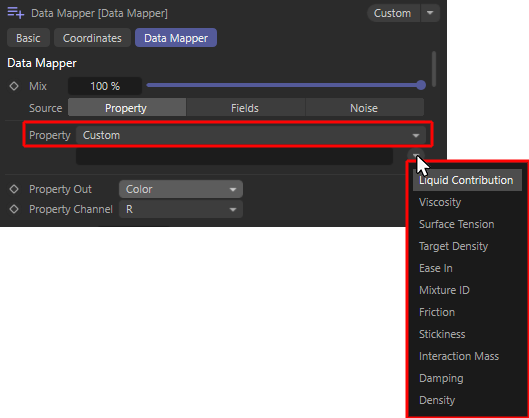 When using liquid particles, their most important properties are automatically available as user properties (demonstrated here using the example of a Data Mapper Modifier).
These special properties can be used to change a liquid over time, for example, or to keep it dependent on other properties of the simulation. Liquid particles can be generated directly with the Liquid Fill Emitter or by converting standard particles with a Liquify modifier. Please note that many of the user properties listed below can also be changed at any time using a Liquify modifier.
These properties are automatically available for this purpose:- Liquid Contribution [Floating Point]; This value is between 0 and 1 and indicates whether a particle only has to adhere to the forces, conditions and modifiers of the particle simulation (value = 0) or whether it is a liquid particle (value = 1) for which additional forces, such as gravity and forces between neighboring liquid particles, apply. By changing this value, particles can therefore switch continuously between the properties of "normal" particles and the properties of liquid particles.
- Viscosity [Floating Point]: This value describes the flow resistance of the liquid. Small values make a liquid appear watery and thin, higher values make the simulation appear viscous and honey-like.
- Surface Tension [Floating Point]: This describes the Surface Tension of the liquid. With increasing values, the liquid particles tend to clump together more strongly. This can be used, for example, to obtain larger individual droplets. It should be noted that this property also depends on the existing particle density (Target Density).
- Target Density [Floating Point]: This describes the particle density per unit volume that the simulation should achieve as far as possible. A higher particle density per volume has an effect in combination with other dynamic simulation objects, for example. A liquid with a higher density can then exert a stronger force on clothing or rigid body objects.
The forces acting between the liquid particles also depend on this density. If more particles are drawn together in the same space, the surfacetension can also show stronger effects. In addition, within the same simulation, a liquid with a lower density will always float on a liquid with a higher density, just as oil floats on water, for example. - Ease In [Floating Point - Time]: This value specified in simulation images describes the time it takes for the particles to change from normal particle properties, e.g. specified by the emitter and influenced by particle modifiers, to characteristic liquid properties. Since pure liquid particles can react extremely to overlapping radii during formation at the emitter, for example, this transition time can be used to mitigate the repulsion of colliding liquid particles at the emitter.
- Mixture [Index]: All particles with the same Mixture ID value are simulated as one liquid. Liquid particles with different Mixture ID values can no longer be mixed freely and therefore remain separate from each other within the simulation.
- Friction [Floating Point]: This value relates to the interaction of the liquid with collision objects, e.g. objects that have a Collider Tag. The value then describes the energy loss due to friction that the liquid suffers during contact with the collision object. Please note that the actual friction and the actual energy loss are also influenced by the Friction value on the Collider Tag. The friction of the liquid is only taken into account if the collision object also has friction.
- Stickiness [Floating Point]: This value relates to the interaction of the liquid with collision objects, e.g. objects that have a Collider Tag. The value then describes the stickiness of the liquid to the collision object. Please note that the stickiness is also influenced by the Stickiness value on the Collider Tag. The Stickiness of the liquid is only taken into account if the collision object also has Stickiness values above 0.
- Interaction Mass [Floating Point]: This value specifies the mass of the fluid particles. The mass plays a role above all in the interaction with other dynamic simulation objects, because together with the speed of the particles, this results in the force that the particles can exert. Particles with a larger mass can, for example, deform simulated substances more strongly or move rigid bodies more easily.
- Damping [Floating Point]: This percentage value describes the energy loss within the fluid simulation. The greater the damping, the slower the fluid particles move and the faster strong accelerations are reduced. Damping can therefore prevent the simulation from 'exploding', but also leads to a strongly decelerated and unnatural behavior of the fluids if the values are too high, which in extreme cases can then be completely frozen.
- Density [Floating Point]: This value is only intended for the output and can therefore not be written to the liquid particles. This is the current density of the liquid in the vicinity of the respective particle. For particles in the core area of a liquid, this value should therefore be relatively close to the desired Target Density.
The effect of these properties on the liquid simulation can be read in the description of the Liquid Fill Emitter, among other things.
The following three properties can already be queried in a converted form:
- Age Percentage: The age of the particles measured in images is divided by their maximum Lifetime. This results in a percentage value that shows the current age of each particle as a value between 0% (newly created particle) and 100% (particle at the end of its life).
- Spin Speed: Calculates the angle that indicates the rotational speed of a particle around the axis of rotation per second.
- Velocity Speed: This is the current flight speed of the particles per second in the direction of flight.
The properties output, which are described by vectors, also offer this menu for reading out individual components or calculating individual angles relative to specific axis directions. The following particle properties are affected:
- Property: Alignment
- Forward Dot Product: The angle between the Z-axis of the Modifier object and the Z-axis of the particle system will be calculated. For clarification, an orange line or a correspondingly colored cone is drawn along the Z-axis of the Modifier.
- Up Dot Product: The angle between the Z-axis of the Modifier object and the Y-axis of the particle system is calculated. For clarification, an orange line or a correspondingly colored cone is drawn along the Z-axis of the Modifier.
- Side Dot Product: The angle between the Z-axis of the Modifier object and the X-axis of the particle system will be calculated. For clarification, an orange line or a correspondingly colored cone will be drawn along the Z-axis of the Modifier.
- Property: Angular Velocity
- X, Y, Z: The global X, Y or Z component of the direction vector of the particle rotation axis will be output here.
- Magnitude: This is the amount of the angle of rotation, i.e., the speed of the particle rotation expressed as an angle per second.
- Dot Product: The angle between the Z-axis of the Modifier object and the rotation axis of the particle is calculated. For clarification, an orange line or a correspondingly colored cone is drawn along the Z-axis of the Modifier.
- Property: Color
- R, G, B: The red, green or blue color components of the particles are output here.
- A: The alpha portion of the particle color.
- Property: Position
- X, Y, Z: The global X, Y or Z component of the position vector of the particles will be output here.
- Magnitude: This is the distance of the particle from the world origin, i.e., the global position 0,0,0
- Dot Product: The angle between the Z-axis of the Modifier object and the line connecting each particle to the world origin is calculated. For clarification, an orange line or a correspondingly colored cone is drawn along the Z-axis of the Modifier.
- Property: Velocity
- X, Y, Z: The global X, Y or Z component of the velocity vector of the particles will be read out here. This is a proportion of the velocity.
- Magnitude: This is the flight speed of the particles.
- Dot product: The angle between the Z-axis of the Modifier object and the flight direction of each particle is calculated. For clarification, an orange line or a correspondingly colored cone is drawn along the Z-axis of the Modifier.
- Property: Custom with data type Vector
- X, Y, Z: Here you can output the individual components of the vector.
- Length: This is the length of the vector.
- Dot Product: The angle between the Z-axis of the Condition object and the vector is calculated. For clarification, an orange line or a correspondingly colored cone will be drawn along the Z-axis of the Condition.
- Property: Custom with data type Color
- R, G, B: The red, green or blue color components of the user property are output here.
- A: The alpha portion of the user property.
- Property: Custom with data type Quaternions
- Forward Dot Product: The angle between the Z-axis of the Data Mapper object and the Z-axis of the user quaternion system is calculated. For clarification, an orange line or a correspondingly colored cone is drawn along the Z-axis of the Modifier.
- Up Dot Product: The angle between the Z-axis of the Data Mapper object and the Y-axis of the user quaternion system is calculated. For clarification, an orange line or a correspondingly colored cone is drawn along the Z-axis of the Modifier.
- Side Dot Product: The angle between the Z-axis of the Data Mapper object and the X-axis of the user quaternion system is calculated. For clarification, an orange line or a correspondingly colored cone is drawn along the Z-axis of the Modifier.
The following values for Lower In and Upper In are used to define the value range to be converted. This mode defines how these limit values are to be determined or specified:
- Constant: You enter your own values for Lower In and Upper In, which are then compared with the actual values of the particles and used accordingly to calculate the Property Out value. Read the following description of the Lower In/Upper In values to find out how these are included in the calculation.
- Adaptive: The minimum and maximum values of the selected property (see Source, Property and Extract settings) are automatically calculated for the current animation frame and automatically used for Lower In and Upper In. As this calculation is performed again for each animation frame, there may be greater fluctuations in the output values. To avoid this, a Snapshot button is also enabled in Adaptive mode. Pressing this button transfers the currently calculated minimum and maximum values of the particles directly to the input fields for Lower In and Upper In and then switches back to Constant Range Mode. For this to work, you must ensure that particles are present. The simulation should therefore have already run at least a few animation frames.
This button is only available in Adaptive Range Mode and automatically transfers the minimum and maximum values of the particles in the current frame to the input fields for Lower In and Upper In. The system then automatically switches to Constant Range Mode. This guarantees a fixed value output for the particles, even if the queried value range on the particle flow changes during the simulation.
This is used to define a value range for the particle properties read out. This allows the Modifier to calculate a percentage value internally, which is then used to calculate the order of magnitude of the value output. Please also note the Range Mode setting described above, which also allows automatically calculated limit values to be used for the Lower In and Upper Int.
The value range specified via Lower Out and Upper Out and the output controlled via Clamp Mode and the Spline also play a role in the result. The connection is as follows:
Let's assume you have the Radius of the particles queried and enter the Lower In as 1 and the Upper In as 5. The particle Radius read out is 2 cm. This results in the calculation (2-1)/(5-1) = 0.25 or 25%.
This percentage value can now be applied to the settings for Lower Out and Upper Out. Let's assume that the values 0 and 100 have been entered there. By calculating 0.25*(100-0)+0 we get the result 25.
However, this only applies to a linear Spline that runs from the bottom left-hand corner to the top right-hand corner. This simple rule of three conversion can be changed by deviating curves. You can imagine the 25% calculated in our example as a value on the horizontal axis of the Spline. The lower edge of the graph represents the Lower Out value, the upper edge represents the Upper Out value. The result now corresponds to the height of the curve above the point marked above our percentage value. The following image illustrates these relationships.
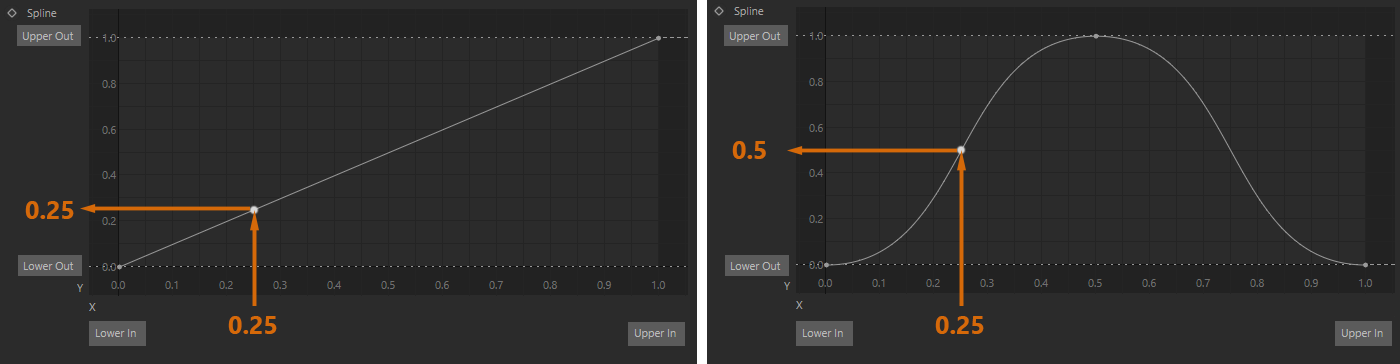 On the left you can see a linear conversion between the input and output values, on the right the evaluation of the standard curve on the Spline
On the left, you can see the limits of the input range on the horizontal axis and the calculated value of the queried parameter (0.25) plotted there. This also leads to the result 0.25 on the vertical axis, i.e., a quarter of the output range between the Lower Out and the Upper Out.
If we use a different curve shape instead, we get a different result (shown on the right). The value from the middle of the value range between the Lower Out and the Upper Out is then output there.
In the Source modes Field and Noise, the evaluation of existing properties and an input value range is omitted. The base values are created in these modes, e.g., by the acceptance functions of the Field objects or via Noise structures, and are usually between 0 and 1. This value then replaces the part of the calculation that led to the calculation of the value 0.25 in our example above. However, the following evaluation via the Spline and the desired output range Lower Out and Upper Out remain identical to the Source mode Property.
Here you can select the particle property that you want to change using the Modifier. These selection options largely correspond to those in the Property menu:
- Age: The age of the particles measured in frames.
- Color: The red, green, blue or alpha components of the particle colors can be set individually.
- Distance Traversed: This is the distance a particle has traveled since it was created.
- Lifetime: This sets the maximum lifetime of the particles.
- Position: The global position of the particles is defined individually for the X, Y or Z components.
- Radius: The Radius property of the particles.
- Angular Velocity: The rotation axis of the particle rotation can be defined individually as a direction vector via the global vector components X, Y or Z.
- Velocity: The flight direction of the particles can be defined separately for the global X, Y or Z direction.
- Custom: Values can also be transferred to user-defined custom properties. These must first be created in the Scene Settings. Values in these user properties can, for example, also be set with Math modifiers or within Particle Node Modifiers with Set Custiom PropertyNodes.
When this mode is activated, a text field with a drop-down menu appears on its right-hand side. You can use this to display a list of the user properties already created, from which you can also select the desired property. Alternatively, if you know the name of the property, you can also enter its name directly in the Name field.
Please note that custom properties also have their own data types. If you output a property that uses a different data type, the values may therefore be changed or converted when writing to a custom property.
Please note that user properties of type quarter ions cannot be written here.
Some properties are already automatically available when processing liquid particles:When using liquid particles, their most important properties are automatically available as user properties (demonstrated here using the example of a Data Mapper Modifier).These special properties can be used to change a liquid over time, for example, or to keep it dependent on other properties of the simulation. Liquid particles can be generated directly with the Liquid Fill Emitter or by converting standard particles with a Liquify modifier. Please note that many of the user properties listed below can also be changed at any time using a Liquify modifier.
These properties are automatically available for this purpose:- Liquid Contribution [Floating Point]; This value is between 0 and 1 and indicates whether a particle only has to adhere to the forces, conditions and modifiers of the particle simulation (value = 0) or whether it is a liquid particle (value = 1) for which additional forces, such as gravity and forces between neighboring liquid particles, apply. By changing this value, particles can therefore switch continuously between the properties of "normal" particles and the properties of liquid particles.
- Viscosity [Floating Point]: This value describes the flow resistance of the liquid. Small values make a liquid appear watery and thin, higher values make the simulation appear viscous and honey-like.
- Surface Tension [Floating Point]: This describes the Surface Tension of the liquid. With increasing values, the liquid particles tend to clump together more strongly. This can be used, for example, to obtain larger individual droplets. It should be noted that this property also depends on the existing particle density (Target Density).
- Target Density [Floating Point]: This describes the particle density per unit volume that the simulation should achieve as far as possible. A higher particle density per volume has an effect in combination with other dynamic simulation objects, for example. A liquid with a higher density can then exert a stronger force on clothing or rigid body objects.
The forces acting between the liquid particles also depend on this density. If more particles are drawn together in the same space, the surfacetension can also show stronger effects. In addition, within the same simulation, a liquid with a lower density will always float on a liquid with a higher density, just as oil floats on water, for example. - Ease In [Floating Point - Time]: This value specified in simulation images describes the time it takes for the particles to change from normal particle properties, e.g. specified by the emitter and influenced by particle modifiers, to characteristic liquid properties. Since pure liquid particles can react extremely to overlapping radii during formation at the emitter, for example, this transition time can be used to mitigate the repulsion of colliding liquid particles at the emitter.
- Mixture [Index]: All particles with the same Mixture ID value are simulated as one liquid. Liquid particles with different Mixture ID values can no longer be mixed freely and therefore remain separate from each other within the simulation.
- Friction [Floating Point]: This value relates to the interaction of the liquid with collision objects, e.g. objects that have a Collider Tag. The value then describes the energy loss due to friction that the liquid suffers during contact with the collision object. Please note that the actual friction and the actual energy loss are also influenced by the Friction value on the Collider Tag. The friction of the liquid is only taken into account if the collision object also has friction.
- Stickiness [Floating Point]: This value relates to the interaction of the liquid with collision objects, e.g. objects that have a Collider Tag. The value then describes the stickiness of the liquid to the collision object. Please note that the stickiness is also influenced by the Stickiness value on the Collider Tag. The Stickiness of the liquid is only taken into account if the collision object also has Stickiness values above 0.
- Interaction Mass [Floating Point]: This value specifies the mass of the fluid particles. The mass plays a role above all in the interaction with other dynamic simulation objects, because together with the speed of the particles, this results in the force that the particles can exert. Particles with a larger mass can, for example, deform simulated substances more strongly or move rigid bodies more easily.
- Damping [Floating Point]: This percentage value describes the energy loss within the fluid simulation. The greater the damping, the slower the fluid particles move and the faster strong accelerations are reduced. Damping can therefore prevent the simulation from 'exploding', but also leads to a strongly decelerated and unnatural behavior of the fluids if the values are too high, which in extreme cases can then be completely frozen.
- Density [Floating Point]: This value is only intended for the output and can therefore not be written to the liquid particles. This is the current density of the liquid in the vicinity of the respective particle. For particles in the core area of a liquid, this value should therefore be relatively close to the desired Target Density.
The effect of these properties on the liquid simulation can be read in the description of the Liquid Fill Emitter, among other things.
The following properties only affect the velocity of the particles:
- Spin Speed: Sets the rotation speed of a particle as an angle per second individually for each of the three global axis directions. Use the Property Channel to select the axis direction by which you want to specify the rotation speed as an amount.
- Velocity Speed: This sets the flight speeds of the particles per second and separately for the three global axis directions. Use the Property Channel to select the axis direction for which you want to specify the airspeed as an amount.
Some of the properties to be affected are vectors that can only be changed by the Data Mapper for one component at a time. This applies to these properties:
- Color: You can selectively define the R, G and B components of the color or just the alpha component of the color (A).
- Position: Select whether the X, Y or Z component of the global position should be affected.
- Angular Velocity: Select whether you want to define the X, Y or Z component of the direction vector in global coordinates that describes the new rotation axis of the particles.
- Velocity: Select whether you want to control the global X, Y or Z part of the flight direction.
- Angular Velocity Speed: Select the axis direction for which the rotation speed should be changed here.
- Velocity Speed: Select the axis direction along which you want to set a new airspeed.
- Custom: If the custom property uses a vector data type, you can select the desired component here. For example, the red, green, blue and alpha components can be written in this way for colors and the X, Y and Z components for normal vectors.
Enter the limit values of the range to be transferred to the selected particle property here. The logic behind the assignment of these values to the particles has already been explained in the explanation of the Lower In and Upper In values.
Please note that the Clamp Mode and the Spline curve also play a major role in the calculation of the final output value.
This area only appears when Source Field is activated and enables the use of Field objects to assign new particle properties. Fields offer a wide range of shapes and also allow shaders and audio files to be evaluated, for example. In addition, several fields can be combined to use even more complex criteria for value assignment. The following video shows, for example, a Spherical Field through which the Velocity Speeds are varied in the Z direction. The closer the particles get to the dark red center of the sphere, the slower they become.
The operation of this area and the available objects and options correspond to the identical operating elements that you can also find on the Deformers, for example. Follow these links to find out everything you need to know about Fields and how to use them:
If required, you can read all about the various Field objects here.
How to use the Field area is documented here.
The accuracy of Field sampling can be adjusted via the Field Sampling Variation in the Particle Simulation settings.
This setting is only available for Source Property, as only here can you work with an individually adjustable range for the input values. For the Source modes Field and Noise, the input values are automatically limited between 0 and 1.
The value range of the read properties is not always known. You can therefore also use this setting to define what should happen when reading out values that are less than the Lower In or greater than the Upper In. This is best illustrated by the following example.
We read out the Z-position of the particles and define an input range between 50 cm and 100 cm. The X position of the particles should be controlled, for which we define values between -50 cm and + 50 cm. We use the standard curve for spline and the Clamp Mode (see following image).
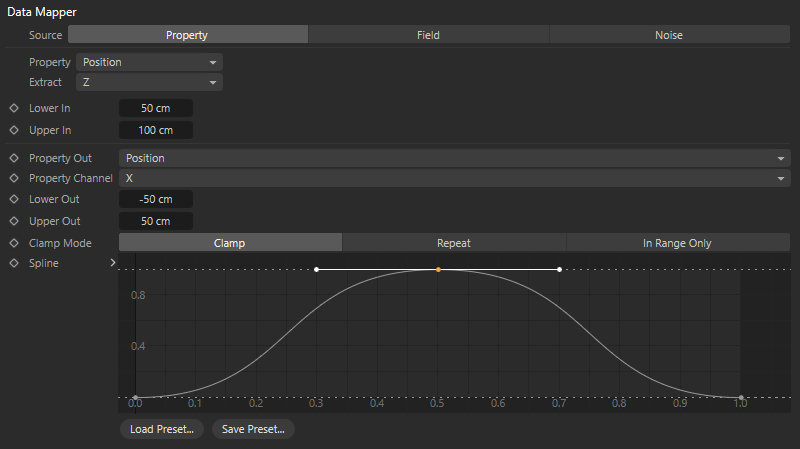 Data Mapper settings for the following examples.
As can be seen in the video above, the same value that would be used for particles with a Z position of 50 cm is simply output for particles with a Z position of 50 cm in the Clamp Mode Clamp. Similarly, particles with Z positions greater than 100 cm are assigned the same value that would be used for particles with a Z position of 100.
The following video shows the same scene, only this time with Repeat Clamp Mode activated. Particles that have a property that is smaller to the Lower In are all treated equally and receive the output value -50 cm, such as at the Z position 50 cm. This corresponds exactly to the behavior that we have already seen in Clamp Mode Clamp. For particles with a Z position greater than 100 cm, however, the output values are repeated.
Now the third mode remains, In Range Only. This automatically ignores all particles whose read property lies outside the range defined for Lower In and Upper In. The effect corresponds to the additional use of an upstream Condition, which then only lets through the particles that fulfill this entry-level area condition. As can be seen in the following video, the clear advantage here is that we can control more specifically which particles or when the particles should be affected. For example, the particles near the Emitter remain completely unchanged until they reach the Z position 50 cm.
You can use the course of this curve to affect the conversion of the values, which are then finally transferred back to the particles. The effect of this curve has already been discussed in the discussion of the Lower In and Upper In parameters. The Spline control element used here is also used in many other places in Cinema 4D. If you would like to read about its functions again here, simply open the following section.
 Click here to unfold the description of the spline UI element in Cinema 4D
In general, you can remember that existing points on the curve can simply be grabbed and moved with the mouse when operating spline control elements. You will also find input fields below the spline for exact positioning if you click on the small arrow to the left of the function graph. The exact Y-position of a point can also be entered directly in the function graph by double-clicking on the point.
In the area below the function graph, you can control the Interpolation for each selected spline point, e.g., to work with tangents or hard interpolated points.
New points can be created by Ctrl-clicking or Cmd-clicking on the curve. Existing points can be selected by clicking on them and then deleted again by pressing the Del key.
You can also select several spline points at the same time by:
- Dragging a rectangle selection with the left mouse button held down (the keys described in the next point also work here)
- Adding several points to a selection one after the other by holding down the Shift key. Items that have already been selected can also be deselected again with Ctrl/Cmd clicks.
Common curves can be called up directly by right-clicking on the graph and then navigating to the Spline Presets submenu in the context menu. You will also find a Load Preset... button under the spline curve to load previously saved spline curves directly. You can also save your own curves at any time via Save Preset....
In general, you will also find many other helpful functions in the right-click context menu, e.g., for duplicating and mirroring a spline or for activating standard interpolations for individual points (submenu: Point Types).
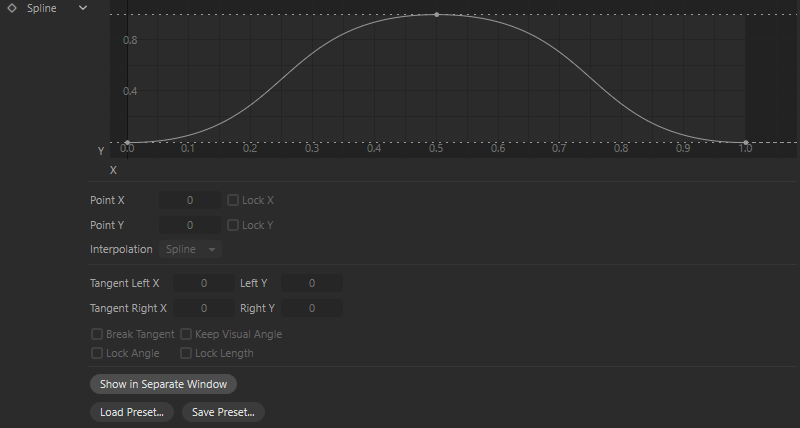
Each spline point that is using Spline Interpolation offers tangents that can be used to influence the course of the curve in the immediate vicinity of the point. Tangents always start at the spline point and have a handle at the end that can be grabbed and moved with the mouse.
Moving the tangent end points is supported by the following keys:
- Shift: The moving half of the tangent can be changed independently of the opposite side (i.e., the tangent can be broken). If you want to undo the 'break', deactivate the Break Tangent option below.
- Ctrl/Cmd: The tangents can only be changed in length, but not in angle. You will also find a Lock Angle option below the graph.
You can find options for each of these functions below, which you can use to set this permanently for each spline point. These options can then be used, for example, to lock an existing angle between broken tangents(Keep Visual Angle) or you can only edit the angle of a tangent, but no longer its length(Lock Length).
Some keyboard shortcuts also work, such as 0 (to set the Y component of the tangents to 0) or L (to set the X component of the tangents to 0).
The curve can also be moved as a whole using the mouse. To do this, simply grab the curve directly with the mouse between the spline points. For this to work, the Move Curves option must be active, which you can access by right-clicking on the function graph in its context menu.
If the option for Min/Max Lines is also active in the context menu just mentioned, the lowest and highest Y value of the curve is displayed with a horizontal dashed line. These dashed lines can then also be moved vertically with the mouse in order to scale the amplitude of the curve as a whole.
Within the graphical spline display, the hotkeys '1' (Move) and '2' (Scale) or the middle mouse button can be used to zoom in on specific areas. If you find the function graph display too small, you can use the button for Show in Separate Window below to open a window that can be scaled as required, where you can then fine-tune the curve to your heart's content.
Let's now take a detailed look at all the parameters of the Function Graph element:
The coordinates of a selected spline point are displayed here. You can also edit this position directly here.
This locks the respective coordinate component to prevent unwanted changes to it. These options can be set separately for each spline point.
Here you specify the type of interpolation (curve shape) to the next point for selected points:
- Spline: The shape of the curve can be customized using tangents. The tangent always appears on the right-hand side of the selected point and on the left-hand side of the neighboring point to the right, e.g., if the first point of a spline is using Linear Interpolation and the second point is using a Spline interpolation, you will only find a right-hand tangent at the second point and a left-hand tangent at the third point.
- Cubic: Results in a harmonic curve through the spline points without overshoots. No tangents are used.
- Linear: A linear point always shows a straight connecting line to the following point, regardless of the interpolation used there.
If you right-click in the function graph, you can also choose common curve transitions for selected points in the context menu that opens under Point Types.
The tangent end points can be set numerically here.
For each spline point that uses Spline Interpolation, the following four options can be used to lock individual properties of the tangents;
The left and right tangents can be processed independently of their counterparts.
The angle between the left and right tangent remains constant when working on one tangent (if possible), i.e., the other tangent moves with it.
Tangents can only be changed in their length.
Tangents can only be rotated around their origin and remain unchanged in length.
The function graph is opened in a separate, freely scalable window. You can scale it up to screen size and then fine-tune the curve.
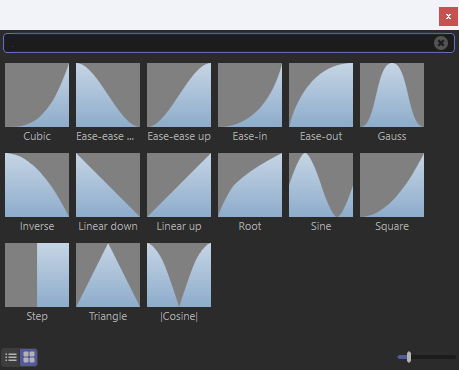 Spline presets can be saved for later use.
Spline curves can be saved and loaded with these two commands.
Click on Load Preset... to open a small selection window where you can load the corresponding preset by simply double-clicking (see image above).
When the Save Preset... command is executed, a small dialog opens in which the desired name of the spline preset and other information can be entered. This means that your current spline curve can be permanently saved and reloaded at any time wherever comparable Function Curve controls are used in Cinema 4D. All presets are managed via the Asset Browser.
General details regarding the Preset System in Cinema 4D can be found there.
However, function curves can also be exchanged between different objects and dialogs without the use of saved presets. To do this, right-click on the term Spline (to the left of the curve) and select Copy in the context menu that pops up. You can then right-click on another Function Curve element and select Paste to transfer the spline curve.
Context menu
Right-click on the function graph to open a context menu with the following entries:
If you have zoomed to a specific point, this command will show the complete spline curve including points.
All selected curve points are displayed in maximum size.
Spline points snap onto the grid points.
Minimum and maximum values along the Y axis of the curve are displayed as horizontal, dashed lines. These dashed lines can also be moved vertically with the mouse in order to influence the amplitude of the curve without having to move all points separately.
If you click exactly on the spline curve, you can move the entire curve by holding down the mouse button (if this option is activated; otherwise only if all points are selected).
If this option is activated, the curve (if it is moved horizontally as a whole) can be moved out over the ends of the function graph on the left and right. Points that leave the graph appear again on the opposite side.
Imagine the first and last points overlapping to form a single point. The activated option then ensures an unbroken pair of tangents, i.e., the two tangents lie exactly opposite each other on a straight line. This is often necessary for functions where the beginning and end merge.
If this option is activated, the spline start and end points are always at the same height.
This sets the X or Y component of the tangent to zero. You then have a vertical or horizontal tangent. The shortcuts 0 (for the Y-portion of the tangents at the selected point) and L (for the X-portion of the tangents at the selected point) have the same effect.
This resets an existing curve to a linearly increasing curve with a start and end point.
Selects all points on the spline curve.
You can select a number of predefined spline shapes here, which are then generated by creating several spline points. The previously displayed spline is replaced.
For Custom see  Formula.... Spline shapes can be created here according to a formula to be entered.
Here you can select a number of common tangent constellations for the selected points.
This can be used to move selected points either to the upper edge (Set to Maximum) or to the lower edge (Set to Minimum) of the graph. Warning! If no point is selected on the curve, the entire spline curve is moved to the upper or lower edge of the graph. Any existing tangents at the shifted points are automatically aligned horizontally, or the Y component of these tangents is set to 0.
These commands mirror the existing curve on a straight line that runs through Y=0.5 (Flip Horizontal) or X=0.5(Flip Vertical) (i.e., a straight line in the middle of the graph in each case). These commands also work with a selection of spline points and can therefore also be used to mirror a curve section.
If no point is selected, use this to compress the entire curve horizontally to half its width and copy this shortened curve to the second half. This results in a doubling of the curve. However, this command can also be executed for a point selection and is then limited to the selected curve section.
This command works like Double, except that the curve to be copied is first mirrored horizontally. Here too, only a specific section of the curve can be mirrored symmetrically by selecting points beforehand.
The function graph is opened in a separate, freely scalable window. You can scale this to screen size and then fine-tune the curve.

This area can be used for both Source Property and Source Noise. With Source Property, an activated noise leads to an additional variation of the results. As many noise structures generate rather soft and low-contrast patterns by default, this can lead to the values used for Lower Out and Upper Out no longer being achieved. This can be counteracted by increasing the Contrast on the noise or by adjusting the Clip settings.
When using Source Noise, the selected noise structure is the only basis for calculating new property values for the particles. The brightnesses in the Noise are then interpreted as values between 0 and 1 and thus lead - again in conjunction with the Spline curve- to a value output corresponding to the Lower In and Upper In settings. The calculation principle for this has already been covered in the discussion of the Lower In and Upper In parameters.
This option must be enabled so that a noise structure is used, the output values can be varied (Source Property) or the output values can be calculated according to the brightness values of the noise structure (Source Noise).
The calculation of the noise pattern is based on this value. A change in the Seed value therefore also leads to a recalculation of the selected noise structure.
Here you can choose the right pattern for you. These are three-dimensional structures that can be conimaged with individual scaling along all axis directions. It is also possible to change these patterns automatically:
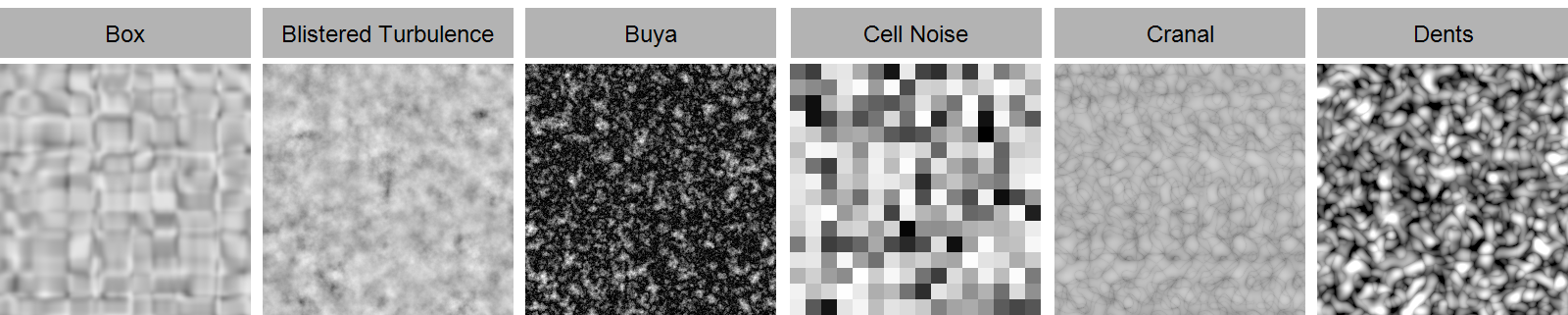
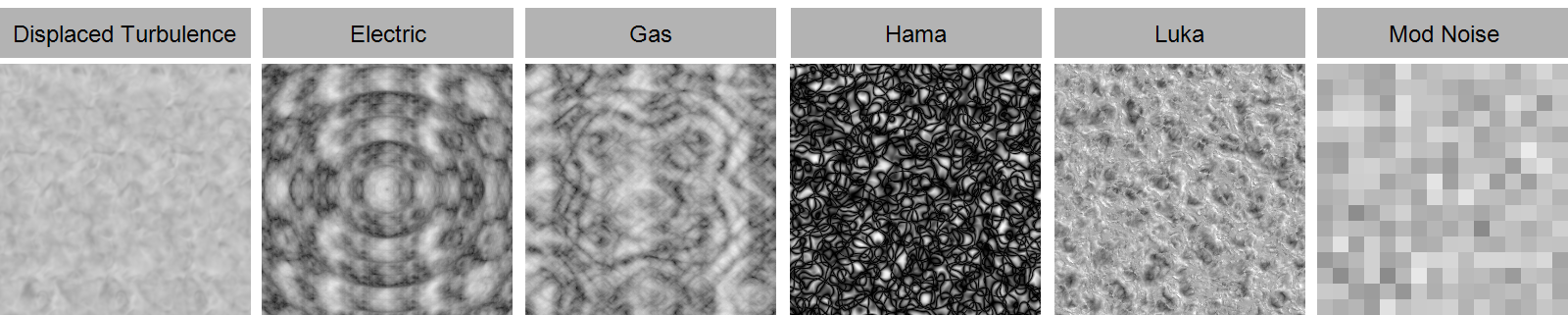
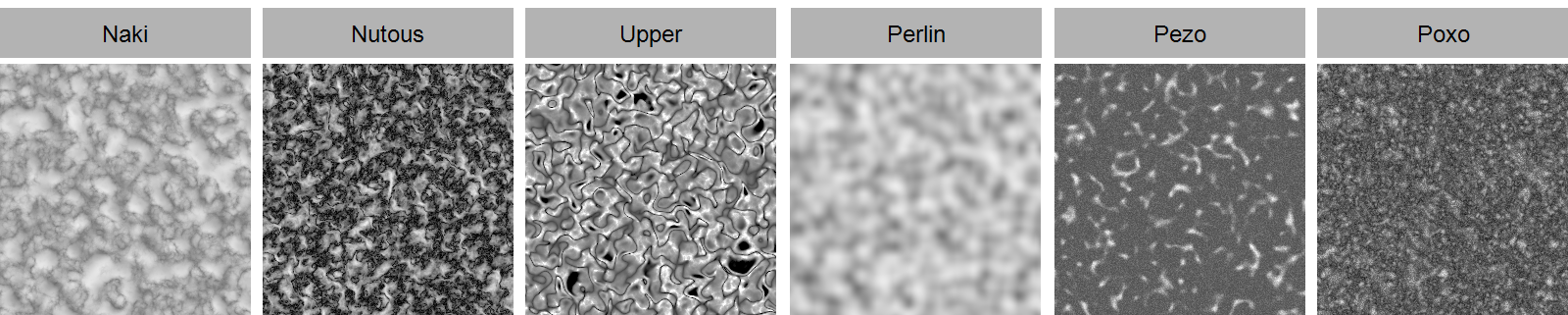
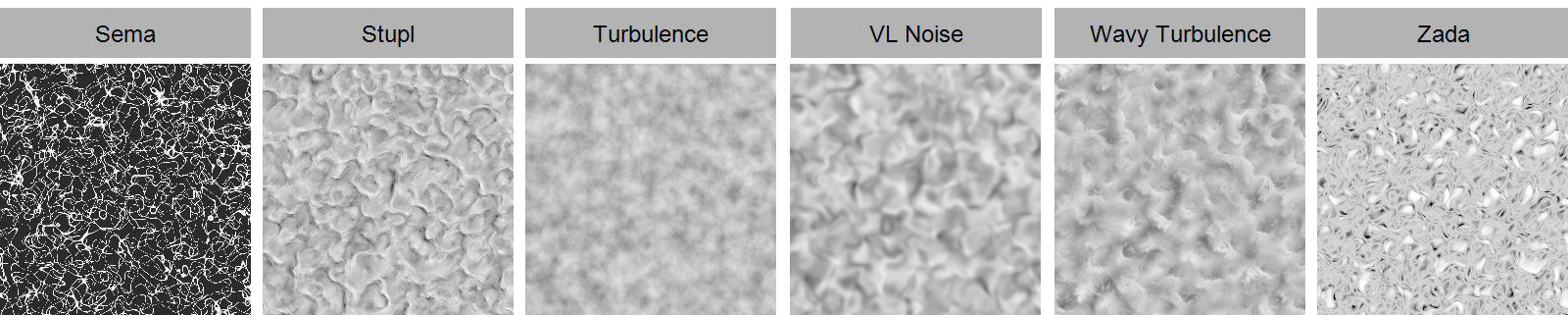
This defines the amount of detail in the noise structure. Larger values create correspondingly more variations in the pattern. Small values lead to a loss of contrast and details, as well as to a softening of the structure. This setting option is not available for the noise types Box, Cell, Mod Noise, Perlin and VL Noise.
You can use these values to scale the Noise structure individually along the three spatial directions. Proportional scaling is also possible via the Scale value.
This allows the Noise to be scaled proportionally. Individual scaling for each of the three axis directions is also possible via Relative Scale.
The Noise structures can also be changed over time. Use this value to specify the speed of these changes. By default, 0 is used here, which results in a static structure.
Almost all noise types (exception: Electric and Gas) have this parameter, which causes the noise to loop after the defined time in seconds (Animation Speed must be greater than 0). The noise state is then repeated every second entered. A value of 0 turns this effect off.
This option is irrelevant for the Data Mapper, as only one component, such as the red component of the particle color or the Y component of the airspeed, is output at a time. This is different with the Color Mapper, for example, as this option can be used to activate an additional variation of the calculated noise values for the output red, green, blue and alpha components.
These two parameters are used to move the noise through the 3D space. Movement is a direction vector that you use to define the direction in which the Noise should move. They then use Speed to regulate the displacement speed of the noise structure.
This can be used to limit the brightness values that the noise should provide. By default, Low Clip is 0% and High Clip is 100%. This means that all brightnesses can be output uncropped between 0% and 100% by the Noise. Increasing the Low Clip means that all brightnesses that are lower than defined for Low Clip are already output as black. Similarly, reducing High Clip results in gray values above the brightness of High Clip being output as white
In fact, this mechanism can be used not only to sharpen a Noise structure and to strengthen the contrast, but also to invert the brightness values. To do this, simply reverse the original arrangement of the clipping values. With Low Clip 100% and High Clip 0%, you get an inverted Noise.
This is used to adjust the general brightness value of the noise. Values above 0% increase the brightness, values below 0% reduce it.
This allows us to reduce or increase the contrast of the Noise Brightnesses. Contrast describes the range of brightness values. With a low contrast, the differences between the Noise Brightnesses supplied are therefore smaller. Greater Contrast leads to greater differences in brightness between the noise brightnesses calculated. This often results in the brightness transitions being more abrupt and less smooth compared to using a lower Contrast.
Here you specify how the noise is to be read out. There are two options to choose from:
- Position: The position of each particle is transferred to the three-dimensional noise structure in order to determine the variation values there. This is the standard behavior in older Cinema 4D versions. The particles practically move through the noise structure and extract the noise values at the corresponding positions.
- Custom: This mode is available from C4D 2025.2 and allows the assignment of user properties in Vector data format with the unit Meter. This makes it possible to address individual noise positions for each particle, regardless of its position in the room.
The following video provides examples. The Data Mapper was used to establish a relationship between the Distance Traversed by the particles and their Radius. As a result, the particles become smaller and smaller with increasing distance from the emitter. In addition, the Noise was activated in order to perform random variations of this calculation.
The classic Position sampling can be seen on the left. The particles practically move through the noise structure and are individually varied in radius according to their positions. To the right, a custom property with Vector - Meter data type has been created in the particle simulation settings. Only the X and Y parts of this custom property are filled with the corresponding parts of the particle positions using two Math modifiers. The Z component generally remains 0. If this custom property is now specified as a Noise Sampler, only one 2D level of the spatial noise structure is sampled by the particles. The Radius variations remain correspondingly more homogeneous here.