
Maxon Studio in 60 Seconds
Maxon Studio is a one-stop interface for browsing, applying, adjusting, and iterating Maxon capsules. If you've ever wanted the convenience of a template without the headache of managing hundreds of parameters, this is the page that tells you why Studio exists and what a capsule actually is.
What is a capsule?
What's a capsule? Well, imagine you have a need for a motion graphics overlay in your project. You want something that impresses with attractive design and clean professionalism. Building it yourself might take more time or expertise than you have available, so you turn to conventional, pre-packaged templates.
With templates, though, you might not know exactly what you're buying or how it behaves when animated. Templates incorporate a host of parameters, properties, and presets, but good luck remembering which attributes and values you needed upon subsequent use or sharing all those settings with your colleagues.
Capsules place all those parameters, settings, and project assets into a searchable, preview-ready, easy-to-modify package. Studio is the interface through which you can browse and manage those capsules. Check it out:
Studio and capsule construction
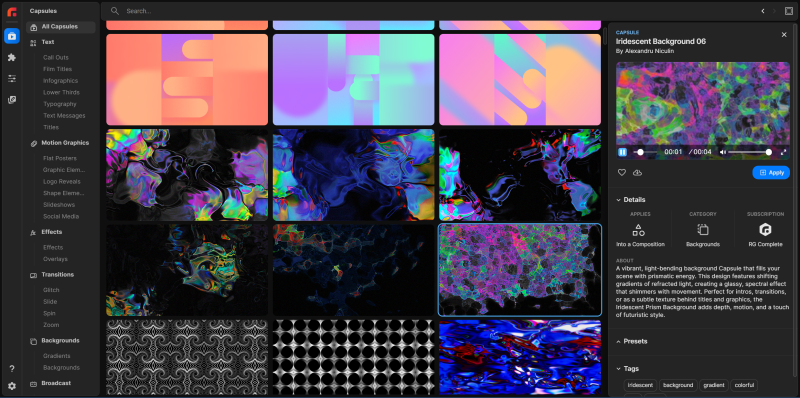
Here's a screenshot of Studio showing a collection of background capsules within After Effects:
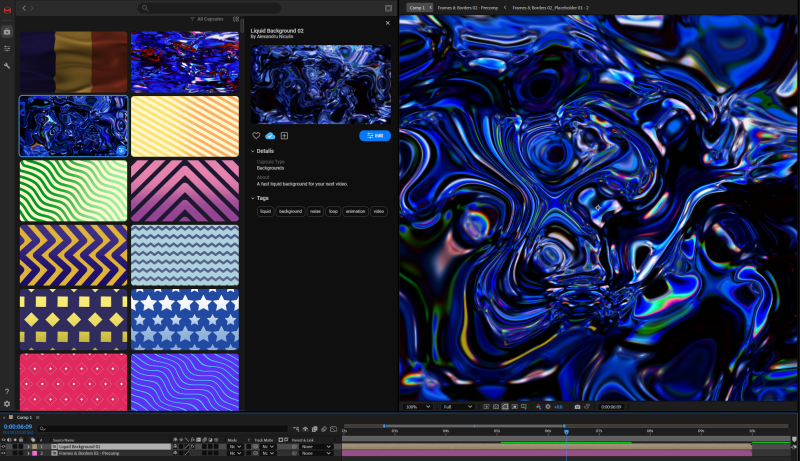
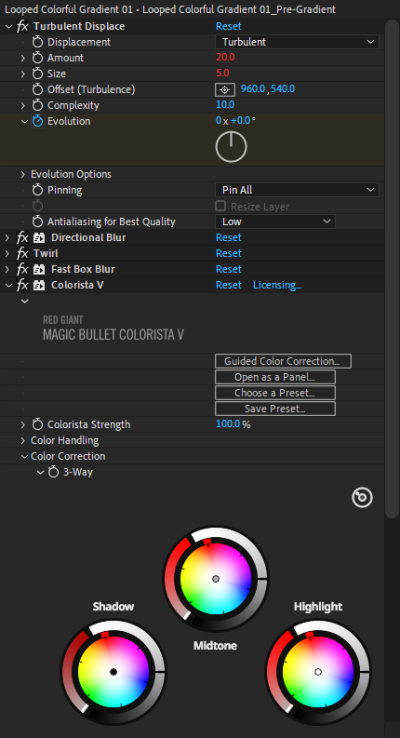
Cool design, right? But how did the artist create that capsule? With a collection of project layers, each of which employed different tools, effects, preset values, and even project assets. Below, you can see how just one of the layers used Adobe's Turbulent Displace and Twirl as well as Maxon's Magic Bullet Colorista V.
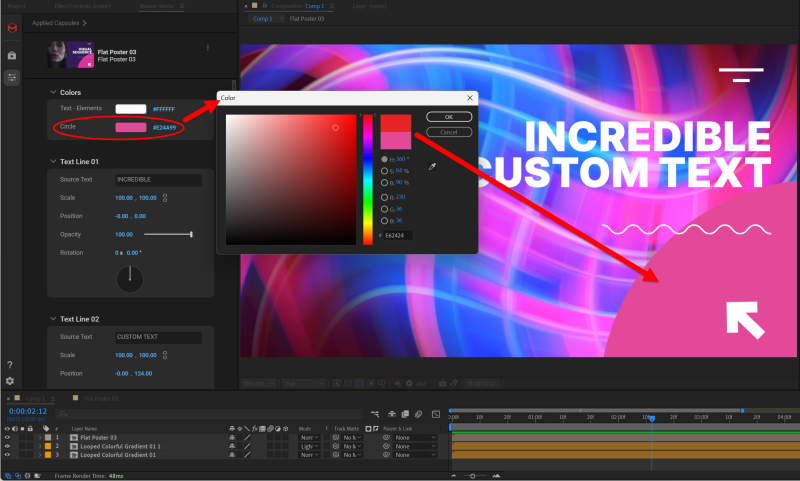
With Studio, you can quickly create multiple instances of a capsule, then tweak each one and overlay them to create unique outcomes. Here, you see two of the above capsule instances applied in the same comp, with one rotated and the other using the Lighten blend mode.

Bringing five or six effects into a project may mean juggling hundreds of parameters, which can bog down workflows. With Studio, capsule creators can select the most essential controls to expose within Studio's editing interface. This makes big changes a snap while still leaving users full editing control within the host application. You can also tweak and iterate any capsule you please, then save those changes as unique capsule presets for later use.
Studio includes a range of capsule categories, such as Text, Effects, and Transitions. In the time it takes to slap together a sandwich, you could combine and customize various capsule types into an attractive, ready-to-deploy project.
In short, Studio takes everything you love about presets and templates — that finished look, the quick convenience — and makes it all an order of magnitude better.
Prefer to watch?
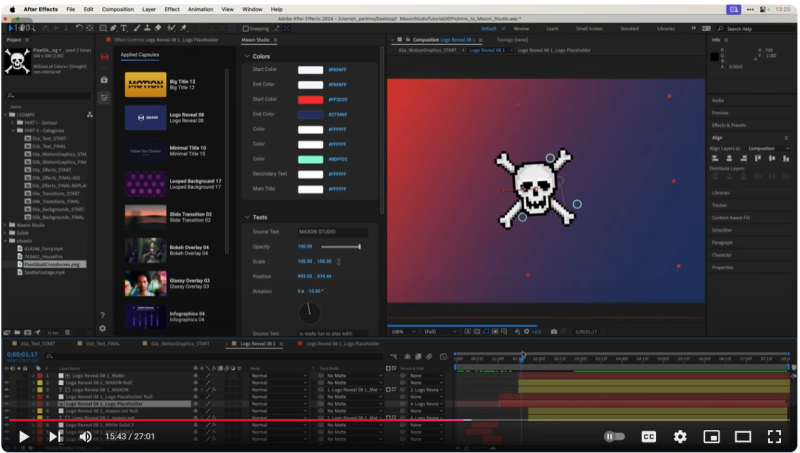
If you're more of a "show me, don't tell me" type, we've got you covered. Check out our 27-minute Getting Started video right here.
Frequently Asked Questions
What is Maxon Studio?
Maxon Studio is a one-stop interface for browsing, applying, adjusting, and iterating Maxon capsules inside a host application such as After Effects. It lets you preview capsules, apply them to your project, and edit their exposed parameters without digging through layer stacks.
What is a capsule in Maxon Studio?
A capsule is a searchable, preview-ready, easy-to-modify package that bundles parameters, settings, and project assets together. Unlike a generic template, a capsule remembers which attributes matter and exposes them through Studio's editing interface, so you don't have to track settings across files or share dense parameter lists with collaborators.
How is a capsule different from a regular template?
Templates typically hand you a finished look without explaining how it behaves or which parameters drive it. Capsules keep the convenience of a finished look but add a curated set of exposed controls, project assets, and previewable states, making capsules easier to reuse, iterate, and share than ad-hoc template files.
Can I use the same capsule more than once in a project?
Yes. Studio lets you create multiple instances of a capsule in the same composition, then tweak each instance independently — for example, rotating one and setting another to a different blend mode — to produce unique results from a single source capsule.
What kinds of capsules does Maxon Studio include?
Studio ships with a range of capsule categories, including Text, Effects, and Transitions. You can combine and customize capsules across categories to assemble a finished, ready-to-deploy project in minutes.