
Studio: Core Concepts
Maxon Studio is built around four primary interfaces — the Capsules, Plugins, Edit, and Create pages — that make capsules and Red Giant plugins easy to find, acquire, access, and use. Studio's guiding principle is to help you go from nothing to stunning in only a few clicks, and the heart of that process revolves around these four pages working together.
Capsules, Plugins, Edit & Create
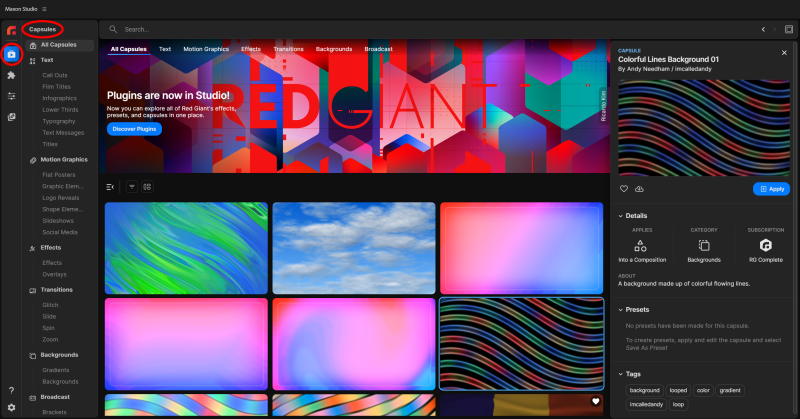
The Capsules Page (shown above) houses a gallery of capsule previews along with various ways to filter, apply, and learn more about those capsules.
The Plugins Page brings the full Red Giant and Universe plugin (tool) catalog into Studio, including the content that used to live in the Universe Dashboard.
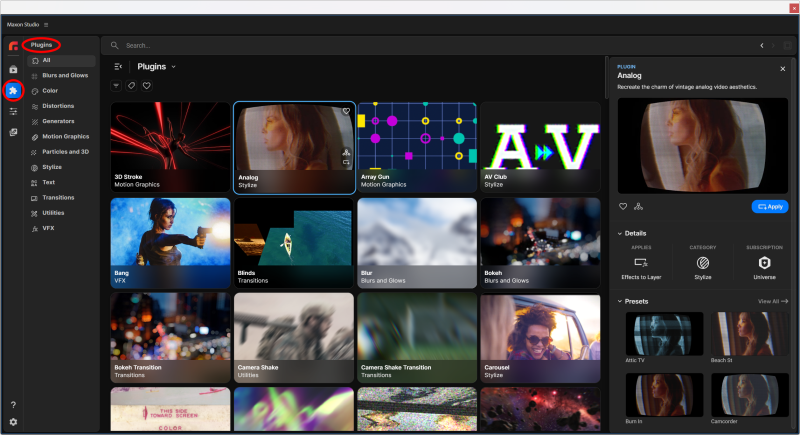
Studio is now your nexus to all Red Giant tools, and the Plugins Page provides its own search, filtering, and category navigation, plus a details panel showing each plugin's description, presets, and subscription requirements. See The Plugins Page for the full walkthrough.
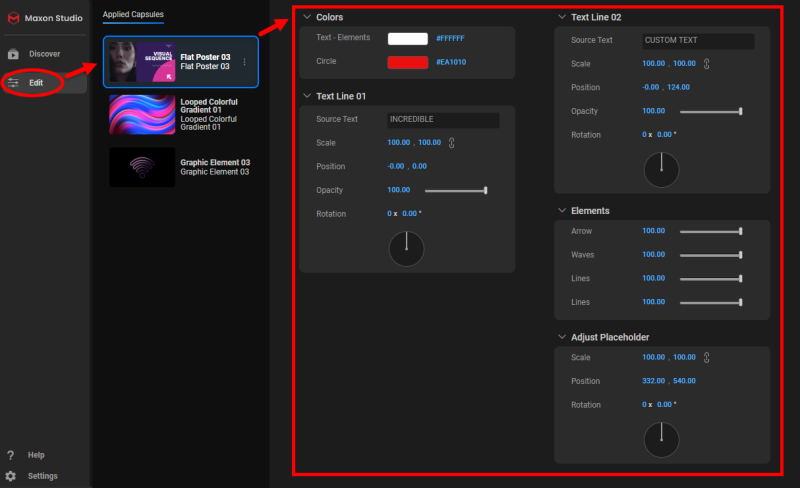
The Edit Page provides access to the capsule creator's choice parameters — a "best of" controls collection, if you will. Often, one Studio capsule parameter will map to one tool parameter in the host app (for example, a Glow control in Studio would link to an Intensity control in Maxon's Universe Glow plugin within After Effects). However, capsule creators can opt to link multiple parameters to one editing control and so craft a "master" control for attributes even across multiple tools and project layers.
Take another look at an earlier illustration.

We made this composition from two capsules: one background, which we replicated into a second instance, and a motion graphics capsule comprised of 13 layers (shown below).
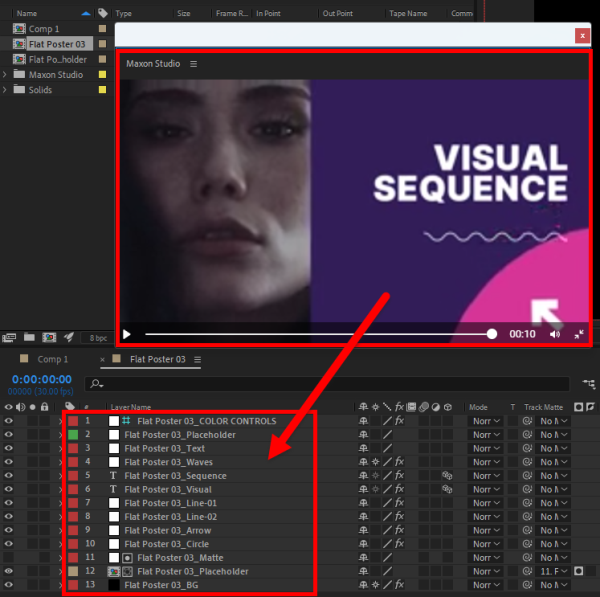
You'll notice how we removed some of the opaque background elements to reveal our background gradients, changed the circle's color, and replaced the text. Respectively, this was a matter of deleting a few layers in AE and then using Studio's editing controls to change the Circle color and Text Line contents (shown earlier). All told, it took about a minute to get what we wanted.
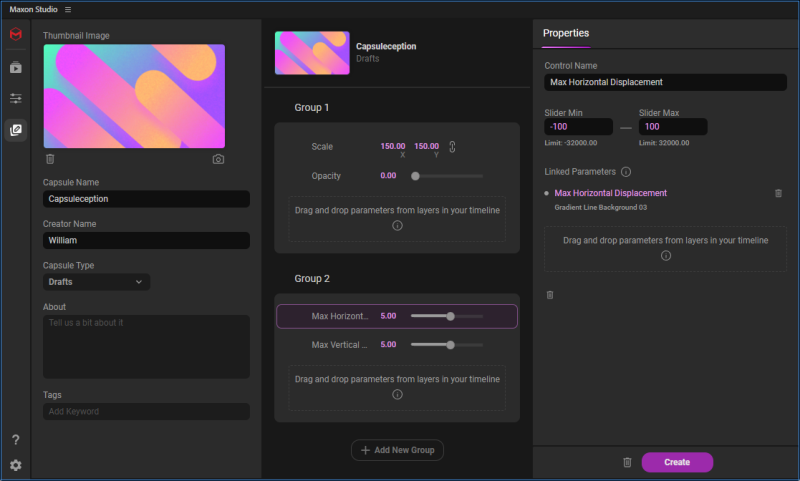
Studio's Create Page lets you take existing capsules, effects, layers, comps, and other project elements to craft and iterate your own custom capsules and then share them with others. The ability to tailor new capsules to your own needs just makes Studio-centric project streamlining that much better.
Remember: Think of capsules as customizable building blocks that allow you to make a practically infinite range of project types and permutations.
Search and Filter
Maxon Studio ships with hundreds of capsules, and there are plenty more where those came from. If you're looking at a Capsules gallery two or three thumbnails wide, you can see how managing hundreds of capsules might become…unwieldy. Fortunately, Studio comes with various avenues for whittling down a copious capsule collection to those few candidates you actually covet.
At the highest level, Studio divides capsules into various categories, such as Text, Motion Graphics, and Backgrounds. If you know you want a Background, for instance, simply click that category and only capsules tagged as Background will appear in the Capsules gallery. These categories then divide into subcategories, as with the Text category having subcategories like Call Outs and Infographics.
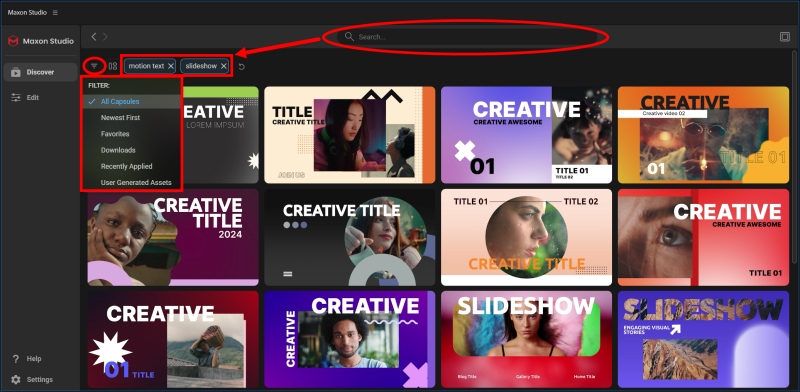
Alternatively, you can use the Search bar to identify descriptive tags or their similar equivalents, then sort capsules by these terms. Or go a slightly different direction with filtering capsules by recency, download status, or other criteria.
Apply Options
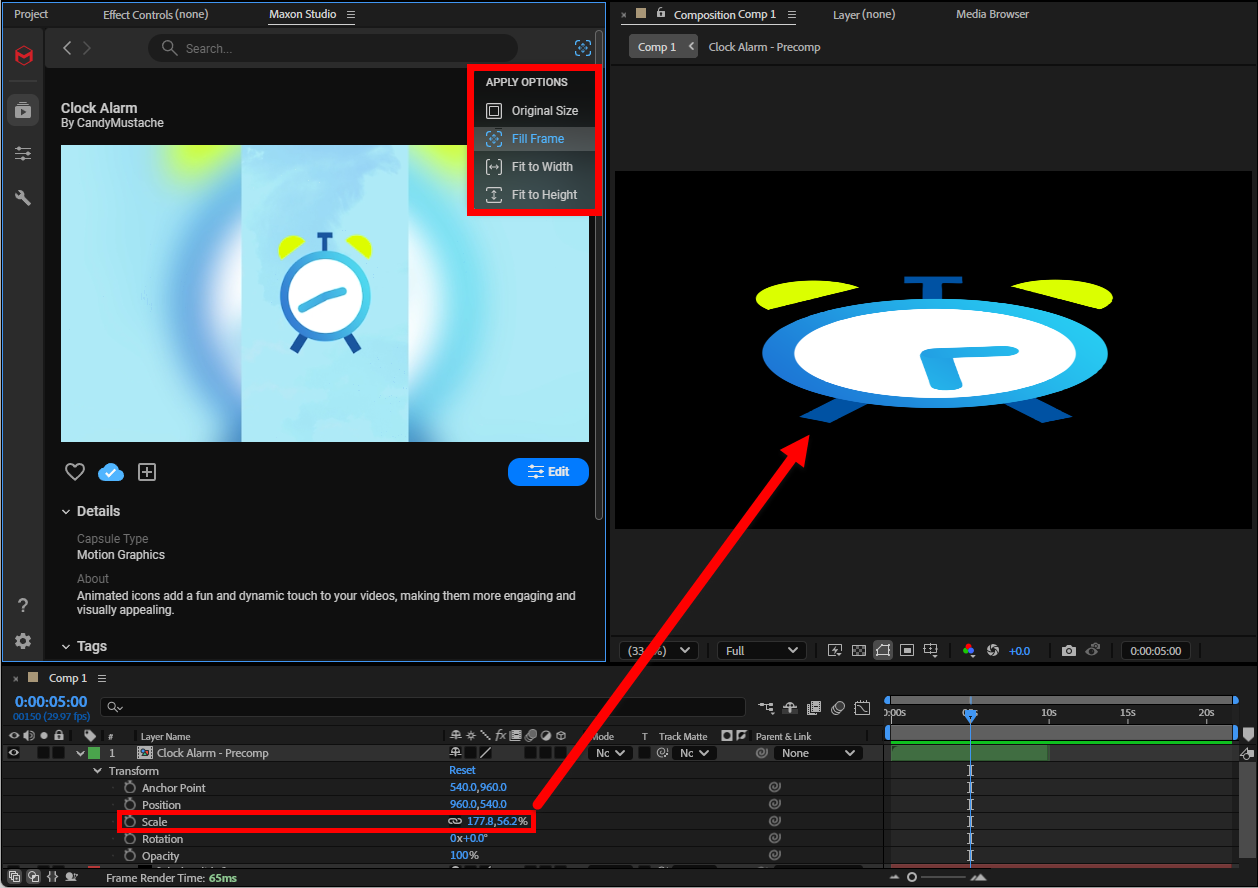
Studio includes an Apply Options control accessible via the pull-down icon to the right of the Search bar. Here, you'll see options for Original Size, Fill Frame, Fit to Width, and Fit to Height. By default, capsules apply at their original 16:9 horizontal (landscape) or 9:16 vertical (portrait/social) formats unless you select one of these other Fill/Fit options. Your Apply Options selection will apply in every subsequent instance of that capsule until you pick a different setting.
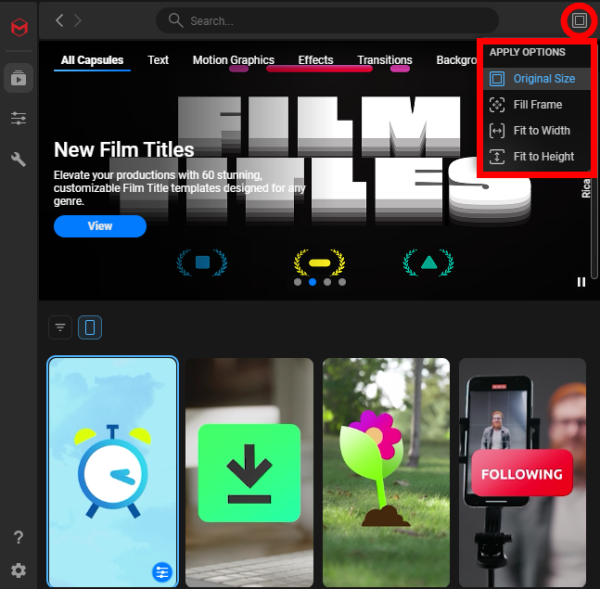
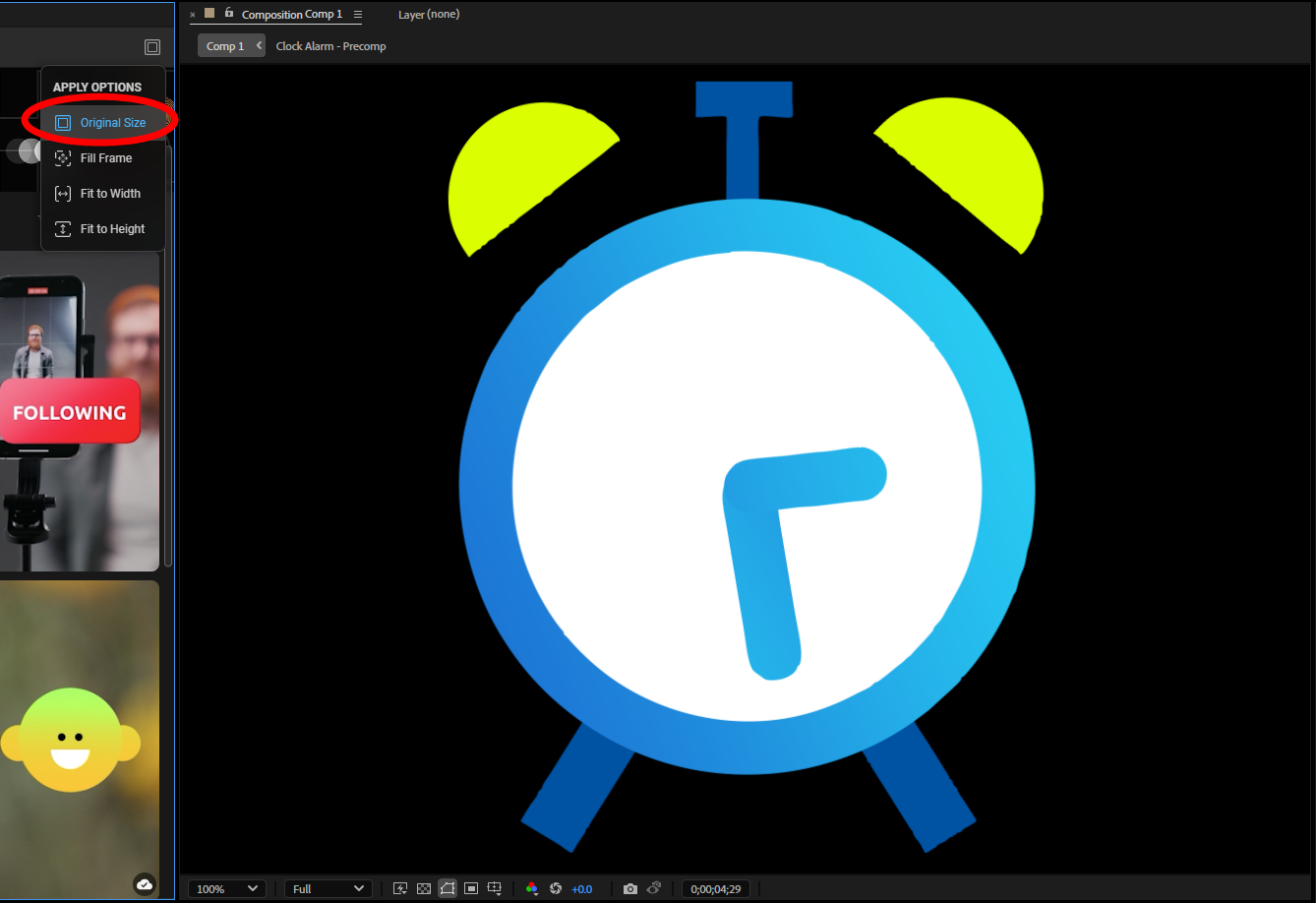
Original Size (see below, left) applies the capsule at the default ratio (Transform > Scale: 100, 100%) established by the capsule designer. The other Apply Options choices use different default values. Fill Frame (right), for example, adjusts the width and height to match the size of your composition. This can cause the capsule to stretch or compress when applying a capsule of one orientation with a comp of a different orientation.
Orientation sorting
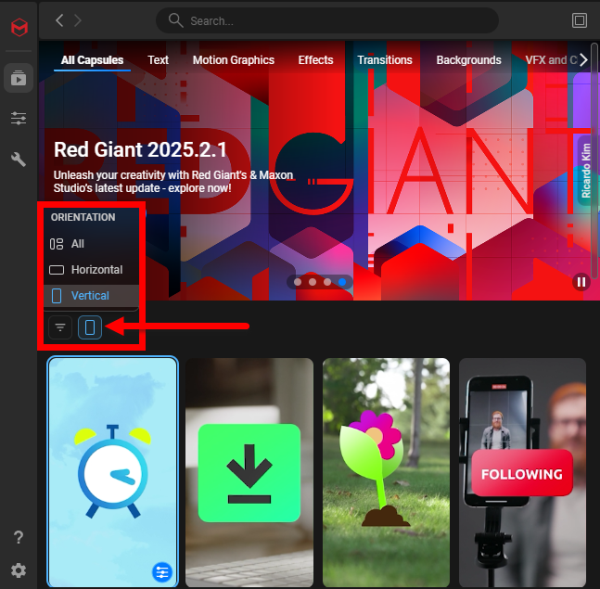
Studio also lets you sort the Capsules gallery by capsule orientation (portrait, landscape, or either). In the example below, with Vertical selected, only portrait-type capsules display.
See our Tips & Tricks page for more ideas on manipulating these Orientation settings in your comp.
Again, Studio offers many ways for you to manage and employ your capsule collection with maximum ease and efficiency. Keep reading to learn the details on how to weave these abilities into your Studio workflow.
Frequently Asked Questions
What are the four main pages in Maxon Studio?
Studio is built around four primary pages: the Capsules Page, where you browse, filter, and preview capsules; the Plugins Page, where you access the full Red Giant and Universe plugin catalog; the Edit Page, where you adjust a capsule's exposed parameters after applying it; and the Create Page, where you build and share your own custom capsules from existing project elements.
Can one Edit Page control drive multiple effects at once?
Yes. Often, one Studio capsule parameter maps directly to one tool parameter in the host app — for example, a Glow control in Studio linking to an Intensity control in Maxon's Universe Glow plugin. Capsule creators can also link multiple parameters to a single editing control, creating a "master" control that drives attributes across multiple tools and project layers simultaneously.
How do I filter and search the capsule gallery in Studio?
You can narrow the Capsules gallery using categories (Text, Motion Graphics, Backgrounds, and others) and their subcategories, the Search bar for descriptive tags, and filters for recency, download status, or orientation (portrait, landscape, or either). You can also sort the gallery by capsule orientation to see only vertical or horizontal capsules.
What do Studio's Apply Options do?
The Apply Options control — accessible via the pull-down icon to the right of the Search bar — determines how a capsule scales when applied to your composition. Original Size preserves the capsule designer's default ratio, Fill Frame stretches the capsule to match the comp's dimensions, and Fit to Width or Fit to Height scale the capsule along one axis. Your selection persists for subsequent instances until you change it.
How is this page different from the Maxon Studio in 60 Seconds overview?
The 60 Seconds overview is a high-level introduction to what Studio and capsules are. This Core Concepts page goes a layer deeper, explaining the three primary pages (Capsules, Edit, Create), how capsule controls map to host-app tool parameters, and how Studio's search, filter, and Apply Options let you manage a large capsule collection.