
Help and Settings
Maxon Studio's Help and Settings pages provide access to support tools, log packaging, version info, and customization options like tooltips, preview animation, hotkeys, and cache clearing.
Help
Everybody needs help sometimes. On the rare chance you hit a Studio snag this user guide can't resolve, feel free to try this page's Open support… button and fill out a support ticket. Our experts will do their best to help. And if you need to send in your log files to help support serve you better, that's what the Package logs… button is for.
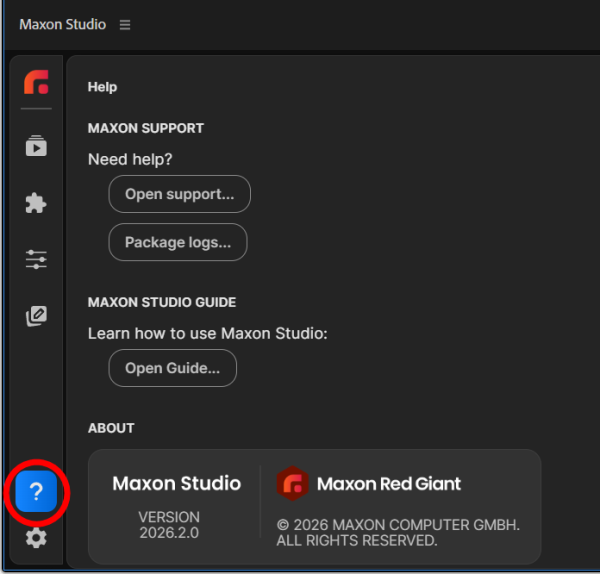
Also, in a rare bit of Help inception ("helpception"?), this is us in the user guide pointing out Studio's Open Guide… button, which will take you…to this user guide.
If you ever need to look up which exact version of Studio you're using, the About info is right here.
Settings
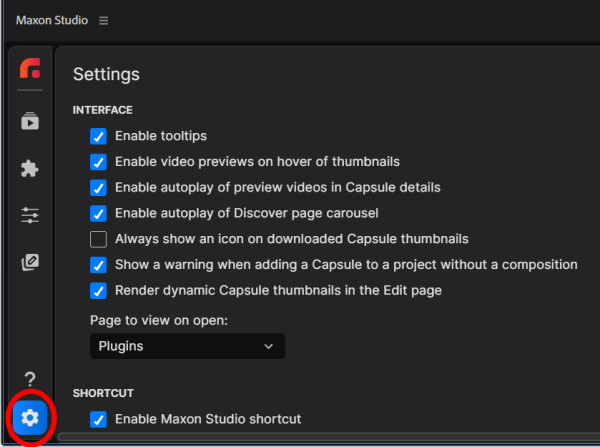
In the lower-left corner, find the gear icon that reveals Studio's Settings page. Use these to help customize the Studio experience to your preference.
Interface
-
Enable tooltips. Tooltips are the little text blocks that appear when you hover over certain items in Studio. For example, this is the tooltip that appears when you mouseover a keyframe stopwatch.
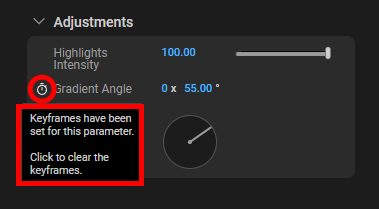
An example tooltip appearing on hover over a keyframe stopwatch. -
Enable video previews on hover of thumbnails enables/disables the animation of thumbnail gallery previews. Note that even if this checkbox is disabled, you'll still have animation operating in the Profile Panel, unless…
-
Enable autoplay of preview videos in Capsule details, when unchecked, disables thumbnail animation in the Profile Panel.
-
Enable autoplay of Capsules page carousel, if unchecked, will disable banner scrolling across the top of Studio's UI.
-
Always show an icon on downloaded Capsule thumbnails, when checked, will display the "downloaded" cloud icon at all times on capsules in the gallery. Otherwise, the icon only appears during a mouseover of the capsule.
Shortcut
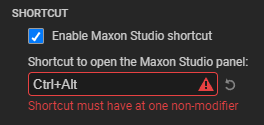
The Settings allow you to enable a "hotkey" combination that activates Studio from within your host app without having to find it in the Window menu. (The same shortcut will also close Studio if it's already open.) As you can see above, Studio will warn you if your combo is either malformed or already taken by another hotkey combo in the host app.
Media and Disk Cache
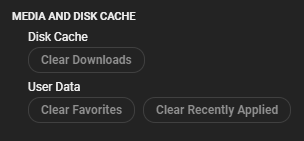
Priorities change with time and projects. You may find yourself someday wishing for a one-click option for wiping out your accumulated Favorites or Downloads. You might even want to clear out Studio knowing which capsules you recently applied, just so you can proceed with a blank slate. For these needs, the Media and Disk Cache section has you covered.
Frequently Asked Questions
How do I contact Maxon support from within Studio?
Open the Help page and click the Open support… button to file a support ticket. If support asks for your log files, use the Package logs… button to bundle them for upload.
Where do I find which version of Studio I'm running?
The About info is on the Help page and shows the exact version of Studio currently installed.
Can I launch Studio with a keyboard shortcut?
Yes. Open Settings (gear icon, lower-left) and configure a hotkey combination in the Shortcut section. The same shortcut opens Studio from your host app and closes it if it's already open. Studio warns you if the combo is malformed or already claimed by another host-app shortcut.
How do I stop thumbnail previews from animating on hover?
In Settings > Interface, uncheck Enable video previews on hover of thumbnails. Note that the Profile Panel preview will keep animating unless you also uncheck Enable autoplay of preview videos in Capsule details.
How do I clear my Favorites, Downloads, or Recently Applied history?
Open Settings and scroll to the Media and Disk Cache section, which provides one-click options for wiping out accumulated Favorites, Downloads, or recent-use history so you can start with a blank slate.