
ZBrush: What's New Guide
Below is a list of recent version updates for ZBrush desktop, including additions, changes.
THE INDUSTRY-STANDARD SYSTEM FOR DIGITAL SCULPTING AND PAINTING
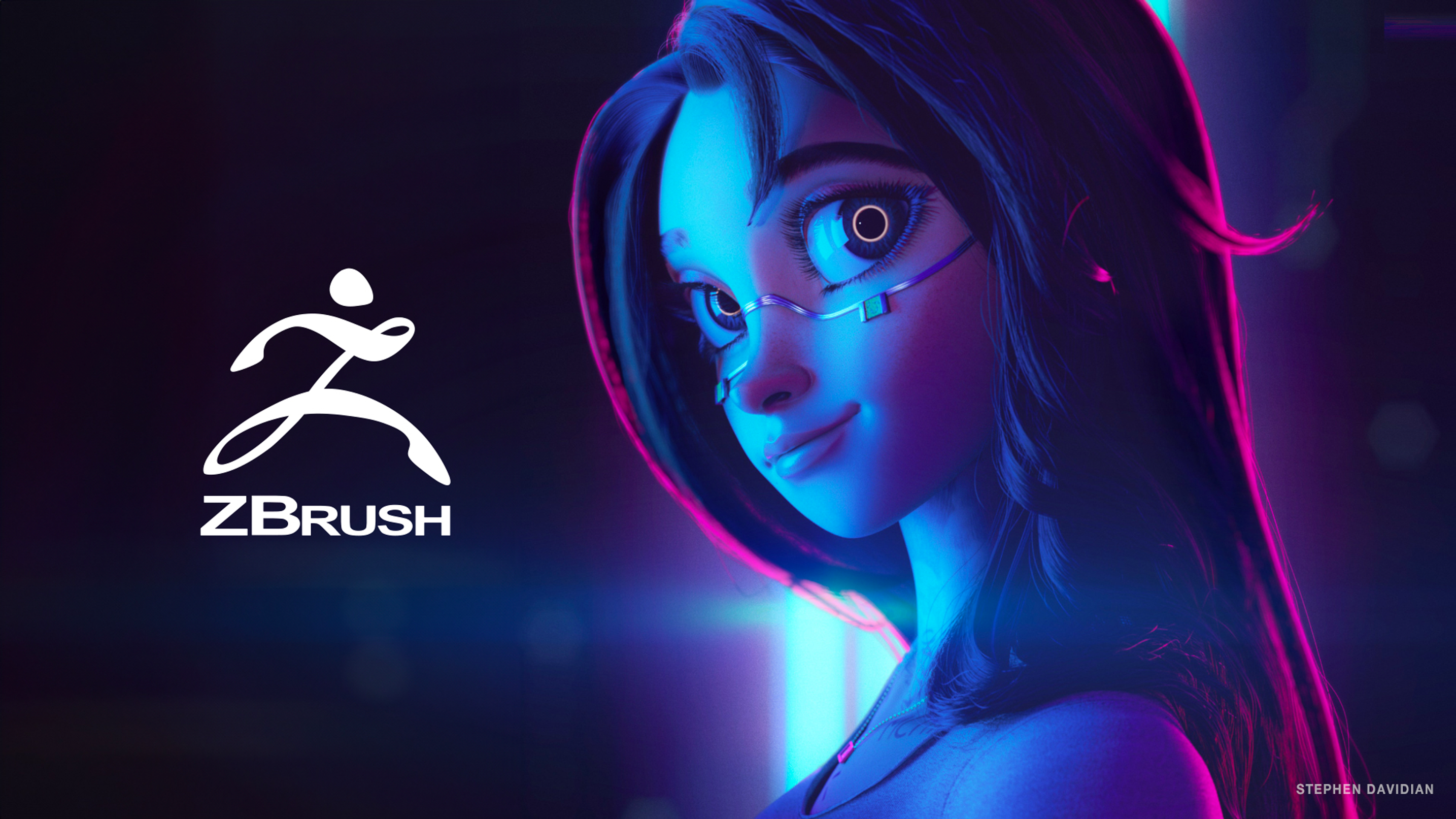
Welcome to the What’s New guide for ZBrush®! ZBrush sets the industry standard for digital sculpting. Its features enable you to use customizable brushes to shape, texture, and paint virtual clay in a real-time environment. When you use ZBrush, you’ll be working with the same tools used by film studios, game developers, toy/collectible makers, jewelry designers, automotive/aviation designers, illustrators, and artists worldwide.
ZBrush continues on the path of creativity and productivity with major new features allowing artists to work even faster and with more freedom. This version carries the ability to experiment and work in a natural way to a whole new level, offering artists greater freedom to express their ideas and discover ways of working that previously have been beyond imagination. Get ready to unleash your creativity!
2027.0
New features and improvements:
-
UV Editor, a dedicated application for UV work, built on Cinema 4D technology
-
Opens from Tool > UV Map, with All, Visible, or Selected SubTools
-
Create, unwrap, edit, and pack UVs, then apply the result to your model
-
All UV pages are now together in the new UV Mapping section of the User Guide
-
-
Selection Sets in the Tool palette:
-
Store several versions of a SubTool's Polygroups, masks, polypaint, UVs, and morph targets
-
Recall any stored set with one click
-
Store more than one morph target and blend between them
-
-
Copy, Paste, and Clear buttons in the Polygroups, Masking, and Polypaint sub-palettes
-
Delete Spotlight clears the Spotlight canvas and removes every image
-
Bake Current bakes only the selected 3D layer
2026.1
New features and improvements:
-
IMM viewer system update
-
Works with IMM brushes, VDM brushes, extruder brushes, and retopo brushes
-
Create custom organized brushes using subtool folder structure
-
Helps manage large brush libraries
-
-
User folder restructuring:
-
Main ZBrush installation folder is now read-only
-
All user content now stores in user profile directories
-
Two Lightbox systems: Maxon (integrated with ZBrush) and User (custom assets)
-
-
Manual Retopo tools:
-
Insert edge loop
-
Insert multiple edge loop
-
Inset polygon face
2026.0
New features and improvements:
-
Python scripting support that works in addition to ZScript
-
ZModeler interaction improvements
-
ZModeler creasing options added to the following:
-
Insert edge loop
-
Insert multiple edge loop
-
Inset polygon face
-
NoiserMaker - Alpha image now has transformation ability
-
Rotation
-
Scaling on both axes
-
Offset on both axes
2025.2
New features and improvements:
-
ZModeler Presets - now includes My Presets, allowing you to create, store, and instantly access custom configurations via the spacebar menu.
-
Pro Projects - Two new Pro Projects have been added to the ZBrush library, each featuring a collection of brushes, textures, and models.
-
ZModeler Polygon Selection - A new Polygon Selection action in ZModeler enables quick temporary polygroup selections—no Alt/Option key required.
-
ZModeler Insert Edge Loop Snap - Now offers Snap modifiers for precise snapping to Quarter, Half, or Custom distances.
-
ZBrush Redshift Materials – These material parameters now match Cinema 4D's Redshift Standard Material, unlocking advanced rendering parameters that are fully customizable for polypaint or preset colors.
-
20 new Redshift Preset Color Materials have been added to the ZBrush material library.
2025.1
New features and improvements:
- ZBrush Redshift supports real-time material lighting updates within the canvas viewport.
- Redshift AOV passes and associated parameters added, including Diffuse, Shadow, Global Illumination, Ambient Occlusion, Subsurface scattering, Reflection, Refraction, Depth, Background, Bump Normal, and World Position.
- Redshift AOV Denoising features added. Powered by Intel’s cutting-edge Open Image Denoise (OIDN) system, this feature delivers fast, high-quality denoising for individual AOV passes.
- QuickPolygroup Brush added and used to create polygroups based on the Draw Size.
- Bend Mode added to the Anchor Brush, offering the unique ability to bend an object between two points assigned to the object.
2025.0
New features and improvements:
- ZBrush desktop GoZ supports sending and receiving projects with ZBrush iPad.
- Support for USDZ format added to the USD plugin.
- MOV format added to movie export options for the macOS version of ZBrush.
- Monster Clay® MatCap Brown, Monster Clay® MatCap Green, and Monster Clay® MatCap Grey added to MatCap Materials.
- Monster Clay® Green, Monster Clay® Grey, and Monster Clay® Brown added to the Standard Materials library.
Modified:
- Compatibility support for ZBrush for iPad.
- OBJ export is significantly faster for larger files.
- Movies now export in MP4 format on both macOS and Windows.
Fixed:
- Clicked CamView icon now resets mesh orientation as expected.
- Crash resolved when using Knife brushes on high-density meshes.
- Crash caused by idling with the Bend Curve deformer active is resolved.
- Crash resolved when running macOS ZBrush without logging into the Maxon App.
- macOS Projection Master has been restored to the plugin menu.
- File save times now display accurately in the UI.
- Exported movies above certain dimensions now play correctly on macOS.
- Image Plane no longer triggers a script error on macOS.
Great Resources
-
In addition to the material you'll find in these pages, you're also invited to visit our ZClassroom for a huge database of free, high-quality movies explaining ZBrush's main features.
-
Don’t forget to subscribe for free to our ZBrushCentral community to discover tips, view artists’ creations, and locate useful help for all things related to ZBrush or post your works-in-progress.
-
We encourage you to regularly visit our ZBrush blog as well as our social media outlets where you will find all the news related to the ZBrush universe, from the most recent Interviews to new plugins and gallery additions. Here you will also find the Artist Spotlight, where famous 3D Artists explain how they use ZBrush, helping inspire you to create like the pros.
Notes on Conventions in This Document
Instead of the Windows Ctrl key, Apple systems use the Command (Apple) Key. This documentation will always refer to using the Ctrl key name, although it may sometimes list both as Ctrl/Command. When the Ctrl key is mentioned anywhere in the documentation, a Macintosh user will want to use the Command key instead.
The same is true for the Windows Enter key, which the Macintosh calls Return. When seeing the Enter key mentioned anywhere in this documentation, a Mac user will want to use the Return key instead.
The Close/Quit, Hide, Minimize, and Maximize buttons are located on the top right in Windows and at the top left on macOS.
ZBrush Localization
ZBrush is available in multiple languages and will attempt to match its language to that of your operating system, if available. You can change the language at any time in the Preferences > Languages sub-palette.
If you wish to translate ZBrush for your language, please refer to the Multilanguage section of the ZBrush User Guide and contact maxon.net/en/support-center.