
Long Press Directory
Various elements within ZBrush offer a secondary long-press ability to access menus and other options. Listed below are all primary locations that utilize long press.
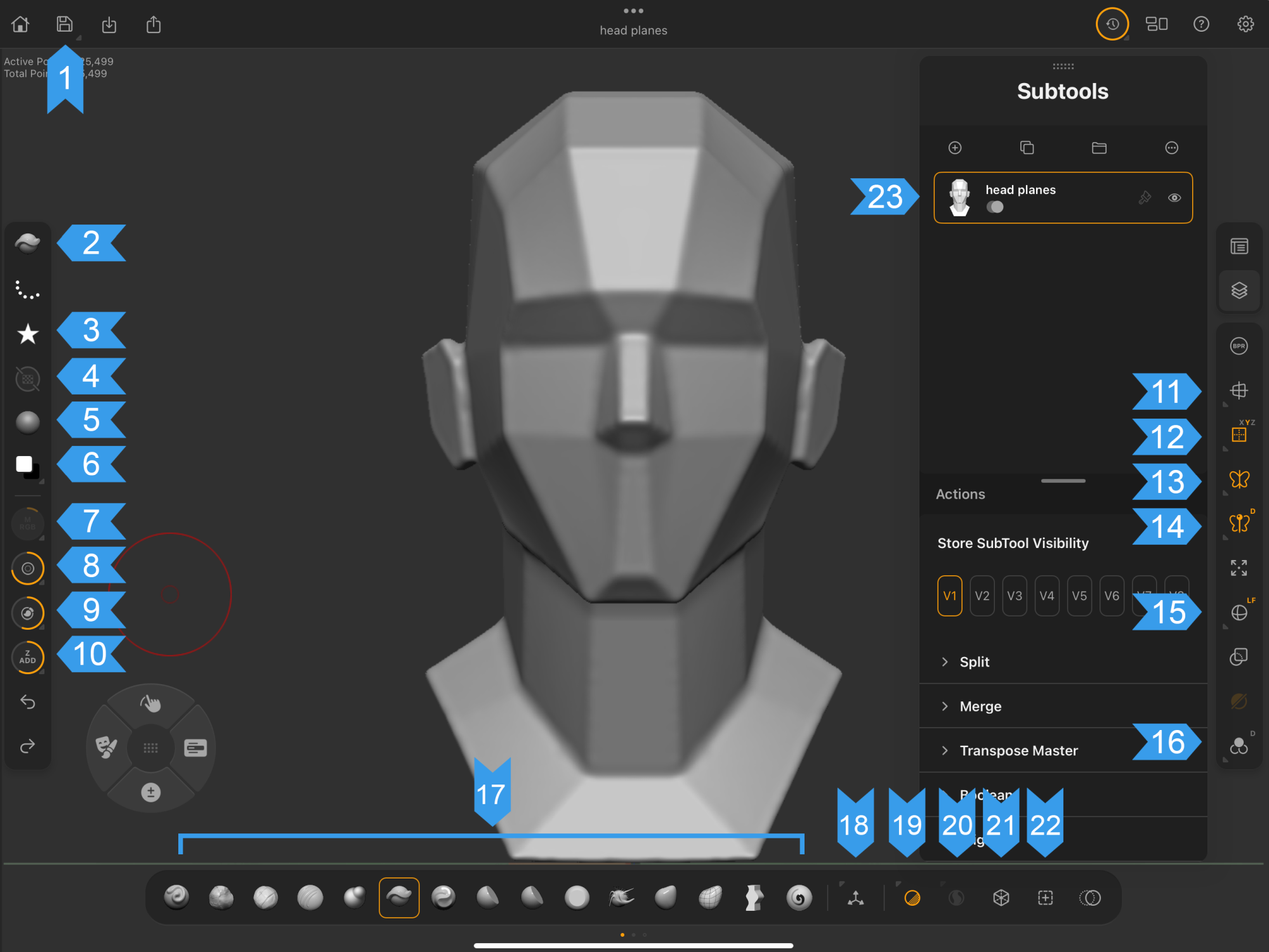 Canvas Long Press Index
Top Menu Bar
1. Save
Long press on Save to display all options.
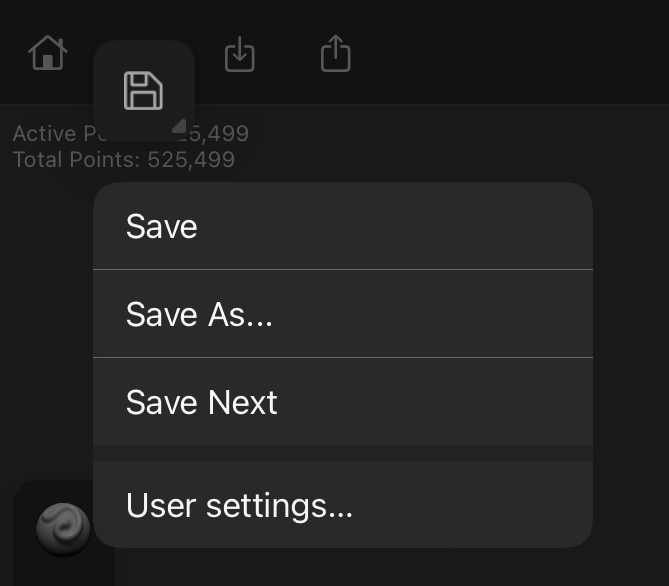
Available options:
-
Save
-
Save As
-
Save Next
-
User Settings
Left Menu Bar
2. Brush
Long press opens the Add to Favorites option.
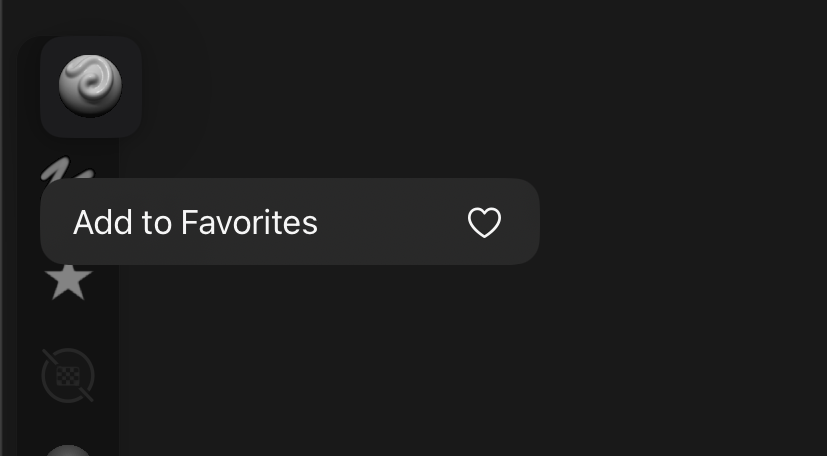
Favorites add to the Brush Palette > Favorites collection within the left toolbar's Brush library. Tap the Brush icon in left toolbar to open.
3. Alpha
Long press opens the Add to Favorites option.
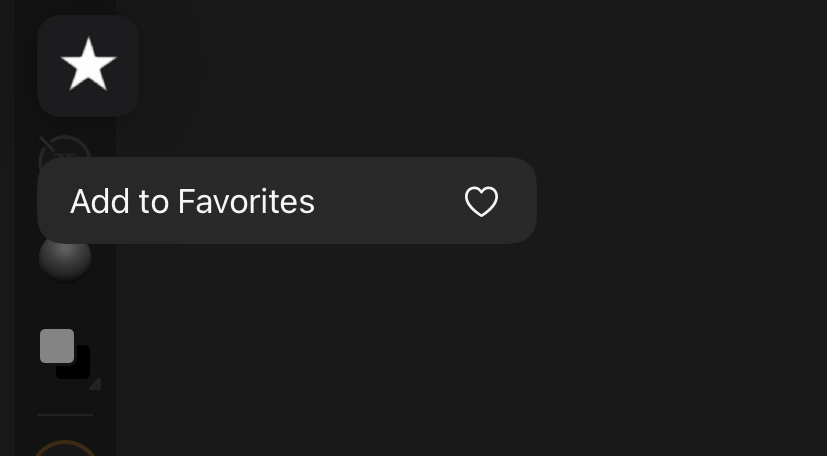
Favorites add to the Alpha Palette > Favorites collection in the Alpha library. Tap the Alpha icon in left toolbar to open.
4. Textures
Long press opens Add to Favorites option.
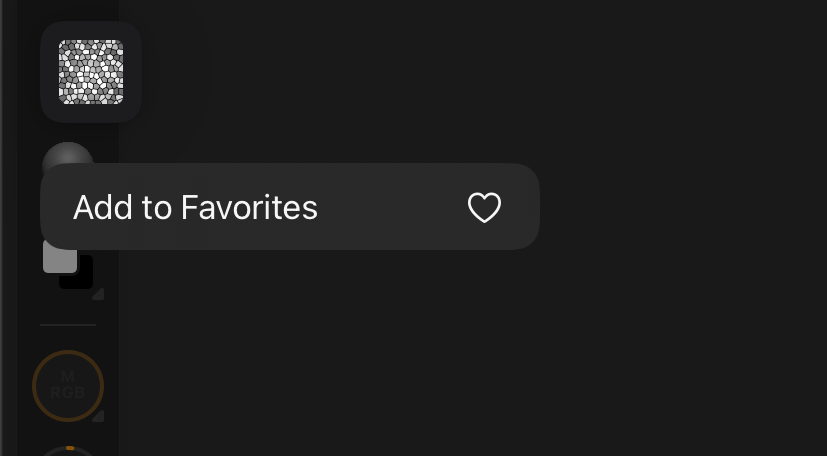
Favorites are added to the Texture Palette > Favorites collection in the Texture library. Tap the Texture icon in left toolbar to open.
5. Material
Long press opens Add to Favorites option.
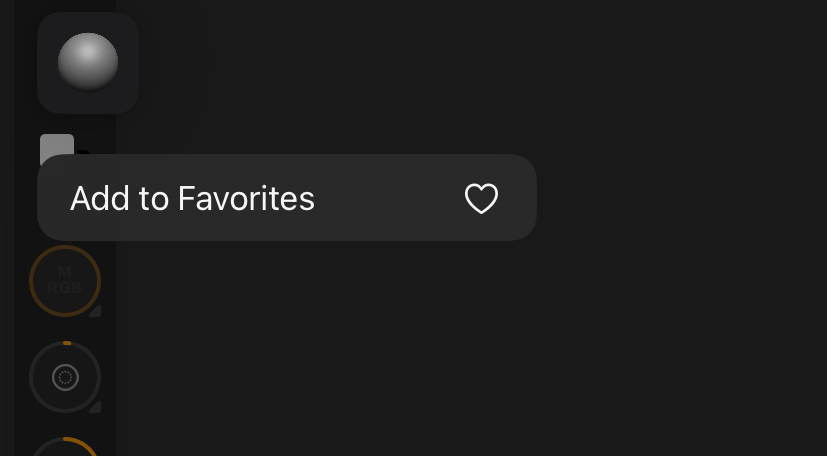
Favorites are added to the Material Palette > Favorites collection in the Material library. Tap the Material icon in left toolbar to open.
6. Color
Long press swaps the primary and secondary color channels as indicated by the on-screen tooltip.
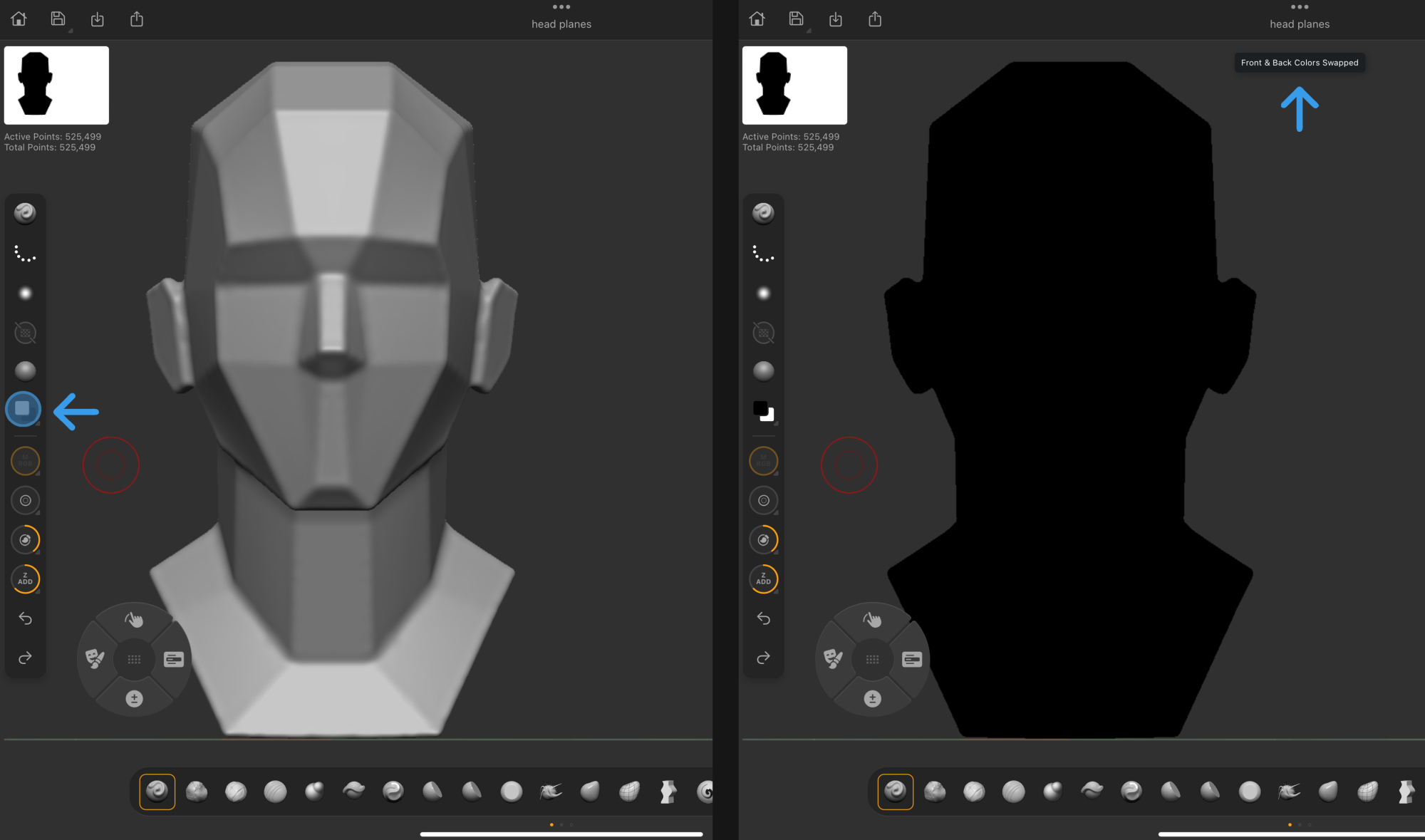
Tap to open Color settings.
7. MRGB
Long press and drag up or down to quickly adjust the MRGB intensity slider.
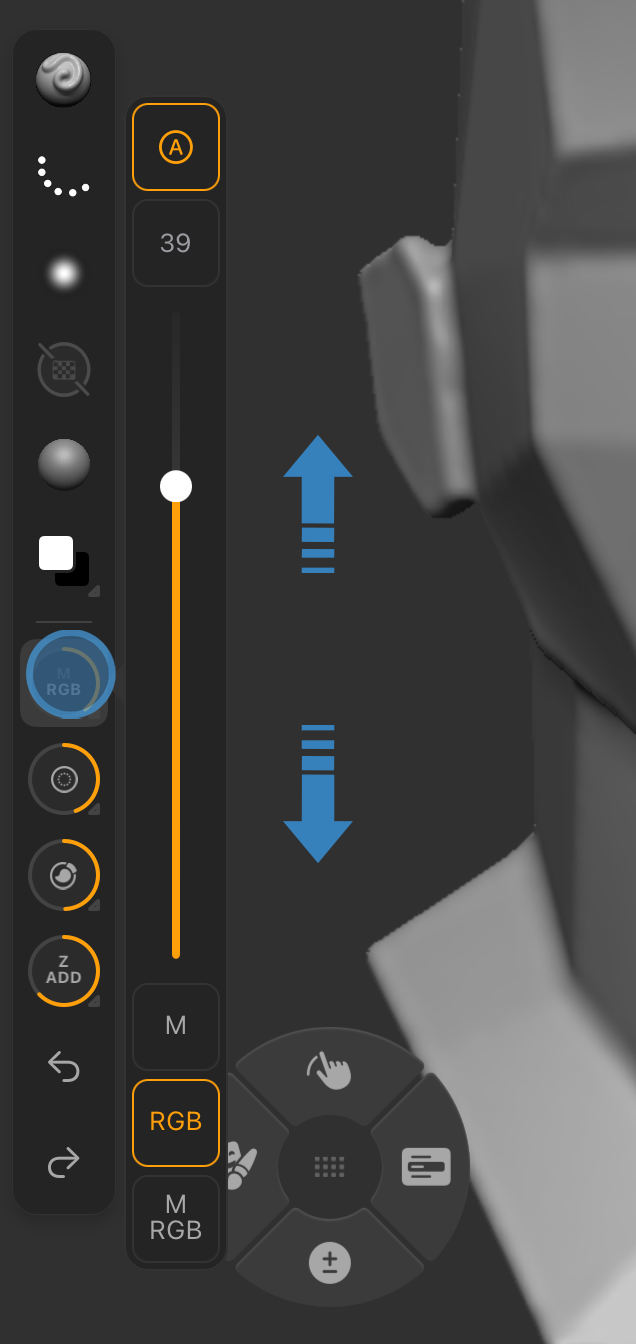
Tapping the MRGB button opens the full menu to adjust settings. A long press and drag locks onto the slider for quicker movement up and down.
8. Focal Shift
Long press and drag to quickly adjust the Focal Shift slider from this location.
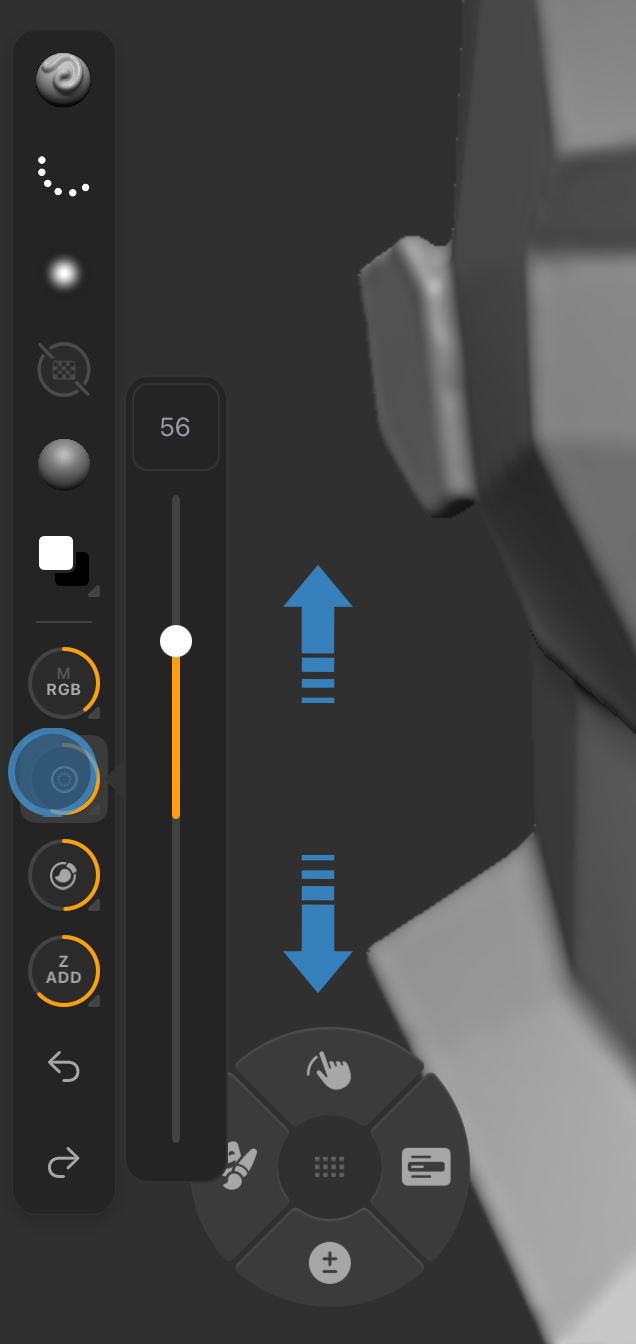
Tapping Focal Shift opens the full menu to adjust settings. A long press and drag locks onto the slider for quicker movement up and down.
9. Draw Size
Long press and drag to quickly adjust the Draw Size from this location.
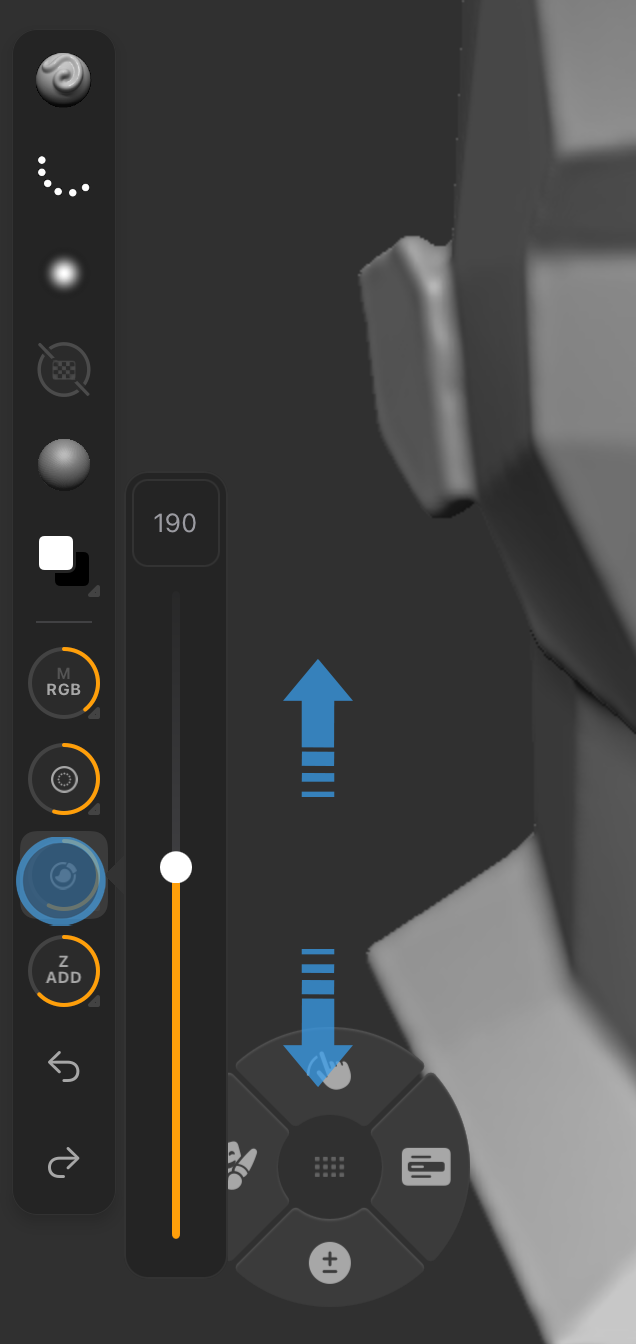
Tapping Draw Size opens the full menu to adjust settings. A long press and drag locks onto the slider for quicker movement up and down.
10. ZAdd/ZSub
Long press and drag to quickly adjust the ZAdd/ZSub intensity slider from this location.
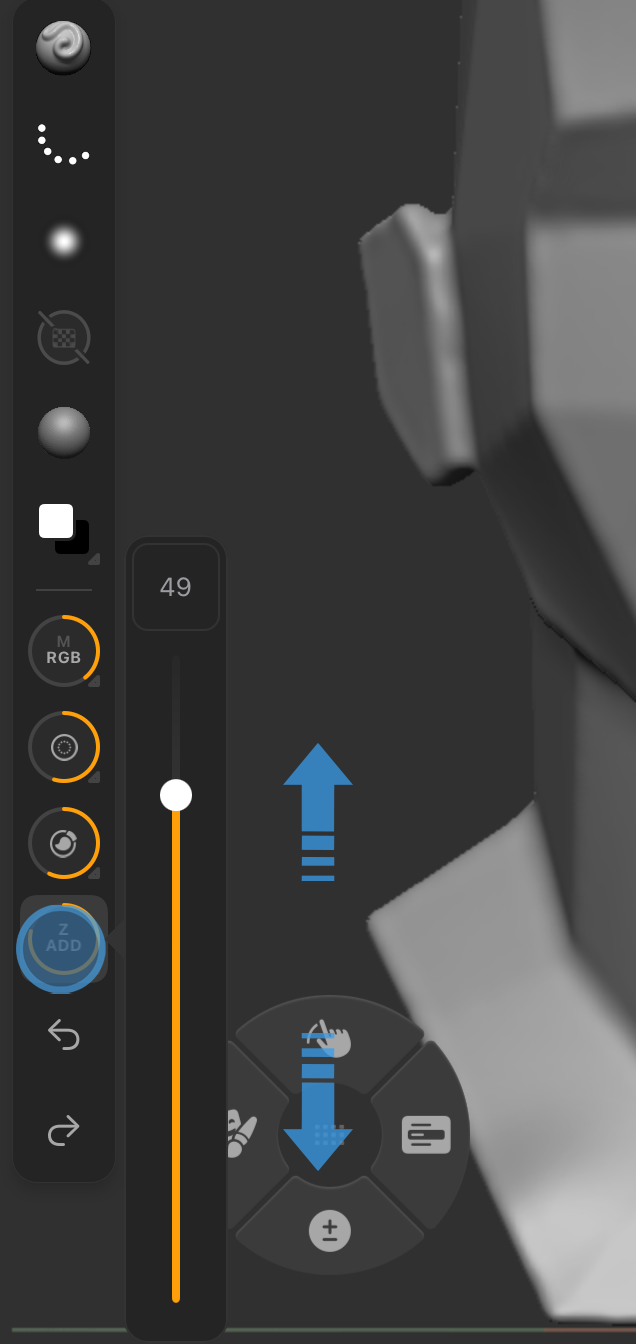
Tapping ZAdd opens the menu to adjust settings. A long press and drag locks onto the slider for quicker movement up and down.
Right Menu Bar
11. Perspective Camera
Opens Camera settings. Adjust the Focal Length and Field of View sliders.
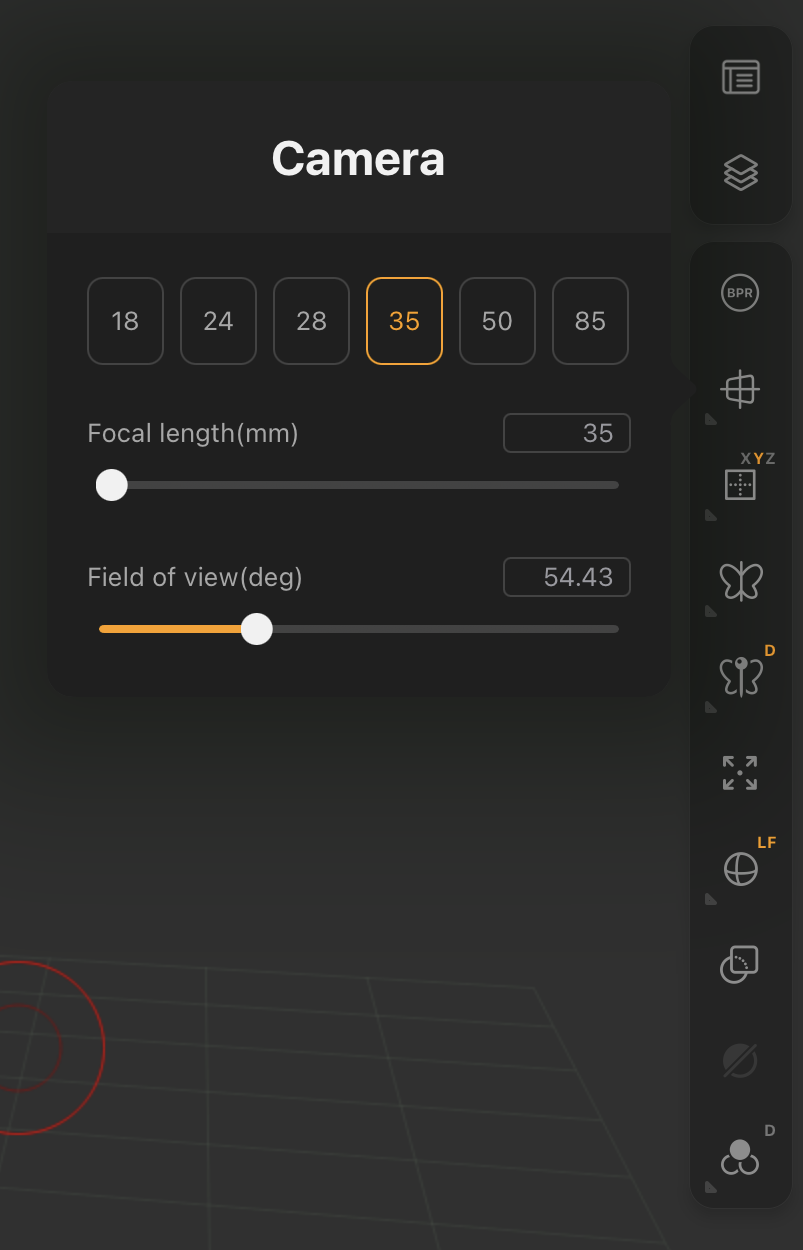
Additional Camera settings can be found in Palettes > Camera.
12. Floor Grid
Opens Floor Grid x/y/z-axis selection options.
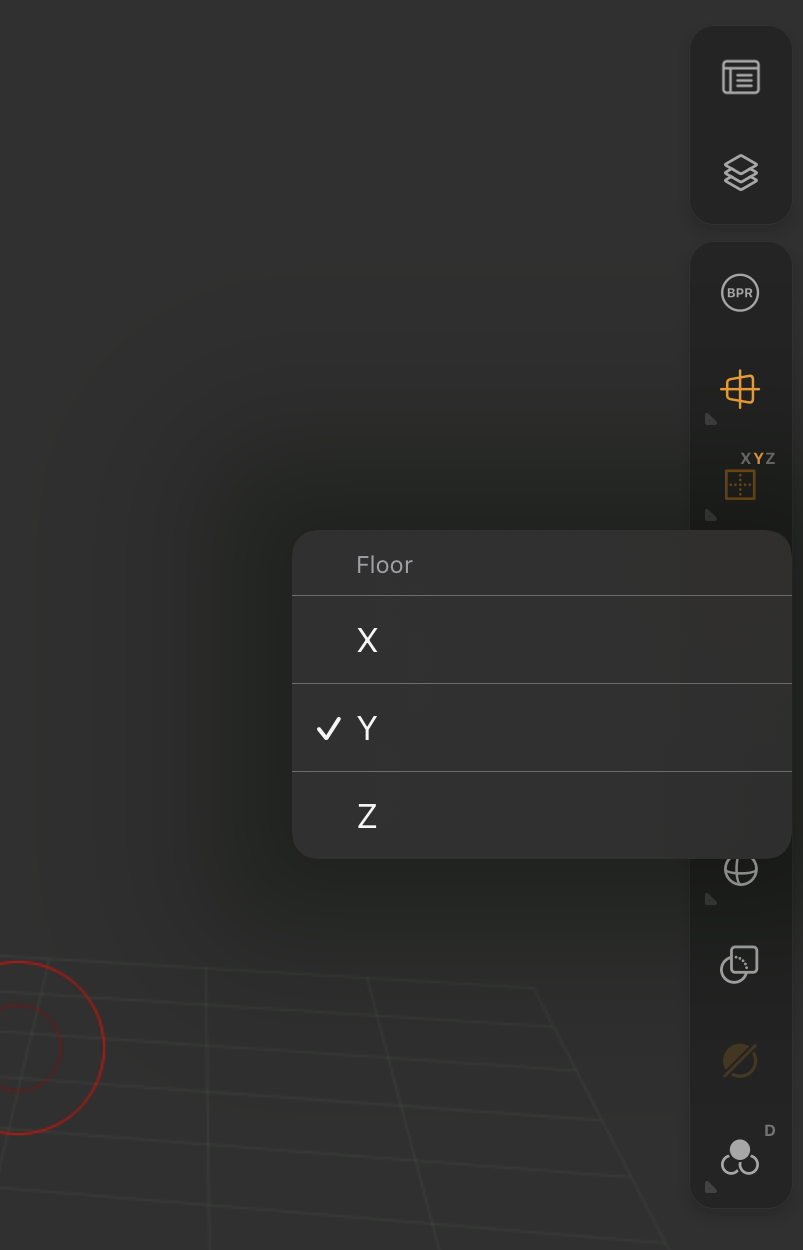
Additional Floor Grid settings can be found in Palettes > Floor Grid.
13. Symmetry
Opens Symmetry quick settings.
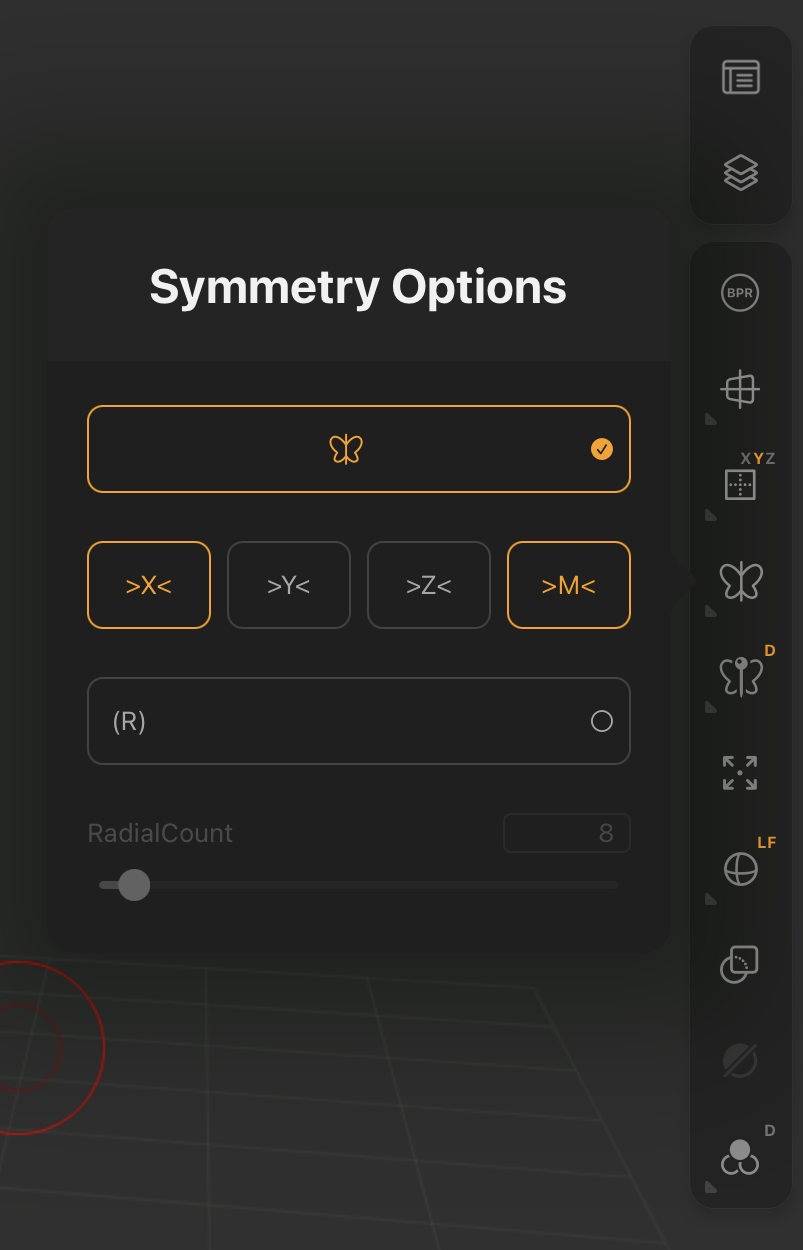
Additional Symmetry settings can be found in Palettes > Transform > Symmetry Options.
14. Local Symmetry
Opens the Local Symmetry Dynamic mode menu.
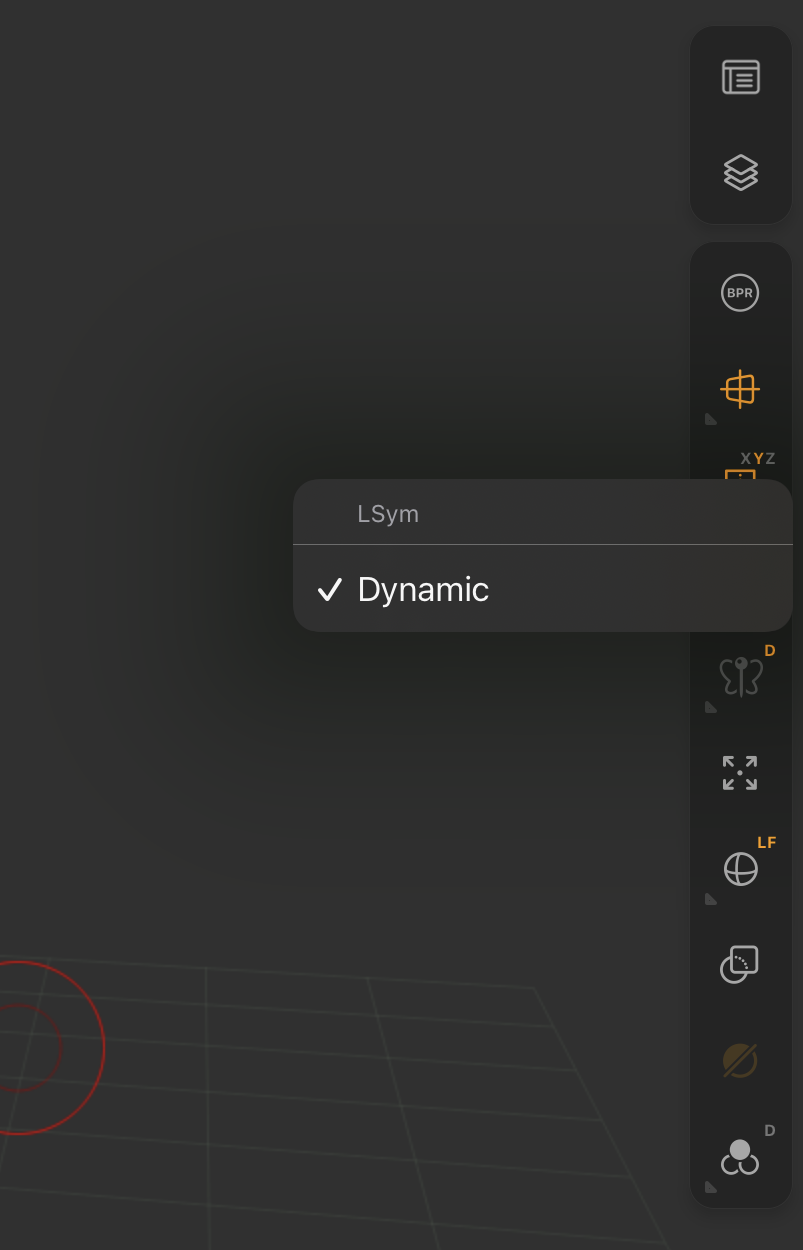
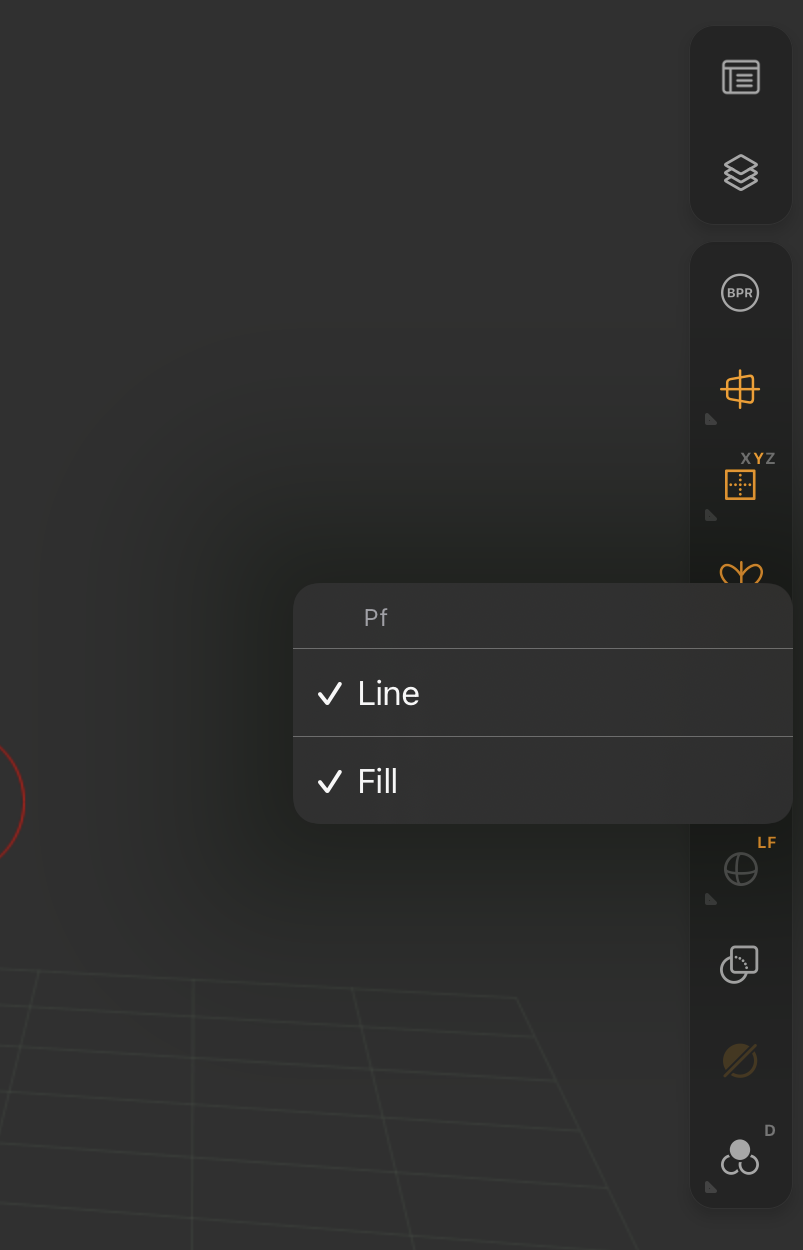
15. PolyFrame
Opens PolyFrame quick settings.
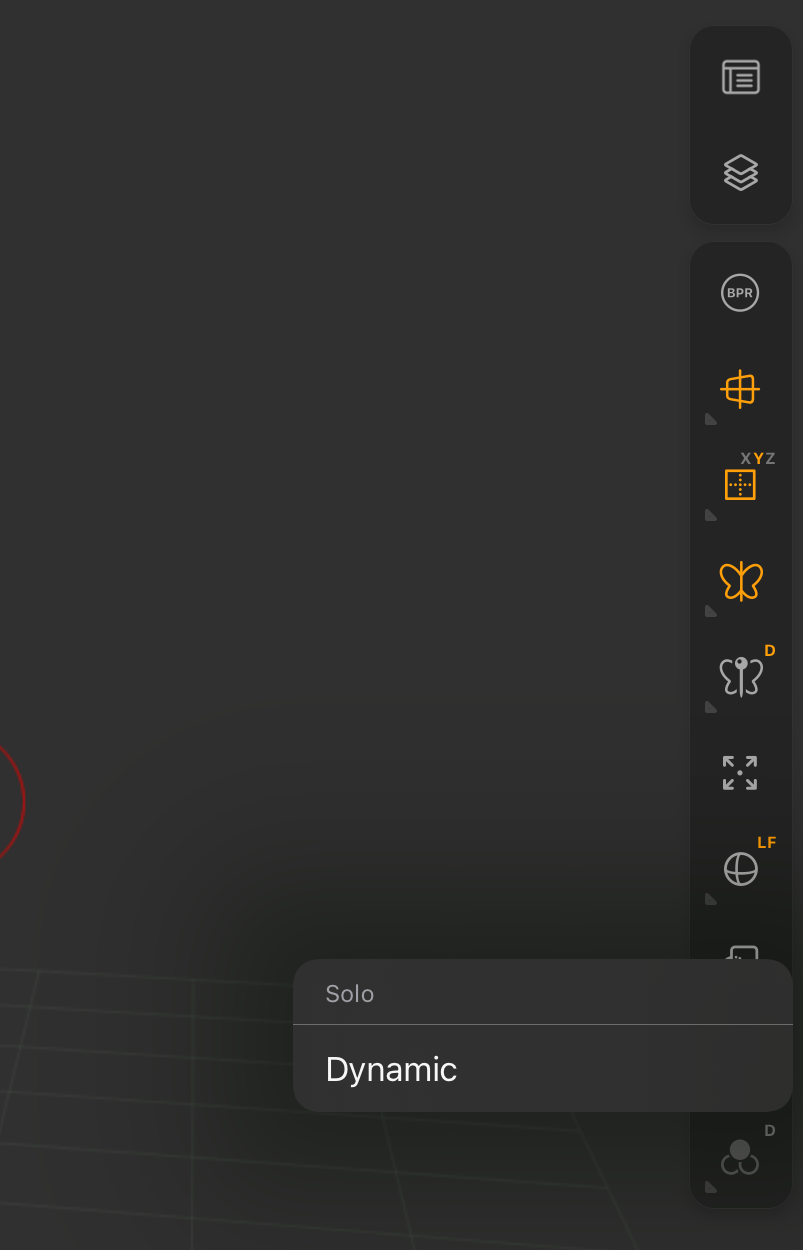
16. Solo
Opens the Solo subtools Dynamic mode menu.
Bottom Bar
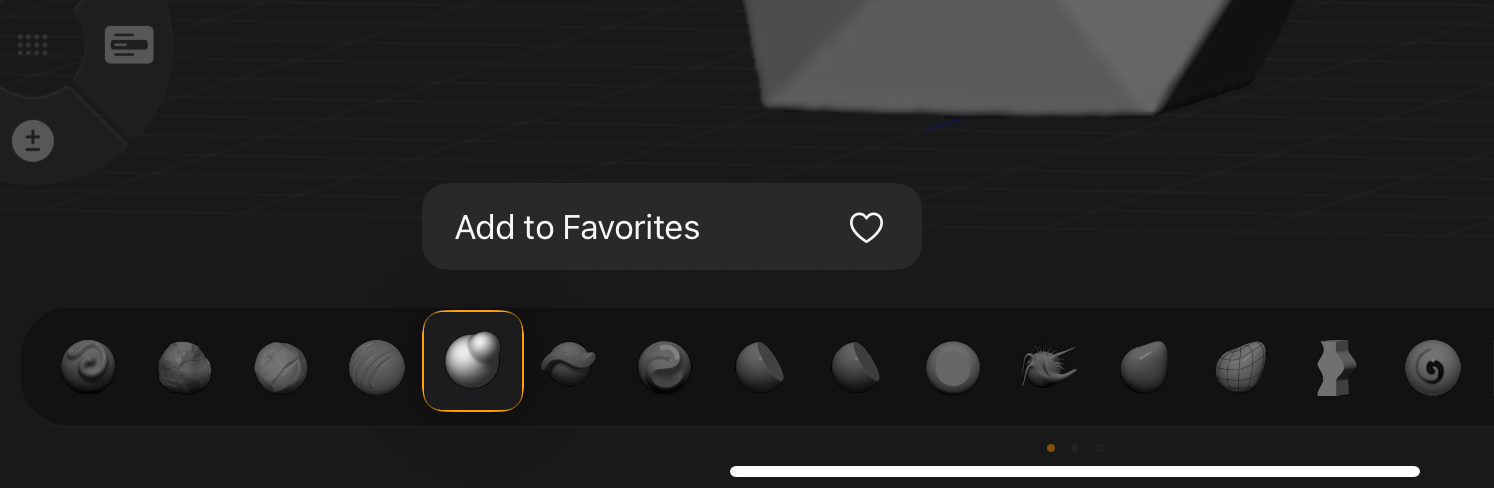
17. Brushes
Opens the option to Add to favorites in the Brush palette library.
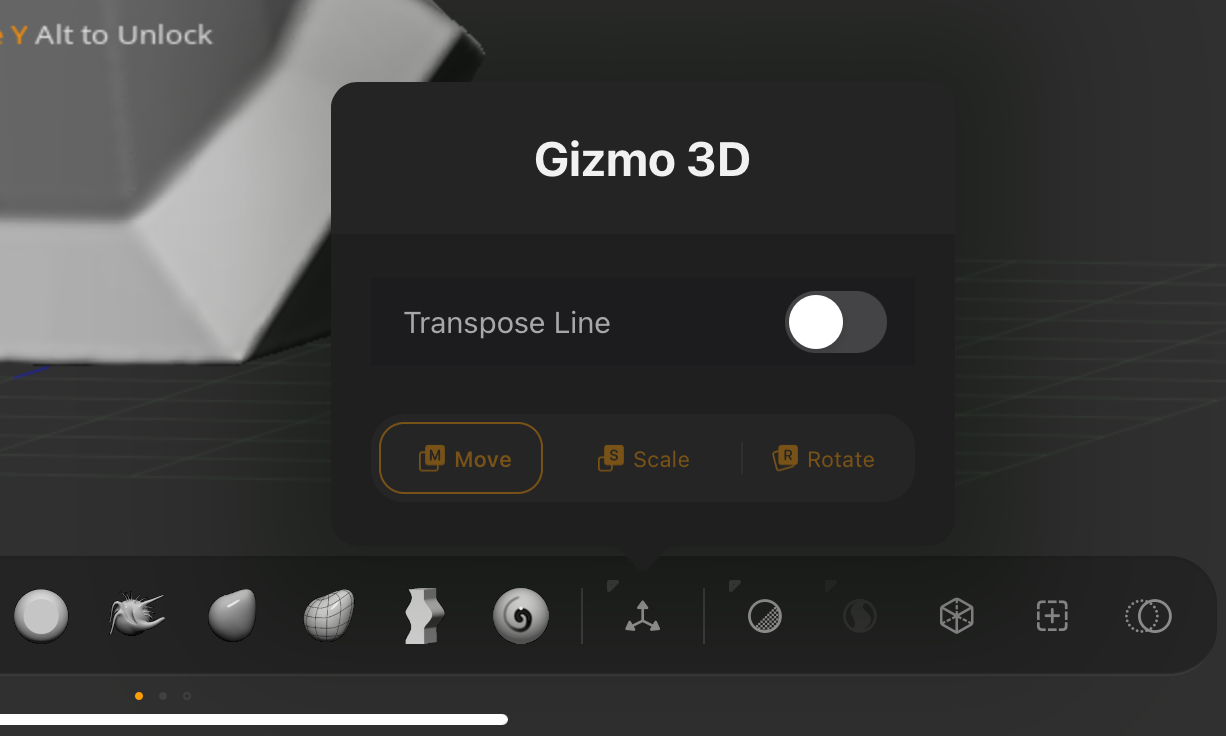
18. Gizmo3D
Opens Gizmo3D quick settings.
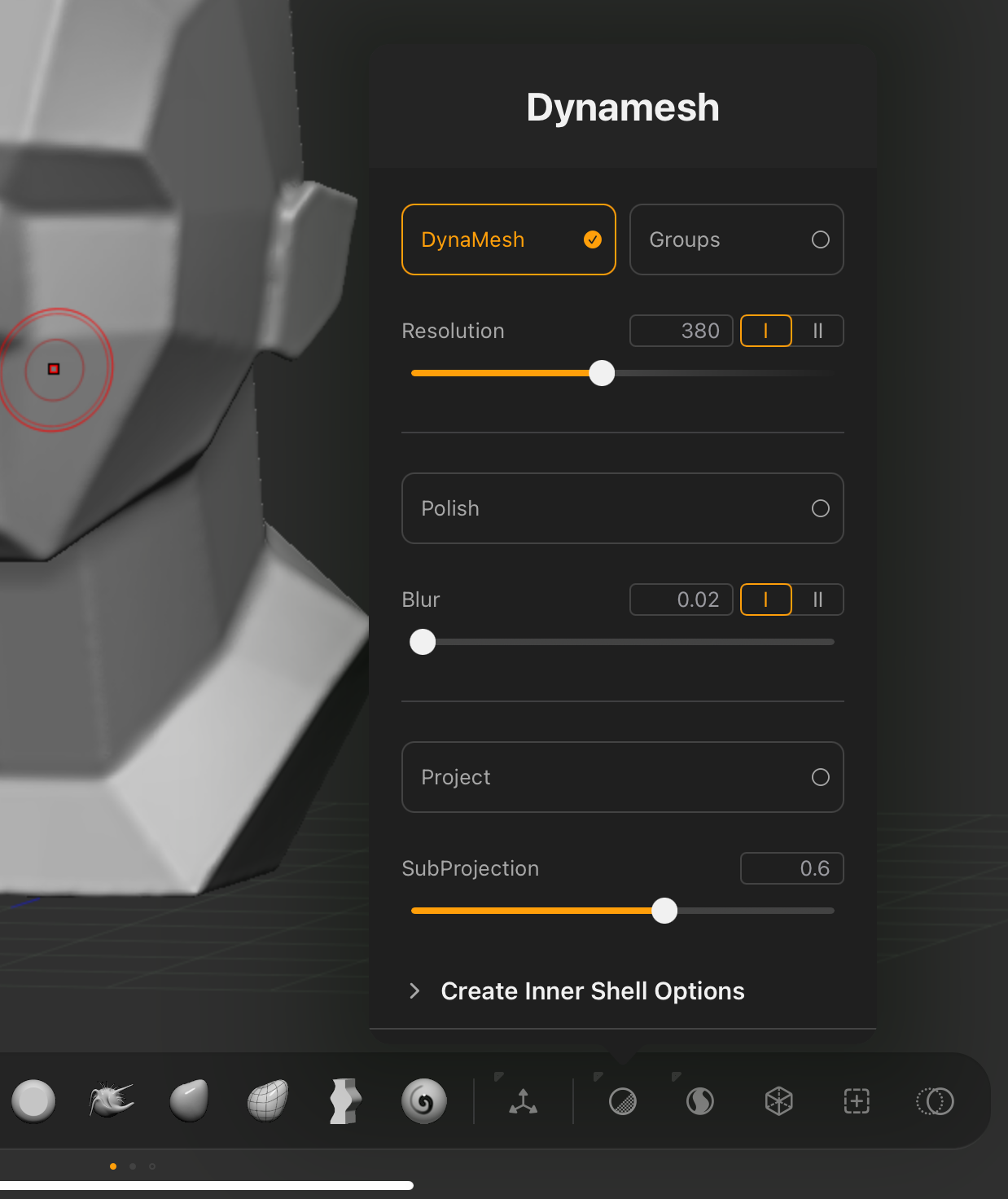
19. DynaMesh
Opens DynaMesh quick settings.
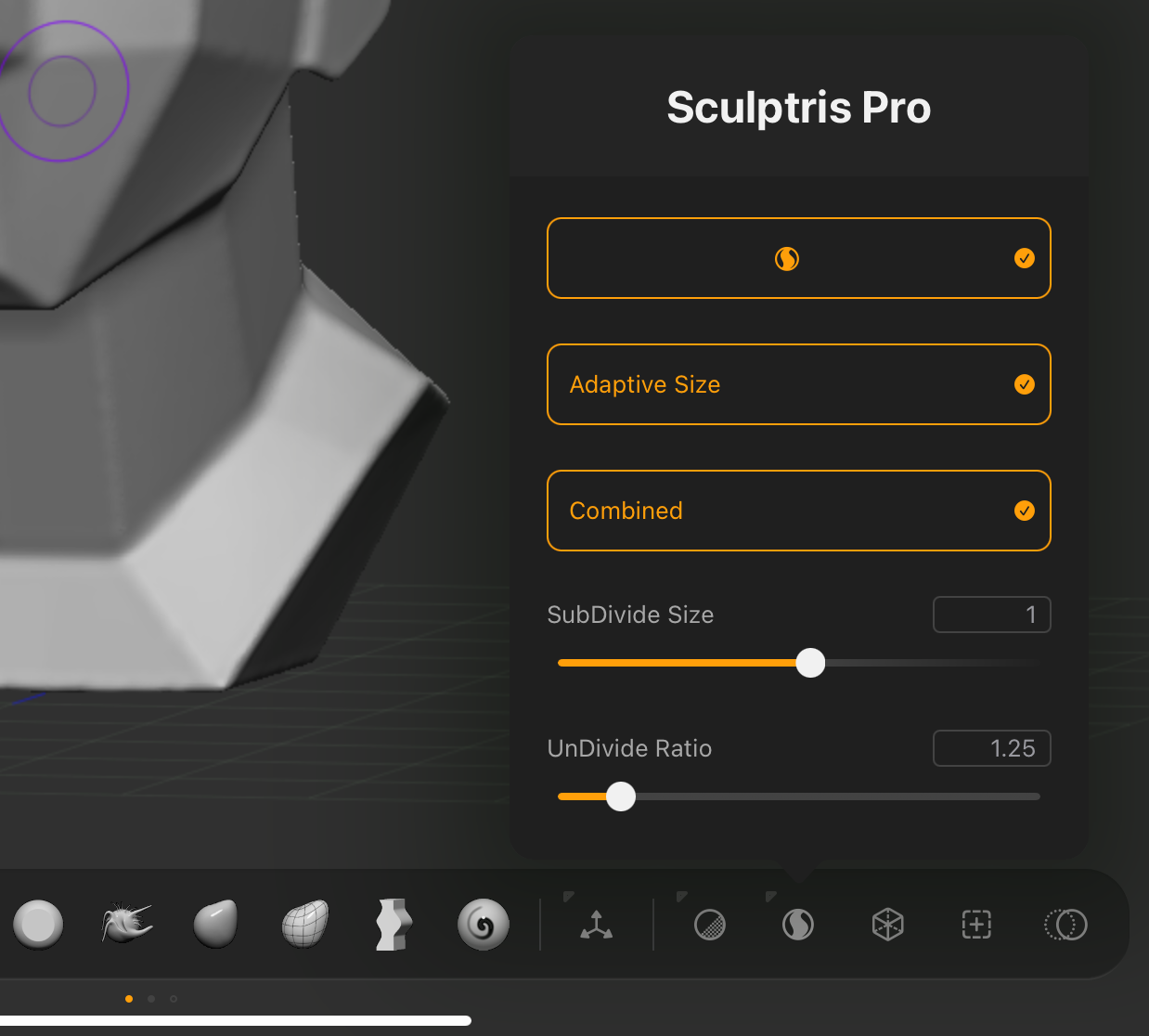
20. SculptrisPro
Opens SculptrisPro quick settings.
21. ZRemesher
Opens ZRemesher quick settings.
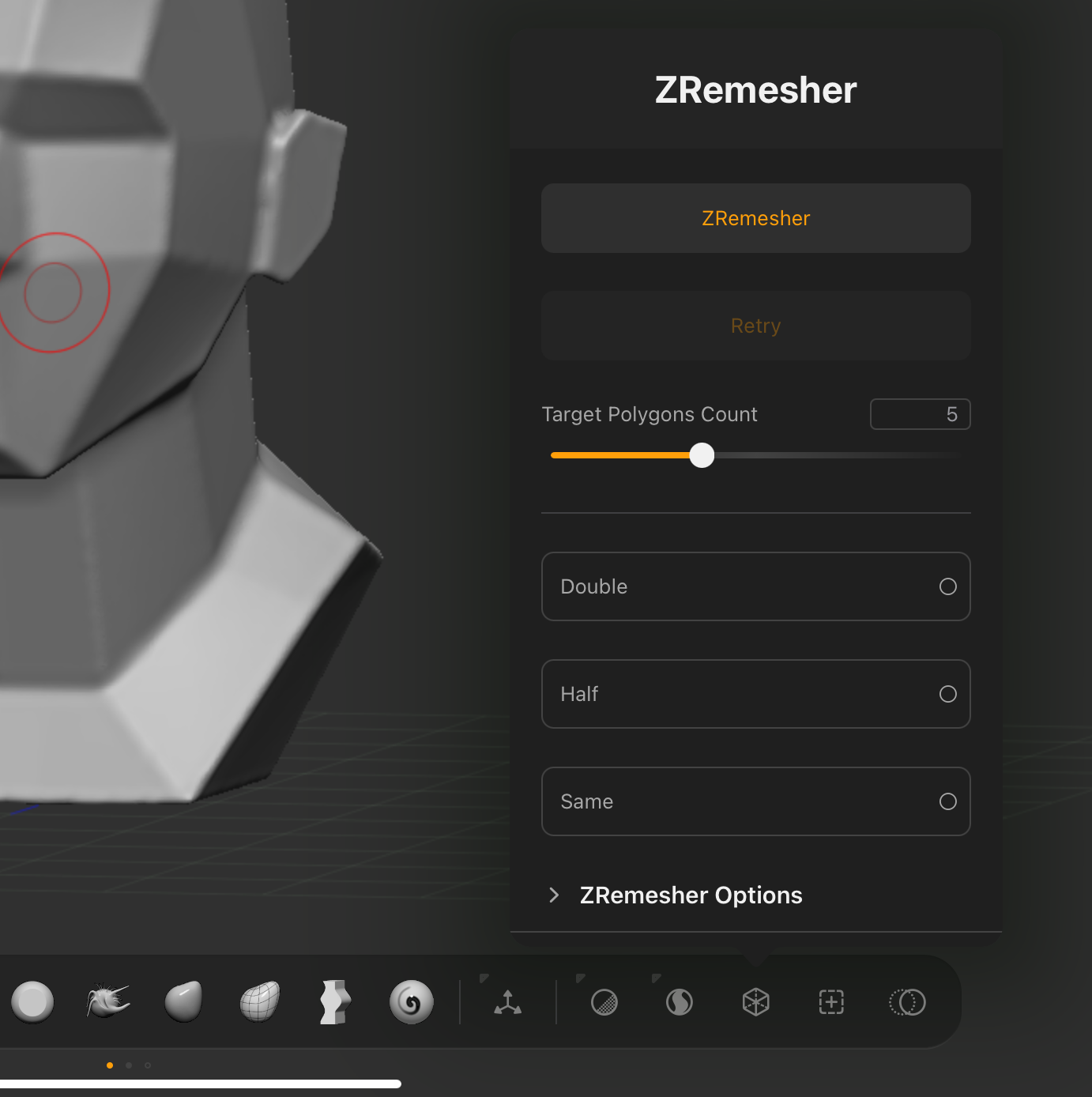
Long press is not required. Both tap and long press open the menu.
22. Subdivisions
Opens Subdivisions quick settings.
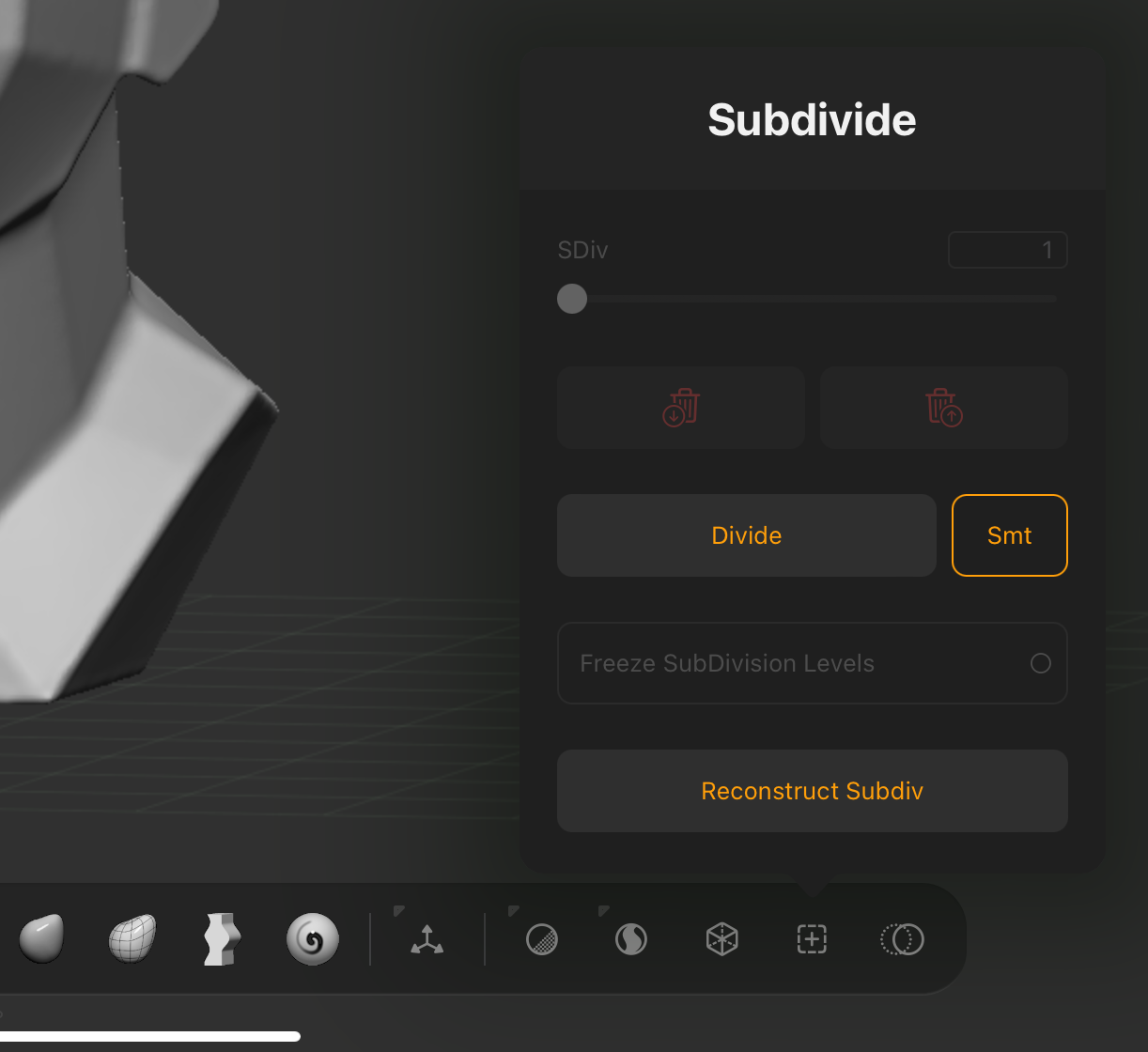
Long press is not required to open.
23. Selected Subtool
Long press on a selected subtool offers a variety of settings and actions.
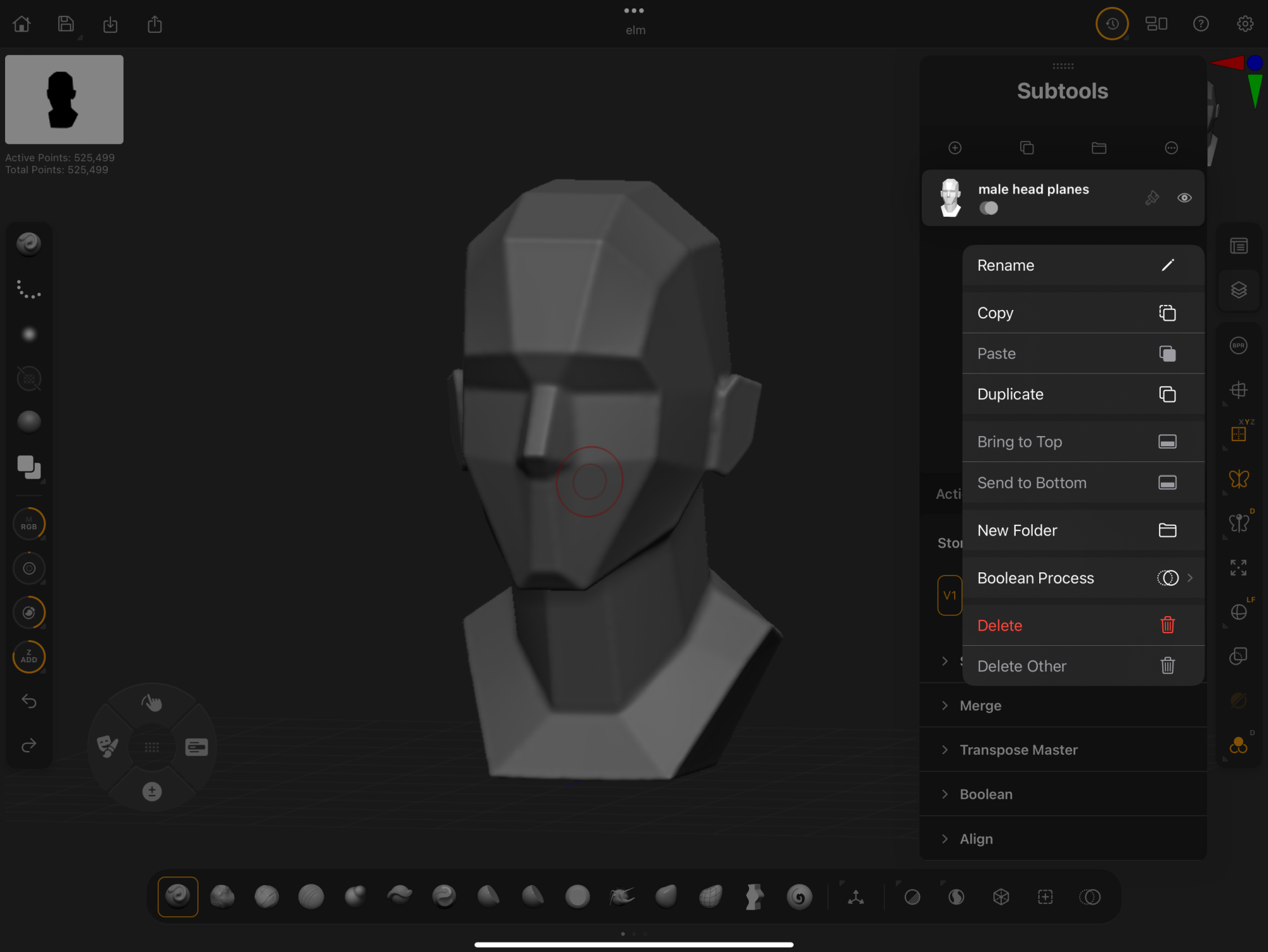
To select a subtool to view this long press menu, first tap the subtool. It will highlight in orange.
Long Press Selected Subtool Menu:
-
Rename
-
Copy and Paste
-
Duplicate
-
Bring to Top
-
Send to Bottom
-
New Folder
-
Boolean Process
-
Delete
-
Delete Other
Learn more about subtool long press options in this guide's Subtool Palette section.
Unselected Subtool
Long press on an unselected subtool opens the Boolean Process submenu options.
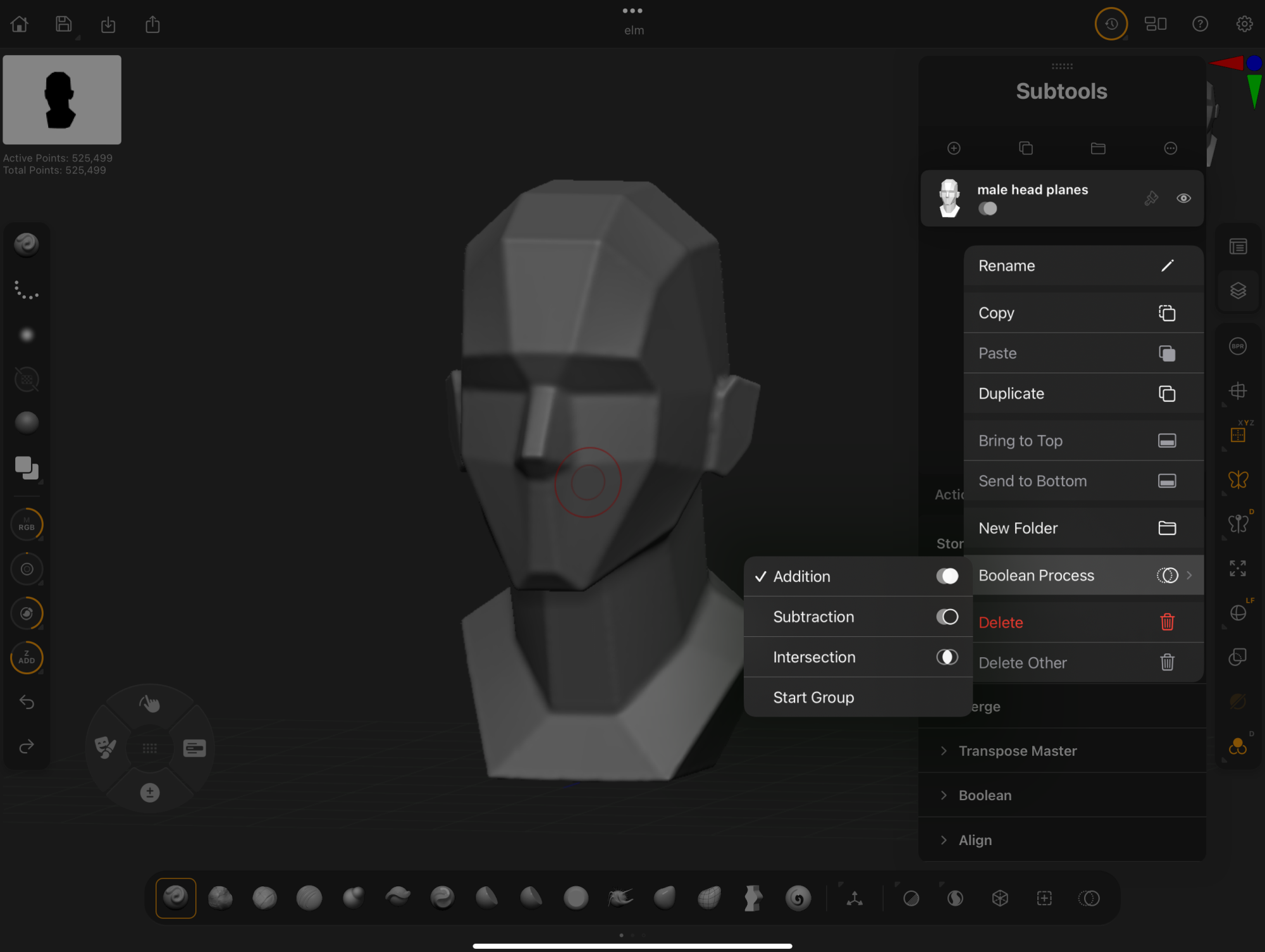
Boolean Process submenu options are used for modeling with Live Booleans. See more in this guide's Live Boolean Essentials section.
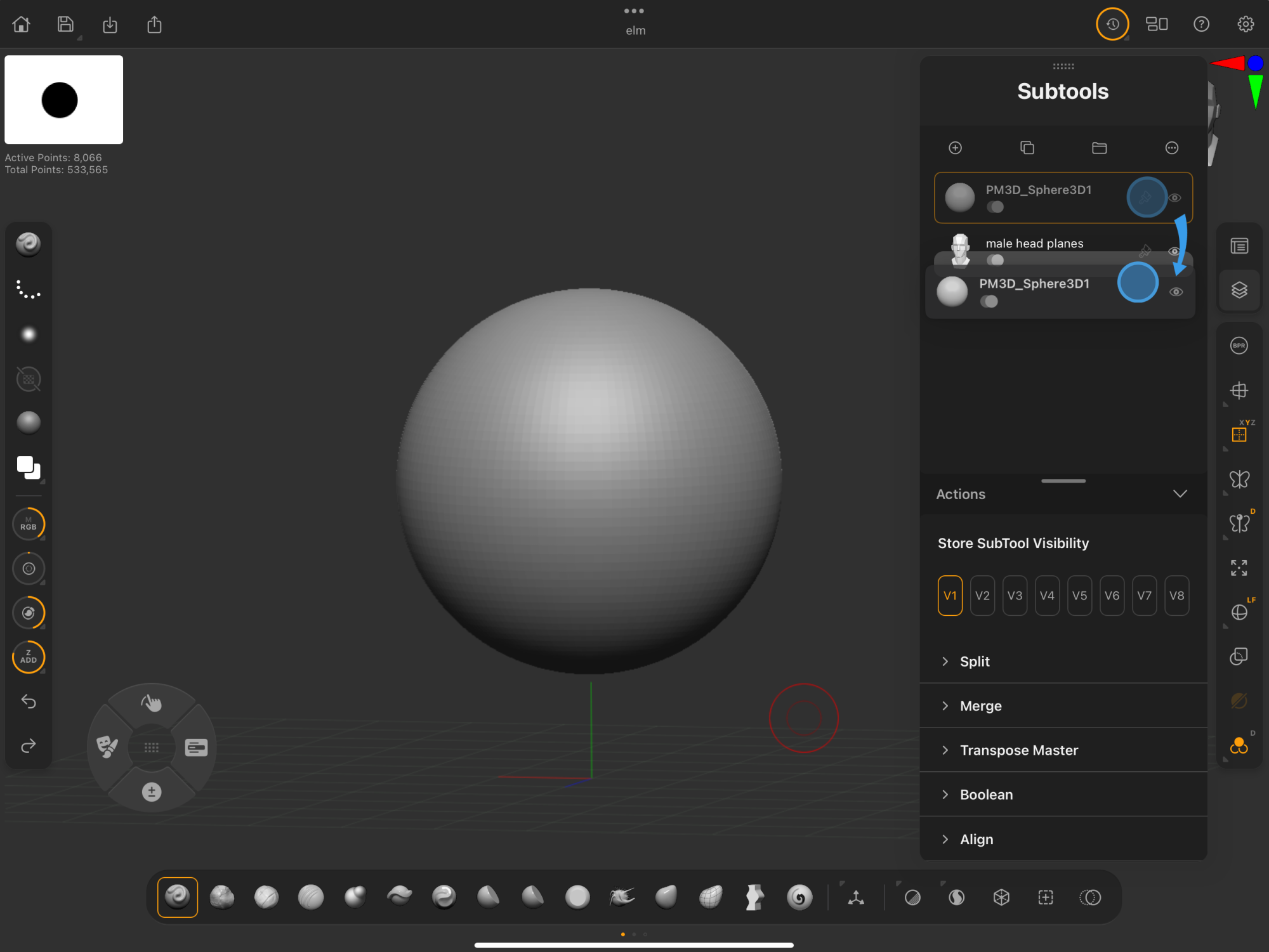
Long Press & Drag to Reorder Subtools
Where multiple subtools are listed, long press and drag up or down to reorder.
Long Press Folder
Long press a folder to view all actions that can be assigned to the folder or subtools within.
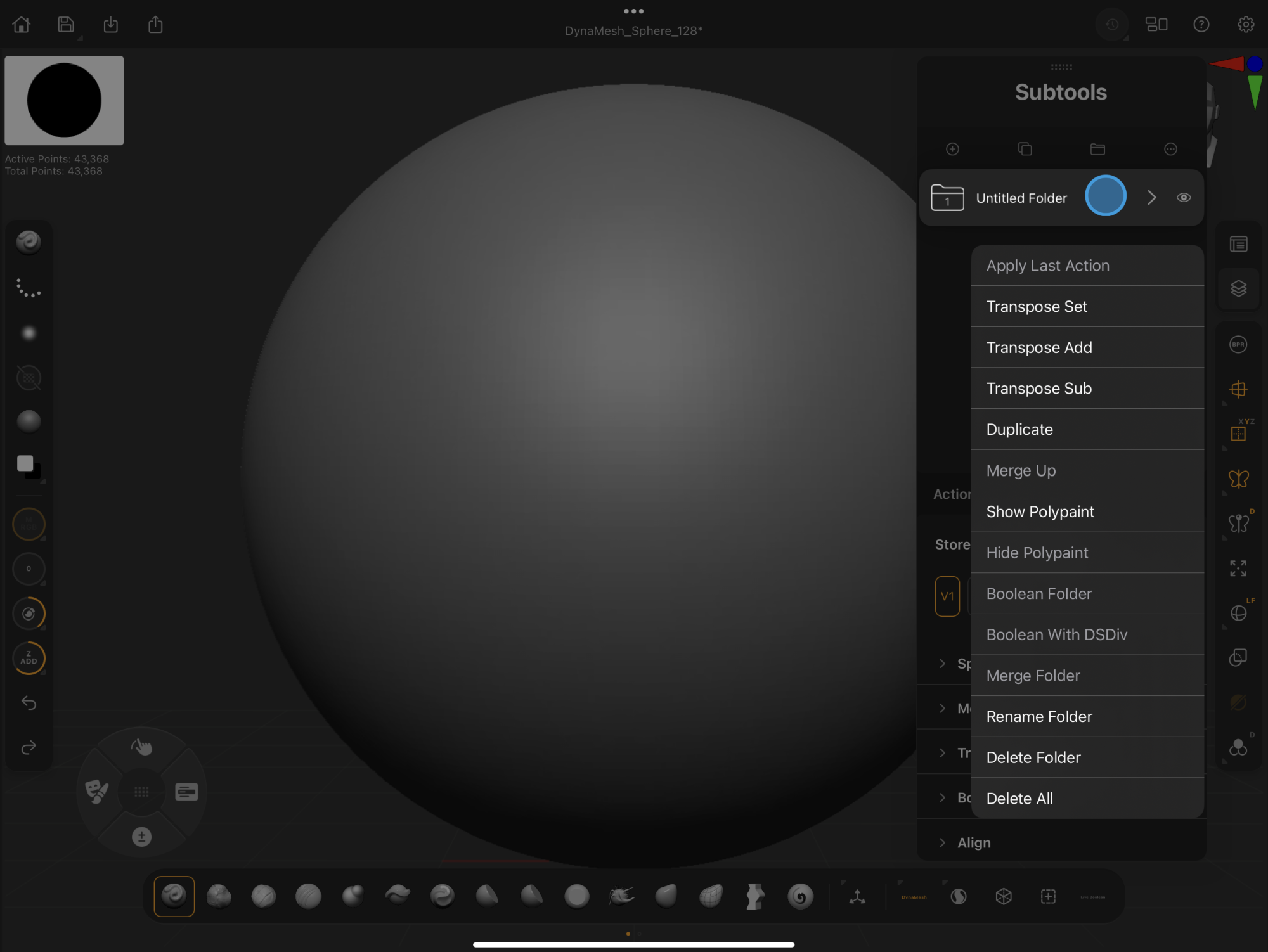
Learn more about folder actions in this guide's Subtool Palette section.