
3D Layers
3D layers record sculpting, Polypaint, and masking on separate layers that you can show, hide, strengthen, weaken, invert, or bake into the model. You could add skin detail on one layer and then turn that layer off to refine the forms underneath. You might also keep a facial expression on a layer and blend it in by degrees. Not least of all, layers can also store poses and expressions for blend shapes.
ZBrush has two kinds of layers. This page covers 3D Layers, the ones in the Layers section of the Tool palette. 3D Layers in ZBrush for iPad are the same system as 3D Layers on the desktop, with a different interface. For how layers behave at different subdivision levels and other details, see 3D Layers in the ZBrush desktop documentation.
Where 3D Layers Are
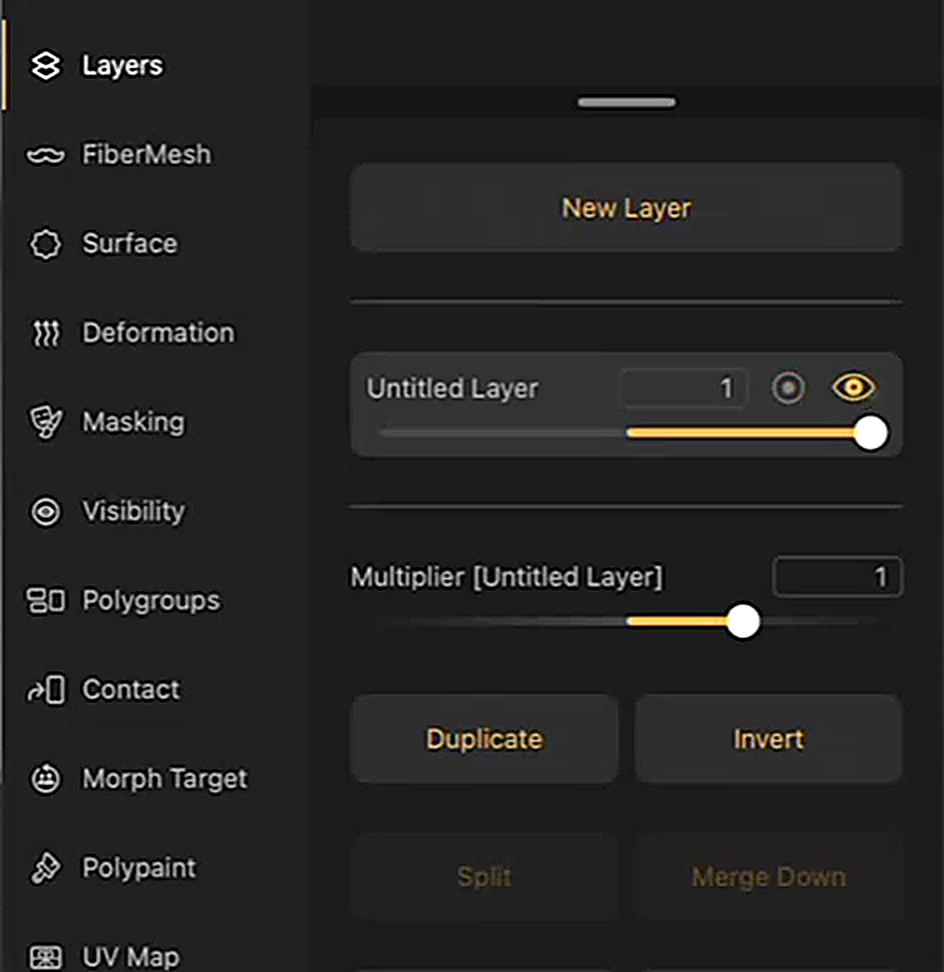
The layer controls are in the Tool palette, under Layers. Layers belong to a SubTool, so the list shows the layers of the selected SubTool. From top to bottom, the Layers panel holds:
- New Layer.
- The layer list. Each layer is a row with the layer's name, its strength value (from -1 to 1), the Record button (a circle), the eye/visibility icon, and a slider below them.
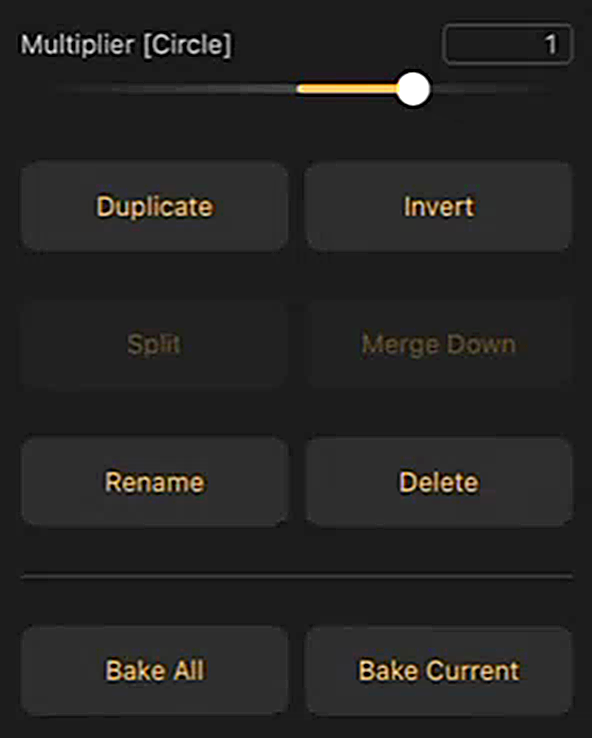
- The Multiplier slider for the selected layer.
- The layer buttons: Duplicate, Invert, Split, Merge Down, Rename, Delete, Bake All, and Bake Current.
Select a layer in the list to work on it. The selected layer is highlighted. The Multiplier slider and all the layer buttons act on it, except Bake All, which acts on every layer.
Recording on a Layer
A new layer starts in Record mode. While a layer records, everything you sculpt, paint, or mask goes onto that layer.
- In the Tool palette, open Layers.
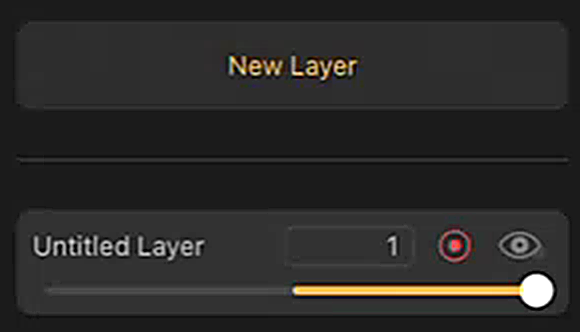
- Tap New Layer. The new layer appears in the list. By default, the new layer is selected and in Record mode, as shown by its Record button being red and its eye icon being grayed out.
- Sculpt, paint, or mask the model.
- When you're done, tap the eye icon on the layer's row. Recording stops, the Record button turns gray, and the eye icon turns gold.
A layer records only while its Record button is red. To record more on the layer later, tap its Record button.
Showing, Hiding, and Adjusting a Layer
A layer's row gives you two controls for how the layer shows on the model:
- Tap the eye icon to hide the layer or show it again.
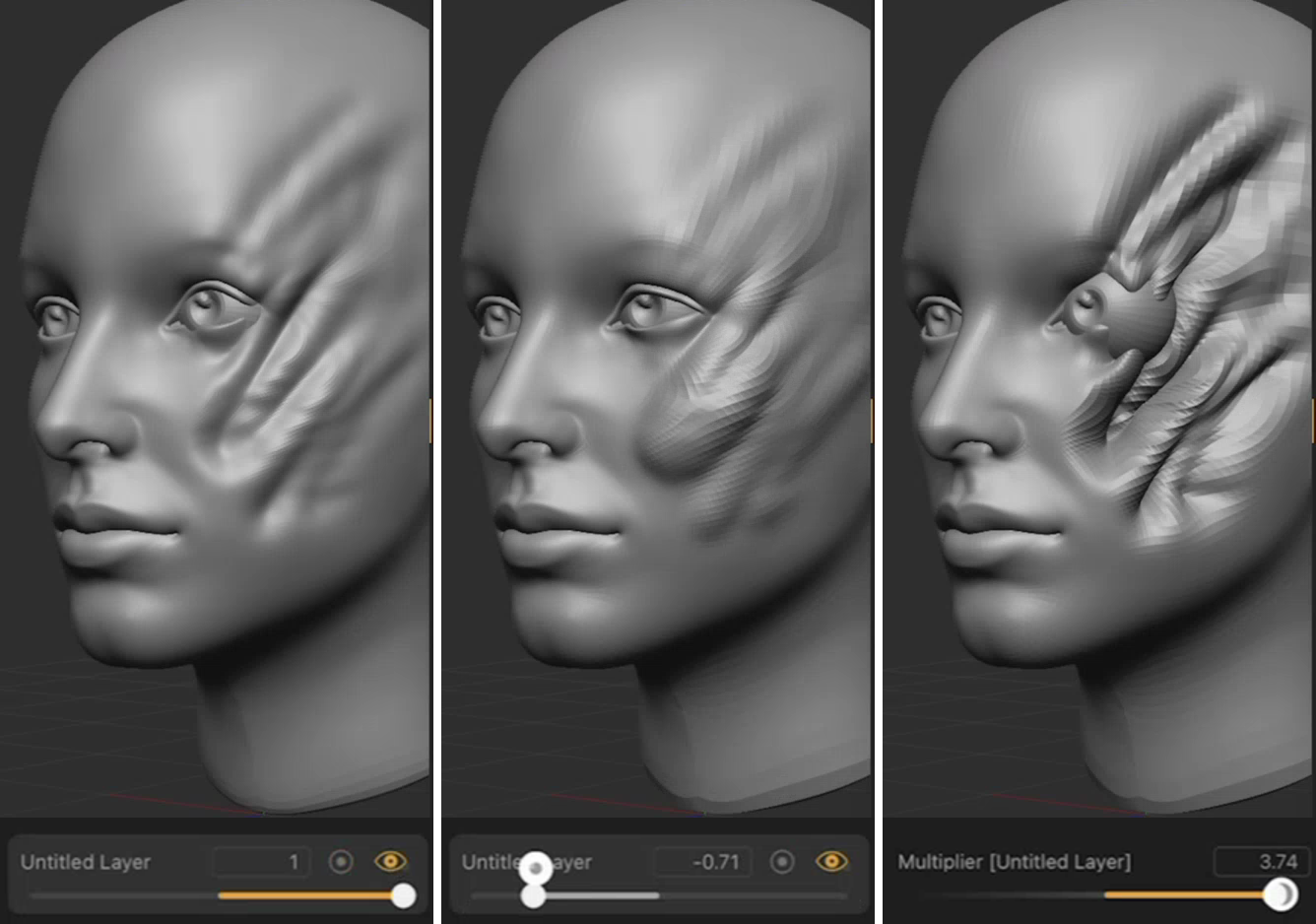
- Drag the layer's slider to set how strongly the layer shows on the model. At 1, the layer appears as you recorded it. Lower values weaken it. Negative values invert the effect.
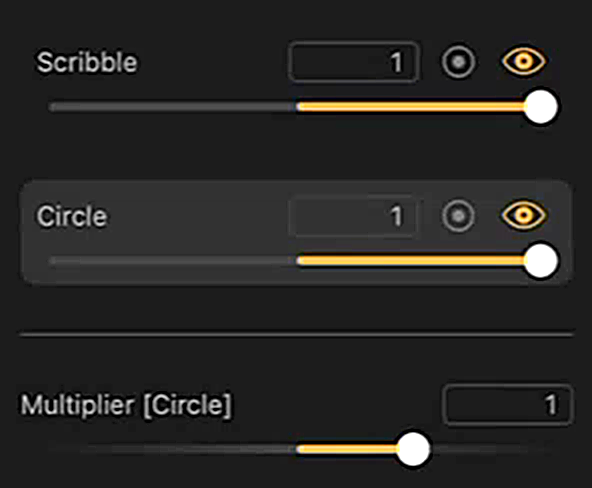
The Multiplier slider under the list takes the selected layer past the row slider's range — up to five times what you recorded or five times in the opposite direction. The slider carries the name of the selected layer and acts on that layer only. Select another layer and the slider switches to it.
Layers and Memory
3D layers use a large amount of memory. Because an iPad has less memory than a desktop computer, using many layers in ZBrush for iPad, particularly on a high-polygon model, can cost you undo history.
To keep more undo history, increase Reserved Undo Memory:
- Tap the gear icon at the top right to open User Settings.
- Tap Undo History.
- Raise Reserved Undo Memory.
Layer Menu
Long-press a layer to open its menu. It holds these options, most of which are also buttons below the list:
| Option | What it does |
|---|---|
| Rename | Renames the layer. The Multiplier slider picks up the new name. |
| Duplicate | Copies the selected layer. |
| Split | Splits a layer that holds more than one kind of change into separate layers, so a layer with Polypaint and sculpting becomes a Polypaint layer and a sculpting layer. |
| Invert | Reverses the layer's sculpting, Polypaint, and masking. |
| Merge Down | Merges the selected layer into the layer below it. |
| Bake Current | Bakes the details of the selected layer into the model. |
| MoveUp and MoveDown | Move the selected layer one place up or down in the list. |
| Delete | Deletes the selected layer. |
Baking Layers
Baking writes a layer's changes into the model itself and removes the layer. The two bake buttons sit at the bottom of the Layers panel.
- Bake Current bakes only the selected layer and deletes it. The other layers stay as they are. Bake Current is also available in ZBrush on the desktop.
- Bake All bakes all the layers and deletes them. Layers bake at their current strength, so set a layer's slider before you bake.
Desktop-Only Options
Import MDD and MDD Speed are desktop only and are not available in ZBrush for iPad.