Spotlight
Spotlight is a reference, projection, and image-editing system for painting, sculpting, and creating geometry from images. You load images into Spotlight and arrange them over your model. Then you paint and sculpt through the images onto the model, keep them on screen as reference while you work, or use an alpha image to create new topology.
With Spotlight you can:
- Paint your model with the colors of any image.
- Sculpt an image into the surface as detail.
- Create 3D meshes from images.
- Keep reference images on screen while you sculpt.
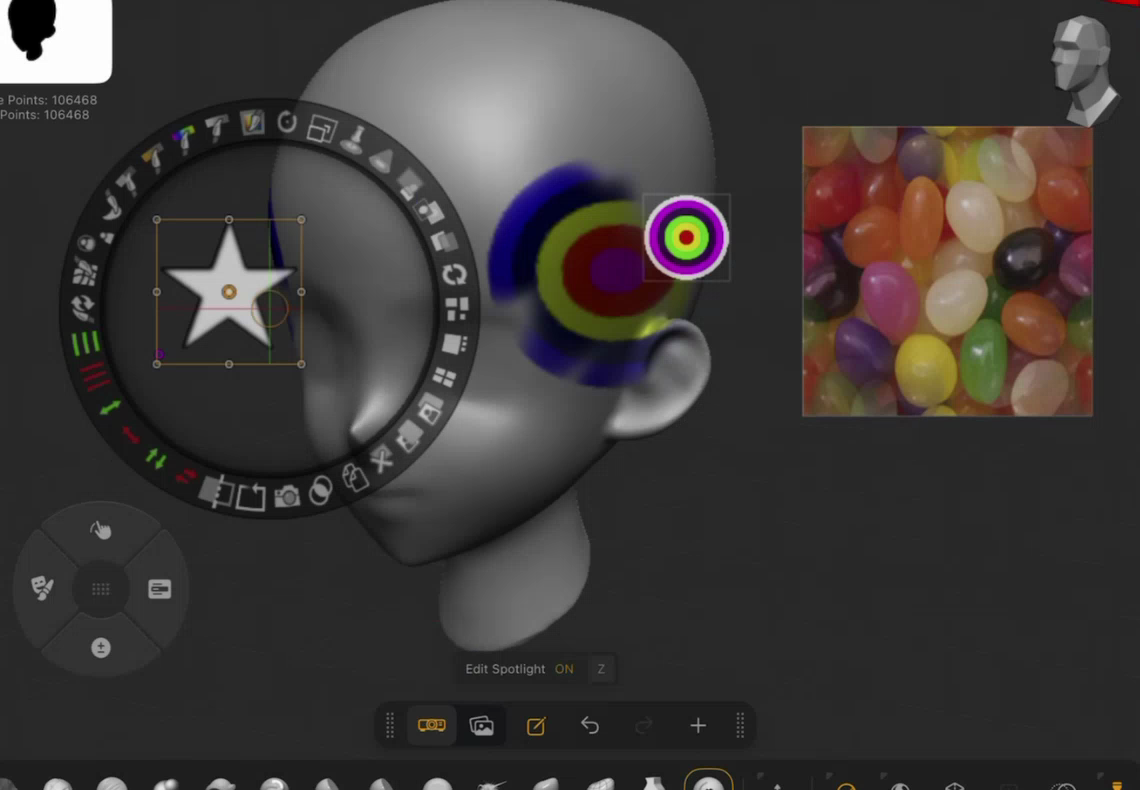
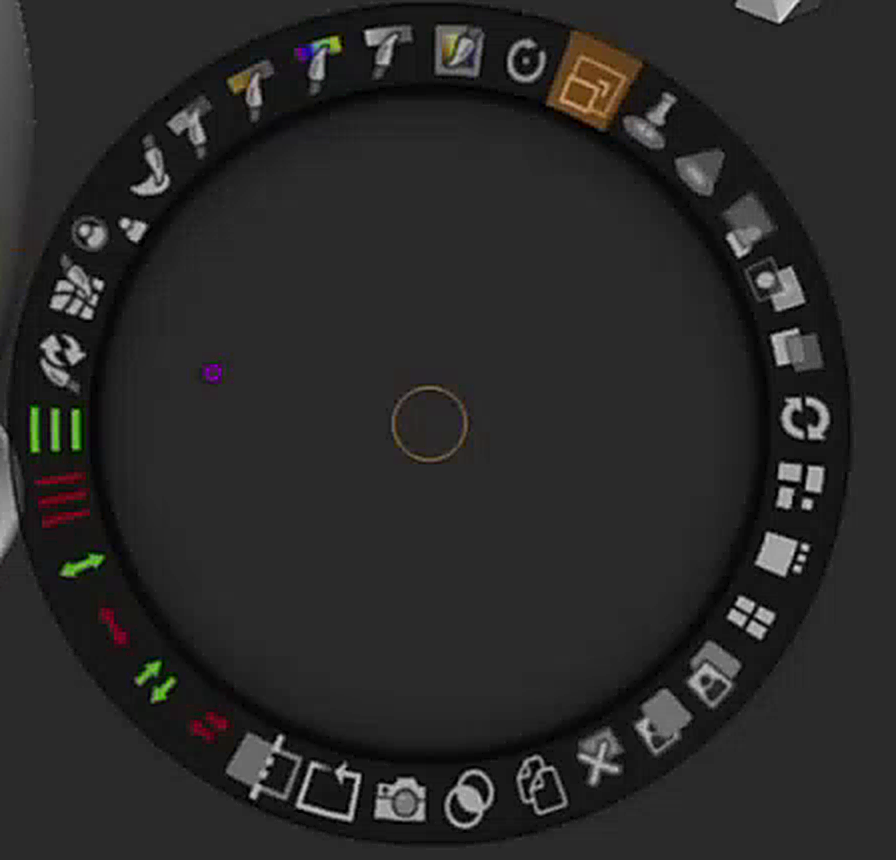
The Spotlight dial is a ring of image-editing tools. The dial appears on the canvas in Edit Spotlight mode. The dial and its tools are the same as the Spotlight dial on the desktop. ZBrush for iPad integrates the same dial but then goes further with everything around the dial: the Spotlight menu bar, Spotlight menu, new ways to add images, and a setting for the size of the dial. The iPad controls let you do everything from the viewport.
Spotlight On/Off
The Spotlight icon is the flashlight on the Bottom Toolbar, the last icon on the right in the default layout. The flashlight is lit while Spotlight is on. Tap the icon to turn Spotlight on. Tap it again to turn Spotlight off.
The flashlight always stays on the Bottom Toolbar. When you switch Spotlight off, though, the dedicated Spotlight menu bar (described below) vanishes.

Your First Image
When you turn Spotlight on with no images loaded, Spotlight asks what you want to load via a menu of options.
- Add Texture opens the texture picker, which holds the textures already in ZBrush.
- Add Alpha opens the alpha picker, which holds the alphas already in ZBrush.
- Add From Files loads an image from your iPad's storage.
- Add From Photos loads an image from Photos.
- Capture Image takes a picture with the iPad camera.
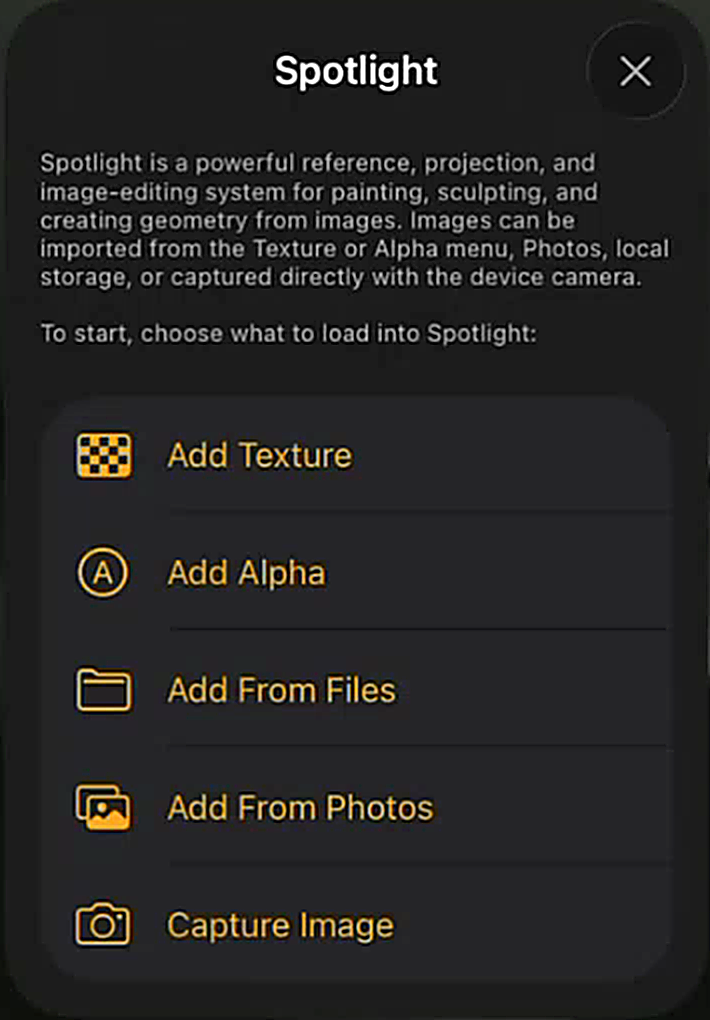
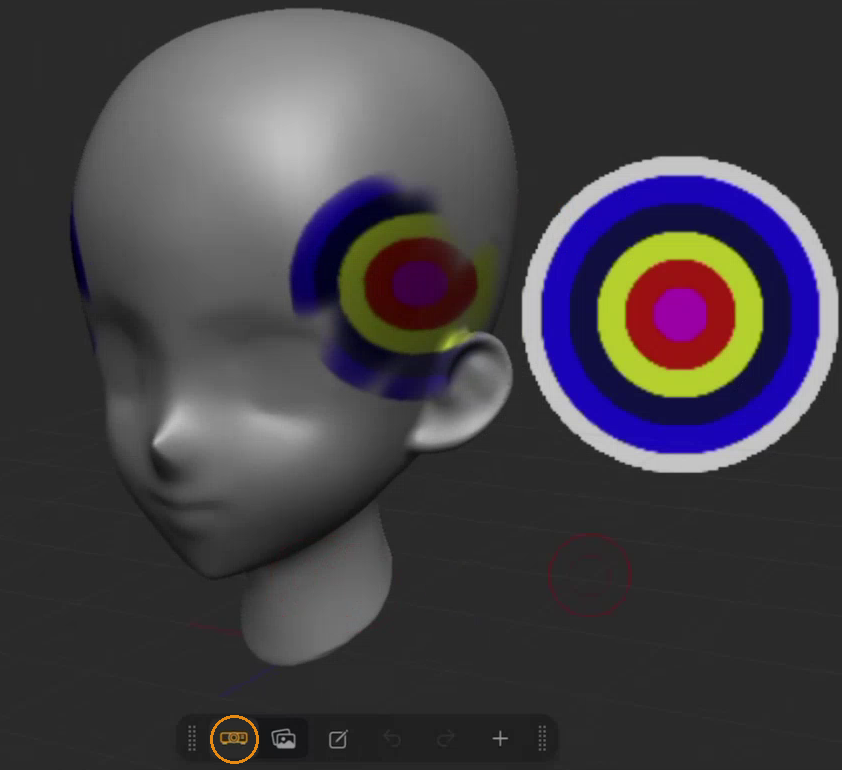
Pick a source and choose an image. (In the screenshot below, we selected Add Texture and then picked the bull’s-eye texture from ZBrush for iPad’s included collection.) The image appears at the center of the canvas, selected, with the Spotlight dial over it, and the Spotlight menu bar appears. This is Edit Spotlight mode, where you position the image.
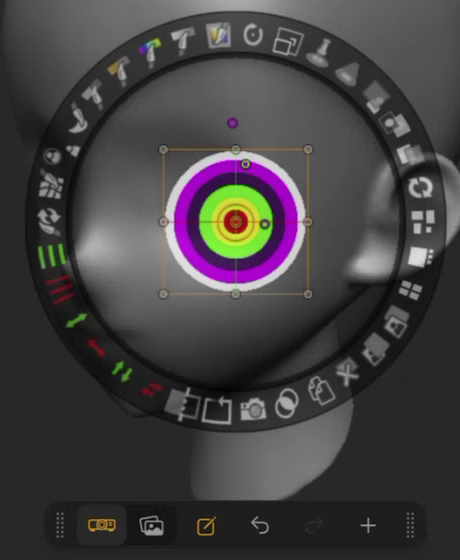
Spotlight Menu Bar
The Spotlight menu bar is the row of Spotlight control icons that appears while Spotlight is on. By default, the menu bar is attached to the Bottom Toolbar. Drag the handle at either end of the menu bar to move it. The menu bar can either sit at the top or the bottom of the screen on its own or stay attached to the Bottom Toolbar wherever you've positioned it.

From left to right, the Spotlight menu bar holds:
| Control | Icon | What it does |
|---|---|---|
| Projection | A projector | Paints and sculpts your images onto the model when you stroke over them. |
| Reference | A picture | Keeps your images on screen as reference. Nothing projects onto the model. |
| Edit Spotlight | A pencil in a square | Turns Edit Spotlight mode on and off. The icon is highlighted while the mode is on. |
| Undo and Redo | Arrows | Undo and redo changes to your Spotlight images. Active in Edit Spotlight mode. |
| + | A plus sign | Adds another image. |
Spotlight Modes
Edit Spotlight mode is where you work on images. Spotlight always starts in Edit Spotlight mode, and the Spotlight dial is visible only in this mode. You tap an image to select the image and drag it into place, then use the dial tools to scale, rotate, and adjust it.
While Edit Spotlight mode is on, you can't paint or sculpt on the model. Tap Edit Spotlight to leave the mode and work on the model.
Projection and Reference are the two working modes. One of the two is always selected.
- In Projection, a brush stroke over an image paints the image's color onto the model, sculpts the image into the surface, or both. The application method depends on your brush, as with any stroke. With RGB on, the stroke paints. With Z ADD or Z SUB on, it sculpts.
- In Reference, images stay on screen and never project onto the model or create geometry. You paint and sculpt the model as usual with the images in view.
Painting and Sculpting Through Spotlight
Spotlight began as a tool for painting through an image. You hover an image over the model and stroke across it with a brush. The image's colors land on the surface as Polypaint, or its light and dark areas become sculpted detail. For example, you can place a photograph of skin over a face and paint its color straight onto the model.
To paint or sculpt with an image:
- Add your images and arrange them over the model in Edit Spotlight mode.
- Tap Edit Spotlight on the Spotlight menu bar to leave Edit Spotlight mode.
- Make sure Projection is selected on the menu bar.
- Select a painting or sculpting brush and stroke over the image.
The part of the image under your stroke paints or sculpts onto the model. Symmetry applies to strokes through Spotlight as it does to any other stroke. Draw Size sets how much of the image a stroke covers, and RGB Intensity and Z Intensity set how strongly it paints and sculpts.
To move an image or add another one, tap Edit Spotlight to go back to Edit Spotlight mode. Tap Edit Spotlight again when you're ready to keep painting.
Using Spotlight for Reference
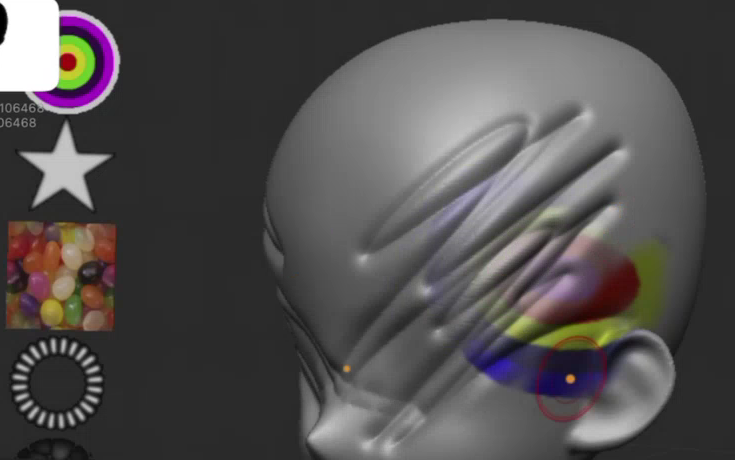
Most sculptors keep reference images in view while they work. To do that, add your images, arrange them in Edit Spotlight mode, leave Edit Spotlight mode, and select Reference on the Spotlight menu bar. Images stay in view while you sculpt and paint. Meanwhile, nothing projects onto the model.
Two ways to work with reference images:
- Keep a set of images of your subject floating around the model and look at them as you sculpt.
- In production work, place the blueprints you were given over the model and match the model to them. Lower the images' Opacity on the Spotlight dial to see the model through the blueprint.
Adding More Images
You can add a subsequent image after the first one in four ways:
- Tap + on the Spotlight menu bar. The same five choices appear as for your first image.
- Long-press the Spotlight icon and tap one of the Add From icons in the Spotlight menu. The five icons match the five choices above in the same order.
- In the texture picker or the alpha picker, long-press an image and tap Add To Spotlight. The picker stays open, so you can add several textures and alphas in a row.
- Drag in an image from another app. When ZBrush for iPad runs in a floating window with other apps open, drag an image out of another app and drop it on the ZBrush canvas.
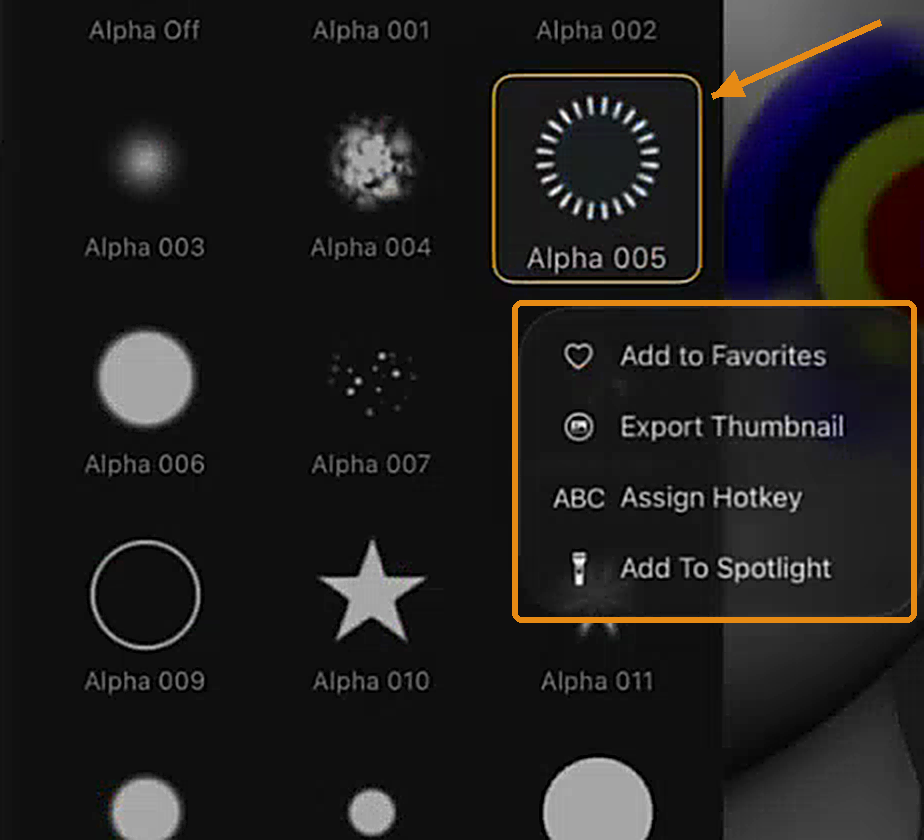
A new image always lands at the center of the canvas, selected, and the dial moves onto it. You can't choose where it lands, including when you drag it in from another app. Move and scale the image as you wish in Edit Spotlight mode. If you drop in an image while Edit Spotlight mode is off, Spotlight automatically switches Edit Spotlight mode on so you can position, size, and rotate the image immediately.
Arranging and Editing Images
In Edit Spotlight mode, you arrange the images on the canvas and edit each image with the Spotlight dial.
- Tap an image to select it, then drag to move it. Most dial tools act on the selected image.
- Tap an empty part of the canvas, away from any image, to move the dial to that spot. The images stay where they are. Drag from an empty part of the canvas to move all the images together. With no image selected, Rotate and Scale act on all images as a group.
- The Spotlight dial is the pivot point. When you rotate or scale, the images turn and grow around the dial's position, so where the dial sits changes the result. The pivot also matters when you snap images into place and when you make an image follow the brush while you paint.
The dial tools work in three ways. Some, such as Rotate, Scale, and Opacity, work by dragging. Touch the icon and drag it along the ring — clockwise for more and counterclockwise for less. Others, such as Paint, Clone, and Smudge, are brush modes. Tap the icon to turn the mode on, paint on the image, and tap the icon again to turn the mode off. The rest act with a single tap.
Spotlight Dial Tools
The dial holds 34 tools, the same as on the desktop, listed here in clockwise order from Rotate. The dial tools act on the selected image, except Opacity, Tile Proportional, Tile Selected, and Tile Unified, which act on all the images. The brush modes paint on any image.
| # | Tool | What it does |
|---|---|---|
| 1 | Rotate | Drag along the ring to rotate the image around the pivot. |
| 2 | Scale | Drag along the ring to scale the image. Width and height stay in proportion. |
| 3 | Pin Spotlight | Locks the part of the image under the center of the dial as the part you paint with, so you can paint one feature, such as an eye, again and again anywhere on the model. |
| 4 | Spotlight Radius | Sets the size of the spot that shows the images around your brush while you paint. At 0, the default, all the images stay visible. The radius is a preview only. Draw Size, RGB Intensity, and Z Intensity set how much paints or sculpts. |
| 5 | Opacity | Makes all the images more or less see-through on screen. Opacity doesn't change how strongly an image paints or sculpts; use Fade for that. |
| 6 | Background Opacity | Sets the opacity of the back image when you work with one image over another. |
| 7 | Fade | Dims the selected image, which reduces its effect when you paint or sculpt through it and blends it with any image below. At 100 percent, the default, nothing is faded. |
| 8 | Quick Select | When on, the next image you pick replaces the selected one in the same place, at the same size and angle. |
| 9 | Tile Proportional | Tiles all the images along the side of the canvas, sized by their pixel dimensions, largest at the top. |
| 10 | Tile Selected | Keeps the selected image large and tiles the others below it at a smaller size. |
| 11 | Tile Unified | Tiles all the images at the same size along the side of the canvas. |
| 12 | Front | Brings the selected image in front of all the others. |
| 13 | Back | Sends the selected image behind all the others. |
| 14 | Delete | Removes the selected image from Spotlight. Until you select another image, the dial moves, rotates, and scales the remaining images as a group. |
| 15 | Duplicate | Makes a copy of the selected image. |
| 16 | Union | Combines the selected alpha with the alpha below it, so simple shapes build more complex ones. Works with textures too. |
| 17 | Snapshot3D | Converts the selected alpha into a 3D mesh as a new SubTool. |
| 18 | Frame | Drag to create an outline from the boundary of the alpha or image. For an image, only its white pixels count and the other colors disappear. The outline stays inside the image's bounding box. |
| 19 | Edge Detect | Highlights the edges in the image, drawn in the main and secondary colors. Useful for lining an image up over the model. Restore brings back the full image. |
| 20 | Flip H | Flips the selected image horizontally. Hold the Alt/Option modifier when you tap Flip H to mirror the right side of the image onto the left. |
| 21 | Flip V | Flips the selected image vertically. Hold the Alt/Option modifier when you tap Flip V to mirror the top of the image onto the bottom. |
| 22 | Extend H | Stretches or shrinks the image horizontally by repeating the pixels under the center of the dial, so place the dial first. |
| 23 | Extend V | Stretches or shrinks the image vertically by repeating the pixels under the center of the dial, so place the dial first. |
| 24 | Tile H | Repeats the image horizontally inside its own bounding box. The more tiles you add, the smaller each copy becomes. Hold Shift to tile horizontally and vertically at the same time. |
| 25 | Tile V | Repeats the image vertically inside its own bounding box. The more tiles you add, the smaller each copy becomes. Hold Shift to tile horizontally and vertically at the same time. |
| 26 | Restore | Color and paint edits (Clone, Smudge, Contrast, Saturation, Hue, Intensity, Paint) are nondestructive. Drag Restore clockwise to restore the whole selected image, or tap it and paint to restore only part of an image. Restore doesn't undo Nudge. |
| 27 | Nudge | A brush mode that stretches, distorts, and moves parts of the image. Its strength follows Z Intensity. Drag the icon clockwise to reset the image. |
| 28 | Clone | A brush mode that copies part of an image to another place. The source is the area under the center of the dial. Strength follows RGB Intensity. |
| 29 | Smudge | A brush mode that smears the image. Drag the icon all the way around the ring to box-blur the whole image, or a short way, several times, for a radial blur. Strength follows RGB Intensity. |
| 30 | Contrast | A brush mode that raises contrast where you paint. Drag the icon to change the whole image. |
| 31 | Saturation | A brush mode that raises color saturation where you paint. Drag the icon to change the whole image. |
| 32 | Hue | A brush mode that shifts hue where you paint. Drag the icon to shift the hue of the whole image. |
| 33 | Intensity | A brush mode that lightens where you paint. Drag the icon to change the whole image. |
| 34 | Paint | A brush mode that paints on the image with the current color. Drag the icon to fill the whole image. |
While a brush mode is on, tapping an image paints on it with the selected brush instead of selecting it, so move the dial by dragging the circle at its center. Tap the tool's icon again to leave the mode.
The ZBrush desktop documentation covers the same tools on the Spotlight dial page, including the modifier shortcuts. The Alt/Option and Shift modifiers work the same way on iPad, from the Modifier Wheel or a keyboard.
Spotlight has its own undo and redo. In Edit Spotlight mode, undo applies to your Spotlight images, such as a hue change or a move, and never to the model. Every undo method works here, whether you tap Undo on the Spotlight menu bar, tap the regular undo button, or use the two-finger tap. The same goes for redo. When you leave Edit Spotlight mode, undo goes back to the model, and undoing a paint stroke works as usual.
Changing the Size of the Dial
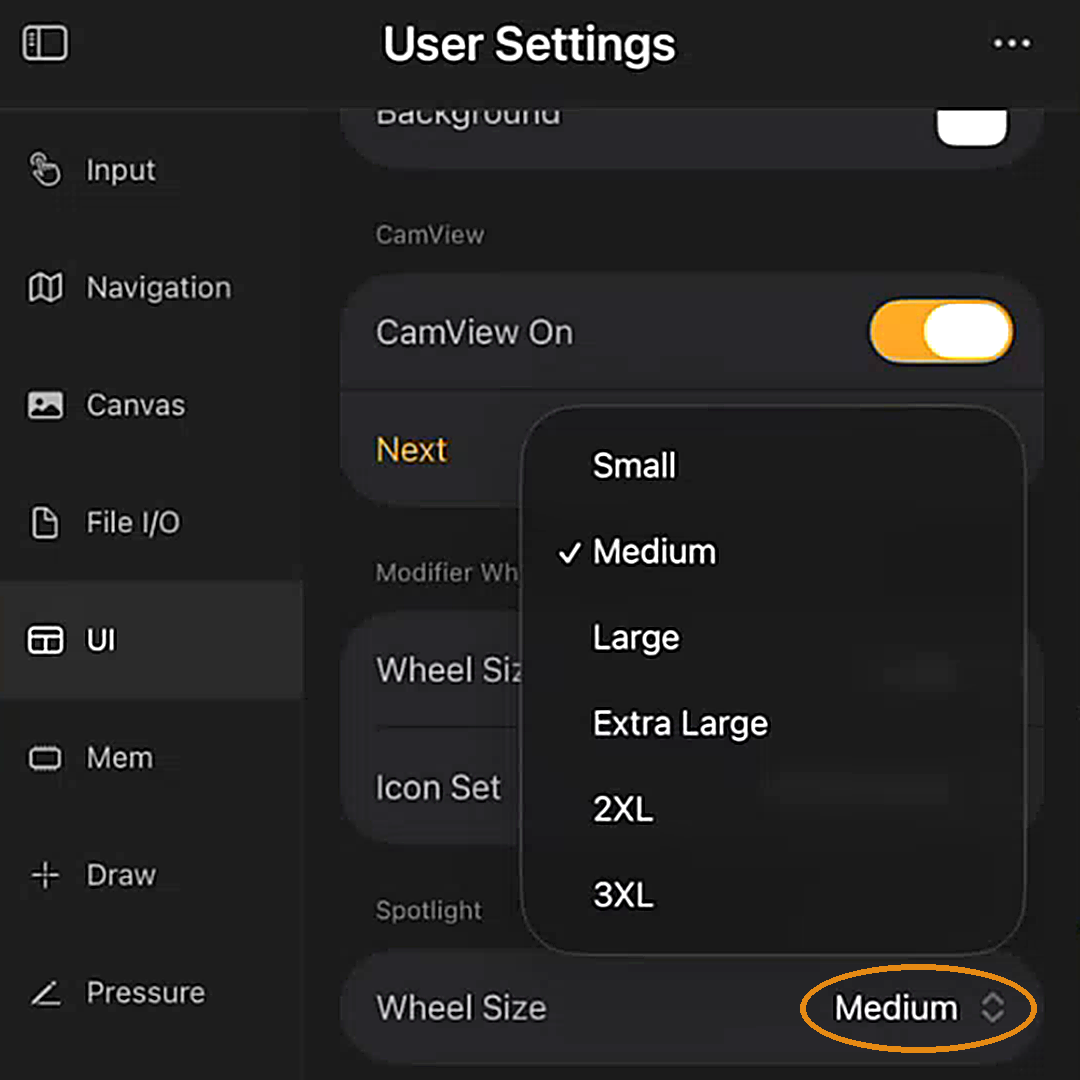
The Spotlight dial is a little larger on iPad than on the desktop, and you can make it larger still. Fingers come in different sizes, and not everyone uses an Apple Pencil, so the dial's size is up to you. To resize it:
- Tap the gear icon to open User Settings.
- Tap UI.
- Under Spotlight, set Wheel Size.
The sizes are Small, Medium, Large, Extra Large, 2XL, and 3XL. Medium is the default on iPad. Small matches the desktop dial, which has one fixed size. 3XL is probably too big on an 11-inch iPad and almost certainly too big on an iPad mini, while on a 13-inch iPad it can be a good fit.
Spotlight Menu
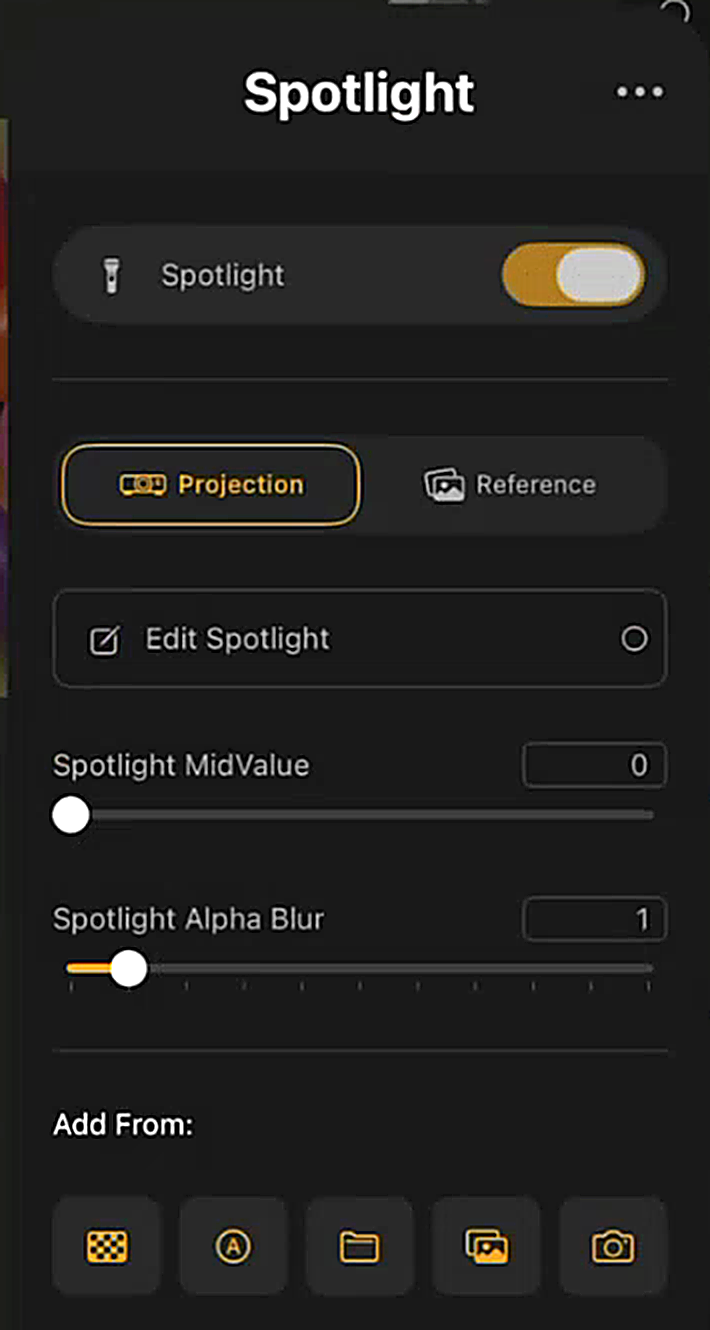
Long-press the Spotlight icon to open the Spotlight menu. The menu holds the on and off switch, mode controls from the menu bar, two sliders, add options, and file options. A change in the menu updates the menu bar as you make it.
| Control | What it does |
|---|---|
| Spotlight switch | Turns Spotlight on and off, the same as tapping the flashlight. |
| Projection and Reference | Switch between the two working modes. |
| Edit Spotlight | Turns Edit Spotlight mode on and off. |
| Spotlight MidValue and Spotlight Alpha Blur | Spotlight's two slider settings. ZBrush for iPad has no floating sliders, so they live here. |
| Add From | The five ways to add an image, as icons. |
| ••• | Opens Save Spotlight, Load Spotlight, and Delete Spotlight. |
Creating Meshes From Images
Spotlight can also create geometry from an image. Snapshot3D on the Spotlight dial turns the white pixels of an alpha into a 3D mesh. Gray and black pixels are ignored.
- Add an alpha to Spotlight, for example with Add Alpha.
- In Edit Spotlight mode, tap the alpha to select it.
- Tap Snapshot3D on the dial.
The mesh appears as a new SubTool. Its length follows the size of the SubTool that was active when you tapped Snapshot3D. To combine alphas into more complex shapes, see Snapshot3D in the ZBrush desktop documentation.
Saving, Loading, and Deleting a Spotlight
You can save the images you have loaded into Spotlight as a Spotlight file and load them again later.
- Long-press the Spotlight icon to open the Spotlight menu.
- Tap •••.
- Tap Save Spotlight, Load Spotlight, or Delete Spotlight.
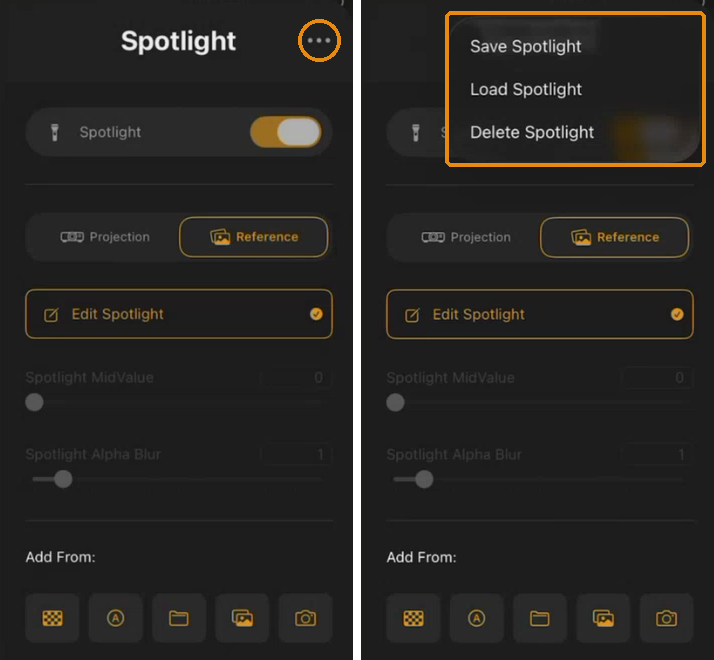
Delete Spotlight clears the whole Spotlight canvas and removes every image. Delete Spotlight is also available in ZBrush on the desktop.
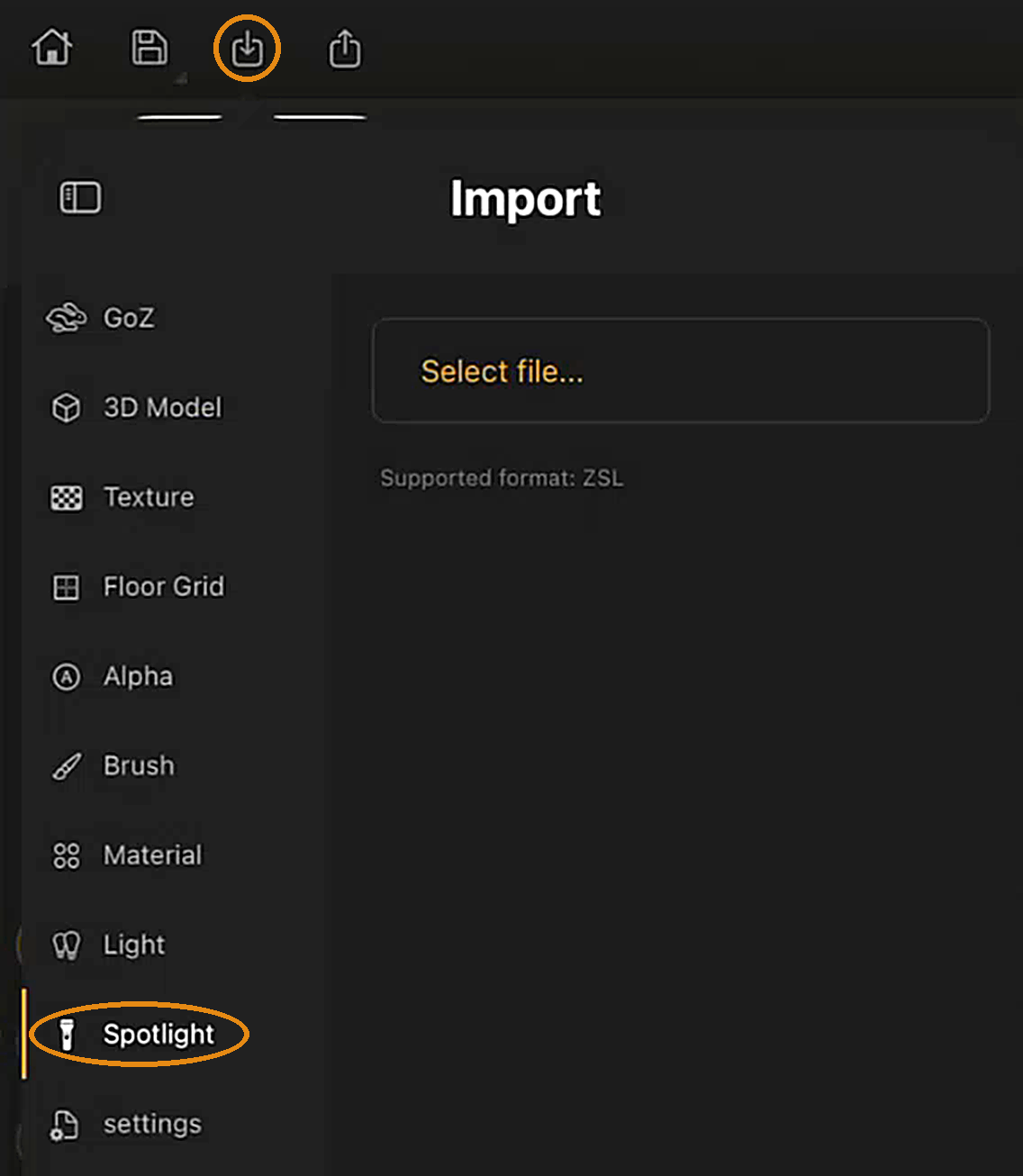
You can also load and save Spotlight files from the Import and Export menus on the Top Bar. In Import, tap Spotlight and select a file. Spotlight files use the ZSL format. In Export, name the file and save it.