Customize Hotkeys
Whether you are using ZBrush on desktop or iPad, one effective way to accelerate your workflow is by accessing features, brushes, sliders, and more through keyboard shortcuts. In addition to utilizing ZBrush’s default hotkeys, you can customize shortcuts to assign any feature to your own preferred key combinations, further streamlining your workflow.
Hotkey customization requires a physical keyboard connected to your iPad. The feature is not available with the on-screen keyboard.
The Hotkeys Tab
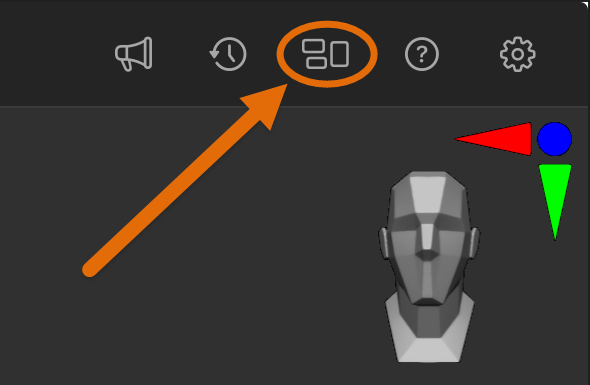
Open Customize (see image below) and tap the Hotkeys tab at the top. This is the third tab alongside Custom Bar and Quick Menu.
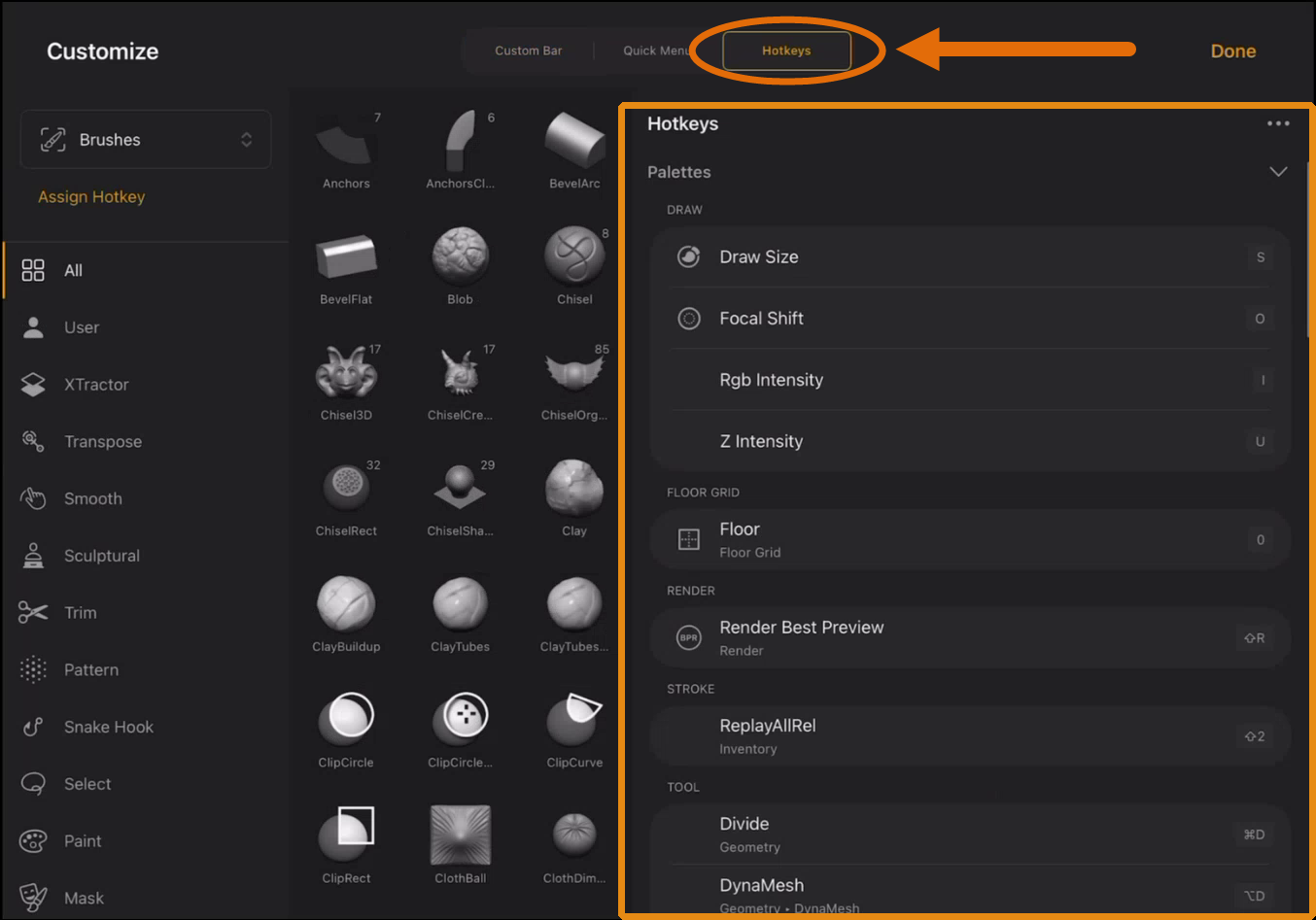
The Hotkeys tab displays every assigned keyboard shortcut on your device, organized into three collapsible categories:
- Palettes: The main menus in ZBrush (Tool, Brush, Stroke, and so on). On the desktop these run across the top of the screen. On iPad, palettes are accessed through the right-side palette tray and menus.
- Pickers: The brush picker, stroke picker, alpha picker, texture picker, and material picker. Pickers are accessible via the left-edge menu.
- Toolbars: Actions from the iPad toolbar along the top of the canvas. This category is unique to the iPad version and does not exist on desktop.
Each entry shows the action name on the left and its assigned shortcut on the right. Default hotkeys are always present here because ZBrush ships with a set of built-in assignments.
Assigning a Hotkey from the UI
On the desktop, most artists rely heavily on keyboard shortcuts for controls like Draw Size (typically the S key or spacebar) and brush switching. ZBrush for iPad now supports the same keyboard-driven workflow.
The fastest way to assign a hotkey is directly from the element you want to shortcut. Tap on the item (a brush, slider, button, or palette entry) and select Add User Hotkey from the context menu. Then press the key or key combination you want on your physical keyboard. (Outside of the custom menu in the normal UI, you would long-press on brushes to customize their hotkeys.) If that key is already assigned to another action, ZBrush warns you and names the conflict. Tap the checkmark to override the existing assignment, or tap X to cancel and choose a different key.
For example, say you want to assign a one-key shortcut to ClayTubes, specifically the number 4:
- Long-press ClayTubes in the brush picker.
- Make sure the Hotkey tab is selected.
- Press 4 on your keyboard.
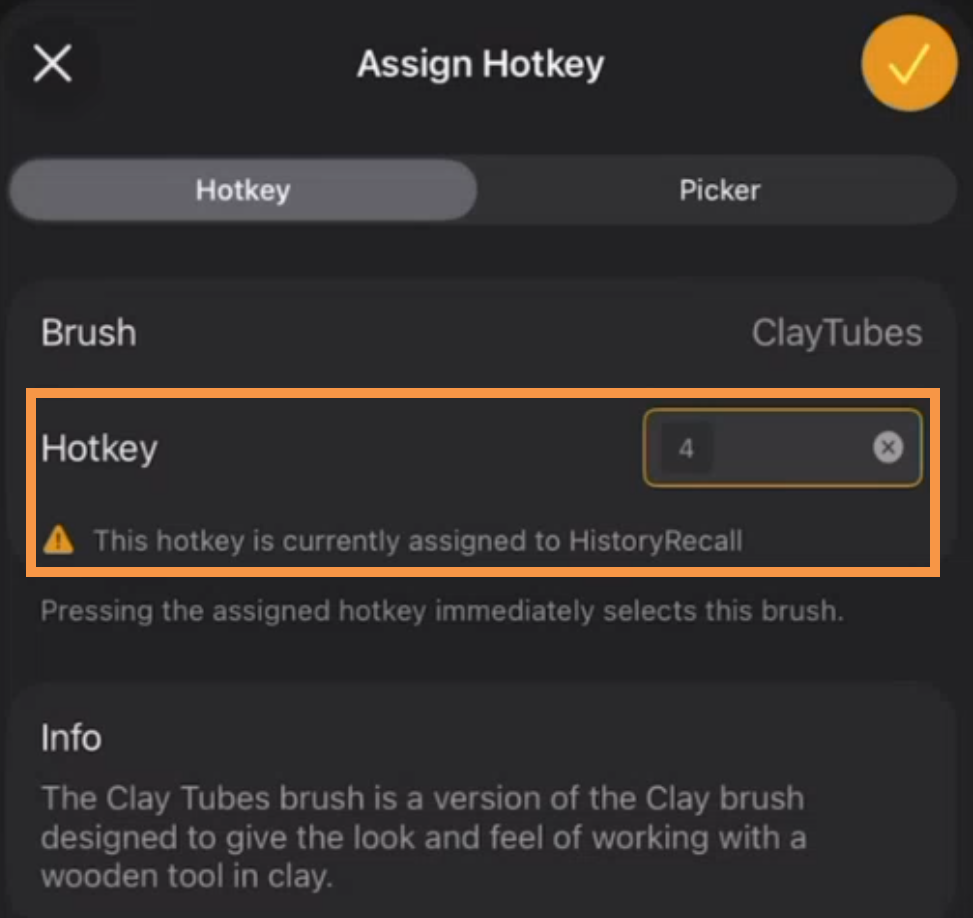
- In the image above, you see that ZBrush is warning that "4" is currently assigned to HistoryRecall. Tap the checkmark to override, or use a different hotkey value.
Assuming you overrode the warning, pressing 4 on your keyboard now equips ClayTubes instantly, bypassing the brush picker entirely.
Without a direct hotkey, switching brushes is a two-step process: Press B to open the brushes picker, then type letters to filter, such as C for ClayTubes. Those first two values are fixed, but you get to pick the third value. You might select the number 4 here, making your Picker keystroke sequence for ClayTubes B > C > 4.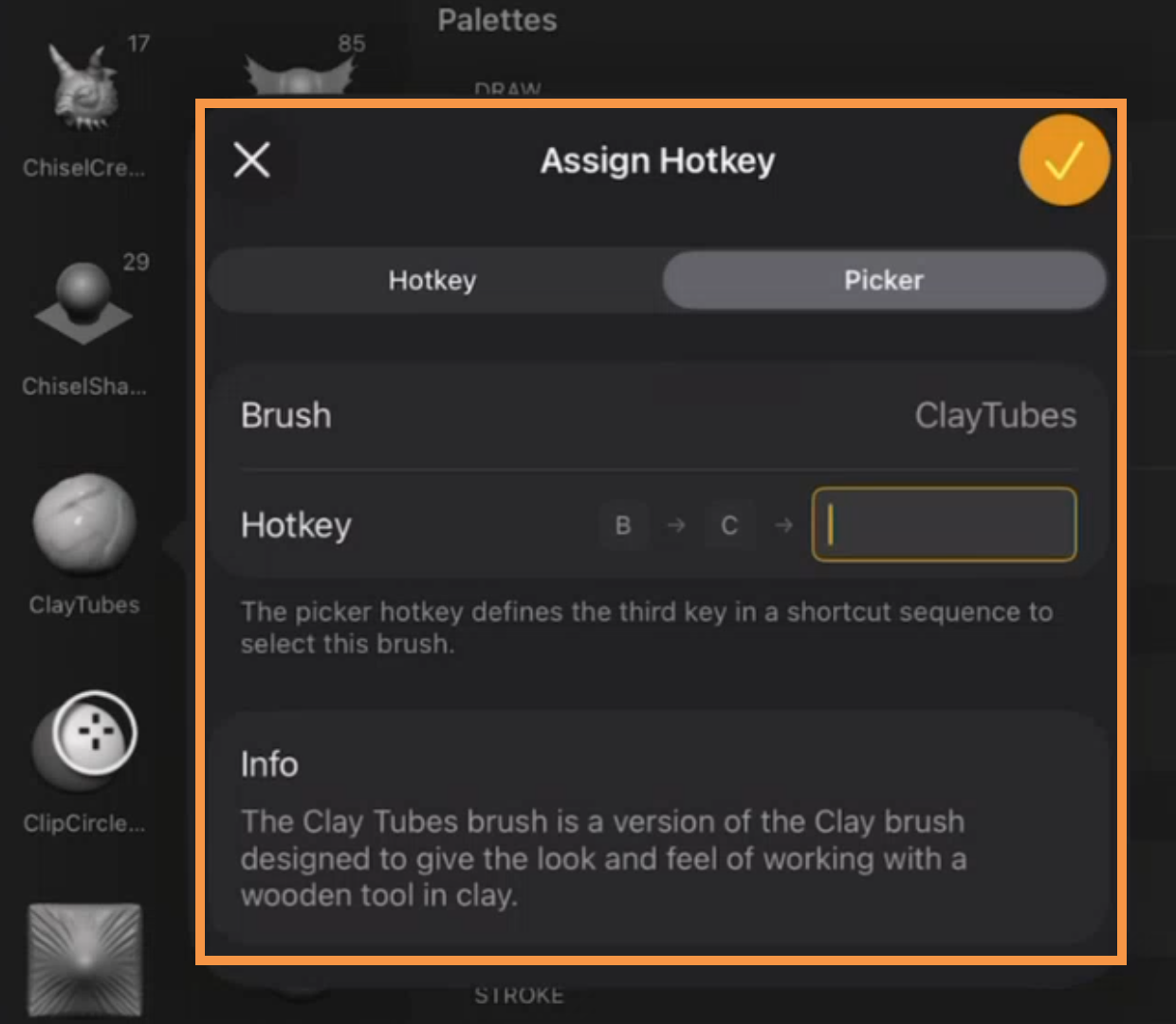
This same long-press method works for any UI element you can interact with: sliders, buttons, palette items, and toolbar actions. The screenshot below shows the Add User Hotkey dialog for Focal Shift, a slider control. The process is identical regardless of element type.
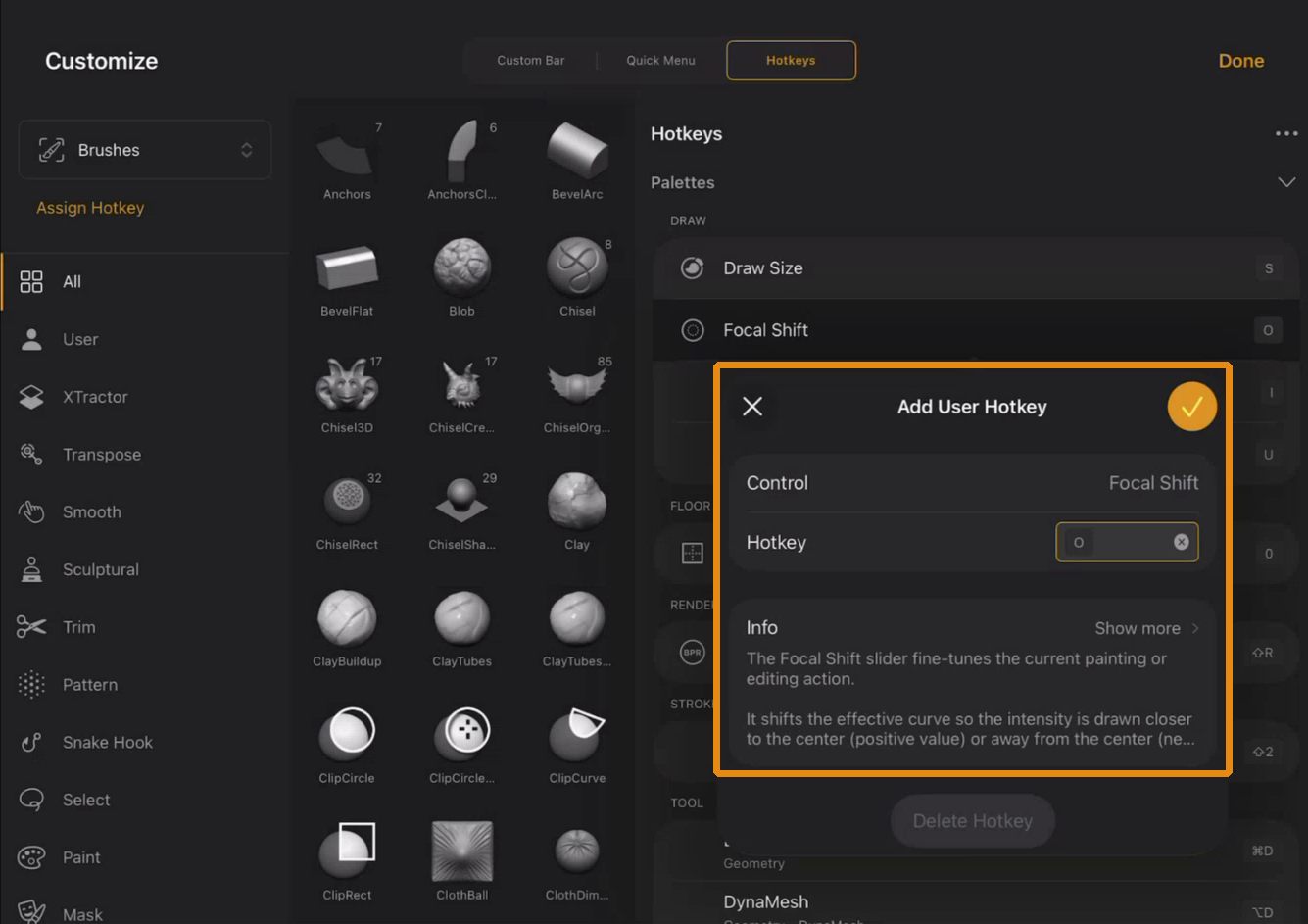
Note that a direct hotkey selects the brush with a single keypress without opening the picker. Many artists assign the number keys 0 through 9 to their ten most-used brushes. A single brush can have both a pop-up picker hotkey and a direct hotkey at the same time.
Assigning a Hotkey From the Hotkeys Tab
You can also assign hotkeys by browsing available items in the Hotkeys tab itself. This is useful when you want to explore what is available before deciding what to assign.
- Open Customize and tap the Hotkeys tab.
- Tap the dropdown at the top left (it defaults to Brushes) and choose whether you want to assign something from Pickers, Palettes, or Toolbars.
- Navigate to the item you want. For Palettes, you can drill into sub-palettes (for example, Tool → Outer Ring).
- Tap the item to open the Add User Hotkey dialog.
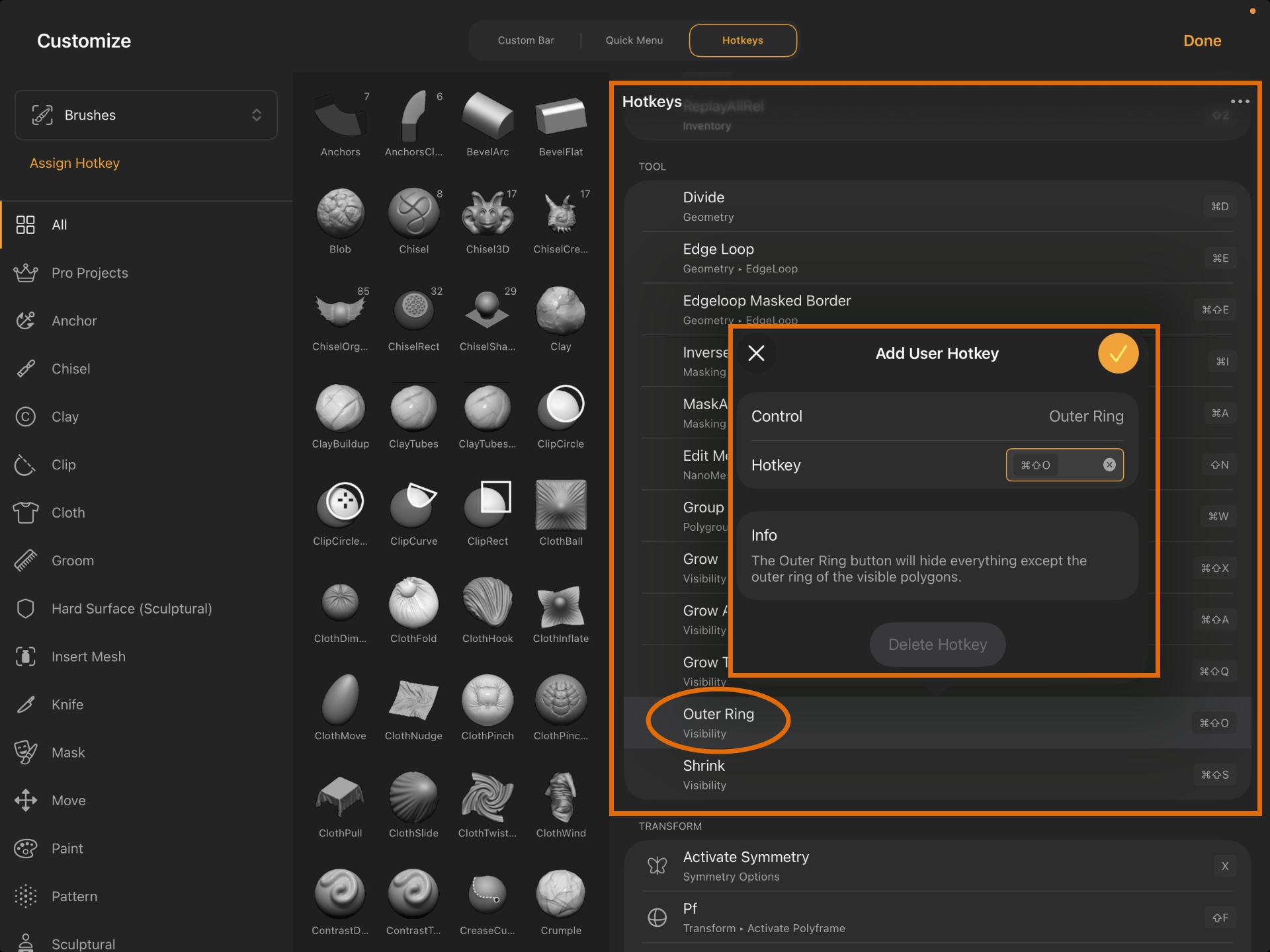
- Press a key or key combination on your keyboard. For example, you could select Shift+Q for Outer Ring.
- Tap the checkmark to confirm.
As you assign hotkeys, they appear in the Hotkeys shortcut list automatically.
Deleting a Hotkey
You can remove a custom hotkey in two ways:
- In the Hotkeys tab, swipe left on any custom hotkey entry to delete it. Note that this does not work on ZBrush for iPad's default settings, which can be overwritten but not deleted.
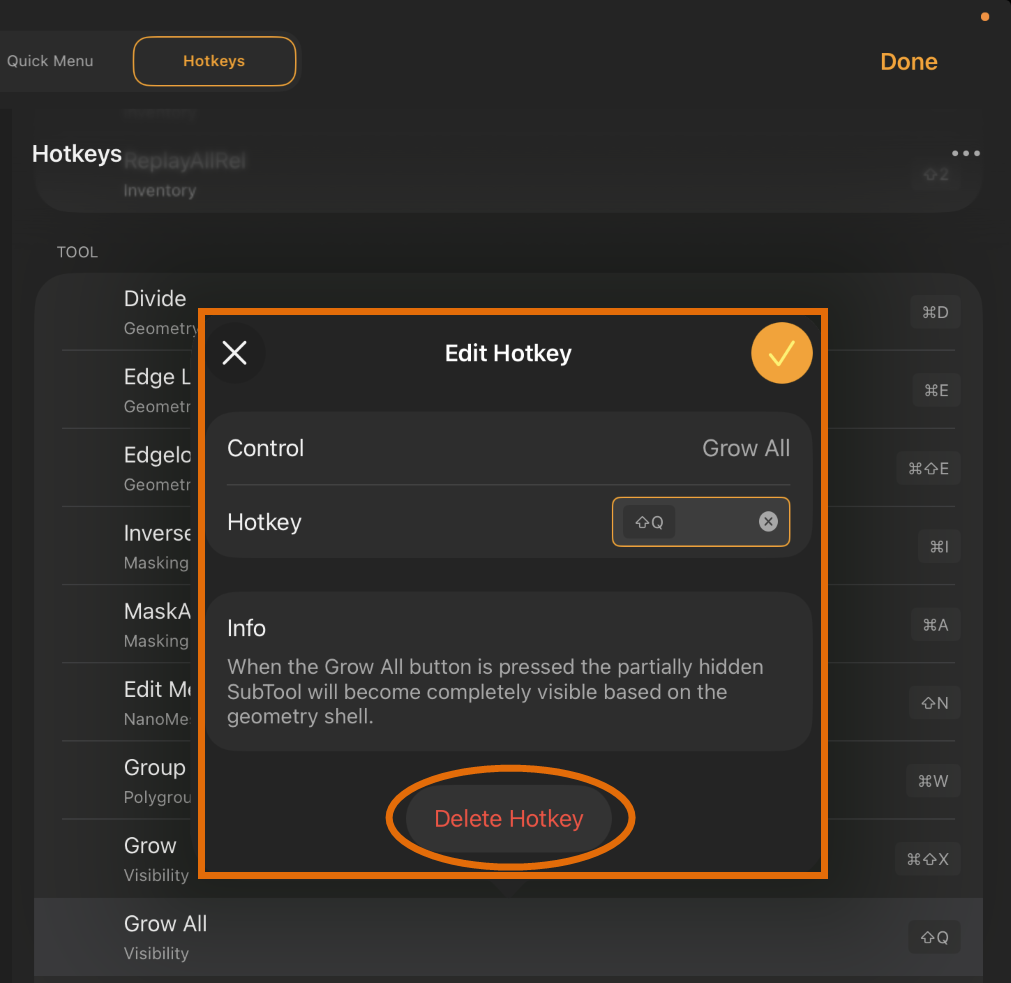
- From anywhere in the Hotkeys UI, tap the element and (if applicable) tap Delete Hotkey. This option also appears at the bottom of the Add User Hotkey dialog.
Deleting a custom hotkey restores the default shortcut for that action, if one existed.
Saving and Auto-Save
ZBrush stores hotkey assignments automatically the moment you confirm them. There is no separate save step. Your custom hotkeys persist across sessions and restarts.
Import, Export, and Restore Defaults
Tap the three-dot menu (...) in the top-right corner of the Hotkeys tab to access file management options:
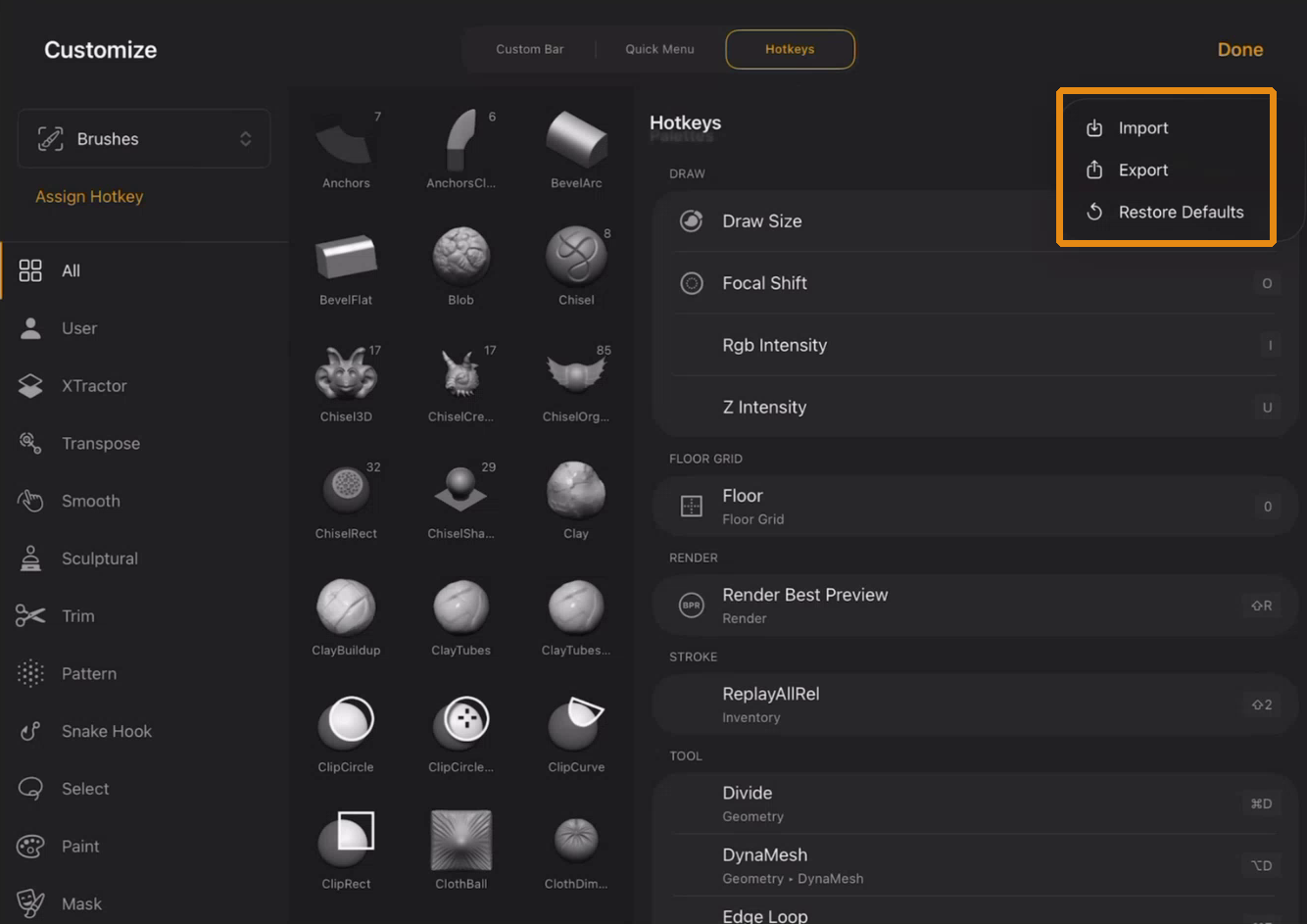
- Export saves all your custom hotkey assignments to a single file. You can store it locally on your iPad, in iCloud, or share it directly with another user.
- Import loads a previously exported hotkey file. On iPad, the file browser can access your local iPad storage, Downloads folder, and iCloud. Other locations are not available.
- Restore Defaults resets all hotkeys to the factory assignments, removing every custom shortcut.
Restore Defaults cannot be undone. Export your configuration first if you want to keep a backup.
Desktop Compatibility
Hotkey assignments are fully compatible between ZBrush for iPad and ZBrush for desktop. You can export your hotkey file from one platform and import it on the other. This works in both directions. Desktop hotkeys load on iPad, and iPad hotkeys load on desktop.
There is no live sync between platforms. The iPad and desktop versions use different customization architectures (the desktop approach does not translate to the iPad's touch-based UI), so transferring hotkeys requires exporting a file on one device and importing it on the other.
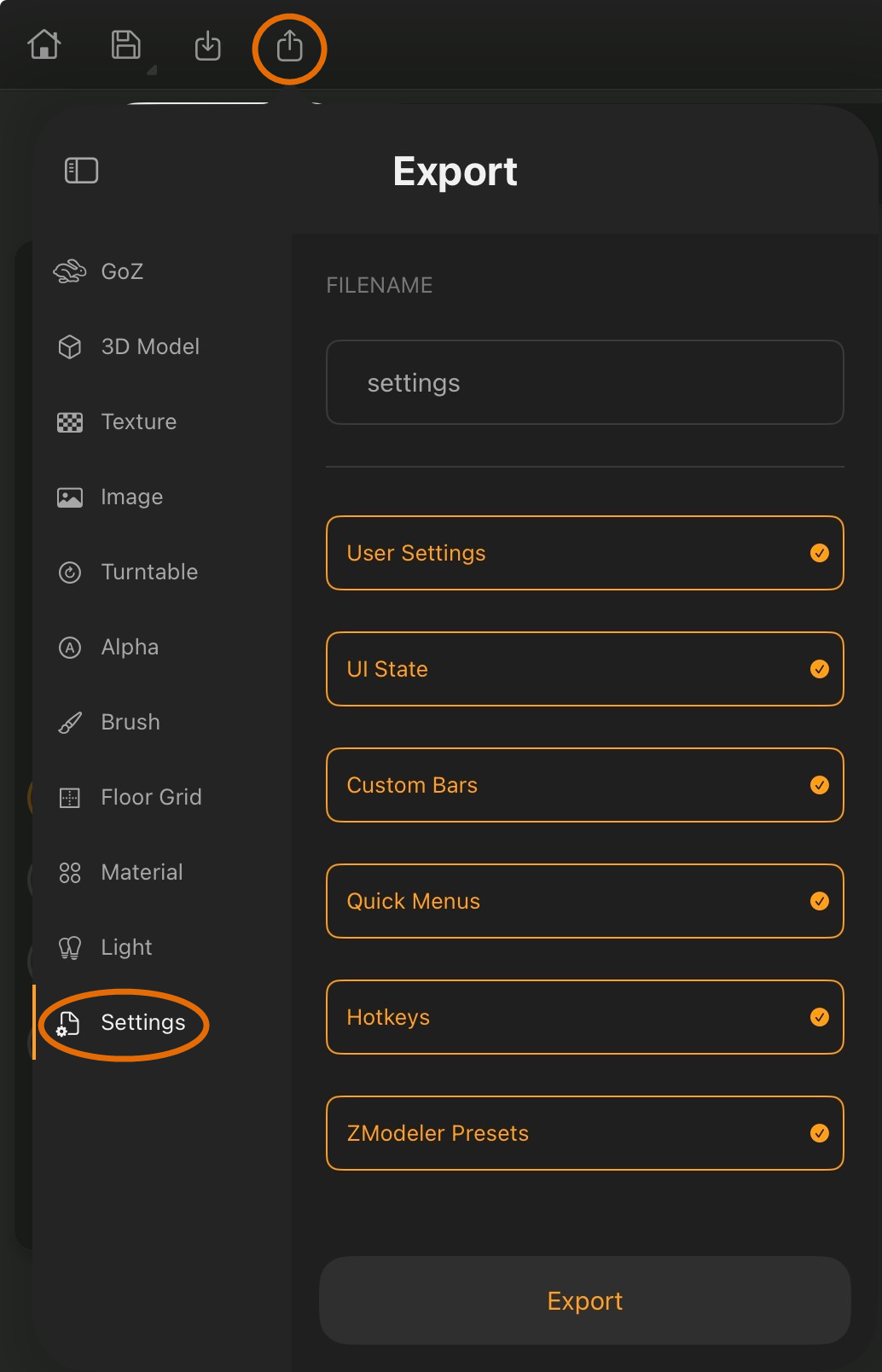
ZBrush for iPad can save all customizable settings (e.g., hotkeys, custom toolbars, quick menus, palette trays) into a single export file, as shown below. On desktop, these settings must be saved separately. For more info, see this guide's Export section.