Sampling - Live
Overview
Sampling
Rendering Mode
Changing this parameter will change the render settings that are available.
Controls which engine is used for rendering from the following options.
-
Production: Redshift's primary engine for final frame rendering.
-
Live: Redshift's fastest interactive engine, offering near real time updates.
Progressive Passes
Only applies to Production Progressive and Live rendering mode.
Controls the maximum number of passes that can be reached. More passes results in higher quality and the less visual noise.
Since Progressive mode can be used in either Interactive Rendering or Final Rendering the behavior of this setting differs depending on the rendering mode and the situation.
- Progressive Passes with Production Interactive and Live Rendering - When Interactive Rendering the Progressive render will
only reach the maximum number of Progressive Passes if given the necessary amount of time between scene edits and changes.
- For example: If a scene edit takes place before the maximum number of Progressive Passes is reached then a new updated Progressive render will be started and again begin to build back up to the maximum number of Progressive Passes.
- Progressive Passes with Production Final Rendering - In Final Rendering the Progressive render will
always reach the maximum number of Progressive passes before moving on to the next frame, no more and no fewer.
- For example: If your maximum number of Progressive Passes is set to 64 then each frame will be rendered for as long as it takes to reach the 64th pass. Once the 64th pass is reached, Redshift will move onto the next frame and then start the process over for each frame until the entire batch is finished.
Denoising
Denoising
Enables or disables denoising / upsampling.
- Denoising allows you to render images at a reduced baseline quality (lower sample counts) for increases in render speed.
- Upsampling renders the frame at a lower internal resolution before upscaling it to the final frame resolution.
Engine
Controls the denoising/upsampling engine. Upsampling allows for faster rendering and interactivity at the expense of image quality.
-
Native
- Uses machine learning to upsample renders from a lower resolution to the final target resolution, this allows for faster rendering and interactivity without losing as much detail as traditional upscaling.
- On Windows DLSS is used with NVidia hardware
- On Mac MetalFX is used on Apple hardware
-
OIDN
- Uses OIDN denoising with no upscaling
- Compatible with all hardware
Upsampling Mode
Only available with Native Engine
Controls the starting resolution before upsampling to the final target resolution. A lower starting resolution (ultra performance or performance mode) results in faster interactivity and lower quality while a higher starting resolution (balanced or quality mode) results in slower interactivity and higher quality.
- Quality - 44% of target resolution.
- Balanced - 33% of target resolution.
- Performance - 25% of target resolution.
- Ultra Performance - 11% of target resolution.
Quality
Balances speed with quality for OIDN denoising with the following options:
- High - Prioritizes quality over speed, best used for final rendering. Minor differences may appear when comparing results across different hardware architecture.
- Balanced - Balances speed with quality, providing higher quality than Fast and less memory usage than High. Some differences may appear when comparing results across different hardware architecture.
- Fast - Prioritizes speed over quality. Some differences may appear when comparing results across different hardware architecture.
Depending on the scene, there may be no difference in image quality between the three options.
Static Frame Denoising
When enabled, OIDN denoising will be used after a certain number of passes to improve quality. This allows for faster interactivity without sacrificing image quality when a frame is able to reach higher progressive passes.
Threshold # Passes
Controls the number of passes that need to be reached before OIDN Static Frame Denoising is used.
Unified Sampling
Max Subsample Intensity
Limits the maximum value of intensity for each individual sample. The higher the 'Max Subsample Intensity' the harder the renderer has to work to antialias the image.
Usually monitors can show colors ranging from black (0.0, 0.0, 0.0) to white (1.0, 1.0, 1.0). Any color that is brighter than white (like 10.0, for example) will still be rendered as white. But the internal workings of a renderer do care about these "overbright" colors.
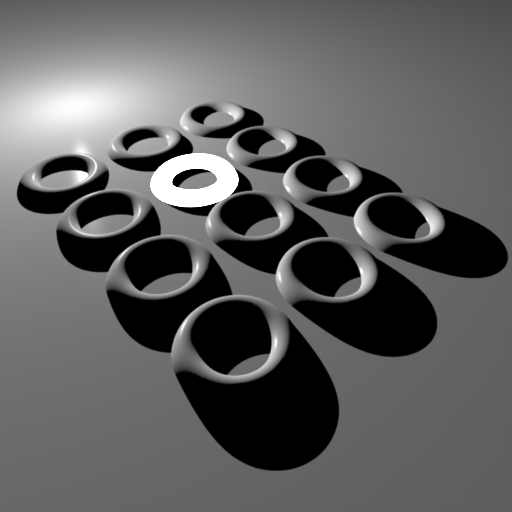
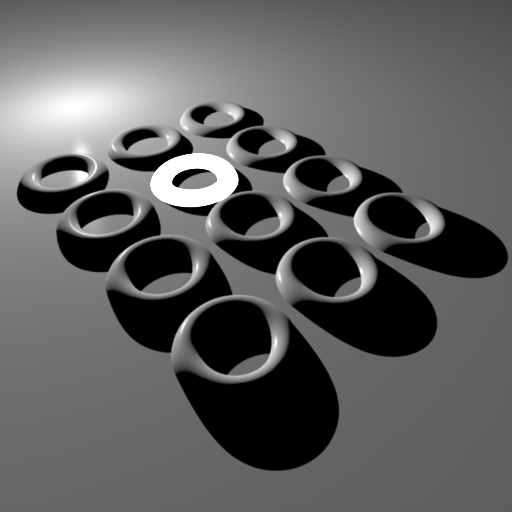
Scenes containing very bright lighting and/or strong emissive materials can be very hard to antialias. The reason has to do with sample filtering: say a pixel was rendered with 64 samples. If most of these samples are mid-gray (0.5, 0.5, 0.5) but there is a single sample that is extremely bright (100.0, 100.0, 100.0), that sample will 'dominate' the final pixel color.
|
|
|
|
| Max Subsample Intensity: 128 All the rings are smooth except the self- illuminated one. That part of the image looks as if no antialiasing is enabled. |
4.0 While there is a little bit of improvement, the self- illuminating ring still shows aliasing artifacts! |
1.0 The self-illuminating ring now renders smoothly. |
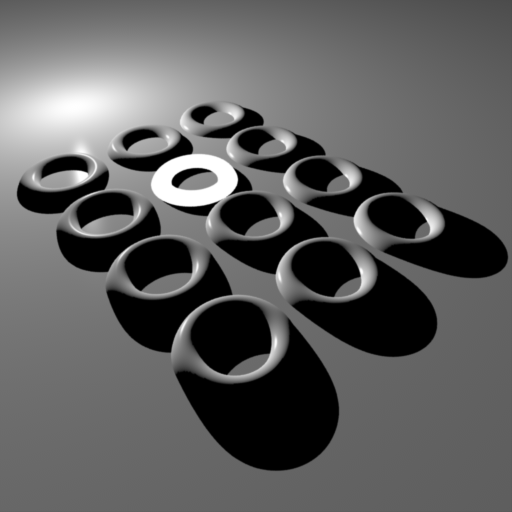
There are a couple of important drawbacks to using 'Max Subsample Intensity':
- If you are generating an HDR image, bright pixels will be clamped to that value. If you were hoping to apply bloom effects as a post-process that could limit your ability to do so.
- Clamping the per-sample values means that "light energy" is lost. The effect is especially apparent with high antialiasing settings (i.e. many samples per pixel). The lost energy appears as a darkening effect, especially in a blurry effect like Depth-Of-Field.
The only current solution for both cases is raising the 'Max Subsample Intensity' which, unfortunately, will re-introduce harsh edges on strongly illuminated objects.
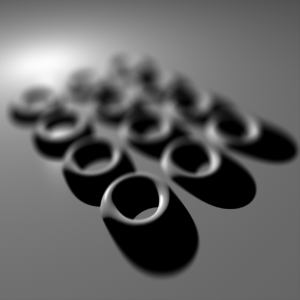
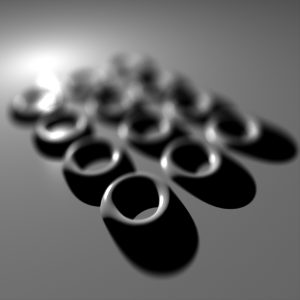
The images below demonstrate the "energy loss" with an aggressive 'Max Subsample Intensity' setting.
|
|
|
| Max Subsample Intensity: 1.0 Even though some of the specular highlights are strong, the depth-of-field effect is weak on them. |
4.0 Notice the stronger blurry specular highlights. |